

A headless Debian box is a terminal, right up until someone on the team needs a browser, a PDF viewer, or a graphical tool that doesn’t have a clean CLI equivalent. That’s the moment VNC becomes useful. TigerVNC paired with XFCE on Debian 13 gives you a lightweight remote desktop that fits in roughly 350 MB of RAM per session, starts as a proper systemd service, and tunnels cleanly over SSH so you never expose VNC ports to the public internet.
This guide covers TigerVNC server install, systemd-per-user activation via the tigervncserver@ template unit, XFCE as the desktop session, SSH tunneling for secure access, TigerVNC’s built-in TLS security types, and a multi-user setup where two people get independent sessions on displays :1 and :2. Everything was tested end-to-end on Debian 13 (trixie) with TigerVNC 1.15 and XFCE 4.20.
Tested April 2026 | Debian 13.1 (trixie), TigerVNC 1.15.0, XFCE 4.20.1, tigervncserver systemd template unit
Step 1: Set reusable shell variables
Every command below uses shell variables so you change one block and paste the rest as-is. Export them once at the top of your SSH session:
export VNC_USER="vncuser"
export VNC_DISPLAY="1"
export VNC_PASSWORD="Strong26"
export CLIENT_LAN="192.168.1.0/24"
Swap the values for your real VNC username and a strong VNC password, then confirm the variables are set:
echo "VNC user:     ${VNC_USER}"
echo "VNC display:  :${VNC_DISPLAY} (port $((5900 + VNC_DISPLAY)))"
echo "Client LAN:   ${CLIENT_LAN}"
TigerVNC’s classic VncAuth password field is limited to 8 characters. Anything longer gets truncated silently, which means the password you typed and the password the server stores will not match. If you want a longer password, use a modern security type (TLSPlain or X509Plain) with PAM, covered later in this guide. For now, Strong26 is a throwaway VncAuth secret used only inside the SSH tunnel.
Step 2: Prerequisites
A fresh Debian 13 (trixie) install is the target, either on bare metal, a Proxmox guest, or a VPS. For cloud testing a DigitalOcean basic droplet works fine, though an EU-adjacent audience will usually land cheaper on a Hetzner Cloud CPX11 at 4.50 EUR a month with 2 GB RAM, which is comfortable for a single XFCE session. Everything below also works on Debian 12 (bookworm) with minor version-string differences, noted at the end.
You need root or sudo access and SSH already working. If you came from a fresh install, run through the post-install hardening checklist first so SSH keys, unattended-upgrades, and UFW are already in place before you expose additional ports.
Step 3: Install TigerVNC server and XFCE
TigerVNC and XFCE are both in Debian’s main repo, so a single apt install pulls the full stack:
sudo apt update
sudo apt install -y xfce4 xfce4-goodies \
  tigervnc-standalone-server tigervnc-common tigervnc-tools dbus-x11
The installer pulls roughly 450 packages because xfce4-goodies brings along themes, panel plugins, and the full desktop toolchain. On a 2 GB cloud VM it takes about three minutes. Confirm the versions once it finishes:
dpkg -l tigervnc-standalone-server tigervnc-common xfce4 | grep ^iiOn the test VM the output showed TigerVNC 1.15 and XFCE 4.20, which is the current stable combo on Debian 13:
ii  tigervnc-common            1.15.0+dfsg-2 amd64  Virtual network computing; Common software needed by servers
ii  tigervnc-standalone-server 1.15.0+dfsg-2 amd64  Standalone virtual network computing server
ii  xfce4                      4.20.1        all    Meta-package for the Xfce Lightweight Desktop Environment
If you prefer a different lightweight desktop, XFCE on Debian stands in for MATE or LXQt with a one-line swap later in the xstartup. Stick with XFCE for this guide because it has the cleanest defaults under dbus-launch inside a VNC session.
Step 4: Create the VNC user and set the VNC password
Running VNC under your regular Unix login is fine on a desktop, but on a shared server a dedicated account keeps the XFCE profile clean and makes the systemd unit trivial. Create the user:
sudo useradd -m -s /bin/bash "${VNC_USER}"
echo "${VNC_USER}:ChangeMe#Strong2026" | sudo chpasswd
The Unix login password above is separate from the VNC password. They serve different purposes: the Unix password authenticates SSH, and the VNC password authenticates the VNC protocol. Set the VNC password next, as the new user:
sudo -u "${VNC_USER}" mkdir -p "/home/${VNC_USER}/.config/tigervnc"
sudo -u "${VNC_USER}" bash -c 'printf "%s\n%s\nn\n" "$1" "$1" | vncpasswd' _ "${VNC_PASSWORD}"
The n at the end declines the optional view-only password. The command writes /home/vncuser/.config/tigervnc/passwd, a binary password file with mode 0600. Debian 13’s TigerVNC 1.15 moved the default config path from the classic ~/.vnc/ to the XDG-compliant ~/.config/tigervnc/. If you start a session from the old path, you get this error:
vncserver: Could not migrate /home/vncuser/.vnc to /home/vncuser/.config/tigervnc.The fix is to create the XDG directory first (as the command above does) or to manually move any old files across. Both the passwd file and the upcoming config.pl live here.
Step 5: Configure XFCE as the VNC session
When TigerVNC starts a new display, it runs an xstartup script that launches whatever desktop environment you want inside the framebuffer. For XFCE under dbus, write this script into the user’s config directory:
sudo tee "/home/${VNC_USER}/.config/tigervnc/xstartup" >/dev/null <<'XSTARTUP'
#!/bin/sh
unset SESSION_MANAGER
unset DBUS_SESSION_BUS_ADDRESS
export XKL_XMODMAP_DISABLE=1
[ -r $HOME/.Xresources ] && xrdb $HOME/.Xresources
vncconfig -iconic &
dbus-launch --exit-with-session startxfce4
XSTARTUP

sudo chown "${VNC_USER}:${VNC_USER}" "/home/${VNC_USER}/.config/tigervnc/xstartup"
sudo chmod 700 "/home/${VNC_USER}/.config/tigervnc/xstartup"
The heredoc writes the file, then chown and chmod tighten permissions. The dbus-launch --exit-with-session wrapper is what gives XFCE a working D-Bus, without which settings daemons crash and half the taskbar loses its icons. The vncconfig -iconic & line enables clipboard sharing between the client and the remote desktop, which almost nobody configures but everyone wants.
Now write the server-side options into config.pl. This file controls geometry, color depth, listen behavior, and security types. TigerVNC 1.15 reads it as Perl syntax:
sudo tee "/home/${VNC_USER}/.config/tigervnc/config.pl" >/dev/null <<'CONFIG'
$geometry = "1280x800";
$depth = 24;
$localhost = "no";
$SecurityTypes = "VncAuth,TLSVnc";
1;
CONFIG

sudo chown "${VNC_USER}:${VNC_USER}" "/home/${VNC_USER}/.config/tigervnc/config.pl"
The $localhost = "no" line tells TigerVNC to listen on all interfaces. For a pure SSH-tunnel setup you can leave it at the default yes, which restricts the server to loopback, and that is the more secure default. Keep no here if you intend to reach the server directly on your private LAN with TLS enabled, which is a common home-lab pattern.
Step 6: Enable the systemd per-user VNC service
TigerVNC ships a systemd template unit on Debian, [email protected], that handles PAM session setup, Xauthority wiring, and forking automatically. You map a user to a display number via /etc/tigervnc/vncserver.users and let systemd take it from there.
echo ":${VNC_DISPLAY}=${VNC_USER}" | sudo tee -a /etc/tigervnc/vncserver.users
sudo systemctl daemon-reload
sudo systemctl enable --now "tigervncserver@:${VNC_DISPLAY}.service"
The :1=vncuser line is the mapping. The template unit reads it to know which Unix user owns display :1. Verify the service came up cleanly:
sudo systemctl status "tigervncserver@:${VNC_DISPLAY}.service" --no-pagerOn the test VM the output showed:
● tigervncserver@:1.service - Remote desktop service (VNC)
     Loaded: loaded (/usr/lib/systemd/system/[email protected]; enabled; preset: enabled)
     Active: active (running) since Sat 2026-04-18 20:59:01 EAT; 10s ago
    Process: 39500 ExecStart=/usr/libexec/tigervncsession-start :1 (code=exited, status=0/SUCCESS)
   Main PID: 39507 (tigervncsession)
      Tasks: 0 (limit: 4640)
     Memory: 1.2M (peak: 2.1M)
Confirm it is listening on the right port:
ss -tln | grep "$((5900 + VNC_DISPLAY))"
sudo -u "${VNC_USER}" vncserver -list
You should see display :1 with an associated PID and port 5901 in both ss and vncserver -list:
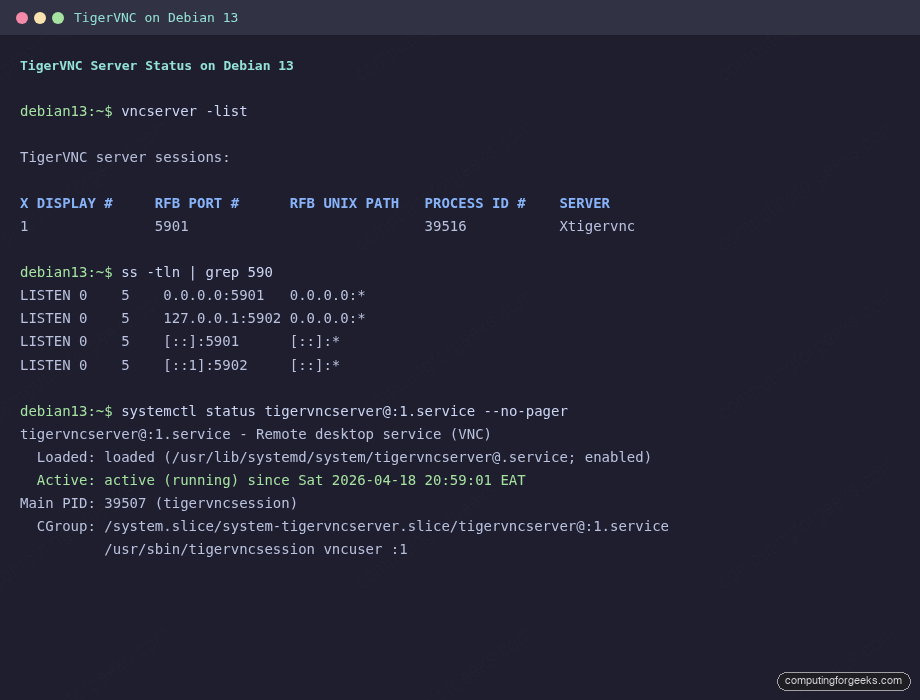
If the service fails to start, the common causes are a missing ~/.config/tigervnc/passwd, a non-executable xstartup, or the user mapping was added to vncserver.users but systemctl daemon-reload was skipped. Check the session log at /home/${VNC_USER}/.config/tigervnc/*.log for the actual error.
Step 7: Open the firewall for trusted clients
Debian 13 uses nftables as its native packet filter, but most operators still run ufw on top for the readable syntax. Scope the VNC port to your trusted subnet only, never open it to Anywhere:
sudo ufw allow from "${CLIENT_LAN}" to any port "$((5900 + VNC_DISPLAY))" proto tcp
sudo ufw status numbered | grep -E '5901|5902'
On the test VM the rule landed cleanly:
[10] 5901/tcp ALLOW IN 192.168.1.0/24If you prefer pure nftables without UFW, the equivalent rule is:
sudo nft add rule inet filter input ip saddr 192.168.1.0/24 tcp dport 5901 acceptFor a full UFW reference applied to other services, the common UFW firewall commands cheatsheet covers rate-limiting, application profiles, and before/after rules that pair well with a VNC server.
Step 8: Connect from your laptop over an SSH tunnel
This is the section competitors usually skip, and it is the single biggest security win you get from setting VNC up properly. Raw VNC on an internet-facing port is a brute-force magnet and, for the classic VncAuth security type, transmits the display framebuffer in cleartext. An SSH tunnel solves both problems at once: OpenSSH does the authentication and encryption, VNC runs only on loopback, and the public attack surface stays at port 22.
From your laptop, open the tunnel:
ssh -L 5901:localhost:5901 vncuser@SERVER_IPReplace SERVER_IP with the address of your Debian box. The -L 5901:localhost:5901 flag creates a local listener on port 5901 that forwards through the SSH connection to port 5901 on the remote machine’s loopback. Leave the SSH session open.
In a second terminal (or via the TigerVNC viewer GUI) connect the viewer to localhost:5901:
xtigervncviewer localhost:5901TigerVNC viewer ships in the tigervnc-viewer package on Debian and Ubuntu, tigervnc on Arch, and Homebrew’s tiger-vnc formula on macOS. Windows users can grab the Win64 installer from the TigerVNC releases page. Remmina on Linux works equally well and is handy if you already use it for RDP and SSH, though it defaults to the GTK-VNC backend, which lacks TigerVNC’s extended security types.
If you have never set up SSH key auth, the SSH key authentication and hardening guide walks through the key generation, authorized_keys deployment, and PasswordAuthentication shutoff. Same technique applies to Debian.
For teams that want to skip the SSH tunnel hassle entirely, Tailscale builds a WireGuard mesh between all your devices so the Debian box and your laptop share a private IP range no matter where either one is physically located. Point the TigerVNC viewer at the Tailscale address and you get an encrypted VNC connection without port-forwarding or firewall changes. The mesh approach scales cleanly to a whole team and avoids everyone needing SSH accounts on the VNC host.
Step 9: Enable TigerVNC’s built-in TLS security types
If you cannot always use SSH or Tailscale, TigerVNC can secure the wire protocol itself via TLS. Four relevant security types ship in TigerVNC 1.15:
VncAuth: classic 8-character password, no encryption. Safe only inside an SSH tunnel or VPN.TLSVnc: TLS encryption with an auto-generated self-signed cert plus the classic VNC password. Encrypted, but clients see a cert warning.X509Vnc: TLS encryption with your own CA-signed cert. No client warning, still uses the VNC password.TLSPlain/X509Plain: TLS plus PAM (Unix username + password). Lets you skip the 8-char VncAuth limit entirely.
The $SecurityTypes line in config.pl is a comma-separated allowlist. The server offers all listed types and the client picks the strongest one it supports. To prefer TLS with fallback to the classic password:
sudo sed -i 's/^\$SecurityTypes.*/\$SecurityTypes = "TLSVnc,VncAuth";/' \
  "/home/${VNC_USER}/.config/tigervnc/config.pl"
sudo systemctl restart "tigervncserver@:${VNC_DISPLAY}.service"
sudo -u "${VNC_USER}" ls -la "/home/${VNC_USER}/.config/tigervnc/"
TigerVNC auto-generates the self-signed X.509 cert and key the first time the server starts with a TLS security type enabled. The cert lands in ~/.config/tigervnc/${HOSTNAME}-SrvCert.pem with a 6-year validity. Connect with the TigerVNC viewer and the session upgrades to TLS automatically; you’ll see a one-time fingerprint confirmation prompt. For production, replace the self-signed pair with a Let’s Encrypt-issued cert and point $X509Cert and $X509Key in config.pl at the PEM paths.
Step 10: Add a second user on a separate display
The tigervncserver@ template unit scales to any number of concurrent sessions. Each user gets their own display number, their own XFCE profile, and their own TCP port. To add a second user:
sudo useradd -m -s /bin/bash vncuser2
echo "vncuser2:ChangeMe#Different2026" | sudo chpasswd
sudo -u vncuser2 mkdir -p /home/vncuser2/.config/tigervnc
sudo -u vncuser2 bash -c 'printf "%s\n%s\nn\n" "$1" "$1" | vncpasswd' _ "Strong27"
sudo -u vncuser2 cp /home/vncuser/.config/tigervnc/xstartup  /home/vncuser2/.config/tigervnc/xstartup
sudo -u vncuser2 cp /home/vncuser/.config/tigervnc/config.pl /home/vncuser2/.config/tigervnc/config.pl
sudo chmod 700 /home/vncuser2/.config/tigervnc/xstartup
Append the display mapping and enable the second service:
echo ':2=vncuser2' | sudo tee -a /etc/tigervnc/vncserver.users
sudo ufw allow from "${CLIENT_LAN}" to any port 5902 proto tcp
sudo systemctl enable --now tigervncserver@:2.service
sudo systemctl is-active tigervncserver@:1.service tigervncserver@:2.service
Both services should report active. Verify with ss that both ports are listening:
ss -tln | grep -E '5901|5902'The second user reaches their desktop with a separate SSH tunnel on port 5902:
ssh -L 5902:localhost:5902 vncuser2@SERVER_IP
# Then point the viewer at localhost:5902
If you manage several users on one host, keep a password manager entry for the VNC passwords so they don’t drift. 1Password handles the 8-character VncAuth ceiling cleanly with a dedicated password generator rule, and the team vault gives you audit trail on who last rotated each one.
Troubleshooting
Three specific failures showed up during testing on Debian 13. All three are easy to fix once you know where to look.
“Could not migrate /home/user/.vnc to /home/user/.config/tigervnc”
TigerVNC 1.15 auto-migrates the legacy ~/.vnc/ directory to the XDG path the first time vncserver runs, but the migration fails if the parent ~/.config/ does not exist yet, or if ~/.config/tigervnc/ already has a file the migration would overwrite. Create the XDG directory manually and move the files across:
sudo -u "${VNC_USER}" mkdir -p "/home/${VNC_USER}/.config/tigervnc"
sudo -u "${VNC_USER}" mv "/home/${VNC_USER}/.vnc/passwd"   "/home/${VNC_USER}/.config/tigervnc/" 2>/dev/null
sudo -u "${VNC_USER}" mv "/home/${VNC_USER}/.vnc/xstartup" "/home/${VNC_USER}/.config/tigervnc/" 2>/dev/null
sudo -u "${VNC_USER}" rmdir "/home/${VNC_USER}/.vnc" 2>/dev/null || true
Restart the systemd unit after moving the files and the server comes up cleanly.
“Password must be at least 6 characters” / “Password should not be greater than 8 characters”
The classic VNC wire protocol fixes the password at 8 characters. vncpasswd rejects anything shorter than 6 and silently truncates anything longer than 8, which means the password you typed and the one stored differ. If you need a real password with length and complexity, switch the security type to TLSPlain or X509Plain so authentication goes through PAM against the Unix password:
$SecurityTypes = "X509Plain,TLSPlain,VncAuth";
$PlainUsers = "vncuser,vncuser2";
Drop that into config.pl and restart the service. The TigerVNC viewer prompts for a Unix username and password instead of a VNC password, which removes the 8-character limit entirely.
tigervncserver@:N.service starts then immediately deactivates
If systemctl status tigervncserver@:1 shows status inactive (dead) with a log line tigervncserver exited with status=1, the usual cause is a missing XDG directory for that user (see the first troubleshooting entry), a broken xstartup with a CRLF line ending, or a password file that was created under the wrong ownership. Check all three:
sudo ls -la "/home/${VNC_USER}/.config/tigervnc/"
file "/home/${VNC_USER}/.config/tigervnc/xstartup"
sudo tail -30 "/home/${VNC_USER}/.config/tigervnc/"*.log
The log file names the missing dependency or the failing Perl config line directly. Fix the flagged issue, then sudo systemctl restart tigervncserver@:1.service.
Notes for Debian 12 and other environments
The flow above works unchanged on Debian 12 (bookworm). Bookworm ships TigerVNC 1.12, which still reads ~/.vnc/ as the primary config path; you can skip the ~/.config/tigervnc/ migration step and place xstartup, passwd, and config.pl directly under ~/.vnc/. The systemd template unit and vncserver.users mapping behave identically.
Ubuntu 24.04 and 26.04 use the same TigerVNC package set with the same systemd template unit. The only real difference is that Ubuntu defaults to GNOME on the desktop edition, so if you install ubuntu-desktop alongside xfce4 you end up with two desktop environments installed; pick one for the startxfce4 line in xstartup and ignore the other.
Prefer RDP over VNC for remote desktop? TigerVNC is a strong choice on RHEL/Rocky too, and the open-source remote desktop tools roundup compares TigerVNC, xRDP, Apache Guacamole, and NoMachine on latency, codec support, and multi-user handling. If you already run Apache Guacamole for browser-based RDP/SSH/VNC, you can keep TigerVNC as the back-end and use Guacamole as the front door.
Need a remote-desktop or jump-host setup done right the first time? The ComputingForGeeks team designs and hardens VNC, RDP, and Guacamole deployments for teams running in AWS, GCP, Hetzner, and on-prem. Reach us at [email protected].






This guide does not work on Kali 2022.4 which is based on Debian.
At the end of Step 3 after running:
Start the VNC server.
vncserver
VNCserver complains that there is no file at $HOME/.Xresources
Also what are you trying to accomplish by advising the reader to run the below commands?
Save and exit the file. Make the file executable as below.
sudo chmod u+x ~/.vnc/xstartup
sudo chmod 777 ~/.vnc/xstartup
This command adds executable rights to the file and then gives the same file FULL rights. Which seems redundant.
For me – on debian 11 – vncserver worked when started from the command line, but when trying to start as service it failed.
The following line was shown in the .vnc log file:
/usr/bin/startxfce4: X server already running on display :1
This was solved by:
sudo apt remove tigervnc-standalone-server tigervnc-common
sudo apt install tightvncserver
sudo systemctl start [email protected]
Thanks for the comment. We’ve added installation of
tightvncserverpackage.Solved my by changing last line of ~/.vnc/xstartup:
dbus-launch startxfce4
My background VNC service starts and runs for ~30 seconds, then crashes.
× [email protected] – Start TightVNC server at startup
Loaded: loaded (/etc/systemd/system/[email protected]; enabled; preset: enabled)
Active: failed (Result: timeout) since Thu 2023-12-14 10:06:09 UTC; 2min 22s ago
Process: 958 ExecStartPre=/usr/bin/vncserver -kill :1 > /dev/null 2>&1 (code=exited, status=1/FAILURE)
Process: 1643 ExecStart=/usr/bin/vncserver -depth 24 -geometry 1280×800 :1 (code=exited, status=0/SUCCESS)
CPU: 8.716s
This is the output I’m getting
What’s the output of
journalctl -b -f -u [email protected]vncserver[1714]: Use xtigervncviewer -SecurityTypes VncAuth -passwd /tmp/tigervnc.DdLbVP/passwd :1 to connect to the VNC server.
systemd[1]: [email protected]: Can’t open PID file /home/developer/.vnc/localhost:1.pid (yet?) after start: No such file or dire
gnome-session-c[1799]: cannot open display: :1
gnome-session-c[1800]: cannot open display: :1
gnome-session[1790]: gnome-session-binary[1790]: WARNING: software acceleration check failed: Child process exited with code 1
gnome-session-binary[1790]: WARNING: software acceleration check failed: Child process exited with code 1
gnome-session-f[1801]: Cannot open display:
systemd[1]: [email protected]: start operation timed out. Terminating.
systemd[1]: [email protected]: Failed with result ‘timeout’.
systemd[1]: Failed to start [email protected] – Start TightVNC server at startup.
gnome-session-c[1799]: cannot open display: :1
gnome-session-c[1800]: cannot open display: :1
gnome-session[1790]: gnome-session-binary[1790]: WARNING: software acceleration check failed: Child process exited with code 1
gnome-session-binary[1790]: WARNING: software acceleration check failed: Child process exited with code 1
gnome-session-f[1801]: Cannot open display:
systemd[1]: [email protected]: start operation timed out. Terminating.
systemd[1]: [email protected]: Failed with result ‘timeout’.
systemd[1]: Failed to start [email protected] – Start TightVNC server at startup.
dbus-daemon[2130]: [session uid=1001 pid=2128] Successfully activated service ‘org.gtk.vfs.Metadata’
systemd[1]: [email protected]: start operation timed out. Terminating.
chromium[3433]: g_task_return_error: assertion ‘error != NULL’ failed
gnome-session[2126]: gnome-session-binary[2126]: WARNING: Lost name on bus: org.gnome.SessionManager
gnome-session-binary[2126]: WARNING: Lost name on bus: org.gnome.SessionManager
chromium.desktop[3433]: [3433:3465:1215/083212.528674:FATAL:bus.cc(1246)] D-Bus connection was disconnected. Aborting.
tracker-miner-fs-3.desktop[2770]: OK
systemd[1]: [email protected]: Failed with result ‘timeout’.
systemd[1]: Failed to start [email protected] – Start TightVNC server at startup.
systemd[1]: [email protected]: Consumed 14.599s CPU time.
I think this log is more relevant
One thing to note:
If you want to connect outside of localhost, need to change ~/.vnc/config:
localhost=no
Great tutorial!