

Many times, people find themselves in situations where they need to run Linux applications on their phones. This could be because phones are more portable and affordable or maybe one has lost their laptops and need to attend to do some tasks.
This guide aims to help you install and run Linux on Android Devices using Andronix app. The Andronix app developed by Prakhar Shukla and Anurag Verma started as an idea when they were riding from workout back in 2019. The idea was then converted into an app that helped one install Linux on an Android device. However, during their first release, there were several bugs, the app was ugly with outdated versions. They later made several improvements to build an appealing application that now helps many people around the world.
The amazing feature about Andronix is that it is completely Ad-free with all the Un-modded distros and you can use them for free as much as you want. The moded OS is paid but very pocket friendly, considering the fact that it is a lifetime purchase with unlimited installs on devices.
The supported Linux OS are:
Un-Modded OS
- Debian
- Arch
- Ubuntu
- Manjaro
- Alpine
- Void
- Kali
- Fedora
Modded OS
- Ubuntu XFCE
- Debian XFCE
- Ubuntu KDE
- Manjaro XFCE
The supported desktop environments are:
- LXDE
- LXQT
- XFCE
This guide will walk you through how to run Linux on Android Devices using the Andronix app.
1. Install Andronix app on Android
The latest Andronix app version can be installed from Playstore.

You can as well download the APK file from the Andronix app Github release page. After it’s downloaded, install the application by clicking on the APK file.
Once installed, Andronix app should appear on the App Menu.

2. Install Linux on Android Devices using Andronix app
When launched, the application will start with the below page.

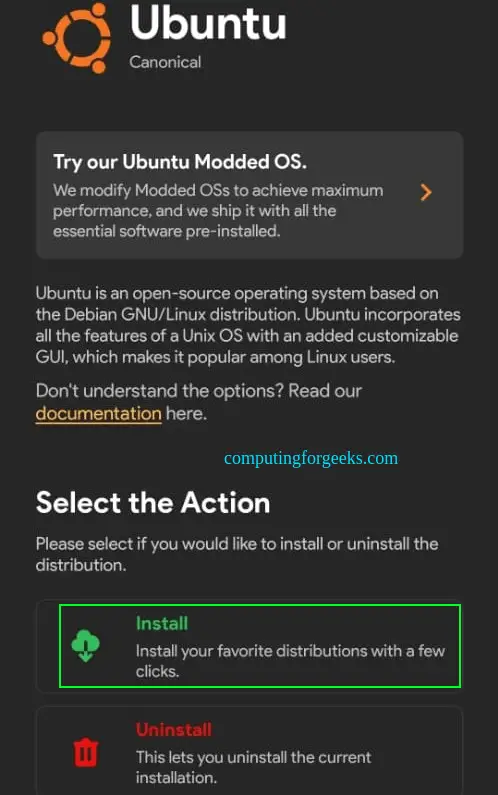
This page includes both Modded and un-modded Linux distributions. For the purpose of this guide, I will install Ubuntu un-modded Linux. Click on the Linux distribution and proceed as below.

Install the un-modded Ubuntu OS by clicking proceed. Select the desired Ubuntu version.

Once selected, click install
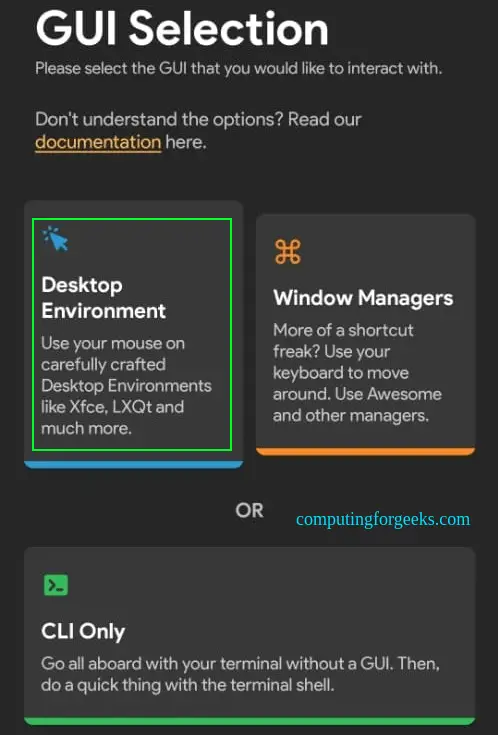
Select if you want to install the OS with a Desktop environment, Window managers, or the Command-line only. For this guide, I will go for the Desktop environment.
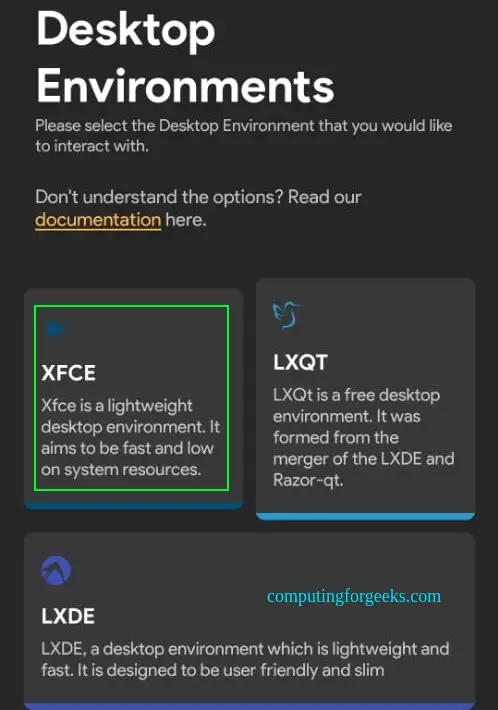
Select the preferred desktop environment(XFCE)
Install Termux, which will enable you to execute terminal commands. This application can be downloaded from the official Termux page, in case you install it from Playstore, it may fail to work since it doesn’t contain the latest versions.
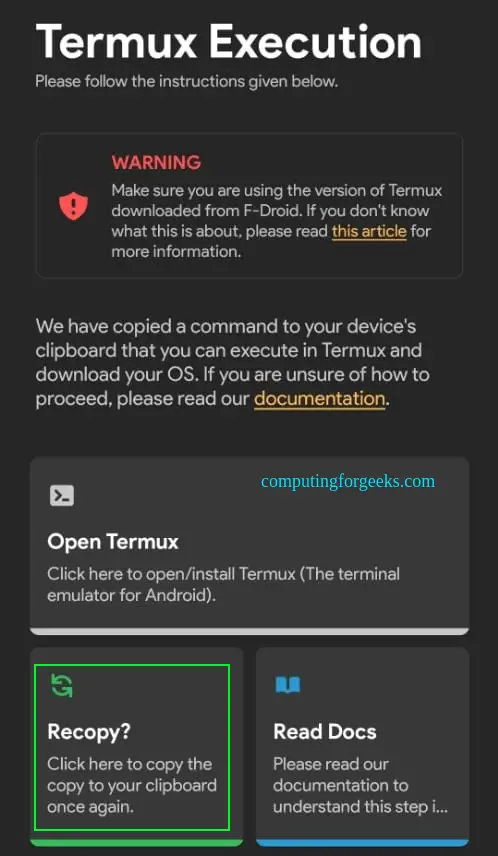
Once installed, go back to the installation and proceed to install your Linux. Recopy the command, open termux, paste, and run the command
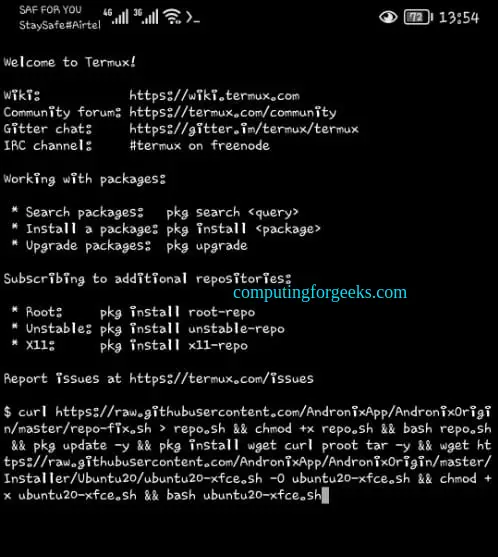
Press Enter to initiate the installation.
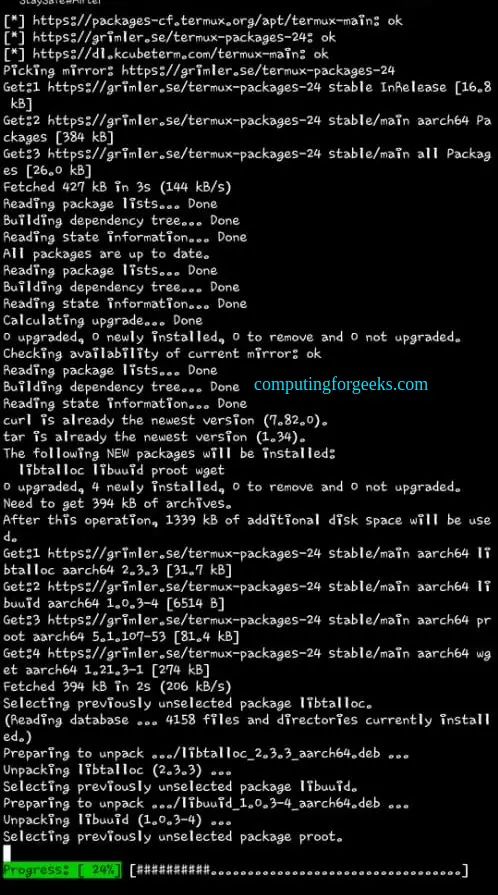
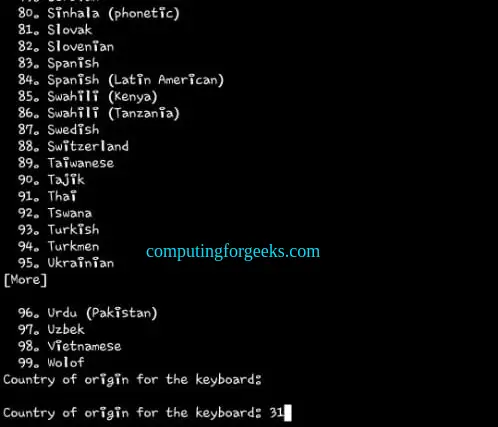
During the installation, you will be required several configurations such as the Timezone, language, and Keyboard as below:
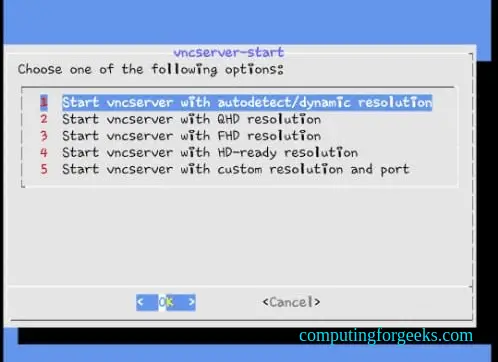
SIt back and relax as you wait for the installation to complete. Set the VNC password to be used to access the machine. You also need to set the VNC resolution.
Once set, you will proceed and verify the installation.
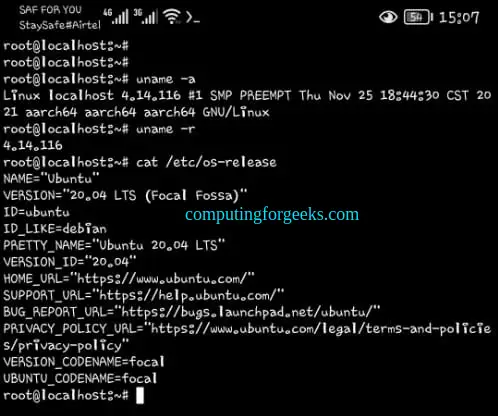
3. Connect to Linux on Android using VNC Client
A VNC client like RealVNC allows you to access the desktop of the installed machine. On the VNC viewer, add the connection with the IP as localhost:1:
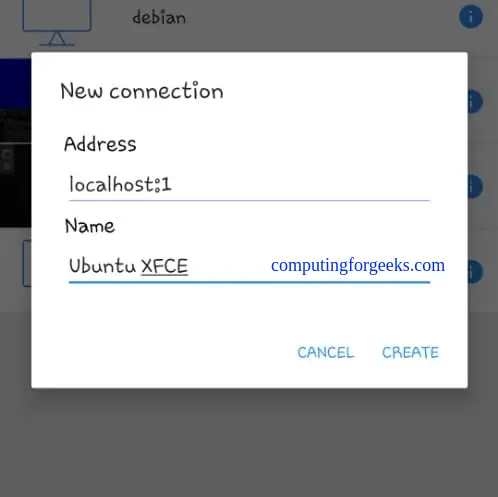
With the connection created, you can now adjust the picture quality to high
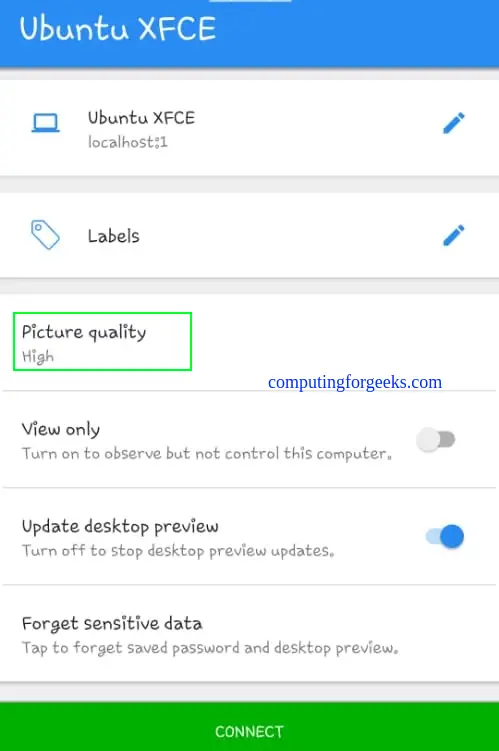
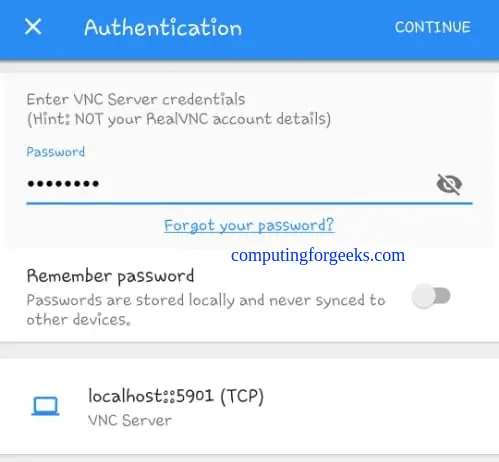
Now connect to the machine, and provide the VNC password set.
On a successful connection, you should see the Ubuntu XFCE desktop below.
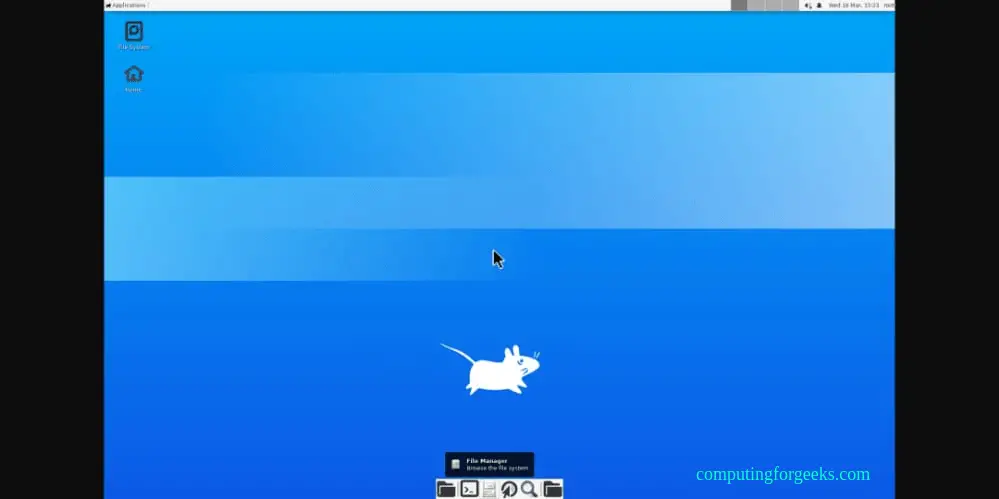
After use and you need to close the system, run the command below on termux.
vncserver-stopKill the service in port 1.
Now VNC will be unavailable at this time. To start VNC again, run the command:
vncserver-startType 1 to activate the VNC server. Now you can connect to the VNC server using the VNC client and view the desktop again.
Voila!
You have successfully installed Linux on your Android device using the Andronix app. Now you can perform tasks just like you would execute on your Linux laptop/desktop. I hope this was significant.
See more:

You made this so simple.
Thanks
Hello friends. Help me, please. Termux stops where has to download Rootfs.