

Managing PostgreSQL from the command line works fine for quick queries, but once you’re juggling multiple databases, inspecting table structures, or running backups across servers, a graphical tool saves real time. pgAdmin 4 is the go-to web interface for PostgreSQL administration, and it runs well on both Debian 13 (Trixie) and Debian 12 (Bookworm).
This guide walks through the full setup: adding the official repository, installing pgAdmin 4 in web mode, and putting Nginx with SSL in front of Apache so the interface is production-ready. If you need PostgreSQL itself first, follow our Install PostgreSQL on Debian guide before continuing here.
Tested March 2026 | Debian 13.4 / 12.5, pgAdmin 4 v9.13, PostgreSQL 17.9 / 15.16, Apache 2.4, Nginx
Prerequisites
- Debian 13 (Trixie) or Debian 12 (Bookworm) server
- PostgreSQL installed and running (installation guide)
- Root or sudo access
- A domain name pointed to your server (for SSL with Let’s Encrypt)
Add the pgAdmin Repository
The pgAdmin team maintains their own APT repository with the latest releases. The modern approach uses a signed keyring file rather than the deprecated apt-key method.
Install the prerequisite packages and import the repository signing key:
sudo apt install -y curl ca-certificates gnupg
curl -fsS https://www.pgadmin.org/static/packages_pgadmin_org.pub | sudo gpg --dearmor -o /usr/share/keyrings/pgadmin-keyring.gpg
Now add the repository. The $(lsb_release -cs) command resolves to trixie on Debian 13 or bookworm on Debian 12, so the same command works on both releases:
echo "deb [signed-by=/usr/share/keyrings/pgadmin-keyring.gpg] https://ftp.postgresql.org/pub/pgadmin/pgadmin4/apt/$(lsb_release -cs) pgadmin4 main" | sudo tee /etc/apt/sources.list.d/pgadmin4.listUpdate the package index to pull metadata from the new repository:
sudo apt updateInstall pgAdmin 4
The repository provides three package options depending on your use case:
- pgadmin4-web – Web interface only (recommended for servers)
- pgadmin4-desktop – Desktop application only
- pgadmin4 – Both web and desktop
For a headless server, the web-only package is the right choice:
sudo apt install -y pgadmin4-webConfirm the installed version:
dpkg -l | grep pgadmin4The output should show both the web and server components at version 9.13:
ii  pgadmin4-server                  9.13    amd64   pgAdmin4 server package
ii  pgadmin4-web                     9.13    amd64   pgAdmin4 web package
Configure pgAdmin 4 Web Mode
pgAdmin ships with a setup script that configures Apache HTTPD and mod_wsgi to serve the web interface. By passing environment variables and the --yes flag, the entire setup runs non-interactively:
sudo PGADMIN_SETUP_EMAIL='[email protected]' PGADMIN_SETUP_PASSWORD='YourStrongPassword' /usr/pgadmin4/bin/setup-web.sh --yesReplace the email and password with your own credentials. These become the login for the pgAdmin web interface. The script produces output similar to this:
Setting up pgAdmin 4 in web mode on a Debian based platform...
Running in non-interactive mode...
Creating configuration database...
NOTE: Configuring authentication for SERVER mode.

pgAdmin 4 - Application Initialisation
======================================

Creating storage and log directories...
Apache successfully restarted. You can now start using pgAdmin 4 in web mode at http://127.0.0.1/pgadmin4
At this point, pgAdmin 4 is running behind Apache on port 80. For a quick local test you could access http://YOUR_IP/pgadmin4, but production deployments need HTTPS.
Set Up Nginx Reverse Proxy with SSL
The standard production pattern is to run Nginx on ports 80/443 with a valid SSL certificate, proxying requests back to Apache on a local-only port. This keeps pgAdmin behind HTTPS without modifying the Apache/WSGI configuration that setup-web.sh created.
Move Apache to Port 8080
Since Nginx will own ports 80 and 443, Apache needs to move off port 80. These three commands handle it:
sudo sed -i 's/Listen 80/Listen 8080/' /etc/apache2/ports.conf
sudo sed -i 's/<VirtualHost \*:80>/<VirtualHost *:8080>/' /etc/apache2/sites-enabled/000-default.conf
sudo systemctl restart apache2
Verify Apache is now listening on 8080:
ss -tlnp | grep 8080Install Nginx and Certbot
Install both packages. For more details on Nginx configuration, see our Nginx installation guide for Debian and Ubuntu.
sudo apt install -y nginx certbotStop Nginx temporarily so certbot can bind to port 80 for the HTTP-01 challenge:
sudo systemctl stop nginxObtain the certificate (replace pgadmin.example.com with your actual domain):
sudo certbot certonly --standalone -d pgadmin.example.com --non-interactive --agree-tos -m [email protected]Certbot stores the certificate files under /etc/letsencrypt/live/pgadmin.example.com/.
Create the Nginx Configuration
Create the server block file:
sudo vi /etc/nginx/sites-available/pgadminAdd the following configuration. On Debian 13 (Nginx 1.26+), use the http2 on; directive as shown. On Debian 12 (Nginx 1.22), replace the listen 443 ssl; and http2 on; lines with a single listen 443 ssl http2; line instead:
server {
    listen 80;
    server_name pgadmin.example.com;
    return 301 https://$host$request_uri;
}

server {
    listen 443 ssl;
    http2 on;
    server_name pgadmin.example.com;

    ssl_certificate /etc/letsencrypt/live/pgadmin.example.com/fullchain.pem;
    ssl_certificate_key /etc/letsencrypt/live/pgadmin.example.com/privkey.pem;
    ssl_protocols TLSv1.2 TLSv1.3;

    location /pgadmin4/ {
        proxy_pass http://127.0.0.1:8080/pgadmin4/;
        proxy_set_header Host $host;
        proxy_set_header X-Real-IP $remote_addr;
        proxy_set_header X-Forwarded-For $proxy_add_x_forwarded_for;
        proxy_set_header X-Forwarded-Proto $scheme;
        proxy_set_header X-Script-Name /pgadmin4;
    }

    location / {
        return 301 https://$host/pgadmin4/;
    }
}
Enable the site and remove the default configuration:
sudo ln -sf /etc/nginx/sites-available/pgadmin /etc/nginx/sites-enabled/
sudo rm -f /etc/nginx/sites-enabled/default
Test the configuration for syntax errors, then start Nginx:
sudo nginx -tYou should see the following confirmation:
nginx: the configuration file /etc/nginx/nginx.conf syntax is ok
nginx: configuration file /etc/nginx/nginx.conf test is successful
Restart Nginx to apply the new configuration:
sudo systemctl restart nginx
sudo systemctl enable nginx
Confirm certificate auto-renewal is working:
sudo certbot renew --dry-runConfigure the Firewall
Open the required ports with ufw. If ufw is not installed, install it first. Make sure to allow SSH before enabling the firewall, or you’ll lock yourself out:
sudo apt install -y ufw
sudo ufw allow ssh
sudo ufw allow 80/tcp
sudo ufw allow 443/tcp
sudo ufw enable
Check the active rules:
sudo ufw statusThe output should show ports 22, 80, and 443 allowed from anywhere:
Status: active

To                         Action      From
--                         ------      ----
22/tcp                     ALLOW       Anywhere
80/tcp                     ALLOW       Anywhere
443/tcp                    ALLOW       Anywhere
22/tcp (v6)                ALLOW       Anywhere (v6)
80/tcp (v6)                ALLOW       Anywhere (v6)
443/tcp (v6)               ALLOW       Anywhere (v6)
Access the pgAdmin Web Interface
Open https://pgadmin.example.com/pgadmin4/ in your browser. You’ll see the pgAdmin login page where you enter the email address and password configured during the setup-web.sh step.

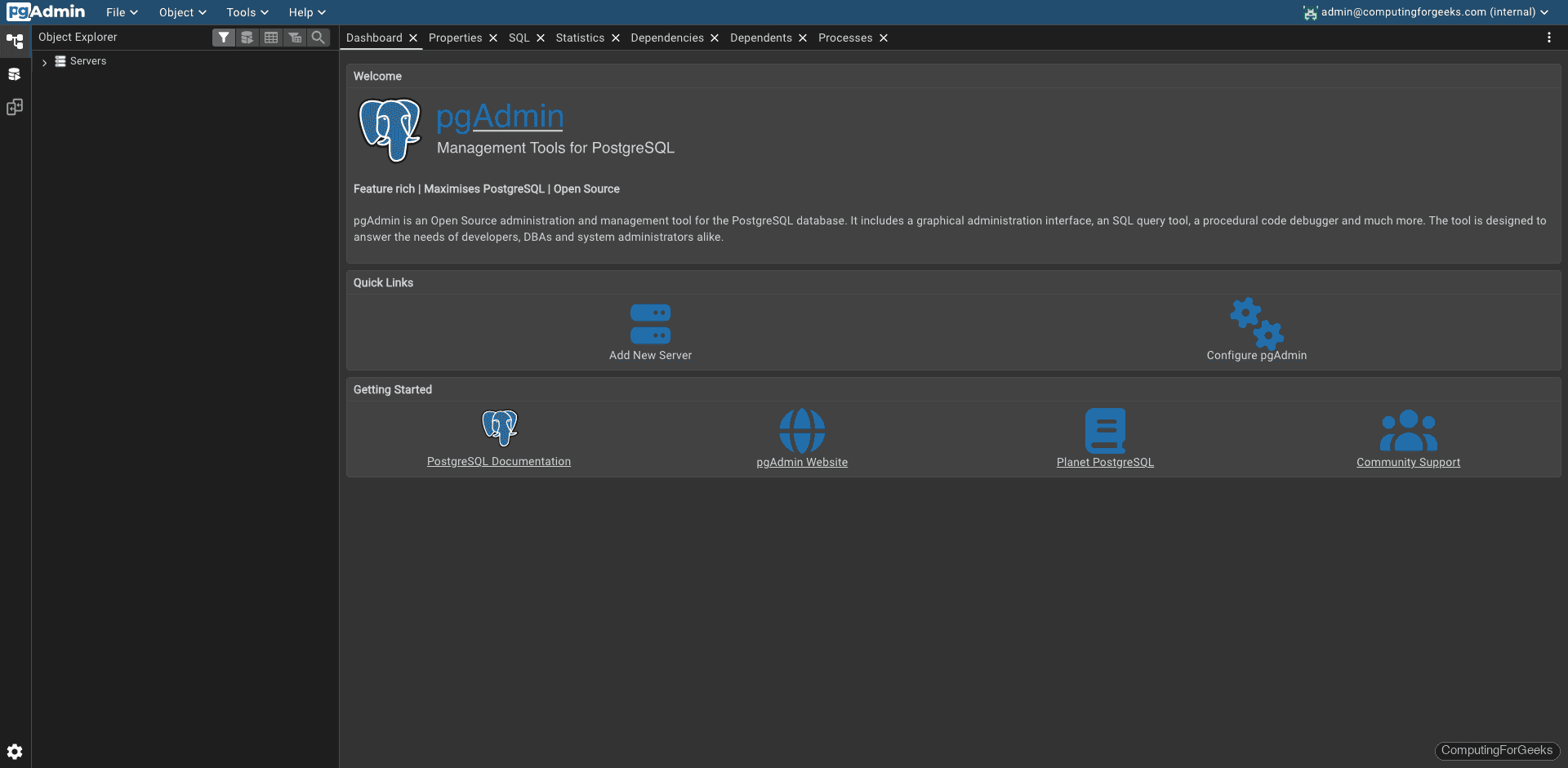
After logging in, the main dashboard shows server activity, active sessions, and transaction throughput:
Connect to a PostgreSQL Server
From the dashboard, click Add New Server to register a PostgreSQL instance. On the General tab, enter a descriptive name (for example, “Local PostgreSQL”). Switch to the Connection tab and fill in:
- Host:
127.0.0.1 - Port:
5432 - Username:
postgres - Password: your postgres user password
Click Save to connect.
If PostgreSQL is using peer authentication (the default on Debian), you’ll need to set a password for the postgres user and adjust pg_hba.conf to allow password-based connections. Set the password first:
sudo -u postgres psql -c "ALTER USER postgres PASSWORD 'YourSecurePassword';"Then edit the PostgreSQL client authentication file. On Debian 13 with PostgreSQL 17, the path is /etc/postgresql/17/main/pg_hba.conf. On Debian 12 with PostgreSQL 15, it’s /etc/postgresql/15/main/pg_hba.conf. Change the local connection method from peer to scram-sha-256 for the postgres user, then restart PostgreSQL:
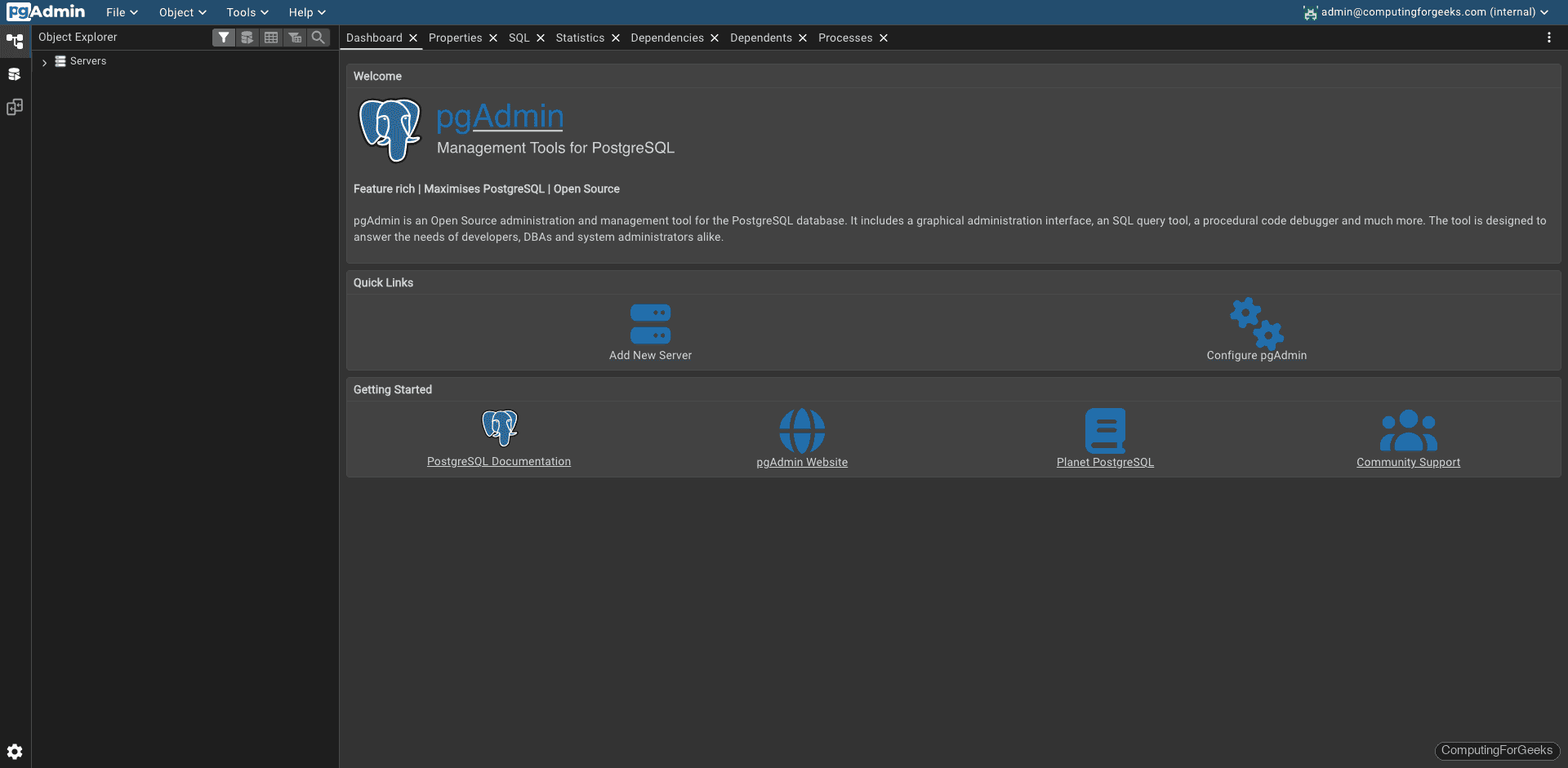
sudo systemctl restart postgresqlOnce connected, the browser tree on the left shows your databases, schemas, tables, and other objects:
Debian 13 vs Debian 12 Differences
The installation steps are identical on both releases. The key differences come down to the default PostgreSQL version and Nginx HTTP/2 syntax:
| Item | Debian 13 (Trixie) | Debian 12 (Bookworm) |
|---|---|---|
| pgAdmin version | 9.13 | 9.13 |
| Repository codename | trixie | bookworm |
| Default PostgreSQL | 17.9 | 15.16 |
| Nginx HTTP/2 syntax | http2 on; (separate directive) | listen 443 ssl http2; (combined) |
| Apache version | 2.4 | 2.4 |
| Install commands | Identical | Identical |
| setup-web.sh behavior | Identical | Identical |
| pg_hba.conf path | /etc/postgresql/17/main/ | /etc/postgresql/15/main/ |

Thanks for this tutorial
Thanks and always welcome!
The first curl command to ‘…/packages_pgadmin_org’ led to a 404 response, could be temporary I suppose
never mind the previous comment, I realized it was a copy and paste error sorry