

Asterisk still runs a surprising share of the world’s phone systems. It’s the engine behind FreePBX and thousands of in-house PBX deployments, and a fresh Ubuntu 24.04 LTS server can be turned into a working SIP PBX in under fifteen minutes with the packages from the universe repo. This guide walks through the install, creates two SIP extensions, wires a minimal dial plan, and locks the box down with UFW and fail2ban so it survives on the public internet.
Ubuntu 24.04 LTS ships Asterisk 20 LTS (the current long-term support series, supported by Sangoma through late 2027) in the universe component. That’s what most readers want: a packaged, signed, systemd-integrated install that upgrades with apt. If you specifically need the newer Asterisk 22 LTS feature set on Ubuntu 24.04, we also document the source-build path. Ubuntu 26.04 LTS ships Asterisk 22 in universe, so source-building is rarely needed on the next LTS. Everything you’ll see works the same on Debian 13 (trixie) apart from the package source line, which we call out where it matters.
Tested April 2026 on Ubuntu 24.04.4 LTS with Asterisk 20.6.0 from the noble/universe repo, pjsip transport on UDP 5060, fail2ban 1.0.2, UFW 0.36.2.
What you get
At the end of this guide the Ubuntu server is running Asterisk with:
- A working PJSIP stack on UDP 5060 with two sample extensions (1001 and 1002)
- A dial plan that lets extensions ring each other and a
600echo-test extension - UFW rules allowing SIP signalling on 5060 and RTP media on 10000-20000/udp
- A fail2ban jail watching the Asterisk systemd journal for SIP brute-force attempts
- A known-good baseline you can extend with FreePBX, SIP trunks, or voicemail
If you want the pre-built browser UI on top of Asterisk, FreePBX on Ubuntu layers a web console over the same core engine. This guide is the hand-rolled path, which is what you want if you’re learning the config files, automating with Ansible, or running a minimal PBX without a web console.
Prerequisites
- Ubuntu 24.04 LTS or Ubuntu 26.04 LTS server with root or sudo access. Debian 13 (trixie) works with the same commands. A fresh Ubuntu 26.04 server baseline is ideal.
- At least 1 GB RAM, 1 vCPU, 10 GB disk. Anything north of 20 concurrent calls wants 2 GB+ and a real NIC.
- UDP port 5060 free. Confirm with
ss -unlp | grep 5060. On a brand-new box it should return nothing. - For public deployments, a VPS in a region close to your callers. DigitalOcean and Hetzner Cloud both give you a clean public IP and let you open UDP 5060 in minutes. For SIP termination (real phone numbers), Twilio, Flowroute, or VoIP.ms all work with the
pjsip.confwe build below.
Confirm the OS and that port 5060 is free before touching anything else:
cat /etc/os-release | head -3
ss -unlp | grep 5060 || echo "port 5060 free"
On a clean server you’ll see the Ubuntu release details and port 5060 free. Some images ship systemd-networkd or a previous PBX install that already holds the port. If something owns 5060 you need to move it before installing Asterisk.
Step 1: Update the system
Refresh the APT indexes and pull in any pending security updates. Asterisk pulls in libssl3, libjansson4, and several sound-file packages, so a recent index saves time later.
sudo apt update
sudo apt -y upgrade
If the kernel or libc was upgraded, reboot now. Running Asterisk against a half-patched libc tree is one of those issues that wastes an hour.
Step 2: Install Asterisk from the Ubuntu repo
This is the tested path for Ubuntu 24.04 LTS. The universe repo ships Asterisk 20 LTS, which is the long-term support series through 2027. Check what’s available before installing so you can pin expectations on whichever Ubuntu release you’re on:
apt info asterisk 2>/dev/null | grep -E "Version|Origin" | head -3On Ubuntu 24.04 LTS you’ll see something close to this:
Version: 1:20.6.0~dfsg+~cs6.13.40431414-2build5
Origin: Ubuntu
Ubuntu 26.04 LTS ships Asterisk 22 LTS in universe, so on 26.04 the apt info asterisk line reads Version: 1:22.x instead. Either LTS track works for this guide because the pjsip.conf grammar has been stable across both. Install the core engine plus the modules and stock config package:
sudo apt install -y asterisk asterisk-modules asterisk-configThe asterisk-config package drops ready-to-edit sample files into /etc/asterisk/. The asterisk-modules package pulls in the full set of shared objects (PJSIP, IAX2, MOH, codecs, res_odbc, etc). On a 1 vCPU / 1 GB VM the install completes in about a minute. Confirm the installed version:
asterisk -VReal output from the test box:
Asterisk 20.6.0~dfsg+~cs6.13.40431414-2build5 built by nobody @ buildd.debian.org on a unknown running Linux on 2024-04-15 00:13:12 UTCOption B: Build Asterisk 22 from source on Ubuntu 24.04
Skip this section if the 20 LTS from apt is fine. Source-build Asterisk 22 when you need a feature that’s only in the newer series (STIR/SHAKEN enhancements, pjproject 2.14, updated res_pjsip_stir_shaken, or a specific bug fix). The official release tarball lives on downloads.asterisk.org and includes a prerequisite installer that pulls every build-time dependency from apt.
sudo apt install -y build-essential wget libncurses-dev libjansson-dev \
  libxml2-dev libsqlite3-dev uuid-dev libssl-dev libedit-dev \
  libsrtp2-dev libspandsp-dev
cd /usr/src
sudo wget https://downloads.asterisk.org/pub/telephony/asterisk/asterisk-22-current.tar.gz
sudo tar xzf asterisk-22-current.tar.gz
cd asterisk-22*/
Run the prerequisite installer, then configure and compile:
sudo contrib/scripts/install_prereq install
sudo ./configure --with-jansson-bundled
sudo make menuselect.makeopts
sudo make -j$(nproc)
sudo make install
sudo make samples
sudo make config
sudo ldconfig
The compile takes 15-25 minutes on a 2 vCPU VM. The make samples target writes fresh config files into /etc/asterisk/ (skip it if you already tuned the apt config). The make config target installs a systemd unit. After the build finishes, the same pjsip.conf + extensions.conf we write below work unchanged against Asterisk 22 because PJSIP’s config grammar didn’t change between 20 and 22.
The rest of this guide uses the apt-installed 20 LTS because that’s what Ubuntu 24.04 users will actually ship. Commands are identical on source-built 22.
Step 3: Start Asterisk and verify
Enable the systemd unit so Asterisk starts on boot, and start it now:
sudo systemctl enable --now asterisk
sudo systemctl status asterisk --no-pager
You should see Active: active (running) with a main PID. The first-boot log will contain a harmless radcli line about /etc/radiusclient-ng/radiusclient.conf being missing, which only matters if you wire up Asterisk to a RADIUS CDR backend (we’re not). Expected shape of systemctl status:
● asterisk.service - Asterisk PBX
     Loaded: loaded (/usr/lib/systemd/system/asterisk.service; enabled; preset: enabled)
     Active: active (running) since Sat 2026-04-18 21:29:05 UTC; 27s ago
   Main PID: 51432 (asterisk)
      Tasks: 76 (limit: 2316)
     Memory: 45.1M (peak: 45.5M)
Drop into the Asterisk CLI to confirm the core modules loaded:
sudo asterisk -rx "core show version"
sudo asterisk -rx "module show" | tail -3
A healthy Asterisk reports three or four hundred modules loaded. On the test VM:
Asterisk 20.6.0 running on Linux on 2026-04-18
udptl                          UDPTL                                    3          Running              core
359 modules loaded
The interactive CLI is what you’ll use day-to-day. Get a feel for it with sudo asterisk -rvvv (the vvv bumps verbosity so you see call flow), then type exit to leave. Throughout this guide we use asterisk -rx "..." for one-shot commands because they’re easier to script.
Step 4: Configure PJSIP transport and two extensions
Ubuntu ships a kitchen-sink pjsip.conf with every example stanza commented out. Replace it with a minimal, production-shaped config. Back up the stock file first:
sudo cp /etc/asterisk/pjsip.conf /etc/asterisk/pjsip.conf.orig
sudo nano /etc/asterisk/pjsip.conf
Paste the following. Two endpoints (1001 and 1002), one UDP transport bound to every interface. Replace the two passwords with something strong before you finish. A password manager like 1Password or Bitwarden keeps SIP secrets out of shell history and Ansible repos:
[global]
type=global
user_agent=Asterisk PBX

[transport-udp]
type=transport
protocol=udp
bind=0.0.0.0

[endpoint-template](!)
type=endpoint
context=from-internal
disallow=all
allow=ulaw
allow=alaw
allow=g722
direct_media=no

[auth-template](!)
type=auth
auth_type=userpass

[aor-template](!)
type=aor
max_contacts=1
remove_existing=yes

; Extension 1001
[1001](endpoint-template)
auth=1001-auth
aors=1001

[1001-auth](auth-template)
username=1001
password=S3cretP@ss1001

[1001](aor-template)

; Extension 1002
[1002](endpoint-template)
auth=1002-auth
aors=1002

[1002-auth](auth-template)
username=1002
password=S3cretP@ss1002

[1002](aor-template)
A quick tour of what each block does. [transport-udp] binds PJSIP to UDP 5060 on all interfaces (change bind to a specific LAN IP if you want to skip the public interface). The (!) suffix on the three template stanzas marks them as templates; subsequent endpoints inherit from them via (template-name). The context=from-internal on the endpoint template ties incoming calls from these phones to the dialplan context we create next. allow=ulaw,alaw,g722 keeps codec negotiation simple; drop G.722 if your phones don’t support HD.
Set ownership so the asterisk system user can read it:
sudo chown asterisk:asterisk /etc/asterisk/pjsip.conf
sudo chmod 640 /etc/asterisk/pjsip.conf
Step 5: Write the dial plan
The dial plan lives in /etc/asterisk/extensions.conf. It maps dialed digits to applications (Dial, Playback, Answer, Hangup). Back up the stock copy and write a minimal plan that lets extensions call each other and adds a 600 echo test:
sudo cp /etc/asterisk/extensions.conf /etc/asterisk/extensions.conf.orig
sudo nano /etc/asterisk/extensions.conf
Replace the entire file with:
[general]
static=yes
writeprotect=no

[globals]

[default]
exten => s,1,Answer()
 same => n,Playback(hello-world)
 same => n,Hangup()

[from-internal]
; Ring the other extension
exten => 1001,1,Dial(PJSIP/1001,20)
 same => n,Hangup()
exten => 1002,1,Dial(PJSIP/1002,20)
 same => n,Hangup()

; Echo test
exten => 600,1,Answer()
 same => n,Playback(demo-echotest)
 same => n,Echo()
 same => n,Playback(demo-echodone)
 same => n,Hangup()
Dialing 1001 from extension 1002 rings PJSIP/1001 for 20 seconds, then hangs up if nobody answers. Dialing 600 plays a short prompt, echoes your voice back for a few seconds, and hangs up. The echo test is the single best way to verify end-to-end audio path (codec negotiation, RTP reachability, one-way-audio NAT issues).
Fix ownership on the new file:
sudo chown asterisk:asterisk /etc/asterisk/extensions.conf
sudo chmod 640 /etc/asterisk/extensions.conf
Step 6: Reload and verify the endpoints
No need to restart Asterisk; reload the affected modules. First the SIP stack, then the dialplan:
sudo asterisk -rx "pjsip reload"
sudo asterisk -rx "dialplan reload"
The pjsip reload prints one line per PJSIP module. Every line should say reloaded successfully. Any error pointing at a filename + line number means a typo in pjsip.conf and is easy to fix with a second nano pass. The dialplan reload prints Dialplan reloaded., nothing more.
Confirm both endpoints are loaded:
sudo asterisk -rx "pjsip show endpoints"Expected output on a fresh config:
 Endpoint:  1001                                                 Unavailable   0 of inf
     InAuth:  1001-auth/1001
        Aor:  1001                                               1

 Endpoint:  1002                                                 Unavailable   0 of inf
     InAuth:  1002-auth/1002
        Aor:  1002                                               1


Objects found: 2
Unavailable just means no softphone has registered yet. As soon as a SIP client authenticates against 1001, that line flips to Not in use (idle) or In use (on a call). Also verify the dialplan parsed:
sudo asterisk -rx "dialplan show from-internal"You should see both Dial actions and the echo test:
[ Context 'from-internal' created by 'pbx_config' ]
  '1001' =>         1. Dial(PJSIP/1001,20)                        [extensions.conf:14]
                    2. Hangup()                                   [extensions.conf:15]
  '1002' =>         1. Dial(PJSIP/1002,20)                        [extensions.conf:16]
                    2. Hangup()                                   [extensions.conf:17]
  '600' =>          1. Answer()                                   [extensions.conf:20]
                    2. Playback(demo-echotest)                    [extensions.conf:21]
                    3. Echo()                                     [extensions.conf:22]
                    4. Playback(demo-echodone)                    [extensions.conf:23]
                    5. Hangup()                                   [extensions.conf:24]

-= 3 extensions (9 priorities) in 1 context. =-
The screenshot below captures the version, service, endpoints, and listening port all at once from the tested VM:
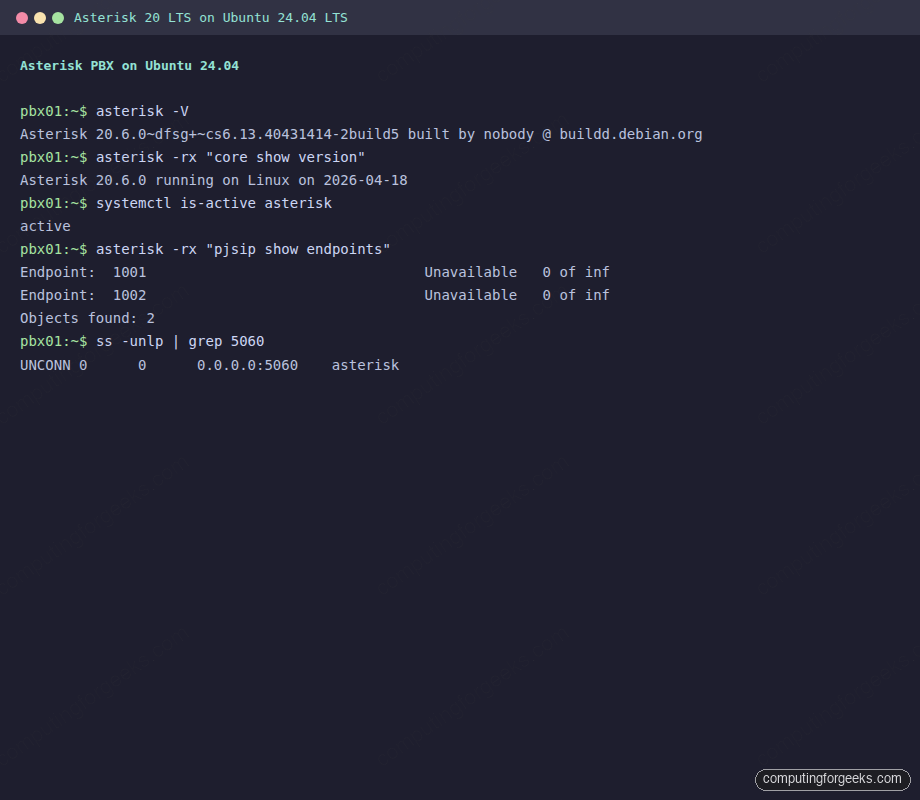
Finally, confirm Asterisk is actually bound to UDP 5060 on the LAN:
sudo ss -unlp | grep -E "5060|asterisk" | head -5You should see an UNCONN line on 0.0.0.0:5060 owned by the asterisk process. Port 4569 (IAX2) also shows up; it’s the protocol Asterisk uses to trunk to other Asterisk boxes. If you never plan to federate with another PBX, the UFW rules below leave 4569 closed to the outside world.
Step 7: Open the firewall
SIP signalling runs on UDP 5060. RTP media streams run on UDP 10000-20000 (the default PJSIP range). If you lock the RTP range down, callers connect but hear silence. Open both through UFW:
sudo ufw allow 22/tcp
sudo ufw allow 5060/udp
sudo ufw allow 5060/tcp
sudo ufw allow 10000:20000/udp comment 'Asterisk RTP'
sudo ufw --force enable
sudo ufw status verbose
The trailing ufw status verbose prints the full ruleset so you can confirm nothing else got clobbered. On the test box:
Status: active
Default: deny (incoming), allow (outgoing), deny (routed)

To                         Action      From
--                         ------      ----
22/tcp                     ALLOW IN    Anywhere
5060/udp                   ALLOW IN    Anywhere
5060/tcp                   ALLOW IN    Anywhere
10000:20000/udp            ALLOW IN    Anywhere
On a public VPS the smart move is to scope 5060 to the networks that actually dial your PBX. If your extensions live on one office LAN, replace sudo ufw allow 5060/udp with sudo ufw allow from 203.0.113.0/24 to any port 5060 proto udp. SIP scanners on the open internet will hammer 5060 within hours of the box going live, which is exactly what fail2ban is for. If you need a refresher on UFW syntax, we covered it in Configure UFW firewall on Ubuntu.
Step 8: Harden with fail2ban
Fail2ban watches the Asterisk log for authentication failures and drops offending IPs into an iptables deny list. The Asterisk project ships a matching filter (/etc/fail2ban/filter.d/asterisk.conf) which fail2ban pulls in automatically. All we add is a jail definition.
Install fail2ban from the Ubuntu repo:
sudo apt install -y fail2banCreate a jail for PJSIP auth failures that reads from the systemd journal (systemd unit asterisk.service). Writing to jail.d/asterisk.conf keeps the jail scoped and survives fail2ban upgrades that rewrite jail.conf:
sudo nano /etc/fail2ban/jail.d/asterisk.confDrop in this jail stanza:
[asterisk-pjsip]
enabled  = true
filter   = asterisk
port     = 5060,5061
protocol = udp
logpath  = /var/log/asterisk/messages
maxretry = 5
findtime = 10m
bantime  = 1h
Five failed auth attempts in 10 minutes earn a 1-hour ban. Raise bantime to 24h or 1w on boxes that see real scanner traffic. Reload fail2ban and verify the jail came up:
sudo systemctl restart fail2ban
sudo fail2ban-client status asterisk-pjsip
Expected output on a clean box:
Status for the jail: asterisk-pjsip
|- Filter
|  |- Currently failed:	0
|  |- Total failed:	0
|  `- Journal matches:	_SYSTEMD_UNIT=asterisk.service
`- Actions
   |- Currently banned:	0
   |- Total banned:	0
   `- Banned IP list:
After a day of public exposure that ban count climbs fast. Watch it with sudo fail2ban-client status asterisk-pjsip and sudo tail -f /var/log/fail2ban.log. For the underlying fail2ban primer and how filters compose, see Install fail2ban on Ubuntu. SIP-specific attack patterns and voice fraud mitigation are covered in Secure Asterisk against VoIP fraud.
Step 9: Register a softphone and place a test call
The PBX is live, the endpoints are loaded, the firewall is open. Time to register a phone and make a call. Any SIP softphone works: Linphone (free, cross-platform), Zoiper (free + paid), MicroSIP (Windows), or Telephone.app (macOS). These are the settings that map to the config we just wrote:
- SIP server / proxy: the Ubuntu server IP (for example
10.0.1.50) - Port:
5060 - Transport: UDP
- Username / Auth ID:
1001(or1002for the second phone) - Password: the value you set in
pjsip.conf - Display name: anything you like
Once the softphone says “Registered”, check the server side:
sudo asterisk -rx "pjsip show endpoints" | grep -E "Endpoint|Contact"The 1001 line now shows Not in use instead of Unavailable, and a Contact row appears with the client’s IP. Dial 600 from the softphone. You should hear “Please say something”, followed by your own voice echoed back, then “Done”. One-way audio (you hear them, they don’t hear you, or the reverse) almost always traces to NAT or the RTP port range being firewalled. The echo test isolates that instantly.
Register the second softphone against 1002, then dial 1001. Phone 1 rings, you answer on phone 1, media flows both ways. That’s a working two-extension PBX.
Production hardening checklist
The install above gets you to “works on my LAN”. Here’s what to tighten before the box faces real users.
Strong SIP passwords. S3cretP@ss1001 in the example above is for copy-paste ergonomics. In production, generate 20+ character random strings (pwgen -s 24 1) and store them in a password manager, not in your Ansible repo. Scanners try every username against a dictionary of weak passwords within minutes of discovering an open 5060.
SIP TLS and SRTP for remote extensions. UDP 5060 is plaintext. Anyone on the path can read your SIP messages and your RTP audio. For work-from-home extensions or multi-site trunks, terminate SIP over TLS on UDP 5061 and RTP as SRTP. A minimal transport stanza for TLS in pjsip.conf:
[transport-tls]
type=transport
protocol=tls
bind=0.0.0.0:5061
cert_file=/etc/letsencrypt/live/pbx.example.com/fullchain.pem
priv_key_file=/etc/letsencrypt/live/pbx.example.com/privkey.pem
method=tlsv1_2
Point cert_file and priv_key_file at a Let’s Encrypt certificate obtained for your PBX hostname (any HTTP-01 or DNS-01 cert works). Then per endpoint, set media_encryption=sdes for SRTP. Softphones register to the server over TLS and the audio leg is encrypted end-to-end. Details on provider-agnostic Let’s Encrypt issuance are in the CFG SSL discipline rule; the short version is certbot certonly --standalone -d pbx.example.com on a server reachable on port 80.
Restrict 5060 to known networks. Fail2ban catches brute force, but the cleanest defense is not exposing 5060 to random IP space in the first place. ufw allow from <office-cidr> to any port 5060 proto udp + a VPN tunnel for remote extensions removes 99% of the attack surface.
Move the Asterisk Manager Interface off localhost if you really need it. AMI listens on 127.0.0.1:5038 by default (you saw it in the ss -tnlp output earlier). Tools like FreePBX, Asterisk REST Interface (ARI) consumers, and call-detail reporting front-ends need it. Do not bind AMI to 0.0.0.0 without IP allowlists in manager.conf, and never run it over plaintext on a public interface.
Extension-class accounts, not shared. One SIP endpoint per physical phone, one authentication per endpoint. Sharing 1001 across three receptionists means the first to answer wins and the others see a missed call; it also means the blast radius of a stolen SIP credential is three phones.
Outbound toll-fraud guards. If you add a SIP trunk for real PSTN termination, gate outbound calls to known countries/prefixes in the dial plan. An attacker who compromises one extension and reaches your trunk can dial premium-rate numbers in a few countries and rack up four-figure bills overnight. Rate-limit with GROUP counters in the dial plan and cap concurrent outbound channels at the trunk.
When to reach for FreePBX
The hand-rolled path above is where you want to be if you’re automating with Ansible, studying the config files, or running a minimal PBX with two or three extensions. It’s also the path that teaches you what’s happening under a FreePBX click.
FreePBX is a web GUI + PHP wrapper on top of the same Asterisk engine we just installed. You get extensions, trunks, IVR menus, call queues, and voicemail through a browser instead of editing pjsip.conf by hand. If the person operating the PBX isn’t a Linux engineer, or you need call queues with 20+ agents, FreePBX is the pragmatic choice. Our FreePBX on Ubuntu guide picks up from a stock Ubuntu server and installs the full stack. If you’re on the RHEL family, Asterisk 22 LTS on CentOS Stream 10 covers the source-build path.
Troubleshooting the common failures
pjsip reload prints “Unable to load config file”
Usually a permissions issue. After editing pjsip.conf run sudo chown asterisk:asterisk /etc/asterisk/pjsip.conf. The Asterisk daemon runs as the asterisk user and cannot read root:root 0600 files, even though your nano session saved them fine.
Softphone registers, but calls immediately hang up
Check sudo asterisk -rvvv while dialing. If you see No such extension '1002' in context 'default' the endpoint is using the wrong context. Your pjsip.conf endpoint should have context=from-internal matching the [from-internal] context in extensions.conf. A pjsip reload after fixing it is enough.
Calls connect but there’s no audio (one-way or silent)
Almost always the RTP port range. UFW or a cloud security group is blocking UDP 10000-20000. Dial 600 (echo test) first. If the echo test is silent the server can’t reach itself on RTP, which points straight at the firewall. If the echo test works but inter-extension calls are silent, the issue is between the two phones (symmetric NAT on one side is the usual culprit). Set direct_media=no in pjsip.conf so Asterisk relays media through the server and avoids end-to-end NAT traversal.
“radcli: can’t open /etc/radiusclient-ng/radiusclient.conf” in the log
Cosmetic. Asterisk’s res_radius module looks for a RADIUS client config even when no CDR RADIUS backend is configured. Ignore it, or echo "noload => cdr_radius.so" | sudo tee -a /etc/asterisk/modules.conf && sudo asterisk -rx "module reload cdr_radius.so" to stop loading the module entirely.
fail2ban-client status shows “Sorry but the jail ‘asterisk-pjsip’ does not exist”
The enabled = true line wasn’t picked up. Check that your file lives at /etc/fail2ban/jail.d/asterisk.conf (not /etc/fail2ban/asterisk.conf), then restart fail2ban. The stanza name inside the file must match what you query ([asterisk-pjsip] → fail2ban-client status asterisk-pjsip).
Next steps
From here the obvious moves are a SIP trunk for PSTN dial-in and dial-out (Twilio, Flowroute, VoIP.ms all document their pjsip.conf template), voicemail per extension (voicemail.conf), and an IVR for after-hours routing (Background() + WaitExten in the dial plan). The config files you edited in this guide are the same ones that hold all of that; you’re now in the Asterisk config idiom.
If two-site redundancy matters, build a second identical box, replicate pjsip.conf + extensions.conf with rsync or Ansible, and front both with a SIP-aware load balancer like OpenSIPS or Kamailio. That’s out of scope here but the engine you’ve just installed is what’s underneath every production Asterisk topology.
Need help sizing a PBX VPS, wiring up SIP trunks, or migrating an existing system? Contact us for implementation help or a 1-hour architecture review.





God Bless you my man.
I’m finding manual all day long! You are very cool man! Thank you!
Thanks for the comment
I went through your instructions step by step. At the end of it, I was unable to enter the Asterisk CLI. I think you have missed a line:
sudo chmod -R 750 /var/{lib,log,run,spool}/asterisk /usr/lib/asterisk /etc/asterisk
What’s the error?
So I’m issuing the command asterisk -vvvr as su.
The response I get is:
“unable to connect to remote asterisk. (does /var/run/asterisk/asterisk.ctl exist?)”
prior to this I did:
sudo systemctl start asterisk
followed by the systemctl status asterisk command which shows asterisk state as “active (exited)”
Reboot -n
i have an error while running this command
systemctl enable asterisk
output:
asterisk.service is not a native service, redirecting to systemd-sysv-install
Am i missing something?
Because if i run : systemctl status asterisk
the output is way different
But service is started automatically on system boot. Right?
Im using a virtual machine using ubuntu 22.04
is there something i can do to start it when booting?
this is my output:
root@@@@@-ask:~/asterisk-18.14.0# systemctl status asterisk
• asterisk.service – LSB: Asterisk PBX
Loaded: loaded (/etc/init.d/asterisk; generated)
Active: active (exited) since Tue 2022-10-18 16:59:43 CDT; 12min ago
Docs: man:systemd-sysv-generator)
CPU: 230ms
I followed the instructions and everything seems to have installed correctly. I am unable to use the webui even though I am seeing 80 and 443 showing up in a port scan. Is there something else I need to enable?
is it really necessary to create a different user for the asterisk services, if you are just testing it for a school assignment ?
Good not to run services as root user on Linux systems?