

AnyDesk is the go-to remote desktop for pentesters and sysadmins working with Kali Linux. It’s fast over poor connections, clients exist for every major OS, and the Linux build ships as a proper Debian package with a systemd service. If you run a Kali box in a lab, a cloud VM, or on bare metal and you need to reach its desktop from elsewhere, AnyDesk handles the session without the VPN gymnastics that TeamViewer and Remmina pull on you.
This guide covers installing AnyDesk on Kali Linux from the official AnyDesk apt repository. We cover the repo-based install (recommended, because you get free upgrades with apt upgrade), a standalone .deb fallback for air-gapped hosts, systemd service enablement, pulling the AnyDesk ID you’ll connect to, setting an unattended access password, and tightening the firewall. Same pattern works on Debian 12/13 and Ubuntu 24.04 because Kali is built from the Debian testing/unstable tree and AnyDesk ships one Linux build for all of them.
Tested April 2026 on Debian 13 trixie (kernel 6.12) against the AnyDesk stable apt repo, anydesk 8.0.x. The same steps apply to Kali Linux 2025.x because Kali is Debian-based and AnyDesk ships a single Linux package. Same package installs cleanly on Ubuntu 24.04 LTS and Debian 12 bookworm.
Prerequisites
- A running Kali Linux 2025.x host, or Debian 12/13, or Ubuntu 24.04. Desktop or headless both work; AnyDesk ships a Qt GUI but also runs a daemon you can talk to from a remote client.
- Root or
sudoaccess. Every command below runs as root. - Outbound HTTPS (443/tcp) to
*.net.anydesk.comfor the AnyDesk relay. No port forwards needed unless you want direct LAN connections. - If you’re running Kali on a cloud VM, a host that gives you reliable outbound bandwidth matters more than CPU. We run our lab targets on Hetzner Cloud (EU) for the price-per-bandwidth ratio and on DigitalOcean for the snapshot + reset-root flow.
- Tested on: Debian 13 trixie (kernel 6.12), AnyDesk 8.0.x from the stable apt repo.
Step 1: Set reusable shell variables
Every later command reuses the same admin email and unattended password. Export them once at the top of your SSH session so you can paste the rest of this guide as-is:
export ADMIN_EMAIL="[email protected]"
export ANYDESK_PASS="ChangeMe#Strong2026"
Pick a real password (12+ characters, mixed case, symbols). Confirm the values are set before running anything else:
echo "Email: ${ADMIN_EMAIL}"
echo "Pass:  ${ANYDESK_PASS}"
The variables hold only for the current shell session. If you reconnect or jump into sudo -i, re-export them. For managing the unattended password long term, 1Password or any real password manager beats scribbling it in a notepad.
Step 2: Add the AnyDesk apt repository
AnyDesk publishes a signed Debian repository at deb.anydesk.com. Installing from there keeps you on the latest stable build and auto-updates when you run apt upgrade. First, fetch the repository signing key and drop it into the modern /etc/apt/keyrings location:
sudo mkdir -p /etc/apt/keyrings
wget -qO- https://keys.anydesk.com/repos/DEB-GPG-KEY | sudo gpg --dearmor -o /etc/apt/keyrings/anydesk.gpg
The key is a binary-format keyring, so apt can read it directly. Next, write the repository source file:
echo "deb [signed-by=/etc/apt/keyrings/anydesk.gpg] http://deb.anydesk.com/ all main" | sudo tee /etc/apt/sources.list.d/anydesk-stable.listNote the signed-by= path in the repo definition. That’s what ties the source to the keyring you just installed, avoiding the deprecated apt-key workflow. Refresh the package cache and pull the new metadata:
sudo apt updateYou should see a line confirming AnyDesk’s repo was fetched:
Get:1 http://deb.anydesk.com all InRelease [7,386 B]
Get:2 http://deb.anydesk.com all/main amd64 Packages [612 B]
Get:3 http://deb.anydesk.com all/main i386 Packages [640 B]
If apt update complains about an unverified repo, the keyring install failed. Re-run the wget | gpg --dearmor command and confirm /etc/apt/keyrings/anydesk.gpg exists and is ~1.7 KB.
Step 3: Install AnyDesk from the repo
One command pulls AnyDesk plus every runtime dependency (GTK, Cairo, XCB libraries) via apt:
sudo apt install -y anydeskExpect ~16 MB download and ~42 MB of installed size. The apt front-end resolves the GTK3 and X11 dependency chain automatically. The install also registers the systemd unit and starts the AnyDesk daemon:
Get:1 http://deb.anydesk.com all/main amd64 anydesk amd64 8.0.2 [16.1 MB]
Selecting previously unselected package anydesk.
Preparing to unpack .../anydesk_8.0.2_amd64.deb ...
Unpacking anydesk (8.0.2) ...
Setting up anydesk (8.0.2) ...
Created symlink '/etc/systemd/system/multi-user.target.wants/anydesk.service' → '/etc/systemd/system/anydesk.service'.
If you’re on a headless server without a display, you’ll see a debconf warning about missing TTY. Ignore it. The service still installs cleanly and the AnyDesk daemon runs without a local X session.
Step 4: Verify and enable the service
Check the installed version first:
anydesk --versionYou should see a version string matching the current stable release:
8.0.2Confirm the systemd unit is up and running:
sudo systemctl status anydesk --no-pagerThe service should report active (running):
● anydesk.service - AnyDesk
     Loaded: loaded (/etc/systemd/system/anydesk.service; enabled; preset: enabled)
     Active: active (running) since Sun 2026-04-19 00:03:11 EAT; 7s ago
   Main PID: 104780 (anydesk)
      Tasks: 5 (limit: 4640)
     Memory: 17.4M (peak: 22.4M)
        CPU: 819ms
     CGroup: /system.slice/anydesk.service
             └─104780 /usr/bin/anydesk --service

Apr 19 00:03:11 debian-trixie systemd[1]: Started anydesk.service - AnyDesk.
The install already enables the unit for boot, but make it explicit so you know exactly what state the host is in:
sudo systemctl enable --now anydeskConfirm both the active and enabled state in one line:
systemctl is-active anydesk && systemctl is-enabled anydeskBoth should print active and enabled. If the service isn’t running yet, systemctl start anydesk brings it up without a reboot.
Step 5: Get the AnyDesk ID for remote connections
Every AnyDesk host has a numeric ID the remote client types to initiate a connection. On a headless Kali box you won’t see the ID in a GUI, so pull it from the CLI:
anydesk --get-idYou’ll get a 9-10 digit number:
1111017495Write that down. From any AnyDesk client (Windows, macOS, Linux, iOS, Android), type the number into the “Remote Desk” field, press Connect, and the Kali host prompts for the unattended password (Step 6) or waits for a user on the Kali end to click Accept.
If anydesk --get-id returns nothing, the daemon hasn’t fully registered with the AnyDesk network yet. Wait 10-15 seconds after the service starts and retry. A registered host keeps the same ID across reboots as long as /etc/anydesk/ isn’t wiped.
Screenshot from our test box showing the version, ID, and service state:
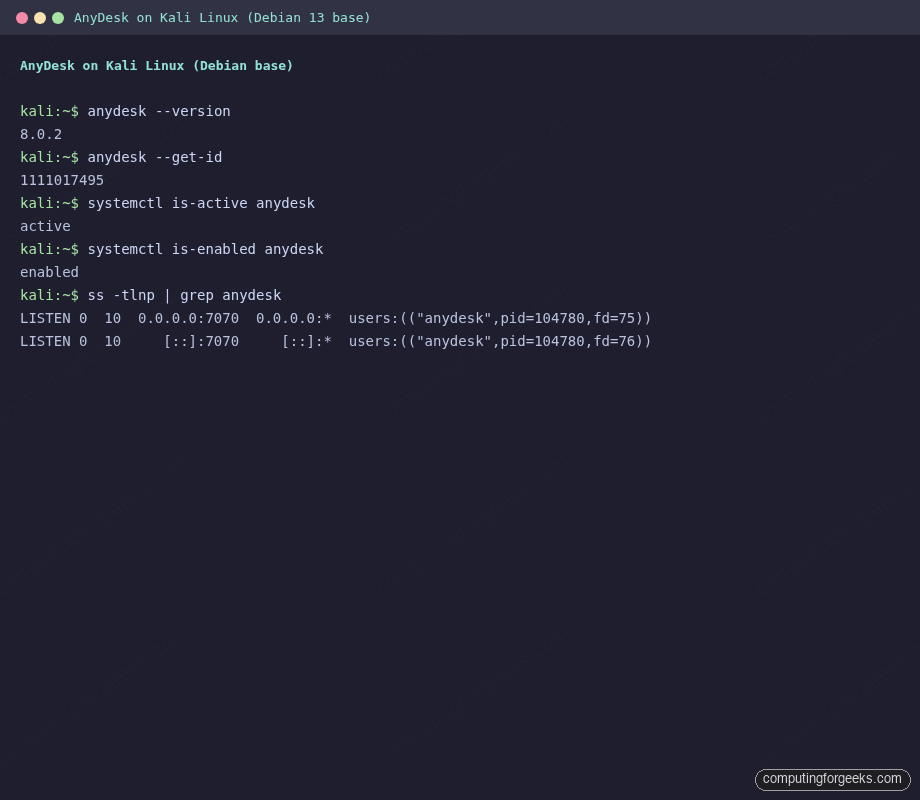
With the daemon up and the ID in hand, the next problem is authentication. By default AnyDesk waits for someone at the Kali end to click Accept on every incoming connection, which defeats the whole point of remote access on a headless or lab box.
Step 6: Set an unattended access password
Without an unattended password, every incoming connection waits for someone to click Accept on the Kali desktop. That’s useless on a remote Kali box you can’t physically reach. Set one now:
echo "${ANYDESK_PASS}" | sudo anydesk --set-passwordThe command prints nothing on success. AnyDesk hashes the value and stores it in /etc/anydesk/service.conf. Verify the file was updated (the hash sits under the ad.anynet.pwd_hash key):
sudo grep -c pwd_hash /etc/anydesk/service.confIf the count is 1, the password is set. From the remote client, connect to the Kali ID, then when prompted enter the password you exported as ${ANYDESK_PASS}. AnyDesk only allows unattended auth when the daemon has a hash on file.
To rotate the password later, re-run echo "newpass" | sudo anydesk --set-password. The new hash replaces the old one immediately.
Step 7: Open the firewall for direct connections
AnyDesk’s relay (the TCP 443 outbound tunnel to net.anydesk.com) works through almost any firewall without config. You only need inbound rules if you want direct LAN connections, which are faster than the relayed path because packets skip AnyDesk’s network. The direct port is TCP 7070.
On Kali with UFW enabled, allow port 7070 only from your trusted LAN, not the whole internet:
sudo ufw allow from 192.168.0.0/16 to any port 7070 proto tcp comment 'AnyDesk direct LAN'If you only need outbound (the relay path), skip the inbound rule entirely, since it’s not required for AnyDesk to work. Confirm:
sudo ufw status | grep 7070Expect to see the rule listed:
7070/tcp                   ALLOW       192.168.0.0/16
7070/tcp (v6)              ALLOW       192.168.0.0/16
For iptables-native setups (no UFW), the equivalent is iptables -A INPUT -p tcp -s 192.168.0.0/16 --dport 7070 -j ACCEPT. Don’t blanket-allow 7070 from any source, because exposing AnyDesk directly to the internet bypasses its relay protections.
Confirm AnyDesk is listening on 7070:
sudo ss -tlnp | grep anydeskOutput shows both IPv4 and IPv6 sockets bound to port 7070:
LISTEN 0  10  0.0.0.0:7070  0.0.0.0:*  users:(("anydesk",pid=104780,fd=75))
LISTEN 0  10     [::]:7070     [::]:*  users:(("anydesk",pid=104780,fd=76))
That covers the apt-based install path end to end. Most Kali boxes can reach deb.anydesk.com without issue, but some lab and pentest environments sit on networks that block third-party repos outright. The next section covers the fallback.
Standalone .deb alternative (no apt repo)
If the Kali host can’t reach deb.anydesk.com (air-gapped, restricted network), grab the standalone .deb from AnyDesk’s direct download page. Find the latest build at anydesk.com/en/downloads/linux or browse the archive at download.anydesk.com/linux, then download and install with apt so dependencies still resolve cleanly:
cd /tmp
wget https://download.anydesk.com/linux/anydesk_8.0.0-1_amd64.deb
sudo apt install -y ./anydesk_8.0.0-1_amd64.deb
Apt resolves the GTK3, Cairo, and X11 dependencies from Kali’s own repos. You end up with the same systemd unit and the same binaries, just without auto-updates. You’ll need to download and reinstall manually when new versions ship. For lab and penetration testing machines that live 2-3 weeks, that’s usually fine. For a long-lived Kali workstation, use the apt repo method in Step 2 instead.
Connect from a remote client
On your laptop (Windows/macOS/Linux), install AnyDesk for that OS and launch it. In the “Enter Remote ID” field, type the ID you pulled in Step 5 (1111017495 on our test host), press Enter, and when prompted type the password from ${ANYDESK_PASS}. The Kali desktop appears in the AnyDesk window within 2-3 seconds on a decent connection.
If you’re connecting to a headless Kali server (no X session), AnyDesk shows a black screen until a display server is running. For lab work, spin up a lightweight XFCE session first with apt install kali-desktop-xfce and start it via startx, VNC, or a display manager. For full-GUI Kali installs, AnyDesk attaches directly to the active X session.
Security hardening for unattended boxes
A Kali box sitting on a public IP running AnyDesk 24/7 is a target. Three changes tighten the default config:
- Rotate the unattended password regularly. Treat it like any other admin credential. Store it in a password manager, not in the article you copy-pasted from.
- Restrict incoming connections in the AnyDesk GUI. Open the AnyDesk window (remote or local), go to Settings → Security, and toggle “Interactive Access” to “Require explicit confirmation” if you’re on a manned Kali desktop. For lab servers, leave it as “Allow always” because no one is there to click Accept.
- Enable two-factor auth on your AnyDesk account. If you use AnyDesk’s address book / team feature, 2FA on the account prevents someone who steals your email from pulling your host list.
For the firewall side, the rule from Step 7 should stay scoped to LAN CIDRs. If you truly need direct internet connections (not going through the AnyDesk relay), put the Kali box behind a WireGuard tunnel rather than opening 7070 to the world.
Uninstall AnyDesk
If you need to remove AnyDesk cleanly (say you’re reimaging the Kali box, or switching to a different remote desktop tool like Remmina), uninstall with apt:
sudo systemctl disable --now anydesk
sudo apt remove --purge -y anydesk
sudo apt autoremove -y
The --purge flag removes /etc/anydesk/ along with the binary. If you want to drop the apt repo too:
sudo rm /etc/apt/sources.list.d/anydesk-stable.list /etc/apt/keyrings/anydesk.gpg
sudo apt update
That leaves the Kali host in its pre-install state with no traces of AnyDesk or its repo metadata.
Troubleshooting
apt update fails with “NO_PUBKEY” or signature errors
The keyring install didn’t land. Verify /etc/apt/keyrings/anydesk.gpg exists and is ~1.7 KB. If it’s missing or zero-byte, re-run the wget | gpg --dearmor command from Step 2. Also check the repo file references the exact path: grep signed-by /etc/apt/sources.list.d/anydesk-stable.list should match the keyring path.
anydesk –get-id returns empty
The daemon hasn’t registered with the AnyDesk relay yet. Check the service is actually up: systemctl is-active anydesk. If active, check outbound 443 isn’t being blocked by a firewall. Run curl -sI https://net.anydesk.com/ and confirm it returns HTTP headers. Wait 15-20 seconds after service start and retry anydesk --get-id.
Connection prompts for password every time despite setting unattended
The password file wasn’t written. Check /etc/anydesk/service.conf contains a pwd_hash line. If not, re-run echo "${ANYDESK_PASS}" | sudo anydesk --set-password and restart the service: sudo systemctl restart anydesk.
Black screen when connecting to headless Kali
AnyDesk attaches to an active X session; if none exists, the client sees a black frame. Install a display environment (apt install kali-desktop-xfce) and start an X session, or use VNC + AnyDesk together where VNC provides the framebuffer.
“Session timeout” on connection
Check that the Kali host’s outbound 443 is reachable: curl -v https://net.anydesk.com/ 2>&1 | head -20. Corporate networks sometimes block AnyDesk’s relay hostnames; ask your network team to allow *.net.anydesk.com or use the direct connection path on 7070 if the client and server are on the same LAN.
Related reading: the Kali Linux install walkthrough covers the base OS setup if you haven’t provisioned the host yet, and Install AnyDesk on Ubuntu mirrors this guide for pure Ubuntu hosts. For Kali + pentest tooling, see Install Metasploit Framework on Kali Linux and Install PostgreSQL 17 on Kali Linux. If you’re evaluating alternatives, the roundup of best open source remote desktop tools covers Remmina, Xrdp, and Apache Guacamole. Wine users may also want the Wine on Kali Linux guide for running Windows-only tools.





Hello, everything went well, but when opening Anydesk I have this message “anydesk: error while loading shared libraries: libpangox-1.0.so.0: cannot open shared object file: No such file or directory”
It works fine on my test.
Hello. Thank you for the tuto, everything went well, but when opening AnyDesk, I have this error message “anydesk: error while loading shared libraries: libpangox-1.0.so.0: cannot open shared object file: No such file or directory”
anydesk: error while loading shared libraries: libpangox-1.0.so.0: cannot open shared object file: No such file or directory
anydesk: error while loading shared libraries: libpangox-1.0.so.0: cannot open shared object file: No such file or directory
use binary version
https://download.anydesk.com/linux/anydesk-6.1.1-amd64.tar.gz
Yes that also works. Only that update can’t be done through apt package manager.
Opening anydesk says:
zsh: IOT instruction anydesk
Could not find solution anywhere.
OS: Kali
Kernel: Linux 5.16.0-kali7-amd64
Architecture: x86-64
Hardware Model: Latitude E5440
Worked perfectly! Thank you guys!!!
Couple of months ago it did work fine. It doesn’t anymore.
This one shows up
error while loading shared libraries: libpangox-1.0.so.0