

Syncthing is an open source continuous file synchronization used to sync files between two or more computers in a network. This guide will cover the installation and usage of Syncthing on Ubuntu 22.04|20.04|18.04.
Below are key features of Syncthing
- It is easy to use through a cli and GUI through Syncthing-GTK
- Its data syncing fully automatic – Low interaction
- Syncthing strives to be safe from data loss – Ensures no corruption on user’s files.
- It is universally available – Runs on both Windows and Linux
Installing Syncthing on Ubuntu
The Syncthing package is available on the official repository which can easily be added by running the following commands on your terminal. Start by installing curl package.
sudo apt install curl apt-transport-httpsOnce curl is installed, import GPG Key for the repository:
curl -s https://syncthing.net/release-key.txt | sudo apt-key add -When GPG Key has been added, create repo content:
echo "deb https://apt.syncthing.net/ syncthing release" | sudo tee /etc/apt/sources.list.d/syncthing.listThen update system and install syncthing package:
sudo apt update
sudo apt install syncthing
Once installed, check version:
$ syncthing --version
syncthing v1.27.3 "Gold Grasshopper" (go1.21.6 linux-amd64) [email protected] 2024-01-15 03:45:19 UTC
Configuring Syncthing on Ubuntu
Now that we have syncthing installed, let’s proceed to the configuration section. Since Ubuntu 18.04+ comes with systemd, we can create systemd unit files to manage syncthing service. Service files for systemd are provided by Syncthing and can be found in etc/linux-systemd
sudo vim /etc/systemd/system/[email protected]Add content below:
[Unit]
Description=Syncthing - Open Source Continuous File Synchronization for %I
Documentation=man:syncthing(1)
After=network.target

[Service]
User=%i
ExecStart=/usr/bin/syncthing -no-browser -gui-address="0.0.0.0:8384" -no-restart -logflags=0
Restart=on-failure
SuccessExitStatus=3 4
RestartForceExitStatus=3 4

[Install]
WantedBy=multi-user.target
You can as well replace 192.168.1.20 with your system IP address then update Systemd service list:
sudo systemctl daemon-reloadThen start syncthing service:
sudo systemctl start syncthing@$USER
sudo systemctl enable syncthing@$USER
You can explicitly specify user name:
MYUSER=""
sudo systemctl start syncthing@${MYUSER} && sudo systemctl enable syncthing@${MYUSER}
Confirm service status:
$ systemctl status syncthing@$USER
● [email protected] - Syncthing - Open Source Continuous File Synchronization for root
     Loaded: loaded (/etc/systemd/system/[email protected]; disabled; vendor preset: enabled)
     Active: active (running) since Thu 2024-07-16 19:52:42 CEST; 2min 28s ago
       Docs: man:syncthing(1)
   Main PID: 20161 (syncthing)
      Tasks: 16 (limit: 4567)
     Memory: 61.9M
     CGroup: /system.slice/system-syncthing.slice/[email protected]
             ├─20161 /usr/bin/syncthing -no-browser -gui-address=0.0.0.0:8384 -no-restart -logflags=0
             └─20179 /usr/bin/syncthing -no-browser -gui-address=0.0.0.0:8384 -no-restart -logflags=0

Jul 16 19:52:43 ubuntu syncthing[20161]: [QUQ7M] INFO: TCP listener ([::]:22000) starting
Jul 16 19:52:43 ubuntu syncthing[20161]: [QUQ7M] INFO: Relay listener (dynamic+https://relays.syncthing.net/endpoint) starting
Jul 16 19:52:43 ubuntu syncthing[20161]: [QUQ7M] INFO: GUI and API listening on [::]:8384
Jul 16 19:52:43 ubuntu syncthing[20161]: [QUQ7M] INFO: Access the GUI via the following URL: http://127.0.0.1:8384/
Jul 16 19:52:43 ubuntu syncthing[20161]: [QUQ7M] INFO: My name is "ubuntu"
Jul 16 19:52:43 ubuntu syncthing[20161]: [QUQ7M] WARNING: Syncthing should not run as a privileged or system user. Please consider using a normal user account.
Jul 16 19:52:43 ubuntu syncthing[20161]: [QUQ7M] INFO: quic://0.0.0.0:22000 detected NAT type: Not behind a NAT
Jul 16 19:52:43 ubuntu syncthing[20161]: [QUQ7M] INFO: quic://0.0.0.0:22000 resolved external address quic://95.217.220.85:22000 (via stun.syncthing.net:3478)
Jul 16 19:52:58 ubuntu syncthing[20161]: [QUQ7M] INFO: Detected 1 NAT service
Accessing Syncthing UI
The Syncthing admin GUI is started automatically by systemd and is available on https://192.168.1.20:8384/.
If the -gui-address="ip:port" option is not provided, the service will run on https://localhost:8384/
On accessing Syncthing GUI, you’re warned to set UI username and password. Click on settings tab.
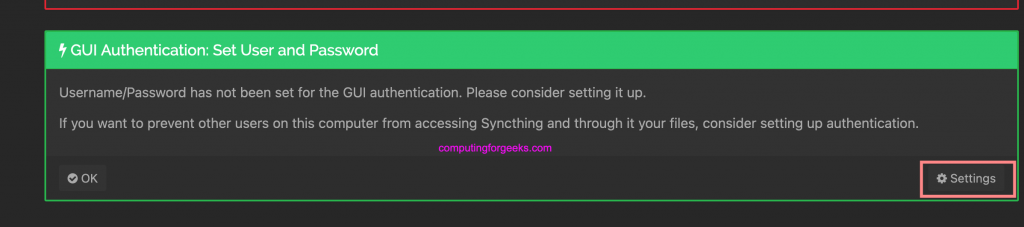
Then set admin username and password on “GUI” section.

Use the credentials set to authenticate:
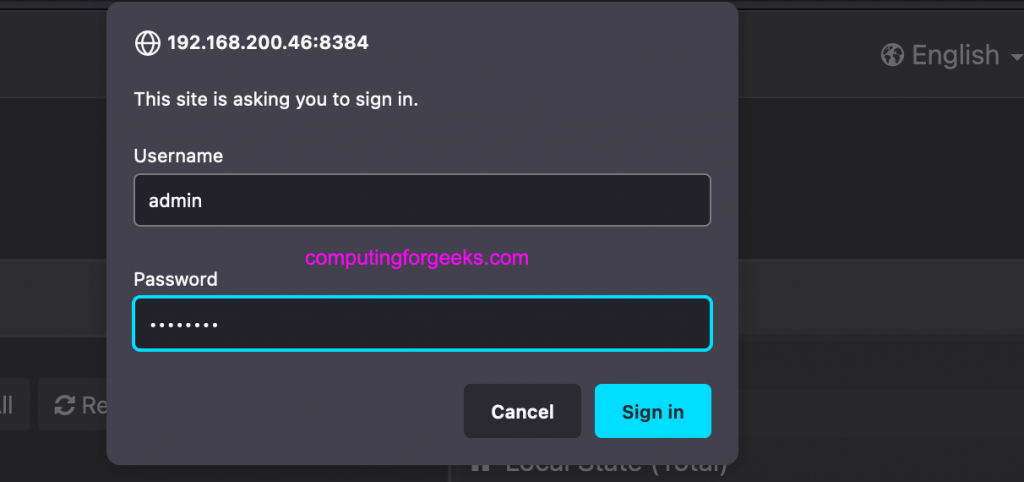
After login you should see an interface like below:

If you missed to set username and password, go to Actions > Advanced to set User and Password. Also recommended to tick Use TLS for https connection only.

Syncing data between two devices with Syncthing
For you to be able to sync data between two or more computers with Syncthing, ensure Syncthing has been installed and configured on all systems. Once setup is done, each device must be told about the other device.
Synthing Device ID
This is accomplished by exchanging “device IDs“. A device ID is a unique, cryptographically-secure identifier that is generated as part of the key generation the first time you start Syncthing. Two devices will only connect and talk to each other if they are both configured with each other’s device ID. Obtain Device ID from Actions > Show ID
Adding Syncthing Device ID
To get your two devices to talk to each other click “Add Remote Device” at the bottom right on both, and enter the device ID of the other side.

Also, select the folder(s) that you want to share. The device name is optional and purely cosmetic. It can be changed later if required. Once you click “Save” the new device will appear on right side of the GUI (although disconnected) and a prompt will be shown to indicate the need for a restart.
Note: The default folder being shared is ~Sync. When you have made changes like adding Sync directories, ensure you restart Syncthing on “Actions” > “Restart”.
Reference:
Related guides:

Is there a way to get this service to start automatically rather than having to type sudo systemctl start syncthing@$USER after every reboot?
Thanks
We’ve updated the guide to include enable command.