

3CX is a software-based PBX that runs on Debian Linux and turns a standard server into a full unified communications platform. It handles VoIP calls, video conferencing, live chat, and mobile apps from a single management console. Version 20 (V20) introduces AI-powered call handling through its built-in AI module, making it a strong choice for businesses moving away from traditional phone systems. The free 4SC Basic edition supports up to 10 users with annual renewal – enough for small offices and home labs.
This guide covers a complete 3CX PBX V20 installation on Debian 12 (Bookworm), from repository setup through web-based configuration. By the end, you will have a working PBX with the admin console accessible over HTTPS, ready for SIP trunk connections and user provisioning.
What is 3CX PBX?
3CX is an open-standards IP PBX that replaces proprietary hardware phone systems with software you control. Core features include:
- VoIP calling – SIP-based internal and external calls with any SIP trunk provider
- Video conferencing – browser-based meetings with screen sharing, no plugins required
- Live chat – website chat integration that routes to agents with call escalation
- Mobile and desktop apps – iOS, Android, Windows, and Mac clients for remote workers
- AI call handling – V20 includes an AI module (3cxai) for automated call routing and voice transcription
- Call queues and IVR – auto-attendant, ring groups, call recording, and voicemail-to-email
3CX manages its own Nginx reverse proxy, PostgreSQL database, and firewall rules. This means it needs a dedicated server – do not install it alongside other web applications.
System Requirements for 3CX on Debian 12
Hardware sizing depends on how many users and simultaneous calls you plan to support. Here are the recommended specifications:
| Deployment Size | CPU | RAM | Disk | Simultaneous Calls |
|---|---|---|---|---|
| Small (up to 10 users) | 2 vCPU | 2 GB | 30 GB SSD | ~5 |
| Medium (up to 50 users) | 4 vCPU | 4 GB | 100 GB SSD | ~15 |
| Large (up to 250 users) | 8 vCPU | 8 GB | 300 GB SSD | ~50 |
Additional requirements:
- Debian 12 (Bookworm) – the officially supported Linux distribution for 3CX V20
- A static public IP address
- A fully qualified domain name (FQDN) – 3CX provides a free subdomain during signup
- A dedicated server or VPS – 3CX installs its own Nginx and PostgreSQL, so no other web services should be running
- Root or sudo access
Required Ports for 3CX PBX
Make sure these ports are open on your cloud provider’s security group or external firewall before starting the installation. 3CX also installs its own iptables-based firewall service.
| Port | Protocol | Service |
|---|---|---|
| 5060 | UDP/TCP | SIP Signaling |
| 5061 | TCP | Secure SIP (TLS) |
| 5090 | UDP/TCP | 3CX Tunnel (remote users) |
| 443 | TCP | HTTPS (Web Client, Provisioning) |
| 9000-10999 | UDP | RTP Media (audio/video streams) |
Step 1: Update Debian 12 System Packages
Start with a fully updated Debian 12 system. Connect to your server via SSH and run the package update.
sudo apt update && sudo apt upgrade -yIf the kernel was updated during the upgrade, reboot the server to load the new kernel before proceeding.
sudo rebootAfter the reboot, verify you are running Debian 12 with a current kernel.
cat /etc/os-release | head -3The output should confirm Debian GNU/Linux 12 (bookworm):
PRETTY_NAME="Debian GNU/Linux 12 (bookworm)"
NAME="Debian GNU/Linux"
VERSION_ID="12"
Step 2: Sign Up for a Free 3CX License
Before installing 3CX, you need a license and configuration file from the 3CX portal. The free 4SC Basic edition supports up to 10 users and renews annually at no cost. Go to https://www.3cx.com/try/ to start the signup process.
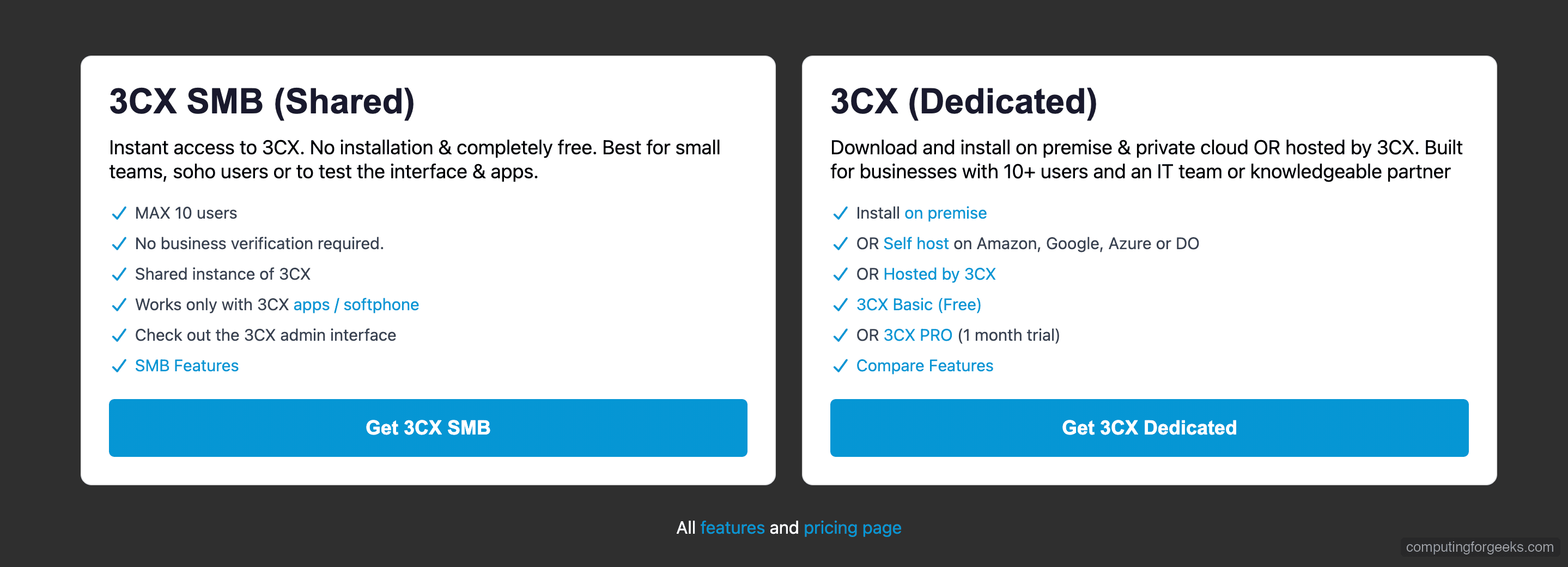
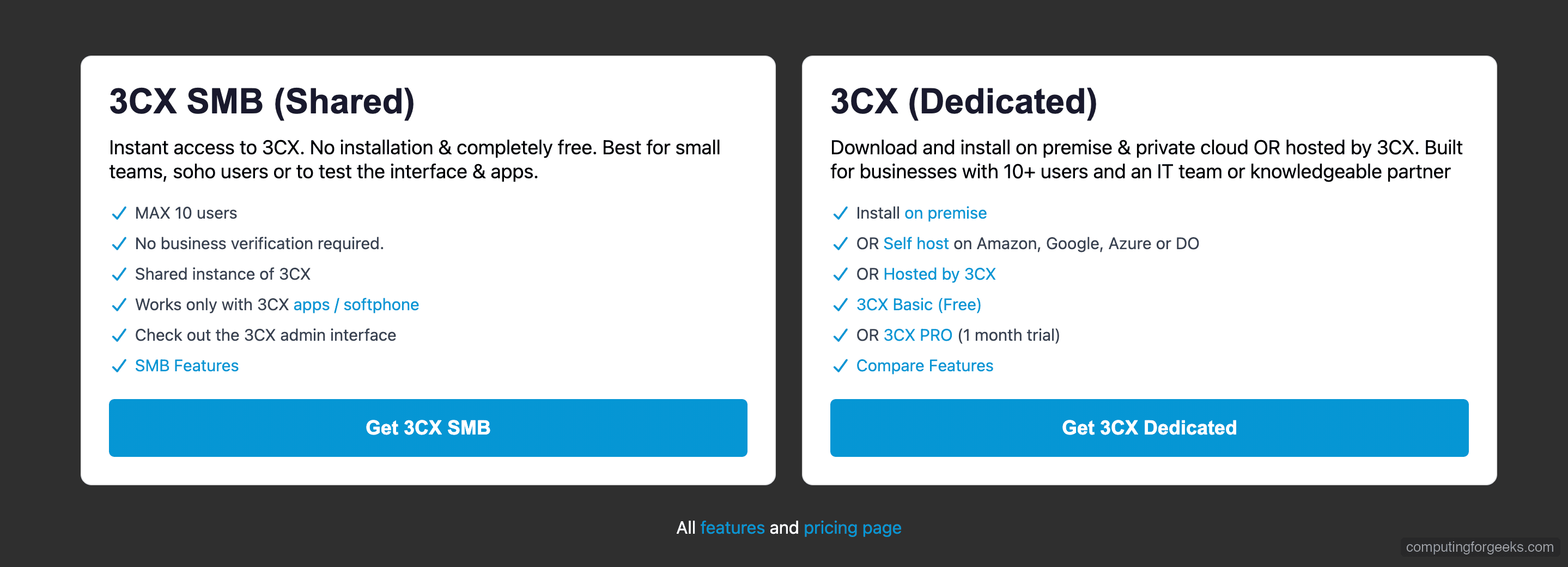
Select 3CX Dedicated (self-hosted) as the deployment type. This lets you install on your own Debian 12 server.
Register with your email address and create your 3CX account. You will receive a verification email.
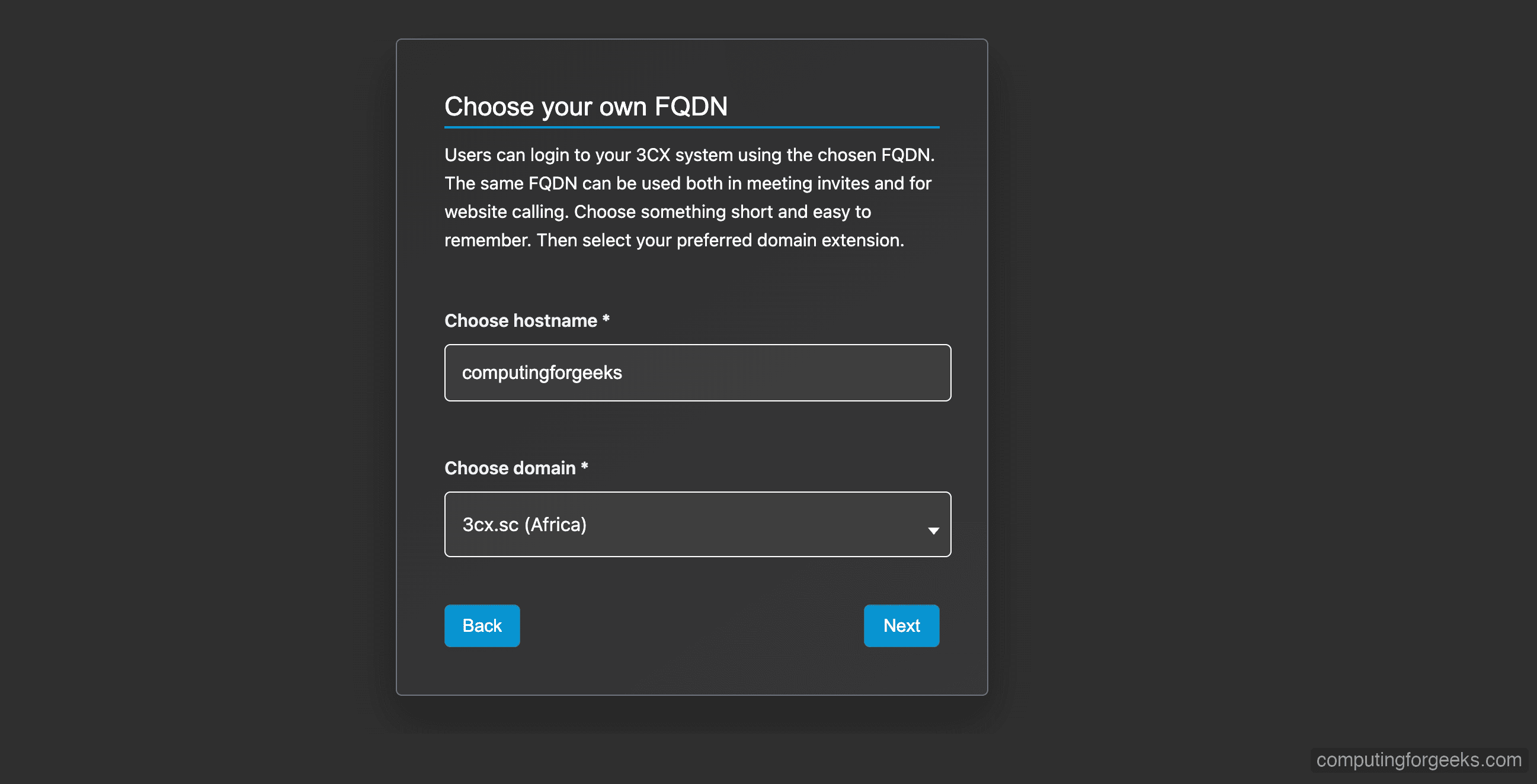
Choose your FQDN hostname and domain. 3CX provides free subdomains under .3cx.us, .3cx.sc, and similar. For example, yourcompany.3cx.us. This FQDN will be used for the web client, provisioning, and SSL certificate.
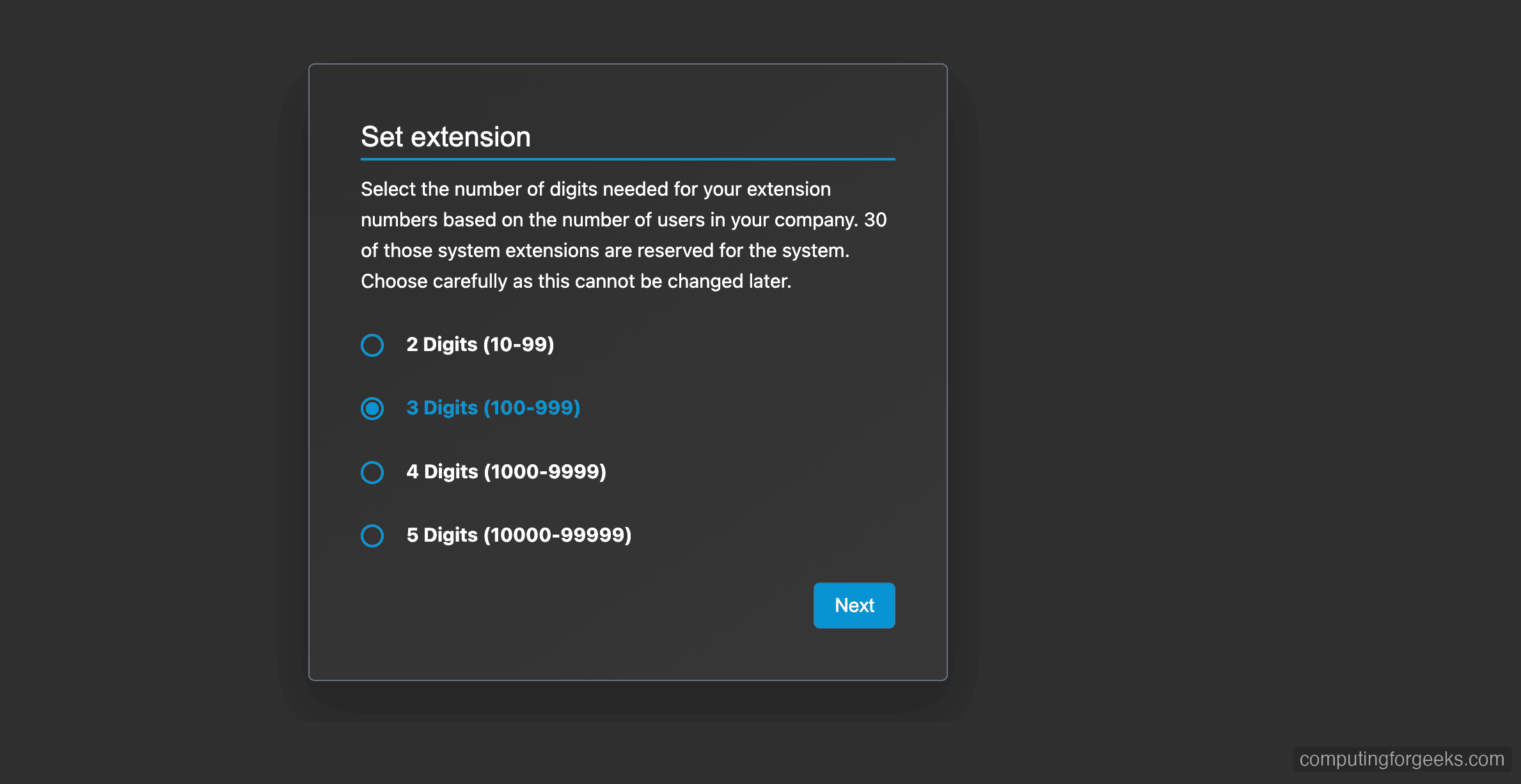
Select the extension digit format. Three digits (100-999) is recommended for most deployments – it gives you room for up to 900 extensions.
Once complete, download the SetupConfig.xml configuration file. You will need this file during the 3CX setup wizard to link your installation to your license.
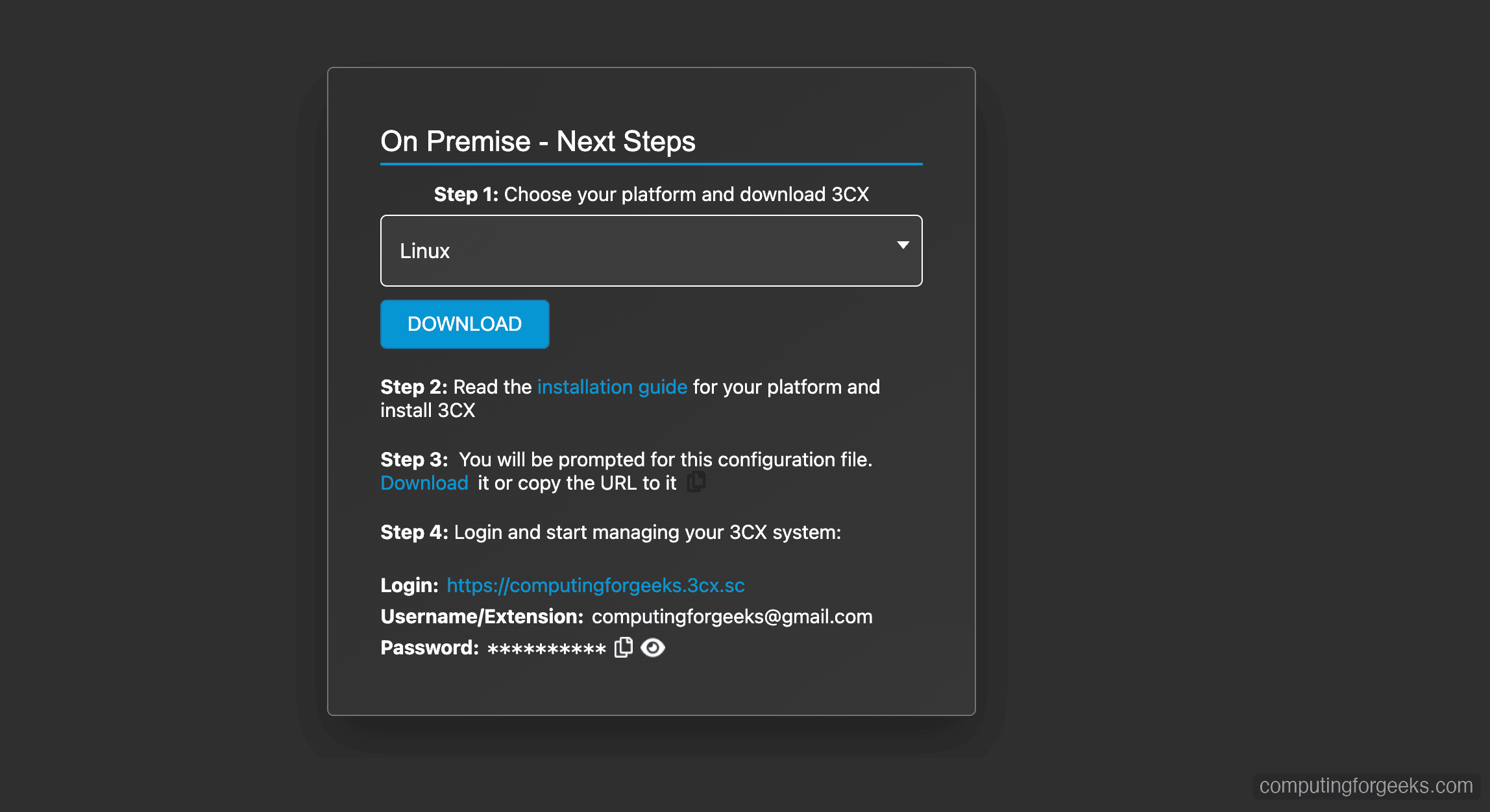
Step 3: Add the 3CX Repository and Install on Debian 12
3CX provides an official APT repository for Debian 12. First, import the 3CX GPG signing key.
wget -qO- https://repo.3cx.com/key.pub | gpg --dearmor | sudo tee /usr/share/keyrings/3cx-archive-keyring.gpg > /dev/nullAdd the 3CX repository for Debian 12 (bookworm).
echo "deb [signed-by=/usr/share/keyrings/3cx-archive-keyring.gpg] https://repo.3cx.com/3cx bookworm main" | sudo tee /etc/apt/sources.list.d/3cxpbx.listUpdate the package index and install 3CX PBX. This pulls in all dependencies including PostgreSQL 15, Nginx, and the 3CX AI module.
sudo apt update
sudo apt install -y 3cxpbx
The installation takes a few minutes. When complete, you should see the 3CX version and database role creation confirmed:
Setting up 3cxpbx (20.0.8.1109) ...
CREATE ROLE
ALTER ROLE
This confirms 3CX V20 Update 8 (20.0.8.1109) is installed. PostgreSQL 15 and the AI module (3cxai 1.2.5) are included automatically as dependencies.
Step 4: Apply the 3CX Configuration File
After installation, you need to apply the SetupConfig.xml file you downloaded from the 3CX portal. There are two ways to do this: the web-based wizard or the command line tool.
Option A: Web-Based Setup Wizard
Open your browser and navigate to http://203.0.113.50:5015/ (replace with your server IP). The 3CX setup wizard will load.
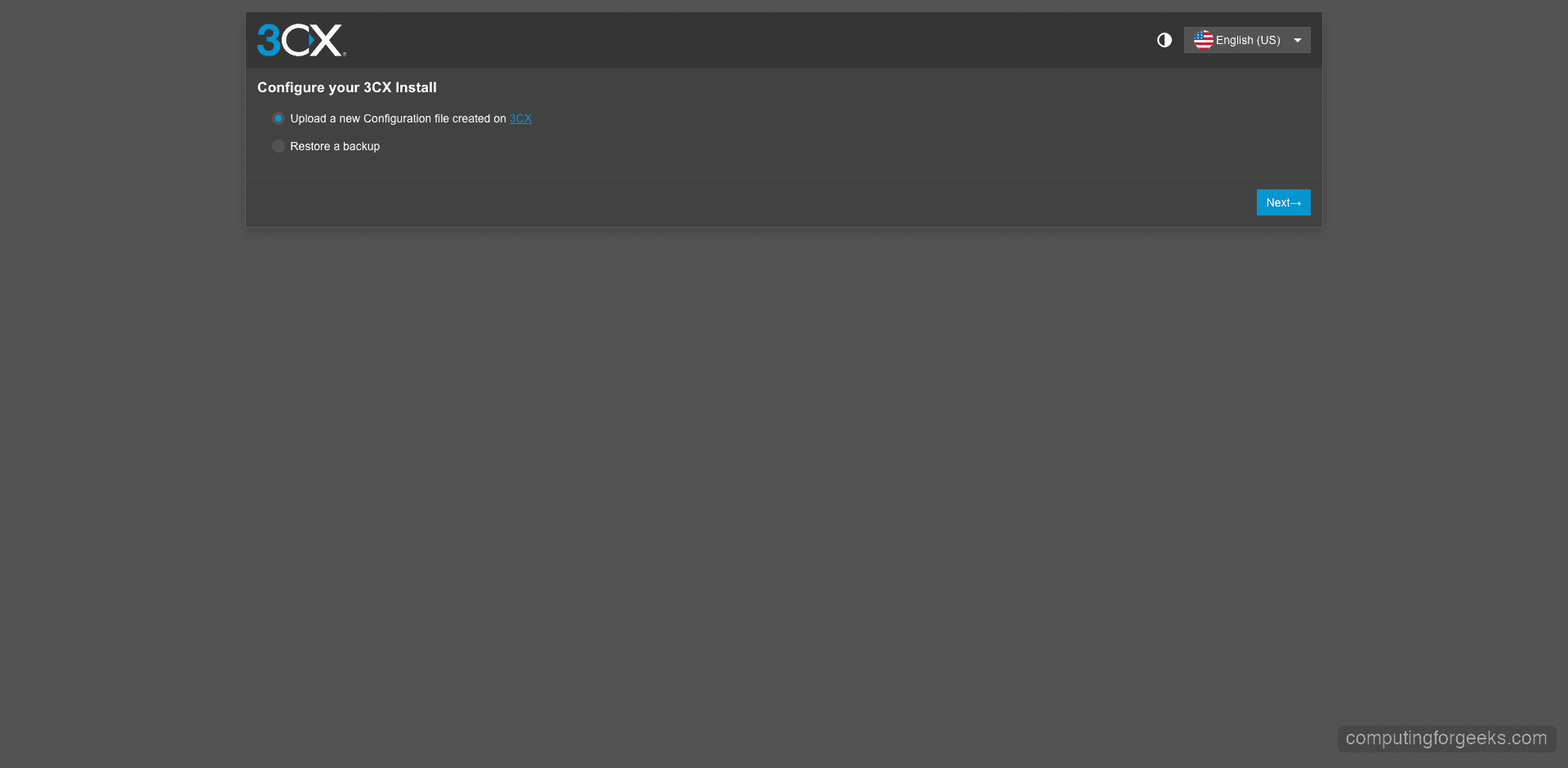
Upload the SetupConfig.xml file when prompted. The wizard reads your license details, FQDN, and extension configuration from this file.
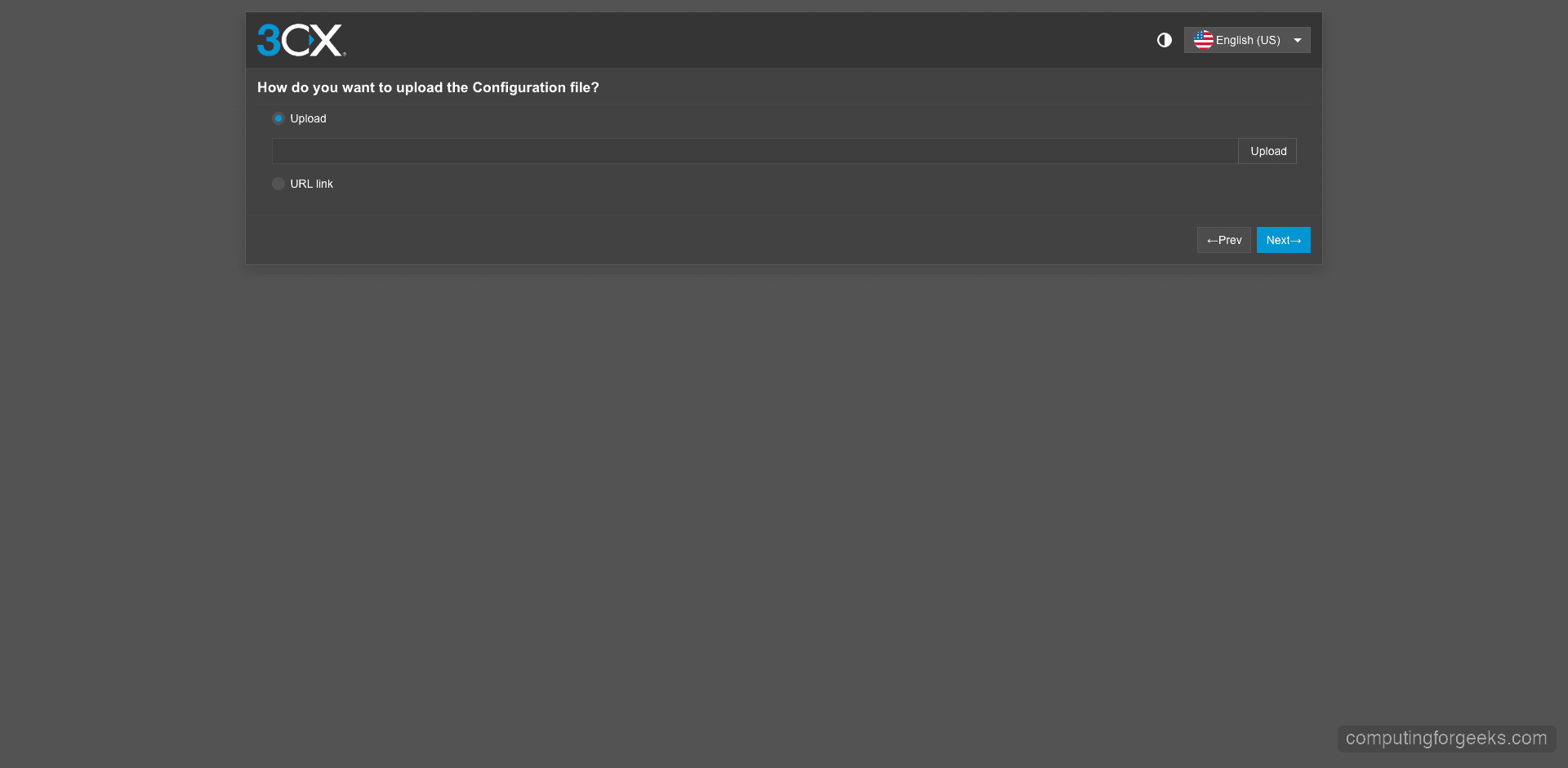
Option B: Command Line Configuration
If you prefer the CLI, upload the SetupConfig.xml to your server and run the configuration tool directly.
sudo /usr/lib/3cxpbx/PbxConfigTool -appbin /usr/lib/3cxpbx -appdata /var/lib/3cxpbx -answers /tmp/SetupConfig.xmlThe configuration tool starts all 3CX services and outputs the admin credentials when finished:
Media Service started
Starting Config Service
Starting Event Notification Service...
Done

Setup Completed

Username: [email protected]
Public IP: 203.0.113.50
FQDN: yourcompany.3cx.us
Save these credentials – you will need them to log into the admin console. The FQDN shown matches what you configured during the signup process.
Step 5: Verify 3CX Services Are Running
3CX runs as multiple systemd services. Verify that all core services are active and running.
systemctl list-units --type=service | grep -i 3cxYou should see 12 services all showing active running:
3CXAudioProvider01.service         loaded active running 3CX AudioProvider [Instance: 1]
3CXCallFlow01.service              loaded active running 3CX CallFlow [Instance: 1]
3CXCfgServ01.service               loaded active running 3CX CfgServ [Instance: 1]
3CXEventNotificationManager01.service loaded active running 3CX EventNotificationManager [Instance: 1]
3CXFirewall.service                loaded active running 3CX Firewall
3CXGateway.service                 loaded active running 3CX Gateway
3CXMediaServer01.service           loaded active running 3CX MediaServer [Instance: 1]
3CXPhoneSystem01.service           loaded active running 3CX PhoneSystem [Instance: 1]
3CXPhoneSystemMC01.service         loaded active running 3CX PhoneSystemMC [Instance: 1]
3CXQueueManager01.service          loaded active running 3CX QueueManager [Instance: 1]
3CXSystemService01.service         loaded active running 3CX SystemService [Instance: 1]
3CXTunnel01.service                loaded active running 3CX Tunnel [Instance: 1]
Next, confirm the key network ports are listening. SIP, HTTPS, and tunnel ports should all be bound.
sudo ss -tlnp | grep -E '443|5060|5061|5090'The output confirms Nginx is handling HTTPS on port 443, and 3CX processes are listening on the SIP and tunnel ports:
LISTEN  0  511    0.0.0.0:443    0.0.0.0:*  users:(("nginx",pid=1234,fd=6))
LISTEN  0  64     0.0.0.0:5060   0.0.0.0:*  users:(("3CXPhoneSystem",pid=2345,fd=12))
LISTEN  0  64     0.0.0.0:5061   0.0.0.0:*  users:(("3CXPhoneSystem",pid=2345,fd=14))
LISTEN  0  200          *:5090         *:*  users:(("3CXMediaServer",pid=3456,fd=8))
If any service is not running, check the logs with journalctl -u SERVICE_NAME for troubleshooting details.
Step 6: Configure Firewall Rules for 3CX
3CX installs its own iptables-based firewall service (3CXFirewall.service). If you are also running ufw or managing an external cloud firewall (AWS Security Groups, Hetzner Firewall, etc.), you need to open the required ports there as well.
For UFW on the Debian server itself, run these commands to allow all 3CX traffic:
sudo ufw allow 5060/udp
sudo ufw allow 5060/tcp
sudo ufw allow 5061/tcp
sudo ufw allow 5090/udp
sudo ufw allow 5090/tcp
sudo ufw allow 443/tcp
sudo ufw allow 9000:10999/udp
sudo ufw reload
Verify the rules were applied correctly.
sudo ufw status | grep -E '5060|5061|5090|443|9000'You should see ALLOW entries for each port:
443/tcp                    ALLOW       Anywhere
5060/udp                   ALLOW       Anywhere
5060/tcp                   ALLOW       Anywhere
5061/tcp                   ALLOW       Anywhere
5090/udp                   ALLOW       Anywhere
5090/tcp                   ALLOW       Anywhere
9000:10999/udp             ALLOW       Anywhere
If your server is behind a NAT or cloud provider firewall, make sure those same ports are forwarded or allowed in the provider’s security group settings. The RTP media range (9000-10999 UDP) is especially important – blocked RTP ports cause one-way or no audio on calls.
Step 7: Access the 3CX Admin Console
Open your browser and navigate to your 3CX FQDN – for example, https://yourcompany.3cx.us. 3CX automatically provisions a Let’s Encrypt SSL certificate for your FQDN during setup, so the connection is secured out of the box.
Log in with the admin credentials shown at the end of the setup process.
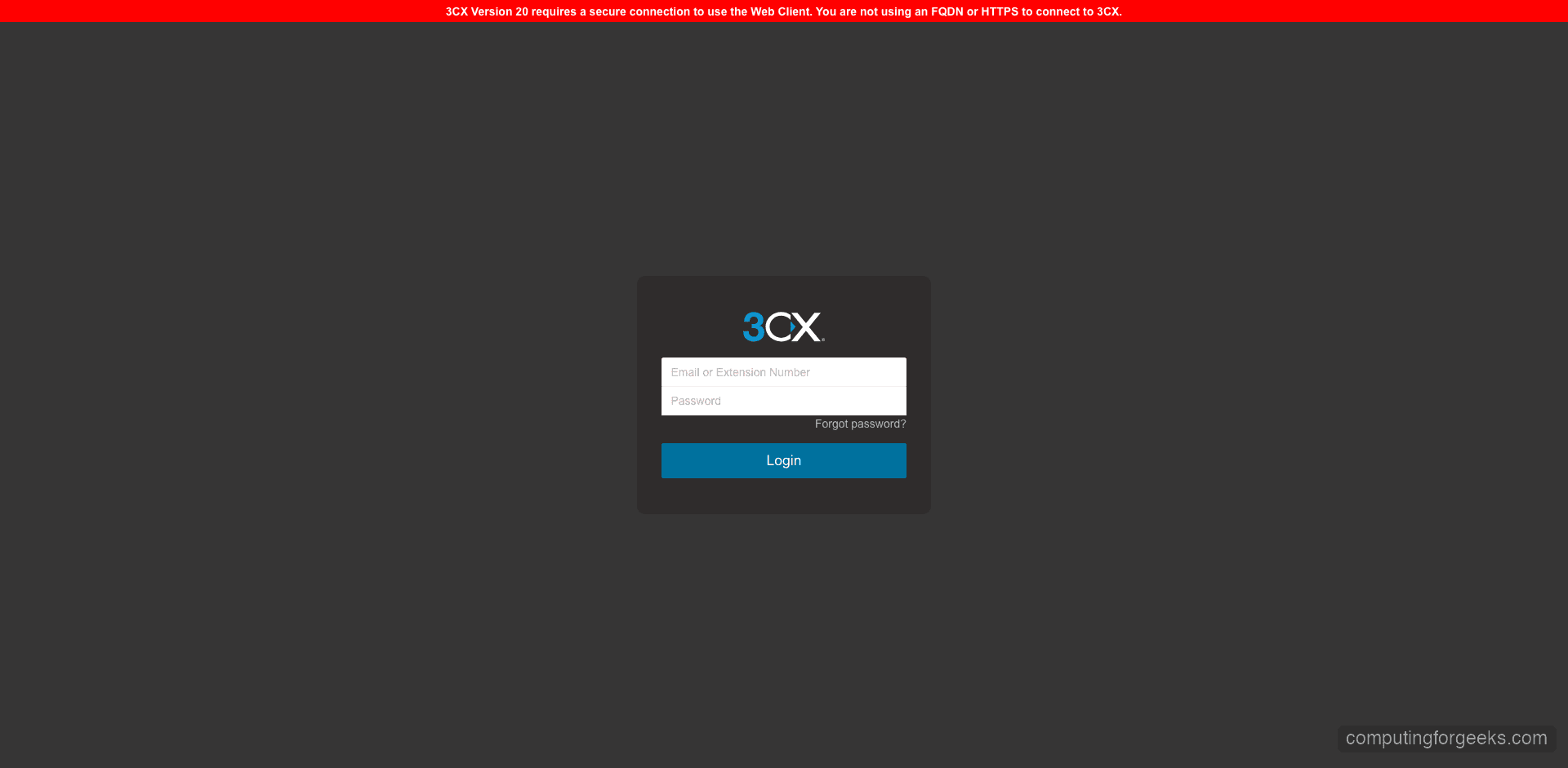
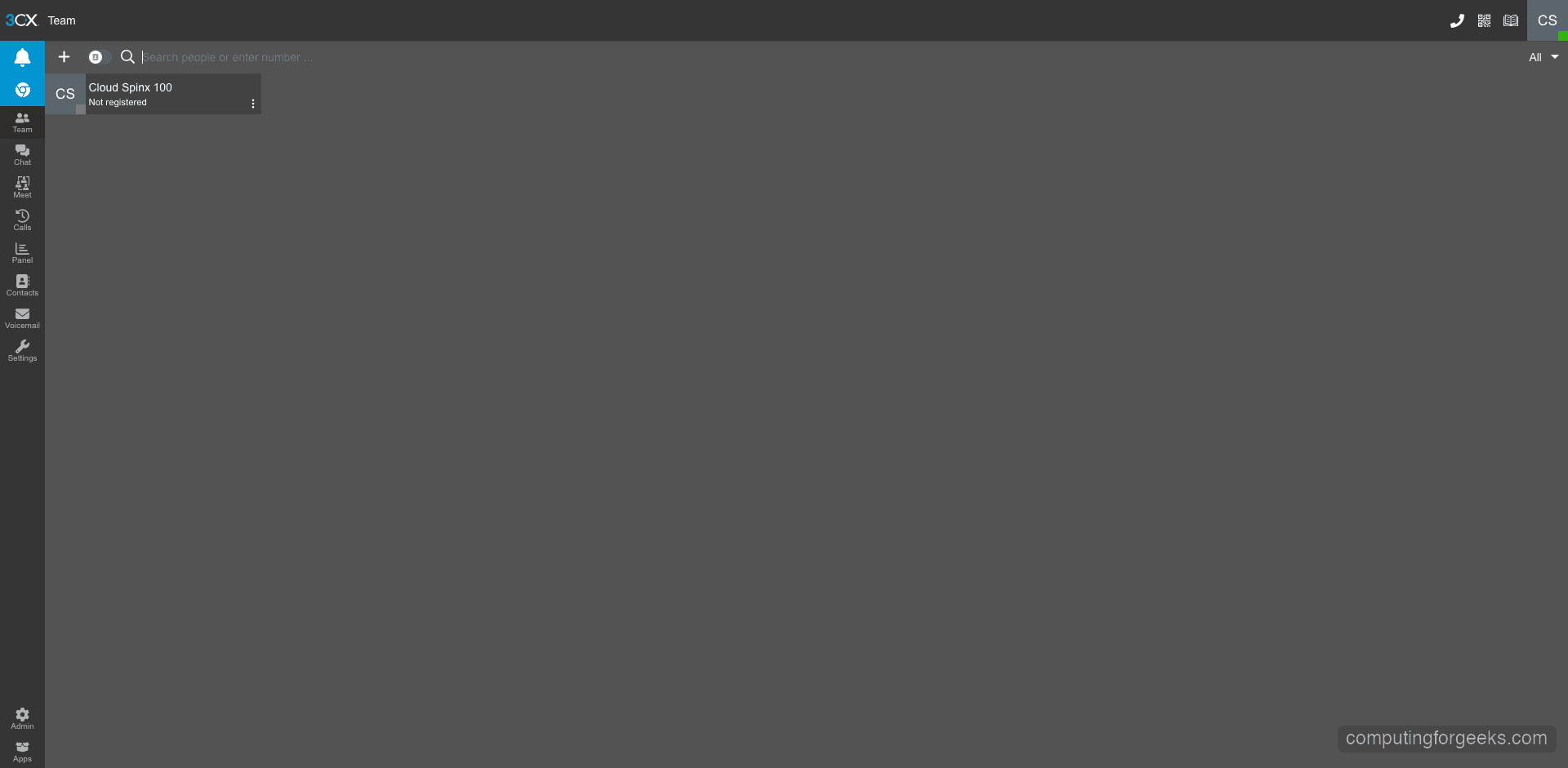
After login, you land on the Team view – the main interface where users manage their calls, chats, and presence status.
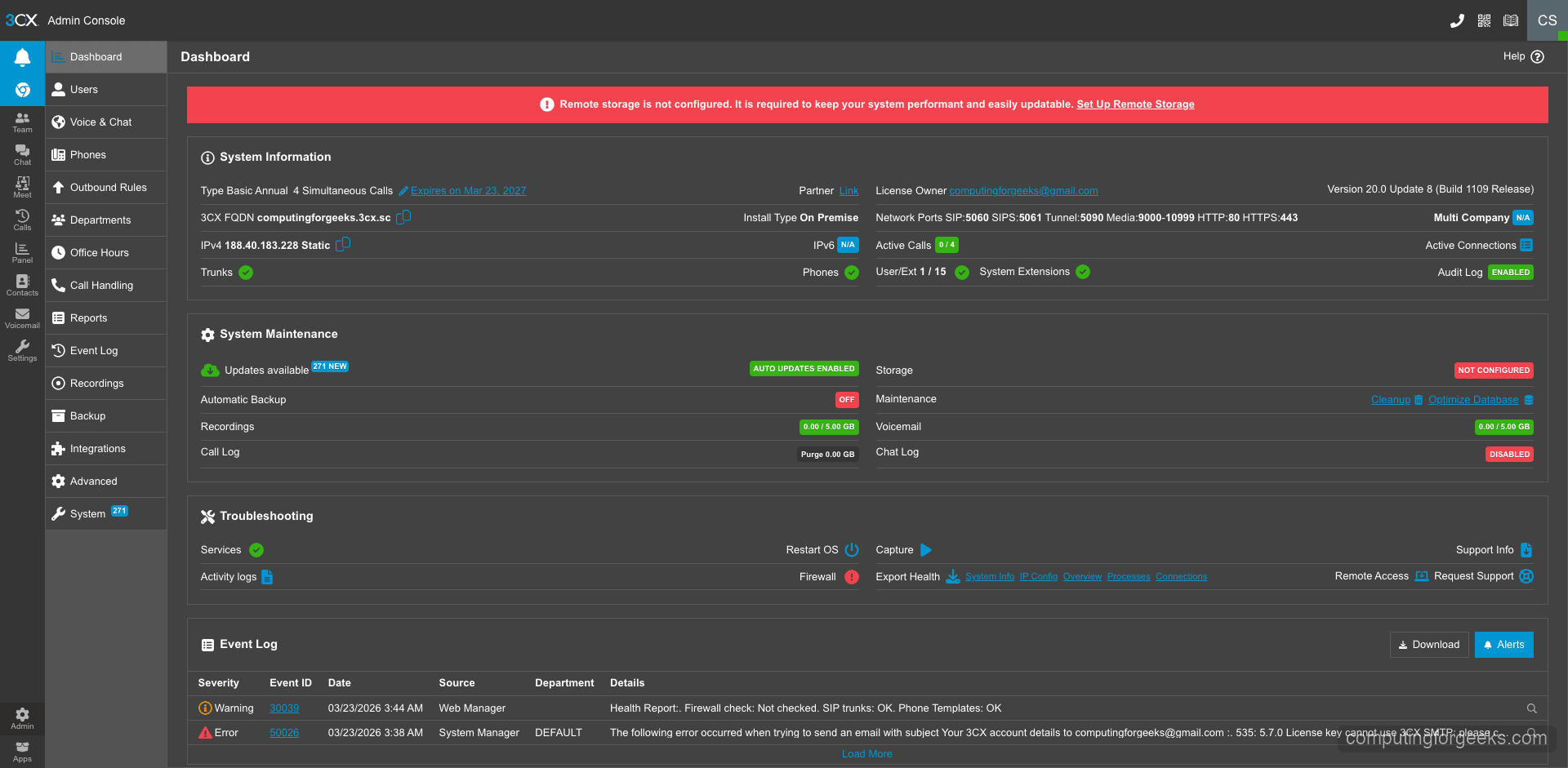
Switch to the Admin section to see the full system dashboard. This shows your license type, system information, service status, and quick access to all configuration areas.
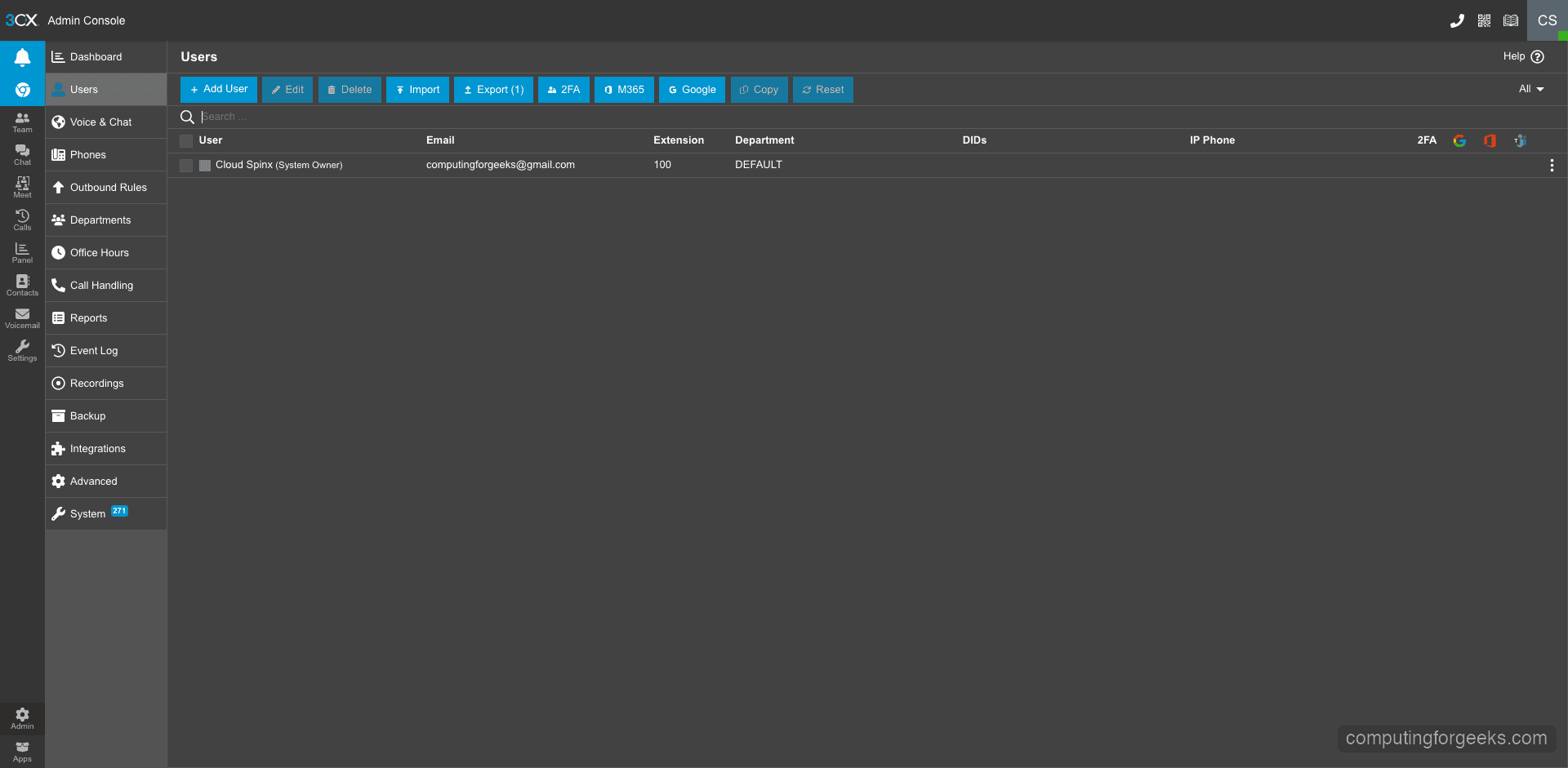
The Users section lists all extensions configured on the system. From here you can add new users, modify extension settings, and manage user permissions.
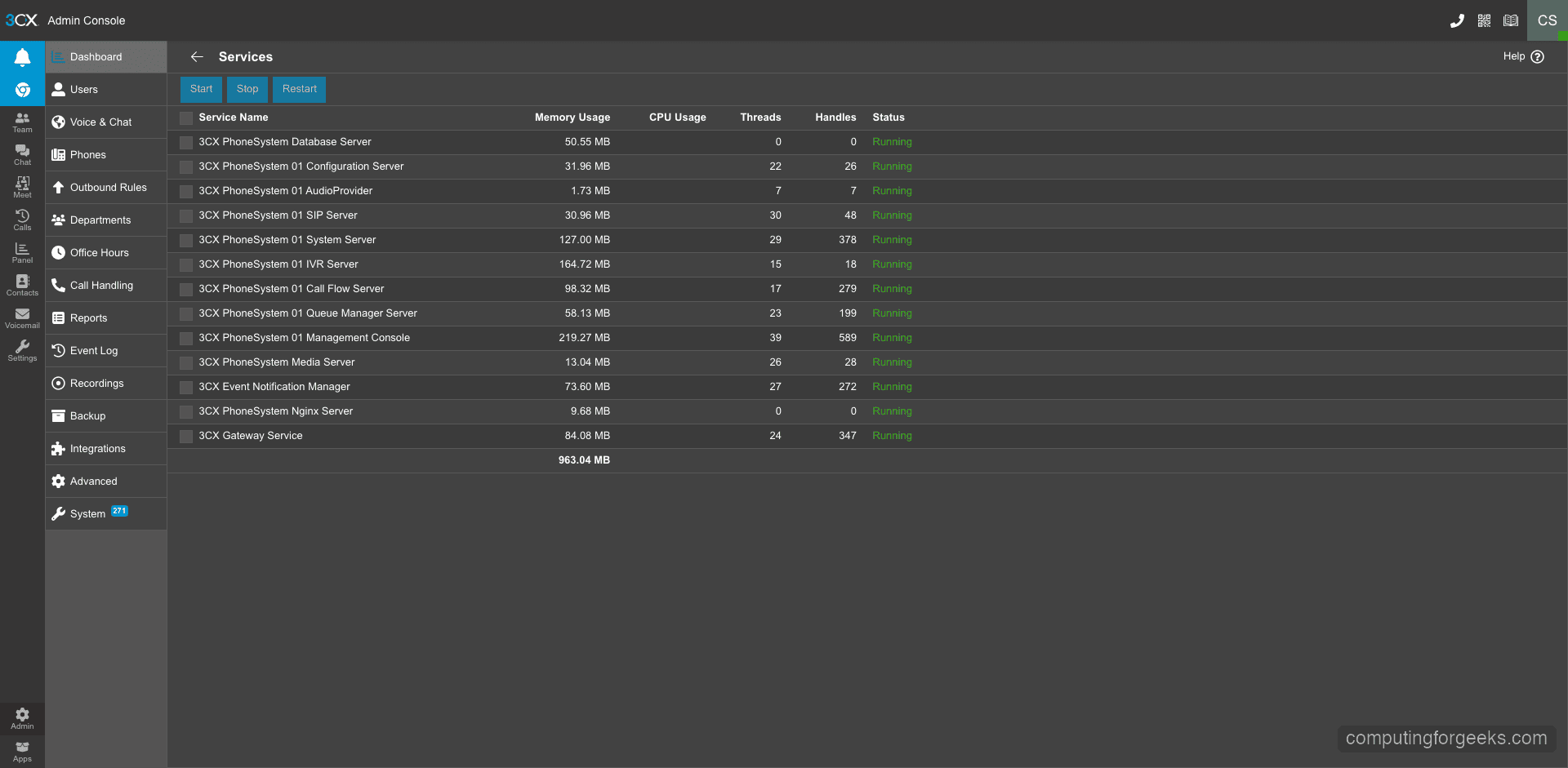
The Services status page provides a real-time view of all 3CX services. Green indicators mean everything is healthy.
Step 8: Create Additional User Extensions
The admin account created during setup is your first extension. To add more users, go to Admin > Users in the web console and click Add User.
For each new user, fill in:
- Extension number – assigned automatically from your digit range (e.g., 101, 102)
- First and last name
- Email address – used for login and voicemail notifications
- Mobile number – optional, for the 3CX mobile app
After saving, 3CX sends a welcome email to the user with their login credentials and links to download the 3CX app for their platform (Windows, Mac, iOS, Android). Users can then connect to the PBX using the web client at your FQDN or through the desktop/mobile apps.
The free 4SC Basic license allows up to 10 users. If you need more, 3CX offers paid tiers with additional features like call recording, CRM integration, and advanced call center functionality.
Step 9: Configure a SIP Trunk for External Calls
Internal extension-to-extension calls work immediately after setup. To make and receive external phone calls, you need to connect a SIP trunk provider. 3CX maintains a list of pre-configured SIP trunk templates for major providers.
To add a SIP trunk:
- Go to Admin > SIP Trunks and click Add SIP Trunk
- Select your country and provider from the dropdown – 3CX has templates for providers like Twilio, Vonage, Flowroute, and many regional carriers
- Enter your SIP credentials (username, password, and server address from your trunk provider)
- Configure inbound and outbound routing rules – which extensions can make external calls and where incoming calls should ring
After saving the trunk configuration, 3CX registers with your SIP provider automatically. Check the trunk status in the admin dashboard – it should show as Registered within a few seconds. If registration fails, verify your SIP credentials and ensure ports 5060 (UDP/TCP) are open between your server and the provider.
If you are looking to set up an alternative PBX system, check out our guide on installing Asterisk PBX on Ubuntu and Debian. For long-term support deployments, we also have a guide covering Asterisk LTS installation on Debian.
Securing Your 3CX PBX Installation
VoIP systems are frequent targets for toll fraud and brute force attacks. 3CX includes built-in protections, but there are additional steps you should take for a production deployment:
- Keep 3CX updated – security patches are released regularly. Check for updates in Admin > Updates
- Restrict SIP access – if your SIP trunk provider publishes their IP ranges, whitelist only those IPs for ports 5060/5061
- Use strong passwords – 3CX generates random SIP authentication passwords by default. Do not simplify them
- Enable the 3CX anti-fraud module – set daily call limits per extension to prevent toll fraud if credentials are compromised
- Monitor call logs – watch for unusual call patterns, especially to international premium-rate numbers
For a deeper look into VoIP security hardening, see our guide on securing VoIP systems from fraud and brute force attacks.
Conclusion
You now have 3CX PBX V20 running on Debian 12 with all 12 core services active, the web admin console accessible over HTTPS, and the system ready for SIP trunk connections and user provisioning. The free 4SC Basic license covers small deployments with up to 10 users.
For a production environment, set up automated backups through the 3CX admin panel (Admin > Backup and Restore), monitor server resource usage as your call volume grows, and keep the system updated through the built-in update mechanism. 3CX handles SSL certificate renewal automatically through your FQDN, so no manual certificate management is needed.

“How to Install and Configure 3CX PBX on Ubuntu 18.04”
“NOTICE:
The officially supported and recommended installation of 3CX PBX is on Debian 9 and Debian 8 Linux distributions. Installation on Ubuntu 18.04 is not supported.”
LOL.