

Question? – I’ve just installed Nginx Web server on my Linux system, how can I enable gzip & Brotli compression for static website assets such as HTML/JS/CSS/JSON files?. A faster web page load time is the desire of every Web developer and Systems administrator. Not only does the compression improve your Google page ranking, but you’ll also have better user experience and improved site engagement.
This article is focused on guiding you through configuring gzip and Brotli compression on an Nginx web server running in Linux. Gzip & Brotli are the most popular compression algorithms supported by major web browsers.
Gzip compression Algorithm?
GZIP provides a lossless compression, this means the original data can be recovered when decompressing it. It is based on the DEFLATE algorithm, which is a combination of LZ77 and Huffman coding.
Brotli compression Algorithm?
Just like gzip, brotli is a lossless compression algorithm widely supported across many browsers. It is developed by Google and is best suited for compression of text-based static resources, like json, js,css, and html. We will use NGINX module for Brotli compression in this setup.
Install ngx_brotli – Nginx module for Brotli
ngx_brotli is the Nginx module which uses Brotli for compression task. It is a set of two modules:
- ngx_brotli filter module – used to compress responses on-the-fly.
- ngx_brotli static module – used to serve pre-compressed files.
Installing ngx_brotli module on Debian / Ubuntu
Install build dependencies required to compile ngx_brotli module.
sudo apt update
sudo apt install git curl cmake build-essential  vim dpkg-dev gnupg2 libpcre3 zlib1g-dev libpcre3-dev -y
Import Nginx GPG key.
curl -fsSL https://nginx.org/keys/nginx_signing.key|sudo gpg --dearmor -o /etc/apt/trusted.gpg.d/nginx.gpgAdd Nginx APT repository.
### Ubuntu ###
sudo tee  /etc/apt/sources.list.d/nginx.list<<EOF
deb http://nginx.org/packages/ubuntu/ $(lsb_release -cs) nginx
deb-src http://nginx.org/packages/ubuntu/ $(lsb_release -cs) nginx
EOF

### Debian ###
sudo tee  /etc/apt/sources.list.d/nginx.list<<EOF
deb http://nginx.org/packages/debian/ $(lsb_release -cs) nginx
deb-src http://nginx.org/packages/debian/ $(lsb_release -cs) nginx
EOF
Download the Nginx source into the local system.
sudo -i
apt update
cd /usr/local/src && apt source nginx
Install the build dependencies for nginx
apt build-dep nginx -yCheckout the latest ngx_brotli and build the dependencies:
git clone --recurse-submodules -j8 https://github.com/google/ngx_brotli
cd ngx_brotli/deps/brotli
mkdir out && cd out
cmake -DCMAKE_BUILD_TYPE=Release -DBUILD_SHARED_LIBS=OFF -DCMAKE_C_FLAGS="-Ofast -m64 -march=native -mtune=native -flto -funroll-loops -ffunction-sections -fdata-sections -Wl,--gc-sections" -DCMAKE_CXX_FLAGS="-Ofast -m64 -march=native -mtune=native -flto -funroll-loops -ffunction-sections -fdata-sections -Wl,--gc-sections" -DCMAKE_INSTALL_PREFIX=./installed ..
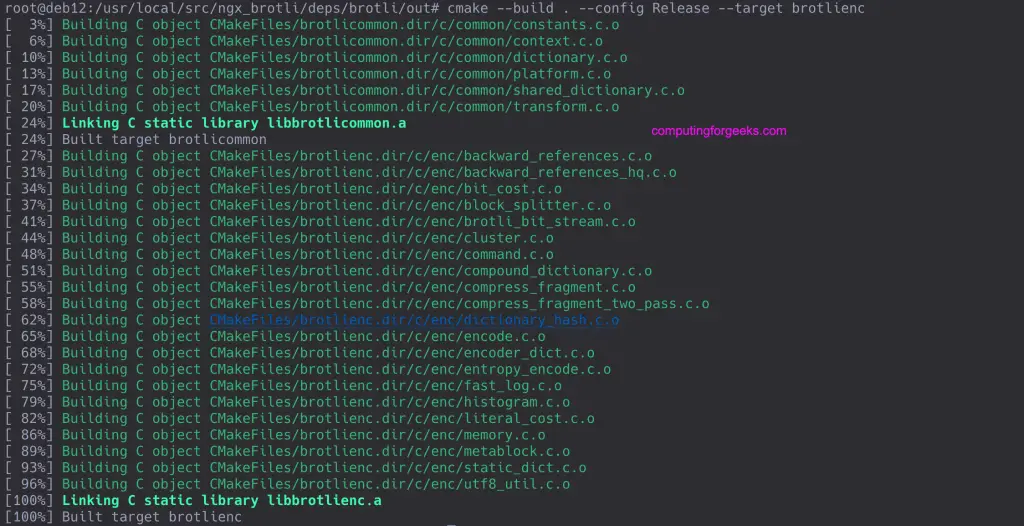
cmake --build . --config Release --target brotlienc
Successful build output.
Switch to nginx-*/ directory.
cd ../../../..
cd nginx-*/
Edit the debian/rules file.
vim debian/rulesFind below two build environments:
- config.env.nginx
- config.env.nginx_debug
Edit the Build Flags on both environments by adding the ‘–add-module=‘ option for ngx_brotli
--add-module=/usr/local/src/ngx_brotliIt should look similar to one shown in the following screenshot.

Once changes are made in the file, compile and build the nginx package with ngx_brotli support
dpkg-buildpackage -b -uc -usTwo Debian packages should be generated after compile is complete.
$ ls -l /usr/local/src/*.deb
-rw-r--r-- 1 root root 1297396 Jan 17 10:44 /usr/local/src/nginx_1.24.0-1~bookworm_amd64.deb
-rw-r--r-- 1 root root 5409836 Jan 17 10:44 /usr/local/src/nginx-dbg_1.24.0-1~bookworm_amd64.deb
Install generated Nginx packages with Brotli support:
cd /usr/local/src/
sudo dpkg -i *.deb
Installation output:
Selecting previously unselected package nginx.
(Reading database ... 57793 files and directories currently installed.)
Preparing to unpack nginx_1.24.0-1~bookworm_amd64.deb ...
adduser: Warning: The home dir /nonexistent you specified can't be accessed: No such file or directory
----------------------------------------------------------------------

Thanks for using nginx!

Please find the official documentation for nginx here:
* https://nginx.org/en/docs/

Please subscribe to nginx-announce mailing list to get
the most important news about nginx:
* https://nginx.org/en/support.html

Commercial subscriptions for nginx are available on:
* https://nginx.com/products/

----------------------------------------------------------------------
Unpacking nginx (1.24.0-1~bookworm) ...
Selecting previously unselected package nginx-dbg.
Preparing to unpack nginx-dbg_1.24.0-1~bookworm_amd64.deb ...
Unpacking nginx-dbg (1.24.0-1~bookworm) ...
Setting up nginx (1.24.0-1~bookworm) ...
Created symlink /etc/systemd/system/multi-user.target.wants/nginx.service → /lib/systemd/system/nginx.service.
Setting up nginx-dbg (1.24.0-1~bookworm) ...
Processing triggers for man-db (2.11.2-2) ...
See screenshot
Restart Nginx to use Brotli.
sudo systemctl restart nginxInstall ngx_brotli module on CentOS / Rocky / AlmaLinux
Install required dependencies.
sudo yum install -y curl wget git epel-release socat pcre pcre-devel zlib zlib-devel openssl openssl-devel
sudo yum -y groupinstall "Development Tools"
Add Nginx repository into your system
sudo vim /etc/yum.repos.d/nginx.repoPaste the following contents.
[nginx-stable]
name=nginx stable repo
baseurl=http://nginx.org/packages/centos/$releasever/$basearch/
gpgcheck=1
enabled=1
gpgkey=https://nginx.org/keys/nginx_signing.key
module_hotfixes=true

[nginx-mainline]
name=nginx mainline repo
baseurl=http://nginx.org/packages/mainline/centos/$releasever/$basearch/
gpgcheck=1
enabled=0
gpgkey=https://nginx.org/keys/nginx_signing.key
module_hotfixes=true
Enable the repository to use it.
sudo yum-config-manager --enable nginx-mainlineInstall Nginx package and enable the service.
sudo yum install -y nginx
sudo systemctl enable nginx.service
Download latest release of mainline Nginx source code and extract it. You can also check the latest releases tag on Github.
cd ~/
VER=1.25.3
wget http://nginx.org/download/nginx-$VER.tar.gz
tar xvf nginx-$VER.tar.gz
Dwnload brotli NGINX module source code:
git clone https://github.com/google/ngx_brotli.git
cd ngx_brotli
git submodule update --init --recursive
cd ..
Configure the build to use brotli:
cd nginx-$VER
./configure --with-compat --add-dynamic-module=../ngx_brotli
Compile the ngx_brotli as a dynamic module
make modulesNext we need to copy brotli module into Nginx’s module directory /etc/nginx/modules:
sudo cp objs/*.so /etc/nginx/modulesYou can confirm if the modules exist now.
$  ls -1 /etc/nginx/modules
ngx_http_brotli_filter_module.so
ngx_http_brotli_static_module.so
Set permissions for the modules files to 644:
sudo chmod 644 /etc/nginx/modules/*.soEnable the modules after installation by editing nginx configuration file – /etc/nginx/nginx.conf and add these lines near top.
$ sudo vim /etc/nginx/nginx.conf
user  nginx;
worker_processes  auto;

error_log  /var/log/nginx/error.log notice;
pid        /var/run/nginx.pid;
load_module modules/ngx_http_brotli_filter_module.so;
load_module modules/ngx_http_brotli_static_module.so;
Validate Nginx configuration. There should be no error.
$ sudo nginx -t
nginx: the configuration file /etc/nginx/nginx.conf syntax is ok
nginx: configuration file /etc/nginx/nginx.conf test is successful
Restart nginx web server.
sudo systemctl restart nginxConfigure Nginx to use Brotli / gzip compression
Now that we have installed our compression modules, open nginx configuration file for editing.
sudo vim /etc/nginx/conf.d/gzip_brotli.confAdd below lines inside the file.
# gzip
gzip on;
gzip_vary on;
gzip_proxied any;
gzip_comp_level 6;
gzip_types text/plain text/css text/xml application/json application/javascript application/xml+rss application/atom+xml image/svg+xml;

# brotli
brotli on;
brotli_comp_level 6;
brotli_types text/xml image/svg+xml application/x-font-ttf image/vnd.microsoft.icon application/x-font-opentype application/json font/eot application/vnd.ms-fontobject application/javascript font/otf application/xml application/xhtml+xml text/javascript  application/x-javascript text/plain application/x-font-truetype application/xml+rss image/x-icon font/opentype text/css image/x-win-bitmap;
Nginx web server needs a restart for the static contents to be compressed.
sudo systemctl restart nginxTesting Brotli / gzip compression on a website
Browsers which supports brotli send ‘br’ along with ‘gzip’ in the accept-encoding request header.
$ curl -H 'Accept-Encoding: br' -I http://localhost
HTTP/1.1 200 OK
Server: nginx/1.24.0
Date: Thu, 24 Aug 2023 00:41:42 GMT
Content-Type: text/html
Last-Modified: Tue, 15 Aug 2023 19:24:52 GMT
Connection: keep-alive
ETag: W/"6434bbbe-267"
Content-Encoding: br
Check gzip Encoding with curl:
$ curl -IL http://localhost -H "Accept-Encoding: gzip"
HTTP/1.1 200 OK
Server: nginx/1.24.0
Date: Thu, 24 Aug 2023 00:55:00 GMT
Content-Type: text/html
Last-Modified: Tue, 15 Aug 2023 19:24:52 GMT
Connection: keep-alive
Vary: Accept-Encoding
ETag: W/"6434bbbe-267"
Content-Encoding: gzip
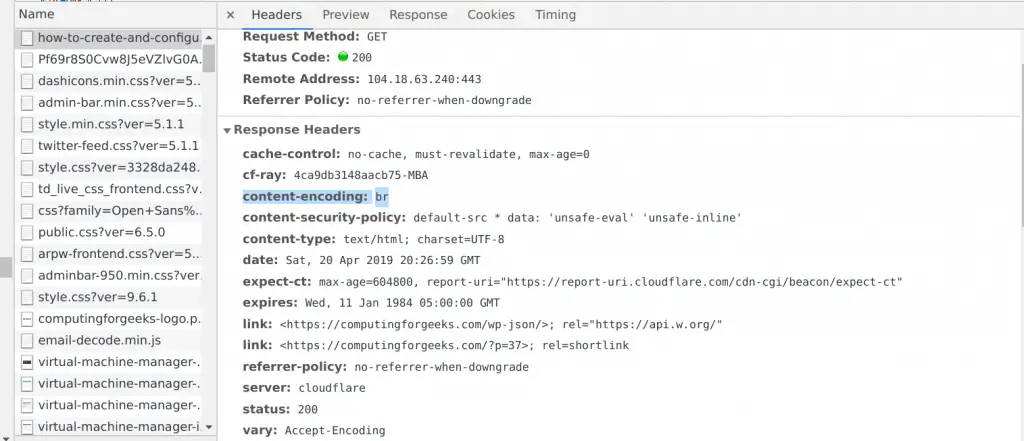
If brotli is enabled on your web server, you will get a response in brotli compressed format. You can also use a Web browser to check content encoding, under:
Inspect > Network > Headers > "Response Headers" > "Content-Encoding" header
Congrats!. You should now have faster website loading after enabling compression of static site assets. Use GTmetrix and Pingdom to perform your Website Speed test.
Reference:

Oh, just a tiny note… the main reasons for Brotli’s existence (an otherwise obscure algorithm which is not widely used outside the Web universe) are:
1. It was developed internally by Google and is fully open-source with a permissive license, which means that anyone can easily implement & use it without getting encumbered by patents or royalties and do not need to fear litigation (unlike, for instance, the ZIP or RAR formats — among others! — which might be covered by proprietary patents in some cases).
2. While the actual compression might not be extraordinary (compare with PNG vs. WebP, where the changes are dramatic for lossless compression), compared to the more popular
gzipand/orbz2and/orzx(and so many others…), it’s orders of magnitude faster. This might not seem much on a low-traffic webserver; but once you start serving millions of pages per second, you’ll be more than glad to save a few microseconds here and there, and get whatever edge you need to serve more pages faster.3. Google, of course, is concerned about point 2., and that’s why Chromium natively supports Brotli — thus making Brotli a de facto standard, since it powers the vast majority of Internet access devices (desktop or mobile) out there (remember, Microsoft Edge, Brave and Vivaldi are all based on Chromium, too). Obviously, the other “independent” browser engines out there had no choice but to implement Brotli support as well — and the non-Google Web server platforms (including obviously Nginx) were pushed to do the same. Thus, unlike what usually happens with “new” file formats, Brotli support almost became universal overnight.
If Brotli hadn’t been invented at Google, or if the major browsers out there weren’t based on Chromium, we’d all still be using gzip (which, mind you, is not bad, as compression formats go… it’s just much slower than Brotli and belongs to one or two generations earlier of algorithmic compression, in the days that computers had just one CPU with one core…).
Take the adoption of WebP as an example (or, if you prefer, HEIC). Both are amazingly better in all regards than the clunky old formats from the 1980s, such as GIF and JPEG, or even their “youngest” sibling, PNG. The vast majority of websites out there only accept these three formats for uploading (and sometimes not even all of them, or just crippled versions of those, such as using just the first still frame from GIF and PNG, and discarding the rest…), and while we have TinyPNG to do its compression magic, the truth is that those formats are really ancient history and should have been retired eons ago.
Granted, we all have huge collections of images in these formats — probably trillions of those — but that’s no excuse for web apps not to accept other, far more efficient formats. WebP as a replacement for PNG, in particular, is extraordinary — if you take a PNG out of Photoshop and convert it to WebP using TinyPNG, it’ll become thirty times smaller. Think about it: not 30%. 30 times. And that’s without perceptible visual differences (you could compress further if you didn’t mind a lossy compression) — meaning that you can send and store thirty images with the same quality as a single PNG.
And all stickers out there are PNGs…
Anyway, my small note became larger than expected — sorry about that — and sort of went off-topic. My point was just to note that some of your readers may be asking, “Brotli? What’s that? A kind of small Swiss bread?” just because Brotli is not a widely-known compression file format. It just became widely used thanks to Google, and they were rather lucky in that regard — as WebP, also promoted by Google, and currently supported by all browsers, is, by contrast, rarely used by web apps that allow image uploads. Not even Google-the-Megacorp managed to turn the tide on that (and it’s not as if they don’t put some pressure on organisations to start supporting it!)
WordPress, for instance, has only supported WebP uploads since 5.8 (before that, you’d need a plugin). But you still need some sort of plugin to convert existing images on the Media Library to WebP — there are plenty of those around, sure, but that’s not the point; even Automattic is not making it easy to migrate all the ancient formats of the 1980s to modern ones from the 2020s…
But at least WordPress is completely agnostic about how things get compressed over the wire — that’s a job for Nginx and the browser(s)!