

Recently, we prepared Docker Environment on Windows Server 2022. Before it was a success, we encountered the following error while trying to execute installation script in PowerShell:
.\install-docker-ce.ps1 : File C:\Windows\system32\install-docker-ce.ps1 cannot be loaded because running scripts is
disabled on this system. For more information, see about_Execution_Policies at
https:/go.microsoft.com/fwlink/?LinkID=135170.
At line:1 char:1
+ .\install-docker-ce.ps1
+ ~~~~~~~~~~~~~~~~~~~~~~~
    + CategoryInfo          : SecurityError: (:) [], PSSecurityException
    + FullyQualifiedErrorId : UnauthorizedAccess
From the error we can tell Windows Execution Policy is set to restrict running of scripts. This can confirmed by running the following commands:
PS C:\Windows\system32> Get-ExecutionPolicy -List

        Scope ExecutionPolicy
        ----- ---------------
MachinePolicy       Undefined
   UserPolicy       Undefined
      Process       Undefined
  CurrentUser      Restricted
 LocalMachine       Undefined
A resolution to this error message is changing the execution policy to allow us run any script from PowerShell. Here is how to achieve this.
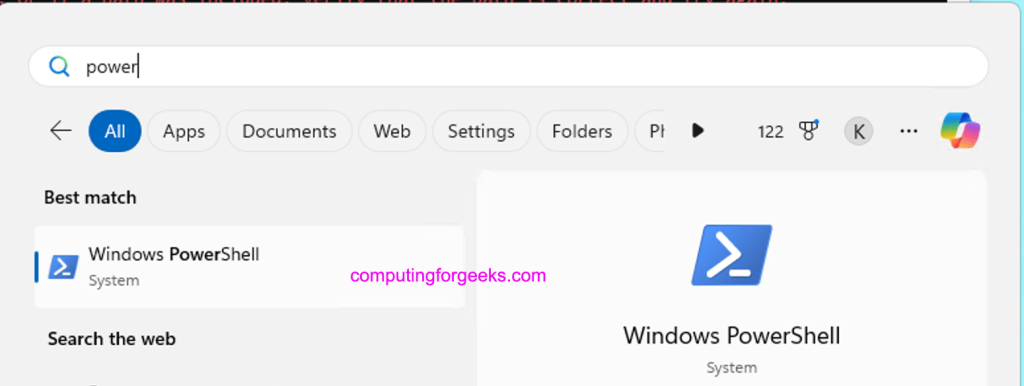
Start PowerShell as Admin
On your Windows Start find PowerShell.
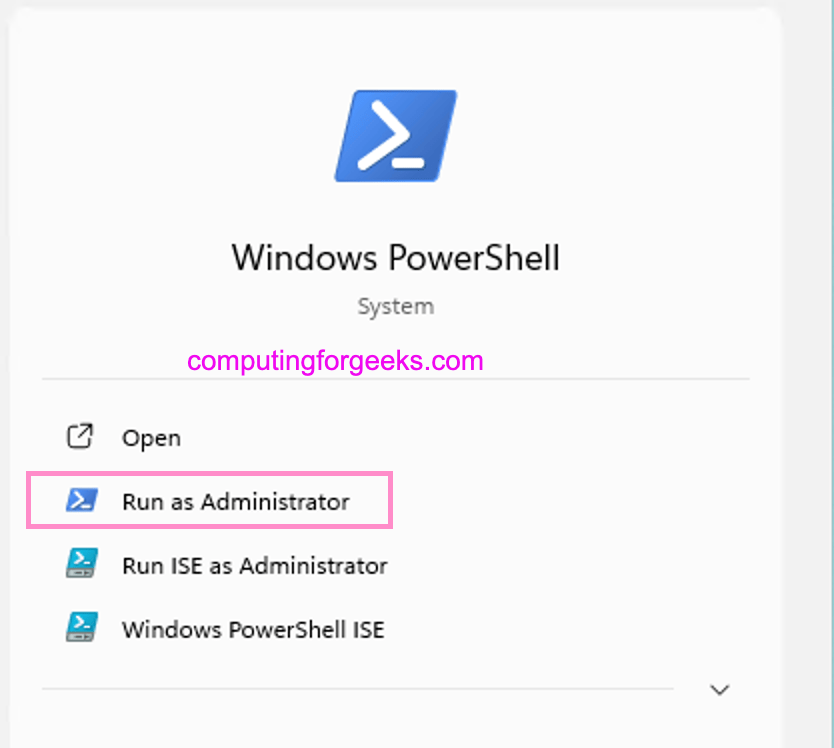
Right-click and select “Run As Administrator“.
Set Scripts Execution Policy
Once PowerShell is launched, run the command below to set script execution policy in your Windows Server to RemoteSigned.
Set-ExecutionPolicy RemoteSigned -Scope CurrentUserThis allows execution of scripts without a signature to run locally. It requires the downloaded script to be signed by a trusted publisher.
To check active execution policy, run Get-ExecutionPolicy -List:
PS C:\Windows\system32> Get-ExecutionPolicy -List

        Scope ExecutionPolicy
        ----- ---------------
MachinePolicy       Undefined
   UserPolicy       Undefined
      Process       Undefined
  CurrentUser    RemoteSigned
 LocalMachine       Undefined
Test Script Execution
After making the changes, you should be able to run your script.
PS C:\Windows\system32> .\install-docker-ce.ps1
Enabling Hyper-V containers by default for Client SKU
Querying status of Windows feature: Containers...
Feature Containers is already enabled.
Querying status of Windows feature: Hyper-V...
Feature Hyper-V is already enabled.
Docker is already installed.
Script complete!
PS C:\Windows\system32>
You should not encounter the security error as seen in our example above.
Reverting the Execution Policy
After running the script, you can revert the execution policy back to its default state if that’s what you want – this is setting it back to Restricted:
Set-ExecutionPolicy Restricted -Scope CurrentUserWith these few steps, you should now be able to run scripts on your Windows server by changing the default Execution Policy.
