

OKD is the community distribution of Kubernetes that powers Red Hat OpenShift. It provides an opinionated platform built on top of Kubernetes with built-in CI/CD pipelines, monitoring via Prometheus and Grafana, a developer-friendly web console, and enterprise features like role-based access control and integrated image registry. Unlike Red Hat OpenShift Container Platform (OCP), which requires a paid subscription, OKD is free and open-source under the Apache 2 license. Both share the same upstream codebase, so skills transfer directly between them.
This guide walks through deploying a multi-node OKD 4 cluster on bare metal (or virtual machines) using Fedora CoreOS as the node operating system. We cover DNS and load balancer setup on an infrastructure node, the openshift-install CLI, ignition file generation, bootstrap and node provisioning, CSR approval, web console access, and essential post-install tasks including image registry storage and HTPasswd identity provider configuration.
OKD vs Red Hat OpenShift – Key Differences
Both OKD and OpenShift Container Platform are built from the same source code, but they differ in support and packaging.
| Feature | OKD (Community) | OpenShift Container Platform |
|---|---|---|
| License | Apache 2.0, free | Subscription required |
| Base OS | Fedora CoreOS | Red Hat CoreOS (RHCOS) |
| Support | Community forums, GitHub issues | Red Hat enterprise support |
| Release cadence | Follows upstream Fedora/Kubernetes | Backported fixes, extended lifecycle |
| Operators | OperatorHub (community catalog) | OperatorHub (certified + community) |
| Image registry | quay.io/openshift/okd | registry.redhat.io |
OKD is ideal for labs, development clusters, and production environments where community support is acceptable. The deployment process is nearly identical to OpenShift, making it a great way to learn OpenShift without licensing costs.
Prerequisites
Before starting the OKD 4 cluster deployment, ensure the following requirements are met.
- Infrastructure/Manager node – 1 server running a RHEL-based Linux distribution (CentOS Stream, Rocky Linux, AlmaLinux, or Fedora) with at least 4 GB RAM, 4 vCPUs, and 50 GB storage. This node runs DNS, HAProxy, and serves ignition files.
- Bootstrap node – 1 server with 16 GB RAM, 4 vCPUs, and 50 GB storage. Runs Fedora CoreOS. This node is temporary and can be decommissioned after cluster initialization.
- Control plane nodes – 3 servers, each with 16 GB RAM, 4 vCPUs, and 50 GB storage. Run Fedora CoreOS.
- Compute (worker) nodes – 1 or more servers, each with 16 GB RAM, 4 vCPUs, and 50 GB storage. Run Fedora CoreOS.
- All nodes must be on the same network with static IP addresses
- A registered domain name (we use
example.comwith subdomainokd.example.comin this guide) - A pull secret from Red Hat Console (free account, works for OKD)
- SSH key pair for node access
Here is the lab environment used in this guide.
| Role | Hostname | IP Address | RAM | vCPU | Storage |
|---|---|---|---|---|---|
| Infrastructure (DNS, HAProxy) | infra.okd.example.com | 192.168.10.10 | 4 GB | 4 | 50 GB |
| Bootstrap (Fedora CoreOS) | okd4-bootstrap.okd.example.com | 192.168.10.20 | 16 GB | 4 | 50 GB |
| Control Plane 1 (Fedora CoreOS) | okd4-control-plane-1.okd.example.com | 192.168.10.21 | 16 GB | 4 | 50 GB |
| Control Plane 2 (Fedora CoreOS) | okd4-control-plane-2.okd.example.com | 192.168.10.22 | 16 GB | 4 | 50 GB |
| Control Plane 3 (Fedora CoreOS) | okd4-control-plane-3.okd.example.com | 192.168.10.23 | 16 GB | 4 | 50 GB |
| Compute 1 (Fedora CoreOS) | okd4-compute-1.okd.example.com | 192.168.10.31 | 16 GB | 4 | 50 GB |
Step 1: Install and Configure DNS with Dnsmasq
OKD requires proper DNS resolution for the API server, internal API, application wildcard domain, and etcd endpoints. We use Dnsmasq on the infrastructure node to handle all DNS queries for the cluster. Run all commands in this section on the infrastructure node as root.
First, disable systemd-resolved to free up port 53.
systemctl disable systemd-resolved
systemctl stop systemd-resolved
killall -9 dnsmasq 2>/dev/null || true
Remove the existing resolv.conf symlink and create a static one pointing to a public DNS server.
unlink /etc/resolv.confCreate the new resolver configuration.
echo "nameserver 8.8.8.8" | tee /etc/resolv.confInstall Dnsmasq.
dnf -y install dnsmasqBack up the default configuration and create a new one.
mv /etc/dnsmasq.conf /etc/dnsmasq.conf.bakWrite the Dnsmasq configuration. The address directive creates a wildcard record for *.apps.okd.example.com that resolves to the infrastructure node IP where HAProxy runs.
cat /etc/dnsmasq.conf
port=53
domain-needed
bogus-priv
strict-order
expand-hosts
domain=okd.example.com
# Wildcard for all *.apps.okd.example.com routes
address=/apps.okd.example.com/192.168.10.10
Add the DNS records for all cluster nodes to /etc/hosts. Dnsmasq reads this file and responds to queries using these entries. The api and api-int records must point to the infrastructure node where HAProxy forwards API traffic.
cat /etc/hosts
127.0.0.1   localhost
192.168.10.10  api.okd.example.com api
192.168.10.10  api-int.okd.example.com api-int
192.168.10.20  okd4-bootstrap.okd.example.com    okd4-bootstrap
192.168.10.21  okd4-control-plane-1.okd.example.com  okd4-control-plane-1
192.168.10.22  okd4-control-plane-2.okd.example.com  okd4-control-plane-2
192.168.10.23  okd4-control-plane-3.okd.example.com  okd4-control-plane-3
192.168.10.31  okd4-compute-1.okd.example.com    okd4-compute-1
Update /etc/resolv.conf to use the local Dnsmasq as the primary resolver.
echo -e "nameserver 127.0.0.1\nnameserver 8.8.8.8" | tee /etc/resolv.confStart and enable Dnsmasq.
systemctl enable --now dnsmasqOpen DNS port 53/UDP through the firewall.
firewall-cmd --permanent --add-port=53/udp
firewall-cmd --reload
Verify DNS resolution is working for the API and node records.
$ dig +short api.okd.example.com
192.168.10.10

$ dig +short okd4-control-plane-1.okd.example.com
192.168.10.21

$ dig +short test.apps.okd.example.com
192.168.10.10
All three queries should return the expected IP addresses. The wildcard apps test confirms that any subdomain under apps.okd.example.com resolves to the infrastructure node.
Step 2: Install and Configure HAProxy Load Balancer
OKD requires a load balancer in front of the Kubernetes API (port 6443), Machine Config Server (port 22623), and HTTP/HTTPS ingress (ports 80 and 443). HAProxy handles all four of these on the infrastructure node.
Install HAProxy.
dnf install -y haproxyBack up the default configuration.
mv /etc/haproxy/haproxy.cfg /etc/haproxy/haproxy.cfg.bakCreate the HAProxy configuration for OKD. This configuration defines four frontend/backend pairs: the Kubernetes API server, the Machine Config Server (used during bootstrap), HTTP ingress, and HTTPS ingress.
cat /etc/haproxy/haproxy.cfg
global
    log         127.0.0.1 local2
    chroot      /var/lib/haproxy
    pidfile     /var/run/haproxy.pid
    maxconn     4000
    user        haproxy
    group       haproxy
    daemon
    stats socket /var/lib/haproxy/stats

defaults
    mode                    tcp
    log                     global
    option                  tcplog
    option                  dontlognull
    retries                 3
    timeout http-request    10s
    timeout queue           1m
    timeout connect         10s
    timeout client          1m
    timeout server          1m
    timeout check           10s
    maxconn                 3000

# Kubernetes API Server (6443)
frontend okd4_k8s_api_fe
    bind *:6443
    default_backend okd4_k8s_api_be

backend okd4_k8s_api_be
    balance source
    server okd4-bootstrap 192.168.10.20:6443 check
    server okd4-control-plane-1 192.168.10.21:6443 check
    server okd4-control-plane-2 192.168.10.22:6443 check
    server okd4-control-plane-3 192.168.10.23:6443 check

# Machine Config Server (22623)
frontend okd4_machine_config_fe
    bind *:22623
    default_backend okd4_machine_config_be

backend okd4_machine_config_be
    balance source
    server okd4-bootstrap 192.168.10.20:22623 check
    server okd4-control-plane-1 192.168.10.21:22623 check
    server okd4-control-plane-2 192.168.10.22:22623 check
    server okd4-control-plane-3 192.168.10.23:22623 check

# HTTP Ingress (80)
frontend okd4_http_ingress_fe
    bind *:80
    default_backend okd4_http_ingress_be

backend okd4_http_ingress_be
    balance source
    server okd4-compute-1 192.168.10.31:80 check

# HTTPS Ingress (443)
frontend okd4_https_ingress_fe
    bind *:443
    default_backend okd4_https_ingress_be

backend okd4_https_ingress_be
    balance source
    server okd4-compute-1 192.168.10.31:443 check
If you have additional compute nodes, add them to both the HTTP and HTTPS ingress backends. The bootstrap server entry in the API and Machine Config backends gets removed after bootstrap completes.
Configure SELinux to allow HAProxy to bind to the required ports.
setsebool -P haproxy_connect_any 1
semanage port -a -t http_port_t -p tcp 6443
semanage port -a -t http_port_t -p tcp 22623
Start and enable HAProxy.
systemctl enable --now haproxyVerify the service is running.
$ systemctl status haproxy
● haproxy.service - HAProxy Load Balancer
   Loaded: loaded (/usr/lib/systemd/system/haproxy.service; enabled)
   Active: active (running)
Open the required ports through the firewall.
firewall-cmd --permanent --add-port={6443/tcp,22623/tcp}
firewall-cmd --permanent --add-service={http,https}
firewall-cmd --reload
Step 3: Set Up a Web Server to Host Ignition Files
During Fedora CoreOS installation, each node fetches its ignition configuration from an HTTP server. We use Apache on port 8080 (since HAProxy already uses ports 80 and 443) to serve these files.
Install Apache.
dnf install -y httpdChange the default listen port to 8080.
sed -i 's/Listen 80/Listen 8080/' /etc/httpd/conf/httpd.confSet the SELinux boolean to allow Apache to read user content.
setsebool -P httpd_read_user_content 1Start and enable Apache.
systemctl enable --now httpdAllow port 8080 through the firewall.
firewall-cmd --permanent --add-port=8080/tcp
firewall-cmd --reload
Confirm Apache responds.
$ curl -s -o /dev/null -w "%{http_code}" http://localhost:8080
200
Step 4: Install the OKD Installer and oc CLI
The openshift-install binary generates the cluster configuration and ignition files. The oc client is used to interact with the OKD cluster after deployment. Download both from the OKD releases page on GitHub.
Fetch the latest release version and download the tarballs.
cd ~
OKD_VERSION=$(curl -s https://api.github.com/repos/okd-project/okd/releases/latest | grep tag_name | cut -d '"' -f 4 | sed 's/v//')
echo "Latest OKD version: ${OKD_VERSION}"
wget https://github.com/okd-project/okd/releases/download/${OKD_VERSION}/openshift-client-linux-${OKD_VERSION}.tar.gz
wget https://github.com/okd-project/okd/releases/download/${OKD_VERSION}/openshift-install-linux-${OKD_VERSION}.tar.gz
Extract the archives and move the binaries to a directory in the system PATH.
tar -zxvf openshift-client-linux-${OKD_VERSION}.tar.gz
tar -zxvf openshift-install-linux-${OKD_VERSION}.tar.gz
mv kubectl oc openshift-install /usr/local/bin/
Verify the installed versions.
$ oc version --client
Client Version: 4.17.0-0.okd-2024-xx-xx

$ openshift-install version
openshift-install 4.17.0-0.okd-2024-xx-xx
Step 5: Create install-config.yaml and Generate Ignition Files
The install-config.yaml file defines the cluster name, base domain, number of control plane and worker replicas, networking settings, pull secret, and SSH key. The installer consumes this file to generate Kubernetes manifests and Fedora CoreOS ignition configurations.
Generate an SSH key pair if you do not already have one.
ssh-keygen -t ed25519 -N "" -f ~/.ssh/id_ed25519Create the installation directory.
mkdir -p ~/okd-installCreate the install-config.yaml file. Replace baseDomain with your actual domain, paste your pull secret from the Red Hat Console, and paste your SSH public key.
cat ~/okd-install/install-config.yaml
apiVersion: v1
baseDomain: example.com
metadata:
  name: okd
compute:
- hyperthreading: Enabled
  name: worker
  replicas: 0
controlPlane:
  hyperthreading: Enabled
  name: master
  replicas: 3
networking:
  clusterNetwork:
  - cidr: 10.128.0.0/14
    hostPrefix: 23
  networkType: OVNKubernetes
  serviceNetwork:
  - 172.30.0.0/16
platform:
  none: {}
fips: false
pullSecret: 'PASTE_YOUR_PULL_SECRET_HERE'
sshKey: 'ssh-ed25519 AAAA... user@host'
Key fields to customize:
- baseDomain – your base domain. Combined with
metadata.name, the cluster domain becomesokd.example.com - compute.replicas: 0 – set to 0 for user-provisioned infrastructure (UPI). Worker nodes are added manually and approved via CSR
- controlPlane.replicas: 3 – must match the number of control plane nodes
- networkType – OVNKubernetes is the default for OKD 4.14+. Use OpenShiftSDN for older releases
- pullSecret – obtain from console.redhat.com
- sshKey – contents of
~/.ssh/id_ed25519.pub
Back up the install-config.yaml before proceeding. The installer consumes (deletes) this file during manifest generation.
cp ~/okd-install/install-config.yaml ~/okd-install/install-config.yaml.bakGenerate Kubernetes Manifests
Generate the manifests from the install-config.yaml file.
$ openshift-install create manifests --dir=~/okd-install/
INFO Consuming Install Config from target directory
WARNING Making control-plane schedulable by setting MastersSchedulable to true for Scheduler cluster settings
INFO Manifests created in: ~/okd-install/manifests and ~/okd-install/openshift
Since we have dedicated worker nodes, prevent workload pods from being scheduled on the control plane nodes. Edit the scheduler manifest to set mastersSchedulable to false.
sed -i 's/mastersSchedulable: true/mastersSchedulable: false/' ~/okd-install/manifests/cluster-scheduler-02-config.ymlGenerate Ignition Configs
Generate the ignition files that Fedora CoreOS nodes use during first boot.
$ openshift-install create ignition-configs --dir=~/okd-install/
INFO Consuming Common Manifests from target directory
INFO Consuming Master Machines from target directory
INFO Consuming Openshift Manifests from target directory
INFO Consuming OpenShift Install (Manifests) from target directory
INFO Consuming Worker Machines from target directory
INFO Ignition-Configs created in: ~/okd-install and ~/okd-install/auth
This produces three ignition files: bootstrap.ign, master.ign, and worker.ign. It also creates the auth/kubeconfig and auth/kubeadmin-password files needed to access the cluster after deployment.
Copy the ignition files to the web server document root so the Fedora CoreOS nodes can fetch them during installation.
mkdir -p /var/www/html/okd4
cp ~/okd-install/*.ign /var/www/html/okd4/
cp ~/okd-install/metadata.json /var/www/html/okd4/
chown -R apache:apache /var/www/html/okd4/
chmod -R 644 /var/www/html/okd4/*
Confirm the ignition files are accessible over HTTP.
$ curl -s http://localhost:8080/okd4/metadata.json | python3 -m json.tool
{
    "clusterName": "okd",
    "clusterID": "xxxxxxxx-xxxx-xxxx-xxxx-xxxxxxxxxxxx",
    "infraID": "okd-xxxxx"
}
Step 6: Download Fedora CoreOS and Provision Cluster Nodes
OKD uses Fedora CoreOS (FCOS) as the immutable operating system for all cluster nodes. Download the latest stable Fedora CoreOS bare-metal ISO from the Fedora CoreOS download page. This ISO works with any hypervisor (Proxmox, VMware, VirtualBox, KVM/libvirt) or bare-metal hardware.
Download using wget (replace the version with the current stable release).
FCOS_VERSION="40.20241019.3.0"
wget https://builds.coreos.fedoraproject.org/prod/streams/stable/builds/${FCOS_VERSION}/x86_64/fedora-coreos-${FCOS_VERSION}-live.x86_64.iso
Create virtual machines or prepare bare-metal servers matching the resource requirements in the prerequisites table. Attach the FCOS ISO to each machine and boot from it.
Provision the Bootstrap Node
Boot the bootstrap machine from the Fedora CoreOS ISO. When the live environment loads, configure the network with a static IP using nmtui.
sudo nmtuiIn nmtui, select “Edit a connection”, choose the network interface, and set the following:
- IPv4 method: Manual
- Address: 192.168.10.20/24
- Gateway: 192.168.10.1
- DNS: 192.168.10.10 (infrastructure node), 8.8.8.8 (fallback)
After saving, go to “Activate a connection” and toggle the interface off then on to apply changes. Verify the IP assignment.
ip addr showIdentify the target disk for installation.
sudo lsblkRun the Fedora CoreOS installer, pointing to the bootstrap ignition file hosted on the infrastructure node. The --copy-network flag carries the static IP configuration into the installed system.
sudo coreos-installer install /dev/sda \
  --ignition-url=http://192.168.10.10:8080/okd4/bootstrap.ign \
  --insecure-ignition \
  --copy-network
Once the installation completes, reboot the node.
sudo rebootProvision the Control Plane Nodes
Repeat the same process for all three control plane nodes. Boot each from the FCOS ISO, assign its static IP via nmtui (192.168.10.21, 192.168.10.22, 192.168.10.23), and run the installer with the master.ign ignition file.
sudo coreos-installer install /dev/sda \
  --ignition-url=http://192.168.10.10:8080/okd4/master.ign \
  --insecure-ignition \
  --copy-network
Reboot each control plane node after the installation finishes.
sudo rebootProvision the Compute Nodes
Boot the compute node(s) from the FCOS ISO, assign static IPs (192.168.10.31 for the first worker), and install using the worker.ign ignition file.
sudo coreos-installer install /dev/sda \
  --ignition-url=http://192.168.10.10:8080/okd4/worker.ign \
  --insecure-ignition \
  --copy-network
Reboot the compute node after installation.
sudo rebootStep 7: Monitor the Bootstrap Process
After all nodes have rebooted, monitor the bootstrap process from the infrastructure node. The bootstrap node coordinates the initial cluster setup, including etcd formation and control plane operator deployment. This process takes approximately 20 to 30 minutes.
openshift-install --dir=~/okd-install/ wait-for bootstrap-complete --log-level=infoExpected output when bootstrap completes successfully:
INFO Waiting up to 20m0s for the Kubernetes API at https://api.okd.example.com:6443...
INFO API v1.27.x up
INFO Waiting up to 30m0s for bootstrapping to complete...
INFO It is now safe to remove the bootstrap resources
INFO Time elapsed: 18m22s
Once you see the “safe to remove the bootstrap resources” message, comment out the bootstrap node entries in the HAProxy configuration and reload the service.
sed -i '/okd4-bootstrap/s/^/#/' /etc/haproxy/haproxy.cfg
systemctl reload haproxy
The bootstrap node can now be powered off. It is no longer needed.
Step 8: Approve CSRs and Verify Cluster Nodes
With the bootstrap complete, set up the KUBECONFIG environment variable and check the cluster nodes. Control plane nodes should already appear, but worker nodes require manual Certificate Signing Request (CSR) approval.
export KUBECONFIG=~/okd-install/auth/kubeconfig
oc get nodes
Initially, only the control plane nodes are listed.
NAME                                       STATUS   ROLES    AGE   VERSION
okd4-control-plane-1.okd.example.com   Ready    master   22m   v1.27.x+okd
okd4-control-plane-2.okd.example.com   Ready    master   21m   v1.27.x+okd
okd4-control-plane-3.okd.example.com   Ready    master   20m   v1.27.x+okd
Check for pending CSRs from the worker nodes.
oc get csrApprove all pending CSRs. Install jq first if it is not already present.
dnf install -y jqRun the approval command. You may need to run this more than once, as worker nodes generate a second CSR after the first is approved.
oc get csr -o json | jq -r '.items[] | select(.status == {}) | .metadata.name' | xargs oc adm certificate approveAfter a few minutes, verify that all nodes, including workers, appear in Ready status.
$ oc get nodes
NAME                                       STATUS   ROLES    AGE   VERSION
okd4-control-plane-1.okd.example.com   Ready    master   25m   v1.27.x+okd
okd4-control-plane-2.okd.example.com   Ready    master   24m   v1.27.x+okd
okd4-control-plane-3.okd.example.com   Ready    master   23m   v1.27.x+okd
okd4-compute-1.okd.example.com         Ready    worker   3m    v1.27.x+okd
Wait for the cluster installation to fully complete.
openshift-install --dir=~/okd-install/ wait-for install-complete --log-level=infoThis command finishes when all cluster operators are healthy and outputs the web console URL and kubeadmin credentials.
Step 9: Access the OKD Web Console
OKD provides a web-based management console for cluster administration. To find the console URL, list all routes in the cluster.
$ oc get routes -A
NAMESPACE                  NAME              HOST/PORT                                              SERVICES          PORT
openshift-console          console           console-openshift-console.apps.okd.example.com         console           https
openshift-console          downloads         downloads-openshift-console.apps.okd.example.com       downloads         http
openshift-authentication   oauth-openshift   oauth-openshift.apps.okd.example.com                   oauth-openshift   6443
Open https://console-openshift-console.apps.okd.example.com in a browser. If DNS resolution on your workstation does not reach the cluster DNS, add the appropriate entries to your local /etc/hosts file or configure your workstation to use the infrastructure node as its DNS server.
Retrieve the kubeadmin password for initial login.
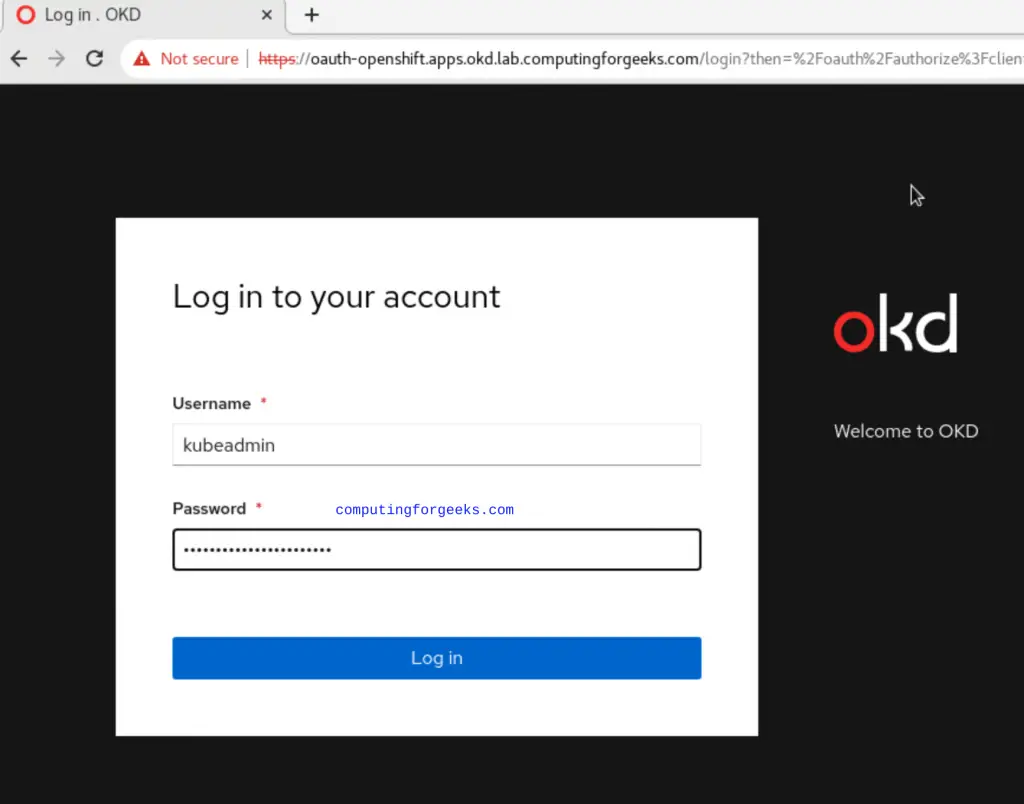
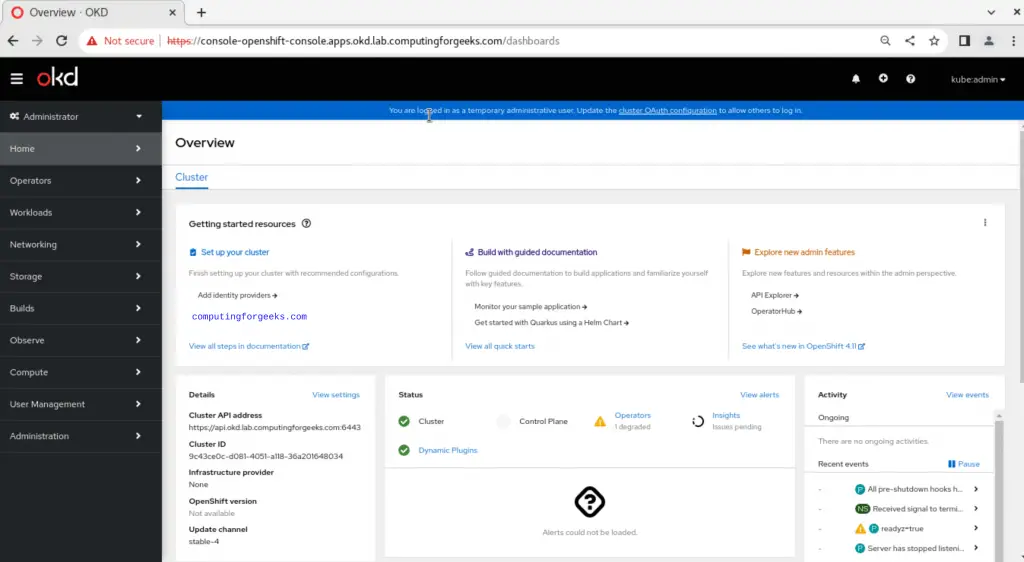
cat ~/okd-install/auth/kubeadmin-passwordLog in with username kubeadmin and the displayed password. The web console provides a dashboard showing cluster health, node status, running workloads, and resource utilization.
Step 10: Configure Image Registry Storage
On bare-metal and UPI deployments, the internal image registry operator starts in a “Removed” state because no storage backend is configured automatically. You need to provide storage for the registry to function. For production, use a persistent volume backed by NFS, Ceph, or similar shared storage. For testing, you can use emptyDir.
Check the current state of the image registry operator.
oc get configs.imageregistry.operator.openshift.io cluster -o yaml | grep managementStateFor a test environment, set the registry to use emptyDir storage (data is lost on pod restart).
oc patch configs.imageregistry.operator.openshift.io cluster \
  --type merge \
  --patch '{"spec":{"managementState":"Managed","storage":{"emptyDir":{}}}}'
For a production setup with NFS, first create a PersistentVolume and PersistentVolumeClaim, then patch the registry to use PVC storage.
oc patch configs.imageregistry.operator.openshift.io cluster \
  --type merge \
  --patch '{"spec":{"managementState":"Managed","storage":{"pvc":{"claim":"image-registry-pvc"}}}}'
Verify the registry pods are running.
$ oc get pods -n openshift-image-registry
NAME                                              READY   STATUS    RESTARTS   AGE
image-registry-xxxxxxxxx-xxxxx                    1/1     Running   0          2m
cluster-image-registry-operator-xxxxxxxxx-xxxxx   1/1     Running   0          30m
Step 11: Configure HTPasswd Identity Provider
The kubeadmin account is a temporary bootstrap credential. For ongoing cluster access, configure an identity provider. HTPasswd is the simplest option for small clusters.
Install the httpd-tools package which provides the htpasswd utility.
dnf install -y httpd-toolsCreate an htpasswd file with your first admin user.
htpasswd -c -B -b /tmp/okd-users.htpasswd admin 'YourSecurePassword123'Add additional users as needed.
htpasswd -B -b /tmp/okd-users.htpasswd developer 'DevPassword456'Create a secret in the openshift-config namespace from the htpasswd file.
oc create secret generic htpass-secret \
  --from-file=htpasswd=/tmp/okd-users.htpasswd \
  -n openshift-config
Apply the OAuth custom resource to configure HTPasswd as an identity provider.
oc apply -f - <<'YAML'
apiVersion: config.openshift.io/v1
kind: OAuth
metadata:
  name: cluster
spec:
  identityProviders:
  - name: htpasswd_provider
    mappingMethod: claim
    type: HTPasswd
    htpasswd:
      fileData:
        name: htpass-secret
YAML
Grant the admin user cluster-admin privileges.
oc adm policy add-cluster-role-to-user cluster-admin adminTest the new login by authenticating with the oc CLI.
$ oc login -u admin -p 'YourSecurePassword123' https://api.okd.example.com:6443
Login successful.
Once HTPasswd authentication is confirmed working, you can optionally remove the temporary kubeadmin secret.
oc delete secrets kubeadmin -n kube-systemDay-2 Operations and Production Hardening
With the cluster running and authentication configured, here are the key day-2 tasks to address before running production workloads.
Check cluster operator status. All operators should report Available=True.
oc get clusteroperatorsConfigure persistent storage. Deploy a storage provisioner such as NFS, Ceph RBD, or a CSI driver. Without persistent storage, workloads that require PersistentVolumeClaims will remain pending. See the NFS persistent storage for Kubernetes guide for a straightforward option.
Configure NTP. All cluster nodes should have synchronized time. Fedora CoreOS uses chronyd by default, but verify it is active and pointed at reliable NTP sources.
ssh [email protected] "chronyc tracking"Set up monitoring and alerting. OKD ships with a pre-configured monitoring stack (Prometheus, Alertmanager, Grafana). Enable user workload monitoring to collect metrics from your own applications.
oc apply -f - <<'YAML'
apiVersion: v1
kind: ConfigMap
metadata:
  name: cluster-monitoring-config
  namespace: openshift-monitoring
data:
  config.yaml: |
    enableUserWorkload: true
YAML
Add more compute nodes. To scale the cluster, provision additional Fedora CoreOS machines using the worker.ign file. After they boot and contact the API server, approve their CSRs and they join the cluster automatically.
Backup etcd regularly. OKD stores all cluster state in etcd. Schedule regular etcd backups using the built-in backup mechanism.
ssh [email protected] "sudo /usr/local/bin/cluster-backup.sh /home/core/etcd-backup"Conclusion
We deployed a multi-node OKD 4 cluster on Fedora CoreOS with DNS resolution via Dnsmasq, load balancing through HAProxy, and user-provisioned infrastructure. The cluster has working control plane and compute nodes, a configured image registry, and HTPasswd authentication replacing the temporary kubeadmin account.
For production readiness, ensure you have TLS certificates from a trusted CA on the ingress routes, persistent storage for the image registry and application workloads, regular etcd backups, and LDAP or OIDC integration replacing HTPasswd for larger teams.

thanks klinsmann, I installed it as you showed, but when I create a new project and create an nginx pod, I get the ImagePullBackOff error.
Thanks Klinsmann for your clear steps. But, if haproxy.conf uses “balance roundrobin”, it would be much better.
Thanks for your comment @Brian
The choice between balance source and balance roundrobin depends on the specific requirements of your application and whether session persistence is a critical factor. Here’s why:
1. balance source: directs requests from the same source IP address to the same backend server, ensuring session persistence for clients. If a client with the same source IP sends multiple requests, they will be directed to the same server. It is used for applications that require session persistence, where a user’s session data needs to be maintained on a specific server for the duration of their session
2. balance roundrobin: distributes requests evenly in a circular manner to all available backend servers, regardless of the client’s source IP. It is useful for stateless applications where each request can be processed independently and there’s no need for session persistence.