

Most Kubernetes logging setups push you toward Elasticsearch, which works but comes with serious resource overhead. Loki takes a different approach: it indexes only metadata labels (namespace, pod, container) and stores the actual log lines compressed on disk or object storage. The result is a logging stack that runs on a fraction of the memory and storage Elasticsearch demands.
Loki pairs with Promtail for log collection and Grafana for querying via LogQL, a query language modeled after PromQL. If you already run Grafana for metrics (from kube-prometheus-stack), adding Loki gives you logs and metrics in one place. This guide walks through deploying Loki and Promtail on an existing Kubernetes cluster using Helm, configuring Grafana as the query frontend, and writing LogQL queries against real container logs.
Tested March 2026 | Loki 3.6.7 (chart 6.55.0), Promtail 3.5.1 (chart 6.17.1), k3s v1.34.5, Grafana 11.x
How Loki Works
The Loki logging stack has three components:
- Promtail – Runs as a DaemonSet on every node. It reads container log files from
/var/log/pods/, attaches Kubernetes labels (namespace, pod, container, node), and pushes log streams to Loki over HTTP. - Loki – Receives log streams, indexes them by label set only, and stores the compressed log content. This label-only indexing is why Loki uses far less storage than full-text search engines like Elasticsearch.
- Grafana – Queries Loki using LogQL. You get log exploration, filtering, and alerting through the same UI you already use for Prometheus metrics.
Loki supports three deployment modes: SingleBinary (all components in one process, good for small to medium clusters), SimpleScalable (read/write separation for medium clusters), and Microservices (fully distributed for large-scale production). SingleBinary handles up to roughly 100GB/day of log volume, which covers most clusters. That is what we deploy here.
Prerequisites
- A running Kubernetes cluster with
kubectlandhelmconfigured (tested on k3s v1.34.5) - Grafana already deployed, either from kube-prometheus-stack or as a standalone install
- A StorageClass available for persistent volumes (this guide uses
local-path) - At least 2GB of free memory on the node where Loki will run
Add the Grafana Helm Repository
Loki and Promtail charts are published under the Grafana Helm repository. Add it and refresh:
helm repo add grafana https://grafana.github.io/helm-charts
helm repo update
Confirm the repo is listed:
helm repo listYou should see grafana in the output with the URL https://grafana.github.io/helm-charts.
Create the Loki Values File
Loki’s Helm chart has many configuration options. The values file below sets up SingleBinary mode with filesystem storage, which keeps things simple for clusters that do not need distributed object storage yet.
Create loki-values.yaml:
vi loki-values.yamlAdd the following configuration:
loki:
  auth_enabled: false
  commonConfig:
    replication_factor: 1
  schemaConfig:
    configs:
      - from: "2024-01-01"
        store: tsdb
        object_store: filesystem
        schema: v13
        index:
          prefix: loki_index_
          period: 24h
  storage:
    type: filesystem
  limits_config:
    allow_structured_metadata: true
    volume_enabled: true

deploymentMode: SingleBinary

singleBinary:
  replicas: 1
  persistence:
    enabled: true
    storageClass: local-path
    size: 10Gi

gateway:
  enabled: false
backend:
  replicas: 0
read:
  replicas: 0
write:
  replicas: 0
chunksCache:
  enabled: false
resultsCache:
  enabled: false
Here is what the key settings do:
auth_enabled: falsedisables multi-tenancy. Most self-hosted setups run single-tenant, which means you do not need to pass anX-Scope-OrgIDheader with every request.deploymentMode: SingleBinaryruns the ingester, querier, and compactor in a single pod. Less operational overhead, perfectly fine for small to medium clusters.store: tsdbwithobject_store: filesystemuses the TSDB index format and writes chunks to local disk. For production with object storage (S3, GCS, Azure), changeobject_storeaccordingly. We cover that later in this article.gateway: enabled: falseskips the Nginx gateway because we access Loki directly within the cluster via its ClusterIP service.- The
backend,read, andwritereplicas are set to 0 because SingleBinary mode does not use separate read/write components. chunksCacheandresultsCacheare disabled since we are not running Memcached. For larger deployments, enabling these significantly improves query performance.
Deploy Loki
Install Loki into the monitoring namespace (same namespace where Grafana and Prometheus run):
helm install loki grafana/loki --namespace monitoring --values loki-values.yaml --wait --timeout 5mThe --wait flag blocks until the pod is ready. This takes about 60 to 90 seconds. Once it completes, verify the pod is running:
kubectl get pods -n monitoring -l app.kubernetes.io/name=lokiThe output should show 2/2 containers ready:
NAME     READY   STATUS    RESTARTS   AGE
loki-0   2/2     Running   0          80s
Two containers run inside the pod: the Loki process itself and a loki-sc-rules sidecar that watches for recording rule ConfigMaps. Check the persistent volume claim:
kubectl get pvc -n monitoring -l app.kubernetes.io/name=lokiThe PVC should be bound with the size you specified:
NAME             STATUS   VOLUME                                     CAPACITY   ACCESS MODES   STORAGECLASS   AGE
storage-loki-0   Bound    pvc-a1b2c3d4-e5f6-7890-abcd-ef1234567890   10Gi       RWO            local-path     2m
Quick sanity check on the Loki API to confirm it is responding:
kubectl exec -n monitoring loki-0 -c loki -- wget -qO- http://localhost:3100/readyA healthy instance returns ready.
Deploy Promtail
Promtail is the log shipping agent. It runs as a DaemonSet, meaning one pod on every node in the cluster. Each Promtail pod mounts the node’s /var/log/pods/ directory, discovers container log files, attaches Kubernetes metadata labels, and pushes log entries to Loki.
Create promtail-values.yaml:
vi promtail-values.yamlThe only required setting is the Loki push endpoint:
config:
  clients:
    - url: http://loki.monitoring.svc.cluster.local:3100/loki/api/v1/push
The URL uses the Kubernetes DNS name for the Loki service in the monitoring namespace. Promtail’s defaults handle everything else: it auto-discovers pods, attaches namespace/pod/container labels, and manages position tracking so logs are not duplicated after restarts.
Install Promtail:
helm install promtail grafana/promtail --namespace monitoring --values promtail-values.yaml --waitVerify the DaemonSet pods are running (one per node):
kubectl get pods -n monitoring -l app.kubernetes.io/name=promtailOn a single-node cluster, you see one pod. On a three-node cluster, three pods:
NAME             READY   STATUS    RESTARTS   AGE
promtail-7xk9m   1/1     Running   0          45s
Promtail starts shipping logs to Loki immediately. Within a few seconds, you can query logs from any namespace.
Add Loki as a Grafana Data Source
Grafana needs a Loki data source to query logs. You can add it through the API or the web UI.
Option 1: Via the Grafana API
If you have API access to Grafana, this is the fastest approach:
curl -s -X POST "http://192.168.1.100:30080/api/datasources" \
  -H "Content-Type: application/json" \
  -u "admin:YourPassword" \
  -d '{
    "name": "Loki",
    "type": "loki",
    "url": "http://loki.monitoring.svc.cluster.local:3100",
    "access": "proxy"
  }'
Replace the Grafana URL and credentials with your own. A successful response returns the data source ID.
Option 2: Via the Grafana UI
Navigate to Connections > Data Sources > Add new data source, then select Loki. In the URL field, enter http://loki.monitoring.svc.cluster.local:3100 and click Save & test.
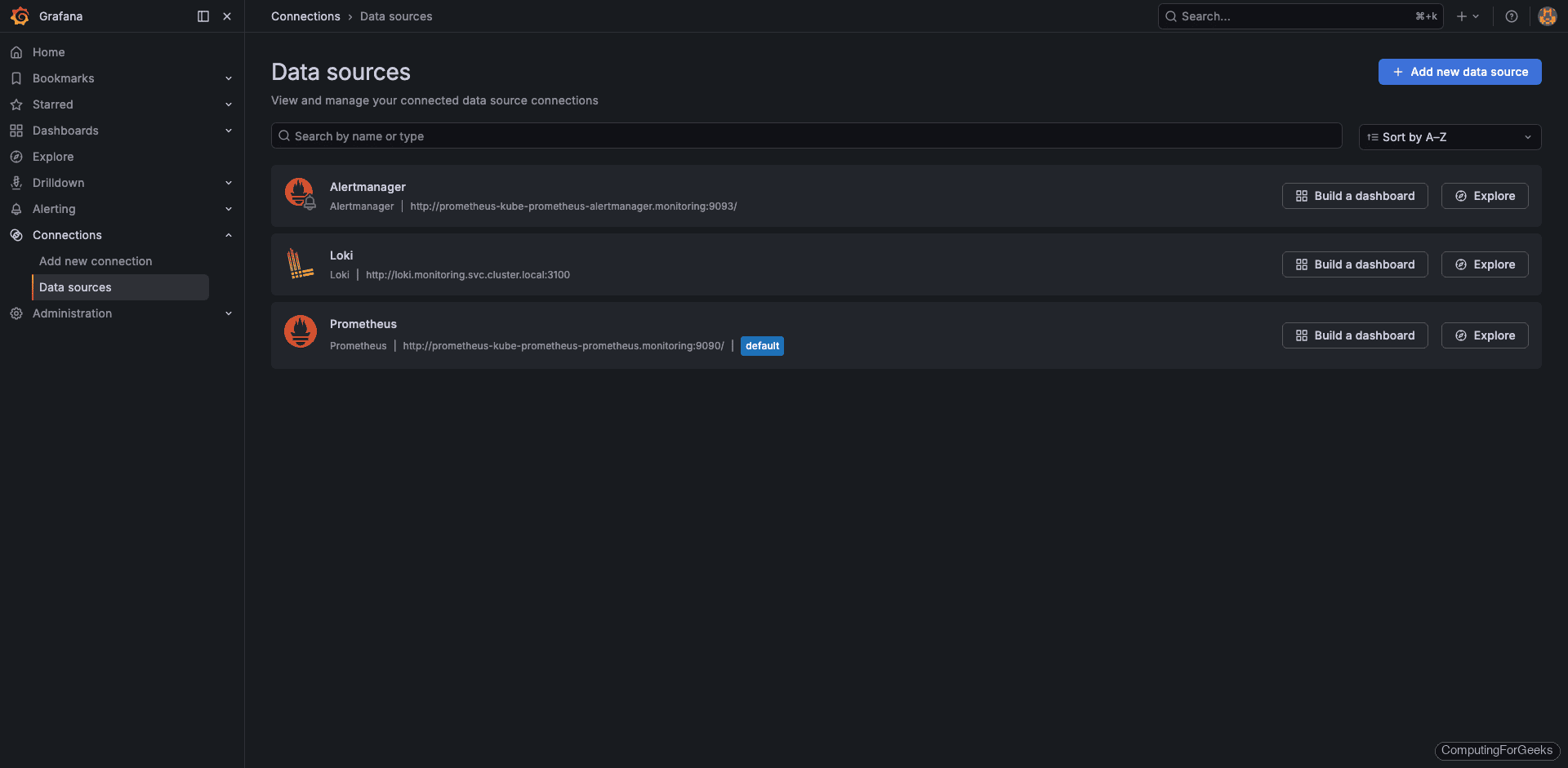
The Data Sources page now shows Loki alongside Prometheus:
The Loki data source configuration screen with the connection URL and a successful test result:
Query Logs in Grafana
Open Explore in Grafana and select the Loki data source from the dropdown at the top. LogQL queries go in the query field. Here are some practical examples using real data from our test cluster.
View Logs by Namespace
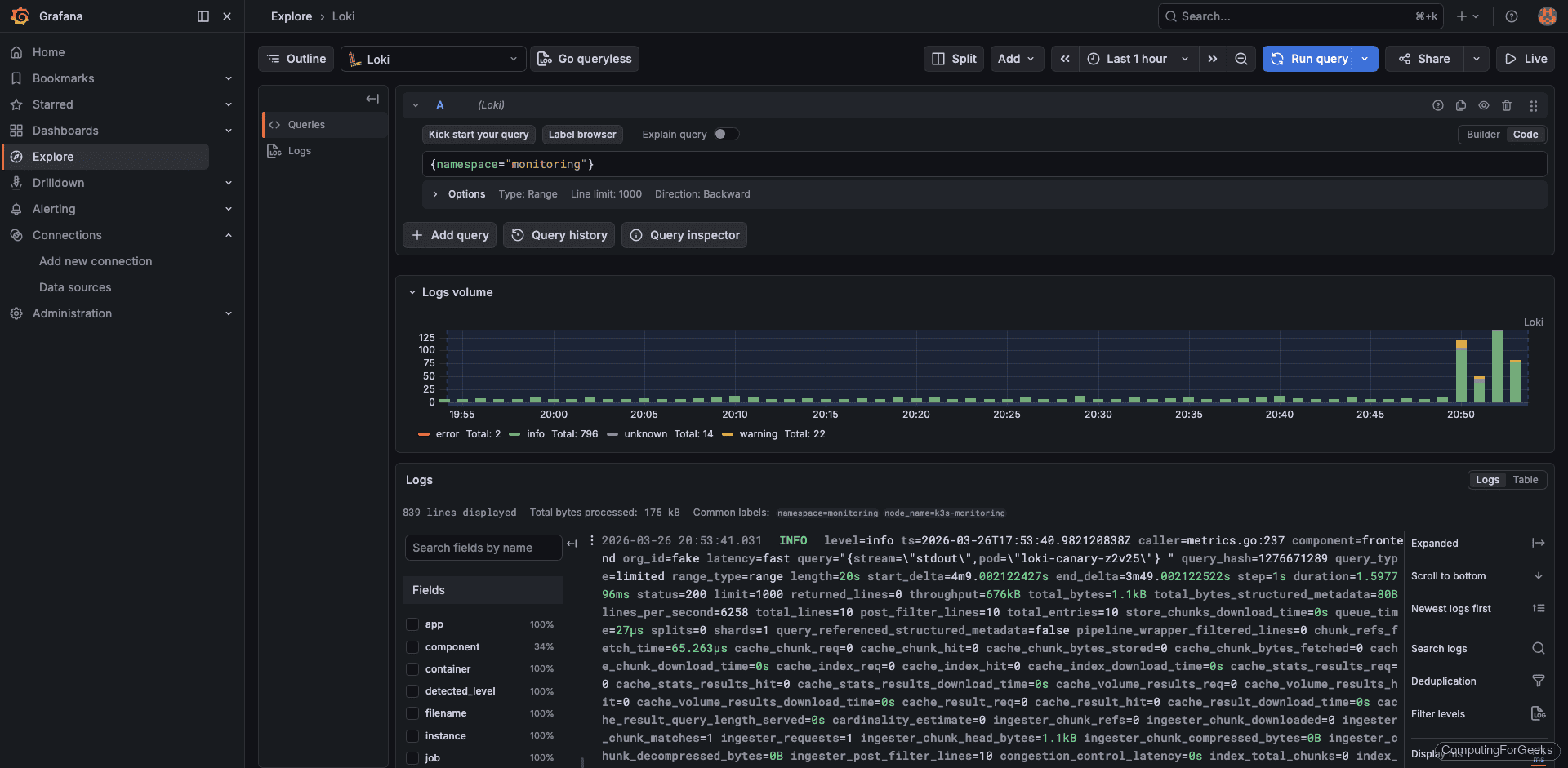
The simplest LogQL query selects all logs from a specific namespace:
{namespace="monitoring"}This returns logs from every pod in the monitoring namespace, including Prometheus, Grafana, Loki itself, and Promtail:
View Application Logs
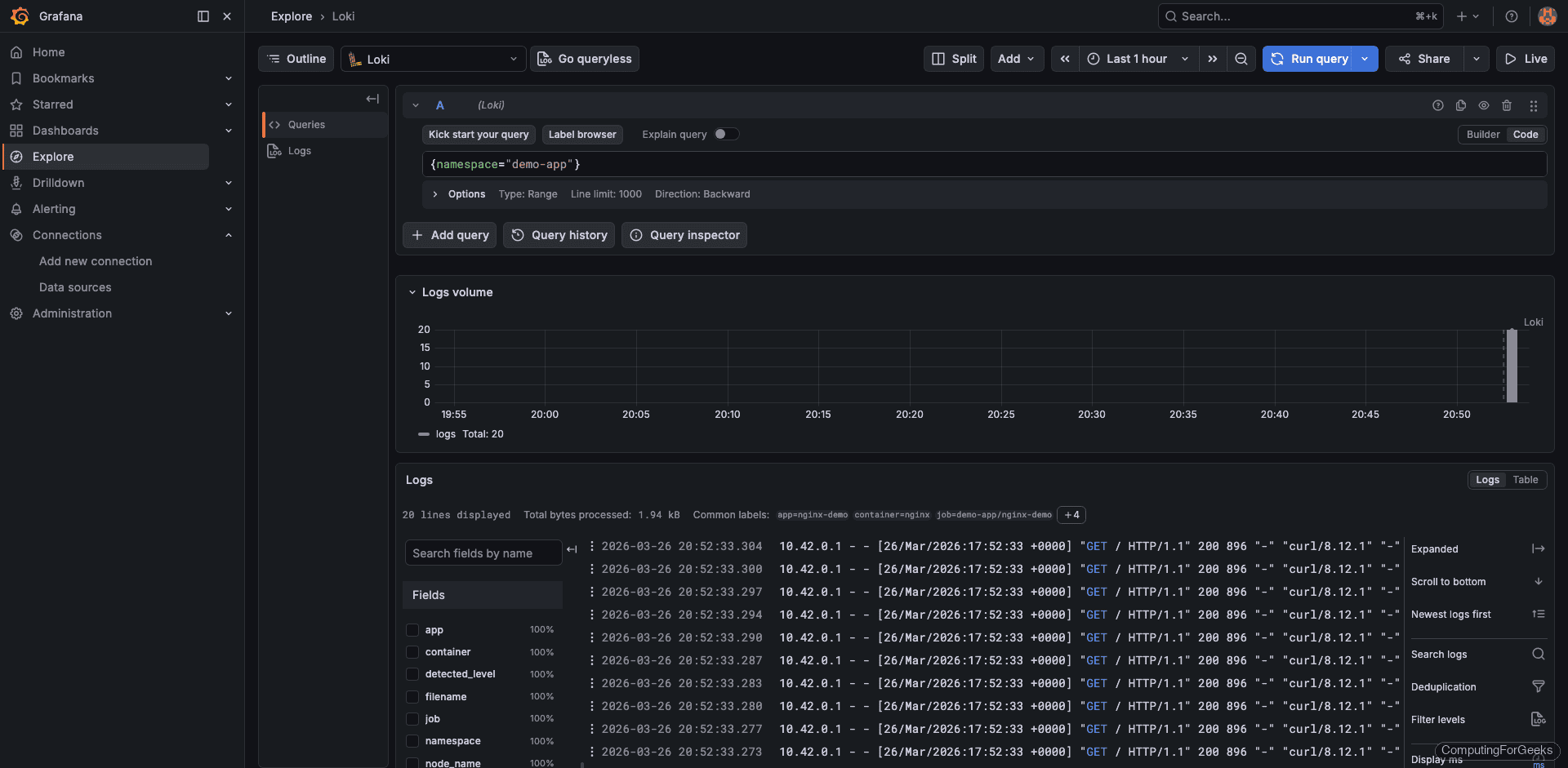
Query the demo-app namespace to see real application logs:
{namespace="demo-app"}The output shows nginx access logs with HTTP method, status code, and user agent. Each log line looks like 10.42.0.1 - - [26/Mar/2026:17:52:33 +0000] "GET / HTTP/1.1" 200 896:
Filter with LogQL
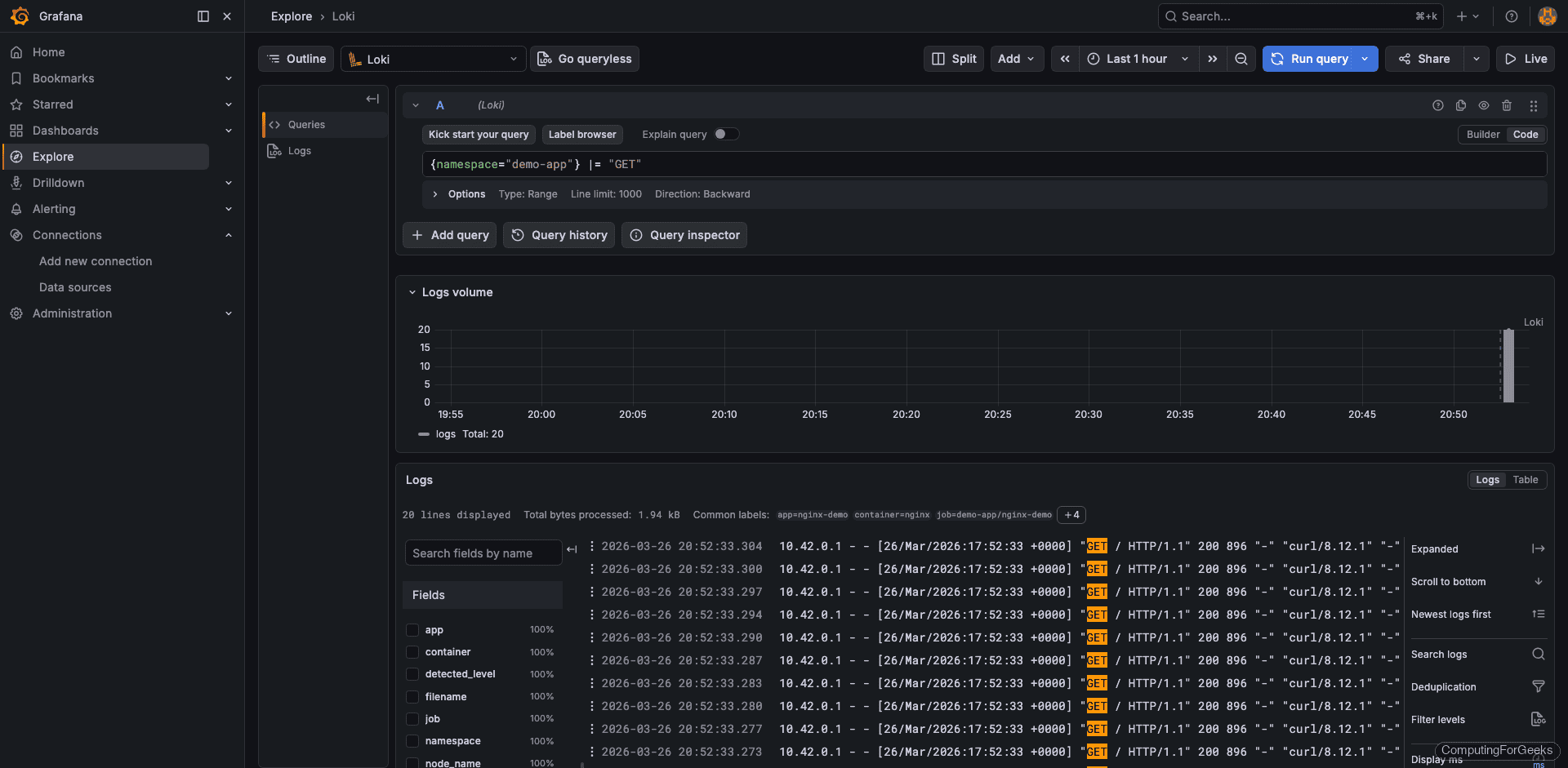
LogQL supports pipeline expressions for filtering. The |= operator does a case-sensitive string match on log lines:
{namespace="demo-app"} |= "GET"This returns only lines containing “GET”, filtering out health checks or POST requests:
View kube-system Logs
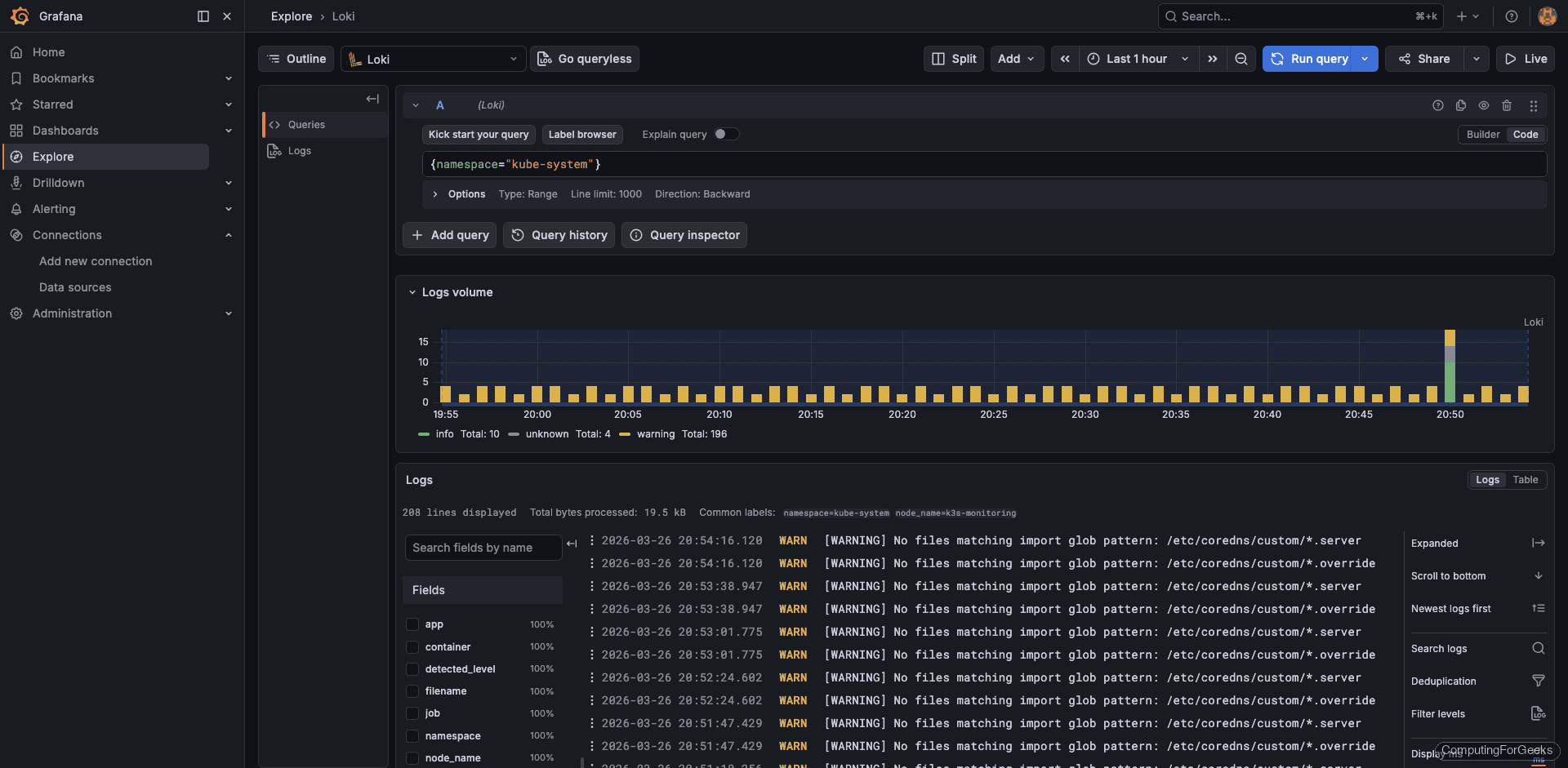
System component logs are equally accessible. Query the kube-system namespace to see control plane activity:
{namespace="kube-system"}This surfaces logs from CoreDNS, kube-proxy, and other system components:
LogQL Quick Reference
LogQL is Loki’s query language. It uses label selectors (the part in curly braces) to select log streams, and pipeline stages (after the |) to filter, parse, and transform log lines. Here are the most useful patterns:
| Query | Purpose |
|---|---|
{namespace="default"} | All logs from the default namespace |
{pod="nginx-abc123"} | Logs from a specific pod |
{container="nginx"} | Logs from all nginx containers across namespaces |
{namespace="prod"} |= "error" | Lines containing “error” |
{namespace="prod"} != "debug" | Lines NOT containing “debug” |
{app="myapp"} | json | Parse JSON-structured logs |
{app="myapp"} | json | status >= 500 | Filter by parsed JSON field value |
rate({namespace="prod"}[5m]) | Log rate per second over 5 minutes |
count_over_time({namespace="prod"} |= "error" [1h]) | Count error lines in the last hour |
topk(5, sum by(pod) (rate({namespace="prod"}[5m]))) | Top 5 pods by log volume |
The available labels in our cluster include app, component, container, filename, instance, job, namespace, node_name, pod, service_name, and stream. You can view all discovered labels in Grafana’s Explore by clicking the label browser button next to the query field.
For the full LogQL syntax, see the official LogQL documentation.
Configure Object Storage for Production
Filesystem storage works well for testing and small clusters, but production deployments should use object storage. Object storage gives you practically unlimited capacity, data durability, and the ability to scale Loki horizontally (since all instances read from the same bucket).
To switch from filesystem to S3-compatible storage (works with MinIO, AWS S3, or any S3-compatible endpoint), update the storage section in your loki-values.yaml:
loki:
  storage:
    type: s3
    s3:
      endpoint: http://minio.minio.svc:9000
      bucketnames: loki-chunks
      access_key_id: minioadmin
      secret_access_key: minioadmin
      s3forcepathstyle: true
      insecure: true
For cloud providers, the configuration is even simpler because IAM roles handle authentication. Here are the storage sections for the three major clouds:
# AWS S3
loki:
  storage:
    type: s3
    s3:
      region: us-east-1
      bucketnames: my-loki-bucket
On AWS, attach an IAM role to the Loki pod’s service account with S3 read/write permissions. No access keys needed when using IRSA (IAM Roles for Service Accounts).
# Google Cloud Storage
loki:
  storage:
    type: gcs
    gcs:
      bucketname: my-loki-bucket
For GCS, use Workload Identity to grant the Loki service account access to the bucket.
# Azure Blob Storage
loki:
  storage:
    type: azure
    azure:
      container_name: loki
      account_name: mystorageaccount
      account_key: YOUR_ACCOUNT_KEY
After updating the values file, upgrade the Helm release:
helm upgrade loki grafana/loki --namespace monitoring --values loki-values.yaml --wait --timeout 5mLoki restarts and begins writing new chunks to object storage. Existing data on the filesystem remains readable until its retention period expires.
Log-Based Alerting
Grafana can trigger alerts based on LogQL metric queries. This is useful for catching error spikes, unexpected log patterns, or services that suddenly go silent.
To create an alert rule, navigate to Alerting > Alert Rules > New Alert Rule in Grafana. Configure it as follows:
- Query – Use a LogQL metric query:
count_over_time({namespace="production"} |= "error" [5m]) - Condition – Fire when the count exceeds 10
- Evaluation interval – Every 1 minute, pending for 5 minutes (avoids alerting on brief spikes)
- Contact point – Route to Slack, email, PagerDuty, or any notification channel configured in Grafana
Some practical alert examples:
- Error rate spike –
count_over_time({namespace="production"} |= "error" [5m]) > 10 - HTTP 5xx responses –
count_over_time({app="nginx"} |= "HTTP/1.1\" 5" [5m]) > 5 - OOM kills –
count_over_time({namespace="kube-system"} |= "OOMKilled" [15m]) > 0 - No logs from a service –
absent_over_time({app="critical-service"}[10m])(fires when a service stops producing logs entirely)
Verify the Full Stack
List all Helm releases in the monitoring namespace to confirm everything is deployed:
helm list -n monitoringAll three releases should show deployed status:
NAME        NAMESPACE    REVISION  STATUS    CHART                          APP VERSION
loki        monitoring   1         deployed  loki-6.55.0                    3.6.7
prometheus  monitoring   1         deployed  kube-prometheus-stack-82.14.1  v0.89.0
promtail    monitoring   1         deployed  promtail-6.17.1                3.5.1
Check that all pods are running:
kubectl get pods -n monitoringEvery pod should show Running with all containers ready. If the Loki pod shows CrashLoopBackOff, check its logs with kubectl logs -n monitoring loki-0 -c loki for configuration errors. The most common issue is an invalid storage configuration or a StorageClass that cannot provision volumes.
What’s Next
- Grafana Tempo for distributed tracing – Correlate logs with traces. Loki log lines can link directly to Tempo traces when your applications emit trace IDs, giving you the full picture from a single Grafana panel.
- Grafana Mimir for long-term metrics – If Prometheus local storage is not enough, Mimir provides horizontally scalable, long-term metrics storage with the same label-based approach Loki uses for logs.
- Log retention policies – Configure
limits_config.retention_periodin Loki to automatically purge old logs. For filesystem storage, 7 to 14 days is a reasonable default. With object storage, you can keep months of data at low cost. - Grafana dashboards for log analytics – Build dashboards that combine Prometheus metrics and Loki log queries on the same panel. Use the
rate()andcount_over_time()functions to create log volume graphs that sit alongside CPU and memory charts. - Multi-tenant isolation – Set
auth_enabled: trueto enable multi-tenancy. Each tenant gets isolated log storage, and queries require anX-Scope-OrgIDheader. Useful when multiple teams share one Loki cluster.
For the full configuration reference, see the official Loki documentation.
