

Compiling Apache Guacamole from source works, but it takes 30+ minutes of dependency wrangling and build steps. The Docker route gets you a fully working remote desktop gateway in about five minutes with three containers: the guacd proxy daemon, the Guacamole web application, and a MySQL backend. No Tomcat tuning, no library conflicts, no guessing which LDAP JAR goes where.
This guide walks through deploying Apache Guacamole with Docker Compose on Ubuntu 24.04, including the Nginx reverse proxy with Let’s Encrypt SSL, TOTP two-factor authentication, and session recording. If you prefer the source install route instead, we have guides for Guacamole on Ubuntu and Guacamole on Debian.
Tested March 2026 on Ubuntu 24.04.4 LTS with Docker 29.3.1, Docker Compose v5.1.1, Guacamole 1.6.0, MySQL 8.4, Nginx 1.24.0
Prerequisites
You need an Ubuntu 24.04 (or Debian 12/13) server with at least 2 GB RAM and root or sudo access. A registered domain name pointed at your server’s public IP is required for the SSL certificate. The steps below install Docker if you don’t already have it.
Install Docker and Docker Compose
Add the official Docker repository and install the engine along with the Compose plugin:
sudo apt update
sudo apt install -y ca-certificates curl
sudo install -m 0755 -d /etc/apt/keyrings
sudo curl -fsSL https://download.docker.com/linux/ubuntu/gpg -o /etc/apt/keyrings/docker.asc
sudo chmod a+r /etc/apt/keyrings/docker.asc
echo "deb [arch=$(dpkg --print-architecture) signed-by=/etc/apt/keyrings/docker.asc] https://download.docker.com/linux/ubuntu $(. /etc/os-release && echo "$VERSION_CODENAME") stable" | sudo tee /etc/apt/sources.list.d/docker.list > /dev/null
sudo apt update
sudo apt install -y docker-ce docker-ce-cli containerd.io docker-buildx-plugin docker-compose-plugin
Confirm both Docker and Compose are available:
docker --version
docker compose version
You should see Docker 29.x and Compose v5.x:
Docker version 29.3.1, build 3ef2b14
Docker Compose version v5.1.1
Create the Project Directory and Generate the DB Init Script
Guacamole stores connections, users, and permissions in MySQL. The database schema ships inside the Docker image, so you extract it with a one-liner before starting anything:
sudo mkdir -p /opt/guacamole/init
cd /opt/guacamole
Pull the schema from the Guacamole image:
sudo docker run --rm guacamole/guacamole /opt/guacamole/bin/initdb.sh --mysql | sudo tee init/01-schema.sql > /dev/nullVerify the SQL file was generated:
ls -lh init/01-schema.sqlThe file should be around 30-40 KB. MySQL will execute it automatically on first startup because the init directory is mounted into /docker-entrypoint-initdb.d.
Write the Compose File
Create the compose.yaml in your project directory:
sudo vi /opt/guacamole/compose.yamlAdd the following configuration:
services:
  guacd:
    image: guacamole/guacd
    container_name: guacd
    restart: unless-stopped
    volumes:
      - drive:/drive:rw
      - record:/record:rw

  mysql:
    image: mysql:8.4
    container_name: guac-mysql
    restart: unless-stopped
    environment:
      MYSQL_ROOT_PASSWORD: R00tStr0ng!
      MYSQL_DATABASE: guacamole_db
      MYSQL_USER: guacamole_user
      MYSQL_PASSWORD: GuacDBStr0ng!
    volumes:
      - dbdata:/var/lib/mysql
      - ./init:/docker-entrypoint-initdb.d:ro

  guacamole:
    image: guacamole/guacamole
    container_name: guacamole
    restart: unless-stopped
    depends_on:
      - guacd
      - mysql
    environment:
      GUACD_HOSTNAME: guacd
      MYSQL_HOSTNAME: mysql
      MYSQL_DATABASE: guacamole_db
      MYSQL_USER: guacamole_user
      MYSQL_PASSWORD: GuacDBStr0ng!
      TOTP_ENABLED: "true"
      RECORDING_SEARCH_PATH: /record
    ports:
      - "8080:8080"
    volumes:
      - drive:/drive:rw
      - record:/record:rw

volumes:
  dbdata:
  drive:
  record:
Here’s what each service does:
- guacd – The Guacamole proxy daemon that handles RDP, VNC, and SSH protocol translation. It connects to your remote machines on behalf of the web client.
- mysql – Stores user accounts, connection definitions, permissions, and session history. The
initdirectory mount loads the Guacamole schema on first run. - guacamole – The Java web application (runs on embedded Tomcat) that serves the browser-based interface on port 8080. It talks to guacd over port 4822 internally.
The three named volumes (dbdata, drive, record) persist data across container restarts. The drive volume enables file transfer through the Guacamole interface, and record stores session recordings.
Change the passwords in the compose file before deploying. Use strong, unique passwords for both MYSQL_ROOT_PASSWORD and MYSQL_PASSWORD. The MYSQL_PASSWORD value must match in both the mysql and guacamole service definitions.
Start the Stack
Launch all three containers in detached mode:
cd /opt/guacamole
sudo docker compose up -d
MySQL needs about 30-40 seconds on first startup to initialize the database and import the schema. Wait a moment, then check the status:
sudo docker compose psAll three containers should show “Up”:
NAME         IMAGE                   STATUS          PORTS
guac-mysql   mysql:8.4               Up 5 minutes    3306/tcp, 33060/tcp
guacamole    guacamole/guacamole     Up 5 minutes    0.0.0.0:8080->8080/tcp
guacd        guacamole/guacd         Up 5 minutes    4822/tcp
Quick sanity check to confirm the web application responds:
curl -s -o /dev/null -w "%{http_code}" http://localhost:8080/guacamole/A 200 response means Guacamole is ready. If you get 000 or 502, the guacamole container is still starting. Give it another 20 seconds and try again.
Set Up Nginx Reverse Proxy with SSL
Guacamole listens on HTTP port 8080 by default. For production use, put Nginx in front with a Let’s Encrypt certificate. Install Nginx and Certbot:
sudo apt install -y nginx certbotObtain the SSL certificate (replace guac.example.com with your actual domain):
sudo certbot certonly --standalone -d guac.example.com --non-interactive --agree-tos -m [email protected]Create the Nginx virtual host:
sudo vi /etc/nginx/sites-available/guacamoleAdd this configuration:
server {
    listen 443 ssl http2;
    server_name guac.example.com;

    ssl_certificate /etc/letsencrypt/live/guac.example.com/fullchain.pem;
    ssl_certificate_key /etc/letsencrypt/live/guac.example.com/privkey.pem;

    location / {
        proxy_pass http://127.0.0.1:8080/guacamole/;
        proxy_buffering off;
        proxy_http_version 1.1;
        proxy_set_header Upgrade $http_upgrade;
        proxy_set_header Connection $http_connection;
        proxy_set_header Host $host;
        proxy_set_header X-Real-IP $remote_addr;
        proxy_set_header X-Forwarded-For $proxy_add_x_forwarded_for;
        proxy_set_header X-Forwarded-Proto $scheme;
    }
}

server {
    listen 80;
    server_name guac.example.com;
    return 301 https://$host$request_uri;
}
The proxy_http_version 1.1 and Upgrade/Connection headers are essential. Guacamole uses WebSockets for the remote desktop tunnel, and without these directives the connection drops after a few seconds.
Enable the site and restart Nginx:
sudo ln -s /etc/nginx/sites-available/guacamole /etc/nginx/sites-enabled/
sudo nginx -t
sudo systemctl restart nginx
Open the firewall for HTTPS traffic:
sudo ufw allow 443/tcp
sudo ufw allow 80/tcp
Verify auto-renewal works:
sudo certbot renew --dry-runCertbot sets up a systemd timer that renews the certificate automatically before it expires.
Access the Web UI
Open https://guac.example.com in your browser. You should see the Guacamole login page:
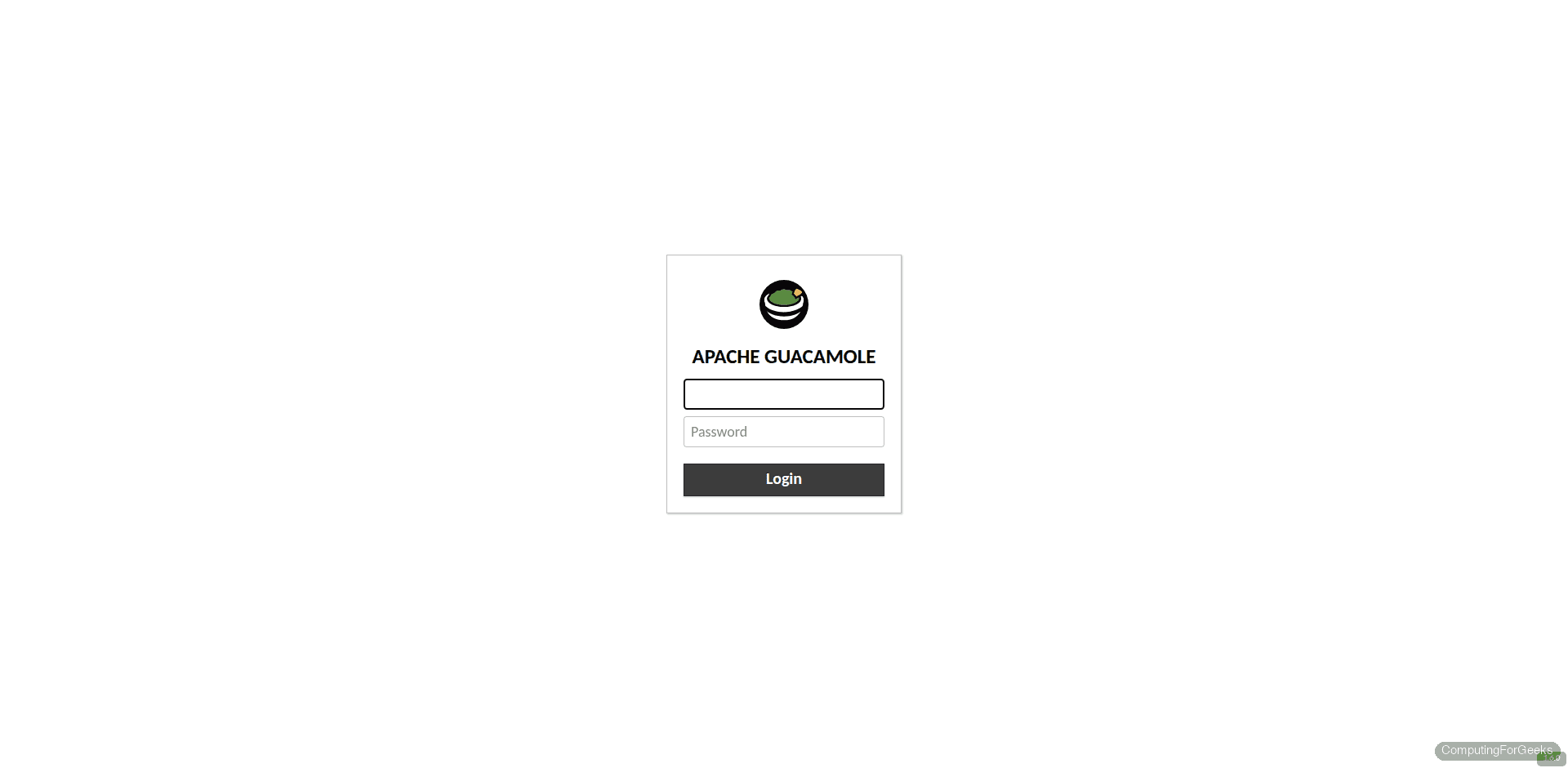
Log in with the default credentials: username guacadmin, password guacadmin. Change this password immediately after your first login. Go to your username in the top-right corner, select Settings, then Preferences, and update the password.
Enable TOTP Two-Factor Authentication
The compose file already includes TOTP_ENABLED: "true" in the guacamole service environment. This activates time-based one-time password authentication for all users without installing any additional extensions.
On your next login after enabling TOTP, Guacamole presents a QR code enrollment screen:
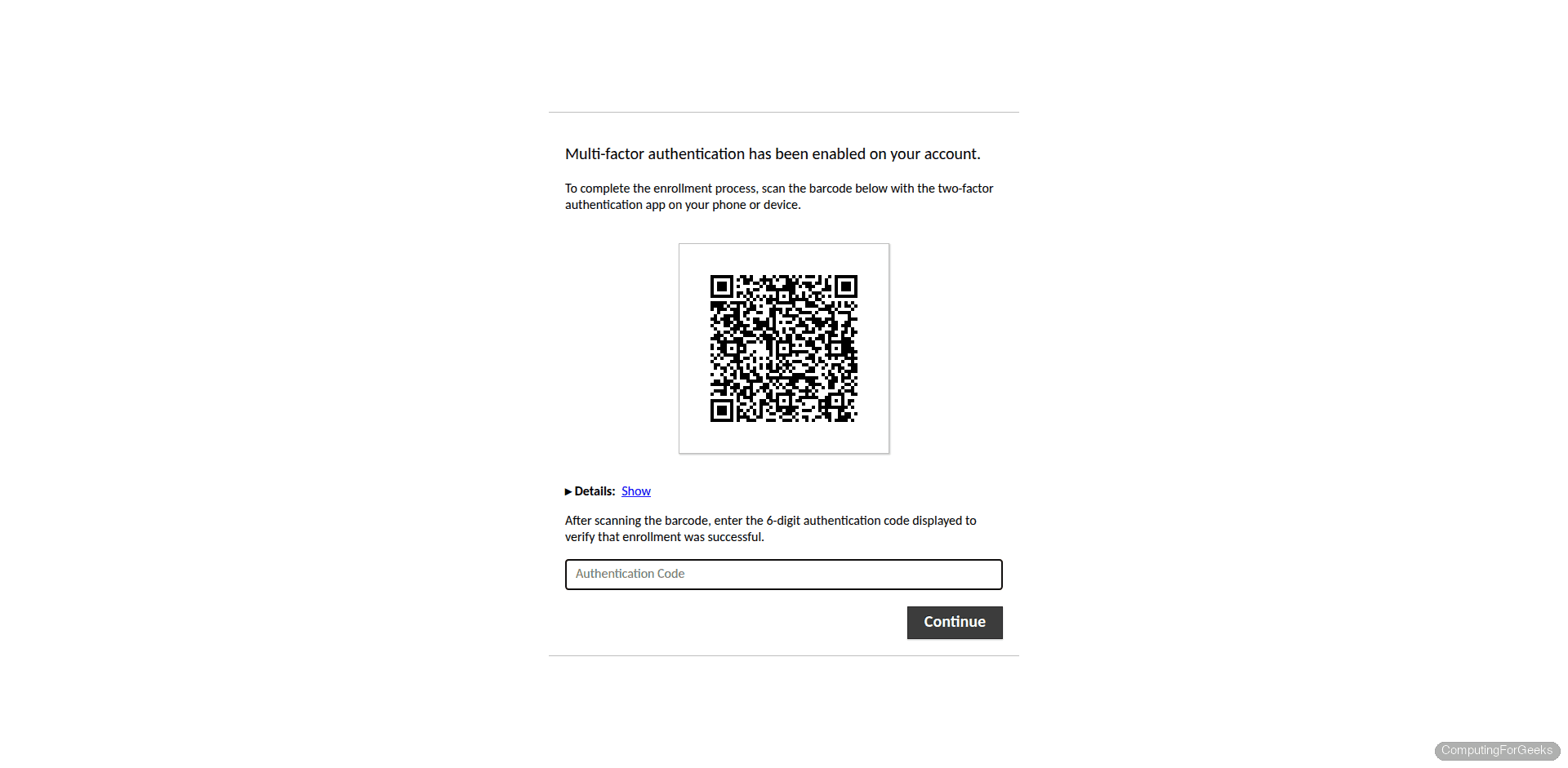
Scan the QR code with any TOTP authenticator app (Google Authenticator, Authy, FreeOTP, or a password manager that supports TOTP). Enter the six-digit code to complete enrollment. Every login from that point forward requires both the password and a TOTP code.
If you want to deploy without TOTP initially and add it later, remove the TOTP_ENABLED line from compose.yaml and recreate the container:
cd /opt/guacamole
sudo docker compose up -d --force-recreate guacamole
Enable Session Recording
Session recording is also pre-configured in the compose file via RECORDING_SEARCH_PATH: /record. This tells Guacamole where to look for recorded sessions when you want to play them back through the web interface.
To actually record a connection, you need to enable it per connection. In the Guacamole admin panel, edit a connection and scroll to the Screen Recording section. Set the recording path to /record and give the recording a name pattern (for example, ${GUAC_USERNAME}-${GUAC_DATE}).
Recordings are stored in the record Docker volume. To list them from the host:
sudo docker volume inspect record --format '{{ .Mountpoint }}'
sudo ls -lh $(sudo docker volume inspect record --format '{{ .Mountpoint }}')
You can play back any recording directly from the Guacamole web interface under Settings, then History. Click on a session that has a recording to watch the replay in your browser.
Managing the Stack
A few commands you’ll use regularly for day-to-day management.
View logs from all containers:
cd /opt/guacamole
sudo docker compose logs -f
Or check a specific container:
sudo docker compose logs -f guacamoleRestart the entire stack:
sudo docker compose restartPull updated images and recreate containers with the new versions:
sudo docker compose pull
sudo docker compose up -d
Docker Compose only recreates containers whose images have changed, so this is safe to run at any time.
Backup the Database
Dump the MySQL database to a file on the host:
sudo docker exec guac-mysql mysqldump -u root -p'R00tStr0ng!' guacamole_db > /opt/guacamole/backup-$(date +%F).sqlThis captures all connections, users, permissions, and history. Store these backups off-server. To restore, copy the SQL file into the running MySQL container:
sudo docker exec -i guac-mysql mysql -u root -p'R00tStr0ng!' guacamole_db < /opt/guacamole/backup-2026-03-27.sqlTroubleshooting
Guacamole container keeps restarting
This almost always means MySQL isn't ready yet. The guacamole container starts, tries to connect to the database, fails, and restarts. Check the logs:
sudo docker compose logs guacamole | tail -20If you see connection refused or authentication errors pointing at MySQL, wait 30-40 seconds for MySQL to finish initializing. On first startup, MySQL imports the schema file which takes time. The container will stabilize on its own once the database is ready because of the restart: unless-stopped policy.
If it keeps failing after a minute, verify the database credentials in compose.yaml. The MYSQL_PASSWORD in the guacamole service must exactly match the one in the mysql service.
WebSocket connection errors or tunnel closed
When the remote desktop loads for a second then drops with "The Guacamole connection has been closed" or "Tunnel closed," the issue is usually Nginx not forwarding WebSocket connections properly. Confirm your Nginx config includes these three lines in the location block:
proxy_http_version 1.1;
proxy_set_header Upgrade $http_upgrade;
proxy_set_header Connection $http_connection;
Also verify that proxy_buffering off; is set. Buffering interferes with the real-time stream between the browser and guacd.
Error: "Could not find or load main class org.apache.guacamole.extension..."
This appeared in older Guacamole Docker images when there was a javax-to-jakarta namespace conflict. The current 1.6.0 Docker images handle this internally, so you should not see it. If you do, pull fresh images:
sudo docker compose pull
sudo docker compose up -d --force-recreate
Never add javax2jakarta workarounds when using the official Docker images. They are already patched.
