

Most bootable USB tools format your drive, write one ISO to it, and that is it. Ventoy takes a different approach: install it once, and then just copy ISO files to the drive. Drop five ISOs on there, ten, fifty. Each one appears in a boot menu, ready to launch. No reformatting, no re-flashing. Ventoy supports ISO, WIM, IMG, VHD, VHDX, and EFI files, boots in both Legacy BIOS and UEFI mode (including Secure Boot), and works with over 1,300 tested operating systems.
This guide covers installing Ventoy on Linux using the command line and the web interface, configuring options like Secure Boot and GPT partitioning, and copying ISOs to boot. If you need a bootable Windows USB specifically, Ventoy handles that too (just copy the Windows ISO onto the drive).
Tested March 2026 on Ubuntu 24.04.4 LTS with Ventoy 1.1.10
What Makes Ventoy Different
Traditional tools like Etcher or dd write one image per USB drive. Ventoy changes that model completely:
- Multi-boot by default: copy as many ISOs as your drive can hold. Each one appears in the boot menu
- No reformatting on updates: adding or removing ISOs does not require reinstalling Ventoy
- Broad format support: ISO, WIM, IMG, VHD, VHDX, and EFI files boot directly
- BIOS and UEFI: Legacy BIOS, x86_64 UEFI, ARM64 UEFI, IA32 UEFI, and MIPS64EL UEFI
- Secure Boot support: works with UEFI Secure Boot enabled (via the
-sflag or Web UI option) - MBR and GPT: supports both partition styles. GPT is recommended for drives over 2 TB
- ISOs over 4 GB: no FAT32 file size limitation because the data partition uses exFAT by default
- Persistence: configure persistent storage for live Linux sessions via JSON configuration
- Themes: full GRUB2 theme support for custom boot menus
Prerequisites
- A Linux system (Ubuntu, Debian, Rocky Linux, Fedora, Arch, or any other distribution)
- A USB drive (8 GB minimum, 32 GB or larger recommended for multiple ISOs)
- Root or sudo access
curlandwgetfor downloading
Install Ventoy on Linux (Command Line)
Download the latest version using a version-agnostic command that detects the current release from GitHub:
VER=$(curl -sL https://api.github.com/repos/ventoy/Ventoy/releases/latest | grep tag_name | head -1 | sed 's/.*"v\([^"]*\)".*/\1/')
echo "Latest Ventoy version: $VER"
The version detection should return a clean version string:
Latest Ventoy version: 1.1.10Download and extract:
wget "https://github.com/ventoy/Ventoy/releases/download/v${VER}/ventoy-${VER}-linux.tar.gz" -O /tmp/ventoy.tar.gz
cd /tmp && tar xzf ventoy.tar.gz
cd ventoy-${VER}
The extracted directory contains these scripts:
| Script | Purpose |
|---|---|
Ventoy2Disk.sh | Install/update Ventoy via command line |
VentoyWeb.sh | Browser-based installation interface |
VentoyGUI.x86_64 | Native GTK/QT desktop GUI |
VentoyPlugson.sh | Plugin/theme configuration GUI |
CreatePersistentImg.sh | Create persistence image files for live sessions |
Identify Your USB Drive
Before installing, identify the correct device name for your USB drive. Getting this wrong will overwrite the wrong disk.
lsblkLook for the device matching your USB drive’s size. In this example, /dev/sda is an 8 GB drive:
NAME   MAJ:MIN RM  SIZE RO TYPE MOUNTPOINTS
sda      8:0    0    8G  0 disk
vda    254:0    0   20G  0 disk
├─vda1 254:1    0   19G  0 part /
└─vda2 254:2    0    1G  0 part
Install Ventoy to the USB Drive
Run the installer with the -i flag (install) and the -s flag (enable Secure Boot). Replace /dev/sda with your actual USB device:
sudo sh Ventoy2Disk.sh -i -s /dev/sdaConfirm the installation when prompted (type y twice). Ventoy creates two partitions and writes its bootloader:
**********************************************
      Ventoy: 1.1.10  x86_64
      longpanda [email protected]
      https://www.ventoy.net
**********************************************

Disk : /dev/sda
Model: QEMU QEMU HARDDISK (scsi)
Size : 8 GiB
Style: MBR

Attention:
You will install Ventoy to /dev/sda.
All the data on the disk /dev/sda will be lost!!!

Create partitions on /dev/sda by parted in MBR style ...
Done
create efi fat fs /dev/sda2 ...
mkfs.fat 4.2 (2021-01-31)
success
Format partition 1 /dev/sda1 ...
mkexfatfs 1.3.0
Creating... done.
Flushing... done.
File system created successfully.
writing data to disk ...
sync data ...
esp partition processing ...

Install Ventoy to /dev/sda successfully finished.
Ventoy creates two partitions on the drive:
lsblk /dev/sda -o NAME,SIZE,TYPE,FSTYPE,LABELThe first partition (exFAT, labeled “Ventoy”) holds your ISO files. The second partition (FAT, labeled “VTOYEFI”) contains the Ventoy bootloader:
NAME   SIZE TYPE FSTYPE LABEL
sda      8G disk
├─sda1   8G part exfat  Ventoy
└─sda2  32M part vfat   VTOYEFI
Ventoy2Disk.sh Flags Reference
| Flag | Purpose |
|---|---|
-i | Install Ventoy (fails if Ventoy is already installed on the drive) |
-I | Force install (overwrites existing Ventoy installation) |
-u | Update Ventoy without touching the data partition |
-s | Enable UEFI Secure Boot support |
-g | Use GPT partition style instead of MBR |
-L LABEL | Set a custom volume label (default: “Ventoy”) |
-r SIZE_MB | Reserve space at the end of the disk |
Install Ventoy Using the Web Interface
Ventoy includes a browser-based interface that provides the same functionality as the CLI but with a visual device selector and options menu.
Start the web server:
sudo sh VentoyWeb.shThe server starts on port 24680:
===============================================================
  Ventoy Server 1.1.10 is running ...
  Please open your browser and visit http://127.0.0.1:24680
===============================================================
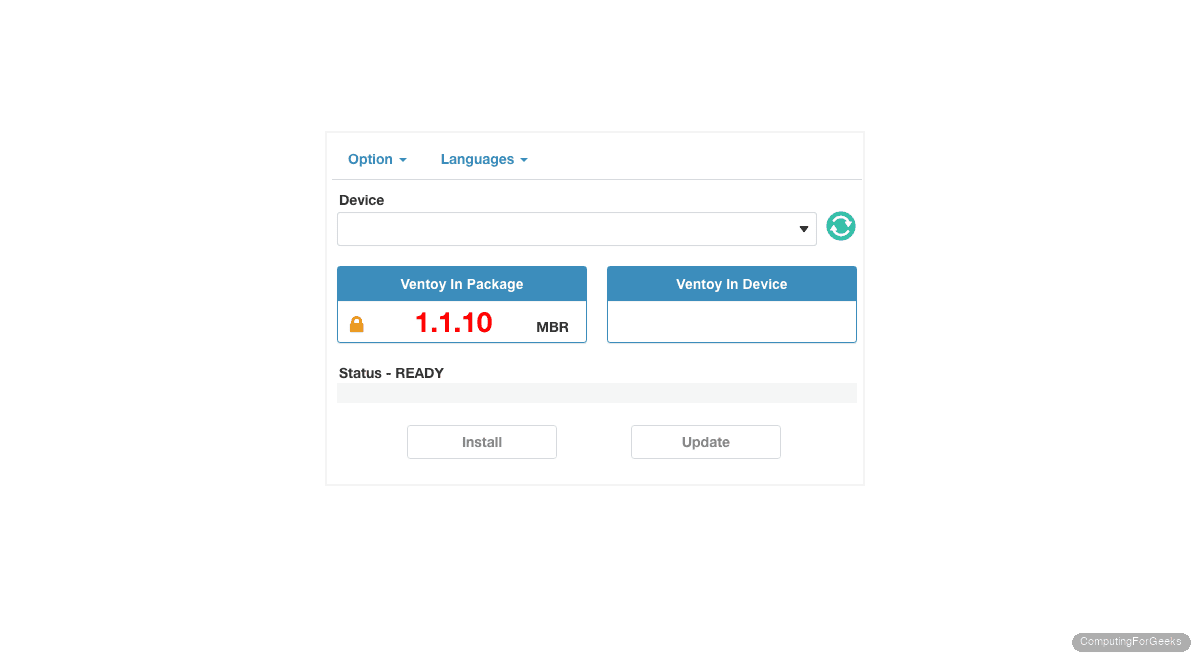
Open http://127.0.0.1:24680 in your browser. The interface shows the Ventoy version in the package, a device selector dropdown, and Install/Update buttons:
Click the Option dropdown to configure Secure Boot support, partition style (MBR or GPT), and other settings before installing:
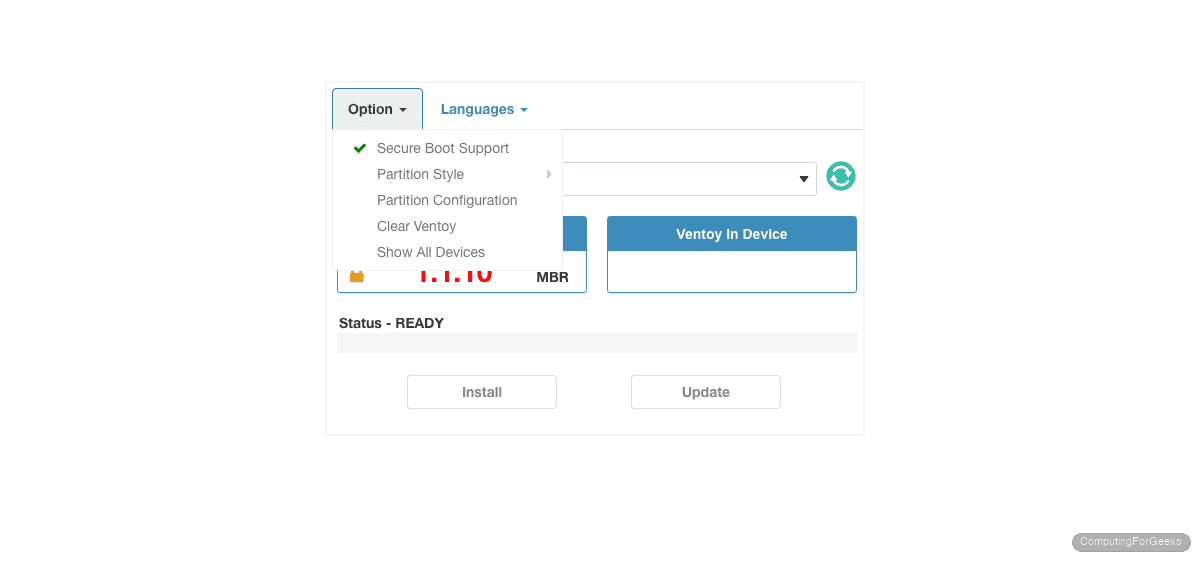
Select your USB device from the dropdown, enable Secure Boot Support if needed, and click Install. The web interface is especially useful on headless servers where you can access it remotely by starting VentoyWeb with -H 0.0.0.0 to bind to all interfaces.
Copy ISOs and Boot
After Ventoy is installed, using it is straightforward: mount the first partition (labeled “Ventoy”) and copy ISO files onto it.
sudo mount /dev/sda1 /mnt
sudo cp ~/Downloads/ubuntu-24.04-desktop-amd64.iso /mnt/
sudo cp ~/Downloads/rocky-10.1-x86_64-dvd.iso /mnt/
sudo umount /mnt
You can also use a file manager: the Ventoy partition appears as a regular removable drive. Drag and drop ISOs onto it. Organize ISOs into folders if you want a cleaner boot menu.
Boot from the USB drive (press F12, F2, or Del during startup to access the boot menu on most systems). Ventoy shows a menu listing every ISO file on the drive. Select one and it boots directly, no extraction or flashing needed.
Update Ventoy
Updating Ventoy on an existing USB drive preserves all your ISO files. Only the bootloader partition is updated:
sudo sh Ventoy2Disk.sh -u /dev/sdaThe -u flag updates the Ventoy installation without formatting the data partition. Your ISOs remain untouched. You can also update through the Web UI by clicking the Update button.
Advanced Configuration
GPT Partition Style
For drives over 2 TB or systems that require GPT, use the -g flag:
sudo sh Ventoy2Disk.sh -i -s -g /dev/sdaPersistent Storage for Live Sessions
By default, changes made during a live Linux session are lost on reboot. Ventoy supports persistence by creating a data image file and mapping it to specific ISOs.
Create a persistence image (4 GB in this example):
sudo sh CreatePersistentImg.sh -s 4096 -l casper-rwCopy the resulting persistence.dat file to the USB drive, then create a ventoy/ventoy.json configuration file on the USB drive to map the persistence image to your ISO:
{
    "persistence": [
        {
            "image": "/ubuntu-24.04-desktop-amd64.iso",
            "backend": "/persistence.dat"
        }
    ]
}
Custom Boot Menu Theme
Ventoy supports GRUB2 themes for a customized boot menu. Download a theme from Gnome-look.org, extract it to /ventoy/theme/ on the USB drive, and reference it in ventoy/ventoy.json:
{
    "theme": {
        "file": "/ventoy/theme/Vimix/theme.txt"
    }
}
Supported Filesystems for the Data Partition
Ventoy supports multiple filesystems for the main data partition where ISOs are stored:
| Filesystem | Max File Size | Notes |
|---|---|---|
| exFAT (default) | 16 EB | Best choice. Cross-platform (Linux, Windows, macOS). No 4 GB limit. |
| NTFS | 16 EB | Works if you share the drive with Windows. |
| FAT32 | 4 GB | Maximum compatibility but cannot hold ISOs over 4 GB. |
| UDF | 16 EB | Universal Disk Format. Less common. |
| XFS | 8 EB | Linux-native. High performance. |
| Ext2/3/4 | 16 TB | Linux-native. Not readable on Windows without drivers. |
| Btrfs | 16 EB | Experimental since Ventoy 1.1.09. |
Stick with exFAT unless you have a specific reason to change. It handles large ISOs, works across all operating systems, and is the default.
Install Ventoy on Windows
Download the Windows version from the Ventoy releases page. The file is named ventoy-X.X.XX-windows.zip. Extract it and run Ventoy2Disk.exe as Administrator. The GUI is identical to the Linux Web UI: select your USB device, configure options, and click Install.
Troubleshooting
Error: “exFAT filesystem not supported”
When mounting the Ventoy data partition on Linux, you may see “unknown filesystem type ‘exfat'”. The kernel exFAT module is missing. Install it:
On Ubuntu/Debian:
sudo apt install -y exfatprogs linux-modules-extra-$(uname -r)On Rocky Linux/RHEL/Fedora:
sudo dnf install -y exfatprogsUSB drive not detected in boot menu
Check the boot order in your BIOS/UEFI settings. The USB drive must be set as the first boot device (or accessed via the one-time boot menu, usually F12). If Secure Boot is enabled, make sure Ventoy was installed with the -s flag. Without it, the UEFI firmware will refuse to boot Ventoy.
ISO does not appear in Ventoy boot menu
Verify the file extension is lowercase (.iso, not .ISO). Check that the file is not corrupted by verifying its checksum against the download source. Ventoy also requires the ISO to be on the first partition (the one labeled “Ventoy”), not the EFI partition.
Going Further
- VentoyPlugson: run
sudo sh VentoyPlugson.shfor a browser-based tool that configures persistence, themes, auto-installation templates, and global control settings without editing JSON manually - Auto-installation: Ventoy can inject unattended installation files (kickstart, preseed, cloud-init) for automated OS deployments. Configure via
ventoy/ventoy.json - VHD/VHDX boot: boot Windows VHD/VHDX images directly, useful for portable Windows environments
- Tree view mode: organize ISOs into directories on the USB drive. Ventoy displays them as a hierarchical menu instead of a flat list
- Tested ISOs: the Ventoy compatibility list contains over 1,300 tested ISOs across Linux, Windows, BSD, and specialty distributions
