

There are several tools for creating bootable USB drives from ISO images on macOS and Linux. The right choice depends on what you need: dd is built into every Unix system and works without installing anything, balenaEtcher provides a GUI with write verification, Ventoy lets you put multiple ISOs on a single drive, and Raspberry Pi Imager works for any image despite the name.
This guide covers all four methods with real commands tested on macOS (Apple Silicon) and Linux. We also cover the key gotchas that catch people, like the macOS rdisk vs disk performance difference and why you need to unmount (not eject) before writing.
Tested March 2026 on macOS 15.4 (Apple Silicon) and Ubuntu 24.04. USB: SanDisk 3.2Gen1 32GB.
Which Tool to Use
| Tool | macOS | Linux | Best For |
|---|---|---|---|
dd | Built-in | Built-in | Quick writes without installing anything. CLI only. |
| balenaEtcher | Yes | Yes | GUI with write verification. Beginners. |
| Ventoy | No | Yes | Multiple ISOs on one USB. Boot menu to pick one. |
| RPi Imager | Yes | Yes | GUI tool that works with any ISO (not just Raspberry Pi). |
Method 1: dd (macOS and Linux)
The dd command copies raw bytes from an ISO file directly to a USB device. It requires no installation, works on every Unix system, and produces a byte-perfect copy. The trade-off is that it has no safety rails: write to the wrong device and you destroy that disk’s data.
Identify the USB Device
On macOS, use diskutil list to identify your USB. Look for the external, physical disk that matches your USB’s size:
diskutil listIn our test setup, the 30.8 GB SanDisk shows up as /dev/disk4:
/dev/disk4 (external, physical):
   #:                       TYPE NAME                    SIZE       IDENTIFIER
   0:      GUID_partition_scheme                        *30.8 GB    disk4
   1:       Microsoft Basic Data                         6.7 GB     disk4s1
   2:                        EFI ESP                     5.2 MB     disk4s2
On Linux, use lsblk to identify the USB:
lsblk -d -o NAME,SIZE,MODEL,TRANThe USB will show usb in the TRAN column. Note the device name (e.g., /dev/sdb).
Unmount and Write
Unmount the USB first. On macOS, use diskutil unmountDisk (not “Eject” from Finder, which disconnects the device entirely):
diskutil unmountDisk /dev/disk4On Linux:
sudo umount /dev/sdb*Write the ISO to the USB. On macOS, use /dev/rdisk4 (not /dev/disk4). The r prefix means “raw device” which bypasses the buffer cache. In our test, rdisk wrote at 36 MB/s versus roughly 2 MB/s through disk:
sudo dd if=/path/to/image.iso of=/dev/rdisk4 bs=4M status=progressThe output confirms the write speed and total bytes:
172273664 bytes (172 MB, 164 MiB) copied, 4.75998 s, 36.2 MB/sOn Linux, use the device path directly:
sudo dd if=/path/to/image.iso of=/dev/sdb bs=4M status=progress conv=fsyncThe conv=fsync flag ensures all data is physically written to the USB before dd exits. Without it, data may still be in the kernel’s write cache when dd reports completion.
After writing, sync and eject:
sync
sudo diskutil eject /dev/disk4   # macOS
sudo eject /dev/sdb              # Linux
Method 2: balenaEtcher (macOS and Linux)
Etcher is a GUI tool that flashes ISO images to USB drives with built-in write verification. It validates the write after flashing to catch bad USB drives or corrupt downloads.
Install Etcher
On macOS via Homebrew:
brew install --cask balenaetcherOn Ubuntu / Debian, download the .deb package from the Etcher GitHub releases page and install it:
curl -sLO https://github.com/balena-io/etcher/releases/download/v2.1.4/balena-etcher_2.1.4_amd64.deb
sudo dpkg -i balena-etcher_2.1.4_amd64.deb
sudo apt-get install -f -y
On Fedora / RHEL, download the .rpm:
curl -sLO https://github.com/balena-io/etcher/releases/download/v2.1.4/balena-etcher-2.1.4-1.x86_64.rpm
sudo dnf install -y balena-etcher-2.1.4-1.x86_64.rpm
On Arch / Manjaro:
yay -S balena-etcherFlash the USB
Launch Etcher from your application menu. The main screen presents the three-step workflow: select image, select target, flash:
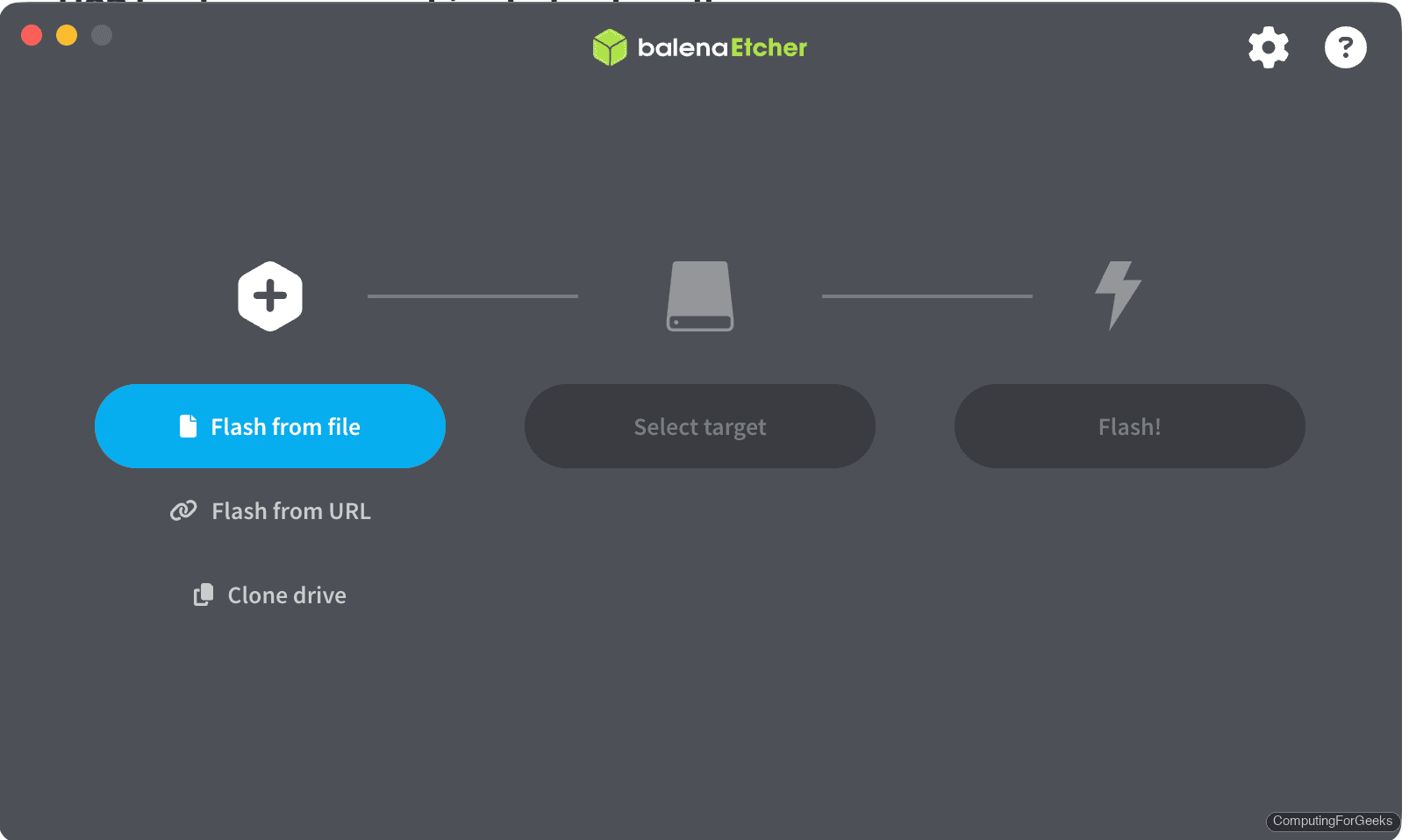
Click Flash from file and browse to your ISO. Then click Select target. Etcher shows only removable drives and hides your system disk to prevent accidental writes:
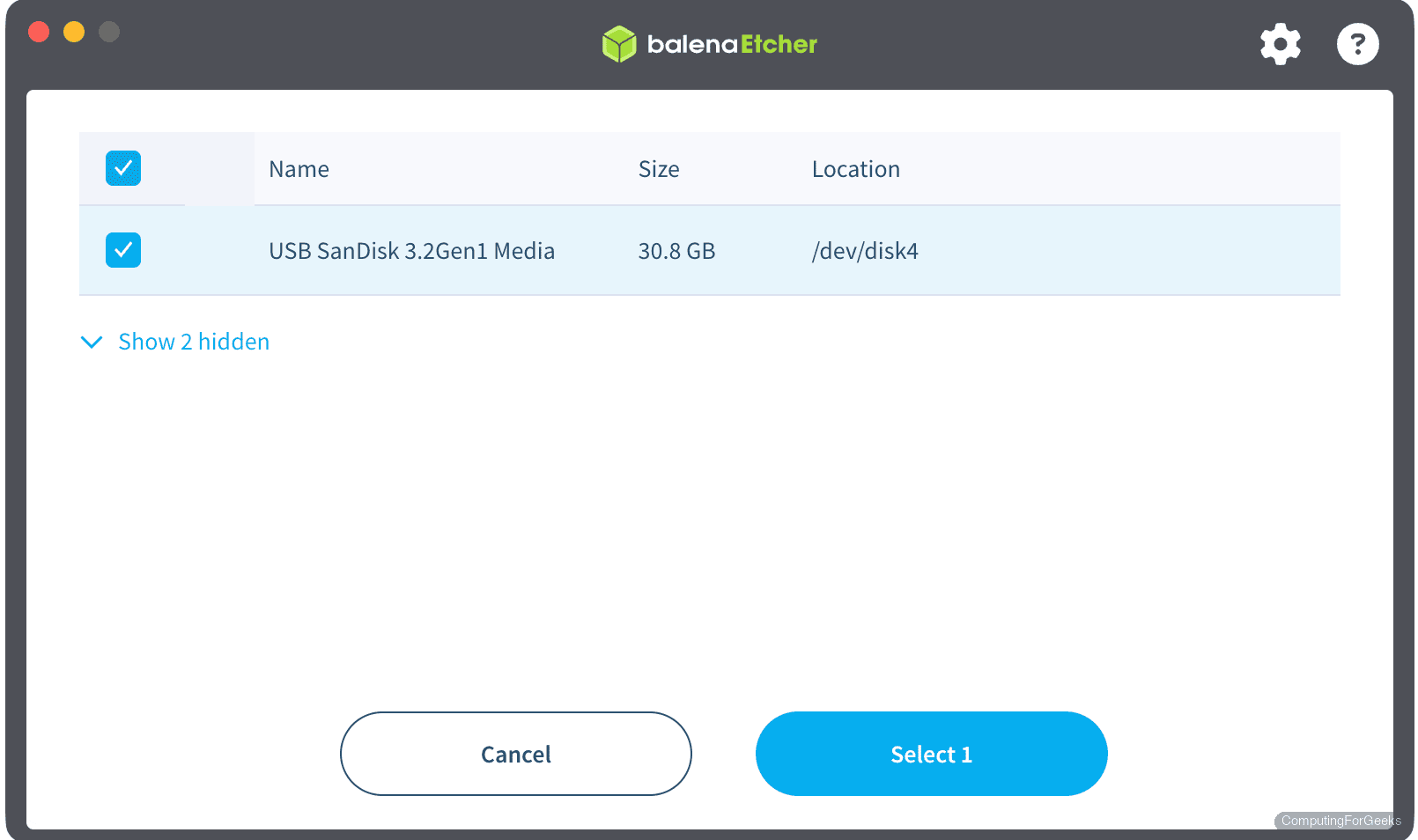
Select your USB drive and click Flash!. On macOS, you will be prompted for your admin password. Etcher writes the image and then verifies it by reading the USB back and comparing checksums:
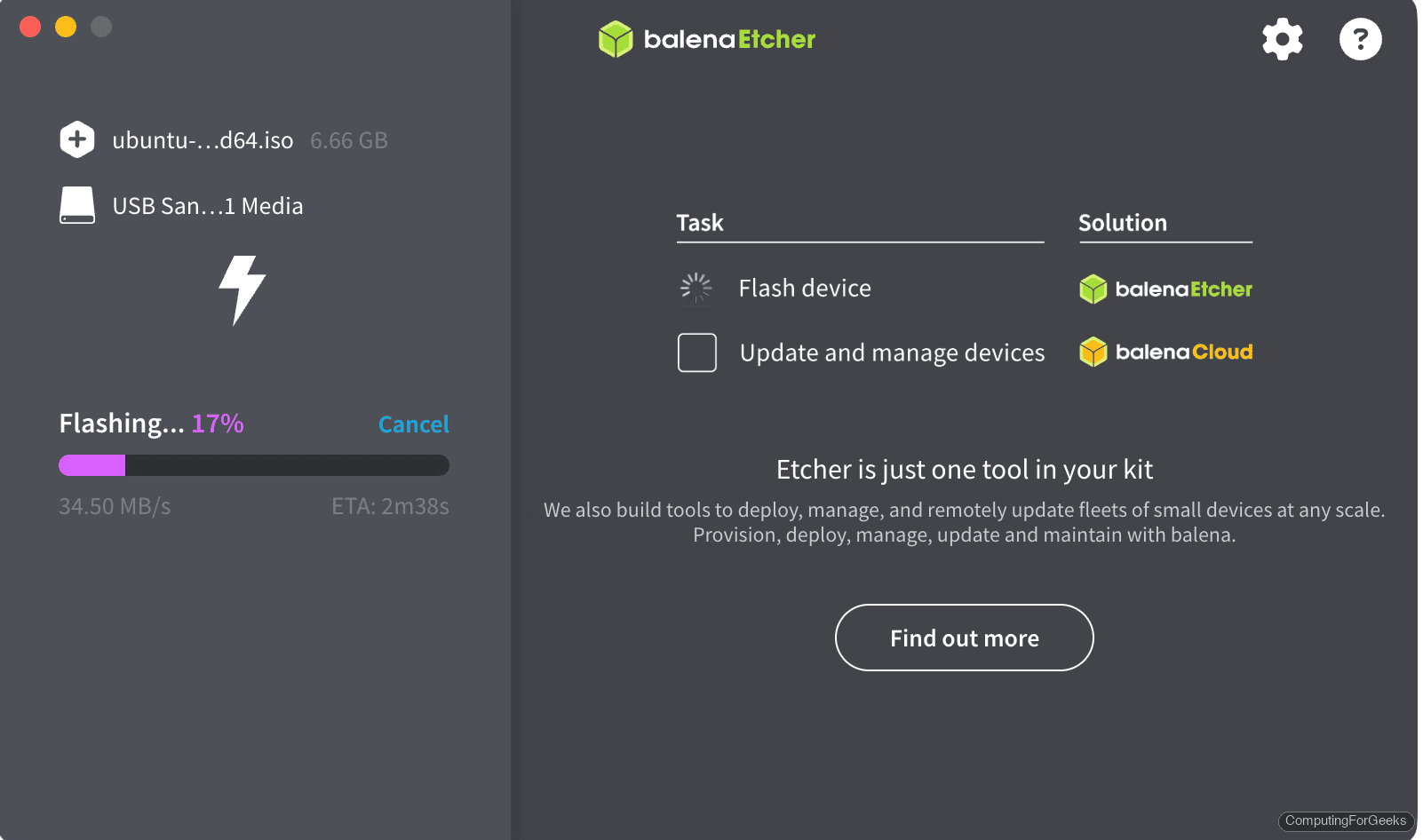
The verification pass adds time but catches silent write errors that dd would miss. This is especially valuable with older or cheap USB drives that have bad sectors.
Method 3: Ventoy (Linux Only)
Ventoy takes a fundamentally different approach. Instead of writing one ISO at a time, it installs a bootloader on the USB and creates a data partition. You then copy ISO files directly onto the USB like regular files. At boot time, Ventoy presents a menu listing every ISO on the drive. No re-flashing needed when you add or remove images. For a detailed walkthrough, see our dedicated Ventoy guide.
Ventoy supports ISO, WIM, IMG, VHD(x), and EFI files. It works with 900+ tested OS images including Windows, every major Linux distro, and even VMware ESXi. The current version is 1.1.10.
Note: Ventoy does not support macOS. It runs on Linux and Windows only.
Install Ventoy on Linux
Download the latest release and extract it:
VER=$(curl -sL https://api.github.com/repos/ventoy/Ventoy/releases/latest | grep tag_name | sed 's/.*"v\([^"]*\)".*/\1/')
echo "Latest Ventoy: $VER"
wget -q "https://github.com/ventoy/Ventoy/releases/download/v${VER}/ventoy-${VER}-linux.tar.gz" -O /tmp/ventoy.tar.gz
tar xzf /tmp/ventoy.tar.gz -C /tmp/
Install Ventoy to the USB drive (replace /dev/sdb with your USB device):
cd /tmp/ventoy-${VER}/
sudo sh Ventoy2Disk.sh -i /dev/sdb
Answer y twice when prompted to confirm. Ventoy creates two partitions: a small EFI boot partition and a large exFAT data partition.
Now just copy ISO files onto the USB like any other file:
sudo mount /dev/sdb1 /mnt
sudo cp ~/Downloads/ubuntu-24.04-desktop-amd64.iso /mnt/
sudo cp ~/Downloads/fedora-42-live.iso /mnt/
sudo umount /mnt
Boot from the USB and Ventoy presents a menu with all the ISOs listed. Select one and it boots directly. Adding a new OS is as simple as copying another ISO file onto the drive.
Method 4: Raspberry Pi Imager (macOS and Linux)
Despite the name, Raspberry Pi Imager works as a general-purpose USB flasher. The “Use custom” option lets you select any local ISO or IMG file. Version 2.0 (released November 2025) was a major redesign with improved custom image support.
Install on macOS:
brew install --cask raspberry-pi-imagerInstall on Ubuntu / Debian:
sudo apt install -y rpi-imagerLaunch the app, click Choose OS > Use custom, select your ISO file, choose the USB target, and click Write. Like Etcher, it verifies the write after completion.
Troubleshooting
“Resource busy” when running dd on macOS
You forgot to unmount first. Run diskutil unmountDisk /dev/diskN before the dd command. If Finder auto-mounts the USB after inserting it, unmount it again.
“Permission denied” on Linux
Writing to a raw block device requires root. Prefix your dd command with sudo. If you are using Etcher as a Flatpak or AppImage, it may also need to be launched with sudo or granted block device access.
USB boots on one machine but not another
Check the BIOS/UEFI settings on the target machine. Some machines need Secure Boot disabled for Linux ISOs. Others need the boot order changed to prioritize USB. If the ISO supports both BIOS and UEFI boot (most modern distros do), make sure the USB is detected in the correct mode.
Going Further
- Create Windows 11 bootable USB on Linux (requires handling the FAT32 4GB file size limit for the install.wim)
- Set up Ventoy for multi-boot USB with multiple Linux distros and Windows installers on one drive
- Create bootable Windows USB and install Windows 11 from scratch
- For persistent USB installs (where changes survive reboots), look into tools like mkusb or Ubuntu’s “Full installation to USB” option in the installer