

What are Storage Pools?
You can think of storage pool as a virtual container that combines multiple physical storage devices into a single unit (pool) for easy management. The gain from this is the simplified management and allocation of storage resources for use by your virtual machines.
From WebvirtCloud, you can can create and manage the following storage pool types:
DIR (Directory)
- This is an easy to set up and management storage type
- It uses simple directory-based storage (local host filesystem)
- It is less scalable and doesn’t offer best performance
LVM (Logical Volume Manager)
- LVM offers flexible logical volume management solution in your KVM
- It has support for snapshots and resizing (more flexible)
- You get better performance than directory-based storage
Ceph
- Ceph is a distributed storage system
- It’s fault-tolerant, and highly scalable than both LVM and directory storage setups
- It provides file, block, and object storage.
NFS (Network File System)
- This is network attached storage (network-based shared storage)
- It’s easy to set up and manage
- Its performance depends heavily on network throughput
ISO
- Storage dedicated to ISO image files
- The purpose of this is simplified VM instalaltions
- It’s limited to storage of ISO files only
Creating Storage Pool for KVM using WebvirtCloud
For effective configuration of the storage pools within the WebvirtCloud dashboard, some prerequisites must be in place.
- A functional KVM hypervisor(s). For installation process on major Linux systems refer to this guide.
- A working set up of WebvirtCloud; See installation guide for Rocky/AlmaLinux and Ubuntu Linux.
When both are active, the other dependencies will depend on the storage pool type. For example, to add Ceph storage type, you must have deployed Ceph cluster, and for NFS and NFS server should be in existence.
Other specific requirements may vary depending on the storage pool you wan to use. For example, creating a Ceph-based storage pool necessitates a deployed Ceph cluster, while NFS storage pool will require a pre-configured NFS server.
1 – Creating Directory Storage Pool
This storage pool type uses a directory in the host file system. In KVM, the default directory path for VMs images is /var/lib/libvirt/images/, however, this can be adjusted to a separate path.
Using additional disk device (optional)
The server used in this example has an additional raw disk /dev/sdb. We will use this to store virtual machines images.
$ lsblk
NAME   MAJ:MIN RM  SIZE RO TYPE MOUNTPOINT
sda    252:0    0   80G  0 disk
├─vda1 252:1    0   99M  0 part /boot/efi
├─vda2 252:2    0 1000M  0 part /boot
├─vda3 252:3    0    4M  0 part
├─vda4 252:4    0    1M  0 part
└─vda5 252:5    0 78.9G  0 part /
sdb    252:16   0  200G  0 disk
Let’s create partition table on this raw disk device.
sudo parted /dev/sdb mklabel gpt
sudo parted /dev/sdb mkpart primary 0% 100%
Create a file system and mount point.
sudo mkfs.xfs /dev/sdb1
sudo mkdir -p /kvm/
Confirming disk partition scheme layout:
$ lsblk  /dev/sdb
NAME   MAJ:MIN RM  SIZE RO TYPE MOUNTPOINT
vdb    252:16   0  200G  0 disk
└─sdb1 252:17   0  200G  0 part
For persistent disk mounting, edit /etc/fstab file.
sudo nano /etc/fstabAdd new file system table entry for our partition mounting.
/dev/sdb1 /kvm xfs defaults 0 0Validate if it the mounting was successfully.
sudo systemctl daemon-reload
sudo mount -a
df -hT
Configure Directory (DIR) storage pool
Let’s create a directory that will store the instance VM images.
sudo mkdir /kvm/vmdataIf you have SELinux in enforcing mode (RHEL-based systems), apply correct context:
sudo semanage fcontext -a -t virt_image_t "/kvm(/.*)?"
sudo restorecon -Rvv /kvm
While logged into WebvirtCloud, go to “Computes” > “Node name” > “Storages“. Click “+” to create new storage pool.
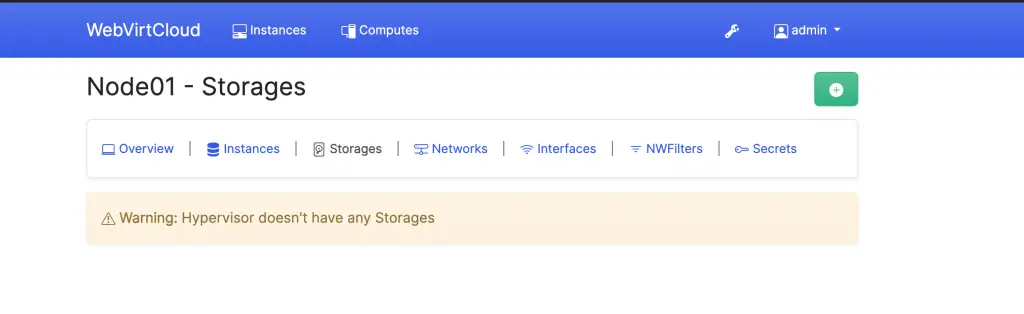
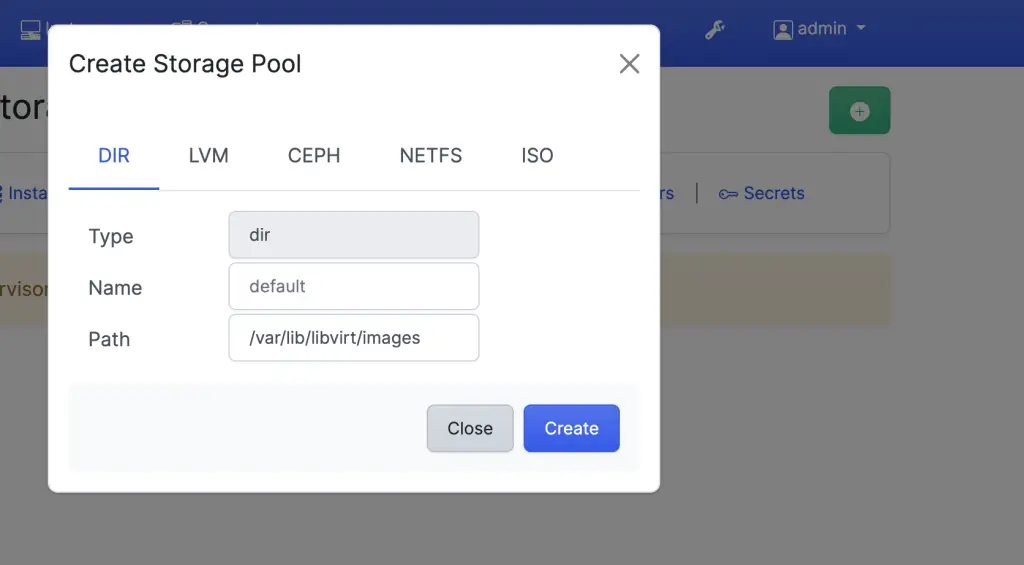
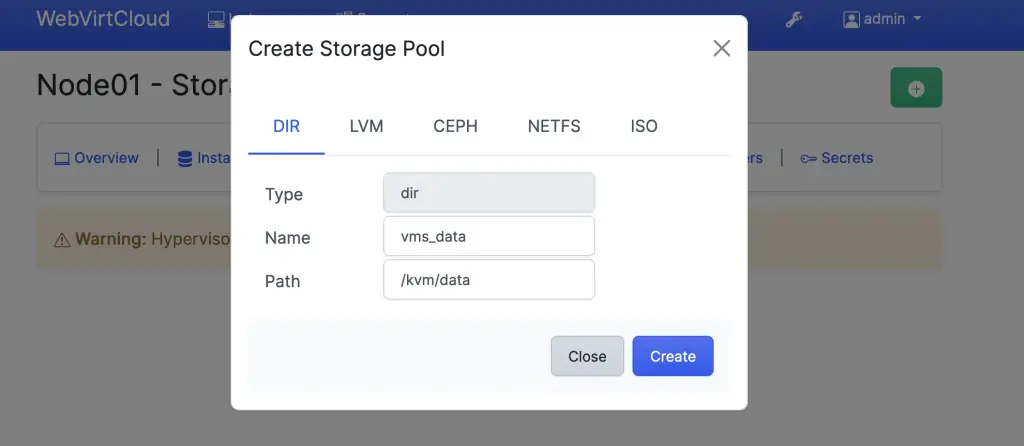
Choose “DIR” as type, give it a name, and set path.
- Example on using default KVM path
- Example on using custom host mount path
It will display storage pool details after you click “Create“
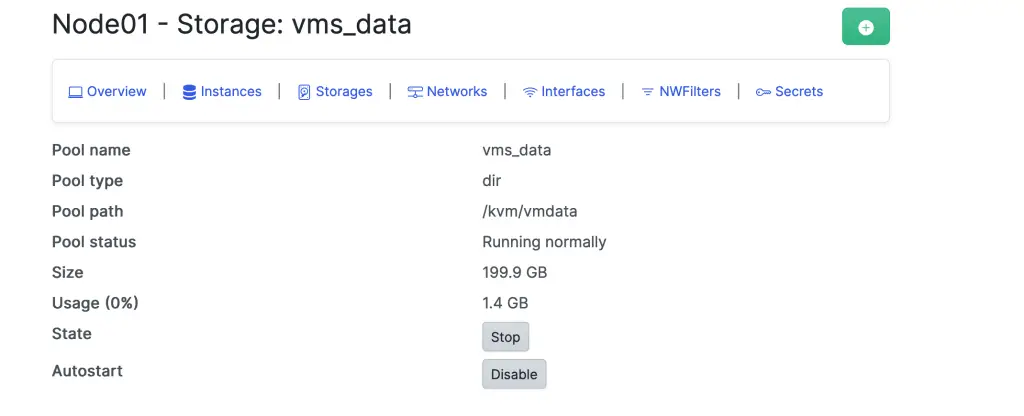
If active it should turn green.
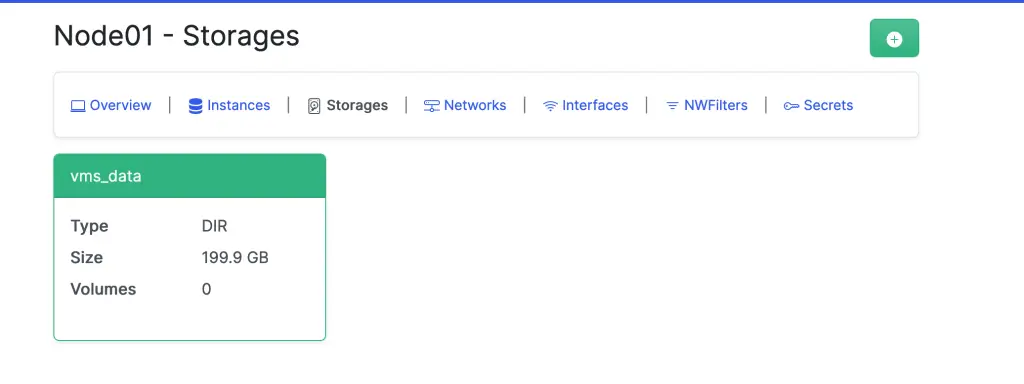
Next time you create a VM instance, you can choose the storage pool added for instance data storage.
2. Creating ISO Storage Pool
An ISO storage pool is where you can organize and access ISO images efficiently. These ISO images are used to create operating systems manually.
Let’s create a directory on the host server dedicated for ISO images.
sudo mkdir /kvm/isosTo configure storage pool, login to WebvirtCloud, and go to Computes > Node > Storages tab. Click on the “+” button to add create a new storage pool and choose “ISO“.
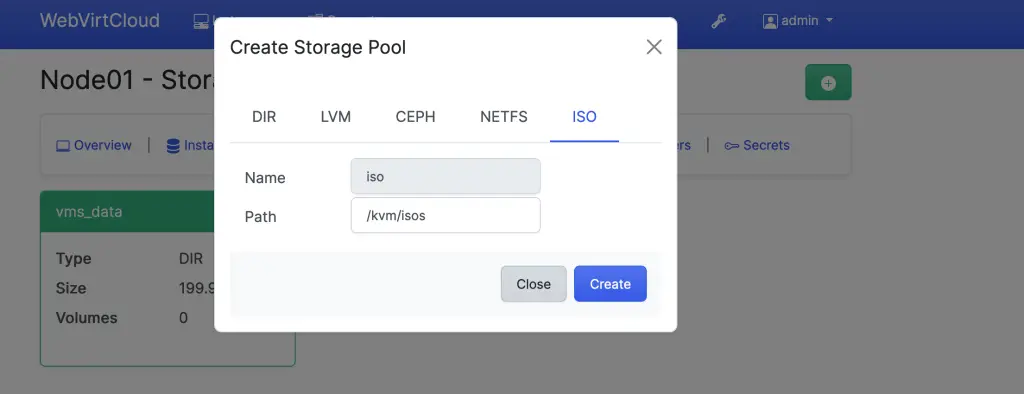
After it’s created, reload the page and head over to “Storages” tab to check pool status.
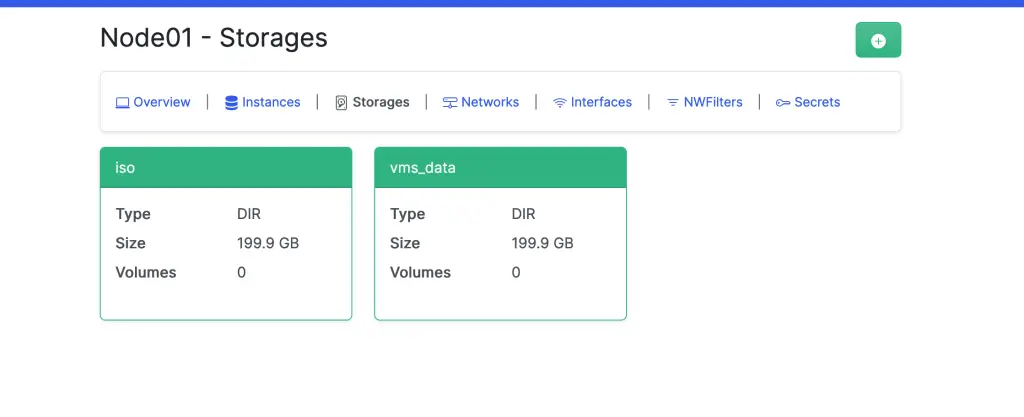
3. Creating NFS Storage Pool
Network File System (NFS) is a distributed file system protocol. It allows you to share directories over a network and other systems can access from the network.
Prepare NFS Server
The NFS server used can be software-based on hardware appliances like NAS – Synology, QNAP, TrueNAS, or Asustor.
Here is a sample configuration on the NFS server (with limited access for source IP addresses)
/nfs/kvm 172.20.30.0/24(rw,sync,no_subtree_check)Open access (this is not recommended):
/nfs/kvm *(rw,sync,no_root_squash,no_subtree_check)If you adjust exports file, apply the changes and verify that the NFS share is available.
sudo exportfs -a
sudo exportfs -rv
Prepare KVM host
First, ensure that the NFS utilities are installed on your client machine.
# RHEL-based systems
sudo yum install -y nfs-utils

# Debian-based systems (like Ubuntu)
sudo apt update
sudo apt install -y nfs-common
Create NFS mount directory
sudo mkdir -p /mnt/nfsAdd NFS Storage Pool
To add a new NFS Storage Pool, go to “Storages” > “+” >”NETFS” > and fill required details.
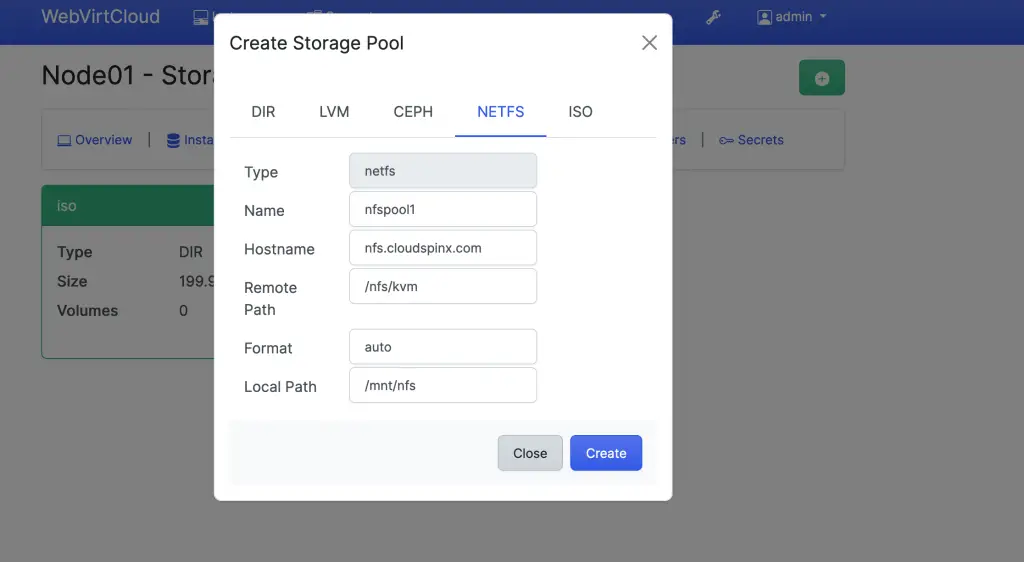
Where:
- Type: Storage pool type.
netfs, indicates a network file system. - Name: The name assigned to the new storage pool
- Hostname: NFS server IP address or hostname
- Remote Path: Directory path on the NFS server that is shared
- Format: Options are auto, nfs, glusterfs, cifs
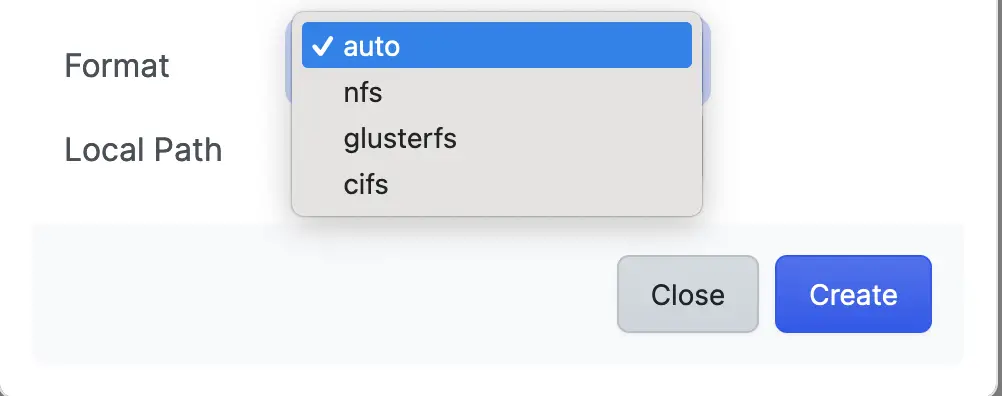
- Local Path: Local directory path where the NFS share will be mounted
When done with the settings, click on “Create” to create the storage pool. Reload the page once added to see the new storage pool as active.
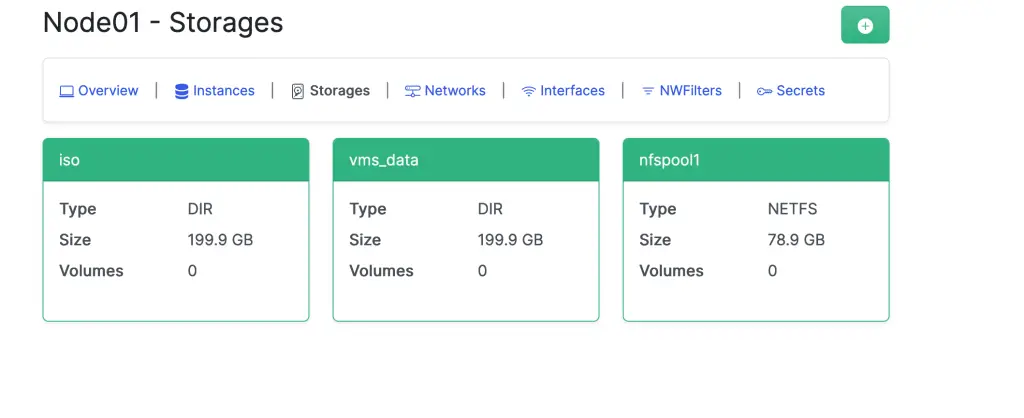
On the KVM host you can confirm if the
$ df -hT
...
nfs.cloudspinx.com:/nfs/kvm nfs4       79G  4.7G   75G   6% /mnt/nfs
4. Creating LVM Storage Pool
Before configuring the LVM storage pool in WebVirtCloud, you need to set up LVM on your host machine.
Make sure the LVM utilities are installed on your host machine.
# RHEL-based systems
sudo yum install -y lvm2

# Debian-based systems
sudo apt update && sudo apt install -y lvm2
Suppose you have a disk /dev/sdc on the host that you will want to configure as LVM logical volume:
$ lsblk  /dev/sdc
NAME MAJ:MIN RM  SIZE RO TYPE MOUNTPOINT
sdc  252:32   0  100G  0 disk
When creating a storage pool of type LVM, you will need to provide the name, and specify the device it will use.
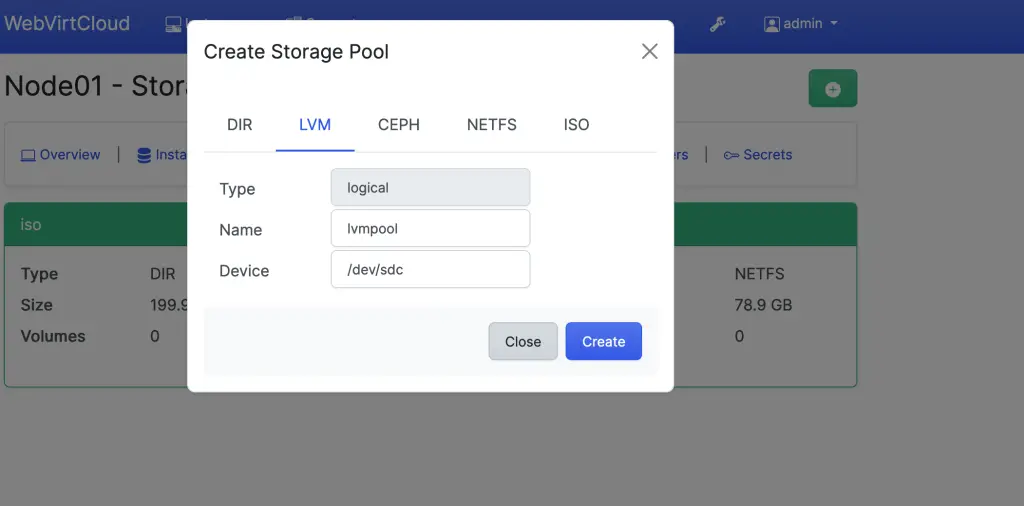
Reload the storages page after adding to confirm it was successful.
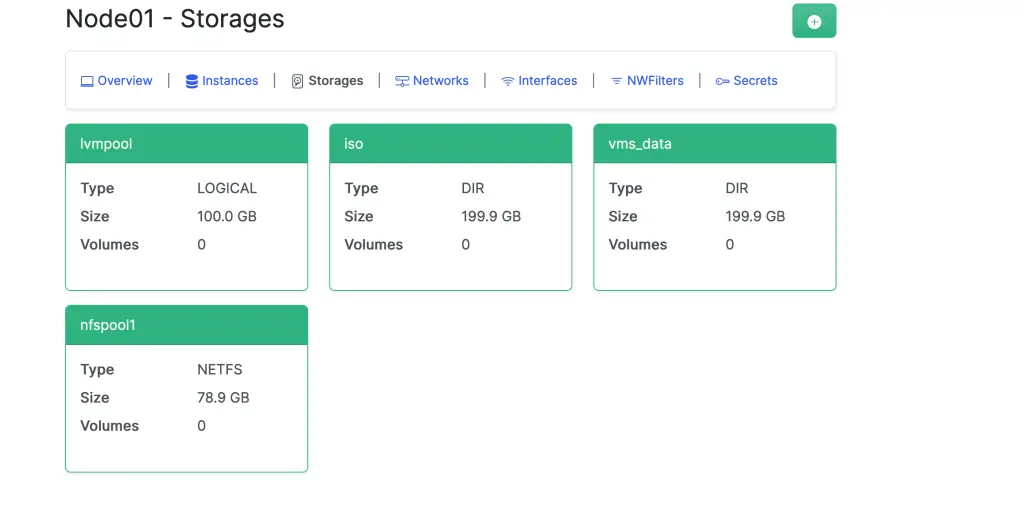
If you login to KVM host, you will realize a new physical volume and volume group exisit.
$ sudo pvs
  PV         VG      Fmt  Attr PSize    PFree
  /dev/sdc   lvmpool lvm2 a--  <100.00g <100.00g

$ sudo vgs
  VG      #PV #LV #SN Attr   VSize    VFree
  lvmpool   1   0   0 wz--n- <100.00g <100.00g
5. Creating Ceph Storage Pool
Ceph cluster should be properly set up and accessible before adding Ceph storage pool.
- Check Ceph cluster health
- Ensure that Ceph authentication keyring is available on host and WebVirtCloud instance
- You can copy the keyring file from your Ceph cluster to the KVM and WebVirtCloud hosts.
To add Ceph storage pool, choose the type as rbd, give it a name, user, ceph pool and host, and the secrets.
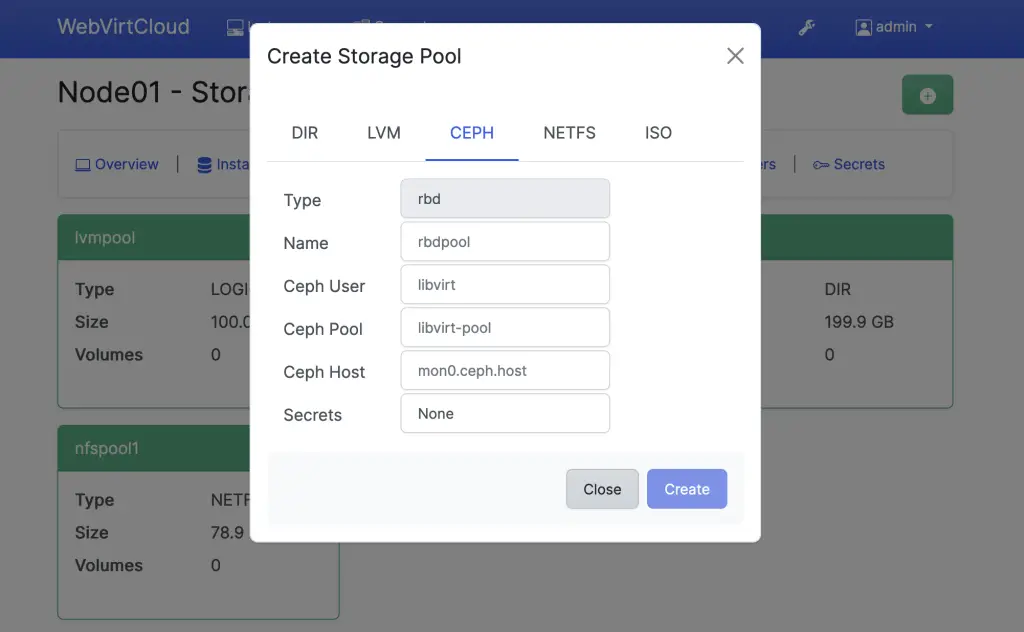
Authentication secrets can be added in the “Secrets” tab. In the article to follow we will showcase how you can create an instance from WebVirtCloud dashboard.
