Put two computers in different VLANs on the same switch and they cannot reach each other. That is not a fault; it is the whole point of a VLAN. Each one is a separate broadcast domain and a separate subnet, and moving between subnets is a Layer 3 job that a Layer 2 switch will not do on its own. Router-on-a-stick is the classic way to handle that job with hardware you already have: one router, one cable, and a handful of subinterfaces.
This guide configures router-on-a-stick inter-VLAN routing end to end on Cisco IOS: the switch-side trunk, 802.1Q subinterfaces with one gateway per VLAN, and a verification that traffic genuinely crosses from one VLAN to another. Every command and all output come from a real router-and-switch lab. It builds straight on top of VLANs and 802.1Q trunking, so make sure those are solid first.
Tested in June 2026 on a Cisco IOS 15.2 router and switch in GNS3, with hosts in two separate VLANs.
The inter-VLAN problem
A Layer 2 switch forwards frames inside a VLAN, never between VLANs. Host10 in VLAN 10 and Host20 in VLAN 20 sit on the same switch but in different subnets, so when Host10 wants to reach Host20 it sends the packet to its default gateway and waits for something to route it. There is no gateway until you add one. Router-on-a-stick provides those gateways on a single router interface, divided into one subinterface per VLAN.
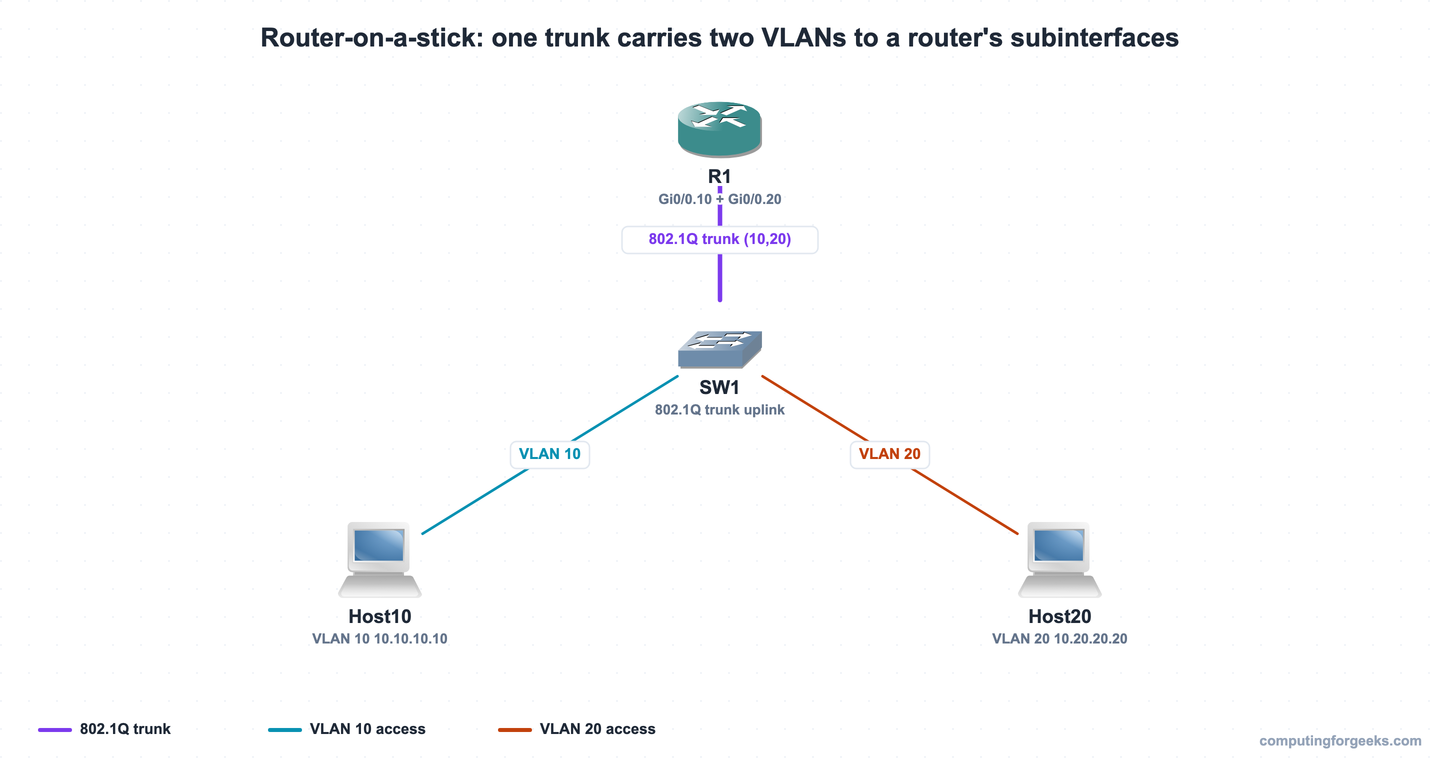
The lab uses two VLANs, two hosts, one switch, and one router. Here is the addressing:
| Device | Interface | Address | Role |
|---|---|---|---|
| R1 | Gi0/0 | no IP | Trunk to SW1 (physical) |
| R1 | Gi0/0.10 | 10.10.10.1/24 | VLAN 10 gateway |
| R1 | Gi0/0.20 | 10.20.20.1/24 | VLAN 20 gateway |
| SW1 | Gi0/0 | trunk | Uplink to R1 |
| Host10 | Gi0/0 | 10.10.10.10/24 | VLAN 10, gateway 10.10.10.1 |
| Host20 | Gi0/0 | 10.20.20.20/24 | VLAN 20, gateway 10.20.20.1 |
The two hosts are routers acting as end devices in the lab, each with a single IP and a default route to its gateway. Here is the same setup as it ran in GNS3:
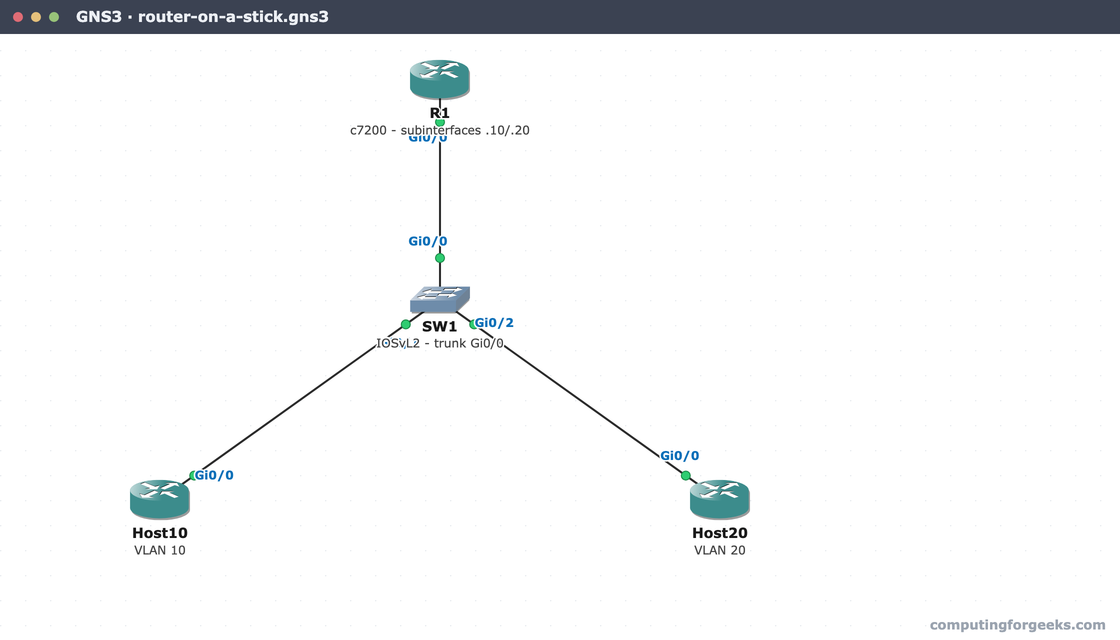
The full configurations for R1, SW1, and both hosts are in the companion lab repo if you want to load them directly.
Step 1: Configure the VLANs and trunk on the switch
Create the two VLANs, put each host port in its VLAN as an access port, and turn the link to the router into a trunk so it can carry both VLANs at once:
configure terminal
vlan 10
 name SALES
vlan 20
 name ENGINEERING
interface GigabitEthernet0/1
 switchport mode access
 switchport access vlan 10
interface GigabitEthernet0/2
 switchport mode access
 switchport access vlan 20
interface GigabitEthernet0/0
 switchport trunk encapsulation dot1q
 switchport mode trunk
 switchport trunk allowed vlan 10,20
On switches that can do both ISL and 802.1Q, switchport trunk encapsulation dot1q is required before the port will accept trunk mode. On switches that only speak 802.1Q the command does not exist, so skip it. Confirm the trunk came up and the VLANs landed on the right ports:
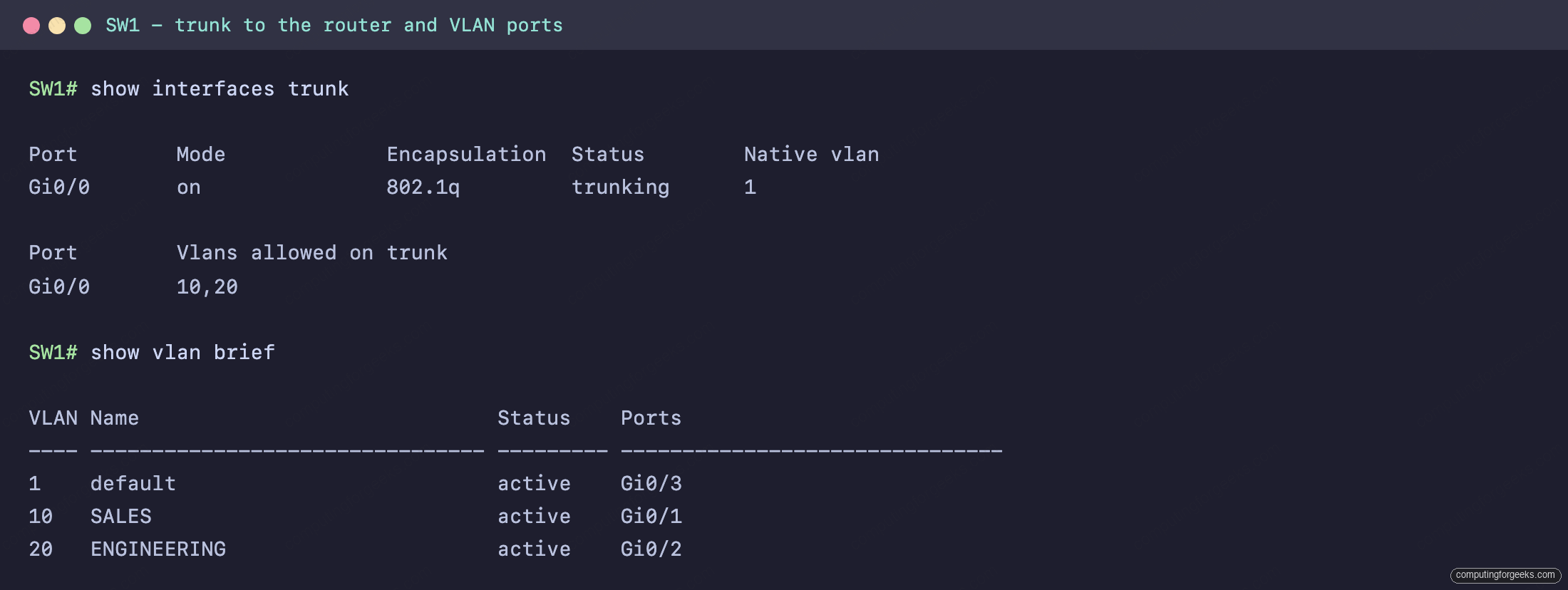
Gi0/0 is trunking with 802.1q and carrying VLANs 10 and 20, while Gi0/1 sits in SALES (VLAN 10) and Gi0/2 in ENGINEERING (VLAN 20). The switch side is done.
Step 2: Create the router subinterfaces
This is the stick. The physical interface stays up but holds no IP; each VLAN gets a subinterface that tags its traffic with the matching 802.1Q VLAN ID and owns that VLAN’s gateway address:
configure terminal
interface GigabitEthernet0/0
 no ip address
 no shutdown
interface GigabitEthernet0/0.10
 encapsulation dot1Q 10
 ip address 10.10.10.1 255.255.255.0
interface GigabitEthernet0/0.20
 encapsulation dot1Q 20
 ip address 10.20.20.1 255.255.255.0
The encapsulation dot1Q 10 line is what ties the subinterface to VLAN 10: frames for that VLAN arrive tagged with 10, and the router answers on 10.10.10.1. Matching the subinterface number to the VLAN ID is convention, not a requirement, but it keeps the config readable.
One gotcha worth handling up front. If one of the routed VLANs is the trunk’s native VLAN, its frames arrive untagged, and the matching subinterface needs the native keyword so the router expects no tag:
interface GigabitEthernet0/0.99
 encapsulation dot1Q 99 native
 ip address 10.99.99.1 255.255.255.0
The native VLAN on the router and the switch must match, or those frames are silently dropped.
Step 3: Point the hosts at their gateways
Each host needs an address in its VLAN’s subnet and the subinterface IP as its default gateway. On a real PC that is the usual IP, mask, gateway in the network settings. In the lab the hosts are routers, so the equivalent is an address plus a default route. Host10 in VLAN 10:
interface GigabitEthernet0/0
 ip address 10.10.10.10 255.255.255.0
 no shutdown
ip route 0.0.0.0 0.0.0.0 10.10.10.1
Host20 is identical with its own subnet: address 10.20.20.20/24 and a default route to 10.20.20.1. Without the right gateway, a host can reach everything in its own VLAN and nothing outside it, which is the single most common reason inter-VLAN routing appears broken.
Step 4: Verify the router sees both VLANs
Before testing traffic, confirm the router built what you expect. The physical interface should be up with no address, both subinterfaces up with their gateway IPs, and both VLAN subnets in the routing table as connected:
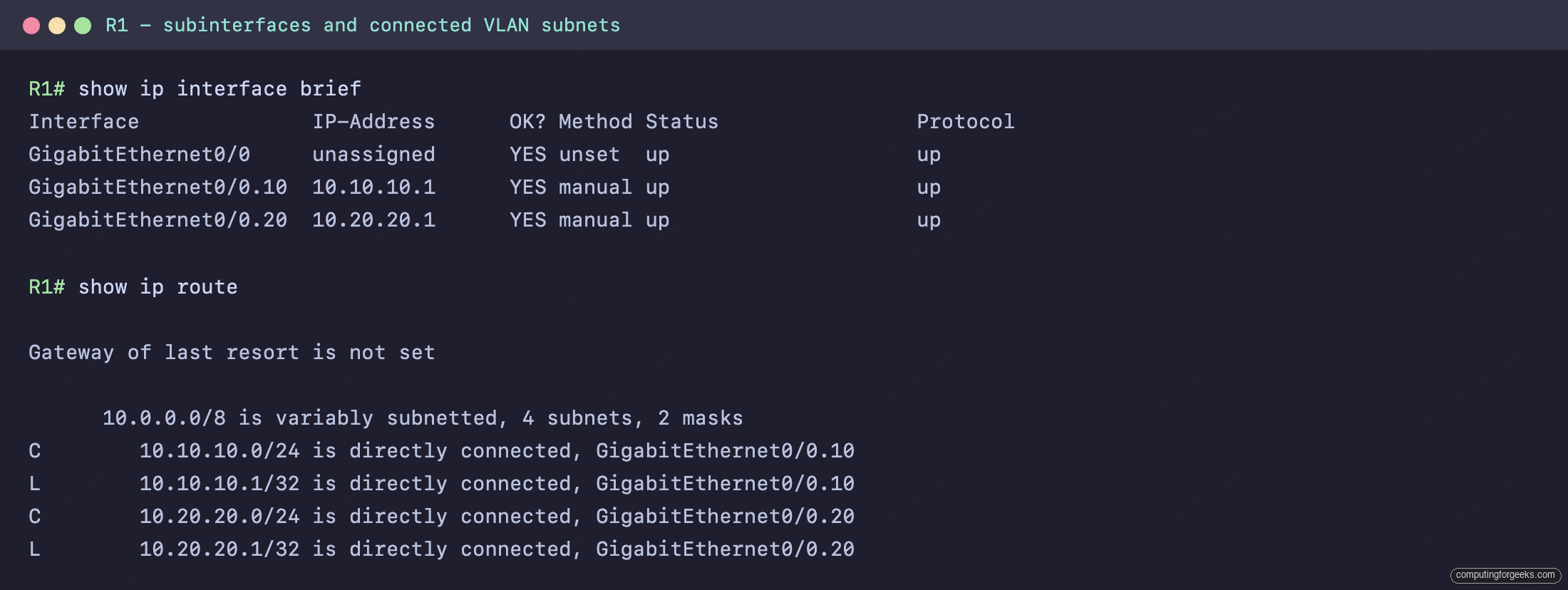
Both VLAN subnets show as C (connected) out their subinterfaces, which is exactly why the router can route between them: each is directly attached. The router-specific command to confirm the tagging is show vlans, which maps each subinterface to its 802.1Q VLAN. Here are the two routed VLANs (the full output also lists VLAN 1 as the trunk’s native VLAN on Gi0/0):
R1# show vlans

VLAN ID: 10 (IEEE 802.1Q Encapsulation)

VLAN trunk interfaces for VLAN ID 10:
GigabitEthernet0/0.10
                     IP: 10.10.10.1

VLAN ID: 20 (IEEE 802.1Q Encapsulation)

VLAN trunk interfaces for VLAN ID 20:
GigabitEthernet0/0.20
                     IP: 10.20.20.1
Both subinterfaces are tagged and routing. The only thing left is to prove a host in one VLAN can actually reach a host in the other.
Step 5: Verify traffic crosses VLANs
Configuration that looks right is not the same as traffic that flows. The real test is a ping from a host in one VLAN to a host in another, and a traceroute to prove the path:
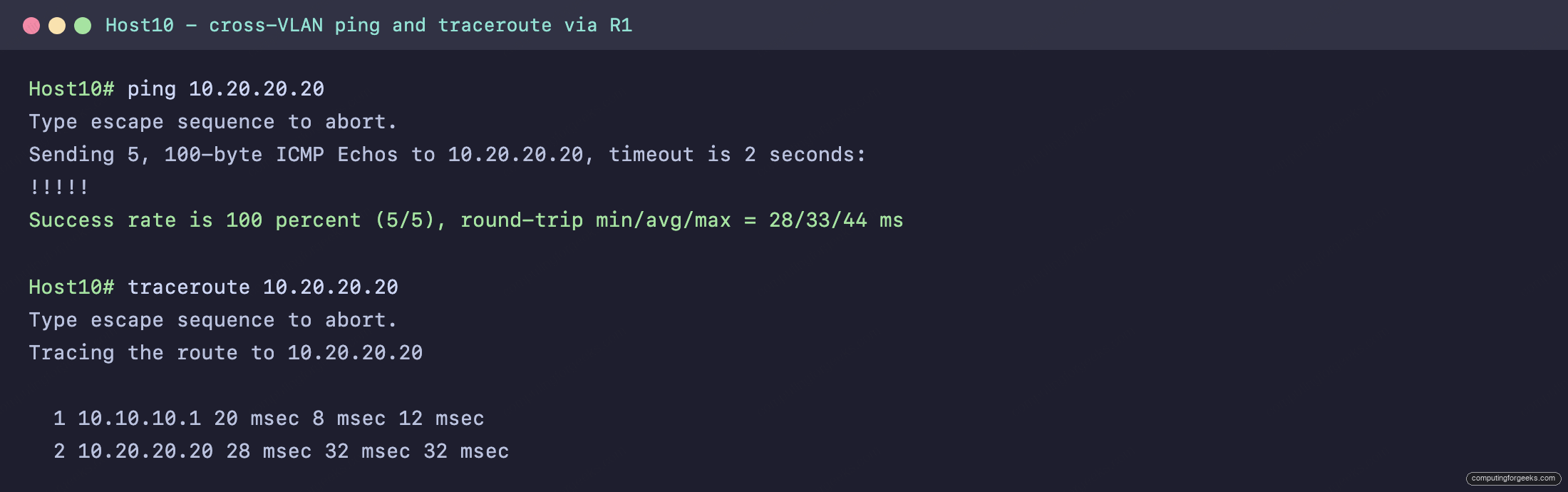
The ping from Host10 (VLAN 10) to Host20 (VLAN 20) succeeds at 100 percent, and the traceroute tells the whole story: the first hop is 10.10.10.1, the router’s VLAN 10 subinterface, and the second is Host20 itself. The traffic went up the stick to the router and back down into VLAN 20. That hairpin is router-on-a-stick working exactly as designed.
Router-on-a-stick versus a Layer 3 switch
Router-on-a-stick is the right tool for a small site or a lab: it needs only a router and one trunk, and it makes the 802.1Q tagging visible in a way that teaches the concept well. The cost is that every packet between VLANs crosses the same single link twice, in and back out, so that one cable becomes the ceiling on inter-VLAN throughput, and the router does the work in software.
Once a network has more than a few VLANs or any real east-west traffic, the production answer is a Layer 3 switch routing between VLANs in hardware with switched virtual interfaces. The gateway addresses move onto interface vlan 10 style SVIs, the bottleneck disappears, and throughput jumps. The configuration is different enough to deserve its own walkthrough, but the goal is identical to what you just built: give each VLAN a gateway and let traffic route between them. When you are comfortable with the moving parts here, the SVI approach is the next step, and the broader picture of how routers choose paths is covered in the guide on IP routing.
Test yourself on router-on-a-stick
Eight questions on the design and the commands, from why a switch alone cannot route to how the subinterfaces and the trunk fit together. Each answer is doc-checked or verified on the lab above.
Lock in the commands with the flashcard deck, and grab the same cards as an Anki deck to review on your phone:
Router-on-a-stick is the bridge between the switching topics and the routing ones: it is where VLANs, trunks, and Layer 3 finally meet on one device. Get this working in a lab once and the inter-VLAN concept stops being abstract. For where it fits in the wider study plan, follow the CCNA 200-301 study roadmap.