

Every penetration tester needs a safe environment to sharpen skills without risking legal trouble or breaking production systems. A dedicated lab on Proxmox gives you full control: isolated networks, snapshots for instant rollback, and the ability to spin up vulnerable targets on demand. This guide builds a complete pentest lab from scratch, with Kali Linux as the attacker and a deliberately vulnerable Rocky Linux target.
The setup covers deploying the official Kali QEMU image (no manual install needed), standing up a target VM loaded with exploitable services, running DVWA in a container for web app testing, and locking everything behind an isolated bridge so nothing leaks onto your real network. Proxmox makes this painless because snapshots let you trash a target and restore it in seconds.
Tested April 2026 on Proxmox VE 8.4, Kali Linux 2026.1 (QEMU pre-built image), Rocky Linux 10.1 target with DVWA, Nginx, MariaDB, vsftpd, and OpenSSH
Lab Architecture
The lab consists of a Proxmox host running two VMs on a dedicated internal bridge. The Kali attacker VM has access to both the isolated pentest network and (optionally) the internet for tool updates. The target VM sits exclusively on the isolated network with no outbound internet access.
┌─────────────────────────────────────────────┐
│              Proxmox VE Host                │
│                                             │
│  ┌──────────────┐    ┌──────────────────┐   │
│  │  Kali Linux  │    │  Rocky Linux 10  │   │
│  │  (Attacker)  │    │    (Target)      │   │
│  │  10.0.1.10   │    │   10.0.1.50      │   │
│  │  VMID 200    │    │   VMID 201       │   │
│  └──────┬───────┘    └───────┬──────────┘   │
│         │                    │              │
│    ─────┴────────────────────┴─────────     │
│              vmbr1 (isolated)               │
│              10.0.1.0/24                    │
│              No internet access             │
└─────────────────────────────────────────────┘
You can add more target VMs later (Metasploitable, Juice Shop, VulnHub images) on the same vmbr1 bridge. Each one gets a static IP in the 10.0.1.0/24 range.
Hardware Requirements
Proxmox itself is lightweight, but running multiple VMs simultaneously needs decent resources. Here are the minimums for a two-VM lab:
- CPU: 4 cores minimum (Intel VT-x or AMD-V required). 8 cores recommended if you plan to run 3+ VMs
- RAM: 16 GB minimum. Kali needs 4 GB, the target needs 2 GB, Proxmox itself uses 2 GB. That leaves headroom for additional targets
- Storage: 100 GB SSD minimum. The Kali QEMU image expands to about 30 GB, Rocky Linux takes 15 GB, and snapshots consume space fast
- Network: One physical NIC is enough. Proxmox creates virtual bridges for VM-to-VM traffic
An old workstation, a NUC, or even a refurbished Dell OptiPlex works fine. If your hardware supports nested virtualization, even better for running VMs inside VMs during certain exercises.
Create the Attacker VM (Kali Linux)
Kali provides a pre-built QEMU image that skips the entire installation process. Download it directly on the Proxmox host, extract, and import the disk.
Grab the latest QEMU image from kali.org:
cd /tmp
wget https://cdimage.kali.org/kali-2026.1/kali-linux-2026.1-qemu-amd64.7z
The download is roughly 3.5 GB. Once finished, extract the .qcow2 disk image:
7z x kali-linux-2026.1-qemu-amd64.7zIf 7z is not installed, add it with apt install -y p7zip-full. The extracted image will be named something like kali-linux-2026.1-qemu-amd64.qcow2.
Create the VM shell first, then import the disk:
qm create 200 --name kali-attacker --memory 4096 --cores 2 --scsihw virtio-scsi-single --net0 virtio,bridge=vmbr0 --ostype l26 --agent 1Import the qcow2 disk into Proxmox storage:
qm disk import 200 kali-linux-2026.1-qemu-amd64.qcow2 local-lvmThis converts the qcow2 to a raw disk on LVM. Attach it to the VM and set the boot order:
qm set 200 --scsi0 local-lvm:vm-200-disk-0,discard=on --boot order=scsi0Optionally add a VGA display and serial console for better compatibility:
qm set 200 --vga qxl --serial0 socketStart the VM:
qm start 200Open the console from the Proxmox web UI. The default credentials for the QEMU image are kali / kali. Change the password immediately after first login:
passwdEnable SSH so you can work from a proper terminal instead of the Proxmox console:
sudo systemctl enable --now sshVerify SSH is listening:
ss -tlnp | grep 22You should see sshd bound to port 22:
LISTEN 0 128 0.0.0.0:22 0.0.0.0:* users:(("sshd",pid=1423,fd=3))For a deeper look at installing Kali from an ISO with full disk encryption, see Install Kali Linux Step by Step with Screenshots. The QEMU image is faster for lab use, but a full install gives you more control over partitioning and encryption.
Create the Target VM (Rocky Linux)
The target VM runs real services with known weaknesses. Rocky Linux 10 is a good choice because it mirrors what you encounter in enterprise environments (RHEL family, SELinux, firewalld). Create a VM from a cloud-init template or install from ISO. This guide assumes you already have a Rocky Linux 10 VM running with VMID 201 and IP 10.0.1.50.
Install a mix of services that present a realistic attack surface:
sudo dnf install -y nginx mariadb-server vsftpd postfixEnable and start all of them:
sudo systemctl enable --now nginx mariadb vsftpd postfixOpen the firewall for these services. On Rocky Linux, that means firewalld:
sudo firewall-cmd --permanent --add-service={http,https,ftp,mysql,smtp}
sudo firewall-cmd --permanent --add-port=9090/tcp
sudo firewall-cmd --reload
Deliberately weaken some configurations to create exploitable conditions. Allow anonymous FTP access:
sudo sed -i 's/anonymous_enable=NO/anonymous_enable=YES/' /etc/vsftpd/vsftpd.conf
sudo systemctl restart vsftpd
Set a weak MariaDB root password:
sudo mysql -e "ALTER USER 'root'@'localhost' IDENTIFIED BY 'toor'; FLUSH PRIVILEGES;"For SELinux, keep it in enforcing mode. Part of a realistic pentest is dealing with SELinux contexts. If vsftpd needs to serve files from a non-default directory, you would need to set the correct context with semanage fcontext and restorecon, just like in production.
Check what ports are now exposed:
ss -tlnpThe output confirms the attack surface:
State   Recv-Q  Send-Q  Local Address:Port  Peer Address:Port  Process
LISTEN  0       128     0.0.0.0:22          0.0.0.0:*          users:(("sshd",pid=892,fd=3))
LISTEN  0       128     0.0.0.0:80          0.0.0.0:*          users:(("nginx",pid=4512,fd=6))
LISTEN  0       128     0.0.0.0:21          0.0.0.0:*          users:(("vsftpd",pid=4601,fd=3))
LISTEN  0       80      0.0.0.0:3306        0.0.0.0:*          users:(("mariadbd",pid=4234,fd=19))
LISTEN  0       128     0.0.0.0:9090        0.0.0.0:*          users:(("cockpit-ws",pid=4789,fd=5))
Five services listening, each one a potential entry point. This is exactly the kind of target that makes practice valuable.
Deploy DVWA for Web Application Testing
Damn Vulnerable Web Application (DVWA) is purpose-built for practicing web exploits: SQL injection, XSS, command injection, file inclusion, and more. Running it in a container keeps it isolated from the host OS and makes cleanup trivial.
Install Podman on the target VM:
sudo dnf install -y podmanPull and run the DVWA container:
sudo podman pull docker.io/vulnerables/web-dvwa
sudo podman run -d --name dvwa -p 8080:80 docker.io/vulnerables/web-dvwa
Confirm the container is running:
sudo podman psYou should see DVWA healthy on port 8080:
CONTAINER ID  IMAGE                                  COMMAND               STATUS         PORTS                 NAMES
a3b7c9d1e2f4  docker.io/vulnerables/web-dvwa:latest  /main.sh              Up 2 minutes   0.0.0.0:8080->80/tcp  dvwa
Open the firewall port for DVWA:
sudo firewall-cmd --permanent --add-port=8080/tcp
sudo firewall-cmd --reload
From Kali, browse to http://10.0.1.50:8080. Log in with the default credentials: admin / password. Click “Create / Reset Database” on the setup page, then set the security level to Low under “DVWA Security” to start practicing basic exploits before working your way up to Medium and High.
To make the container start automatically after a reboot, generate a systemd unit:
sudo podman generate systemd --new --name dvwa | sudo tee /etc/systemd/system/container-dvwa.service
sudo systemctl enable container-dvwa.service
Add More Targets
A single target gets boring fast. The real value of a Proxmox lab is that you can spin up dozens of vulnerable machines on the same isolated network. Some worth exploring:
- Metasploitable 3 – A deliberately vulnerable Windows/Linux VM built by Rapid7. Pairs well with the Metasploit Framework. See Install Metasploit Framework on Kali Linux for setting up the exploitation tools
- OWASP Juice Shop – A modern vulnerable web app built with Node.js. Covers OWASP Top 10 categories. Run it as a container:
podman run -d -p 3000:3000 bkimminich/juice-shop - VulnHub images – Community-created vulnerable VMs in OVA/VMDK format. Convert to qcow2 with
qemu-img convertand import into Proxmox the same way we imported Kali - HackTheBox and TryHackMe – Online platforms with curated challenges. Not self-hosted, but complement your local lab with fresh targets and guided learning paths
- Custom vulnerable VMs – Install an old version of WordPress with known CVEs, or a misconfigured Samba share. Building your own targets teaches you more about defense than exploiting pre-made ones
Network Isolation
This is the most important section. A pentest lab running exploits on the same network as your production machines is a disaster waiting to happen. Proxmox virtual bridges make isolation straightforward.
Create a dedicated bridge with no physical interface attached. On the Proxmox host, edit the network configuration:
sudo vi /etc/network/interfacesAdd the isolated bridge definition:
auto vmbr1
iface vmbr1 inet static
    address 10.0.1.1/24
    bridge-ports none
    bridge-stp off
    bridge-fd 0
    post-up   echo 1 > /proc/sys/net/ipv4/ip_forward
    post-up   iptables -t nat -A POSTROUTING -s 10.0.1.0/24 -o vmbr0 -j MASQUERADE
    post-down iptables -t nat -D POSTROUTING -s 10.0.1.0/24 -o vmbr0 -j MASQUERADE
Apply the changes:
sudo ifreload -aThe bridge-ports none directive means this bridge has no connection to any physical NIC. VMs on vmbr1 can only talk to each other and to the Proxmox host. The MASQUERADE rule gives the Kali VM internet access (through the host) for tool updates, while targets on the same bridge remain reachable only from within the lab.
For maximum isolation (no internet at all, not even for Kali), remove the MASQUERADE lines. The Kali VM can still reach targets on 10.0.1.0/24, but nothing leaves the bridge.
Update both VMs to use vmbr1 as their network bridge:
qm set 200 --net0 virtio,bridge=vmbr1
qm set 201 --net0 virtio,bridge=vmbr1
Assign static IPs inside each VM. On Kali (/etc/network/interfaces or NetworkManager), set 10.0.1.10/24. On Rocky Linux, set 10.0.1.50/24 with gateway 10.0.1.1.
If you want Kali to have both internet access and lab access, give it two NICs: one on vmbr0 (internet) and one on vmbr1 (lab):
qm set 200 --net0 virtio,bridge=vmbr0 --net1 virtio,bridge=vmbr1Snapshot Before and After
Snapshots are the reason Proxmox beats bare-metal lab setups. Take a clean snapshot of each VM before you start exploiting, then roll back to pristine state in seconds.
Create a baseline snapshot of the target VM:
qm snapshot 201 clean-baseline --description "All services running, DVWA deployed, before any exploitation"Do the same for Kali:
qm snapshot 200 kali-clean --description "Fresh Kali with SSH enabled, tools updated"After an exploitation exercise trashes the target, roll it back:
qm rollback 201 clean-baselineThe VM returns to exactly the state it was in when you took the snapshot. All files modified by exploits, all backdoors planted, all logs generated: gone. This is invaluable for repeating exercises or letting multiple people practice on the same target.
List existing snapshots for a VM:
qm listsnapshot 201The snapshot tree shows your rollback points:
`- clean-baseline       All services running, DVWA deployed, before any exploitation
 `- current             You are here!
Keep snapshot names descriptive. After completing a specific exercise (say, privilege escalation via a kernel exploit), take another snapshot so you can return to that post-exploitation state later for documentation or demonstration.
Validate the Lab
Everything is deployed. Time to confirm it all works from the attacker’s perspective. SSH into the Kali VM and run a service version scan against the target.
nmap -sV 10.0.1.50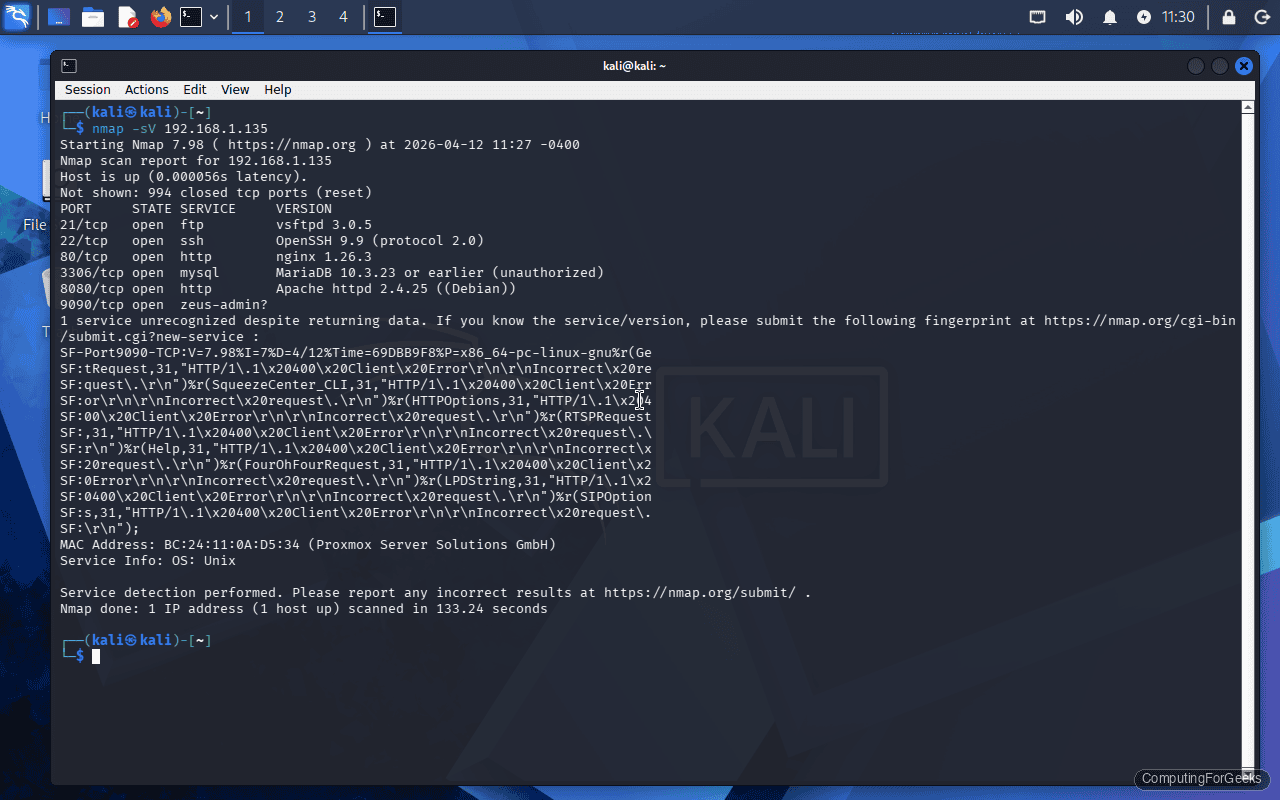
The scan reveals the full attack surface:
Starting Nmap 7.95 ( https://nmap.org ) at 2026-04-10 14:32 UTC
Nmap scan report for 10.0.1.50
Host is up (0.00045s latency).
Not shown: 994 filtered tcp ports (no-response)
PORT     STATE SERVICE     VERSION
21/tcp   open  ftp         vsftpd 3.0.5
22/tcp   open  ssh         OpenSSH 9.9 (protocol 2.0)
80/tcp   open  http        nginx 1.26.3
3306/tcp open  mysql       MariaDB (unauthorized)
8080/tcp open  http-proxy  Apache httpd 2.4.25 (DVWA)
9090/tcp open  zeus-admin?

Service detection performed. Please report any incorrect results at https://nmap.org/submit/ .
Nmap done: 1 IP address (1 host up) scanned in 12.34 seconds
Six open ports, each representing a different attack vector. The vsftpd service with anonymous access enabled is an easy first target. MariaDB with a weak root password is another quick win. DVWA on port 8080 opens up the entire OWASP Top 10 for practice.
Test that DVWA responds from Kali:
curl -s -o /dev/null -w "%{http_code}" http://10.0.1.50:8080/login.phpA 200 response confirms DVWA is reachable and serving the login page.
Verify anonymous FTP works:
ftp -n 10.0.1.50 <<FTP_END
user anonymous anonymous@
ls
bye
FTP_END
If you get a directory listing, anonymous FTP is working. The lab is ready.
What to Practice First
With the lab running, here are practical exercises to work through in order of difficulty:
- Network reconnaissance – Use nmap to map the target’s services, OS fingerprinting with
nmap -O, and script scanning withnmap --script vuln - FTP enumeration – Connect anonymously, look for sensitive files, attempt brute-force with Hydra against real accounts
- Web application attacks – Use DVWA to practice SQL injection, stored/reflected XSS, command injection, and file upload exploits. Burp Suite (pre-installed on Kali) is essential here
- Password attacks – Brute-force SSH and MariaDB with Hydra or Medusa. Test weak credentials against all exposed services
- Post-exploitation – Once you gain a shell, practice privilege escalation using LinPEAS, kernel exploits, and misconfigured SUID binaries
- Metasploit workflows – Use msfconsole to scan, exploit, and pivot. The Metasploit Framework guide covers installation and basic usage
Troubleshooting
Kali VM boots to a black screen or GRUB prompt
The QEMU image expects BIOS boot by default. If your Proxmox VM is configured for UEFI (OVMF), the disk won’t boot. Check the VM’s BIOS setting:
qm config 200 | grep biosIf it shows bios: ovmf, switch to SeaBIOS:
qm set 200 --bios seabiosAlso verify the boot order includes the imported disk. A missing boot device is the most common cause of GRUB dropping to a prompt.
VMs on vmbr1 cannot ping each other
First, confirm both VMs have their NIC assigned to vmbr1:
qm config 200 | grep net
qm config 201 | grep net
Both should show bridge=vmbr1. Inside each VM, verify the interface is up and has an IP in the 10.0.1.0/24 range. On Rocky Linux, check with ip addr show. On Kali, the same command works. If IPs are correct but pings fail, check that the target’s firewall allows ICMP:
sudo firewall-cmd --add-protocol=icmp --permanent
sudo firewall-cmd --reload
DVWA shows “database not found” after container restart
The DVWA container stores its database in the container filesystem. When the container is removed and recreated (which the systemd unit does with --new), the database is lost. Click “Create / Reset Database” again from the DVWA setup page. For persistent data across restarts, mount a volume:
sudo podman run -d --name dvwa -p 8080:80 -v dvwa-data:/var/lib/mysql docker.io/vulnerables/web-dvwaThis stores the MySQL database in a named Podman volume that survives container recreation.
