

TeamViewer changed its licensing again. AnyDesk got breached. If you run infrastructure for a living, you already know the pattern: commercial remote desktop tools either get expensive, get acquired, or get compromised. Self-hosted alternatives eliminate all three problems. You own the server, you control the access, and nobody changes the terms on you mid-contract.
This roundup covers seven open source remote desktop tools you can run on your own hardware, from browser-based gateways like Apache Guacamole to lightweight VNC servers for quick screen sharing. Each tool fills a different niche. The comparison table below should help you pick the right one without reading 7 separate install guides first. If you want a head-to-head breakdown of the top three, see our Guacamole vs RustDesk vs MeshCentral comparison.
Current as of March 2026. All version numbers and features verified against official project repositories.
Quick Comparison: Open Source Remote Desktop Tools
This table summarizes the key differences. “Web UI” means you can connect through a browser with no client software installed on the machine you’re connecting from.
| Tool | Type | Web UI | Client Needed | Protocols | License |
|---|---|---|---|---|---|
| Apache Guacamole | Remote gateway | Yes | No | RDP, VNC, SSH, Telnet, K8s | Apache-2.0 |
| RustDesk | P2P remote desktop | No | Yes | Proprietary (encrypted P2P) | AGPL-3.0 |
| MeshCentral | Device management + remote | Yes | Agent on targets | MeshAgent, RDP, Intel AMT | Apache-2.0 |
| XRDP | RDP server for Linux | No | Any RDP client | RDP | Apache-2.0 |
| x11vnc | VNC server (shared session) | No | Any VNC client | VNC (RFB) | GPL-2.0 |
| TigerVNC | VNC server + client | No | Any VNC client | VNC (RFB) | GPL-2.0 |
| FreeRDP | RDP client/library | No | N/A (is the client) | RDP | Apache-2.0 |
Apache Guacamole
Guacamole is a clientless remote desktop gateway. Everything runs in the browser. You deploy the Guacamole server (guacd + the web app), configure your connection targets, and users access them through any modern browser without installing anything on their end. It supports RDP, VNC, SSH, Telnet, and as of version 1.6.0, Kubernetes container connections.
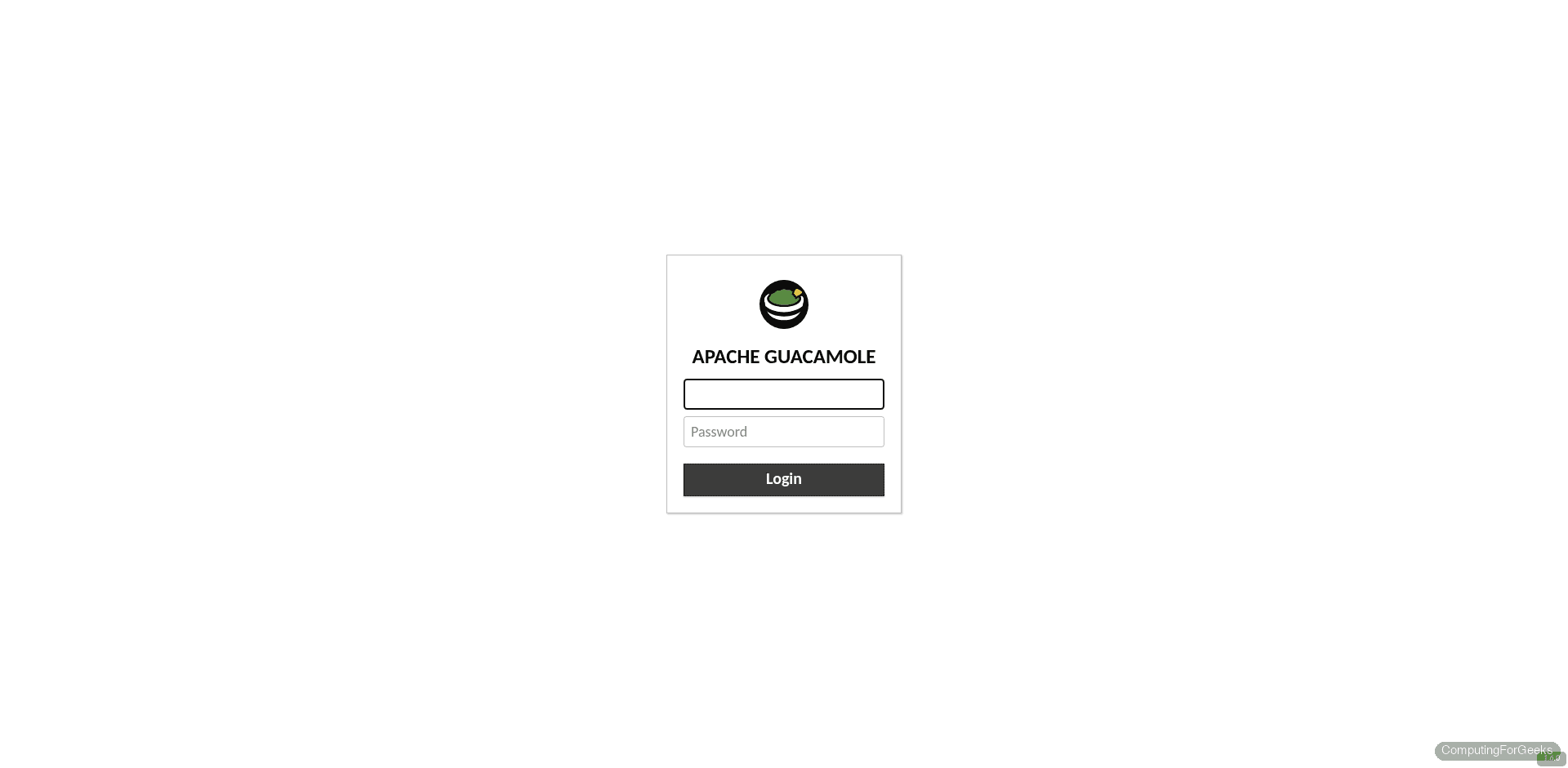
The architecture consists of two parts: guacd (the proxy daemon that speaks the native remote protocols) and the Java web application that provides the HTML5 frontend. Authentication backends include database (MySQL/PostgreSQL), LDAP, TOTP two-factor, SAML, and OpenID Connect. Session recording is built in, which makes it useful for auditing privileged access.
Best for: server administrators who need to give teams browser-based access to RDP, SSH, and VNC targets through a single portal. Guacamole is the go-to choice when you cannot install client software on user machines. The Docker Compose deployment takes about 15 minutes.
Install on Ubuntu/Debian with Docker Compose:
sudo apt install -y docker.io docker-compose-v2
mkdir -p ~/guacamole && cd ~/guacamole
Pull the official images and bring the stack up:
docker compose pull
docker compose up -d
The web interface is available on port 8080 by default. Default credentials are guacadmin / guacadmin. Change them immediately.
RustDesk
RustDesk is the closest thing to a drop-in TeamViewer replacement in the open source world. It uses a peer-to-peer architecture with optional relay servers that you self-host. The client runs on Windows, macOS, Linux, iOS, and Android. Each machine gets a numeric ID, and connecting is as simple as typing that ID into the client on the other end.
The self-hosted server component (version 1.1.15 as of March 2026) consists of two services: hbbs (the rendezvous/ID server) and hbbr (the relay server for when direct P2P fails). Running your own server means connection metadata never touches RustDesk’s infrastructure. The client (version 1.4.6) supports unattended access, file transfer, clipboard sync, and TCP tunneling.
Best for: help desk teams and MSPs that need to support end users on mixed operating systems. RustDesk’s UI is familiar to anyone who has used TeamViewer or AnyDesk, which makes adoption painless. The AGPL-3.0 license requires you to share modifications if you distribute the software, so keep that in mind for commercial use.
Deploy the relay server with Docker:
docker run -d --name hbbs --net=host -v /opt/rustdesk:/root rustdesk/rustdesk-server hbbs
docker run -d --name hbbr --net=host -v /opt/rustdesk:/root rustdesk/rustdesk-server hbbr
Point clients to your server’s IP or hostname in their settings. The public key is generated automatically under /opt/rustdesk/ on first run.
MeshCentral
MeshCentral goes beyond remote desktop. It is a full device management platform with remote desktop, terminal, file transfer, Intel AMT out-of-band management, and device grouping. If you manage a fleet of machines (not just one-off connections), MeshCentral is probably what you want.
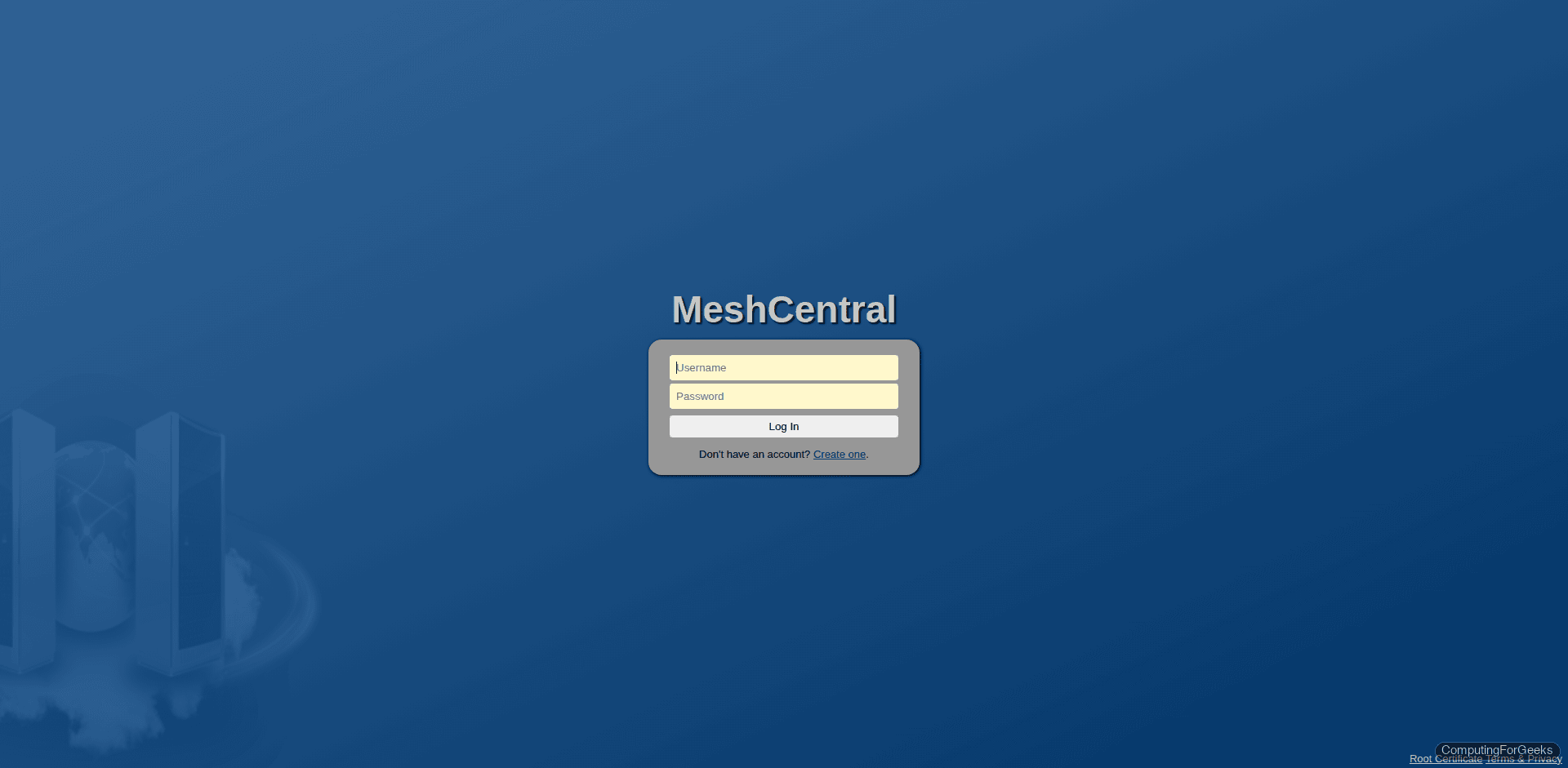
The architecture is agent-based. You install the MeshAgent on target machines, and they phone home to your MeshCentral server (version 1.1.58). The web UI lets you organize devices into groups, control who can access what, and even wake machines via Intel AMT if the hardware supports it. Remote desktop works through the browser (no client software on the admin’s machine) or through the optional MeshCommander desktop app.
Best for: IT departments managing dozens or hundreds of machines across sites. The combination of remote desktop, terminal, file manager, and device inventory in a single self-hosted platform is hard to beat at zero cost. Licensed under Apache-2.0.
Install on Ubuntu with Node.js:
sudo apt install -y nodejs npm
mkdir -p ~/meshcentral && cd ~/meshcentral
npm install meshcentral
Start the server:
node node_modules/meshcentralThe web interface comes up on port 443 (HTTPS) by default. Create your admin account on first login, then install agents on target machines from the “Add Device” menu.
XRDP
XRDP is an RDP server for Linux. It lets you connect to a Linux desktop from any standard RDP client, including the built-in Remote Desktop Connection on Windows. This is the tool you want when your team uses Windows daily but needs occasional access to Linux desktops without learning a new client.
Under the hood, XRDP translates the RDP protocol into an X11 session. It works with GNOME, Xfce, KDE, and other desktop environments. The current release series is 0.10.x. There is no web UI. You connect with mstsc.exe on Windows, FreeRDP on Linux, or Microsoft Remote Desktop on macOS.
Best for: organizations with Windows-centric users who need Linux desktop access. XRDP requires zero training because the RDP client is already on every Windows machine. One thing to watch: GNOME on RHEL/Rocky can be sluggish over XRDP. Xfce gives a much smoother experience.
Install on Rocky Linux 10:
sudo dnf install -y epel-release
sudo dnf install -y xrdp
sudo systemctl enable --now xrdp
Open the firewall for RDP:
sudo firewall-cmd --permanent --add-port=3389/tcp
sudo firewall-cmd --reload
Connect from Windows using mstsc.exe and enter the Linux server’s IP address.
x11vnc
Most VNC servers create a new virtual session. x11vnc does the opposite: it shares the existing X11 display. Whatever is on the screen right now is exactly what the remote user sees. This makes it ideal for quick support sessions where you need to see (and interact with) what the user currently has open.
x11vnc is lightweight, has minimal dependencies, and works with any VNC viewer on the client side. It does not manage users, sessions, or devices. You start it, connect, do your work, and stop it. That simplicity is the point.
Best for: quick screen sharing on Linux when you need to see the physical display. Not suited for multi-user access or persistent remote sessions. Think of it as the screen -x of graphical desktops.
Install and start a one-time session:
sudo apt install -y x11vnc
x11vnc -display :0 -once -passwd yourpassword
The -once flag makes the server exit after the first client disconnects. Connect from any VNC viewer using the server’s IP on port 5900.
TigerVNC
TigerVNC (version 1.14.x) is the mainstream VNC implementation on Linux. Unlike x11vnc, TigerVNC can create virtual sessions (separate desktops per user) or share the existing display. Most Linux distributions ship TigerVNC as the default VNC server in their repositories.
The project provides both the server (vncserver) and client (vncviewer). Virtual sessions are useful when multiple users need independent desktops on the same machine. Each user gets their own display number and resolution. TigerVNC supports TLS encryption natively, which older VNC implementations lacked.
Best for: Linux remote desktop access when you need virtual sessions per user. If you just need to share the physical display, x11vnc is simpler. If you need per-user virtual desktops with proper session isolation, TigerVNC is the standard choice.
Install on Rocky Linux 10:
sudo dnf install -y tigervnc-serverSet a VNC password and start a virtual session:
vncpasswd
vncserver :1 -geometry 1920x1080 -depth 24
Connect from any VNC client to port 5901. Each additional display number increments the port by one (display :2 uses port 5902, and so on).
FreeRDP
FreeRDP is the open source RDP protocol implementation. Version 3.x brought major improvements including support for modern RDP extensions, better clipboard handling, and improved security. You have probably used FreeRDP without knowing it, since both Apache Guacamole and Remmina use it under the hood for their RDP connections.
As a standalone tool, FreeRDP provides the xfreerdp command-line client. It connects to Windows Remote Desktop, XRDP, and anything else that speaks RDP. It supports NLA (Network Level Authentication), RemoteFX, drive redirection, audio forwarding, and multi-monitor setups.
Best for: developers who need a scriptable RDP client on Linux, and as a dependency for other tools. Most sysadmins interact with FreeRDP indirectly through Guacamole or Remmina rather than using xfreerdp directly, but it is useful for automation and headless RDP connections in CI/CD pipelines.
Install and connect to a Windows machine:
sudo apt install -y freerdp3-x11Connect to a Windows RDP host:
xfreerdp3 /v:192.168.1.50 /u:administrator /size:1920x1080 /dynamic-resolutionAdd /drive:shared,/home/user/shared to map a local folder into the RDP session.
How to Choose the Right Tool
With seven tools on the list, picking the right one comes down to your specific use case. Here is a quick decision guide:
- Need browser-only access with no client installs? Apache Guacamole. It is the only tool here that requires nothing on the user’s machine.
- Replacing TeamViewer or AnyDesk for end-user support? RustDesk. The UI and workflow are nearly identical to what your users already know.
- Managing a fleet of 50+ machines with remote desktop, terminal, and inventory? MeshCentral. Nothing else on this list combines device management with remote access this well.
- Windows users who need RDP into Linux desktops? XRDP. Zero learning curve because they already have the client.
- Quick one-off screen sharing on Linux? x11vnc. Start it, connect, done.
- Multi-user virtual desktops on a Linux server? TigerVNC. One virtual session per user, proper isolation.
- Building automation or using Guacamole/Remmina? FreeRDP is already there as a dependency. Use
xfreerdpdirectly for scripted connections.
For most teams, the real choice is between the top three: Guacamole, RustDesk, and MeshCentral. Guacamole wins when you want a centralized gateway with audit trails. RustDesk wins when simplicity and cross-platform support matter most. MeshCentral wins when you need the full device management stack. The VNC and RDP tools lower in the list solve narrower problems but do them well.
Wrapping Up
Every tool on this list is actively maintained, free to use, and runs on your own infrastructure. The days of paying per-seat for remote desktop software (or trusting a third-party cloud with your connections) are over if you are willing to spend an afternoon on setup. Start with the comparison table above, pick the tool that fits your use case, and deploy it. Most of these can be running in under 30 minutes with Docker.
