

Icinga Director is a configuration module for Icinga Web 2 that lets you manage all Icinga 2 monitoring objects through a web UI or CLI instead of editing flat configuration files. It stores everything in a relational database and deploys validated configs to the Icinga 2 daemon via its REST API. This guide walks through installing and configuring Icinga Director on Rocky Linux 10 / RHEL 10, then covers host templates, service templates, notification templates, command definitions, host groups, sync rules, the self-service API, and Director CLI usage.
We assume you already have a working Icinga 2 and Icinga Web 2 installation. If not, set those up first before proceeding – refer to the Icinga 2 installation guide for details.
Prerequisites
- A server running Rocky Linux 10 or RHEL 10 with at least 2 GB RAM
- Icinga 2 installed and running with the API feature enabled
- Icinga Web 2 installed and accessible
- MariaDB or PostgreSQL database server available
- Root or sudo access to the server
- PHP 8.2+ with required extensions (installed as part of Icinga Web 2)
- Firewall allowing TCP port 5665 (Icinga 2 API) between master and agents
Step 1: Install Required PHP Modules and Dependencies
Icinga Director depends on several PHP extensions and supporting Icinga Web 2 modules. Install the required system packages first.
sudo dnf install -y git php-cli php-mysqlnd php-pgsql php-xml php-mbstring php-curl php-json php-opcache php-process php-soapVerify PHP is available and meets the minimum version requirement.
$ php --version
PHP 8.3.14 (cli) (built: Dec  3 2025 10:45:22) ( NTS gcc x86_64 )
Copyright (c) The PHP Group
Zend Engine v4.3.14, Copyright (c) Zend Technologies
    with Zend OPcache v8.3.14, Copyright (c), by Zend Technologies
Step 2: Install Supporting Icinga Web 2 Modules
Icinga Director requires three supporting modules: ipl (Icinga PHP Library), incubator, and reactbundle. Install each from the official Icinga GitHub releases.
Install Icinga PHP Library (ipl)
The IPL module provides core PHP classes that Director depends on.
MODULE_NAME=ipl
MODULE_VERSION=$(curl -s https://api.github.com/repos/Icinga/icinga-php-library/releases/latest | grep tag_name | cut -d '"' -f 4)
REPO="https://github.com/Icinga/icinga-php-library"
MODULES_PATH="/usr/share/icingaweb2/modules"
sudo git clone ${REPO} "${MODULES_PATH}/${MODULE_NAME}" --branch "${MODULE_VERSION}"
sudo icingacli module enable "${MODULE_NAME}"
Install Incubator Module
The incubator module provides additional UI components for Director.
MODULE_NAME=incubator
MODULE_VERSION=$(curl -s https://api.github.com/repos/Icinga/icingaweb2-module-incubator/releases/latest | grep tag_name | cut -d '"' -f 4)
REPO="https://github.com/Icinga/icingaweb2-module-${MODULE_NAME}"
MODULES_PATH="/usr/share/icingaweb2/modules"
sudo git clone ${REPO} "${MODULES_PATH}/${MODULE_NAME}" --branch "${MODULE_VERSION}"
sudo icingacli module enable "${MODULE_NAME}"
Install Reactbundle Module
Reactbundle provides the JavaScript framework used by Director’s web interface.
MODULE_NAME=reactbundle
MODULE_VERSION=$(curl -s https://api.github.com/repos/Icinga/icingaweb2-module-reactbundle/releases/latest | grep tag_name | cut -d '"' -f 4)
REPO="https://github.com/Icinga/icingaweb2-module-${MODULE_NAME}"
MODULES_PATH="/usr/share/icingaweb2/modules"
sudo git clone ${REPO} "${MODULES_PATH}/${MODULE_NAME}" --branch "${MODULE_VERSION}"
sudo icingacli module enable "${MODULE_NAME}"
Confirm all three modules are enabled.
$ icingacli module list
MODULE     VERSION   STATE     DESCRIPTION
ipl        0.14.1    enabled   Icinga PHP Library
incubator  0.22.0    enabled   Icinga Web 2 - Incubator
reactbundle 0.9.0    enabled   Icinga Web 2 - Reactbundle
Step 3: Install Icinga Director Module
With the dependencies in place, install the Director module itself. You can install from a release tarball or from the git repository. The git method makes future upgrades straightforward.
Option A: Install from Git Repository
ICINGAWEB_MODULEPATH="/usr/share/icingaweb2/modules"
REPO_URL="https://github.com/icinga/icingaweb2-module-director"
TARGET_DIR="${ICINGAWEB_MODULEPATH}/director"
MODULE_VERSION=$(curl -s https://api.github.com/repos/Icinga/icingaweb2-module-director/releases/latest | grep tag_name | cut -d '"' -f 4)
sudo git clone "${REPO_URL}" "${TARGET_DIR}" --branch v${MODULE_VERSION}
Option B: Install from Release Tarball
ICINGAWEB_MODULEPATH="/usr/share/icingaweb2/modules"
REPO_URL="https://github.com/icinga/icingaweb2-module-director"
TARGET_DIR="${ICINGAWEB_MODULEPATH}/director"
MODULE_VERSION=$(curl -s https://api.github.com/repos/Icinga/icingaweb2-module-director/releases/latest | grep tag_name | cut -d '"' -f 4)
URL="${REPO_URL}/archive/v${MODULE_VERSION}.tar.gz"
sudo install -d -m 0755 "${TARGET_DIR}"
wget -q -O - "$URL" | sudo tar xfz - -C "${TARGET_DIR}" --strip-components 1
Enable the Director module.
sudo icingacli module enable directorStep 4: Create the Director Database
Icinga Director stores all configuration objects in its own dedicated database. Create the database and a user with full privileges on it. Choose MariaDB/MySQL or PostgreSQL based on your environment.
MariaDB / MySQL
Log into the MariaDB shell and run the following. If you need to install MariaDB on RHEL, do that first.
$ sudo mysql -u root -p
CREATE DATABASE director CHARACTER SET 'utf8';
CREATE USER 'director'@'localhost' IDENTIFIED BY 'StrongDirectorPass2025';
GRANT ALL ON director.* TO 'director'@'localhost';
FLUSH PRIVILEGES;
EXIT;
PostgreSQL
$ sudo -u postgres psql
CREATE DATABASE director WITH ENCODING 'UTF8';
CREATE USER director WITH PASSWORD 'StrongDirectorPass2025';
GRANT ALL PRIVILEGES ON DATABASE director TO director;
\c director
CREATE EXTENSION IF NOT EXISTS pgcrypto;
\q
Step 5: Configure the Database Resource in Icinga Web 2
Icinga Web 2 needs to know how to reach the Director database. Add a resource entry in /etc/icingaweb2/resources.ini.
sudo vi /etc/icingaweb2/resources.iniAppend the following block. Adjust the db type to pgsql if you are using PostgreSQL.
[Director DB]
type = "db"
db = "mysql"
host = "localhost"
dbname = "director"
username = "director"
password = "StrongDirectorPass2025"
charset = "utf8"
Next, tell the Director module to use this database resource. Create or edit /etc/icingaweb2/modules/director/config.ini.
sudo mkdir -p /etc/icingaweb2/modules/director
sudo vi /etc/icingaweb2/modules/director/config.ini
Add the following content.
[db]
resource = "Director DB"
Step 6: Configure the Director API User in Icinga 2
Icinga Director communicates with Icinga 2 through its REST API. Create a dedicated API user for Director with full permissions. Edit /etc/icinga2/conf.d/api-users.conf.
sudo vi /etc/icinga2/conf.d/api-users.confAdd this API user object.
object ApiUser "director" {
  password = "DirectorApiPass2025"
  permissions = [ "*" ]
}
Make sure the API feature is enabled, then restart Icinga 2 to load the new user.
sudo icinga2 feature enable api
sudo systemctl restart icinga2
sudo systemctl status icinga2
Step 7: Configure Director Kickstart and Global Zone
Director requires a global zone for distributing configuration to satellite and agent nodes. Add it to /etc/icinga2/zones.conf.
sudo vi /etc/icinga2/zones.confAppend the following at the end of the file.
object Zone "director-global" {
  global = true
}
Restart Icinga 2 to apply.
sudo systemctl restart icinga2Now create the kickstart configuration that tells Director how to connect to the Icinga 2 API. Edit /etc/icingaweb2/modules/director/kickstart.ini.
sudo vi /etc/icingaweb2/modules/director/kickstart.iniAdd the following. Replace icinga-master.example.com with your actual Icinga master hostname.
[config]
endpoint = icinga-master.example.com
host = 127.0.0.1
port = 5665
username = director
password = DirectorApiPass2025
Step 8: Run Database Migration and Kickstart
Initialize the Director database schema and run the kickstart process to import your existing Icinga 2 endpoints.
sudo icingacli director migration run --verbose
sudo icingacli director kickstart run
Verify there are no pending migrations.
$ sudo icingacli director migration pending --verbose
No pending migrations
The kickstart imports your existing zones, endpoints, and commands from the Icinga 2 API into the Director database. You can now access Director from the Icinga Web 2 sidebar menu.
Step 9: Set Up the Director Background Daemon
Director runs background jobs for import, sync, and deployment tasks. Create a systemd service to handle this automatically.
sudo useradd -r -g icingaweb2 -d /var/lib/icingadirector -s /sbin/nologin icingadirector
sudo install -d -o icingadirector -g icingaweb2 -m 0750 /var/lib/icingadirector
Create the systemd unit file.
sudo vi /etc/systemd/system/icinga-director.serviceAdd the following content.
[Unit]
Description=Icinga Director - Job Daemon
Documentation=https://icinga.com/docs/director/latest/
Wants=network.target
After=network.target

[Service]
Type=simple
User=icingadirector
Group=icingaweb2
ExecStart=/usr/bin/icingacli director daemon run
Restart=on-failure
RestartSec=5

[Install]
WantedBy=multi-user.target
Enable and start the daemon.
sudo systemctl daemon-reload
sudo systemctl enable --now icinga-director
sudo systemctl status icinga-director
Step 10: Import Existing Endpoints and Commands
After kickstart, Director has imported your master endpoint. To pull in all existing check commands, notification commands, and other objects from the running Icinga 2 instance, open the Director web UI and go to Icinga Director > Automation > Import Sources.
You can also re-run the import from the command line.
sudo icingacli director kickstart runThis syncs your existing Icinga 2 zones, endpoints, and core commands into the Director database where they become available as building blocks for templates.
Step 11: Create Command Definitions
Commands define the actual check plugins that services use. Most standard commands are imported during kickstart, but you can add custom commands through the Director UI or CLI.
In the web interface, navigate to Icinga Director > Define commands > Commands and click Add. Set the command name (e.g., check_http_extended), the command type to Plugin Check Command, and the command line.
To add a command via CLI:
sudo icingacli director command create \
  --object_name "check_http_extended" \
  --object_type "object" \
  --command "/usr/lib64/nagios/plugins/check_http" \
  --methods_execute "PluginCheck"
Add arguments to the command for parameters like -H (hostname), -p (port), and -u (URI path). This is done under the Arguments tab in the web UI or via the Director REST API.
Step 12: Create Host Templates
Host templates define default settings for groups of similar hosts. Every host you add later inherits from a template, which keeps configuration consistent across your infrastructure.
In the Icinga Director web UI, go to Hosts > Host Templates and click Add. Fill in the fields as follows:
- Name:
linux-server - Check command:
hostalive - Check interval: 1 minute
- Retry interval: 30 seconds
- Max check attempts: 3
- Icinga Agent: Yes
- Establish connection: Yes
- Accepts config: Yes
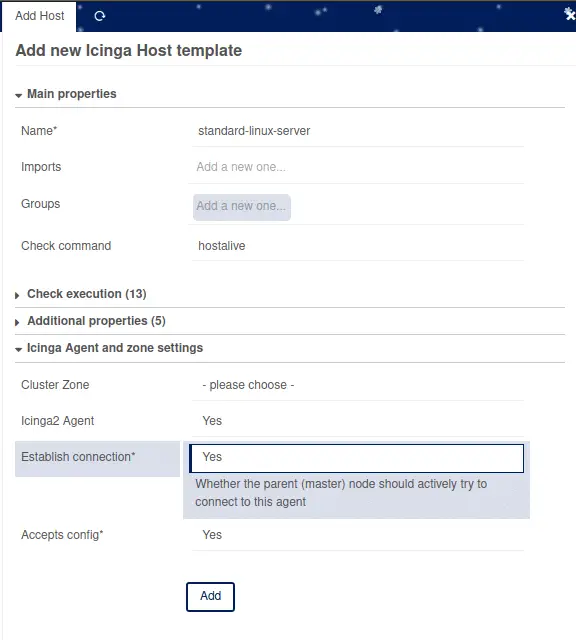
Click Store to save. You can create additional templates for different host types – windows-server, network-device, and so on – each with different check commands and agent settings.
Step 13: Create Service Templates
Service templates define the checks that get applied to hosts. Create templates for common checks like CPU load, disk usage, memory, and SSH connectivity.
Navigate to Icinga Director > Services > Service Templates and click Add. For a load check template, set:
- Name:
check-load - Check command:
load - Run on agent: Yes
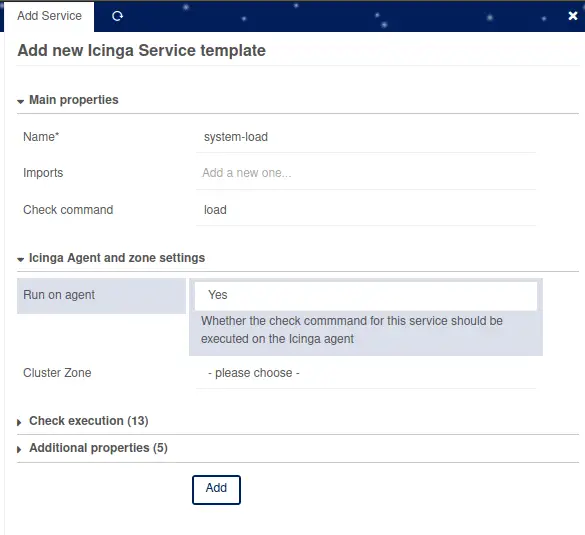
Repeat for additional service templates:
check-diskusing thediskcommandcheck-memoryusing thememcommandcheck-sshusing thesshcommandcheck-httpusing thehttpcommand
Group Service Templates into Service Sets
Service Sets bundle multiple service templates together for easy assignment to hosts. Go to Services > Service Sets and click Add.
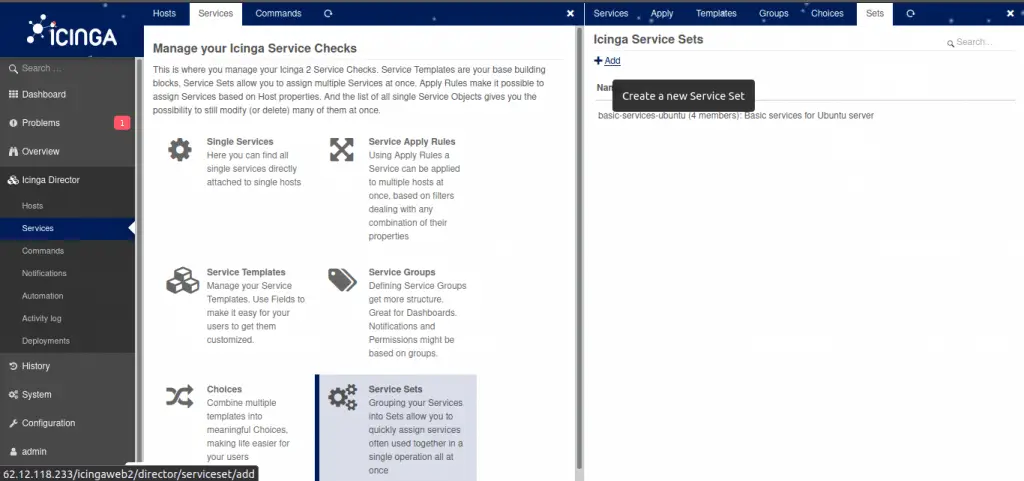
Name it standard-linux-checks and add a description. Then open the service set, switch to the Services tab, and add each service template you created. When this service set is assigned to a host template, every host inheriting from that template automatically receives all the checks.
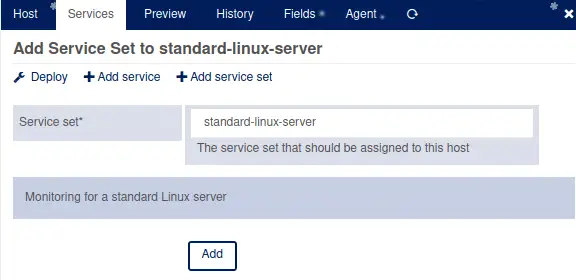
Assign the service set to your linux-server host template by opening the template, going to Services, and clicking Add Service Set.
Step 14: Create Notification Templates
Notification templates control how and when alerts are sent. Navigate to Icinga Director > Notifications > Notification Templates and click Add.
Create a template with these settings:
- Name:
mail-host-notification - Command:
mail-host-notification - States: Up, Down
- Types: Problem, Recovery
- Notification interval: 3600 (seconds)
Create a second notification template for services.
- Name:
mail-service-notification - Command:
mail-service-notification - States: OK, Warning, Critical, Unknown
- Types: Problem, Recovery
Apply these notification templates to your host templates using Notification Apply Rules under the Notifications section. This ensures every host that inherits from the template also gets the correct notification rules.
Step 15: Create Host Groups
Host groups organize monitored hosts for filtering, notification routing, and dashboard views. Go to Icinga Director > Hosts > Host Groups and click Add.
Create groups based on your infrastructure, for example:
linux-servers– all Linux-based hostsweb-servers– hosts running web servicesdatabase-servers– database hostsproduction– production environment hosts
Assign hosts to groups either statically (on each host object) or dynamically using assign rules based on custom variables. For example, any host with vars.os = "Linux" automatically joins the linux-servers group.
Step 16: Add Hosts and Deploy Configuration
With templates, service sets, and host groups ready, add your first monitored host. Navigate to Icinga Director > Hosts > Hosts and click Add.
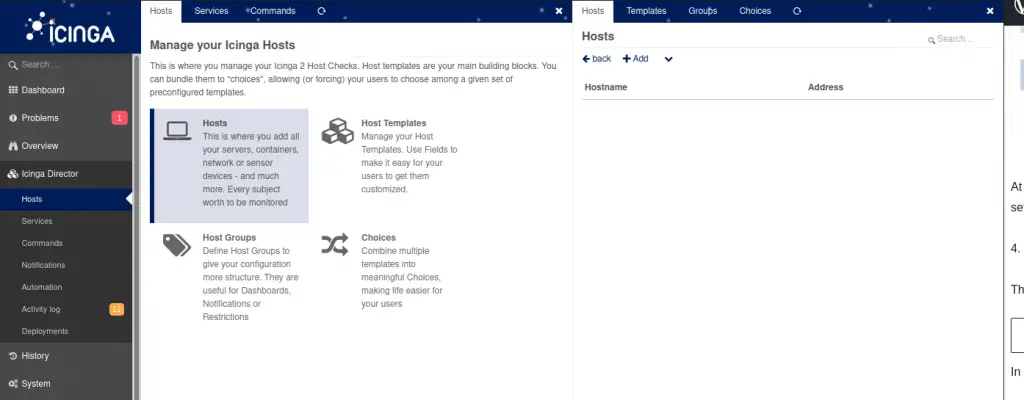
Select the linux-server template under Imports, then set:
- Object name:
web01.example.com - Display name: Web Server 01
- Host address: 10.0.1.10
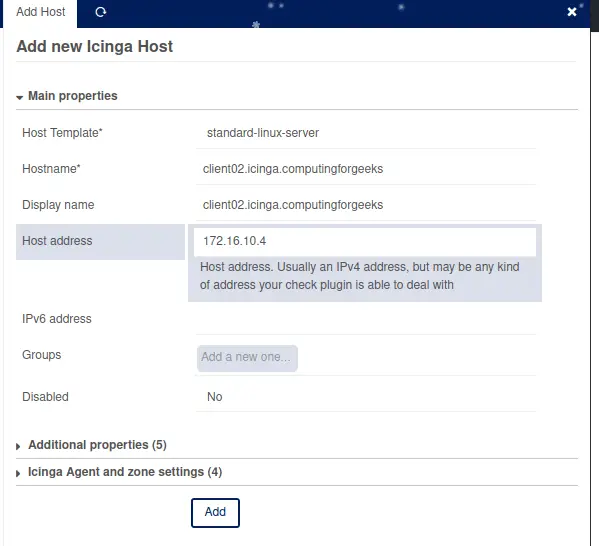
Click Store. The host is saved in Director’s database but not yet active in Icinga 2. To activate changes, go to Icinga Director > Deployments and click Deploy pending changes.
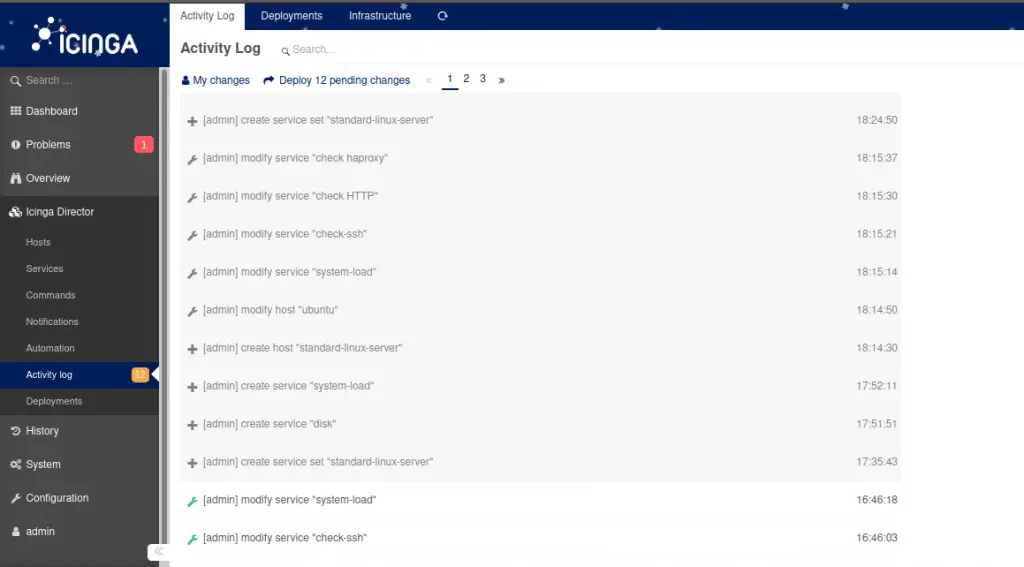
Director validates the configuration, renders it, and pushes it to the Icinga 2 daemon through the API. If validation fails, you get an error message with details on what to fix before retrying.
Step 17: Initialize Icinga 2 Agent on Client Hosts
Each monitored host needs the Icinga 2 agent installed and connected to the master. On the client host running Rocky Linux 10 / RHEL 10, install Icinga 2.
sudo dnf install -y https://packages.icinga.com/epel/icinga-rpm-release-10-latest.noarch.rpm
sudo dnf install -y epel-release
sudo dnf config-manager --set-enabled crb
sudo dnf install -y icinga2 monitoring-plugins
Enable and start Icinga 2 on the client.
sudo systemctl enable --now icinga2Back in the Director web UI, open the host object you created, switch to the Agent tab, and download the Linux agent deployment script. This script contains the master’s CA certificate, endpoint details, and the ticket needed for trusted certificate exchange.
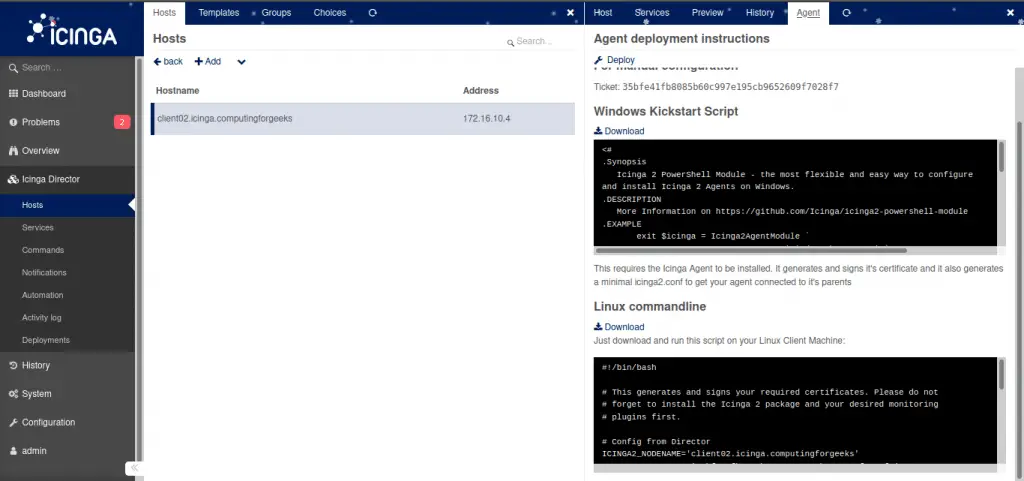
Copy the script to the client host and run it.
chmod +x icinga2-agent-kickstart.bash
sudo ./icinga2-agent-kickstart.bash
Restart Icinga 2 on the client to apply the new configuration.
sudo systemctl restart icinga2
sudo systemctl status icinga2
Within a minute or two, the host should appear as UP in the Icinga Web 2 dashboard with all assigned service checks running.
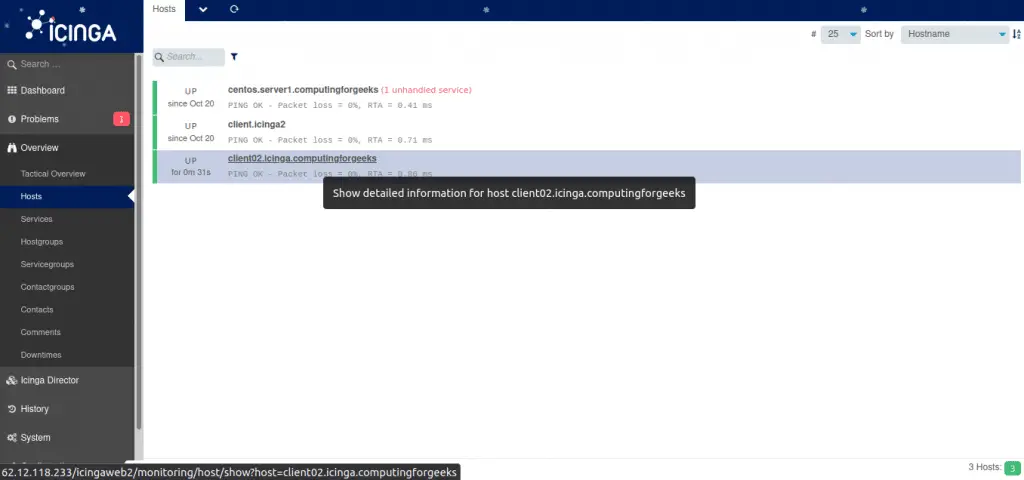
Step 18: Self-Service API for Automated Host Registration
Icinga Director’s Self Service API allows new hosts to register themselves automatically without manual intervention. This is useful for auto-scaling environments, cloud instances, and automated provisioning pipelines.
To enable self-service, open your host template in Director and switch to the Agent tab. Set the Self Service API Key by clicking Generate. This produces a template-level API key that any new host can use to register itself.
On a new client host, use curl to register via the API. Replace the API key and Director URL with your values.
curl -s -k -H 'Accept: application/json' \
  'https://icinga-master.example.com/icingaweb2/director/self-service/register-host?name=web02.example.com&key=YOUR_TEMPLATE_API_KEY&address=10.0.1.11'
The response includes a host-specific API key. Use that key to fetch the Icinga 2 agent configuration for this host.
curl -s -k -H 'Accept: application/json' \
  'https://icinga-master.example.com/icingaweb2/director/self-service/icinga2-agent?key=HOST_SPECIFIC_KEY' | python3 -m json.tool
This returns the full agent configuration (zones.conf, features, certificates) that you can pipe into your configuration management tool – Ansible, Puppet, or a simple shell script baked into your VM image.
Step 19: Director CLI Usage
The icingacli director command provides full access to Director functionality from the terminal. This is particularly useful for scripting and automation. If you are already using tools like Nagios or other monitoring systems, the CLI can help with bulk migration.
Create a Host via CLI
sudo icingacli director host create \
  --object_name "db01.example.com" \
  --object_type "object" \
  --imports "linux-server" \
  --address "10.0.1.20" \
  --vars.os "Linux" \
  --vars.environment "production"
List All Host Templates
sudo icingacli director host list --object_type templateDeploy Configuration
sudo icingacli director config deployCheck for Pending Changes
sudo icingacli director config show-pendingExport and Import Baskets
Director Baskets let you export configuration snapshots for backup or migration between environments.
# Export all host templates
sudo icingacli director basket snapshot --name "host-templates-backup"

# List existing baskets
sudo icingacli director basket list
Step 20: Sync Rules from External Sources
One of Director’s most powerful features is the ability to import hosts and other objects from external data sources, then sync them into Icinga monitoring configuration. Supported import sources include LDAP/Active Directory, SQL databases, CSV files, and the vSphere API.
Import from LDAP / Active Directory
To import hosts from LDAP, first configure an LDAP resource in /etc/icingaweb2/resources.ini if you do not already have one.
[AD Servers]
type = "ldap"
hostname = "ldap://10.0.1.5"
port = 389
root_dn = "DC=example,DC=com"
bind_dn = "CN=icinga-reader,OU=ServiceAccounts,DC=example,DC=com"
bind_pw = "LdapReaderPass2025"
encryption = "none"
In the Director web UI, go to Automation > Import Sources and click Add. Select LDAP as the source type, choose your LDAP resource, and configure the search filter and base DN to match your computer objects.
# Example LDAP filter for Windows servers
(objectClass=computer)

# Base DN
OU=Servers,DC=example,DC=com
Map the LDAP attributes to Director properties – cn becomes the object name, dNSHostName maps to the host address. Run the import, then create a Sync Rule under Automation > Sync Rules to push imported objects into Director as host objects.
Import from CSV Files
For CSV imports, place your CSV file on the server and create an import source with type CSV. Specify the file path, delimiter, and column headers.
Example CSV file at /var/lib/icingadirector/hosts.csv:
hostname,address,os,environment
web03.example.com,10.0.1.12,Linux,production
web04.example.com,10.0.1.13,Linux,staging
db02.example.com,10.0.1.21,Linux,production
The sync rule maps CSV columns to Director host properties and assigns the appropriate host template. Once configured, both the import and sync can run on a schedule through the Director daemon.
Import from VMware vSphere
For vSphere imports, install the icingaweb2-module-vspheredb module or use the built-in vSphere import source type. Configure your vCenter connection credentials and specify the object types to import (virtual machines, ESXi hosts, or both).
The sync rule can map VM properties like guest hostname, IP address, power state, and custom attributes to Director host objects. Combined with scheduled imports, new VMs appear automatically in your monitoring within minutes of creation.
Step 21: Configure Firewall Rules
Ensure the Icinga 2 API port is open on the master for agent communication. On Rocky Linux 10 / RHEL 10 with firewalld:
sudo firewall-cmd --permanent --add-port=5665/tcp
sudo firewall-cmd --reload
sudo firewall-cmd --list-ports
If SELinux is enforcing and you encounter permission issues with the Director daemon or PHP, check the audit log and create the necessary policy.
sudo setsebool -P httpd_can_network_connect 1Verifying the Setup
After completing all steps, verify the full stack is operational.
# Check Icinga 2 is running
sudo systemctl status icinga2

# Check Director daemon is running
sudo systemctl status icinga-director

# Verify Director API connectivity
sudo icingacli director health

# List deployed hosts
sudo icingacli director host list
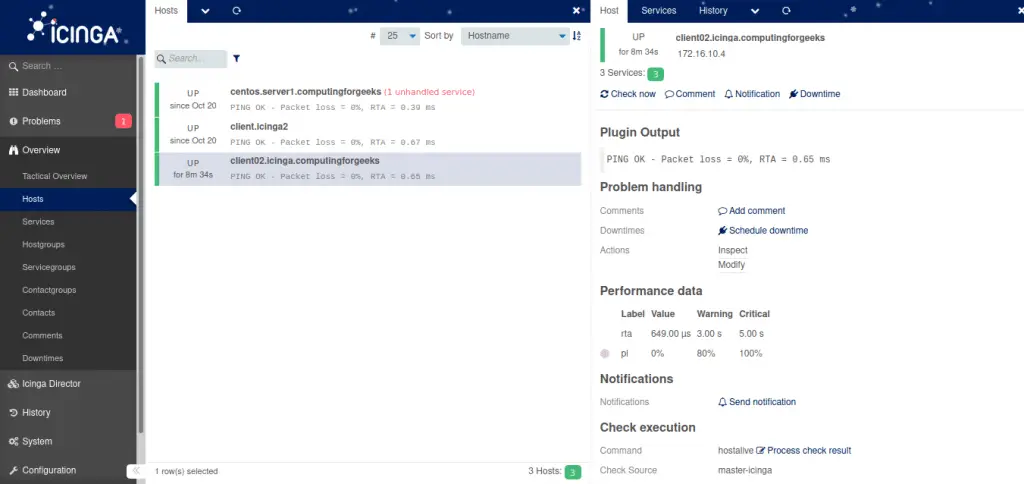
Open the Icinga Web 2 dashboard and navigate to Overview > Hosts. All hosts managed through Director should appear with their service checks active.
Conclusion
Icinga Director transforms Icinga 2 from a file-based configuration system into a database-driven, API-accessible monitoring platform. With templates, service sets, sync rules, and the self-service API, you can manage hundreds of hosts with minimal manual effort.
For production environments, restrict the Director API user permissions to only the actions needed, use TLS for all API communication, schedule regular database backups of the Director database, and set up the Director daemon for automatic import and sync jobs.

Hi Great tutorial
Interested to see the what did u kept inside the deployment-script.sh
Hi,
Just before the deployment script, there is a step to download another script from the icinga Director server. The name of the script is icinga2-agent-kickstart.bash. The content of icinga2-agent-kickstart.bash are copied to the deployment-script.sh on the client server.
You mention this is for CentOS but there are ‘apt’ command which are for Ubuntu/Debian. I guess you mean to say the client is one of those?