

You want to assign an OpenStack Instance a floating IP address from your public network?. When an virtual instance is created in OpenStack, it is automatically assigned a fixed IP in the network to which it is assigned . This IP address is permanently associated with the instance until the instance is terminated.
OpenStack also gives you an option to use floating IP address created from external network’s subnet. A “floating IP” is an IP address that can be dynamically added to a running virtual instance. The floating IP association can be modified at any time regardless of the state of the instance in question.
Here is the process you’ll use to create a floating IP Address in OpenStack and assign it to an instance.
1) Create an Instance on private network
First create a Virtual instance from OpenStack horizon dashboard or CLI in a private network.
I have two networks – public and private. The instance will be created on the private subnet.
$ openstack network list
+--------------------------------------+---------+--------------------------------------+
| ID                                   | Name    | Subnets                              |
+--------------------------------------+---------+--------------------------------------+
| b94431cb-08cf-42ea-be61-55f5cf459276 | private | 57601b99-ea64-41a8-a927-fbd591ae3f2b |
| f7ccac3b-73eb-49bf-a4ec-af750216b819 | public  | 7536e4a8-6aa8-45dc-aed6-1a98afcf416d |
+--------------------------------------+---------+--------------------------------------+

$ openstack subnet list
+--------------------------------------+----------------+--------------------------------------+----------------+
| ID                                   | Name           | Network                              | Subnet         |
+--------------------------------------+----------------+--------------------------------------+----------------+
| 57601b99-ea64-41a8-a927-fbd591ae3f2b | private_subnet | b94431cb-08cf-42ea-be61-55f5cf459276 | 10.10.1.0/24   |
| 7536e4a8-6aa8-45dc-aed6-1a98afcf416d | public_subnet  | f7ccac3b-73eb-49bf-a4ec-af750216b819 | 96.220.99.8/29 |
+--------------------------------------+----------------+--------------------------------------+----------------+
I’ll create an Instance called testfloating from Ubuntu 22.04 template.
openstack server create \
 --image Ubuntu-22 \
 --key-name jmutai \
 --flavor m1.small \
 --security-group  7fffea2a-b756-473a-a13a-219dd0f1913a  \
 --network private  \
 testfloating
VM creation can be done from your OpenStack Dashboard.
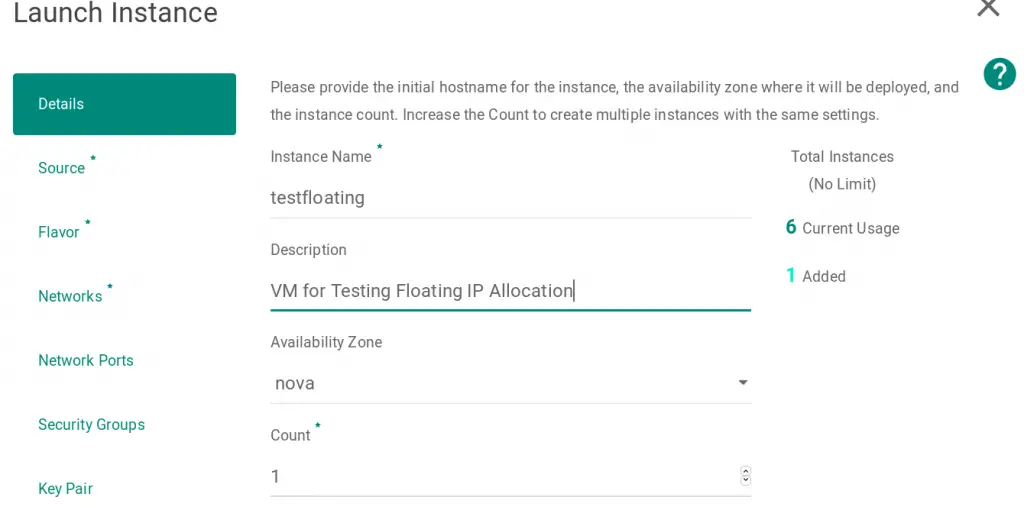
After creation, confirm the server is running.
$ openstack server show testfloating
+-------------------------------------+----------------------------------------------------------+
| Field                               | Value                                                    |
+-------------------------------------+----------------------------------------------------------+
| OS-DCF:diskConfig                   | MANUAL                                                   |
| OS-EXT-AZ:availability_zone         | nova                                                     |
| OS-EXT-SRV-ATTR:host                | server1.computingforgeeks.com                            |
| OS-EXT-SRV-ATTR:hypervisor_hostname | server1.computingforgeeks.com                            |
| OS-EXT-SRV-ATTR:instance_name       | instance-0000002e                                        |
| OS-EXT-STS:power_state              | Running                                                  |
| OS-EXT-STS:task_state               | None                                                     |
| OS-EXT-STS:vm_state                 | active                                                   |
| OS-SRV-USG:launched_at              | 2019-09-22T07:13:40.000000                               |
| OS-SRV-USG:terminated_at            | None                                                     |
| accessIPv4                          |                                                          |
| accessIPv6                          |                                                          |
| addresses                           | private=10.10.1.185                                      |
| config_drive                        |                                                          |
| created                             | 2019-09-22T07:13:35Z                                     |
| flavor                              | m1.small (1)                                             |
| hostId                              | da0a05ef20a03e97f301563551bab9b669ef04adbce232d941519946 |
| id                                  | a731e48d-d3b5-4fcf-8fc7-f8f280b51b44                     |
| image                               | Ubuntu-18 (7bd462ad-cc11-4d89-8b85-9aab0cfe114b)         |
| key_name                            | jmutai                                                   |
| name                                | testfloating                                             |
| progress                            | 0                                                        |
| project_id                          | 06bcc3c56ab1489282b65681e782d7f6                         |
| properties                          |                                                          |
| security_groups                     | name='default'                                           |
| status                              | ACTIVE                                                   |
| updated                             | 2019-09-22T07:13:40Z                                     |
| user_id                             | 336acbb7421f47f8be4891eabf0c9cc8                         |
| volumes_attached                    |                                                          |
+-------------------------------------+----------------------------------------------------------+
2) Reserve a floating IP address from external network
You need to reserve a floating IP address from external network subnet pool. This can be done from the web dashboard or CLI.
From CLI:
openstack floating ip create --project admin --subnet public_subnet publicWhere:
- admin is the Owner’s project. Created floating IP will be available for association in this project.
- public_subnet is the name of the subnet on which you want to create the floating IP.
- public is the name of the network to allocate floating IP from.
See all options by typing:
openstack floating ip create --helpFrom Dashboard:
Log in to the dashboard as a user that has the Member role. The navigate to:
Project > Network > Floating IPs
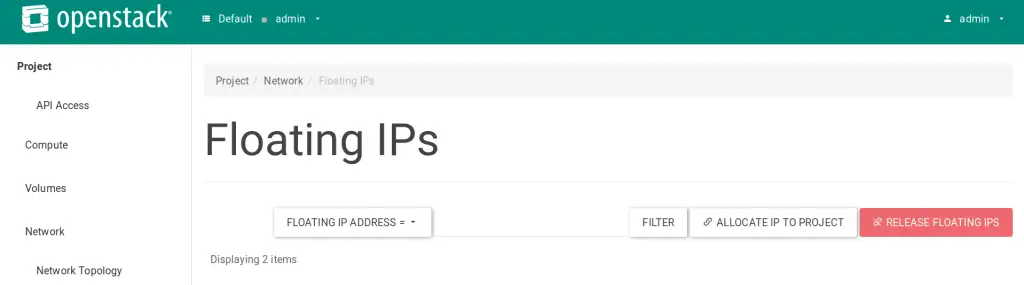
Click on the “ALLOCATE IP TO PROJECT” button. On the new window, select a Pool, provide description and click on “ALLOCATE IP“.
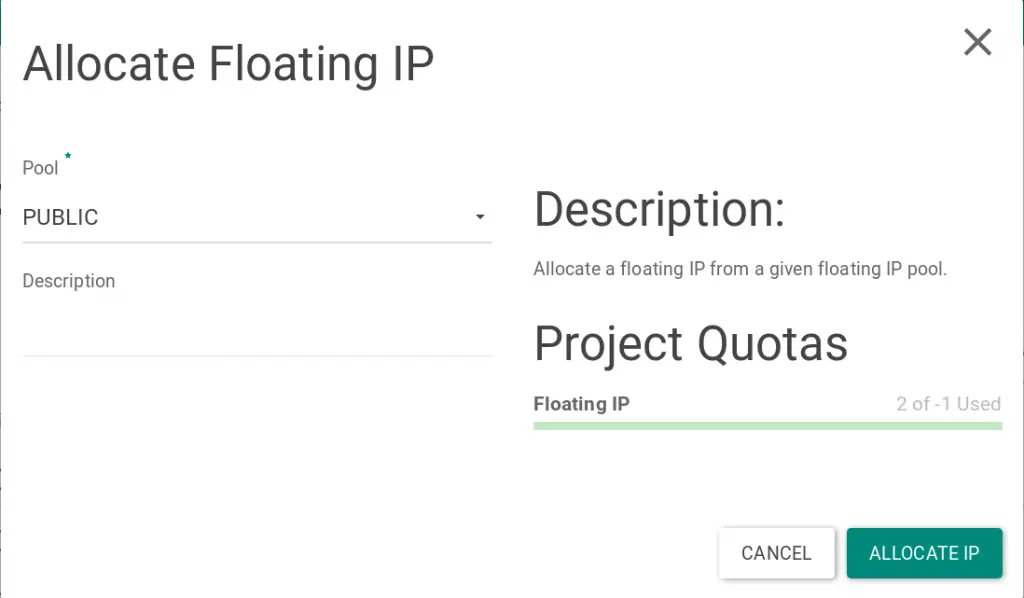
3) Associate reserved floating IP address to instance
Once the floating IP address is reserved, we can associate it with an instance.
From CLI:
$ openstack floating ip list
$ openstack server list
$ openstack server add floating ip <server> <ip-address>

# Example:
$ openstack server add floating ip testfloating 96.220.99.11
From dashboard:
Option 1: Project > Network > Floating IPs > Select IP > Associate

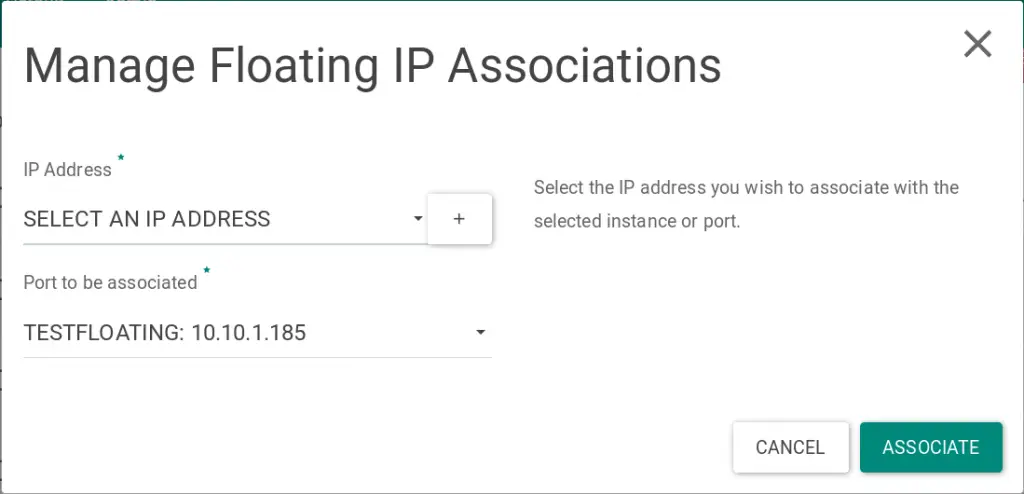
Pick a floating IP, an instance and a port to associate.
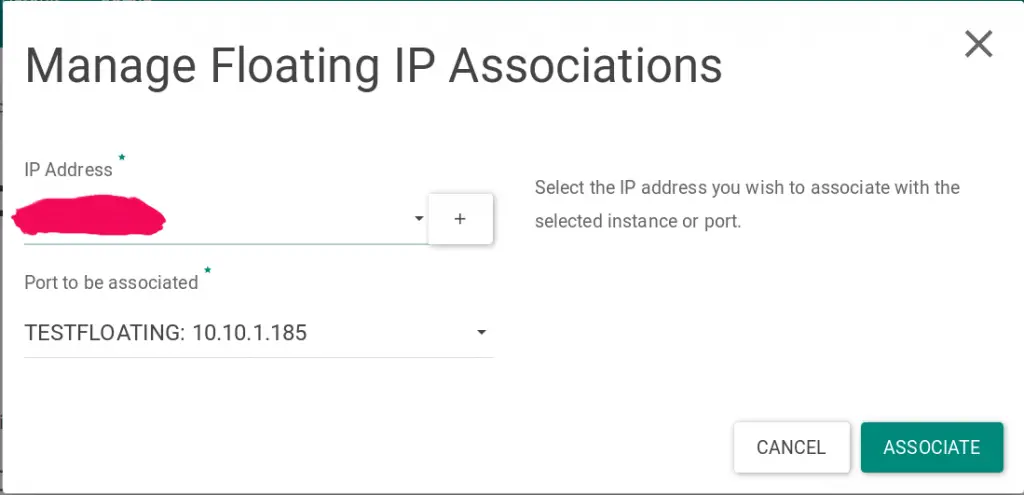
Option 2: Project > Compute > Instances
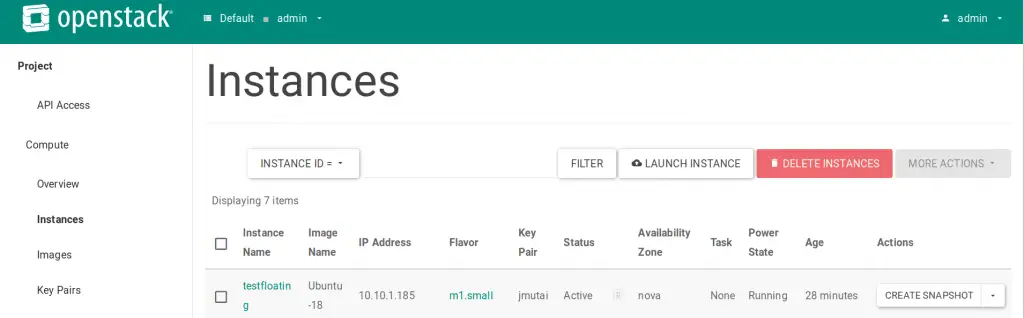
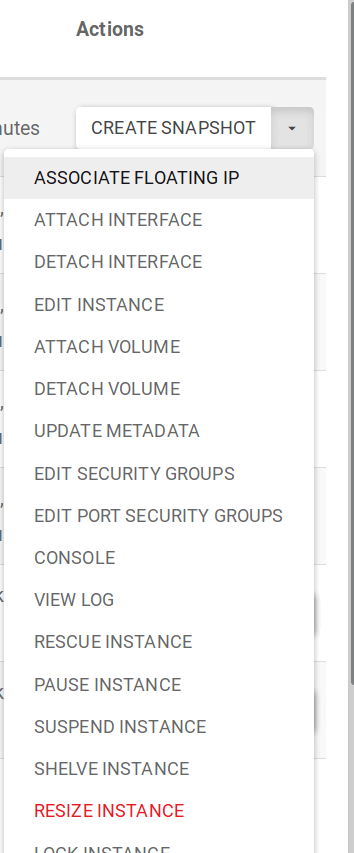
Under actions, select “ASSOCIATE FLOATING IP”
Select an IP address and click “ASSOCIATE”.
Disassociate a floating IP Address
To disassociate IP address, use either of below methods:
CLI:
openstack server remove floating ip <server> <ip-address>Dashboard:
- Project > Network > Floating IPs > DISASSOCIATE
- Project > Compute > Instances > Actions > DISASSOCIATE FLOATING IP
That’s all on how to associate a floating IP address to an instance running on OpenStack.
Other OpenStack guides:
- How To Create OpenStack Instance With a Fixed / Static IP Address
- How To Create OpenStack projects, users and roles
- How To Migrate OpenStack Instance from one Compute Host to Another
- How To Resize OpenStack Instance / Virtual Machine
- How To Configure OpenStack Instances / VMs to Autostart after Nova compute reboot
- How To Create OpenStack Cinder Volumes and Attach to a VM Instance

Hi
Thanks for your great article.
I have a question on how to assign range of floating ip addresses ( public IP from ISP ) to a single PC (or server )
Here is my scenario:
I have a fiber optic Modem ( Huawei HG8245H ) and bought a public IP from ISP ( it is possible to have a range of public IP addresses!)_ ( I put the Modem into the NAT mode). then i have a PC which is connected to the modem via LAN cable.
in this case the PC just have a NAT ip of 192.168.100.10/24. but how can i assign a public ip or a range of public ips to that PC?
Do i need some special devices like firewall or switches or routers? ( do i need more that one Fiber optic Modem)
What have you done to assign ISP public IPs to your Openstack PC(the Bare metal PC or server )?
After all i want to install OpenStack on top of that pc to give each VM a unique floating IP address ( public ips that bought from ISP )
Thanks
Best regards