

Website vulnerabilities can originate from either misconfigurations or software flaws that attackers can potentially exploit. To prevent such risks, web configuration and vulnerability scanning services provide a regular and cost-effective way of identifying common website issues. These services serve as a proactive measure, ensuring that known vulnerabilities are detected and remediated on time.
Web-Check allows you to identify common vulnerabilities and misconfigurations on your website. These checks impose a low load on the site, therefore, preventing damage in the process. Web-Check will tell you the exact vulnerabilities, when to worry and how to fix the issues. Web-Check provides an easy-to-use and comprehensive dashboard that doesn’t require high technical skill to understand.
The security issues checked include:
- SSL certificates, if they are valid and well well-configured
- Well-configured and Up-to-date TLS encryption
- HTTP to HTTPS redirection for all users.
- The HTTP security headers and secure cookies for the site.
- Cross-domain policy and cross-origin resource sharing (CORS) controls implementation.
- If the site provides information disclosure in a security.txt file
- Restricted access to XML-RPC
- Vulnerability to a selection of known Common Vulnerabilities and Exposures (CVEs)
- The CMS configuration and if updated.
- The open ports on the system.
- The general site performance.
This guide will provide a step-by-step demonstration of how to pull and analyze website information using Web-Check
1. Install Web-Check on your System
There are two methods that can be used to install Web-Check on your system. These are:
- Building locally
- Using Docker
Choose an option that best works for you.
Option 1: Building locally
This step requires you to have several packages installed. These are Node.js (V 18.16.1 or later) and git. To install Node.js, follow the aid provided here:
You can then install git with the command:
##On Debian/Ubuntu
sudo apt update && sudo apt install git -y

##On Rhel/Rocky/Alma Linux
sudo yum install git -y
Once installed, clone the repo below:
git clone https://github.com/Lissy93/web-check.gitNavigate into the directory:
cd web-checkInstall all the required dependencies:
yarnNow you can start the development server with the commands:
yarn devSample Output:
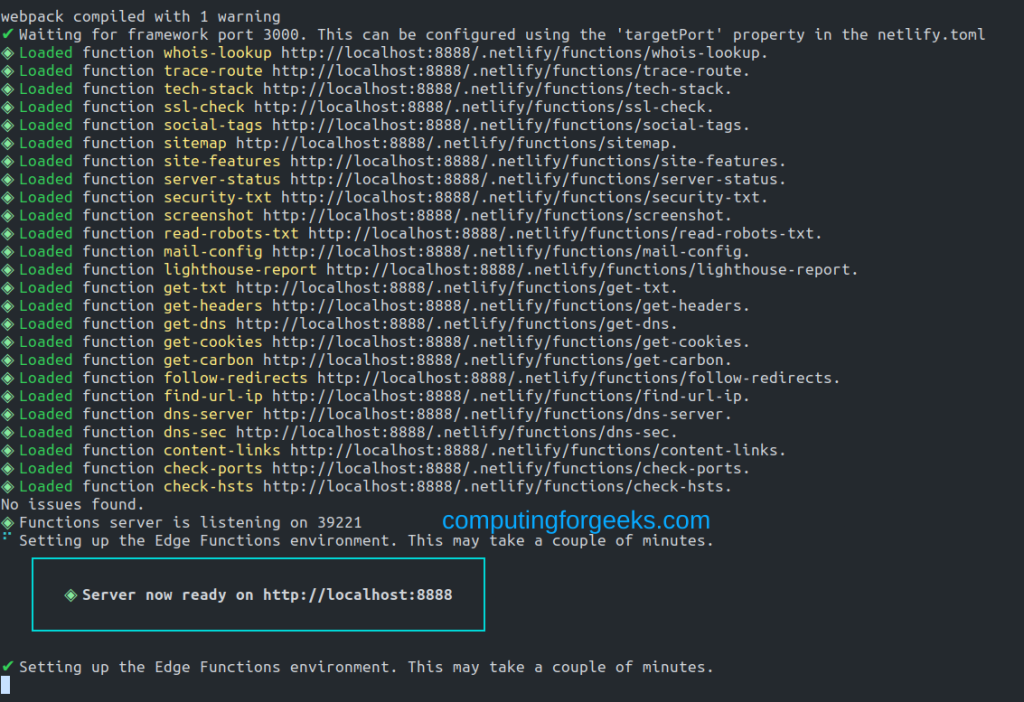
Here, you have the app running on port 8888. Now we need to configure the app to run in the background and automatically on boot. First, stop the service running on port 8888 first.
sudo killall -9 nodeInstall PM2:
sudo npm install pm2@latest -gNow create a config file:
sudo vim ecosystem.config.jsIn the file, add the below lines:
module.exports = {
  apps: [
    {
      name: 'web-check', // Replace with your app's name
      cwd: '/home/thor/web-check',
      script: 'npm',
      args: 'run serve',
      env: {
        CHROME_PATH: '/usr/bin/chromium' // Set the desired CHROME_PATH
      }
    }
  ]
};
Replace /home/thor/web-check with the correct path of your app. Once saved, start the app with the command:
pm2 start ecosystem.config.jsYou can view the app with the command:
$ pm2 list
┌────┬────────────────────┬──────────┬──────┬───────────┬──────────┬──────────┐
│ id │ name               │ mode     │ ↺    │ status    │ cpu      │ memory   │
├────┼────────────────────┼──────────┼──────┼───────────┼──────────┼──────────┤
│ 1  │ web-check          │ fork     │ 2    │ online    │ 0%       │ 61.3mb   │
└────┴────────────────────┴──────────┴──────┴───────────┴──────────┴──────────┘
[PM2][WARN] Current process list is not synchronized with saved list. App strapi differs. Type 'pm2 save' to synchronize.
To follow the logs, use:
pm2 logsYour app will now start on port 8888. Allow the app to run on system boot:
$ pm2 startup
[PM2] Init System found: systemd
[PM2] To setup the Startup Script, copy/paste the following command:
sudo env PATH=$PATH:/usr/bin /usr/lib/node_modules/pm2/bin/pm2 startup systemd -u thor --hp /home/thor
Now enable the app to run automatically on boot by running the provided command:
sudo env PATH=$PATH:/usr/bin /usr/lib/node_modules/pm2/bin/pm2 startup systemd -u thor --hp /home/thorSave the changes:
pm2 saveFor Rhel-based systems, configure SELinux as shown:
sudo dnf install policycoreutils policycoreutils-python-utils setools setroubleshoot setroubleshoot-server
sudo su
setenforce 0
setsebool -P domain_can_mmap_files 1
setenforce 1
Option 2: Using Docker
This is another easier option to run Web-Check. For this method, you need Docker Engine installed. This can be done by following this guide:
You can also install Docker Compose:
Now you either run the container using the Docker CLI as shown:
docker run -d -p 8888:8888 lissy93/web-checkOr using Docker-Compose:
$ vim docker-compose.yml
version: '3.9'
services:
  web-check:
    container_name: Web-Check
    image: lissy93/web-check
    ports:
      - 8888:8888
    restart: unless-stopped
Run the container:
docker-compose up -d2. Configuring Web-Check
By default, Web-Check does not require any configurations. But it still takes some environmental configurations. These can be declared in the .env file or in the docker container:
GOOGLE_CLOUD_API_KEY– A Google API key (get here). This can be used to return quality metrics for a siteTORRENT_IP_API_KEY– A torrent API key (get here). This will show torrents downloaded by an IPREACT_APP_SHODAN_API_KEY– A Shodan API key (get here). This will show associated hostnames for a given domainREACT_APP_WHO_API_KEY– A WhoAPI key (get here). This will show more comprehensive WhoIs records than the default jobSECURITY_TRAILS_API_KEY– A Security Trails API key (get here). This will show org info associated with the IPBUILT_WITH_API_KEY– A BuiltWith API key (get here). This will show the main features of a site
3. Access and Use Web-Check
Once deployed using any of the above options, ensure that port 8888 is allowed through the firewall.
##For UFW
sudo ufw allow 8888

##For Firewalld
sudo firewall-cmd --add-port=8888/tcp --permanent
sudo firewall-cmd --reload
Now access the web UI using the URL http://IP_address:8888 or http://domain_name:8888
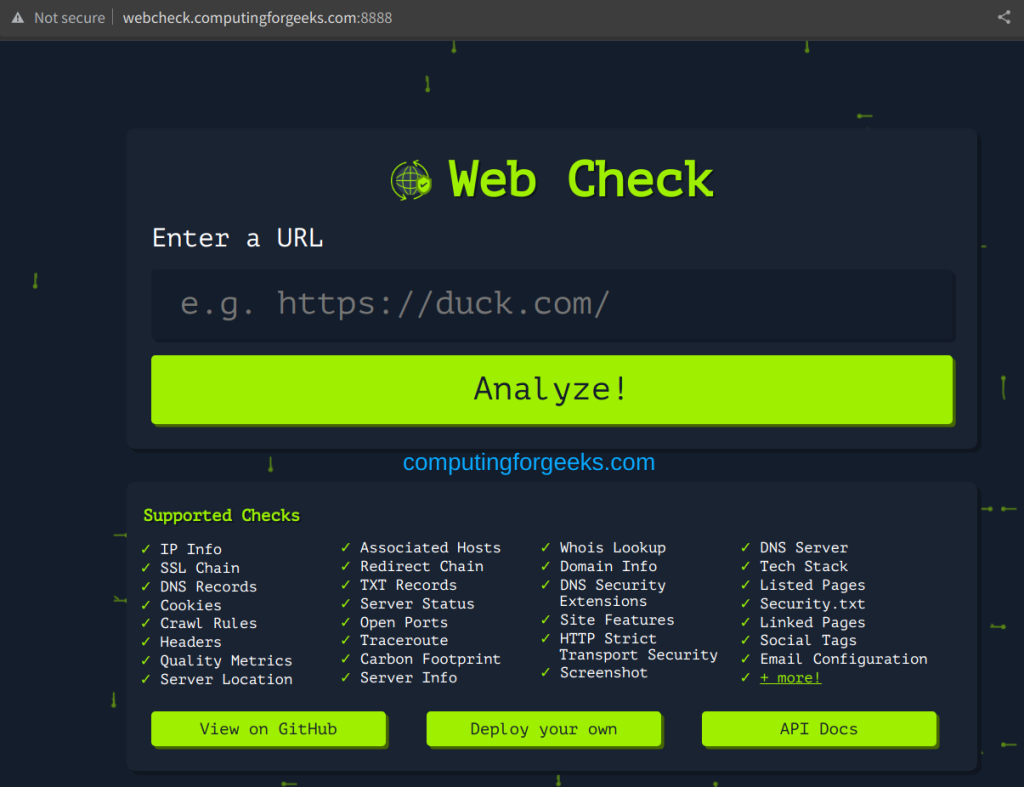
Now on the above UI, you can add any URL of the site that you want to check.
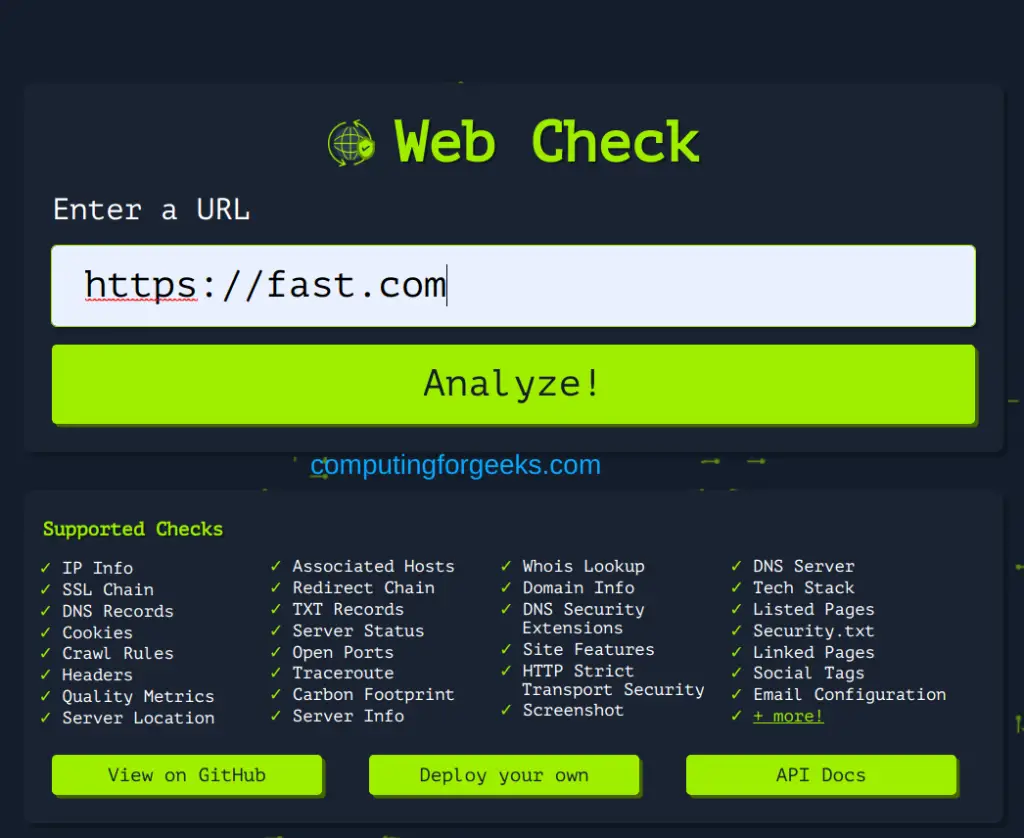
Once the URL has been provided, click on Analyze!. After some seconds, you will have the information provided as shown:
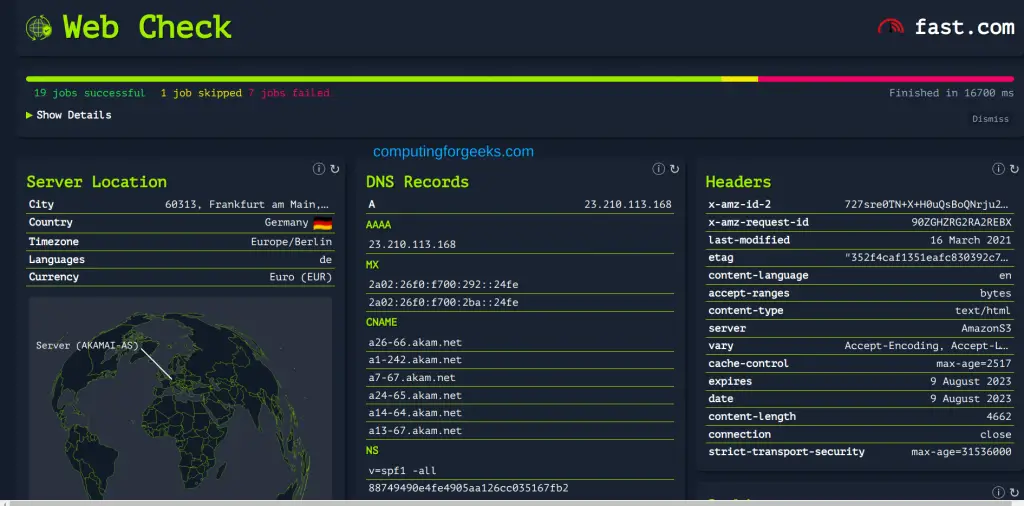
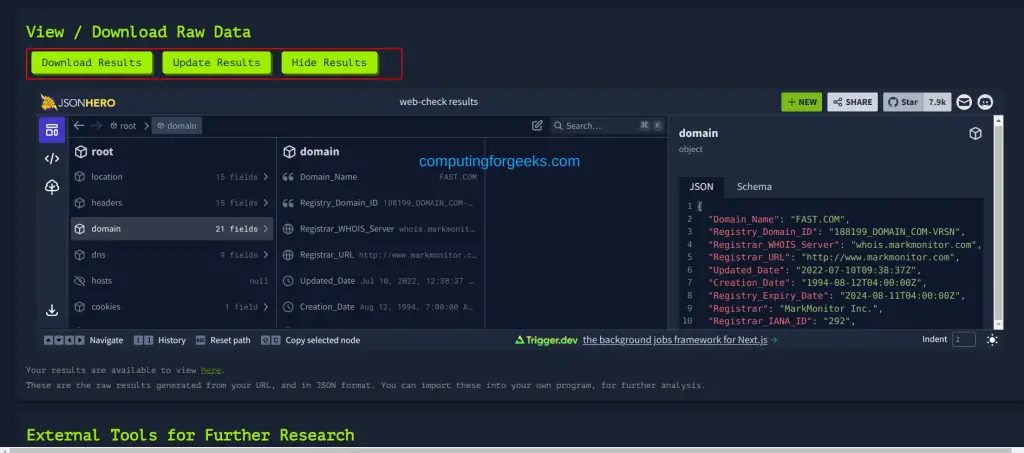
Here, there are security issues such as server location, DNS records, DNSsec, Headers, SSL certs, Traceroute, etc. You can also scroll down and download, update and view the results as desired.
Verdict
We have successfully walked through how you can pull and analyze website information using Web-Check. I hope this will help you keep your site secure.
