

How do I Install phpMyAdmin on RHEL / CentOS 8 Linux system?. In this blog post, we will cover how to install and Configure phpMyAdmin on RHEL 8. phpMyAdmin is an open source software tool written in PHP for administering MySQL and MariaDB database servers from a Web interface.
phpMyAdmin has support for a wide range of operations on MySQL, MariaDB, and Drizzle. With this tool, you can manage databases, tables, columns, relations, indexes, users, permissions, and others through an intuitive and easy to use web interface.
For Ubuntu / Debian, refer to Install Latest phpMyAdmin on Ubuntu
Install and Configure phpMyAdmin on RHEL / CentOS 8
Below are the steps you’ll follow to install and configure phpMyAdmin on RHEL 8. The dependencies required are PHP, Apache Web Server and Database server to be managed.
1: Install PHP and extensions required
phpMyAdmin is written in PHP and you’ll need it installed on your RHEL / CentOS 8 server.
sudo dnf -y install @php
sudo dnf -y install php-zip php-json php-fpm
Ensure php-mysqlnd extension is installed.
sudo yum -y install php-mysqlndStart and enable FPM service
sudo systemctl enable --now php-fpm2: Install MariaDB/MySQL Database Server
The next step is to install the MariaDB/MySQL database server. Follow guides below to install MariaDB or MySQL on RHEL 8.
3: Install Apache Web Server
phpMyAdmin support both Apache and Nginx as web server. We chose Apache httpd server because it is the most used Web server in enterprise and RHEL ecosystem.
Use our guide below to install Apache web server on RHEL 8.
4: Install phpMyAdmin on RHEL 8
Visit phpMyAdmin downloads page and check the latest available package. Then download the file to your local system.
wget https://www.phpmyadmin.net/downloads/phpMyAdmin-latest-all-languages.tar.gzExtract downloaded Archive
tar xvf phpMyAdmin-latest-all-languages.tar.gzMove the folder to /usr/share/phpmyadmin.
rm phpMyAdmin-latest-all-languages.tar.gz
sudo mv phpMyAdmin-*/ /usr/share/phpmyadmin
Create directory for phpMyAdmin temp files.
sudo mkdir -p /var/lib/phpmyadmin/tmp
sudo chown -R apache:apache /var/lib/phpmyadmin
Create directory for phpMyAdmin configuration files such as htpass file.
sudo mkdir /etc/phpmyadmin/Create phpMyAdmin configuration file.
sudo cp /usr/share/phpmyadmin/config.sample.inc.php /usr/share/phpmyadmin/config.inc.phpEdit the file
sudo vim /usr/share/phpmyadmin/config.inc.phpSet a secret passphrase – Needs to be 32 chars long
$cfg['blowfish_secret'] = 'H2OxcGXxflSd8JwrwVlh6KW6s2rER63i'; Configure Temp directory
$cfg['TempDir'] = '/var/lib/phpmyadmin/tmp';5: Configure Apache web Server
Create phpMyAdmin Apache configuration file.
sudo vim /etc/httpd/conf.d/phpmyadmin.confAdd below data:
# Apache configuration for phpMyAdmin
Alias /phpMyAdmin /usr/share/phpmyadmin/
Alias /phpmyadmin /usr/share/phpmyadmin/

<Directory /usr/share/phpmyadmin/>
   AddDefaultCharset UTF-8

   <IfModule mod_authz_core.c>
     # Apache 2.4
     Require all granted
   </IfModule>
   <IfModule !mod_authz_core.c>
     # Apache 2.2
     Order Deny,Allow
     Deny from All
     Allow from 127.0.0.1
     Allow from ::1
   </IfModule>
</Directory>
You can restrict access from specific IP by adding line like below
Require ip 127.0.0.1 192.168.0.0/24Validate Apache configuration.
$ sudo apachectl configtest
Syntax OK
Restart httpd service to load new configuration,
sudo systemctl restart httpd6: Configure SELinux and Firewall
If you have SELinux in Enforcing mode, you’ll get Permission denied error when you try to access phpMyAdmin page. Allow httpd to serve content in the
sudo semanage fcontext -a -t httpd_sys_content_t "/usr/share/phpmyadmin(/.*)?"Apply the policy by running the command.
sudo restorecon -Rv /usr/share/phpmyadminAllow http port in the firewall.
sudo firewall-cmd --add-service=http --permanentReload firewall reload configuration.
sudo firewall-cmd --reload7: Access phpMyAdmin Web interface
Open the URL http://[ServerIP|Hostname]/phpmyadmin
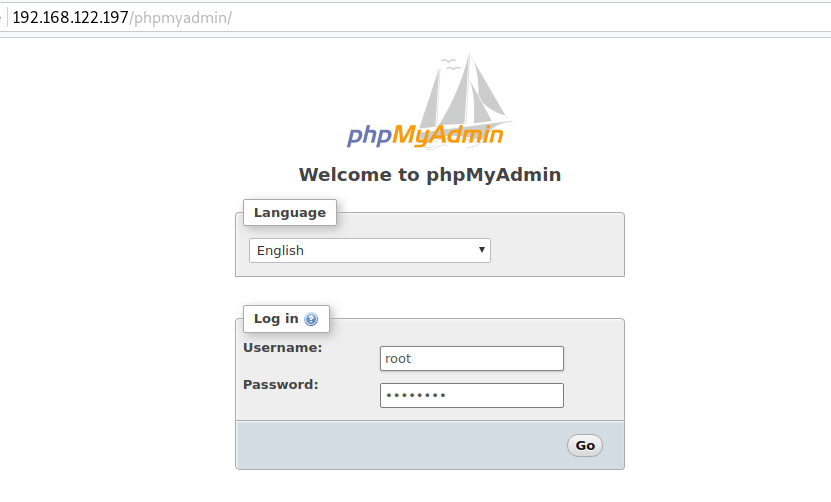
Login to phpMyAdmin dashboard with your Database credentials – username & password.

Congratulations!. You have successfully installed phpMyAdmin on RHEL 8 / CentOS 8.
Recommended books to read:
- Best Books to learn Web Development – PHP, HTML, CSS, JavaScript and jQuery
- Best Books To Master Web Design
- Best Books To Learn CSS & CSS3
- Best Books To Learn HTML & HTML5
- Best Apache and Nginx reference Books
Enjoy administering MySQL/MariaDB database operations from a web dashboard. You can also check:
Other interesting guides:

If you follow these exact steps on a brand-new install of Rocky Linux you will get nothing except a blank page when you attempt to access phpMyAdmin.
Yes, I have googled “phpmyadmin blank page.” Yes, I have tried the various “solutions” that are possible. (ie, the ones that don’t refer to software I’m not using per these instructions). No, none of them resolve this issue.
There are no errors in apache’s log. As far as Apache is concerned, phpmyadmin is working correctly and is SUPPOSED to render a blank page.
It’s not execution time. The “blank page” is served up instantly.
It’s not a firewall/connection issue. My browser successfully reaches apache and receives back an empty result.
Detailed instructions to reproduce: Install Rocky Linux, minimal. Then visit this page and do all of the instructions verbatim.
Hi Mike. You can try nginx way as covered in the following guide: https://techviewleo.com/install-and-use-phpmyadmin-on-rocky-linux/
If you see a blank page: install php-json will fix it. I followed the above instructions and got a blank page. After hours of searching I found this solution. Works for me.
merci boucoup tutorial 100%