Running your own GitLab instance means full control over your source code, CI/CD pipelines, container registry, and issue tracking without handing anything to a third party. GitLab CE (Community Edition) bundles everything into a single Omnibus package: Nginx, PostgreSQL, Redis, Puma, Sidekiq, and Gitaly all come preconfigured and ready to go.
This guide walks through installing GitLab CE 18.10 on Rocky Linux 10 and AlmaLinux 10 with a valid Let’s Encrypt SSL certificate. We cover the full setup: dependencies, firewall, SELinux (enforcing), SMTP email, SSH access, backups, and the web UI walkthrough with screenshots. If you need Git installed on Rocky Linux 10 for local development, that’s covered separately.
Tested March 2026 on Rocky Linux 10.1 (kernel 6.12), SELinux enforcing | GitLab CE 18.10.1, PostgreSQL 16.11, Ruby 3.3.10, Redis 7.2.11
Prerequisites
- A server running Rocky Linux 10 or AlmaLinux 10 with at least 8GB RAM (4GB absolute minimum for small teams, but expect slowness)
- 4 CPU cores (2 minimum)
- Root or sudo access
- A fully qualified domain name (FQDN) with a DNS A record pointing to your server’s public IP
- Ports 80 (HTTP), 443 (HTTPS), and 22 (SSH) open on your firewall
- Tested on: Rocky Linux 10.1, GitLab CE 18.10.1
Install Required Dependencies
Update the system packages first, then install what GitLab needs. The policycoreutils-python-utils package provides SELinux tools, and postfix handles outgoing email notifications from GitLab.
sudo dnf update -yInstall the dependencies:
sudo dnf install -y curl policycoreutils-python-utils openssh-server openssh-clients perl postfixEnable and start both SSH and Postfix so they survive reboots:
sudo systemctl enable --now sshd
sudo systemctl enable --now postfix
Confirm both services are active:
sudo systemctl status sshd postfixBoth should show active (running). Postfix in particular needs to be running before GitLab is installed, or the installer will warn about email delivery.
Configure the Firewall
GitLab needs HTTP (port 80) for Let’s Encrypt certificate validation, HTTPS (port 443) for the web interface, and SSH (port 22) for Git operations. If firewalld is not already installed on your system:
sudo dnf install -y firewalld
sudo systemctl enable --now firewalld
Open the required services:
sudo firewall-cmd --permanent --add-service=http
sudo firewall-cmd --permanent --add-service=https
sudo firewall-cmd --permanent --add-service=ssh
sudo firewall-cmd --reload
Verify the rules are active. For a deeper look at firewalld on Rocky Linux 10, check our dedicated guide.
sudo firewall-cmd --list-allThe output confirms HTTP, HTTPS, and SSH are allowed:
public (default, active)
  target: default
  icmp-block-inversion: no
  interfaces: eth0
  sources:
  services: cockpit dhcpv6-client http https ssh
  ports:
  protocols:
  forward: yes
  masquerade: no
  forward-ports:
  source-ports:
  icmp-blocks:
  rich rules:
Add the GitLab CE Repository
GitLab provides an official script that configures the Omnibus package repository for RHEL-based systems:
curl -sS https://packages.gitlab.com/install/repositories/gitlab/gitlab-ce/script.rpm.sh | sudo bashThe script creates the gitlab_gitlab-ce repository under /etc/yum.repos.d/. Verify it was added:
dnf repolist | grep gitlabYou should see the repository listed and enabled:
gitlab_gitlab-ce           gitlab_gitlab-ce
gitlab_gitlab-ce-source    gitlab_gitlab-ce-source
Install GitLab CE
Install GitLab CE with the EXTERNAL_URL environment variable. Replace gitlab.example.com with your actual domain. Setting the URL with https:// tells GitLab to automatically request a Let’s Encrypt SSL certificate during installation.
sudo EXTERNAL_URL="https://gitlab.example.com" dnf install -y gitlab-ceThe Omnibus package is roughly 1GB. It installs bundled Nginx, PostgreSQL 16, Redis, Puma, Sidekiq, Gitaly, and all other components. The initial gitlab-ctl reconfigure runs automatically and takes 2 to 3 minutes depending on your hardware.
When it finishes, you will see a message confirming GitLab was installed. The initial root password is stored at /etc/gitlab/initial_root_password.
If the Let’s Encrypt certificate request fails during installation (DNS not propagated, port 80 blocked from the internet), you can configure SSL separately as shown in the next section.
Configure HTTPS with Let’s Encrypt SSL
GitLab’s main configuration file is /etc/gitlab/gitlab.rb. If SSL was set up during installation, this step verifies the configuration. If it wasn’t (common when DNS hadn’t propagated), this is where you fix it.
Open the configuration file:
sudo vi /etc/gitlab/gitlab.rbSet or confirm these key settings:
external_url 'https://gitlab.example.com'

# Let's Encrypt automatic SSL
letsencrypt['enable'] = true
letsencrypt['contact_emails'] = ['[email protected]']

# Auto-renew certificates
letsencrypt['auto_renew'] = true
letsencrypt['auto_renew_hour'] = 2
letsencrypt['auto_renew_minute'] = 30

# Redirect HTTP to HTTPS
nginx['redirect_http_to_https'] = true
Apply the changes:
sudo gitlab-ctl reconfigureReconfiguration re-runs the Chef recipes and requests a Let’s Encrypt certificate if one isn’t already present. The process takes 1 to 2 minutes.
Alternative: Use an existing certificate
If you already have SSL certificates from certbot or another CA, disable the built-in Let’s Encrypt and point GitLab to your certificate files:
sudo vi /etc/gitlab/gitlab.rbSet these directives:
letsencrypt['enable'] = false
nginx['ssl_certificate'] = '/etc/letsencrypt/live/gitlab.example.com/fullchain.pem'
nginx['ssl_certificate_key'] = '/etc/letsencrypt/live/gitlab.example.com/privkey.pem'
nginx['redirect_http_to_https'] = true
Then reconfigure:
sudo gitlab-ctl reconfigureVerify all GitLab services are running after reconfiguration:
sudo gitlab-ctl statusAll services should show run: with their PID:
run: alertmanager: (pid 63053) 6s; run: log: (pid 62626) 38s
run: gitaly: (pid 60674) 196s; run: log: (pid 59059) 322s
run: gitlab-exporter: (pid 62983) 11s; run: log: (pid 62284) 58s
run: gitlab-kas: (pid 59649) 311s; run: log: (pid 59667) 310s
run: gitlab-workhorse: (pid 60642) 197s; run: log: (pid 60106) 245s
run: logrotate: (pid 58826) 335s; run: log: (pid 58840) 334s
run: nginx: (pid 62957) 12s; run: log: (pid 60253) 236s
run: node-exporter: (pid 62967) 12s; run: log: (pid 62267) 62s
run: postgres-exporter: (pid 63066) 6s; run: log: (pid 62680) 34s
run: postgresql: (pid 59190) 317s; run: log: (pid 59230) 316s
run: prometheus: (pid 62500) 44s; run: log: (pid 62500) 44s
run: puma: (pid 59890) 258s; run: log: (pid 59905) 257s
run: redis: (pid 58903) 329s; run: log: (pid 58921) 328s
run: redis-exporter: (pid 62991) 11s; run: log: (pid 62408) 50s
run: sidekiq: (pid 62750) 28s; run: log: (pid 60001) 249s
Verify the SSL certificate is valid:
echo | openssl s_client -connect gitlab.example.com:443 -servername gitlab.example.com 2>/dev/null | openssl x509 -noout -dates -subjectThe output shows the certificate validity dates and subject:
notBefore=Mar 25 19:52:44 2026 GMT
notAfter=Jun 23 19:52:43 2026 GMT
subject=CN=gitlab.example.com
Let’s Encrypt certificates are valid for 90 days. GitLab’s auto-renew cron handles renewals automatically.
Log In and Access the Web Interface
Retrieve the initial root password. This file is deleted automatically after 24 hours:
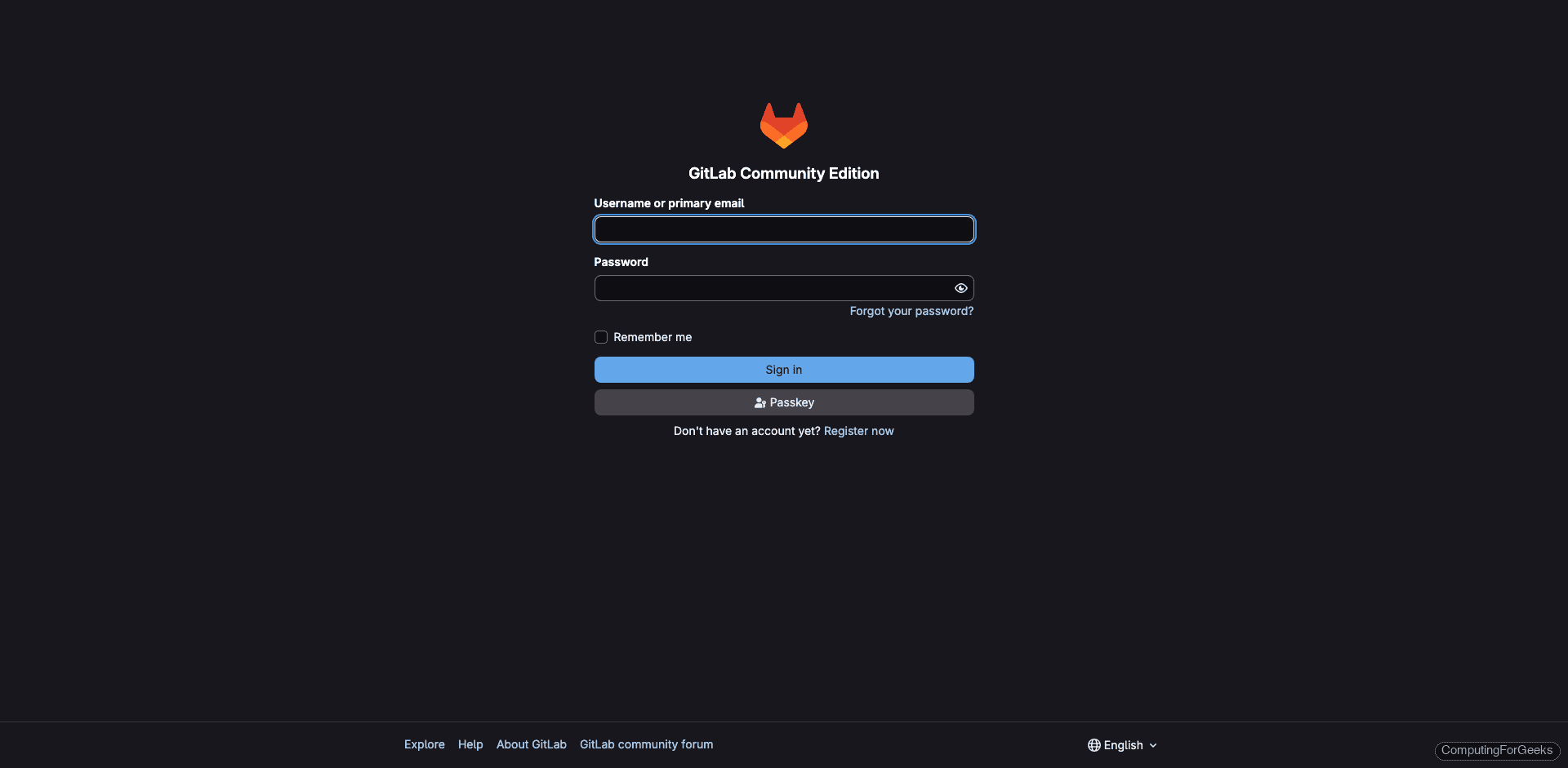
sudo cat /etc/gitlab/initial_root_passwordThe password appears on the line starting with Password:. Copy it and open https://gitlab.example.com in your browser. Log in with username root and the password from the file.
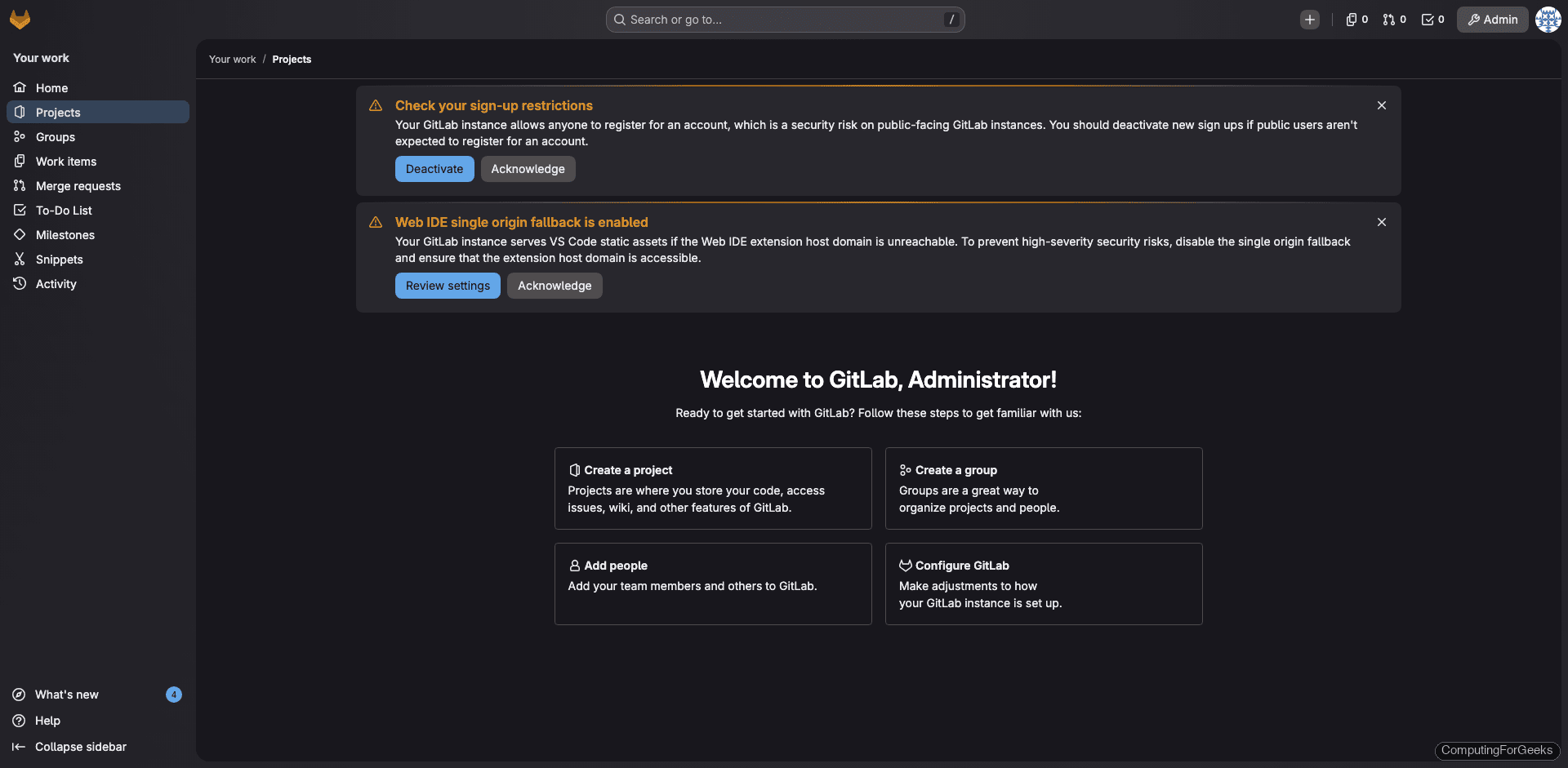
After signing in, the dashboard shows a welcome message with getting-started steps:
Change the root password immediately. Go to User Settings (click your avatar at the top-right), then Password, and set a strong password. The initial password is a temporary credential that should not be reused.
Admin Area Overview
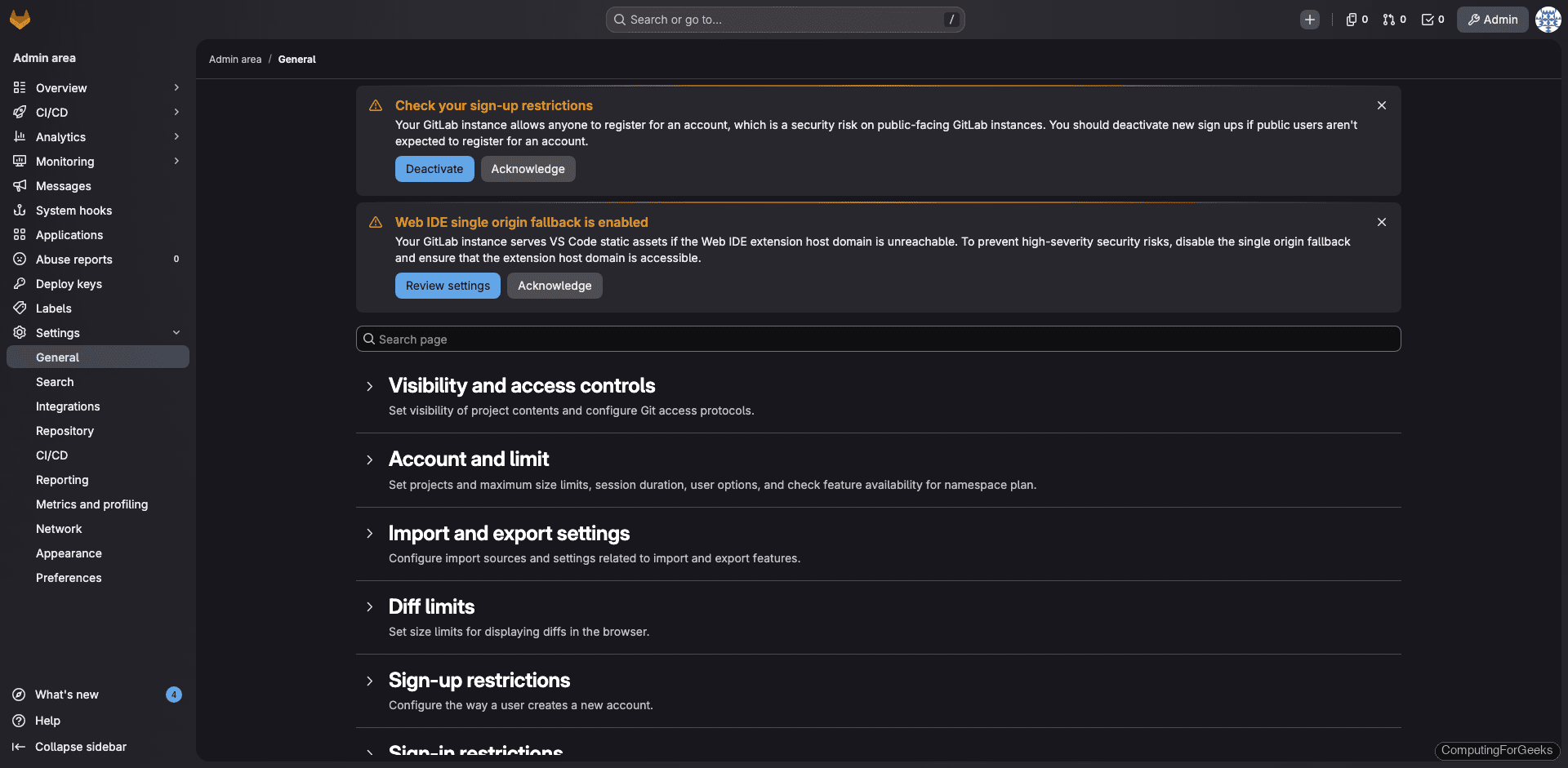
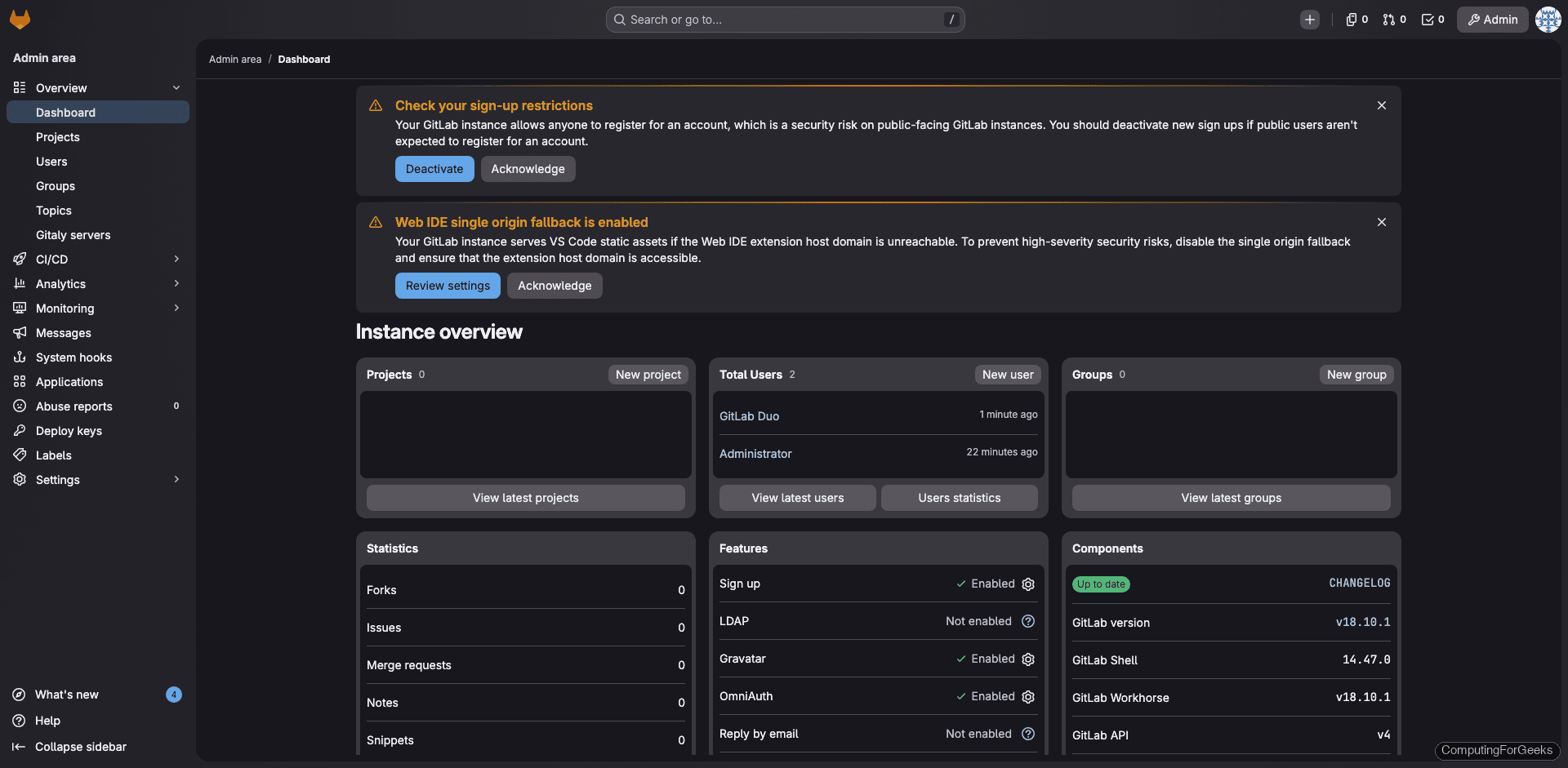
The Admin Area gives you a bird’s-eye view of the entire GitLab instance. Access it from the left sidebar by clicking Admin Area (or navigate to /admin). The overview page shows project count, user count, active features, and component versions.
The system information page (Admin Area > Monitoring > System Information) displays CPU, memory, and disk usage at a glance:
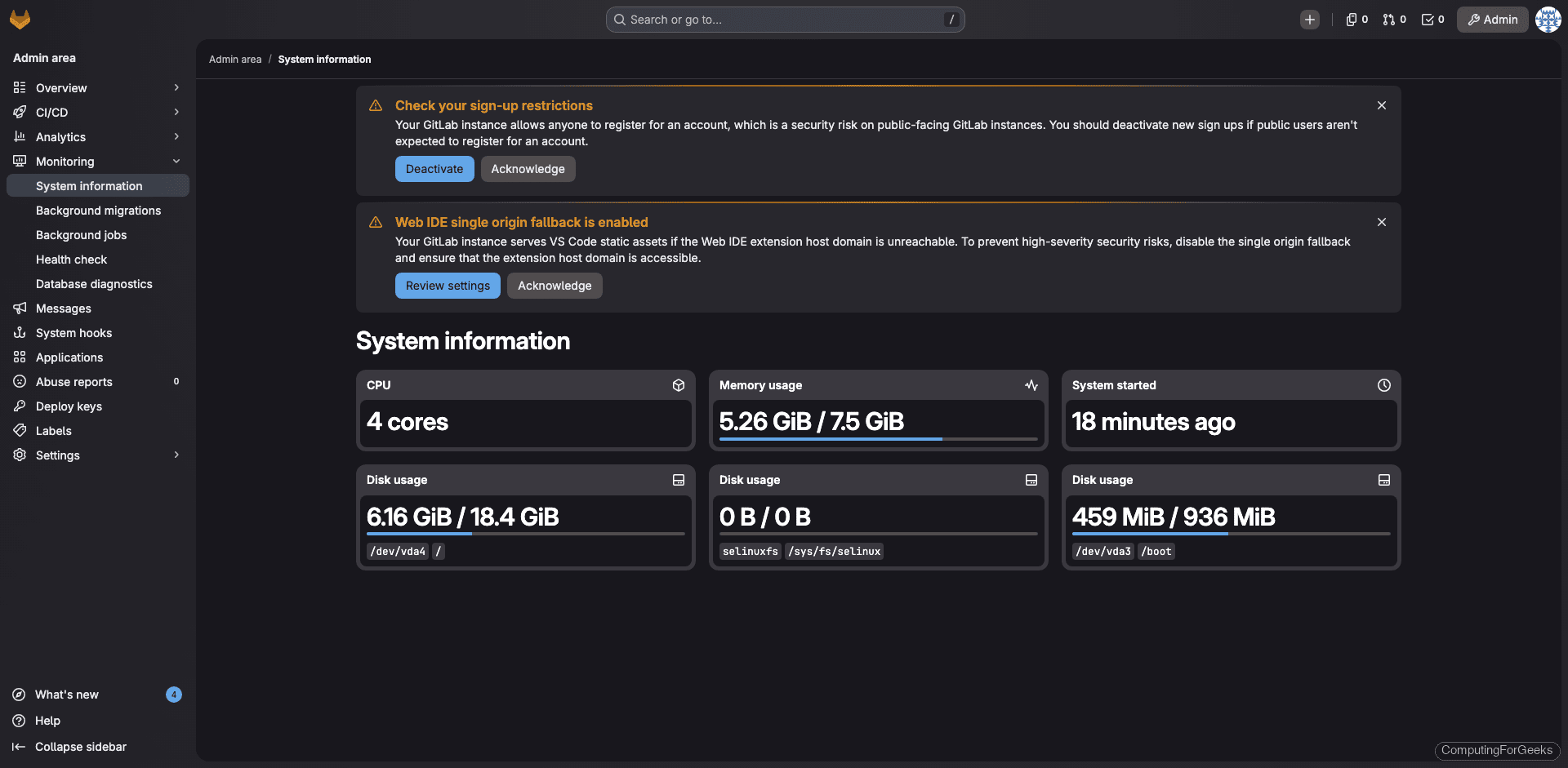
On our test VM with 8GB RAM and 4 cores, GitLab uses about 5.2GB of memory after initial startup. Memory usage grows as repositories and CI jobs are added.
Create Your First Project
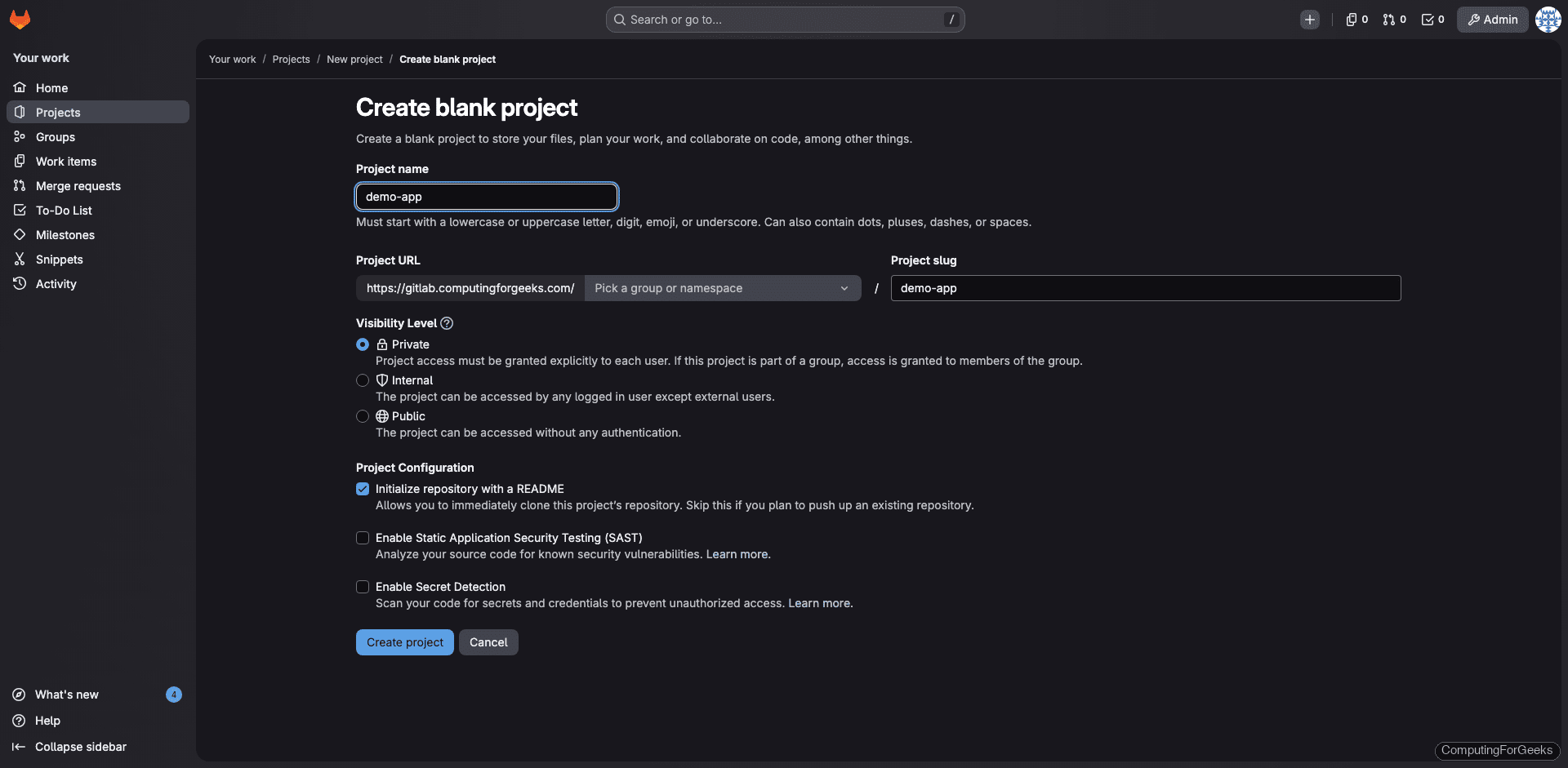
From the dashboard, click New project and select Create blank project. Give it a name, set the visibility level (Private, Internal, or Public), and optionally initialize with a README.
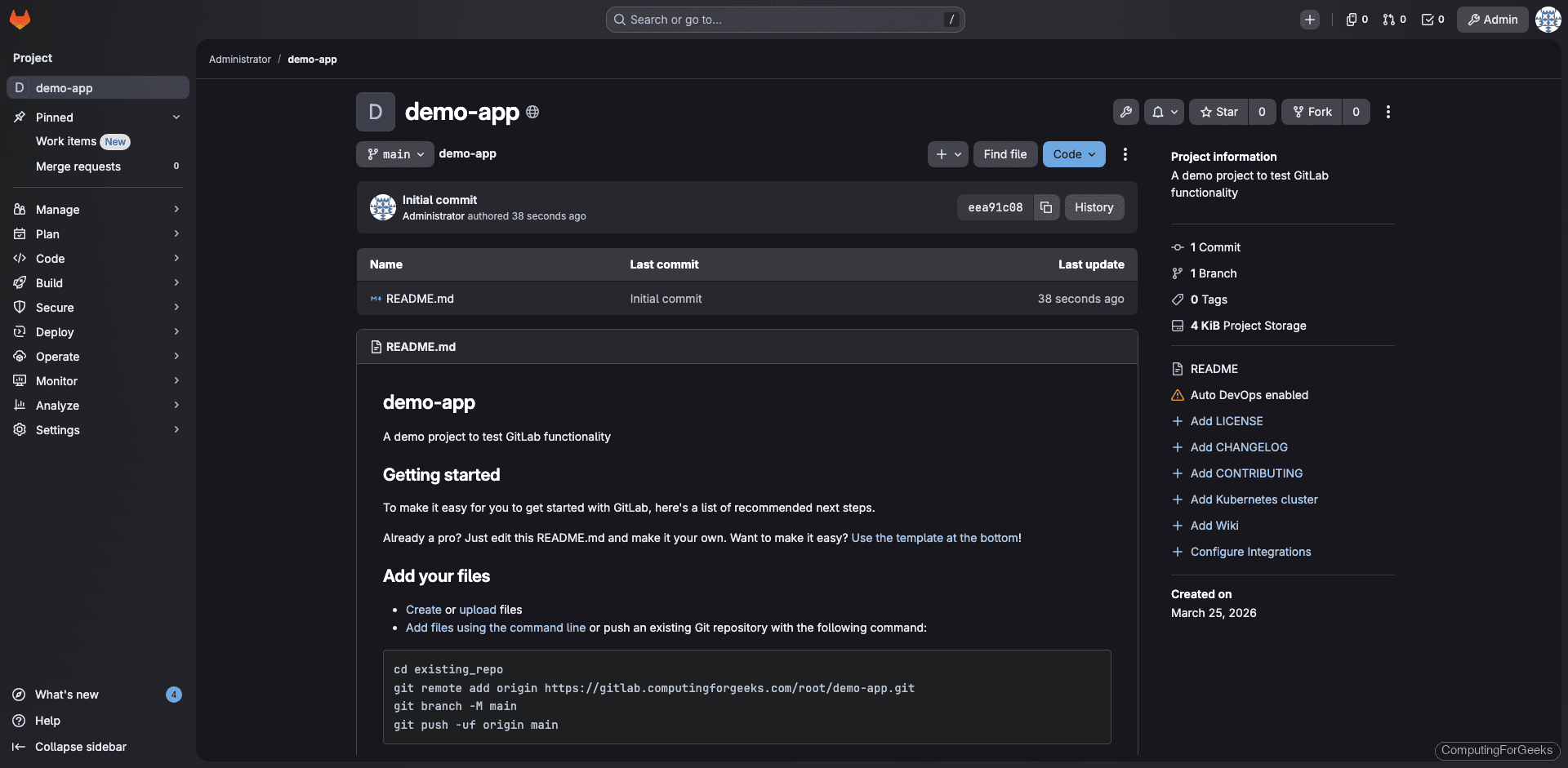
Once created, the project page shows the repository with clone URLs, README, and options to add files, set up CI/CD, and invite team members:
Configure Email Notifications
GitLab sends email notifications for merge requests, issue updates, and pipeline results. The default Postfix setup handles basic local delivery, but for production you should configure SMTP for reliable delivery to external addresses.
Open the GitLab configuration:
sudo vi /etc/gitlab/gitlab.rbAdd the SMTP settings (replace with your provider’s details):
gitlab_rails['smtp_enable'] = true
gitlab_rails['smtp_address'] = "smtp.example.com"
gitlab_rails['smtp_port'] = 587
gitlab_rails['smtp_user_name'] = "[email protected]"
gitlab_rails['smtp_password'] = "your-smtp-password"
gitlab_rails['smtp_domain'] = "example.com"
gitlab_rails['smtp_authentication'] = "login"
gitlab_rails['smtp_enable_starttls_auto'] = true

gitlab_rails['gitlab_email_from'] = '[email protected]'
gitlab_rails['gitlab_email_reply_to'] = '[email protected]'
Apply the changes:
sudo gitlab-ctl reconfigureTest email delivery from the Rails console:
sudo gitlab-rails consoleSend a test email (replace with your address):
Notify.test_email('[email protected]', 'GitLab Test', 'This is a test email from GitLab').deliver_nowType exit to leave the console. Check your inbox for the test email.
Configure SSH for Git Operations
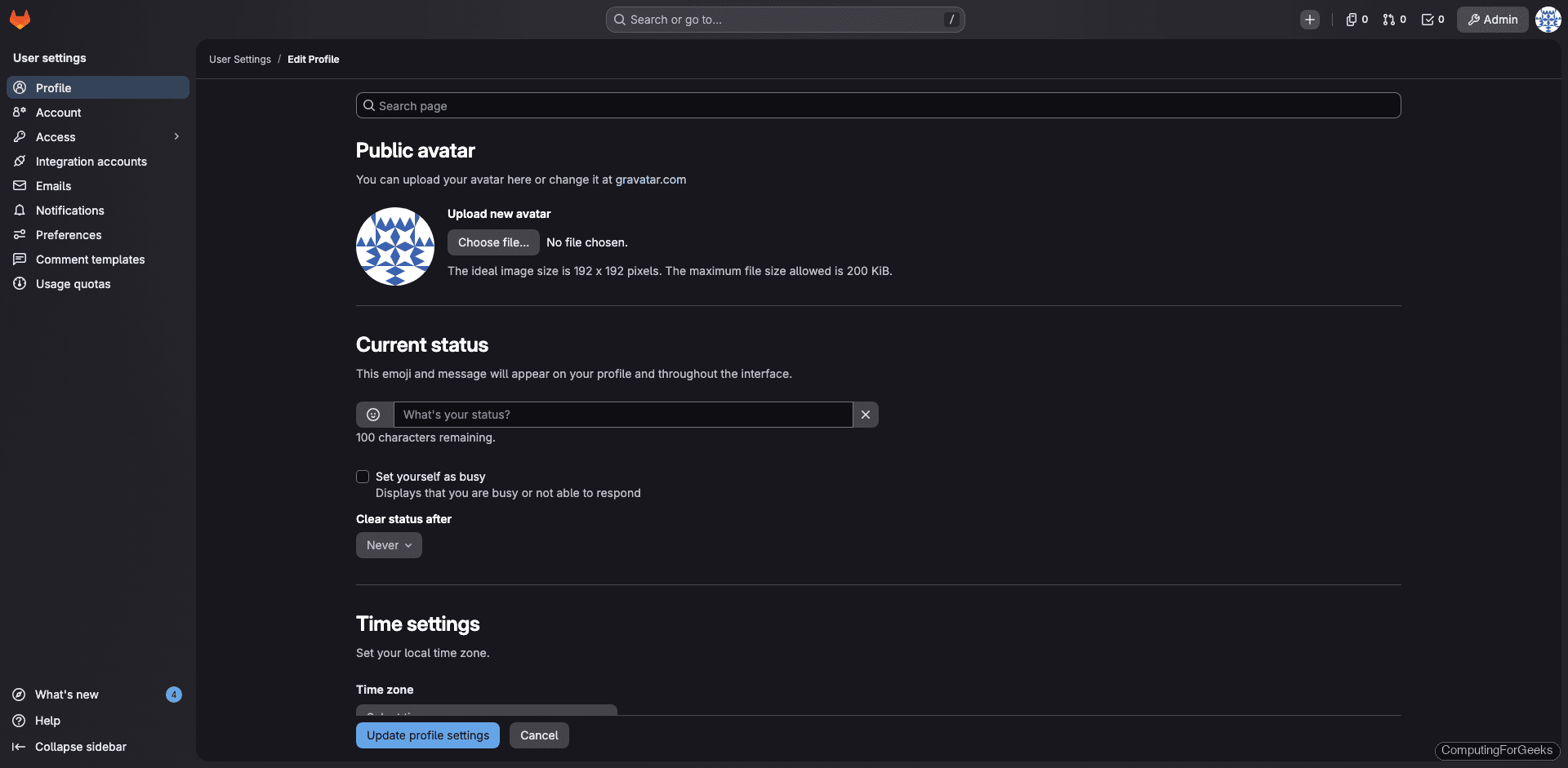
GitLab uses SSH for secure push and pull operations. The SSH server is already running from the earlier step. Users add their SSH public keys through their GitLab profile under User Settings > SSH Keys.
If your SSH daemon runs on a non-default port (say you changed the SSH port on Rocky Linux 10 to 2222), update the GitLab configuration:
sudo vi /etc/gitlab/gitlab.rbSet the SSH port:
gitlab_rails['gitlab_shell_ssh_port'] = 2222Reconfigure and verify:
sudo gitlab-ctl reconfigureTest SSH access with a user who has added their public key:
ssh -T [email protected]A successful connection returns: Welcome to GitLab, @username!
SELinux Configuration
Rocky Linux 10 and AlmaLinux 10 ship with SELinux in enforcing mode. GitLab’s Omnibus package is designed to work with SELinux out of the box. Verify the mode:
getenforceThe output should show Enforcing. During our testing, GitLab CE 18.10 installed and ran with zero SELinux AVC denials:
sudo ausearch -m avc -ts recentNo matches confirms clean SELinux operation. If you encounter denials in your environment (custom storage paths, non-standard ports), generate a targeted policy module:
sudo ausearch -m avc -ts recent | audit2allow -M gitlab_custom
sudo semodule -i gitlab_custom.pp
Never disable SELinux to work around GitLab issues. The Omnibus package handles most contexts automatically, and remaining denials can be resolved with targeted policy modules. For a deeper walkthrough, see our SELinux troubleshooting guide for Rocky Linux 10.
Set Up GitLab Backups
GitLab includes a built-in backup tool that captures repositories, database, uploads, and CI/CD artifacts. Run a manual backup:
sudo gitlab-backup createBackup files are saved to /var/opt/gitlab/backups/ with a timestamp. Schedule automatic daily backups by adding a cron entry:
sudo crontab -eAdd this line for daily backups at 2 AM, keeping 7 days of history:
0 2 * * * /opt/gitlab/bin/gitlab-backup create CRON=1 BACKUP_KEEP_TIME=604800The CRON=1 flag suppresses output unless an error occurs. BACKUP_KEEP_TIME=604800 (7 days in seconds) automatically deletes older backups.
Critical detail: the backup tool does not include /etc/gitlab/gitlab.rb and /etc/gitlab/gitlab-secrets.json. Without gitlab-secrets.json, encrypted data like CI/CD variables and two-factor keys cannot be restored. Back these up separately:
sudo cp /etc/gitlab/gitlab.rb /var/opt/gitlab/backups/
sudo cp /etc/gitlab/gitlab-secrets.json /var/opt/gitlab/backups/
For full backup and restore procedures, see the official GitLab backup documentation.
Verify the Installation
Run the comprehensive health check:
sudo gitlab-rake gitlab:check SANITIZE=trueEvery line should show a green checkmark or “yes”. The check covers repository permissions, Git configuration, database connectivity, Redis, and Sidekiq status.
Check the installed environment details:
sudo gitlab-rake gitlab:env:infoThe output shows all component versions:
System information
System:
Current User:   git
Using RVM:      no
Ruby Version:   3.3.10
Gem Version:    3.7.1
Bundler Version:2.7.1
Rake Version:   13.0.6
Redis Version:  7.2.11
Sidekiq Version:7.3.9
Go Version:     unknown

GitLab information
Version:        18.10.1
Revision:       6bef35b5226
Directory:      /opt/gitlab/embedded/service/gitlab-rails
DB Adapter:     PostgreSQL
DB Version:     16.11
URL:            https://gitlab.computingforgeeks.com
HTTP Clone URL: https://gitlab.computingforgeeks.com/some-group/some-project.git
SSH Clone URL:  [email protected]:some-group/some-project.git
Using LDAP:     no
Using Omniauth: yes
Omniauth Providers:
Install and Register a GitLab CI/CD Runner
GitLab CI/CD pipelines need a runner to execute jobs. You can install a runner on the GitLab server itself (fine for small teams) or on a dedicated build machine. Here we install it on the same server.
Add the GitLab Runner repository:
curl -fsSL https://packages.gitlab.com/install/repositories/runner/gitlab-runner/script.rpm.sh | sudo bashInstall the runner package:
sudo dnf install -y gitlab-runnerVerify the installed version:
gitlab-runner --versionOn our test system this returned:
Version:      18.10.0
Git revision: ac71f4d8
Git branch:   18-10-stable
GO version:   go1.25.7 X:cacheprog
Built:        2026-03-16T14:23:19Z
OS/Arch:      linux/amd64
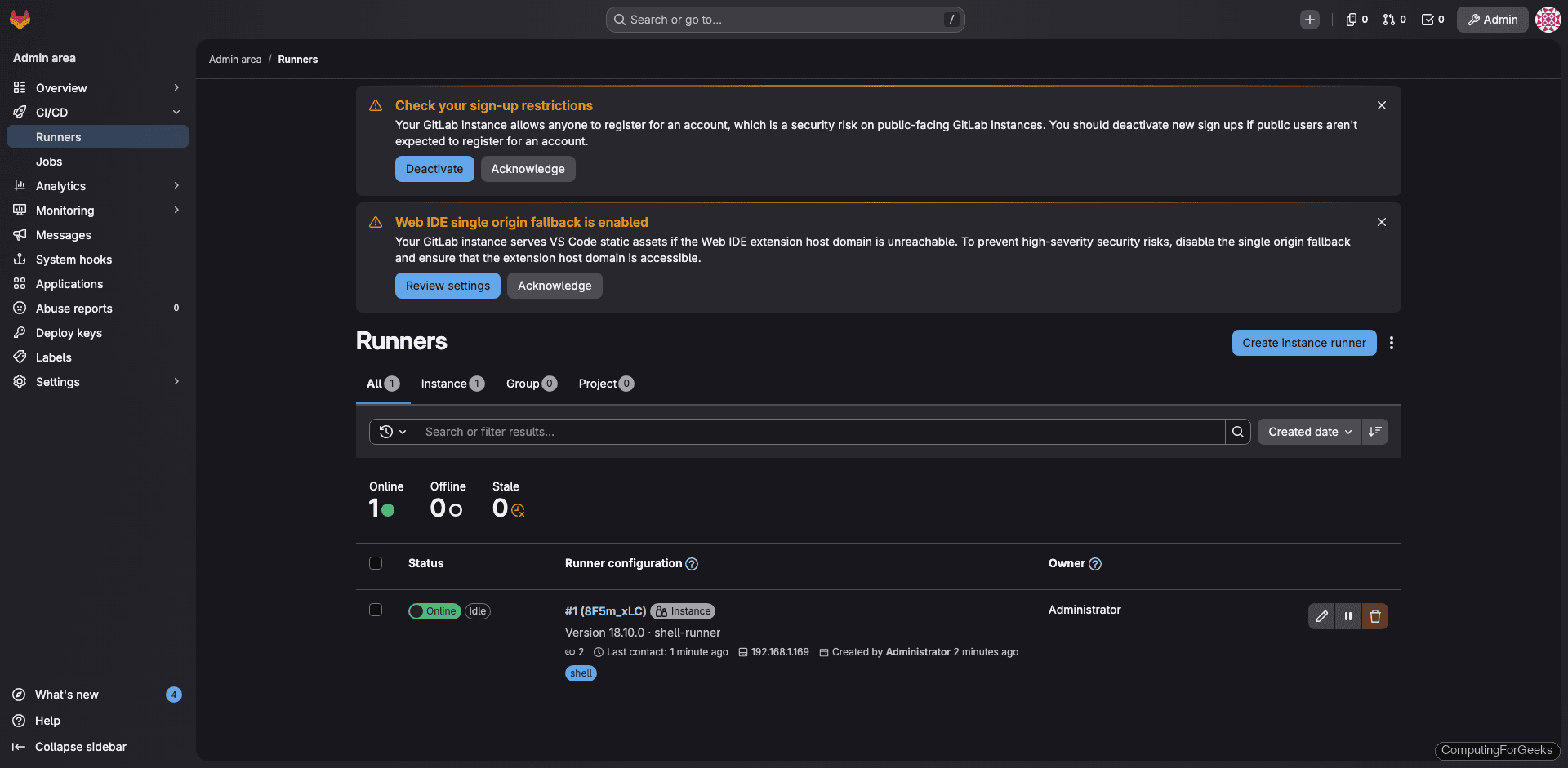
Now create a runner in the web UI. Go to Admin Area > CI/CD > Runners and click Create instance runner. Select Linux as the platform, optionally add tags, and check Run untagged jobs if you want this runner to pick up all jobs. Click Create runner and copy the token that appears.
Register the runner using the token. This example uses the shell executor, which runs jobs directly on the host. For isolated builds, use the docker executor instead (requires Docker installed on Rocky Linux 10).
sudo gitlab-runner register \
  --non-interactive \
  --url "https://gitlab.example.com" \
  --token "YOUR_RUNNER_TOKEN" \
  --executor "shell" \
  --name "shell-runner"
A successful registration looks like this:
Verifying runner... is valid                        runner=8F5m_xLCI
Runner registered successfully. Feel free to start it, but if it's running already the config should be automatically reloaded!

Configuration (with the authentication token) was saved in "/etc/gitlab-runner/config.toml"
The runner appears in the Admin Area with a green online indicator:
Test the CI/CD Pipeline
Create a .gitlab-ci.yml file in your project root to define a simple two-stage pipeline:
stages:
  - test
  - build

system-info:
  stage: test
  script:
    - echo "Pipeline running on Rocky Linux 10"
    - cat /etc/rocky-release
    - uname -r
    - python3 --version

build-job:
  stage: build
  script:
    - echo "Build stage complete"
    - date
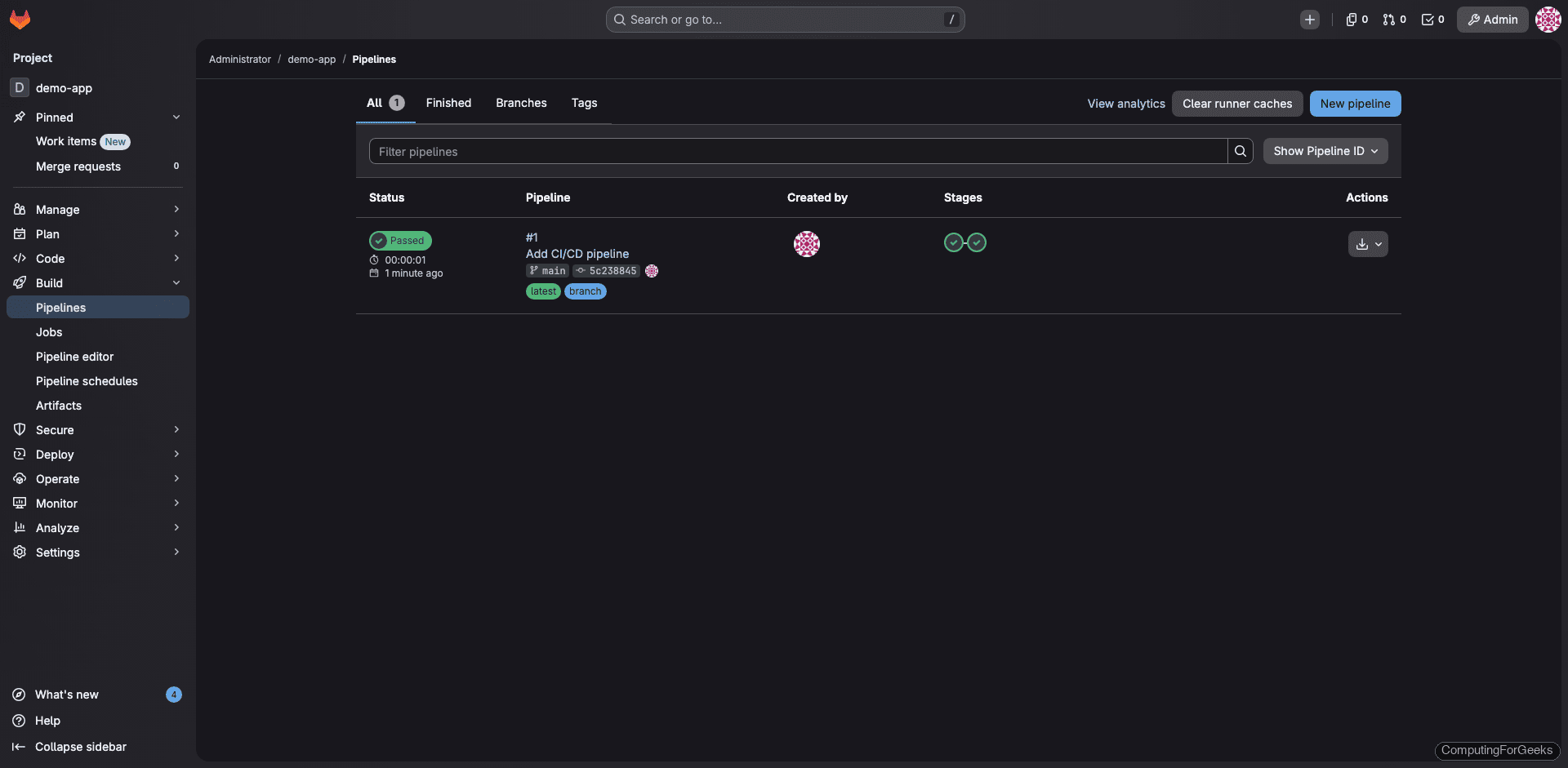
Commit and push. The pipeline triggers automatically and the runner picks up the jobs within seconds. Navigate to Build > Pipelines in your project to see the result:
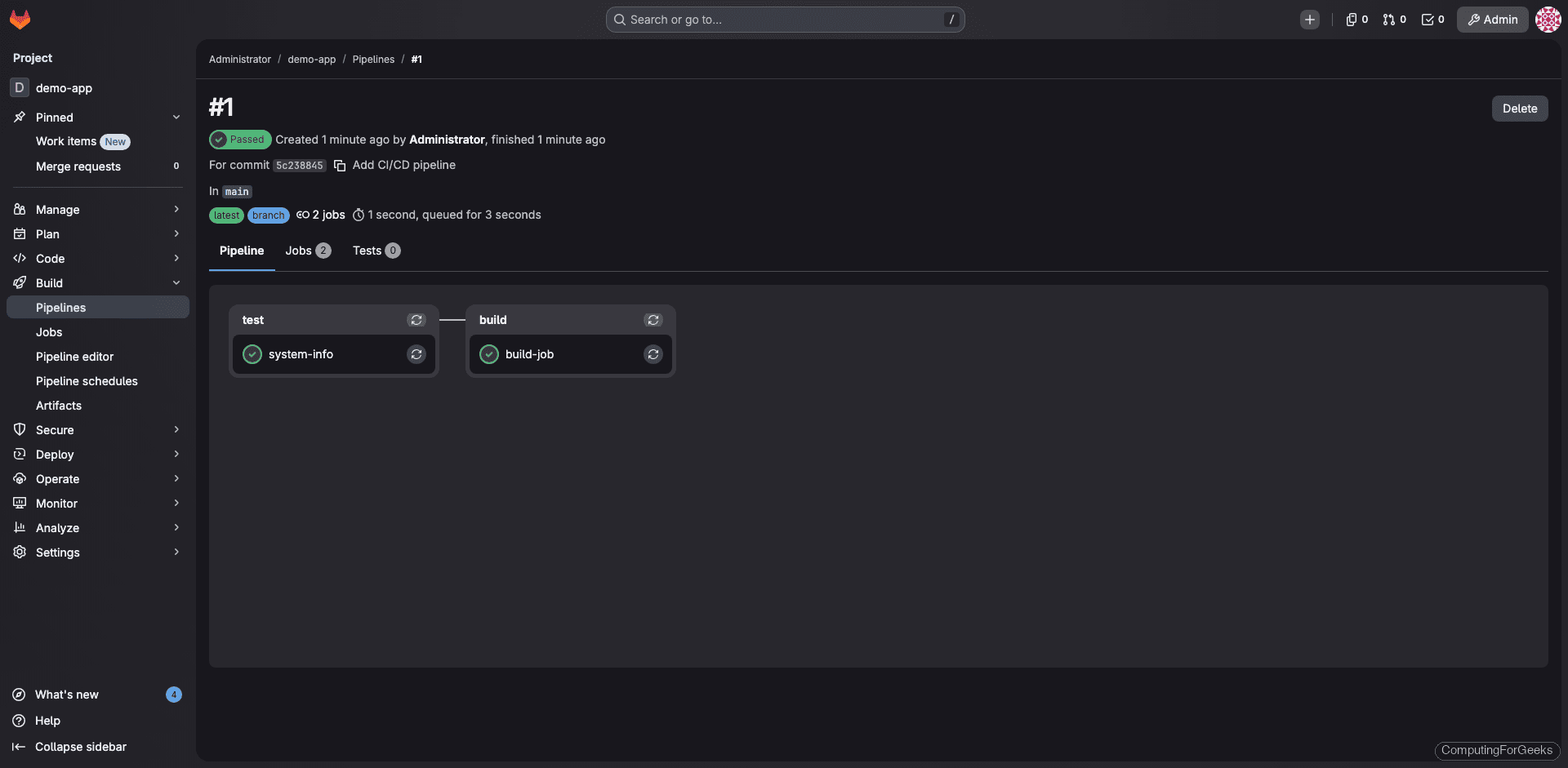
Click into the pipeline to see both stages completed. The test stage runs first, then the build stage:
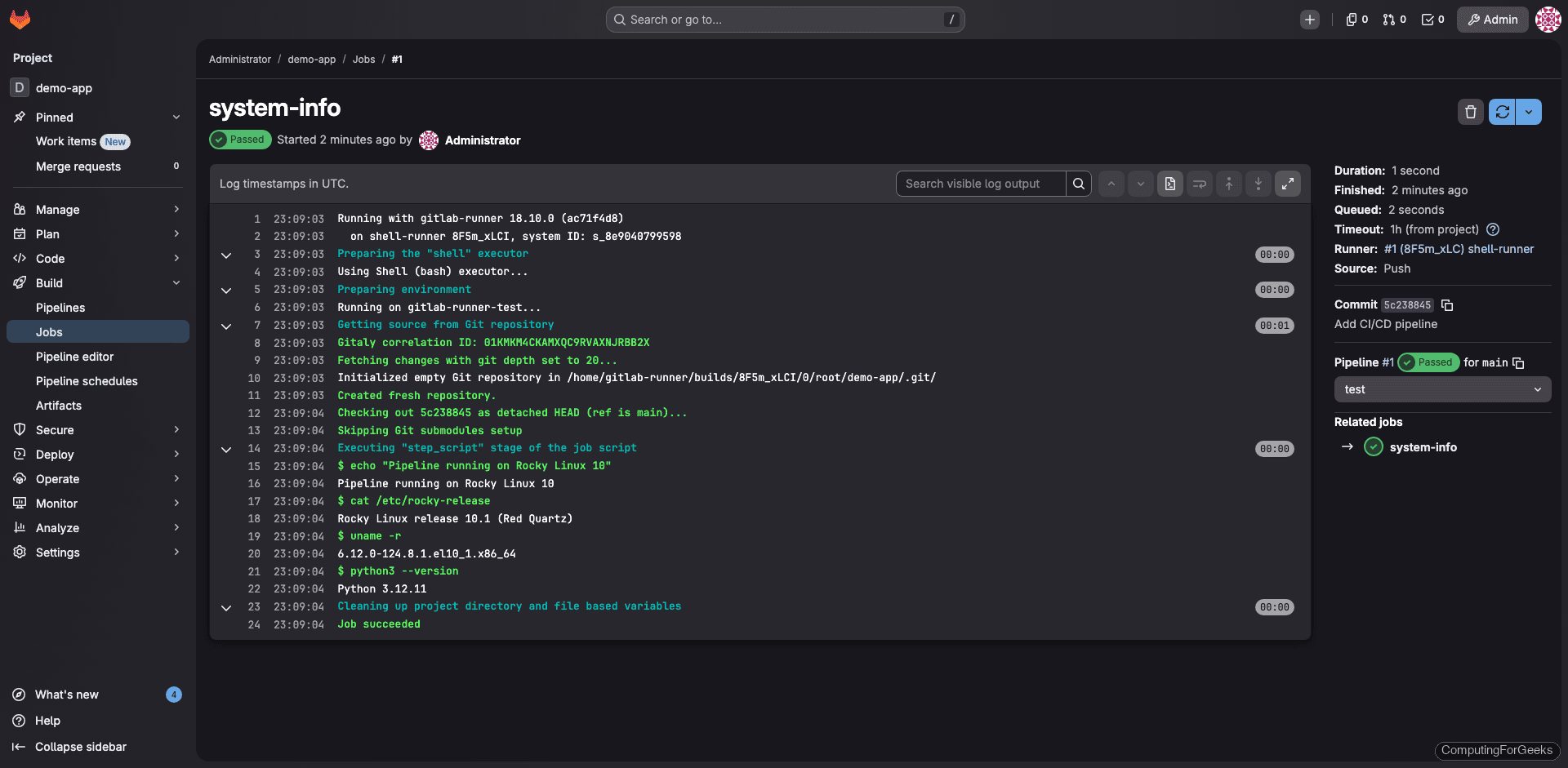
The job log for the system-info job shows the runner executing commands directly on the Rocky Linux 10 host, confirming the OS release, kernel version, and Python version:
GitLab Management Commands
These commands cover the most common GitLab administration tasks:
| Command | Purpose |
|---|---|
sudo gitlab-ctl start | Start all GitLab services |
sudo gitlab-ctl stop | Stop all GitLab services |
sudo gitlab-ctl restart | Restart all GitLab services |
sudo gitlab-ctl status | Show status of all services |
sudo gitlab-ctl reconfigure | Apply configuration changes from gitlab.rb |
sudo gitlab-ctl tail | Tail all GitLab log files |
sudo gitlab-ctl tail nginx | Tail only Nginx logs |
sudo gitlab-backup create | Create a full backup |
sudo gitlab-rake gitlab:check | Run system health check |
sudo gitlab-rake gitlab:env:info | Show environment info and versions |
sudo gitlab-rails console | Open Rails console for advanced operations |
GitLab CE vs EE: What’s the difference?
GitLab CE (Community Edition) is free and open source. It includes Git repository management, CI/CD pipelines, issue tracking, container registry, and most features teams need. GitLab EE (Enterprise Edition) adds advanced features like LDAP group sync, merge request approvals, dependency scanning, DAST, and premium support. For most self-hosted teams, CE is more than sufficient. You can always upgrade to EE later without reinstalling.
Production Hardening Tips
- Disable open signups unless you intentionally want anyone to register. Go to Admin Area > Settings > General > Sign-up restrictions and uncheck “Sign-up enabled”
- Enable two-factor authentication for all users, especially admin accounts. Enforce it globally under Admin Area > Settings > General > Sign-in restrictions
- Configure rate limiting to protect against brute-force attacks. GitLab has built-in Rack Attack settings in
gitlab.rb - Monitor resource usage using the built-in Prometheus and Grafana integration (available at
/-/grafanawhen enabled) - Offload backups to remote storage (S3, NFS, or a separate server) so a disk failure doesn’t take out both your data and your backups