

This guide walks you through how to install Wazuh on Ubuntu using the official all-in-one installer. Wazuh pairs a free SIEM engine with an OpenSearch-backed data store and a slick web UI, so you can stand up the whole thing on a single Ubuntu box in under fifteen minutes. The target is Ubuntu 24.04 LTS; Ubuntu 26.04 LTS and Debian 13 work with the same APT paths.
What you get at the end: a working Wazuh manager listening on 1514/tcp for agents, a Wazuh indexer (OpenSearch) serving on 9200, a Filebeat shipper feeding alerts in, and a Wazuh dashboard behind HTTPS on 443. Default admin login, password rotated on first sign-in, and vulnerability detection switched on. Register one agent on a monitored host and alerts start flowing within a minute.
Verified April 2026 on Ubuntu 24.04.4 LTS (kernel 6.8) with Wazuh 4.14.4 all-in-one (Wazuh manager, indexer 2.19.4 on OpenSearch, Wazuh dashboard, Filebeat 7.10.2)
Why Wazuh, and what actually lands on the host
Wazuh is a free, open-source platform that fuses endpoint protection, SIEM, log analysis, file integrity monitoring, vulnerability detection, and compliance (PCI DSS, HIPAA, NIST 800-53, ISO 27001) into one stack. Agents run on the hosts you want to watch; the server parses their alerts, scores them against rulesets and threat-intel feeds, and pushes the output into an OpenSearch-based indexer. A dashboard built on OpenSearch Dashboards renders it all. If you’ve used an ELK/Elastic stack before, the shape is familiar; Wazuh swaps in its own rules engine and ships a pre-built security UI.
The all-in-one installer puts four things on your Ubuntu host:
- Wazuh manager: the analysis engine. Agents connect to it on 1514/tcp. The API listens on 55000.
- Wazuh indexer: an OpenSearch 2.x fork that stores alerts. Listens on 9200.
- Filebeat: ships alerts from the manager into the indexer.
- Wazuh dashboard: an OpenSearch Dashboards fork with the Wazuh plugin. Serves HTTPS on 443.
This guide runs all four on one host, which is the right call for lab use, small-fleet monitoring (under a few hundred agents), or a first POC. Multi-node deployments move the indexer and dashboard to dedicated machines; the APT repositories and per-component installers used in Step 9 are the same path you’d take to split the roles later.
Prerequisites
- Ubuntu 24.04 LTS server (Ubuntu 26.04 LTS and Debian 13 also work; same APT paths)
- 4 GB RAM minimum for a lab, 8 GB for real use. The indexer JVM alone wants 4 GB by default
- 2 vCPU minimum, 4 vCPU recommended
- 50 GB free disk minimum. The vulnerability detection database alone expands to ~7.5 GB under
/var/ossec/tmpduring initial import; a 20 GB disk will fill and corrupt the install - Root or sudo access
- Ports 443, 1514, 1515, 9200, 55000 free on the host; 443 and 1514/1515 reachable from outside if you’ll manage the server remotely and enroll agents over the LAN or the internet
- A fresh host, or at least nothing already bound to port 443 (Apache, Nginx, and Caddy are the usual culprits)
Step 1: Set reusable shell variables
A handful of values show up in multiple commands below: the server hostname, the admin email, and (later) the dashboard URL. Export them once so you can paste the rest of the guide as-is:
export SERVER_FQDN="wazuh.example.com"
export ADMIN_EMAIL="[email protected]"
export DASHBOARD_URL="https://${SERVER_FQDN}"
Swap wazuh.example.com for the DNS name or LAN IP you’ll reach the dashboard on. If you only have an IP, set SERVER_FQDN to that IP. Confirm the variables stuck before moving on:
echo "Server:    ${SERVER_FQDN}"
echo "Dashboard: ${DASHBOARD_URL}"
echo "Admin:     ${ADMIN_EMAIL}"
These variables live for the current SSH session only. If you reconnect or jump into sudo -i, re-export them.
Step 2: Update the system and free port 443
Refresh package metadata, install the handful of helpers the installer needs, and pick up any security updates:
sudo apt update
sudo apt upgrade -y
sudo apt install -y curl gnupg apt-transport-https lsb-release
The Wazuh dashboard binds directly to port 443 because it runs its own Node.js HTTPS server (OpenSearch Dashboards). If Apache, Nginx, or Caddy is already listening there, the installer will fail silently or the dashboard service will refuse to start. Check what is on 80 and 443 before you run anything:
sudo ss -tlnp | grep -E ':80|:443'If you see apache2, nginx, or caddy in the output, stop and disable them before continuing. On the test box for this guide, Apache was holding both ports because LAMP was already running. One line cleared it:
sudo systemctl stop apache2 nginx 2>/dev/null
sudo systemctl disable apache2 nginx 2>/dev/null
If you really need Apache or Nginx on the same host, install Wazuh on a different port by editing /etc/wazuh-dashboard/opensearch_dashboards.yml after the install and putting Nginx in front as a reverse proxy. For a single-purpose Wazuh server, let Wazuh own 443.
Step 3: Download the Wazuh installation assistant
Wazuh ships an official installer script (wazuh-install.sh) that automates APT repo setup, package install, certificate generation, service startup, and security index bootstrap. Pull the latest:
cd /root
curl -sO https://packages.wazuh.com/4.14/wazuh-install.sh
ls -la wazuh-install.sh
You should see a ~200 KB bash script:
-rw-r--r-- 1 root root 199617 Apr 18 22:45 wazuh-install.shIf the file comes back empty or the server returns a 404, the release series in the URL has changed. Browse packages.wazuh.com to find the current major series (for example 4.14, 4.15) and substitute it into the path.
Step 4: Run the all-in-one install
The -a flag tells the assistant to install all four components on this host. The full run takes ten to fifteen minutes depending on disk and network; most of the time goes into the OpenSearch bootstrap and the initial vulnerability detection database import:
sudo bash wazuh-install.sh -a 2>&1 | tee /tmp/wazuh-install.logLet the script run to completion without interrupting it. When it finishes cleanly you’ll see a final block ending with a generated admin password:
INFO: --- Summary ---
INFO: You can access the web interface https://<wazuh-dashboard-ip>
    User: admin
    Password: <GENERATED_PASSWORD>
INFO: Installation finished.
Copy that password somewhere safe. If you miss it in the terminal, extract it from the bundle the installer leaves in /root:
sudo tar -xf /root/wazuh-install-files.tar -C /tmp/
sudo head -5 /tmp/wazuh-install-files/wazuh-passwords.txt
The file lists every internal user (admin, kibanaserver, logstash, readall, and a few others). The line you care about for the dashboard login is the admin entry:
# Admin user for the web user interface and Wazuh indexer. Use this user to log in to Wazuh dashboard
  indexer_username: 'admin'
  indexer_password: 'OQUbT08yaLZcso0krqDc2lIZtvOvA?wP'
Keep the whole wazuh-install-files.tar. It also contains the root CA and certificates if you later want to regenerate node certs or join a second indexer node.
Step 5: Verify services and open ports
Four services should be active: wazuh-manager, wazuh-indexer, wazuh-dashboard, filebeat. Confirm them in one call:
sudo systemctl is-active wazuh-manager wazuh-indexer wazuh-dashboard filebeatAll four should print active:
active
active
active
active
Check the sockets that matter. Agent traffic enters on 1514, the API on 55000, the indexer on 9200 (localhost only by default), and the dashboard HTTPS on 443:
sudo ss -tlnp | grep -E ':443|:9200|:55000|:1514'Real output from the test host:
LISTEN 0  511    0.0.0.0:443    *:*  users:(("node",pid=241272,fd=19))
LISTEN 0  2048   0.0.0.0:55000  *:*  users:(("python3",pid=237032,fd=45))
LISTEN 0  128    0.0.0.0:1514   *:*  users:(("wazuh-remoted",pid=237403,fd=4))
LISTEN 0  4096   127.0.0.1:9200 *:*  users:(("java",pid=239989,fd=616))
Node on 443 is the dashboard. python3 on 55000 is the Wazuh API. wazuh-remoted on 1514 is the agent listener. Java on 9200 is the indexer. A successful install on Ubuntu 24.04 looks like this:
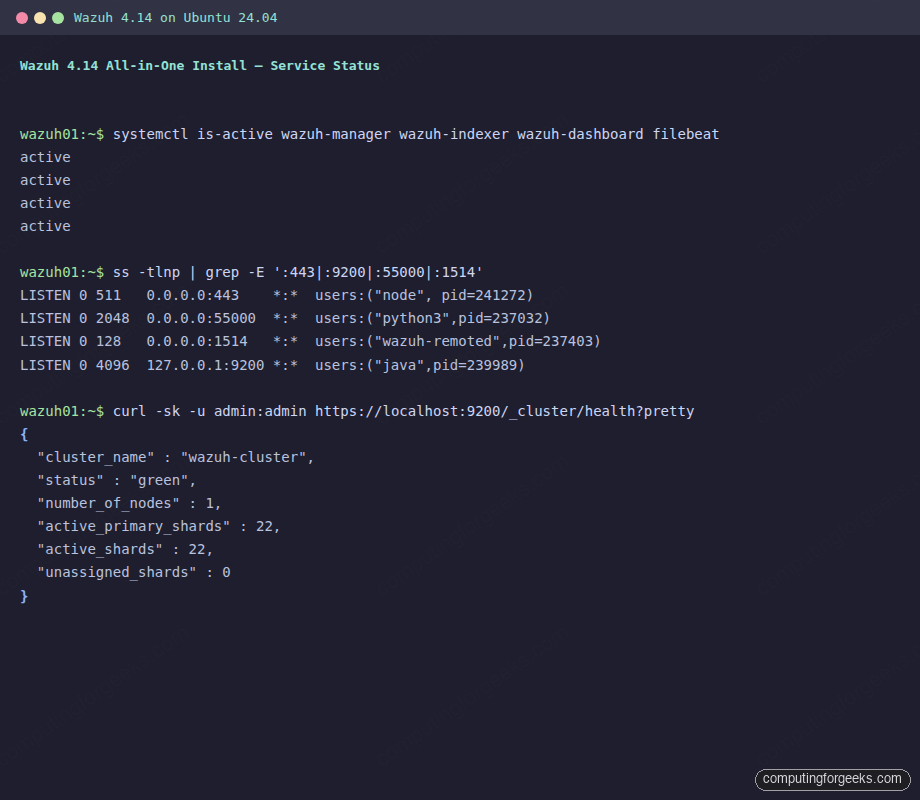
The indexer only binds to 127.0.0.1:9200, which is deliberate. The dashboard talks to it over localhost; agents never hit the indexer directly. Do not open 9200 to the internet or the LAN without putting an auth proxy in front and disabling the demo admin credentials.
Cluster status via the indexer API should come back green with all shards assigned. The admin user and its password were set by the installer; plug that password in here (or use admin:admin only on a fresh install; rotate immediately):
curl -sk -u admin:'<GENERATED_PASSWORD>' \
  https://localhost:9200/_cluster/health?pretty
The cluster should report status green with one master node and zero unassigned shards:
{
  "cluster_name" : "wazuh-cluster",
  "status" : "green",
  "number_of_nodes" : 1,
  "number_of_data_nodes" : 1,
  "active_primary_shards" : 22,
  "active_shards" : 22,
  "unassigned_shards" : 0,
  "active_shards_percent_as_number" : 100.0
}
And the Wazuh API on 55000 should hand back a JWT for the wazuh user:
curl -sk -u wazuh:wazuh \
  "https://localhost:55000/security/user/authenticate?raw=true" | head -c 80
The response is a long base64-encoded token; the first 80 characters look like this:
eyJhbGciOiJFUzUxMiIsInR5cCI6IkpXVCJ9.eyJpc3MiOiJ3YXp1aCIsImF1ZCI6IldhenVoIEFQSSBSRVNUIiA JWT means authentication works end-to-end. You’re ready to open the dashboard.
Step 6: Open the Wazuh dashboard and first login
Browse to https://SERVER_FQDN/ (or the server’s IP). The dashboard uses a self-signed certificate generated by the installer, so expect a browser warning on the first visit. Accept it for lab use; rotate to a Let’s Encrypt cert on a real deployment (Step 8 covers that path).
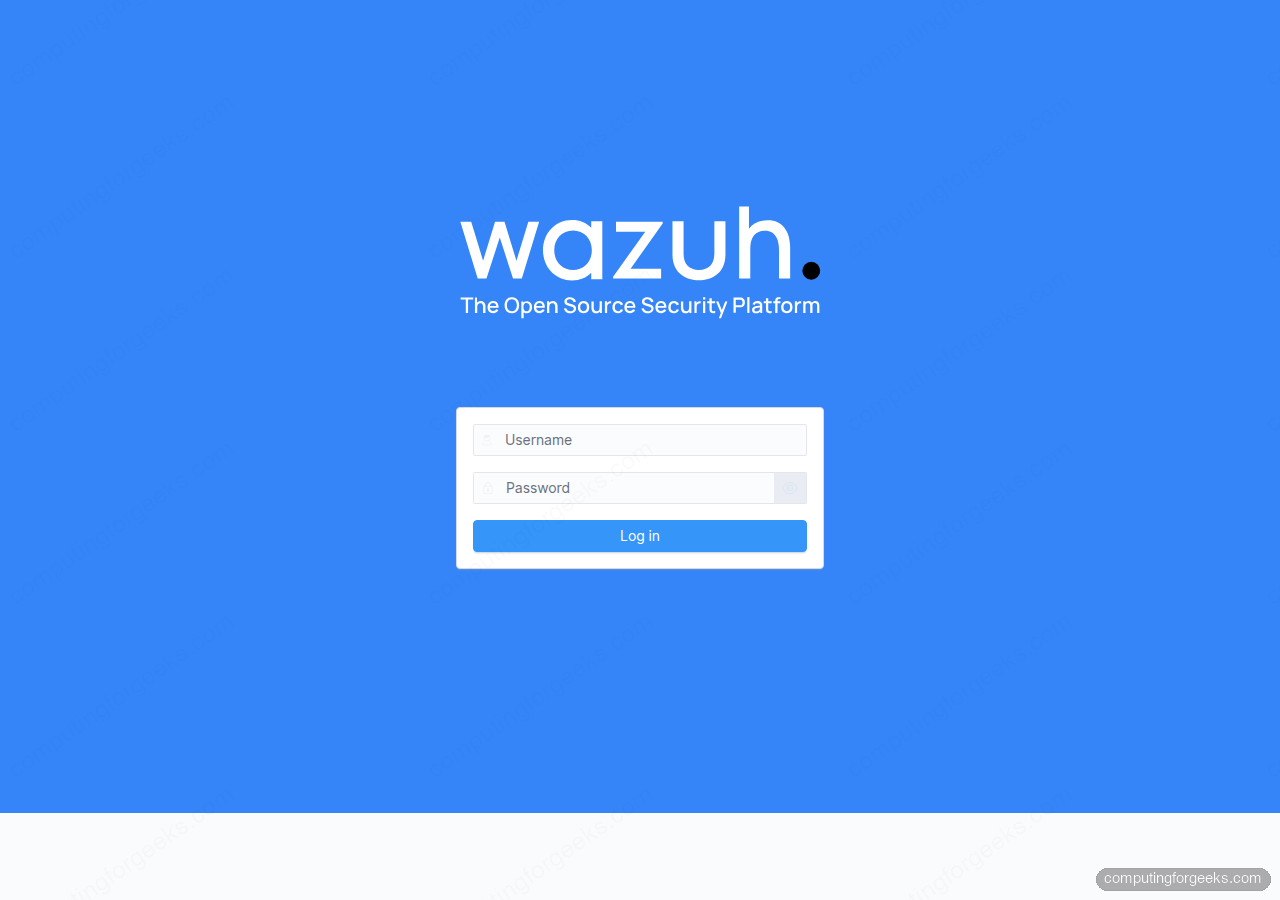
Log in with admin and the generated password from the installer output. You land on the Wazuh overview with empty dashboards until the first agent enrolls. The top-left navigation drawer has the security modules: Threat Hunting, Vulnerability Detection, Configuration Assessment, MITRE ATT&CK, Regulatory Compliance (PCI DSS / HIPAA / NIST / TSC / GDPR), and File Integrity Monitoring.
Rotate the admin password before anything else. Drop into Security > Internal users, pick admin, and set a real password. If you’d rather script it, the CLI version also works:
sudo /usr/share/wazuh-indexer/plugins/opensearch-security/tools/wazuh-passwords-tool.sh \
  -u admin -p 'Str0ng-New-Pass!2026'
Storing strong passwords in a password manager beats pasting them into a shell prompt. If you don’t already use one, 1Password has a solid CLI (op) that integrates with scripts without you ever writing the password to disk.
Step 7: Tune JVM heap for small hosts
The installer sets the indexer JVM heap to 4 GB, which is right for hosts with 8 GB or more RAM. On a 4 GB box, 4 GB for the JVM alone is tight; on a 2 GB VPS, the service refuses to start. Edit the heap if you’re under-provisioned:
sudo vi /etc/wazuh-indexer/jvm.optionsFind the -Xms and -Xmx lines and match them to half your RAM, capped at 31 GB (JVM compressed-oops rule). For a 4 GB host:
-Xms1g
-Xmx1g
Restart the indexer and watch the memory drop:
sudo systemctl restart wazuh-indexer
sudo systemctl status wazuh-indexer --no-pager | head -6
Ingest drops under heap pressure, so undersize the heap with intent: a 1 GB heap holds maybe a handful of agents comfortably. Production fleets want the full 4 GB or more and should run the indexer on its own node.
Step 8: Replace the self-signed dashboard cert with Let’s Encrypt (optional)
For a lab host, the installer’s self-signed cert is fine. For anything public-facing, swap it for a real cert so browsers, agents, and SIEM integrations trust the endpoint.
Point an A record for ${SERVER_FQDN} at your server’s public IP (any DNS provider: Namecheap, Route 53, DigitalOcean DNS, Cloudflare). Open port 80 on the firewall/security group so certbot can complete the HTTP-01 challenge. Then install certbot and request a cert:
sudo apt install -y certbot
sudo systemctl stop wazuh-dashboard
sudo certbot certonly --standalone \
  -d "${SERVER_FQDN}" \
  --non-interactive --agree-tos \
  -m "${ADMIN_EMAIL}"
The dashboard has to be off during issuance because certbot’s standalone mode also binds to port 443 for the TLS-ALPN challenge. Swap the paths in /etc/wazuh-dashboard/opensearch_dashboards.yml to point at the new cert:
server.ssl.certificate: /etc/letsencrypt/live/SERVER_FQDN_HERE/fullchain.pem
server.ssl.key: /etc/letsencrypt/live/SERVER_FQDN_HERE/privkey.pem
Substitute the hostname and make sure the dashboard user can read the keys:
sudo sed -i "s/SERVER_FQDN_HERE/${SERVER_FQDN}/g" \
  /etc/wazuh-dashboard/opensearch_dashboards.yml
sudo chmod 0755 /etc/letsencrypt/live /etc/letsencrypt/archive
sudo chgrp wazuh-dashboard \
  /etc/letsencrypt/live/${SERVER_FQDN}/privkey.pem \
  /etc/letsencrypt/archive/${SERVER_FQDN}/privkey*.pem
sudo systemctl start wazuh-dashboard
For private-LAN or NAT’d deployments where port 80 isn’t reachable, use a DNS-01 challenge instead (Cloudflare, Route 53, DigitalOcean, OVH, and more). The certbot ecosystem has plugins for every major DNS provider.
Certbot registers a systemd timer (certbot.timer) for renewal by default. Confirm it:
sudo systemctl list-timers certbot.timer
sudo certbot renew --dry-run
Step 9: Enroll a Wazuh agent
An empty Wazuh dashboard is the most boring thing in the world. Point at least one agent at the server to get alerts flowing. On the monitored host (a second Linux box, a container, or even the same host for a quick test), add the Wazuh APT repo, install the agent, and pin it to the server:
curl -s https://packages.wazuh.com/key/GPG-KEY-WAZUH \
  | sudo gpg --no-default-keyring --keyring gnupg-ring:/usr/share/keyrings/wazuh.gpg --import
sudo chmod 644 /usr/share/keyrings/wazuh.gpg
echo "deb [signed-by=/usr/share/keyrings/wazuh.gpg] https://packages.wazuh.com/4.x/apt/ stable main" \
  | sudo tee /etc/apt/sources.list.d/wazuh.list
sudo apt update
Install the agent with the server IP baked in via WAZUH_MANAGER:
sudo WAZUH_MANAGER="10.0.1.50" apt install -y wazuh-agent
sudo systemctl daemon-reload
sudo systemctl enable --now wazuh-agent
Swap 10.0.1.50 for the real IP or FQDN of the Wazuh server. Confirm the agent connected:
sudo systemctl status wazuh-agent --no-pager | head -6Back on the server, list connected agents via the API or the dashboard. The CLI is faster:
sudo /var/ossec/bin/agent_control -lWithin a minute the dashboard’s Agents panel shows the new host with a green Active state, and alerts start populating Threat Hunting. That’s the install done: everything else is tuning rules, decoders, and integrations, which the Wazuh documentation covers well.
If you’re evaluating Wazuh alongside commercial alternatives for a security program, it slots in the same conversation as Snyk (which focuses on developer-first supply-chain/SAST) and Falco for runtime container threats. Wazuh is the broadest host-and-log SIEM in the free tier; the three tools overlap less than they compete.
Step 10: Manual three-component install (reference)
The all-in-one installer is the right default for 95% of deployments. The manual path is documented so you can see what each package does on its own, and because splitting roles onto separate hosts eventually means running each installer individually.
Add the Wazuh APT repo (same key as the agent step):
curl -s https://packages.wazuh.com/key/GPG-KEY-WAZUH \
  | sudo gpg --no-default-keyring --keyring gnupg-ring:/usr/share/keyrings/wazuh.gpg --import
sudo chmod 644 /usr/share/keyrings/wazuh.gpg
echo "deb [signed-by=/usr/share/keyrings/wazuh.gpg] https://packages.wazuh.com/4.x/apt/ stable main" \
  | sudo tee /etc/apt/sources.list.d/wazuh.list
sudo apt update
Install each component as a separate apt unit:
sudo apt install -y wazuh-indexer
sudo apt install -y wazuh-manager
sudo apt install -y filebeat
sudo apt install -y wazuh-dashboard
Each package ships a default config that assumes single-node, self-signed certs. The all-in-one installer’s real value is that it generates the TLS bundle (root CA + per-component certs), wires them into each config file, bootstraps the OpenSearch security index, and gives you a working setup in one command. If you want the full manual pipeline, the Wazuh server deployment guide walks the complete procedure including cert generation and config edits.
Troubleshooting
Error: “Could not load the changes” at the end of the installer
This usually means the disk filled up during the vulnerability database import. The installer stages a 7+ GB tarball under /var/ossec/tmp/ and extracts it in place; a 20 GB disk often fills and never recovers cleanly. Uninstall, clean up, and retry with at least 50 GB free:
sudo bash wazuh-install.sh -u
sudo rm -rf /var/ossec /var/lib/wazuh-indexer /etc/wazuh-indexer \
  /var/log/wazuh-indexer /var/lib/wazuh-dashboard /etc/wazuh-dashboard \
  /var/log/wazuh-dashboard /etc/filebeat /var/lib/filebeat /var/log/filebeat \
  /usr/share/filebeat /root/wazuh-install-files.tar
df -h /
Then rerun bash wazuh-install.sh -a.
Dashboard returns “Wazuh dashboard server is not ready yet” (HTTP 503)
The dashboard is up but can’t reach the indexer. Two common causes:
- The indexer is still starting (give it 30-60 seconds after a reboot)
- The
kibanaserverpassword in the dashboard keystore drifted from the internal_users entry: happens if you ransecurityadmin.shmanually and it reset the users to the OpenSearch defaults
Verify the indexer is reachable:
curl -sk -u admin:'<PASSWORD>' https://localhost:9200/_cluster/health?prettyIf that works but the dashboard still 503s, reset the kibanaserver password in the dashboard keystore:
echo -n 'NEW_KIBANASERVER_PASS' | sudo /usr/share/wazuh-dashboard/bin/opensearch-dashboards-keystore \
  add --stdin --force --allow-root opensearch.password
sudo systemctl restart wazuh-dashboard
Port 443 already in use (Apache/Nginx holding it)
The single most common install failure. The installer completes but the dashboard service never comes up because Node can’t bind 443. Check with ss -tlnp | grep 443, stop the offender, and start the dashboard:
sudo systemctl stop apache2 nginx 2>/dev/null
sudo systemctl disable apache2 nginx 2>/dev/null
sudo systemctl restart wazuh-dashboard
Indexer fails to start with java.nio.file.AccessDeniedException: /etc/wazuh-indexer/backup
A stale backup directory left behind by a crashed installer run. OpenSearch won’t tolerate unexpected directories inside its config tree. Remove it:
sudo rm -rf /etc/wazuh-indexer/backup
sudo systemctl restart wazuh-indexer
Filebeat crashes with “no space left on device”
Same root cause as the installer failure: the disk filled during an earlier run and Filebeat’s queue file is now corrupt. The write error surfaces in journalctl -u filebeat as write /var/log/filebeat/filebeat: no space left on device even after you’ve freed space, because Filebeat’s queue/keystore .dbtmp is in an inconsistent state. Uninstall, wipe the residue, and rerun the installer.
Uninstall
The same installer script also removes everything it put down:
sudo bash wazuh-install.sh -uThat removes the four packages and their systemd units. To clear the remaining config and data directories (important if you plan to reinstall on the same host), also run:
sudo rm -rf /var/ossec /var/lib/wazuh-indexer /etc/wazuh-indexer \
  /var/log/wazuh-indexer /var/lib/wazuh-dashboard /etc/wazuh-dashboard \
  /var/log/wazuh-dashboard /etc/filebeat /var/lib/filebeat /var/log/filebeat \
  /usr/share/filebeat /root/wazuh-install-files.tar
Where to go next
Once the stack is humming with a few agents, the next moves usually are:
- Lock the dashboard behind an SSO provider (Keycloak, Authentik, Azure AD) via OpenID Connect in
opensearch_dashboards.yml - Harden SSH on the monitored hosts so Wazuh has less to alert on: see installing fail2ban on Ubuntu and moving SSH to key-only auth
- Add custom decoders and rules under
/var/ossec/etc/decoders/local_decoder.xmland/var/ossec/etc/rules/local_rules.xml - Forward alerts to Slack, PagerDuty, or email via the integrations block in
ossec.conf - Pair Wazuh with a log aggregator like Graylog if you also need application log ingestion beyond SIEM alerts
- Scale out the indexer to a 3-node cluster once the single-node setup starts lagging ingest
Need help deploying Wazuh on your infrastructure? We help teams ship production SIEM stacks on AWS, GCP, Hetzner, and on-prem: agent rollout across Linux and Windows fleets, custom rulesets, dashboard SSO, and integrations with PagerDuty, Slack, and Jira. Reach out at [email protected].
Get a weekly digest of new Linux, SIEM, and cloud tutorials from ComputingForGeeks: subscribe to the newsletter.

Very nice how to, but I did run into a problem. At the kibana install, after I downloaded the config, I ran
sudo chown -R kibana:kibana /usr/share/kibana/optimize
I get “chown: cannot access ‘/usr/share/kibana/optimize’: No such file or directory”
But I think more importantly when I try in download the plugin with’
cd /usr/share/kibana
sudo -u kibana /usr/share/kibana/bin/kibana-plugin install https://packages.wazuh.com/4.x/ui/kibana/wazuh_kibana-4.0.4_7.9.1-1.zip
I get,
Plugin installation was unsuccessful due to error “No kibana plugins found in archive”
Any thought on how to get this plugin installed?
Thanks
Hi Dan, check the updated link for the plugin in the article.
For me, “sudo systemctl enable –now elasticsearch” results in:
Synchronizing state of elasticsearch.service with SysV service script with /lib/systemd/systemd-sysv-install.
Executing: /lib/systemd/systemd-sysv-install enable elasticsearch
Job for elasticsearch.service failed because a timeout was exceeded.
See “systemctl status elasticsearch.service” and “journalctl -xe” for details.
HI,
I am getting following ERROR how to proceed to next step
wazuh@wazuh:/home$ sudo mkdir /etc/elasticsearch/certs && cd /etc/elasticsearch/certs
bash: cd: /etc/elasticsearch/certs: Permission denied
This is now fixed. Follow along updated contents.
i am stucked on this stage as well. could you advise please?
See updated guide
HI,
I am getting following error
wazuh@wazuh:/etc/elasticsearch/certs$ sudo systemctl enable –now elasticsearch Synchronizing state of elasticsearch.service with SysV service script with /lib/systemd/systemd-sysv-install.
Executing: /lib/systemd/systemd-sysv-install enable elasticsearch
Job for elasticsearch.service failed because a timeout was exceeded.
See “systemctl status elasticsearch.service” and “journalctl -xe” for details.
wazuh@wazuh:/etc/elasticsearch/certs$ systemctl status elasticsearch.service
● elasticsearch.service – Elasticsearch
Loaded: loaded (/lib/systemd/system/elasticsearch.service; enabled; vendor preset: enabled)
Active: failed (Result: timeout) since Tue 2022-02-15 04:57:03 UTC; 16s ago
Docs: https://www.elastic.co
Process: 77555 ExecStart=/usr/share/elasticsearch/bin/systemd-entrypoint -p ${PID_DIR}/elasticsearch.pid –quiet (code=exited, sta>
Main PID: 77555 (code=exited, status=143)
Feb 15 04:55:57 wazuh systemd-entrypoint[77555]: at org.elasticsearch.bootstrap.Elasticsearch.execute(Elasticsearch.java:161)
Feb 15 04:55:57 wazuh systemd-entrypoint[77555]: at org.elasticsearch.cli.EnvironmentAwareCommand.execute(EnvironmentAwareComm>
Feb 15 04:55:57 wazuh systemd-entrypoint[77555]: at org.elasticsearch.cli.Command.mainWithoutErrorHandling(Command.java:127)
Feb 15 04:55:57 wazuh systemd-entrypoint[77555]: at org.elasticsearch.cli.Command.main(Command.java:90)
Feb 15 04:55:57 wazuh systemd-entrypoint[77555]: at org.elasticsearch.bootstrap.Elasticsearch.main(Elasticsearch.java:126)
Feb 15 04:55:57 wazuh systemd-entrypoint[77555]: at org.elasticsearch.bootstrap.Elasticsearch.main(Elasticsearch.java:92)
Feb 15 04:55:57 wazuh systemd-entrypoint[77555]: For complete error details, refer to the log at /var/log/elasticsearch/elasticsearch.>
Feb 15 04:57:03 wazuh systemd[1]: elasticsearch.service: start operation timed out. Terminating.
Feb 15 04:57:03 wazuh systemd[1]: elasticsearch.service: Failed with result ‘timeout’.
Feb 15 04:57:03 wazuh systemd[1]: Failed to start Elasticsearch.
lines 1-17/17 (END)
● elasticsearch.service – Elasticsearch
Loaded: loaded (/lib/systemd/system/elasticsearch.service; enabled; vendor preset: enabled)
Active: failed (Result: timeout) since Tue 2022-02-15 04:57:03 UTC; 16s ago
Docs: https://www.elastic.co
Process: 77555 ExecStart=/usr/share/elasticsearch/bin/systemd-entrypoint -p ${PID_DIR}/elasticsearch.pid –quiet (code=exited, stat>
Main PID: 77555 (code=exited, status=143)
Feb 15 04:55:57 wazuh systemd-entrypoint[77555]: at org.elasticsearch.bootstrap.Elasticsearch.execute(Elasticsearch.java:161)
Feb 15 04:55:57 wazuh systemd-entrypoint[77555]: at org.elasticsearch.cli.EnvironmentAwareCommand.execute(EnvironmentAwareComma>
Feb 15 04:55:57 wazuh systemd-entrypoint[77555]: at org.elasticsearch.cli.Command.mainWithoutErrorHandling(Command.java:127)
Feb 15 04:55:57 wazuh systemd-entrypoint[77555]: at org.elasticsearch.cli.Command.main(Command.java:90)
Feb 15 04:55:57 wazuh systemd-entrypoint[77555]: at org.elasticsearch.bootstrap.Elasticsearch.main(Elasticsearch.java:126)
Feb 15 04:55:57 wazuh systemd-entrypoint[77555]: at org.elasticsearch.bootstrap.Elasticsearch.main(Elasticsearch.java:92)
Feb 15 04:55:57 wazuh systemd-entrypoint[77555]: For complete error details, refer to the log at /var/log/elasticsearch/elasticsearch.l>
Feb 15 04:57:03 wazuh systemd[1]: elasticsearch.service: start operation timed out. Terminating.
Feb 15 04:57:03 wazuh systemd[1]: elasticsearch.service: Failed with result ‘timeout’.
Feb 15 04:57:03 wazuh systemd[1]: Failed to start Elasticsearch.
try updated article and let us know if it works for you.
Hi,
I am getting following error
wazuhadmin@wazuh:/home$ sudo mkdir /etc/elasticsearch/certs && cd /etc/elasticsearch/certs
bash: cd: /etc/elasticsearch/certs: Permission denied
wazuhadmn@wazuh:/home$
Thank you
Please check updated post.
al reiniciar mi servidor no cargar mi la interfaz web del wazuh, que puede estar pasando.
¿Verificó el estado de su servicio después de reiniciar el servidor y si está vinculado al puerto?
Seguramente que elasticsearch no está activo:
sudo systemctl status elasticsearch
Si sale inactivo o con algún error entonces:
sudo systemctl restart elasticsearch
Y ya podrá acceder a la interfaz web
Un saludo
Hello,
I get the error that the wazuh api is offline (invalid credentials)
All is started do you have any idea?
I get this error: INFO: Checking API host id [default]…
INFO: Could not connect to API id [default]: 3099 – ERROR3099 – Invalid credentials
I get to:
Run the Elasticsearch securityadmin script to load the new certificates information and start the cluster:
export JAVA_HOME=/usr/share/elasticsearch/jdk/ && /usr/share/elasticsearch/plugins/opendistro_security/tools/securityadmin.sh -cd /usr/share/elasticsearch/plugins/opendistro_security/securityconfig/ -nhnv -cacert /etc/elasticsearch/certs/root-ca.pem -cert /etc/elasticsearch/certs/admin.pem -key /etc/elasticsearch/certs/admin-key.pem
And get:
Open Distro Security Admin v7
Will connect to localhost:9300 … done
18:49:26.405 [elasticsearch[_client_][transport_worker][T#1]] ERROR com.amazon.opendistroforelasticsearch.security.ssl.transport.OpenDistroSecuritySSLNettyTransport – Exception during establishing a SSL connection: javax.net.ssl.SSLHandshakeException: PKIX path building failed: sun.security.provider.certpath.SunCertPathBuilderException: unable to find valid certification path to requested target
javax.net.ssl.SSLHandshakeException: PKIX path building failed: sun.security.provider.certpath.SunCertPathBuilderException: unable to find valid certification path to requested target
at sun.security.ssl.Alert.createSSLException(Alert.java:131) ~[?:?]
at sun.security.ssl.TransportContext.fatal(TransportContext.java:369) ~[?:?]
at sun.security.ssl.TransportContext.fatal(TransportContext.java:312) ~[?:?]
at sun.security.ssl.TransportContext.fatal(TransportContext.java:307) ~[?:?]
at sun.security.ssl.CertificateMessage$T13CertificateConsumer.checkServerCerts(CertificateMessage.java:1357) ~[?:?]
at sun.security.ssl.CertificateMessage$T13CertificateConsumer.onConsumeCertificate(CertificateMessage.java:1232) ~[?:?]
at sun.security.ssl.CertificateMessage$T13CertificateConsumer.consume(CertificateMessage.java:1175) ~[?:?]
at sun.security.ssl.SSLHandshake.consume(SSLHandshake.java:396) ~[?:?]
at sun.security.ssl.HandshakeContext.dispatch(HandshakeContext.java:480) ~[?:?]
at sun.security.ssl.SSLEngineImpl$DelegatedTask$DelegatedAction.run(SSLEngineImpl.java:1267) ~[?:?]
at sun.security.ssl.SSLEngineImpl$DelegatedTask$DelegatedAction.run(SSLEngineImpl.java:1254) ~[?:?]
at java.security.AccessController.doPrivileged(AccessController.java:691) ~[?:?]
at sun.security.ssl.SSLEngineImpl$DelegatedTask.run(SSLEngineImpl.java:1199) ~[?:?]
at io.netty.handler.ssl.SslHandler.runAllDelegatedTasks(SslHandler.java:1542) ~[netty-handler-4.1.49.Final.jar:4.1.49.Final]
at io.netty.handler.ssl.SslHandler.runDelegatedTasks(SslHandler.java:1556) ~[netty-handler-4.1.49.Final.jar:4.1.49.Final]
at io.netty.handler.ssl.SslHandler.unwrap(SslHandler.java:1440) ~[netty-handler-4.1.49.Final.jar:4.1.49.Final]
at io.netty.handler.ssl.SslHandler.decodeJdkCompatible(SslHandler.java:1267) ~[netty-handler-4.1.49.Final.jar:4.1.49.Final]
at io.netty.handler.ssl.SslHandler.decode(SslHandler.java:1314) ~[netty-handler-4.1.49.Final.jar:4.1.49.Final]
at io.netty.handler.codec.ByteToMessageDecoder.decodeRemovalReentryProtection(ByteToMessageDecoder.java:501) ~[netty-codec-4.1.49.Final.jar:4.1.49.Final]
at io.netty.handler.codec.ByteToMessageDecoder.callDecode(ByteToMessageDecoder.java:440) ~[netty-codec-4.1.49.Final.jar:4.1.49.Final]
at io.netty.handler.codec.ByteToMessageDecoder.channelRead(ByteToMessageDecoder.java:276) ~[netty-codec-4.1.49.Final.jar:4.1.49.Final]
at io.netty.channel.AbstractChannelHandlerContext.invokeChannelRead(AbstractChannelHandlerContext.java:379) [netty-transport-4.1.49.Final.jar:4.1.49.Final]
at io.netty.channel.AbstractChannelHandlerContext.invokeChannelRead(AbstractChannelHandlerContext.java:365) [netty-transport-4.1.49.Final.jar:4.1.49.Final]
at io.netty.channel.AbstractChannelHandlerContext.fireChannelRead(AbstractChannelHandlerContext.java:357) [netty-transport-4.1.49.Final.jar:4.1.49.Final]
at io.netty.channel.DefaultChannelPipeline$HeadContext.channelRead(DefaultChannelPipeline.java:1410) [netty-transport-4.1.49.Final.jar:4.1.49.Final]
at io.netty.channel.AbstractChannelHandlerContext.invokeChannelRead(AbstractChannelHandlerContext.java:379) [netty-transport-4.1.49.Final.jar:4.1.49.Final]
at io.netty.channel.AbstractChannelHandlerContext.invokeChannelRead(AbstractChannelHandlerContext.java:365) [netty-transport-4.1.49.Final.jar:4.1.49.Final]
at io.netty.channel.DefaultChannelPipeline.fireChannelRead(DefaultChannelPipeline.java:919) [netty-transport-4.1.49.Final.jar:4.1.49.Final]
at io.netty.channel.nio.AbstractNioByteChannel$NioByteUnsafe.read(AbstractNioByteChannel.java:163) [netty-transport-4.1.49.Final.jar:4.1.49.Final]
at io.netty.channel.nio.NioEventLoop.processSelectedKey(NioEventLoop.java:714) [netty-transport-4.1.49.Final.jar:4.1.49.Final]
at io.netty.channel.nio.NioEventLoop.processSelectedKeysOptimized(NioEventLoop.java:650) [netty-transport-4.1.49.Final.jar:4.1.49.Final]
at io.netty.channel.nio.NioEventLoop.processSelectedKeys(NioEventLoop.java:576) [netty-transport-4.1.49.Final.jar:4.1.49.Final]
at io.netty.channel.nio.NioEventLoop.run(NioEventLoop.java:493) [netty-transport-4.1.49.Final.jar:4.1.49.Final]
at io.netty.util.concurrent.SingleThreadEventExecutor$4.run(SingleThreadEventExecutor.java:989) [netty-common-4.1.49.Final.jar:4.1.49.Final]
at io.netty.util.internal.ThreadExecutorMap$2.run(ThreadExecutorMap.java:74) [netty-common-4.1.49.Final.jar:4.1.49.Final]
at java.lang.Thread.run(Thread.java:832) [?:?]
Caused by: sun.security.validator.ValidatorException: PKIX path building failed: sun.security.provider.certpath.SunCertPathBuilderException: unable to find valid certification path to requested target
at sun.security.validator.PKIXValidator.doBuild(PKIXValidator.java:439) ~[?:?]
at sun.security.validator.PKIXValidator.engineValidate(PKIXValidator.java:306) ~[?:?]
at sun.security.validator.Validator.validate(Validator.java:264) ~[?:?]
at sun.security.ssl.X509TrustManagerImpl.checkTrusted(X509TrustManagerImpl.java:285) ~[?:?]
at sun.security.ssl.X509TrustManagerImpl.checkServerTrusted(X509TrustManagerImpl.java:144) ~[?:?]
at sun.security.ssl.CertificateMessage$T13CertificateConsumer.checkServerCerts(CertificateMessage.java:1335) ~[?:?]
… 31 more
Caused by: sun.security.provider.certpath.SunCertPathBuilderException: unable to find valid certification path to requested target
at sun.security.provider.certpath.SunCertPathBuilder.build(SunCertPathBuilder.java:141) ~[?:?]
at sun.security.provider.certpath.SunCertPathBuilder.engineBuild(SunCertPathBuilder.java:126) ~[?:?]
at java.security.cert.CertPathBuilder.build(CertPathBuilder.java:297) ~[?:?]
at sun.security.validator.PKIXValidator.doBuild(PKIXValidator.java:434) ~[?:?]
at sun.security.validator.PKIXValidator.engineValidate(PKIXValidator.java:306) ~[?:?]
at sun.security.validator.Validator.validate(Validator.java:264) ~[?:?]
at sun.security.ssl.X509TrustManagerImpl.checkTrusted(X509TrustManagerImpl.java:285) ~[?:?]
at sun.security.ssl.X509TrustManagerImpl.checkServerTrusted(X509TrustManagerImpl.java:144) ~[?:?]
at sun.security.ssl.CertificateMessage$T13CertificateConsumer.checkServerCerts(CertificateMessage.java:1335) ~[?:?]
… 31 more
ERR: Cannot connect to Elasticsearch. Please refer to elasticsearch logfile for more information
Trace:
NoNodeAvailableException[None of the configured nodes are available: [{#transport#-1}{-efRmOx6SQmGbg5Z3hRirA}{localhost}{127.0.0.1:9300}]]
at org.elasticsearch.client.transport.TransportClientNodesService.ensureNodesAreAvailable(TransportClientNodesService.java:352)
at org.elasticsearch.client.transport.TransportClientNodesService.execute(TransportClientNodesService.java:248)
at org.elasticsearch.client.transport.TransportProxyClient.execute(TransportProxyClient.java:57)
at org.elasticsearch.client.transport.TransportClient.doExecute(TransportClient.java:391)
at org.elasticsearch.client.support.AbstractClient.execute(AbstractClient.java:412)
at org.elasticsearch.client.support.AbstractClient.execute(AbstractClient.java:401)
at com.amazon.opendistroforelasticsearch.security.tools.OpenDistroSecurityAdmin.execute(OpenDistroSecurityAdmin.java:524)
at com.amazon.opendistroforelasticsearch.security.tools.OpenDistroSecurityAdmin.main(OpenDistroSecurityAdmin.java:157)
Hi, I’m not getting any data from the agents, only the inventory, but non file integrity events, someone have the solution?
I am also getting an error when trying to start elastic search daemon. I never liked elastic search, it is a pain to get it up and running no matter in what format.
× elasticsearch.service – Elasticsearch
Loaded: loaded (/lib/systemd/system/elasticsearch.service; enabled; preset:
enabled)
Active: failed (Result: timeout) since Sat 2024-04-13 15:14:09 CEST; 16s ago
Docs: https://www.elastic.co
Process: 1339431 ExecStart=/usr/share/elasticsearch/bin/systemd-entrypoint -p ${PID_DIR}/elasticsearch.pid –quiet (code=exited, status=143)
Main PID: 1339431 (code=exited, status=143)
CPU: 30.801s
Apr 13 15:13:02 systemd-entrypoint[1339431]: at org.elasticsearch.cli.EnvironmentAwareCommand.execute(EnvironmentAwareCommand.java:86)
Apr 13 15:13:02 systemd-entrypoint[1339431]: at org.elasticsearch.cli.Command.mainWithoutErrorHandling(Command.java:127)
Apr 13 15:13:02 systemd-entrypoint[1339431]: at org.elasticsearch.cli.Command.main(Command.java:90)
Apr 13 15:13:02 systemd-entrypoint[1339431]: at org.elasticsearch.bootstrap.Elasticsearch.main(Elasticsearch.java:126)
Apr 13 15:13:02 systemd-entrypoint[1339431]: at org.elasticsearch.bootstrap.Elasticsearch.main(Elasticsearch.java:92)
Apr 13 15:13:02 systemd-entrypoint[1339431]: For complete error details, refer to the log at /var/log/elasticsearch/elasticsearch.log
Apr 13 15:14:09 systemd[1]: elasticsearch.service: start operation timed out. Terminating.
Apr 13 15:14:09 systemd[1]: elasticsearch.service: Failed with result ‘timeout’.
Apr 13 15:14:09 systemd[1]: Failed to start elasticsearch.service – Elasticsearch.
Apr 13 15:14:09 systemd[1]: elasticsearch.service: Consumed 30.801s CPU time.
and the logfile as instructed in systemctl status is not there