

Agile teams that want a clean, open-source alternative to Jira tend to land on Taiga. It supports both Scrum and Kanban methodologies out of the box, with features like backlogs, sprints, user stories, tasks, issues tracking, and team wikis. Taiga stands out from tools like Jira or Trello by offering a clean interface that doesn’t overwhelm teams while still delivering the depth agile workflows demand.
Starting with version 6.x, the Taiga team officially recommends Docker Compose as the primary deployment method. This replaces the older manual installation that required setting up PostgreSQL, RabbitMQ, Django, and Node.js separately. The Docker approach bundles all components into a single stack that’s easier to deploy, upgrade, and maintain.
This guide walks through deploying Taiga on Ubuntu 24.04 using Docker Compose, configuring a custom domain with SSL, setting up email notifications, and creating your first agile project.
Prerequisites
Before starting, make sure you have the following in place:
- Ubuntu 24.04 server with at least 2 GB RAM and 2 CPU cores
- Root or sudo access
- A domain name pointed to your server’s IP address (for SSL setup)
- Ports 80 and 443 open in your firewall
Step 1: Install Docker and Docker Compose
Taiga’s Docker stack requires Docker Engine 19.03+ and the Docker Compose plugin. Install Docker from the official repository to get the latest stable version.
Start by installing prerequisite packages and adding Docker’s GPG key:
sudo apt update
sudo apt install -y ca-certificates curl gnupg lsb-release
Add Docker’s official GPG key and repository:
sudo install -m 0755 -d /etc/apt/keyrings
curl -fsSL https://download.docker.com/linux/ubuntu/gpg | sudo gpg --dearmor -o /etc/apt/keyrings/docker.gpg
sudo chmod a+r /etc/apt/keyrings/docker.gpg
echo "deb [arch=$(dpkg --print-architecture) signed-by=/etc/apt/keyrings/docker.gpg] https://download.docker.com/linux/ubuntu $(lsb_release -cs) stable" | sudo tee /etc/apt/sources.list.d/docker.list > /dev/null
Now install Docker Engine along with the Compose plugin:
sudo apt update
sudo apt install -y docker-ce docker-ce-cli containerd.io docker-buildx-plugin docker-compose-plugin
Verify Docker is running and check the installed version:
sudo systemctl enable --now docker
docker --version
You should see the Docker version confirmed:
Docker version 28.x.x, build xxxxxxxConfirm Docker Compose is available as a plugin:
docker compose versionThe output should show Docker Compose v2.x:
Docker Compose version v2.x.xIf you want to run Docker commands without sudo, add your user to the docker group:
sudo usermod -aG docker $USER
newgrp docker
Step 2: Clone the Taiga Docker Repository
Taiga maintains an official Docker repository with all the compose files and configuration templates. Clone the stable branch, which is recommended for production deployments.
sudo apt install -y git
cd /opt
sudo git clone -b stable https://github.com/taigaio/taiga-docker.git taiga
cd /opt/taiga
Verify the repository contents:
ls -la /opt/taiga/You should see the docker-compose files and the .env configuration file:
docker-compose.yml
docker-compose-inits.yml
.env
launch-taiga.sh
taiga-manage.sh
taiga-gateway/
Step 3: Configure Taiga Environment Variables
All Taiga configuration lives in the .env file. This single file controls database credentials, domain settings, email configuration, and security keys. The Docker Compose files read from this file automatically.
Open the environment file for editing:
sudo vi /opt/taiga/.envUpdate the following settings. At minimum, you need to change the domain, secret key, and database password:
# Domain and URL settings
TAIGA_SCHEME=https
TAIGA_DOMAIN=taiga.example.com
SUBPATH=""
WEBSOCKETS_SCHEME=wss

# Secret key - generate a random string (CHANGE THIS)
SECRET_KEY="a-long-random-string-change-this-to-something-unique"

# Database credentials
POSTGRES_USER=taiga
POSTGRES_PASSWORD=StrongDBPassword2024

# RabbitMQ credentials
RABBITMQ_USER=taiga
RABBITMQ_PASS=StrongRabbitPassword2024
RABBITMQ_VHOST=taiga
RABBITMQ_ERLANG_COOKIE=a-unique-erlang-cookie-string

# Attachments
ATTACHMENTS_MAX_AGE=360

# Telemetry (set to False to opt out)
ENABLE_TELEMETRY=False
Generate a strong secret key with this command and paste it into the SECRET_KEY variable:
python3 -c "import secrets; print(secrets.token_urlsafe(64))"The key should look something like this:
vK3bZ8mN2xR7pQ9wT4yH6jL0cF5gA1dS8eW3uI7oP2kM6nB4xV9tY0hJ5lC8fGConfigure Email Notifications (Optional)
Taiga sends email notifications for project updates, assigned tasks, and password resets. By default, emails are printed to the container console. To enable real email delivery, update the email section in the .env file:
# Email settings
EMAIL_BACKEND=smtp
EMAIL_HOST=smtp.gmail.com
EMAIL_PORT=587
[email protected]
EMAIL_HOST_PASSWORD=your-app-password
[email protected]
EMAIL_USE_TLS=True
EMAIL_USE_SSL=False
If you’re using Gmail, you need to create an App Password since regular passwords won’t work with SMTP. For production setups, a dedicated transactional email service like Mailgun, SendGrid, or Amazon SES is more reliable than Gmail.
Step 4: Launch Taiga
With the configuration in place, launch the entire Taiga stack. The included launch-taiga.sh script runs docker compose up -d with the correct compose file.
cd /opt/taiga
sudo ./launch-taiga.sh
The first run pulls all required Docker images (PostgreSQL, RabbitMQ, Taiga backend, frontend, events, and the Nginx gateway). This takes a few minutes depending on your internet speed.
Verify all containers are running:
docker compose psAll services should show a status of “Up”:
NAME                       STATUS
taiga-async-1              Up
taiga-async-rabbitmq-1     Up
taiga-back-1               Up
taiga-db-1                 Up (healthy)
taiga-events-1             Up
taiga-events-rabbitmq-1    Up
taiga-front-1              Up
taiga-gateway-1            Up
taiga-protected-1          Up
If any container shows an error or keeps restarting, check its logs:
docker compose logs taiga-backStep 5: Create the Admin (Superuser) Account
Taiga doesn’t create a default admin account automatically. Use the included management script to create a superuser:
cd /opt/taiga
sudo ./taiga-manage.sh createsuperuser
The script will prompt for a username, email, and password. Pick a strong password since this account has full administrative access to the platform.
At this point, Taiga is running on port 9000. You can test it locally before setting up the reverse proxy:
curl -I http://localhost:9000A successful response returns HTTP 200:
HTTP/1.1 200 OK
Server: nginx/1.19.x
Step 6: Set Up Nginx Reverse Proxy with SSL
For production use, Taiga should be served over HTTPS with a valid SSL certificate. Install Nginx and Certbot on the host system (outside Docker).
sudo apt install -y nginx certbot python3-certbot-nginxMake sure your domain’s DNS A record points to your server’s public IP. Then obtain a Let’s Encrypt certificate:
sudo certbot certonly --nginx -d taiga.example.com --non-interactive --agree-tos -m [email protected]Create the Nginx virtual host configuration:
sudo vi /etc/nginx/sites-available/taigaAdd the following configuration, replacing taiga.example.com with your actual domain:
server {
    listen 443 ssl http2;
    server_name taiga.example.com;

    ssl_certificate /etc/letsencrypt/live/taiga.example.com/fullchain.pem;
    ssl_certificate_key /etc/letsencrypt/live/taiga.example.com/privkey.pem;

    client_max_body_size 100M;

    location / {
        proxy_pass http://127.0.0.1:9000;
        proxy_set_header Host $host;
        proxy_set_header X-Real-IP $remote_addr;
        proxy_set_header X-Forwarded-For $proxy_add_x_forwarded_for;
        proxy_set_header X-Forwarded-Proto $scheme;
    }

    # WebSocket support for real-time events
    location /events {
        proxy_pass http://127.0.0.1:9000/events;
        proxy_http_version 1.1;
        proxy_set_header Upgrade $http_upgrade;
        proxy_set_header Connection "upgrade";
        proxy_set_header Host $host;
        proxy_connect_timeout 7d;
        proxy_send_timeout 7d;
        proxy_read_timeout 7d;
    }
}

server {
    listen 80;
    server_name taiga.example.com;
    return 301 https://$host$request_uri;
}
Enable the site and restart Nginx:
sudo ln -s /etc/nginx/sites-available/taiga /etc/nginx/sites-enabled/
sudo nginx -t
sudo systemctl reload nginx
The nginx -t command should confirm the configuration syntax is valid:
nginx: the configuration file /etc/nginx/nginx.conf syntax is ok
nginx: configuration file /etc/nginx/nginx.conf test is successful
Open the firewall ports for HTTP and HTTPS traffic:
sudo ufw allow 80/tcp
sudo ufw allow 443/tcp
sudo ufw reload
Verify the SSL certificate auto-renewal is working:
sudo certbot renew --dry-runStep 7: Access the Taiga Web Interface
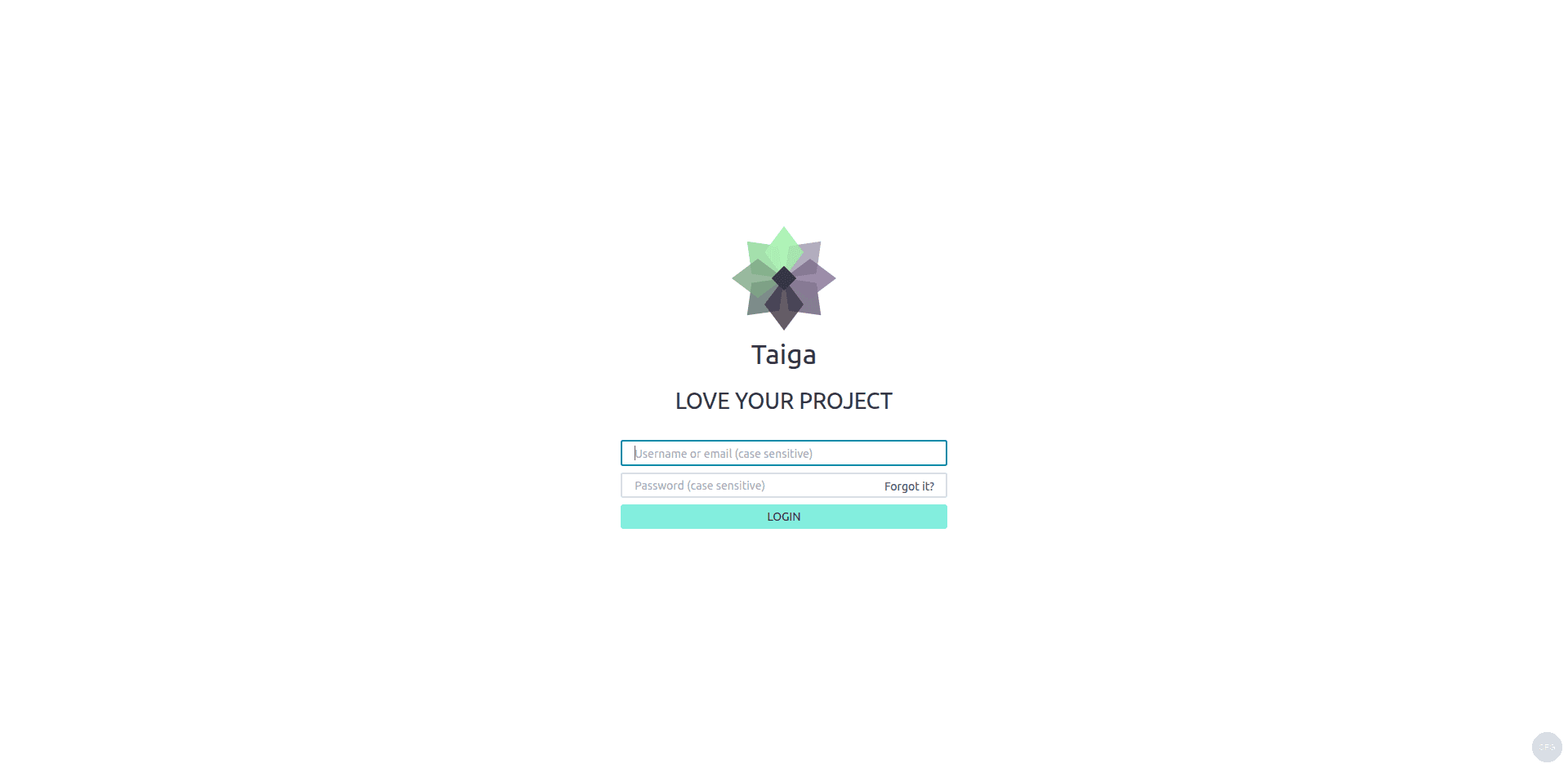
Open your browser and navigate to https://taiga.example.com. You should see the Taiga login page. Sign in with the superuser credentials you created in Step 5.
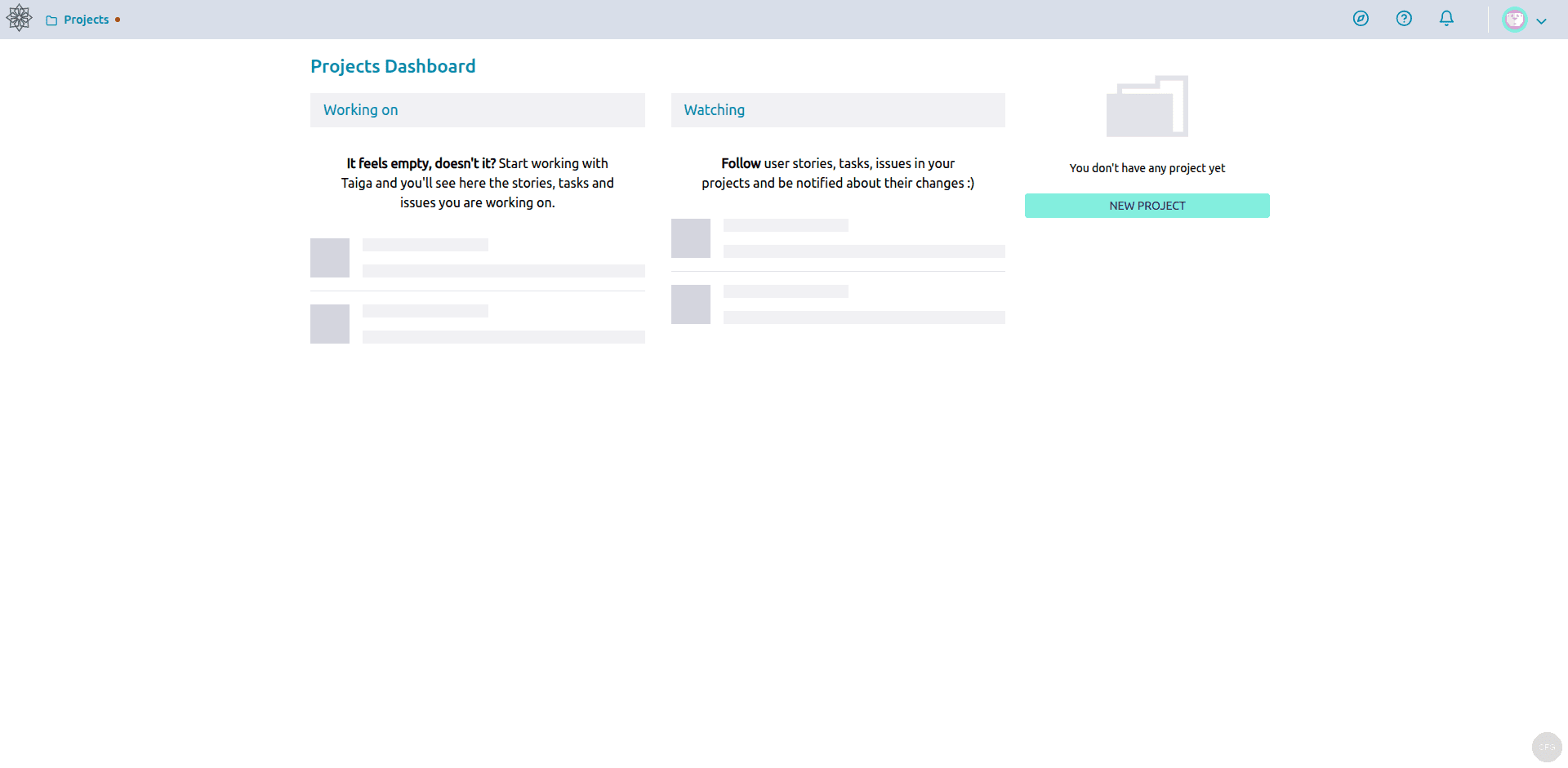
After logging in, you land on the Taiga dashboard. The interface is clean and organized. The left sidebar provides quick access to projects, and the top bar has search and user settings.
Step 8: Create Your First Project
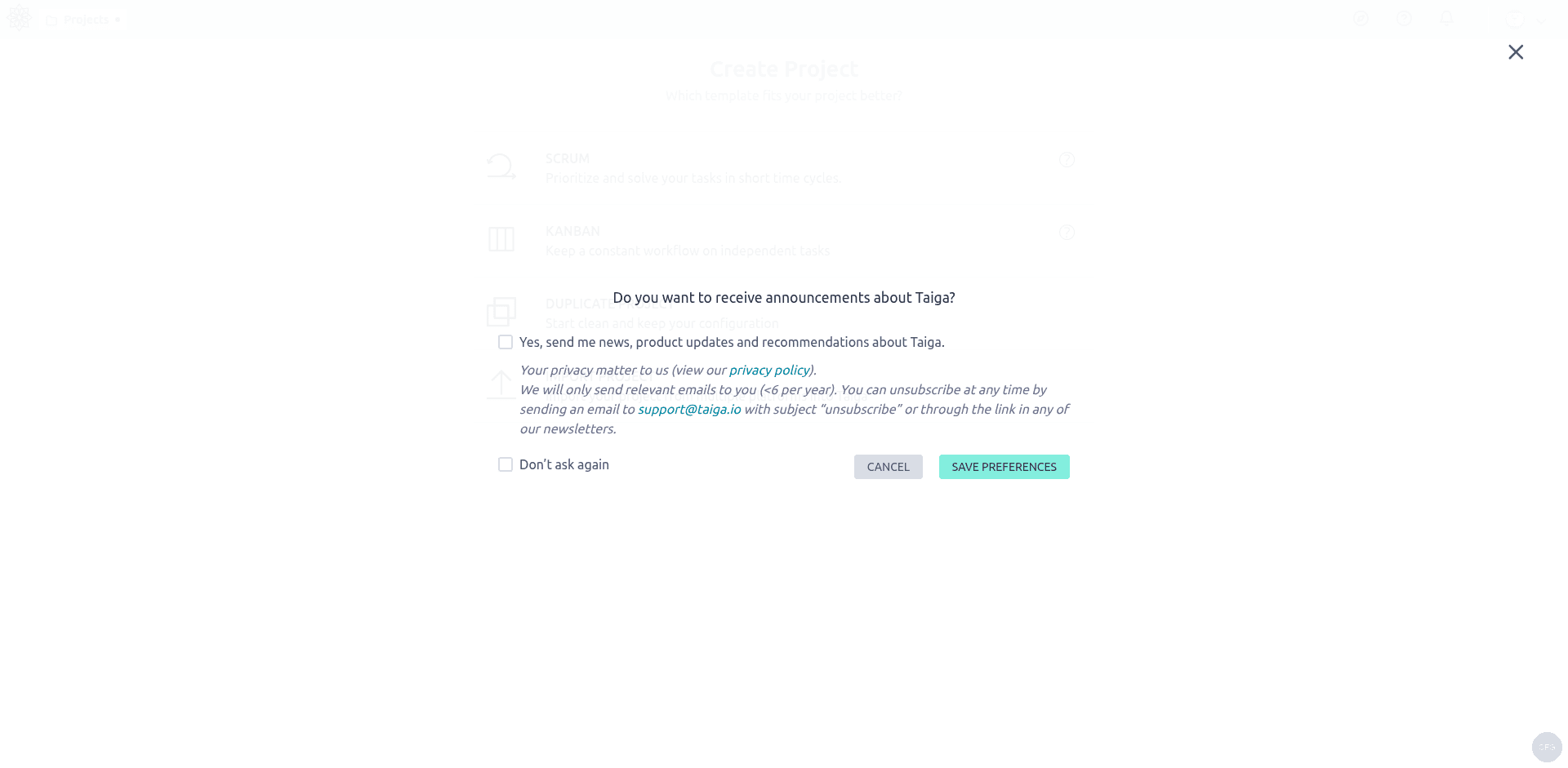
Click the + Create Project button in the dashboard. Taiga offers three project templates:
- Scrum – full agile with backlogs, sprints, user stories, and burndown charts
- Kanban – visual board-based workflow with customizable columns
- Blank project – start from scratch and enable only the modules you need
Select Scrum for a full-featured agile setup. Enter a project name and description, then click Create Project.
Once the project is created, you can start working immediately:
- Backlog – add user stories and prioritize them by dragging
- Sprint planning – create sprints and assign stories to them
- Kanban board – drag tasks between columns (New, In Progress, Ready for Test, Done)
- Issues – track bugs and improvement requests
- Wiki – document project decisions and technical notes
To invite team members, go to Settings > Members in your project and add users by email. They’ll receive an invitation to create their account and join the project.
Managing Taiga
Here are common management tasks you’ll need for day-to-day operations.
View Container Logs
Check logs for specific services when troubleshooting:
cd /opt/taiga
docker compose logs -f taiga-back
docker compose logs -f taiga-front
docker compose logs -f taiga-db
Stop and Start Taiga
Gracefully stop all Taiga services:
cd /opt/taiga
docker compose down
Start them again:
cd /opt/taiga
docker compose up -d
Upgrade Taiga
Upgrading pulls the latest Docker images from the Taiga registry. Always back up your data first:
cd /opt/taiga
docker compose down
docker compose pull
docker compose up -d
Back Up Taiga Data
The most critical data is in the PostgreSQL database and the media volume (uploaded attachments). Back up the database with this command:
docker compose exec taiga-db pg_dump -U taiga taiga > /opt/taiga/backups/taiga-backup-$(date +%Y%m%d).sqlCreate the backups directory first if it doesn’t exist:
mkdir -p /opt/taiga/backupsFor the media files, back up the Docker volume:
docker run --rm -v taiga_taiga-media-data:/data -v /opt/taiga/backups:/backup alpine tar czf /backup/taiga-media-$(date +%Y%m%d).tar.gz -C /data .Run Django Management Commands
The taiga-manage.sh script gives you access to Django’s management commands. Some useful ones:
cd /opt/taiga

# Change a user's password
sudo ./taiga-manage.sh changepassword admin

# Collect static files after customization
sudo ./taiga-manage.sh collectstatic --noinput

# Check for database migrations
sudo ./taiga-manage.sh showmigrations
Taiga Architecture Overview
Understanding the stack helps when troubleshooting. The Docker Compose deployment includes these services:
- taiga-back – Django REST API backend (Python)
- taiga-front – AngularJS frontend served by Nginx
- taiga-async – Celery worker for background tasks (email sending, exports)
- taiga-events – WebSocket server for real-time updates
- taiga-protected – Attachment proxy that handles secure file access
- taiga-gateway – Nginx reverse proxy that routes traffic to the right service
- taiga-db – PostgreSQL 12 database
- taiga-async-rabbitmq / taiga-events-rabbitmq – Message brokers for async tasks and events
Troubleshooting Common Issues
Containers Keep Restarting
Check if the database container is healthy first. The backend won’t start until PostgreSQL passes its health check:
docker compose ps taiga-db
docker compose logs taiga-db
If the database shows authentication errors, verify the POSTGRES_USER and POSTGRES_PASSWORD values in the .env file match what was used during the first launch. Changing database credentials after initial setup requires manually updating the database or recreating the volumes.
WebSocket Connection Errors
If real-time updates aren’t working (task status changes not appearing without page reload), check that the WEBSOCKETS_SCHEME variable matches your setup. Use wss when serving over HTTPS and ws for HTTP. Also verify the Nginx reverse proxy includes the WebSocket upgrade headers in the /events location block.
Port 9000 Already in Use
If another service occupies port 9000, edit the docker-compose.yml file and change the gateway port mapping:
  taiga-gateway:
    ports:
      - "9080:80"  # Changed from 9000 to 9080
Then update the Nginx reverse proxy to point to the new port.
Emails Not Sending
If email notifications aren’t working, first confirm the EMAIL_BACKEND is set to smtp (not console). Then check the backend logs for SMTP connection errors:
docker compose logs taiga-back | grep -i emailCommon causes include incorrect SMTP credentials, blocked port 587 by the hosting provider, or missing App Password when using Gmail.
The Taiga login page appears at your configured domain on port 9000:
After logging in with the admin credentials, the Projects Dashboard shows your working items and watched projects. Click NEW PROJECT to create your first project:
The Create Project dialog lets you choose between Scrum, Kanban, or a blank project template:
Conclusion
Taiga gives agile teams a powerful, self-hosted alternative to commercial project management tools. The Docker Compose deployment keeps the complex multi-service architecture manageable, and upgrades are as simple as pulling new images. With Scrum boards, Kanban views, sprint planning, and built-in wikis, it covers everything a development team needs to run agile workflows without vendor lock-in.
For more information, check the official Taiga documentation and the Taiga community forums.
FAQ
What are the minimum system requirements for Taiga?
Taiga needs at least 2 GB of RAM and 2 CPU cores for a small team (under 20 users). For larger teams or heavy attachment usage, 4 GB RAM and additional disk space for the PostgreSQL database and media storage is recommended.
Can Taiga integrate with GitHub or GitLab?
Yes. Taiga supports webhooks integration with GitHub, GitLab, and Bitbucket. You can link commits and pull requests to Taiga user stories and tasks, automatically updating their status based on commit messages.
How do I reset the admin password?
Use the management script to change any user’s password. Run cd /opt/taiga && sudo ./taiga-manage.sh changepassword admin, replacing admin with the username.
Is Taiga suitable for non-software projects?
Absolutely. While Taiga is built with software development teams in mind, the Kanban board and issue tracker work well for marketing teams, content operations, event planning, and any workflow that benefits from visual task management.







A *very* good article. A minor problem when I got to “Populate the database with initial basic data”, I kept getting a message about bad passwords. Some investigation revealed a file called common.py in the settings directory which in a section labeled “DATABASES” had the table name, username, and password all set to “taiga”. After correcting the entries, everything worked fine.