

What are the steps to install Wine 9 on Ubuntu?. For those new to Wine, it is an open source software created to enable Linux users run Microsoft Windows applications. Wine 9 is the latest stable release of Wine available for installation and it contains a large number of improvements which includes but not limited to:
- WoW64: All transitions from Windows to Unix code go through the NT syscall interface
- Mono / .NET: The Mono engine is updated to version 8.1.0.
- Development tools: The WineDump tool supports printing the contents of Windows registry files (REGF format), as well as printing data for both architectures in hybrid x86/ARM64 PE files.
- Cryptography and security: Smart cards are supported in the Winscard dll, using the Unix PCSClite library.
- Kernel: The default Windows version for new prefixes is set to Windows 10.
- IME implementation improvements
- Among many other new features and improvements
Also check out: Install Windows Apps and games on Ubuntu using Bottles
Installing Wine 9 on Ubuntu 22.04|20.04|18.04
The installation of Wine on Ubuntu is a straightforward process as all packages are provides in Wine repository.
Step 1: Enable 32 bit architecture
But before installation we need to enable enable 32 bit architecture if running on a 64-bit system. This is achieved by running the command below.
sudo dpkg --add-architecture i386Step 2: Download and add the repository key
Install wget if not present in your system.
sudo apt update
sudo apt -y install software-properties-common wget
Then download and add repository key:
sudo mkdir -pm755 /etc/apt/keyrings
sudo wget -O /etc/apt/keyrings/winehq-archive.key https://dl.winehq.org/wine-builds/winehq.key
You should receive “OK” in the output.
Step 3: Add the Wine repository
After importing the key, proceed to add repository.
### Ubuntu 22.04 ###
wget -nc https://dl.winehq.org/wine-builds/ubuntu/dists/jammy/winehq-jammy.sources
sudo mv winehq-jammy.sources /etc/apt/sources.list.d/

### Ubuntu 20.04 ###
wget -nc https://dl.winehq.org/wine-builds/ubuntu/dists/focal/winehq-focal.sources
sudo mv winehq-focal.sources /etc/apt/sources.list.d/

### Ubuntu 18.04 ###
wget -nc https://dl.winehq.org/wine-builds/ubuntu/dists/bionic/winehq-bionic.sources
sudo mv winehq-bionic.sources /etc/apt/sources.list.d/
Command execution output:
$ sudo apt update
Hit:1 https://mirror.hetzner.com/ubuntu/packages jammy InRelease
Hit:2 https://mirror.hetzner.com/ubuntu/packages jammy-updates InRelease
Hit:3 https://mirror.hetzner.com/ubuntu/packages jammy-backports InRelease
Hit:4 https://mirror.hetzner.com/ubuntu/security jammy-security InRelease
Get:5 https://dl.winehq.org/wine-builds/ubuntu jammy InRelease [8,041 B]
Get:6 https://dl.winehq.org/wine-builds/ubuntu jammy/main i386 Packages [85.1 kB]
Get:7 https://dl.winehq.org/wine-builds/ubuntu jammy/main all Packages [928 B]
Get:8 https://dl.winehq.org/wine-builds/ubuntu jammy/main amd64 Packages [85.4 kB]
Fetched 179 kB in 1s (167 kB/s)
Reading package lists... Done
Building dependency tree... Done
Reading state information... Done
Step 4: Install Wine on Ubuntu
With the repository ready we can install Wine on our Ubuntu Linux machine.
sudo apt install --install-recommends winehq-stableBe informed that a good number of packages will be installed. This may take sometime if you have weak internet connection:
......
The following packages will be upgraded:
  libc6
1 upgraded, 295 newly installed, 0 to remove and 15 not upgraded.
Need to get 353 MB of archives.
After this operation, 1,916 MB of additional disk space will be used.
Do you want to continue? [Y/n] y
After the package has been installed, Check your version once the Wine installation is complete:
$ wine --version
wine-9.0
Step 5: Using Wine on Ubuntu
For command line guys the wine tool can be invoked directly on the terminal.
wineAccessing help page:
wine --helpInstall test application like Notepad++
VER=$(curl -s https://api.github.com/repos/notepad-plus-plus/notepad-plus-plus/releases/latest | grep tag_name | cut -d '"' -f 4 | sed 's/v//g')
wget https://github.com/notepad-plus-plus/notepad-plus-plus/releases/download/v${VER}/npp.${VER}.Installer.exe
Use wine to install your downloaded .exe application.
wine npp.${VER}.Installer.exeAgree to install Mono and Gecko packges.


Then begin your application installation using Wine.

The application can be launched like any other Linux application after installation.
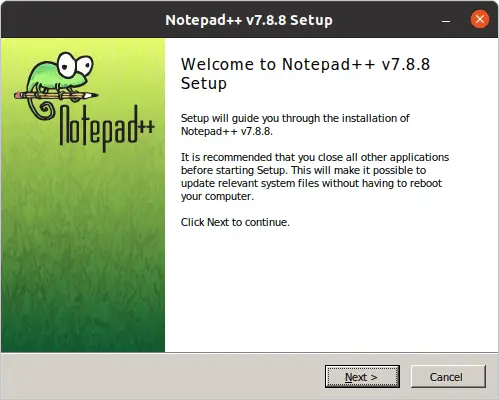
Running Notepad++ application.

This confirms Wine has been installed successfully on Ubuntu 20.04.
More on Ubuntu:

How to install office 2016 on ubuntu 20.04? Please notify me by email if you find the solution.