KVM (Kernel-based Virtual Machine) is a full virtualization solution built into the Linux kernel. It turns your Rocky Linux 10, AlmaLinux 10, or RHEL 10 server into a Type-1 hypervisor capable of running multiple isolated virtual machines with near-native performance. KVM works with QEMU to emulate hardware and uses libvirt as the management API.
This guide covers installing KVM/QEMU/libvirt on Rocky Linux 10 / AlmaLinux 10 / RHEL 10 (kernel 6.12), verifying hardware virtualization support, configuring bridged networking, creating VMs with virt-install, managing VMs with virsh, and setting up the Cockpit web UI for VM management. All steps work on any RHEL 10 family distribution. For the official upstream documentation, see the RHEL Virtualization Guide.
Prerequisites
- A server or workstation running Rocky Linux 10, AlmaLinux 10, or RHEL 10
- CPU with Intel VT-x or AMD-V hardware virtualization extensions enabled in BIOS/UEFI
- At least 4 GB RAM (more recommended depending on number of VMs)
- Root or sudo access
- Sufficient disk space in
/var/lib/libvirt/images/for VM disk images
Step 1: Verify Hardware Virtualization Support
KVM requires Intel VT-x or AMD-V CPU extensions. If these are disabled in your BIOS/UEFI, KVM will not load. Check for virtualization support with lscpu.
lscpu | grep VirtualizationExpected output for Intel CPUs:
Virtualization: VT-xFor AMD CPUs, you will see AMD-V instead. You can also verify by checking for the vmx (Intel) or svm (AMD) flags in /proc/cpuinfo.
grep -cE 'vmx|svm' /proc/cpuinfoA number greater than zero means virtualization extensions are available. If the output is 0, enter your BIOS/UEFI settings and enable Intel VT-x or AMD-V under CPU or Advanced settings.
Step 2: Install KVM, QEMU, and libvirt on Rocky Linux 10 / AlmaLinux 10
Update your system packages first.
sudo dnf update -yInstall the virtualization group which pulls in QEMU-KVM, libvirt, and essential tools.
sudo dnf group install -y virtualizationThis installs qemu-kvm, libvirt, libvirt-client, virt-install, and python3-libvirt among other dependencies. Next, install additional management tools.
sudo dnf install -y libguestfs-tools virt-top bridge-utilsThese provide disk image manipulation tools (libguestfs-tools), real-time VM resource monitoring (virt-top), and network bridge utilities (bridge-utils). If you need to work with VM disk images, see our guide on mounting VM virtual disks on KVM with libguestfs.
Step 3: Start and Enable the libvirtd Service
Enable and start the libvirtd daemon so it persists across reboots.
sudo systemctl enable --now libvirtdVerify the service is running.
systemctl status libvirtdOutput:
● libvirtd.service - Virtualization daemon
     Loaded: loaded (/usr/lib/systemd/system/libvirtd.service; enabled; preset: disabled)
     Active: active (running) since ...
Confirm the KVM kernel modules are loaded.
lsmod | grep kvmOutput:
kvm_intel             458752  0
kvm                  1327104  1 kvm_intel
On AMD systems, you will see kvm_amd instead of kvm_intel.
Step 4: Validate the Host with virt-host-validate
Run the built-in validation tool to check that all KVM requirements are met on your host.
sudo virt-host-validate qemuExpected output – all checks should show PASS:
  QEMU: Checking for hardware virtualization                                 : PASS
  QEMU: Checking if device /dev/kvm exists                                   : PASS
  QEMU: Checking if device /dev/kvm is accessible                            : PASS
  QEMU: Checking if device /dev/vhost-net exists                             : PASS
  QEMU: Checking if device /dev/net/tun exists                               : PASS
  QEMU: Checking for cgroup 'memory' controller support                      : PASS
  QEMU: Checking for cgroup 'memory' controller mount-point                  : PASS
  QEMU: Checking for cgroup 'cpu' controller support                         : PASS
  QEMU: Checking for cgroup 'cpu' controller mount-point                     : PASS
  QEMU: Checking for cgroup 'cpuacct' controller support                     : PASS
  QEMU: Checking for cgroup 'cpuacct' controller mount-point                 : PASS
  QEMU: Checking for cgroup 'cpuset' controller support                      : PASS
  QEMU: Checking for cgroup 'cpuset' controller mount-point                  : PASS
  QEMU: Checking for cgroup 'devices' controller support                     : PASS
  QEMU: Checking for cgroup 'blkio' controller support                       : PASS
  QEMU: Checking for cgroup 'blkio' controller mount-point                   : PASS
  QEMU: Checking for device assignment IOMMU support                         : PASS
  QEMU: Checking if IOMMU is enabled by kernel                               : WARN (IOMMU appears to be disabled in kernel. Add intel_iommu=on to kernel cmdline arguments)
The IOMMU warning is informational – it is only needed for PCI device passthrough. If you plan to pass physical devices (GPUs, NICs) to VMs, add intel_iommu=on (or amd_iommu=on) to your kernel boot parameters in /etc/default/grub.
Step 5: Configure Bridged Networking for KVM
By default, KVM creates a NAT network (virbr0) which gives VMs internet access but makes them unreachable from other machines on your LAN. For production use, set up a network bridge so VMs get IP addresses on the same subnet as the host.
Identify your active network interface.
nmcli device statusCreate a bridge named br0 and attach your physical interface (replace ens18 with your interface name).
sudo nmcli connection add type bridge con-name br0 ifname br0
sudo nmcli connection add type ethernet con-name br0-port ifname ens18 master br0
Configure the bridge with a static IP (adjust to match your network).
sudo nmcli connection modify br0 ipv4.addresses 192.168.1.100/24
sudo nmcli connection modify br0 ipv4.gateway 192.168.1.1
sudo nmcli connection modify br0 ipv4.dns 192.168.1.1
sudo nmcli connection modify br0 ipv4.method manual
Bring the bridge up and deactivate the original connection.
sudo nmcli connection up br0
sudo nmcli connection down ens18
Warning: If you are connected over SSH, switching from a direct interface to a bridge may drop your session. Run these commands in a console session or use nmcli connection modify ens18 connection.autoconnect no before activating the bridge.
Verify the bridge is active.
nmcli connection show --activeOutput:
NAME      UUID                                  TYPE      DEVICE
br0       a1b2c3d4-e5f6-7890-abcd-ef1234567890  bridge    br0
br0-port  f1e2d3c4-b5a6-9870-fedc-ba0987654321  ethernet  ens18
For more network bridge configuration options, check our guide on configuring KVM networking with virsh, nmcli and brctl.
Step 6: Configure Firewall Rules for KVM
If firewalld is active, you need to allow traffic through the bridge interface and enable specific ports.
sudo firewall-cmd --permanent --zone=trusted --add-interface=br0
sudo firewall-cmd --reload
Adding the bridge to the trusted zone allows all VM traffic to flow freely. If you want tighter control, create a dedicated zone and open only the ports you need.
Key ports used by libvirt and related services:
| Port | Protocol | Service |
|---|---|---|
| 16509 | TCP | libvirt remote management (TLS) |
| 5900-5999 | TCP | VNC console access |
| 9090 | TCP | Cockpit web console |
| 49152-49215 | TCP | QEMU live migration |
To open specific ports for remote libvirt connections and Cockpit:
sudo firewall-cmd --permanent --add-port=16509/tcp
sudo firewall-cmd --permanent --add-port=9090/tcp
sudo firewall-cmd --reload
Step 7: Create a Virtual Machine with virt-install
Use virt-install to create VMs from the command line. This example creates a Rocky Linux 10 VM using a network install source.
sudo virt-install \
  --name rocky10-vm \
  --ram 2048 \
  --vcpus 2 \
  --disk path=/var/lib/libvirt/images/rocky10-vm.qcow2,size=20,format=qcow2 \
  --os-variant rocky10 \
  --network bridge=br0 \
  --graphics vnc,listen=0.0.0.0 \
  --console pty,target_type=serial \
  --location 'https://download.rockylinux.org/pub/rocky/10/BaseOS/x86_64/os/' \
  --extra-args 'console=ttyS0,115200n8'
Key parameters explained:
--ram 2048– allocate 2 GB of memory--vcpus 2– assign 2 virtual CPUs--disk– create a 20 GB qcow2 disk image in the default libvirt storage pool--os-variant– optimizes VM settings for the specified OS (runvirt-install --osinfo listto see available variants)--network bridge=br0– attach the VM to the bridged network--location– network install URL (you can also use a local ISO with--cdrom /path/to/image.iso)
If you prefer using the default NAT network instead of a bridge, replace --network bridge=br0 with --network default.
To create a VM from a local ISO file instead:
sudo virt-install \
  --name almalinux10-vm \
  --ram 4096 \
  --vcpus 2 \
  --disk path=/var/lib/libvirt/images/almalinux10-vm.qcow2,size=30,format=qcow2 \
  --os-variant almalinux10 \
  --network bridge=br0 \
  --graphics vnc,listen=0.0.0.0 \
  --cdrom /var/lib/libvirt/images/AlmaLinux-10-latest-x86_64-dvd.iso
For automated installations using Kickstart, see our guide on RHEL Kickstart automated installation with virt-install.
Step 8: Manage Virtual Machines with virsh
The virsh command is the primary CLI tool for managing KVM virtual machines. Here are the essential commands.
List all VMs (running and stopped):
sudo virsh list --allStart, stop, and restart a VM:
sudo virsh start rocky10-vm
sudo virsh shutdown rocky10-vm
sudo virsh reboot rocky10-vm
Force stop an unresponsive VM:
sudo virsh destroy rocky10-vmSet a VM to start automatically on host boot:
sudo virsh autostart rocky10-vmConnect to the VM serial console:
sudo virsh console rocky10-vmPress Ctrl+] to exit the console. View detailed VM information:
sudo virsh dominfo rocky10-vmDelete a VM and its disk image:
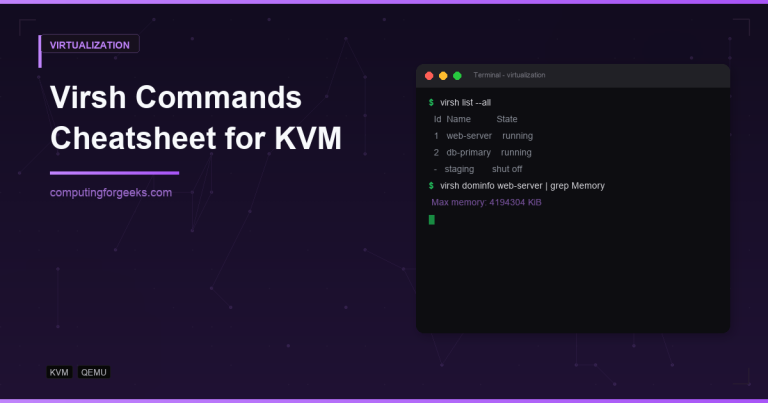
sudo virsh undefine rocky10-vm --remove-all-storageFor a complete reference of virsh operations, see our virsh commands cheatsheet for KVM.
Step 9: Manage KVM with Cockpit Web UI
Cockpit provides a web-based interface for managing your KVM hypervisor from a browser. Install the cockpit and cockpit-machines packages.
sudo dnf install -y cockpit cockpit-machinesEnable and start the Cockpit socket.
sudo systemctl enable --now cockpit.socketOpen the firewall port if not already allowed.
sudo firewall-cmd --permanent --add-service=cockpit
sudo firewall-cmd --reload
Access the Cockpit dashboard in your browser at https://your-server-ip:9090. Log in with your system credentials. The Virtual Machines section lets you create, start, stop, and console into VMs from the web interface.
Verify Cockpit is listening.
sudo ss -tlnp | grep 9090Output:
LISTEN 0 128 *:9090 *:* users:(("cockpit-tls",pid=12345,fd=3))For detailed Cockpit setup and usage, check our guide on managing Rocky Linux / AlmaLinux using Cockpit dashboard.
Step 10: Configure SELinux for KVM (Optional)
SELinux is enforcing by default on RHEL 10 family distributions. KVM and libvirt work correctly with SELinux enabled – the packages install the required policies automatically. If you store VM disk images outside the default /var/lib/libvirt/images/ directory, you need to set the correct SELinux context.
sudo semanage fcontext -a -t virt_image_t '/data/vms(/.*)?'
sudo restorecon -Rv /data/vms
Verify the SELinux context is correct.
ls -lZ /data/vms/Conclusion
KVM is now installed and configured on your Rocky Linux 10 / AlmaLinux 10 / RHEL 10 server. You can create and manage virtual machines using virt-install and virsh from the command line, or use the Cockpit web interface for a graphical management experience.
For production hypervisors, consider enabling IOMMU for PCI passthrough, setting up regular VM snapshot backups, configuring resource limits with cgroups, and monitoring VM performance with virt-top. If you need to automate VM provisioning, see our guide on provisioning VMs on KVM with Terraform.