Kanboard is a free and open source project management tool that uses the Kanban methodology. It gives you a clear visual overview of your tasks and workflow without the bloat of larger project management platforms. Kanboard 1.2.51 is the latest release (March 2026), which includes important security fixes for SSRF protection, deserialization vulnerabilities, and missing permission checks. This guide walks through a complete Kanboard installation on Rocky Linux 10 and AlmaLinux 10 with Nginx, PHP 8.3, and MariaDB as the database backend.
Kanboard runs entirely in the browser and supports multiple projects, drag-and-drop task management, built-in analytics, Gantt charts, and plugin extensibility. It supports SQLite, MySQL/MariaDB, and PostgreSQL as database backends. For teams larger than a few people, MariaDB or PostgreSQL is the recommended choice over SQLite.
Prerequisites
- A server running Rocky Linux 10 or AlmaLinux 10 with root or sudo access
- A registered domain name or subdomain pointed to your server IP (for SSL)
- Minimum 1 GB RAM and 10 GB disk space
- Internet connectivity for package downloads
Step 1: Install Nginx Web Server
Nginx is available in the default AppStream repository on Rocky Linux 10 and AlmaLinux 10. Install it and enable the service to start on boot:
sudo dnf install nginx -y
sudo systemctl enable --now nginx
Verify Nginx is running:
sudo systemctl status nginxThe service should show active (running) in the output.
Step 2: Install PHP 8.3 and Required Extensions
Rocky Linux 10 and AlmaLinux 10 ship PHP 8.3 in the default AppStream repository, so no extra repos or module streams required. Kanboard needs PHP 8.1 or later, so 8.3 is a solid choice. Install PHP-FPM along with all the extensions Kanboard requires:
sudo dnf install php php-cli php-fpm php-mysqlnd php-gd php-mbstring php-xml php-curl php-zip php-json php-opcache php-pdo -yThe php-mysqlnd extension provides the MariaDB/MySQL PDO driver. The php-zip extension is optional but recommended – it allows installing Kanboard plugins directly from the web interface. The php-curl extension enables webhook notifications and HTTP client functionality.
Confirm the installed PHP version:
php -vYou should see PHP 8.3 confirmed in the output:
PHP 8.3.19 (cli) (built: Mar  4 2026 00:00:00) (NTS gcc x86_64)
Copyright (c) The PHP Group
Zend Engine v4.3.19, Copyright (c) Zend Technologies
    with Zend OPcache v8.3.19, Copyright (c), by Zend Technologies
Verify that all the required extensions are loaded:
php -m | grep -iE "pdo_mysql|gd|mbstring|xml|curl|zip|json|ctype|session|filter|dom|openssl"All listed extensions should appear in the output. If any are missing, install the corresponding php-* package.
Step 3: Install and Configure MariaDB
While Kanboard works with SQLite out of the box, MariaDB is recommended for production use and teams with more than a handful of users. Install MariaDB server and enable the service:
sudo dnf install mariadb-server -y
sudo systemctl enable --now mariadb
Run the security hardening script to set a root password and remove test databases:
sudo mariadb-secure-installationAnswer the prompts: set a strong root password, remove anonymous users, disallow remote root login, remove the test database, and reload privilege tables.
Now create the Kanboard database and a dedicated user. Log into MariaDB:
sudo mariadb -u root -pRun the following SQL statements to create the database and grant permissions:
CREATE DATABASE kanboard CHARACTER SET utf8mb4 COLLATE utf8mb4_unicode_ci;
CREATE USER 'kanboard'@'localhost' IDENTIFIED BY 'StrongPassword123!';
GRANT ALL PRIVILEGES ON kanboard.* TO 'kanboard'@'localhost';
FLUSH PRIVILEGES;
EXIT;
Replace StrongPassword123! with a secure password of your choosing. You will need this password when configuring Kanboard later.
Step 4: Download and Install Kanboard
Download the latest Kanboard release from the official GitHub releases page. At the time of writing, the latest stable version is 1.2.51:
cd /tmp
curl -LO https://github.com/kanboard/kanboard/archive/refs/tags/v1.2.51.tar.gz
Extract the archive and move it to the web root directory:
tar xzf v1.2.51.tar.gz
sudo mv kanboard-1.2.51 /var/www/kanboard
Create the Kanboard configuration file from the default template:
sudo cp /var/www/kanboard/config.default.php /var/www/kanboard/config.phpEdit the configuration file to use MariaDB instead of the default SQLite:
sudo vi /var/www/kanboard/config.phpFind and update these configuration lines. Change the database driver from sqlite to mysql, and set the database credentials to match what you created in Step 3:
define('DB_DRIVER', 'mysql');
define('DB_USERNAME', 'kanboard');
define('DB_PASSWORD', 'StrongPassword123!');
define('DB_HOSTNAME', 'localhost');
define('DB_NAME', 'kanboard');
define('ENABLE_URL_REWRITE', true);
Setting ENABLE_URL_REWRITE to true gives you clean URLs without ?controller= query strings. This works with the Nginx configuration we set up in the next step.
Step 5: Set File Permissions
The Nginx worker process runs as the nginx user on Rocky Linux 10 and AlmaLinux 10. Kanboard needs write access to the data directory for file uploads, SQLite (if used), and debug logs. Set the ownership and permissions accordingly:
sudo chown -R nginx:nginx /var/www/kanboard
sudo chmod -R 755 /var/www/kanboard
sudo chmod -R 770 /var/www/kanboard/data
The data directory stores uploaded files, thumbnails, and plugin data. It must be writable by the web server user but should never be accessible directly via URL – the Nginx configuration handles that restriction.
Step 6: Configure PHP-FPM Pool
PHP-FPM on Rocky Linux 10 ships with a default www pool that runs as the apache user. Since we are using Nginx, you need to change the pool to run as the nginx user. Edit the pool configuration:
sudo vi /etc/php-fpm.d/www.confFind and update these directives to match the Nginx user:
user = nginx
group = nginx
listen = /run/php-fpm/www.sock
listen.owner = nginx
listen.group = nginx
listen.mode = 0660
You can also tune the process manager settings based on your server resources. For a small to medium deployment, the default dynamic process manager works well. Consider adjusting pm.max_children if you have limited memory.
Enable and restart PHP-FPM to apply the changes:
sudo systemctl enable --now php-fpm
sudo systemctl restart php-fpm
Verify the service is running correctly:
sudo systemctl status php-fpmThe output should show active (running) with no errors.
Step 7: Configure Nginx Virtual Host
Create a new Nginx server block for Kanboard. Replace kanboard.example.com with your actual domain or server IP throughout this configuration:
sudo vi /etc/nginx/conf.d/kanboard.confAdd the following server block configuration:
server {
    listen 80;
    server_name kanboard.example.com;
    root /var/www/kanboard;
    index index.php;

    client_max_body_size 50M;

    # Deny access to the data directory
    location ~* /data {
        deny all;
        return 404;
    }

    # Deny access to .htaccess and hidden files
    location ~ /\. {
        deny all;
        return 404;
    }

    # URL rewriting for clean URLs
    location / {
        try_files $uri $uri/ /index.php$is_args$args;
    }

    # PHP processing
    location ~ \.php$ {
        try_files $uri =404;
        fastcgi_split_path_info ^(.+\.php)(/.+)$;
        fastcgi_pass unix:/run/php-fpm/www.sock;
        fastcgi_param SCRIPT_FILENAME $document_root$fastcgi_script_name;
        fastcgi_index index.php;
        include fastcgi_params;
    }
}
The client_max_body_size directive allows file uploads up to 50 MB. Adjust this if your team needs to attach larger files to tasks. The location ~* /data block is critical – it prevents anyone from downloading the database file, debug logs, or uploaded files directly through the browser.
Test the Nginx configuration for syntax errors:
sudo nginx -tYou should see a successful test result:
nginx: the configuration file /etc/nginx/nginx.conf syntax is ok
nginx: configuration file /etc/nginx/nginx.conf test is successful
Restart Nginx to load the new virtual host:
sudo systemctl restart nginxStep 8: Configure SELinux Policies
Rocky Linux 10 and AlmaLinux 10 run SELinux in enforcing mode by default. Without the correct SELinux policies, Nginx and PHP-FPM will be unable to read the Kanboard files, connect to MariaDB, or write to the data directory. These steps are mandatory. Never disable SELinux as a workaround.
First, set the correct SELinux file context on the Kanboard web root so Nginx can serve the files:
sudo semanage fcontext -a -t httpd_sys_content_t "/var/www/kanboard(/.*)?"
sudo semanage fcontext -a -t httpd_sys_rw_content_t "/var/www/kanboard/data(/.*)?"
sudo restorecon -Rv /var/www/kanboard
The httpd_sys_content_t type allows the web server to read files, while httpd_sys_rw_content_t allows both read and write access to the data directory where Kanboard stores uploads and plugin data.
Next, allow the web server to connect to the MariaDB database over the network socket:
sudo setsebool -P httpd_can_network_connect_db 1If you plan to use Kanboard’s email notifications or webhook integrations that make outbound HTTP connections, also enable network connectivity:
sudo setsebool -P httpd_can_network_connect 1
sudo setsebool -P httpd_can_sendmail 1
Verify the SELinux booleans are set correctly:
getsebool httpd_can_network_connect_db httpd_can_network_connect httpd_can_sendmailAll three should show on in the output:
httpd_can_network_connect_db --> on
httpd_can_network_connect --> on
httpd_can_sendmail --> on
After completing the setup, check for any SELinux denials to make sure nothing was missed:
sudo ausearch -m avc -ts recentIf the output says “no matches”, your SELinux policies are correctly configured. If you see any denials, use audit2why to understand what additional policies are needed.
Step 9: Configure Firewall
Open HTTP and HTTPS ports in firewalld to allow web traffic to reach Kanboard:
sudo firewall-cmd --permanent --add-service=http
sudo firewall-cmd --permanent --add-service=https
sudo firewall-cmd --reload
Verify the firewall rules are active:
sudo firewall-cmd --list-servicesThe output should include both http and https in the list of allowed services.
Step 10: Secure Kanboard with SSL/TLS
Running Kanboard over plain HTTP exposes login credentials and session tokens to anyone on the network. Install Certbot and obtain a free SSL certificate from Let’s Encrypt:
sudo dnf install certbot python3-certbot-nginx -yRequest the certificate. Certbot will automatically modify your Nginx configuration to enable HTTPS and redirect HTTP traffic:
sudo certbot --nginx -d kanboard.example.com --non-interactive --agree-tos -m [email protected]Replace kanboard.example.com with your actual domain and [email protected] with a valid email address for certificate renewal notifications.
After Certbot finishes, verify that automatic certificate renewal is configured:
sudo certbot renew --dry-runYou should see a “Congratulations, all simulated renewals succeeded” message confirming that the renewal timer is working correctly. Certbot adds a systemd timer that checks for renewal twice daily.
Step 11: Access Kanboard Web Interface
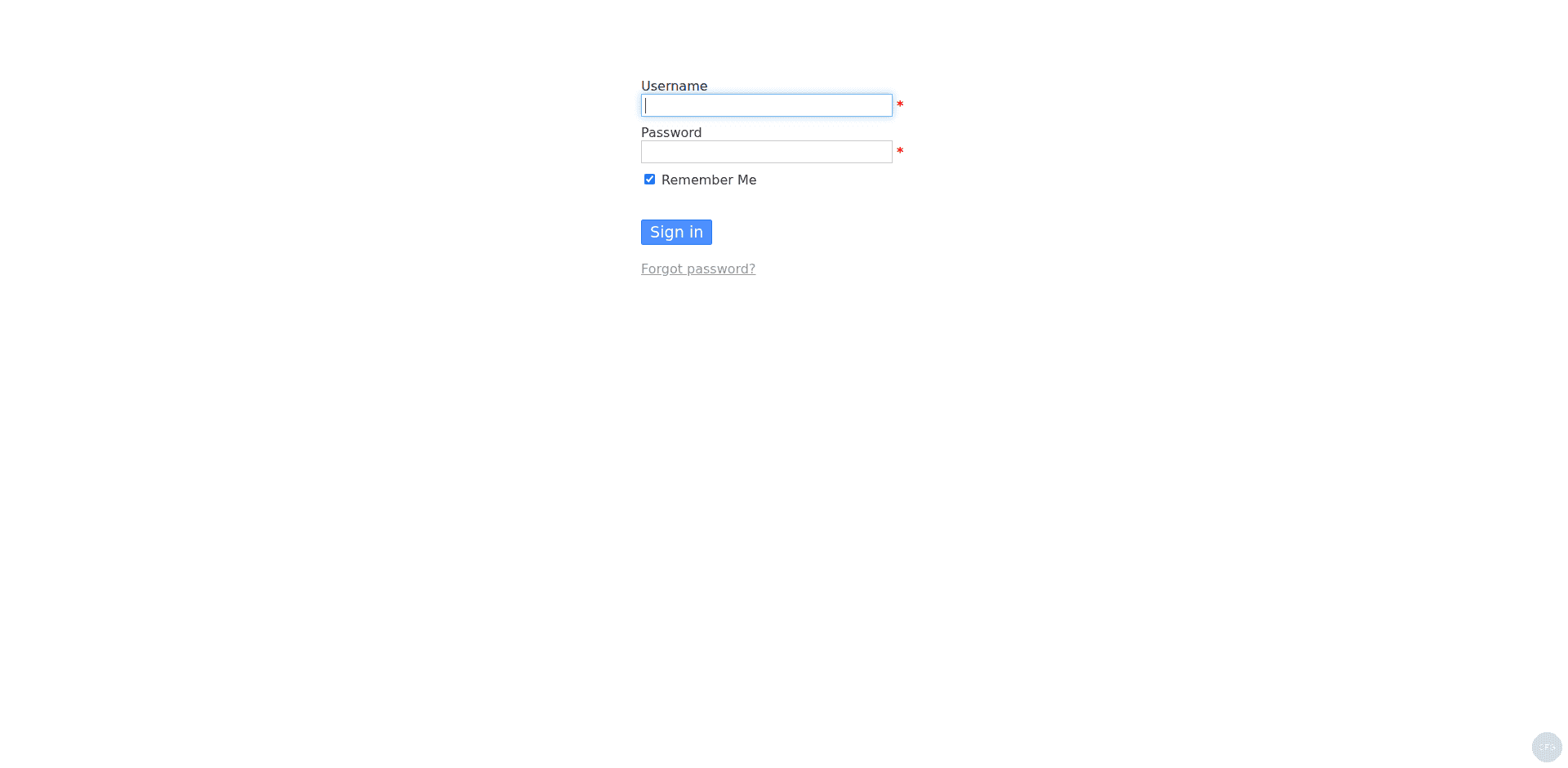
Open your browser and navigate to https://kanboard.example.com. You should see the Kanboard login page. The default credentials are:
- Username: admin
- Password: admin
Change the default admin password immediately after your first login. Go to the user menu in the top-right corner and select “My profile”, then “Edit password” to set a strong password.
Step 12: Initial Kanboard Configuration
After logging in as admin, there are several settings worth configuring right away.
Application Settings
Navigate to Settings > Application settings from the admin menu. Key options to configure:
- Application URL: Set this to
https://kanboard.example.com/so that email notifications contain the correct links - Language: Choose your preferred language
- Timezone: Set to your local timezone
- Enable URL rewriting: This is already enabled in
config.php
Create Additional Users
Go to Users > New user to create accounts for your team. Kanboard supports three user roles:
- Administrator: Full access to all settings and projects
- Manager: Can create and manage projects
- User: Can only access assigned projects
Create Your First Project
Click New project from the dashboard. Give it a name and description. Kanboard creates default columns (Backlog, Ready, Work in progress, Done) that you can customize under Project settings > Columns. You can add swimlanes to group tasks by category, team, or priority.
Configure Email Notifications (Optional)
If you want Kanboard to send email notifications for task assignments and updates, edit the configuration file:
sudo vi /var/www/kanboard/config.phpAdd or update the following SMTP settings:
define('MAIL_TRANSPORT', 'smtp');
define('MAIL_SMTP_HOSTNAME', 'smtp.example.com');
define('MAIL_SMTP_PORT', '587');
define('MAIL_SMTP_USERNAME', '[email protected]');
define('MAIL_SMTP_PASSWORD', 'your-smtp-password');
define('MAIL_SMTP_ENCRYPTION', 'tls');
define('MAIL_FROM', '[email protected]');
Replace the SMTP details with your actual mail server credentials. Restart PHP-FPM after making changes:
sudo systemctl restart php-fpmStep 13: Set Up Kanboard Background Worker (Optional)
Kanboard can run a background worker for sending email notifications and processing webhook events asynchronously. Without it, these tasks run synchronously during page loads, which can slow things down for active teams.
Create a systemd service unit for the background worker:
sudo vi /etc/systemd/system/kanboard-worker.serviceAdd the following service definition:
[Unit]
Description=Kanboard Background Worker
After=network.target mariadb.service

[Service]
Type=simple
User=nginx
Group=nginx
ExecStart=/usr/bin/php /var/www/kanboard/cli worker
Restart=on-failure
RestartSec=5

[Install]
WantedBy=multi-user.target
Enable and start the background worker:
sudo systemctl daemon-reload
sudo systemctl enable --now kanboard-worker
Verify the worker is running:
sudo systemctl status kanboard-workerThe service should show active (running).
Step 14: Set Up Cron Job for Daily Tasks
Kanboard uses a daily cron job to run background tasks like sending overdue task notifications and cleaning up old sessions. If you are not using the background worker from Step 13, this cron job is essential.
Create a cron job that runs the Kanboard scheduler daily:
echo "0 2 * * * nginx cd /var/www/kanboard && /usr/bin/php cli cronjob" | sudo tee /etc/cron.d/kanboardThis runs the cron job at 2:00 AM every day as the nginx user.
Troubleshooting Common Issues
Blank White Page or 500 Internal Server Error
This usually means a PHP extension is missing or there is a file permission problem. Check the Nginx error log and PHP-FPM log:
sudo tail -50 /var/log/nginx/error.log
sudo tail -50 /var/log/php-fpm/www-error.log
If you see “Permission denied” errors, verify file ownership and SELinux contexts:
ls -lZ /var/www/kanboard/
sudo ausearch -m avc -ts recent
Database Connection Failed
If Kanboard cannot connect to MariaDB, verify the database credentials in config.php match what you created in Step 3. Test the connection manually:
mariadb -u kanboard -p kanboardAlso confirm the SELinux boolean for database connections is enabled:
getsebool httpd_can_network_connect_dbFile Upload Fails
If attaching files to tasks fails, check that the data directory is writable and has the correct SELinux context:
ls -ldZ /var/www/kanboard/dataThe context should show httpd_sys_rw_content_t. Also verify the PHP upload limit in /etc/php.ini:
grep -E "upload_max_filesize|post_max_size" /etc/php.iniIncrease these values if needed and restart PHP-FPM.
Upgrading Kanboard
To upgrade to a newer version, download the new release, back up your current installation, and replace the application files while preserving your configuration and data:
cd /tmp
curl -LO https://github.com/kanboard/kanboard/archive/refs/tags/vNEW_VERSION.tar.gz
tar xzf vNEW_VERSION.tar.gz
sudo cp /var/www/kanboard/config.php /tmp/kanboard-config-backup.php
sudo cp -r /var/www/kanboard/data /tmp/kanboard-data-backup
sudo rm -rf /var/www/kanboard
sudo mv kanboard-NEW_VERSION /var/www/kanboard
sudo cp /tmp/kanboard-config-backup.php /var/www/kanboard/config.php
sudo cp -r /tmp/kanboard-data-backup/* /var/www/kanboard/data/
sudo chown -R nginx:nginx /var/www/kanboard
sudo restorecon -Rv /var/www/kanboard
sudo systemctl restart php-fpm nginx
Replace NEW_VERSION with the actual version number. Kanboard runs database migrations automatically on the first page load after an upgrade.
The Kanboard login page uses the default credentials admin/admin on first access:
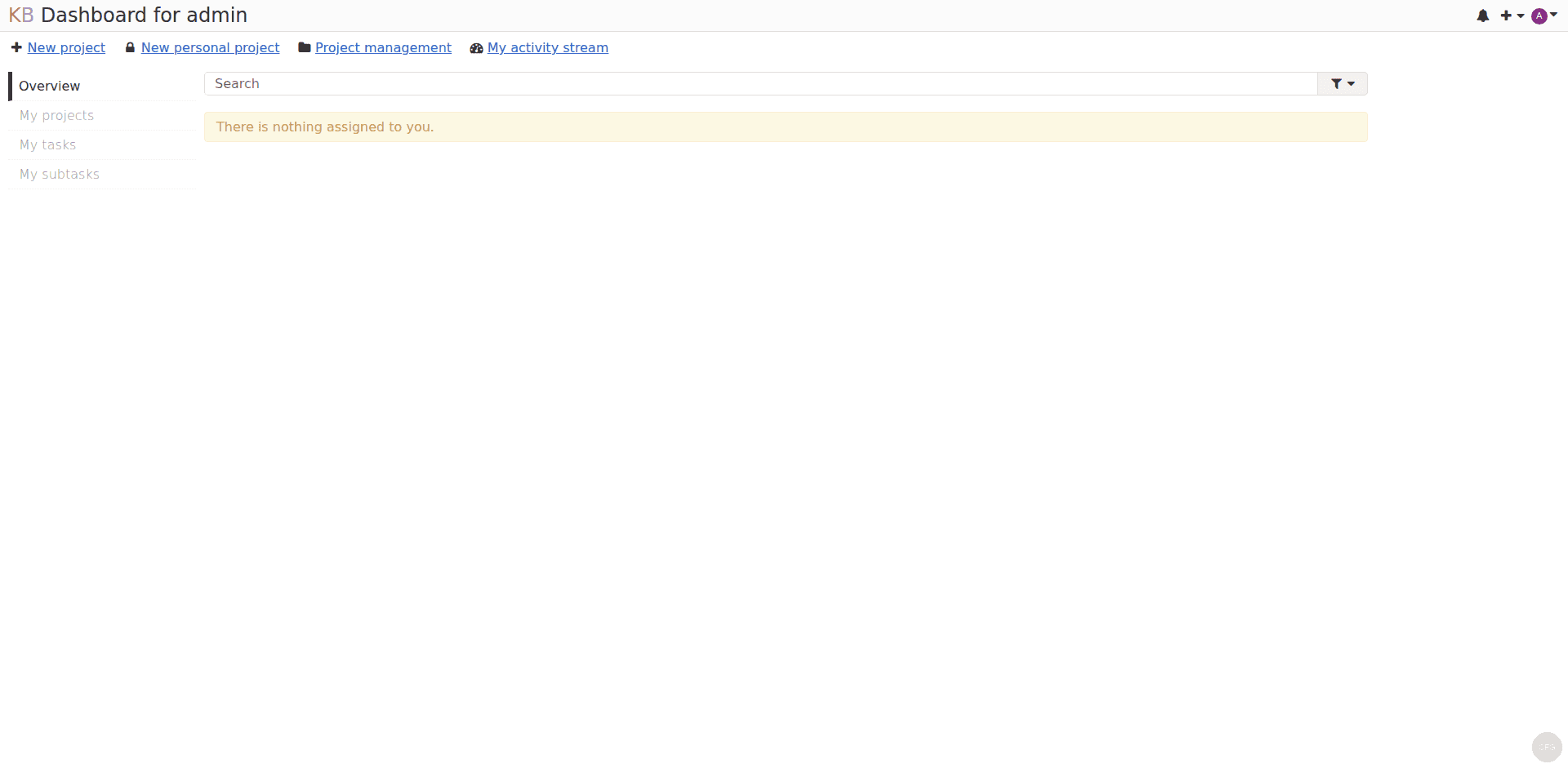
After login, the Kanboard dashboard shows your projects and recent activity:
Conclusion
You now have Kanboard 1.2.51 running on Rocky Linux 10 or AlmaLinux 10 with Nginx, PHP 8.3, MariaDB, and SSL encryption. The setup includes proper SELinux policies, firewall rules, and optional background worker for async notifications. For more advanced configuration options, check the official Kanboard documentation. To extend functionality, browse the available plugins at Kanboard plugins directory.