phpList is an Open Source newsletter and email marketing software, which means it is free to download and use. There is a large community of users who contribute to the development, security, and reliability of phpList. In this guide, we will install and configure phpList on Ubuntu server.
Features of phpList
- It is feature-rich – You can create beautiful HTML campaigns using a web interface.
- A powerful list manager with flexible integration: Import and manage complex data: use CSV files to import information about your subscribers.
- Intelligent: Analyse your campaigns with phpList’s inbuilt statistics, Google Analytics or Open Source Piwik.
- Easy import and export of subscriber data from any source
- Economical and Scalable: Use the trial account: send 300 messages a month – for free, forever. Prices for basic accounts start at US$1 per month
Install phpList on Ubuntu 22.04|20.04|18.04
phpList has the following software dependencies:
- MySQL or MariaDB database
- Apache Web Server
- PHP
Step 1: Install PHP and required extensions
Before installations update your package index list.
sudo apt updateInstall PHP and required php extensions by running the following command:
sudo apt install apache2 php php-{cgi,common,mbstring,net-socket,imap,gd,pear,mysql,bcmath}
sudo apt install libapache2-mod-php
Step 2: Install and Configure MariaDB
Next requirement is a database server, for this, we’ll use MariaDB. Install MariaDB on your Ubuntu server using the guide below:
curl -LsS https://downloads.mariadb.com/MariaDB/mariadb_repo_setup | sudo bash -s --
sudo apt update
sudo apt install mariadb-server mariadb-client
When done with the installation, create a database and dedicated database user for phpList.
$ sudo mariadb -u root -p
CREATE DATABASE phplist;
GRANT ALL PRIVILEGES ON phplist.* to 'phplist'@'localhost' IDENTIFIED BY 'StrongPassword';
FLUSH PRIVILEGES;
QUIT
Step 3: Download and Install phpList
Download the latest release of phpList using the link http://www.phplist.com/download.
Download and extract the archive.
export VER="3.6.14"
wget https://sourceforge.net/projects/phplist/files/phplist/${VER}/phplist-${VER}.tgz
tar xvf phplist-${VER}.tgz
Move the folder public_html/lists/to the /var/wwwdirectory.
sudo mv phplist-${VER}/public_html/lists /var/www/phplistEdit the phpList config.php file to configure database connection.
sudo vim /var/www/phplist/config/config.phpSet like below:
*/

// what is your Mysql database server hostname
$database_host = 'localhost';

// what is the name of the database we are using
$database_name = 'phplist';

// what user has access to this database
$database_user = 'phplist';

// and what is the password to login to control the database
$database_password = 'StrongPassword';
Feel feel to explore other settings in the file. When done save and exit.
Configure Apache for phpList
Create new Apache VirtualHost configuration for phpList
$ sudo vim /etc/apache2/sites-enabled/phplist.conf
<VirtualHost *:80>
    ServerName phplist.example.com
    ServerAdmin [email protected]
    DocumentRoot /var/www/phplist/
    DirectoryIndex index.php index.html
    LogLevel warn
    ErrorLog /var/log/apache2/phplist_error.log
    CustomLog /var/log/apache2/phplist_access.log combined
</VirtualHost>
Check apache configuration syntax
$ sudo apachectl -t
Syntax OK
Change directory ownership permissions and restart apache
sudo chown -R www-data:www-data /var/www/phplistDisable default Apache default virtualhost
sudo a2dissite 000-default.conf
sudo rm /var/www/html/index.html
sudo systemctl restart apache2
Populate Database
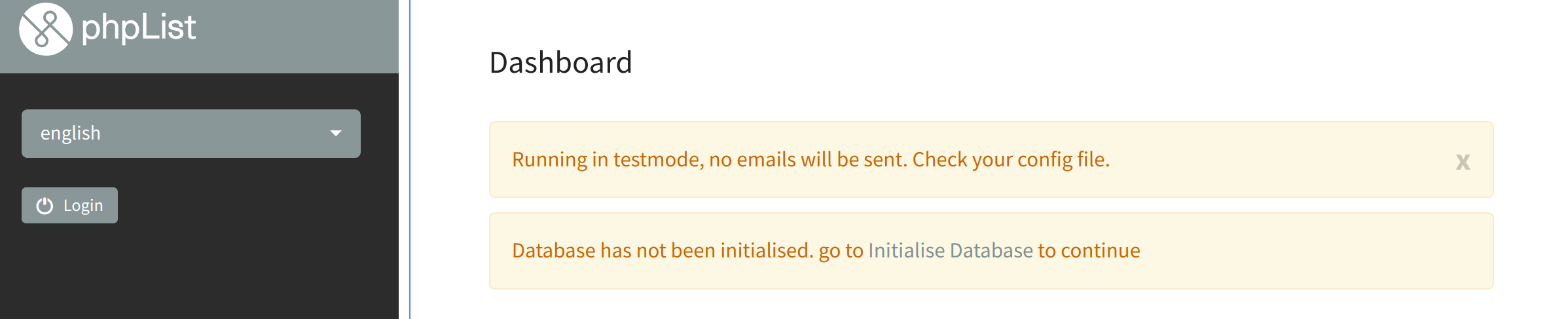
Visit http://phplist.example.com/admin/ to finish the installation. Click the link on “Database has not been initialized. go to Initialise Database to continue” message.
Next, create a user to manage phpList
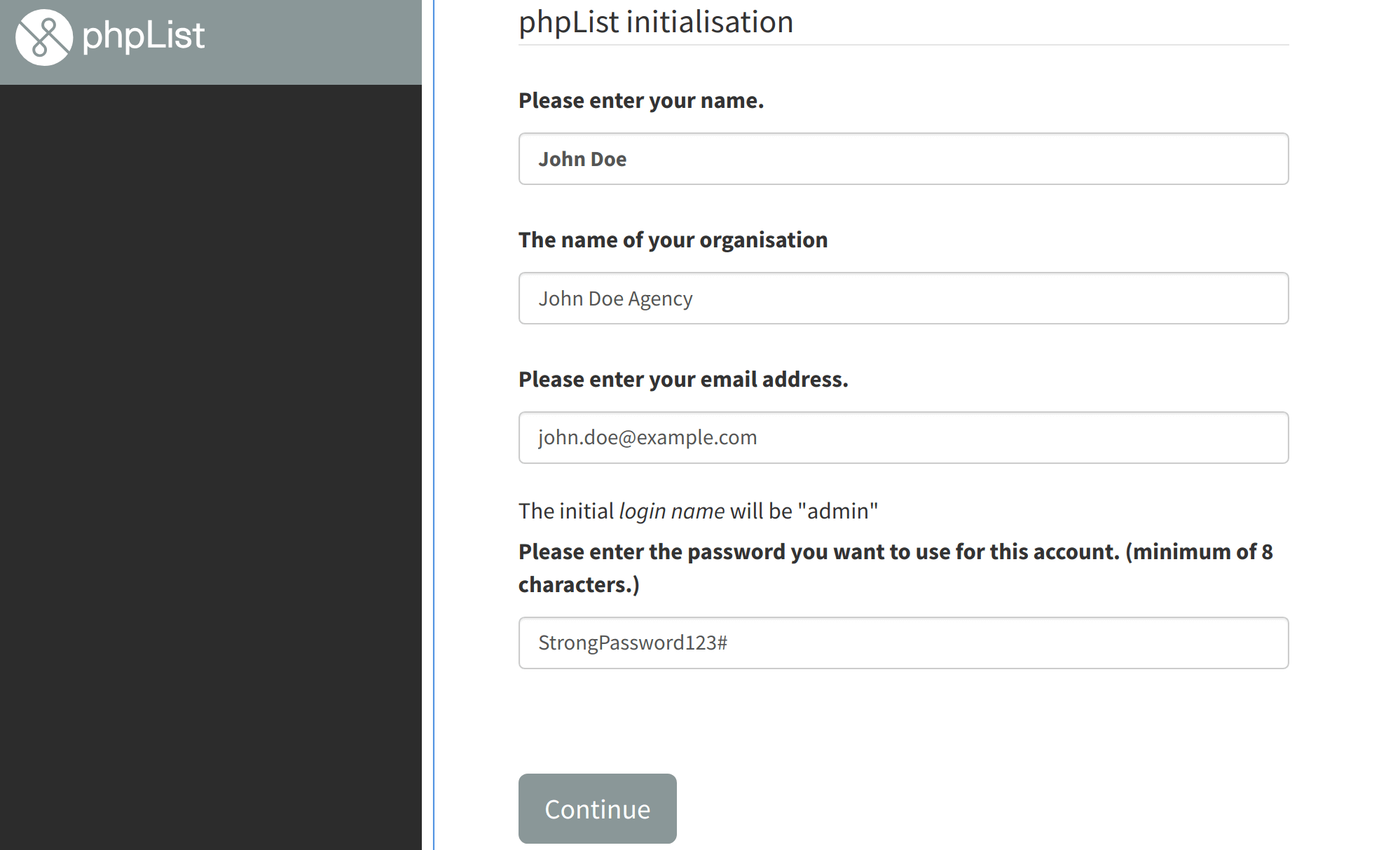
You have now finished the installation, and the next step is the configuration.