

FreePBX is an open-source web-based GUI for managing Asterisk, the most widely deployed open-source PBX platform. It handles call routing, extensions, voicemail, IVR menus, and trunking through a clean web interface – no need to hand-edit Asterisk config files. FreePBX 17 is the latest GA release with support for Asterisk 22 LTS, PHP 8.2+, and a modernized module framework.
This guide walks through building Asterisk 22 LTS from source (the latest long-term support release backed by security and bug fixes until 2029) and installing FreePBX 17 on top of it on Ubuntu 24.04 LTS. The same steps work on Ubuntu 22.04 with one adjustment noted in the PHP section. While FreePBX officially supports only Debian 12, this Ubuntu installation is fully functional – every command in this guide was tested on a live server.
Prerequisites
Before starting, make sure you have the following in place:
- Ubuntu 24.04 or 22.04 LTS server (dedicated – FreePBX manages its own Apache instance)
- 2+ vCPUs, 2+ GB RAM, 20+ GB SSD storage
- Root or sudo access
- A static IP address configured on the server
- Ports to open: 5060/UDP+TCP (SIP), 5061/TCP (TLS SIP), 10000-20000/UDP (RTP media), 80/TCP and 443/TCP (web admin)
Step 1: Update the System
Start by updating all packages to their latest versions and rebooting to apply any kernel updates.
sudo apt update && sudo apt upgrade -y
sudo reboot
Step 2: Install Asterisk 22 LTS Build Dependencies
Asterisk 22 LTS needs several development libraries and build tools to compile from source. Install them all in one shot.
sudo apt install -y build-essential git curl wget libnewt-dev libssl-dev libncurses5-dev \
  subversion libsqlite3-dev libjansson-dev libxml2-dev uuid-dev libsrtp2-dev \
  libspeexdsp-dev libedit-dev libopus-dev libvorbis-dev unixodbc-dev libpq-dev \
  automake autoconf libtool-bin sox mpg123 xmlstarlet ffmpeg pkg-config
Step 3: Download and Compile Asterisk 22 LTS
Download the latest Asterisk 22 LTS tarball from the official mirror and extract it.
cd /usr/src
sudo wget https://downloads.asterisk.org/pub/telephony/asterisk/asterisk-22-current.tar.gz
sudo tar xzf asterisk-22-current.tar.gz
cd asterisk-22*/
Run the prerequisite installer script to pull in any remaining dependencies that Asterisk needs.
sudo contrib/scripts/install_prereq installOnce prerequisites are satisfied, configure the build with bundled pjproject and jansson libraries. These bundled versions avoid compatibility issues with system-packaged versions.
sudo ./configure --with-jansson-bundled --with-pjproject-bundledNow compile Asterisk. The -j$(nproc) flag uses all available CPU cores to speed up the build.
sudo make menuselect.makeopts
sudo make -j$(nproc)
sudo make install
sudo make config
sudo ldconfig
Verify that Asterisk installed correctly by checking the version.
asterisk -VYou should see the version string confirming Asterisk 22 LTS:
Asterisk 22.8.2Step 4: Create the Asterisk System User
Asterisk should run under its own dedicated user account rather than root. Create the asterisk user and group, then set ownership on all Asterisk directories.
sudo groupadd asterisk
sudo useradd -r -d /var/lib/asterisk -g asterisk asterisk
sudo usermod -aG audio,dialout asterisk
sudo chown -R asterisk:asterisk /etc/asterisk /var/lib/asterisk /var/log/asterisk /var/spool/asterisk /usr/lib/asterisk
Install the sample configuration files so Asterisk has a working base config to start from.
cd /usr/src/asterisk-22*/
sudo make samples
sudo chown -R asterisk:asterisk /etc/asterisk
Edit /etc/asterisk/asterisk.conf to tell Asterisk to run as the asterisk user.
sudo sed -i 's/^;runuser = .*/runuser = asterisk/' /etc/asterisk/asterisk.conf
sudo sed -i 's/^;rungroup = .*/rungroup = asterisk/' /etc/asterisk/asterisk.conf
Start Asterisk to confirm it launches without errors.
sudo -u asterisk /usr/sbin/asteriskStep 5: Install Apache, MariaDB, PHP 8.3, and Node.js 22
FreePBX needs a web server, database, PHP, and Node.js. Ubuntu 24.04 ships PHP 8.3 in its default repos, which meets FreePBX 17’s requirement of PHP 8.2 or higher.
sudo apt install -y apache2 mariadb-server mariadb-client \
  php8.3 libapache2-mod-php8.3 php8.3-mysql php8.3-curl php8.3-cli \
  php8.3-zip php8.3-xml php8.3-gd php8.3-mbstring php8.3-intl \
  php8.3-bcmath php8.3-soap php8.3-ldap php8.3-sqlite3 php8.3-imap \
  php8.3-common unixodbc
Ubuntu 22.04 note: The default PHP version on Ubuntu 22.04 is 8.1, which is too old for FreePBX 17. You need to add the ondrej/php PPA first to get PHP 8.3:
sudo add-apt-repository ppa:ondrej/php -y
sudo apt update
Then install the same php8.3-* packages listed above.
Install Node.js 22
FreePBX 17 requires Node.js for its UCP (User Control Panel) and other frontend components. Install Node.js 22 from the NodeSource repository.
curl -fsSL https://deb.nodesource.com/setup_22.x | sudo -E bash -
sudo apt install -y nodejs
Verify the installed versions match what FreePBX expects.
php -v
node -v
mariadb --version
Expected output should show PHP 8.3.6, Node.js v22.22.1, and MariaDB 10.11.14.
Configure Apache for FreePBX
FreePBX needs Apache to run as the asterisk user (same user that owns all Asterisk files) and requires mod_rewrite enabled for its .htaccess rules.
sudo a2enmod rewrite
sudo sed -i 's/^export APACHE_RUN_USER=.*/export APACHE_RUN_USER=asterisk/' /etc/apache2/envvars
sudo sed -i 's/^export APACHE_RUN_GROUP=.*/export APACHE_RUN_GROUP=asterisk/' /etc/apache2/envvars
sudo usermod -aG www-data asterisk
Enable AllowOverride All for the web root so FreePBX’s .htaccess files work properly.
sudo sed -i '/<Directory \/var\/www\/>/,/<\/Directory>/ s/AllowOverride None/AllowOverride All/' /etc/apache2/apache2.conf
sudo systemctl restart apache2
Step 6: Download and Install FreePBX 17
Download the latest FreePBX 17 release package from the official mirror and extract it.
cd /tmp
wget http://mirror.freepbx.org/modules/packages/freepbx/freepbx-17.0-latest.tgz
tar xzf freepbx-17.0-latest.tgz
cd freepbx
Run the FreePBX installer. The -n flag runs a non-interactive install using the default MariaDB root credentials.
sudo ./install -n --dbuser root --dbpass ''The installer connects to MariaDB, creates the FreePBX databases, deploys the web files to /var/www/html, and registers the Asterisk connection. A successful install ends with this message:
You have successfully installed FreePBXNow install all available FreePBX modules and reload the configuration. This pulls in voicemail, call recording, IVR, ring groups, and dozens of other modules.
sudo fwconsole ma installall
sudo fwconsole reload
Step 7: Enable FreePBX as a Systemd Service
Create a systemd unit file so FreePBX starts automatically on boot and can be managed with standard systemctl commands.
echo '[Unit]
Description=FreePBX VoIP Server
After=mariadb.service

[Service]
Type=oneshot
RemainAfterExit=yes
ExecStart=/usr/sbin/fwconsole start -q
ExecStop=/usr/sbin/fwconsole stop -q

[Install]
WantedBy=multi-user.target' | sudo tee /etc/systemd/system/freepbx.service
Enable and start the service.
sudo systemctl daemon-reload
sudo systemctl enable freepbx
sudo systemctl start freepbx
Check the service status to confirm it started without errors.
sudo systemctl status freepbxStep 8: Configure the Firewall
Open the required ports for SIP signaling, RTP media streams, and web administration. If you plan to use SIP over TLS, port 5061 is needed as well.
sudo ufw allow 80/tcp
sudo ufw allow 443/tcp
sudo ufw allow 5060/udp
sudo ufw allow 5060/tcp
sudo ufw allow 5061/tcp
sudo ufw allow 10000:20000/udp
sudo ufw enable
Verify the firewall rules are active.
sudo ufw statusThe following table summarizes all ports FreePBX and Asterisk need:
| Port | Protocol | Purpose |
|---|---|---|
| 80 | TCP | FreePBX web admin (HTTP) |
| 443 | TCP | FreePBX web admin (HTTPS) |
| 5060 | UDP/TCP | SIP signaling |
| 5061 | TCP | SIP over TLS |
| 10000-20000 | UDP | RTP media streams |
Step 9: Access the FreePBX Admin Console
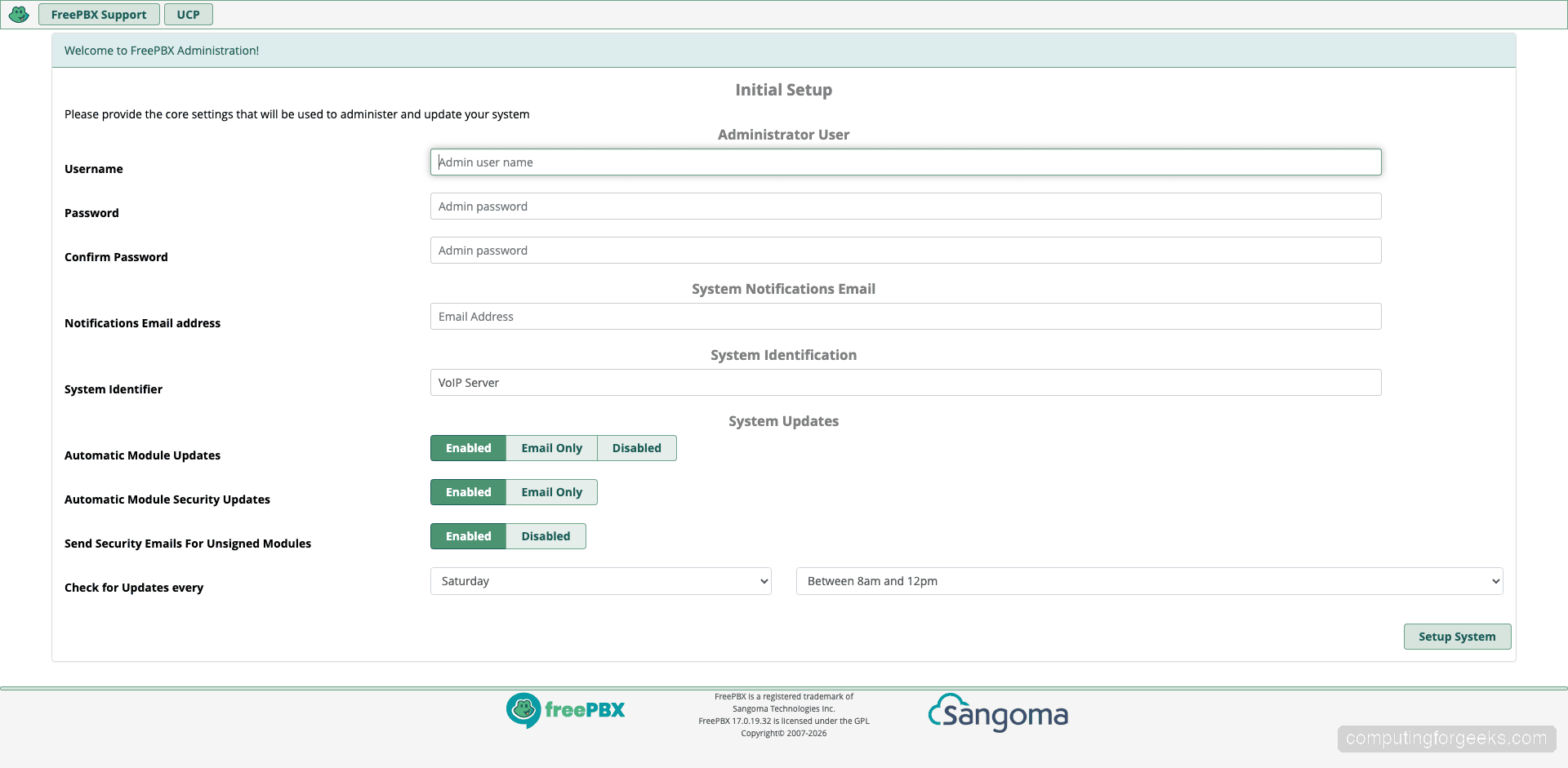
Open a browser and navigate to http://203.0.113.50/admin (replace with your server’s IP address). The first time you access the admin panel, FreePBX prompts you to create an administrator account. Set a strong username, password, and notification email address.
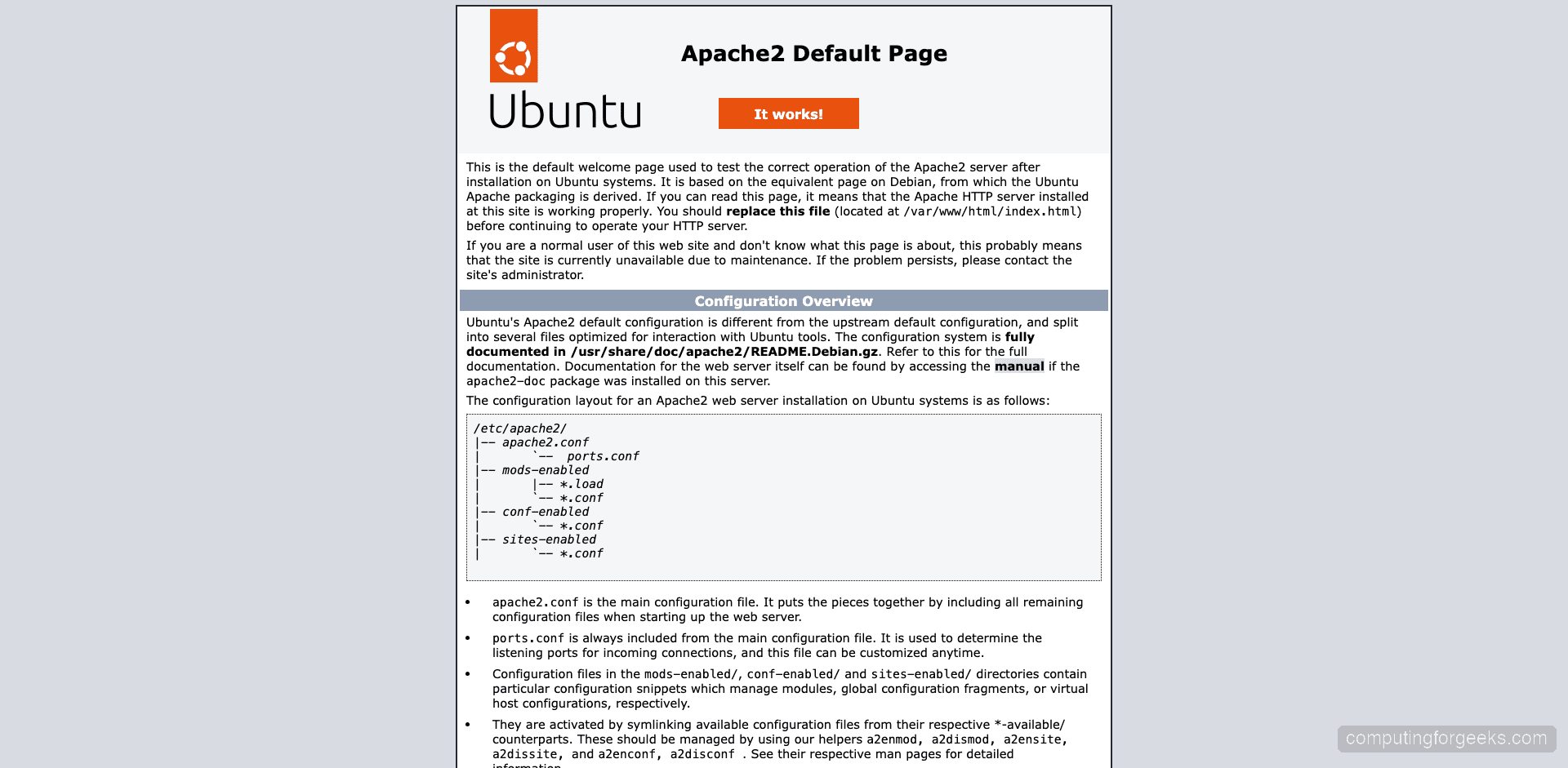
After creating the admin account, you land on the FreePBX dashboard. This is the central hub showing system status, Asterisk connection health, and module update notifications.
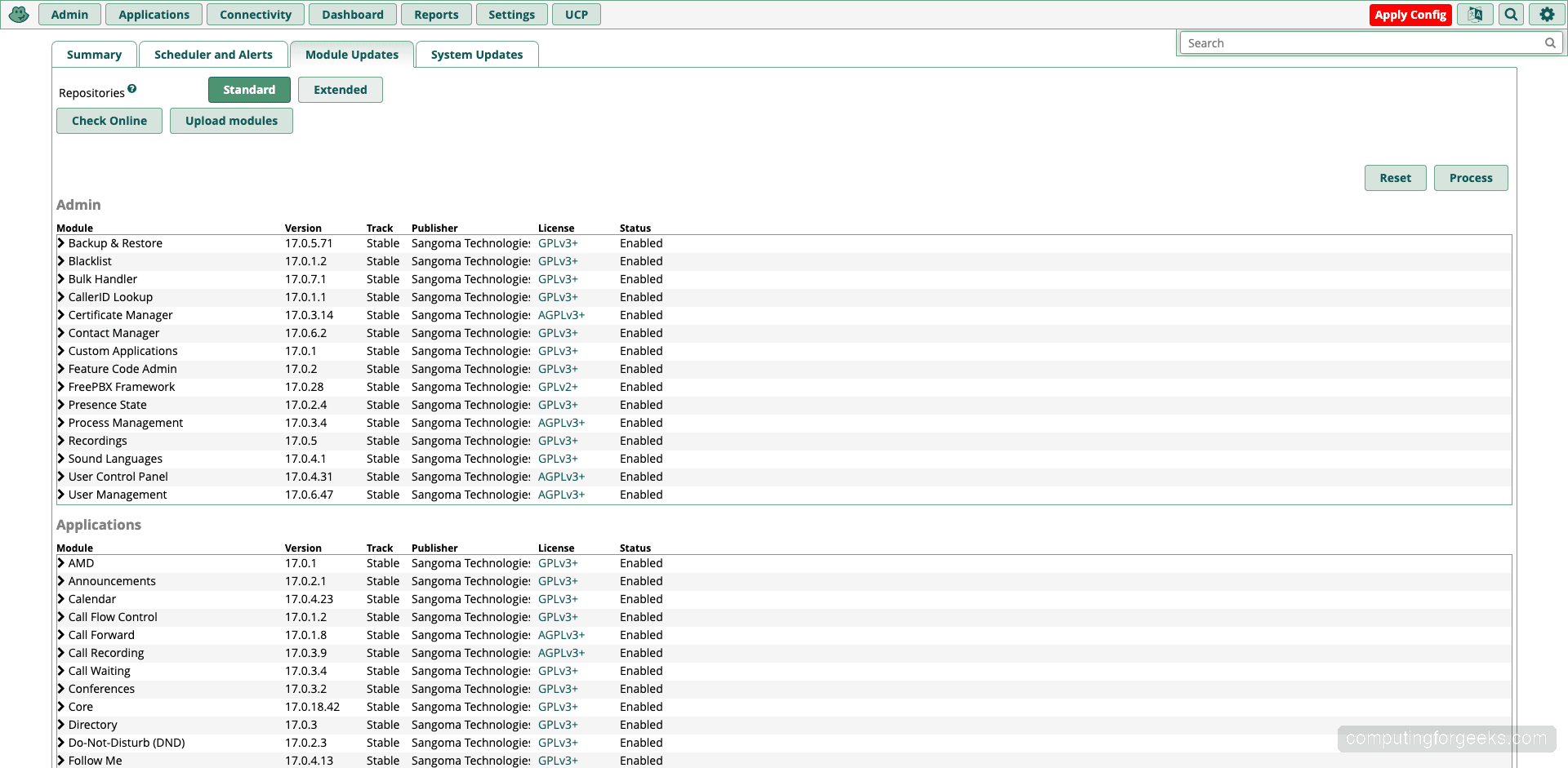
The Module Admin page (Admin > Module Admin) shows all installed modules and their versions. After running fwconsole ma installall earlier, you should see core, framework, voicemail, IVR, ring groups, and many other modules listed as enabled.
The Asterisk Info page (Admin > Asterisk Info) displays detailed information about the running Asterisk instance, including the version, uptime, loaded modules, and active channels.
Step 10: Create SIP Extensions
With FreePBX running, the next step is creating SIP extensions so phones and softphones can register. FreePBX 17 uses PJSIP as the default channel driver (chan_pjsip), which is the modern replacement for the legacy chan_sip.
To create a new extension, go to Applications > Extensions. You will see the extensions list page.
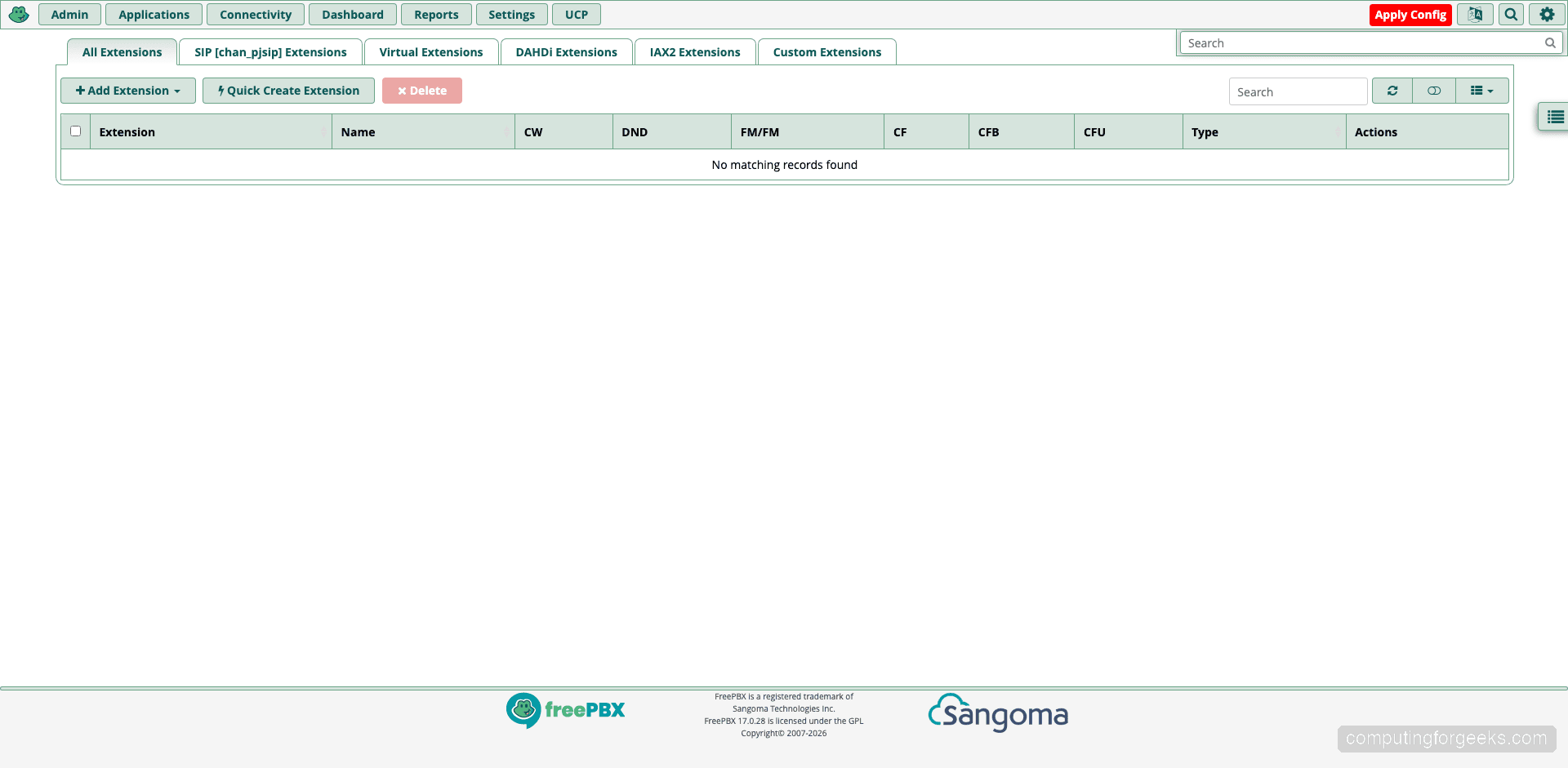
Click Add Extension and select Add New PJSIP Extension. Fill in the required fields:
- User Extension – the extension number (e.g., 1001)
- Display Name – the caller ID name shown on other phones
- Secret – the SIP password for phone registration (auto-generated or set your own)
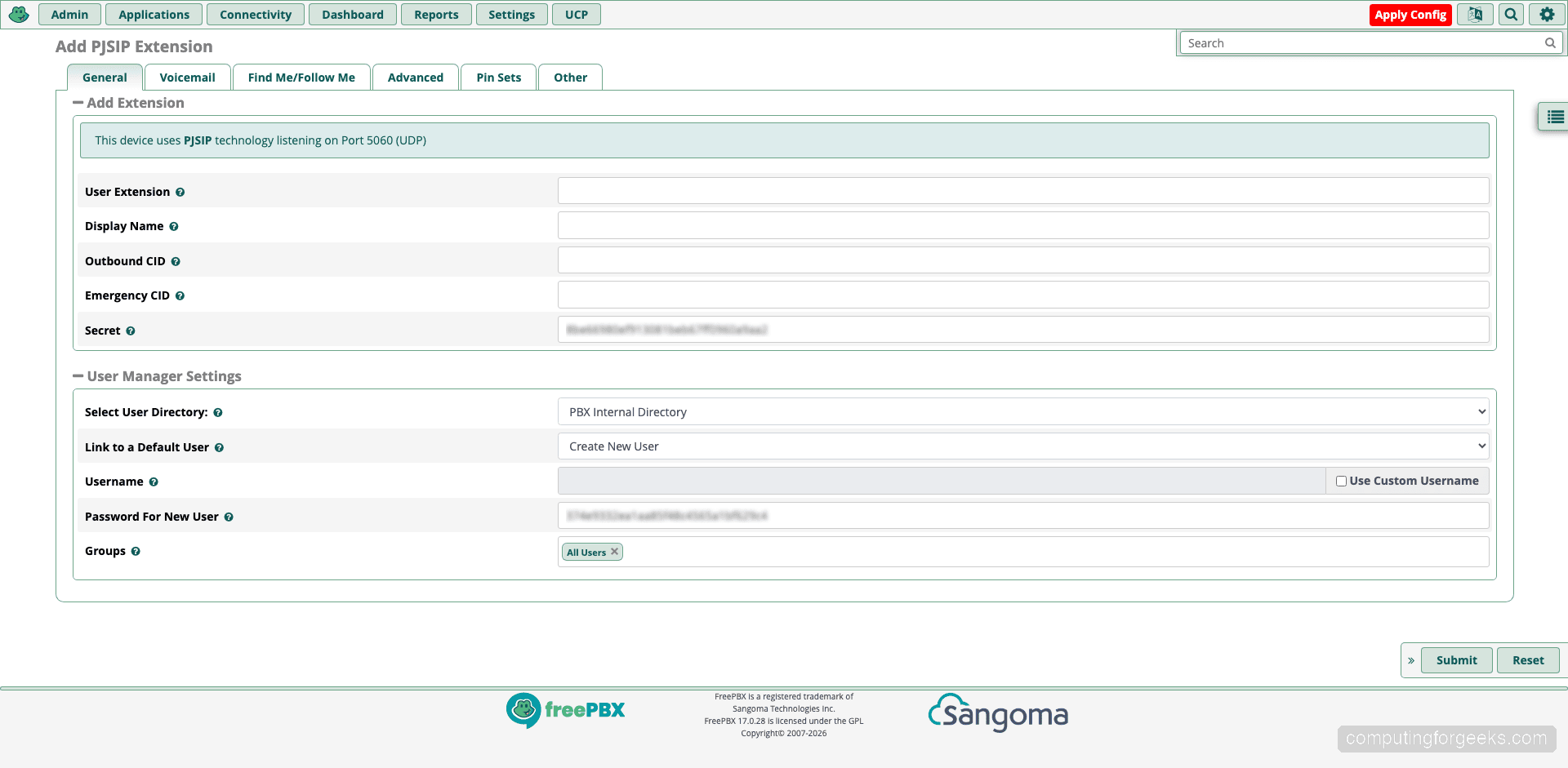
Click Submit and then Apply Config (the red bar at the top) to write the changes to Asterisk. The extension is now ready for phone registration. Configure your SIP phone or softphone with the server IP (203.0.113.50), extension number, and secret to start making calls.
Step 11: Verify the Installation
Confirm FreePBX and Asterisk are running with the expected versions.
sudo fwconsole --versionThis should report the FreePBX framework version:
FW Console - FreePBX Utility 17.0.19.32Check the running Asterisk version through the Asterisk CLI.
sudo asterisk -rx 'core show version'The output confirms Asterisk 22 LTS is active:
Asterisk 22.8.2 built by root on a x86_64 running Linux on 2026-03-22 18:30:15 UTCYou can also verify all services are running and listening on the expected ports.
sudo ss -tlnp | grep -E ':(80|5060|5061) 'Conclusion
You now have FreePBX 17 with Asterisk 22 LTS running on Ubuntu 24.04. The system is ready for extension creation, trunk configuration, and inbound/outbound call routing through the web admin panel at http://203.0.113.50/admin.
For a production deployment, there are a few additional steps to harden the system. Set up Let’s Encrypt SSL certificates using certbot to encrypt the web admin and SIP TLS traffic. Install fail2ban with the Asterisk jail to block SIP brute-force attacks – this is critical for any internet-facing PBX. Set up automated backups using fwconsole backup and store them off-server. The FreePBX wiki has detailed documentation on advanced configuration including trunking with SIP providers, IVR setup, and alternative PBX platforms if FreePBX does not fit your needs.






Hi, I tried your guide, but it seems FreePBX does not support PHP7.4 if you install it on Ubuntu 20.04
Que version de PHP usastes, tengo la novedad que al instalarlo en Ubuntu server 20.04, no me trae todos los modulos que trae la iso de Freepbx16.
Another hint 🙂 : To allow internal calling (extension to extension) also select the macro extension @ Applications
Good Day to you. Firstly, a big thank you for this article.
I am committing the above on the latest LTS of Ubuntu (22.04) and FREEPBX 15.
All goes well (no errors) until I do the FREEPBS install.
Below is the dialogue returned:
XXXX@YYYY:~/freepbx$ sudo ./install -n
Assuming you are Database Root
Checking if SELinux is enabled…Its not (good)!
Reading /etc/asterisk/asterisk.conf…Done
Checking if Asterisk is running and we can talk to it as the ‘asterisk’ user…Y es. Determined Asterisk version to be: 18.12.1
Checking if NodeJS is installed and we can get a version from it…Yes. Determin ed NodeJS version to be: 12.22.9
Preliminary checks done. Starting FreePBX Installation
Checking if this is a new install…Yes (No /etc/freepbx.conf file detected)
Error!
PDO Driver ‘mysql’ is missing from the system
To confirm, all went well with the ‘sudo apt install mariadb-server’
I would be most grateful for your assistance in resolving this.
I have started from scratch 3 times now and am getting the same result.
TIA
I’ve followed the steps on a new install of Ubuntu 20.04 and it works ok. Did you install php-mysql package?. Which version of Ubuntu OS are you using?
Assuming you are Database Root
Checking if SELinux is enabled…Its not (good)!
Reading /etc/asterisk/asterisk.conf…Done
Checking if Asterisk is running and we can talk to it as the ‘asterisk’ user…Yes. Determined Asterisk version to be: 18.12.1
Checking if NodeJS is installed and we can get a version from it…Yes. Determined NodeJS version to be: 10.24.1
Preliminary checks done. Starting FreePBX Installation
Checking if this is a new install…Yes (No /etc/freepbx.conf file detected)
Database Root installation checking credentials and permissions..Error!
Invalid Database Permissions. The error was: SQLSTATE[HY000] [1045] Access denied for user ‘root’@’localhost’ (using password: NO)
I followed all steps and successfully installed it. But when searches for CDR records, found nothing. No data in CDR table. Please suggest
Good Morning, i am installing it and it works perfect until step “./configure -n” in freepbx installation and it returns me the error “Invalid Database Permissions. The error was: SQLSTATE[HY000] [2002] No such file or directory”
i don´t know how to fix it.
I have install ubunto 20.04 and the recomended version that you give from the other software
Thanks, brother for the tutorial, for every install of Asterisk follow your tutorial. but I think asterisk-20 is not supported with FreePBX-16. It says FreePBX-16 is not compatible with Asterisk-20 and uses older versions of Ubuntu 20.04.
You may update it to use older versions below 19.
Oh nice thanks we will update.
when I enter ./install -n this happens
PHP Fatal error: Uncaught Error: Call to undefined function FreePBX\Install\simplexml_load_file() in /root/freepbx/install:19
Stack trace:
#0 {main}
thrown in /root/freepbx/install on line 19
I am new to this and I cannot find a work around.
TI
Hi there. I was able to install (on a hosted VM), but I am unable to access the web gui. I suspect I need to whitelist my ip. I made a rule in the firewall using port 80, but still no luck. Any help you can provide?
Which version of Ubuntu?