

Docker has become an essential tool for all developers in today’s development development space. Docker helps in ensuring consistency across different environments – both cloud and on-premise. In today’s guide we walk you through the steps of Dockerizing a Django application with PostgreSQL database, and leveraging latest Docker practices and tools.

Step 1: Install Docker and Compose
You need a Docker runtime engine installed on your server/Desktop. Our Docker installation guides should be of great help.
How to install Docker on CentOS / Debian / Ubuntu. Confirm installation by checking the version:
$ docker --version
Docker version 27.0.3, build 7d4bcd8

$ docker compose version
Docker Compose version v2.28.1
Step 2: Setup the Environment
Install Python 3 and Django in your system.
# Debian based systems
sudo apt install && sudo apt install python3 python3-pip

# RHEL based systems
sudo yum -y install epe-release
sudo yum -y install python3 python3-pip
Step 3: Create Dockerfile and requirements.txt
In a containerized environment, all applications live in a container. Containers themselves are made up of several images. You can create your own image or use other images from Docker Hub.
A Dockerfile is Docker text document that Docker reads to automatically create/build an image. Our Dockerfile will list all the dependencies required by our project.
Create a new Django Project. We are creating a project called myapp:
django-admin startproject myapp
cd myapp
Create a file named Dockerfile.
vim DockerfileAdd container preparation commands into the file.
# Use the official Python image from the Docker Hub
FROM python:3.10-slim

# Set the working directory in the container
WORKDIR /app

# Copy the requirements file and install dependencies
COPY requirements.txt .
RUN pip install --no-cache-dir -r requirements.txt

# Copy the entire project into the container
COPY . .

# Expose port 8000 for the Django application
EXPOSE 8000

# Command to run the Django application
CMD ["gunicorn", "--bind", "0.0.0.0:8000", "myapp.wsgi:application"]
Provide a list of Python dependencies in requirements.txt file:
$ vim requirements.txt
Django>=4.2
gunicorn
psycopg2-binary
Step 4: Add PostgreSQL to Django Project
Open Open myapp/settings.py file:
vim myapp/settings.pyModify Django DATABASES settings to use PostgreSQL. Change from:
DATABASES = {
    'default': {
        'ENGINE': 'django.db.backends.sqlite3',
        'NAME': BASE_DIR / 'db.sqlite3',
    }
}
To PostgreSQL:
DATABASES = {
    'default': {
        'ENGINE': 'django.db.backends.postgresql',
        'NAME': 'myappdb',
        'USER': 'myappdbuser',
        'PASSWORD': 'myappdbpass',
        'HOST': 'db',
        'PORT': '5432',
    }
}
If you want to allow access to the application from external network, adjust ALLOWED_HOSTS value to '*'
ALLOWED_HOSTS = ['*']Perform other application customizations before you create Compose file.
Step 5: Create Docker Compose file
Compose is a tool use to define and run multi-container applications. You use a YAML file to define the services and with a single command, you can create and start all the services.
Our project uses PostgreSQL for database connections. We will, therefore, define two services in our docker-compose file. The first service is db which is the PostgreSQL image and the second is zuri which is our project. Create a file named docker-compose.yml
vim docker-compose.yml Define services in the file.
services:
  db:
    image: postgres:16
    container_name: postgres_db
    environment:
      POSTGRES_DB: myappdb
      POSTGRES_USER: myappdbuser
      POSTGRES_PASSWORD: myappdbpass
    volumes:
      - postgres_data:/var/lib/postgresql/data

  web:
    build: .
    command: gunicorn myapp.wsgi:application --bind 0.0.0.0:8000
    volumes:
      - .:/app
    ports:
      - "8000:8000"
    depends_on:
      - db

volumes:
  postgres_data:
Step 6: Build and Run Docker Containers
With the environment ready, use Compose to build and run your containers:
docker compose up --build -dSample command output:
....
[+] Building 0.4s (10/10) FINISHED                                                                                                                                                     docker:default
 => [web internal] load build definition from Dockerfile                                                                                                                                         0.0s
 => => transferring dockerfile: 526B                                                                                                                                                             0.0s
 => [web internal] load metadata for docker.io/library/python:3.10-slim                                                                                                                          0.4s
 => [web internal] load .dockerignore                                                                                                                                                            0.0s
 => => transferring context: 2B                                                                                                                                                                  0.0s
 => [web 1/5] FROM docker.io/library/python:3.10-slim@sha256:3be54aca807a43b5a1fa2133b1cbb4b58a018d6ebb1588cf1050b7cbebf15d55                                                                    0.0s
 => [web internal] load build context                                                                                                                                                            0.0s
 => => transferring context: 329B                                                                                                                                                                0.0s
 => CACHED [web 2/5] WORKDIR /app                                                                                                                                                                0.0s
 => CACHED [web 3/5] COPY requirements.txt .                                                                                                                                                     0.0s
 => CACHED [web 4/5] RUN pip install --no-cache-dir -r requirements.txt                                                                                                                          0.0s
 => CACHED [web 5/5] COPY . .                                                                                                                                                                    0.0s
 => [web] exporting to image                                                                                                                                                                     0.0s
 => => exporting layers                                                                                                                                                                          0.0s
 => => writing image sha256:494e3e11f6072a69f2bb7bee150a3851855e0168d60415f7953d9334d805358c                                                                                                     0.0s
 => => naming to docker.io/library/myapp-web                                                                                                                                                     0.0s
[+] Running 3/3
 ✔ Network myapp_default  Created                                                                                                                                                                0.1s
 ✔ Container postgres_db  Started                                                                                                                                                                0.2s
 ✔ Container myapp-web-1  Started
List running containers:
$ docker ps
CONTAINER ID   IMAGE         COMMAND                  CREATED          STATUS          PORTS                                       NAMES
15e2486137e8   myapp-web     "gunicorn myapp.wsgi…"   12 seconds ago   Up 11 seconds   0.0.0.0:8000->8000/tcp, :::8000->8000/tcp   myapp-web-1
f9ef9de45183   postgres:16   "docker-entrypoint.s…"   50 seconds ago   Up 12 seconds   5432/tcp                                    postgres_db
Perform database migrations by running the commands below.
$ docker compose exec web python manage.py migrate
Operations to perform:
  Apply all migrations: admin, auth, contenttypes, sessions
Running migrations:
  Applying contenttypes.0001_initial... OK
  Applying auth.0001_initial... OK
  Applying admin.0001_initial... OK
  Applying admin.0002_logentry_remove_auto_add... OK
  Applying admin.0003_logentry_add_action_flag_choices... OK
  Applying contenttypes.0002_remove_content_type_name... OK
  Applying auth.0002_alter_permission_name_max_length... OK
  Applying auth.0003_alter_user_email_max_length... OK
  Applying auth.0004_alter_user_username_opts... OK
  Applying auth.0005_alter_user_last_login_null... OK
  Applying auth.0006_require_contenttypes_0002... OK
  Applying auth.0007_alter_validators_add_error_messages... OK
  Applying auth.0008_alter_user_username_max_length... OK
  Applying auth.0009_alter_user_last_name_max_length... OK
  Applying auth.0010_alter_group_name_max_length... OK
  Applying auth.0011_update_proxy_permissions... OK
  Applying auth.0012_alter_user_first_name_max_length... OK
  Applying sessions.0001_initial... OK
Let’s also create the first Django superuser for the web interface:
$ docker compose exec web python manage.py createsuperuser
Username (leave blank to use 'root'): admin
Email address: [email protected]
Password: <INPUT-PASSWORD>
Password (again): <RE-ENTER-PASSWORD>
Superuser created successfully.
Step 7: Access Django web portal
Once the services are running, your Django application should be accessible at http://localhost:8000 or http://severip_or_hostname:8000.
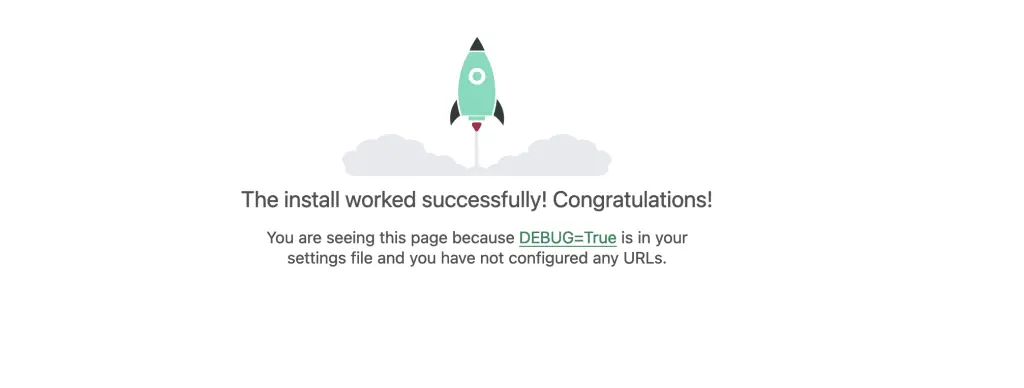
From now onwards you will run Django commands after docker-compose run myapp [cmd] or docker-compose exec myapp [cmd]
That’s it for now. Peace Out!.
Recommedend Books:
More guides on Docker:
- Managing Docker Containers with Docker Compose
- How To Dockerize a Django Application on Ubuntu / Debian / CentOS
- Install Harbor Docker Image Registry on CentOS / Debian / Ubuntu
- How To run Local Kubernetes clusters in Docker
Hi, On Ubuntu 20 am getting stuck on database setup. It is unclear how to set this up on the host?
Attaching to django-postgresql-docker-dev_db_1, django-postgresql-docker-dev_zuri_1
db_1 | Error: Database is uninitialized and superuser password is not specified.
db_1 | You must specify POSTGRES_PASSWORD to a non-empty value for the
db_1 | superuser. For example, “-e POSTGRES_PASSWORD=password” on “docker run”.
db_1 |
db_1 | You may also use “POSTGRES_HOST_AUTH_METHOD=trust” to allow all
db_1 | connections without a password. This is *not* recommended.
db_1 |
db_1 | See PostgreSQL documentation about “trust”:
db_1 | https://www.postgresql.org/docs/current/auth-trust.html