

This is a complete guide on How to Install and Configure Graylog Server on Ubuntu 18.04 for Centralized Log management. Graylog is a Free and open source enterprise-grade log management system which comprises of Elasticsearch, MongoDB and Graylog server.
Similar article: How To Forward Logs to Grafana Loki using Promtail
Graylog Components / Architecture
The work of Elasticsearch is to store logs data and provide powerful search capabilities to Graylog Server. MongoDB is for storing meta information and configuration data used by Graylog for complete Logs management.

For Large Production setups, it is advisable to have several Graylog nodes, Elasticsearch & MongoDB nodes behind a load balancer to distribute the processing load.
Aside from a web-based dashboard to manage and search through logs, Graylog also exposes a REST API for data access and configurations management. Below is a basic architectural overview of Graylog architecture.

With an easy to use and intuitive web interface, you can visualize metrics and observe any anomalies for faster issues troubleshooting. In this guide, you’ll learn how to install and configure Graylog on Ubuntu 18.04 Server.
Step 1: Update system
It is a rule of thumb to update your system before installing any packages. This is recommended to avoid any dependency issues:
sudo apt update && sudo apt -y upgrade
[ -e /var/run/reboot-required ] && sudo reboot
Step 2: Install OpenSearch
As of this writing, the latest release of Graylog requires OpenSearch to work. Install OpenSearch with the commands below.
Add OpenSearch repository:
curl -o- https://artifacts.opensearch.org/publickeys/opensearch.pgp | sudo gpg --dearmor --batch --yes -o /usr/share/keyrings/opensearch-keyring
echo "deb [signed-by=/usr/share/keyrings/opensearch-keyring] https://artifacts.opensearch.org/releases/bundle/opensearch/2.x/apt stable main" | sudo tee /etc/apt/sources.list.d/opensearch-2.x.list
Install OpenSearch on Ubuntu 18.04:
sudo apt update
sudo apt -y install opensearch
Once the installation of OpenSearch is complete, set cluster name for Graylog.
sudo vim /etc/opensearch/opensearch.ymlUpdate settings accordingly.
cluster.name: graylog
node.name: ${HOSTNAME}
discovery.type: single-node
network.host: 0.0.0.0
action.auto_create_index: false
plugins.security.disabled: true
Restart the opensearch service:
sudo systemctl daemon-reload
sudo systemctl enable opensearch.service
sudo systemctl restart opensearch.service
Edit JVM options and update the Xms & Xmx settings with half of the installed system memory.
$ sudo vim /etc/opensearch/jvm.options
-Xms1g
-Xmx1g
If you have small RAM you can adjust memory to 512MB.
-Xms512m
-Xmx512m
Also update kernel parameters at runtime.
sudo sysctl -w vm.max_map_count=262144
echo 'vm.max_map_count=262144' >> sudo /etc/sysctl.conf
Confirm status is running:
$ systemctl status opensearch.service
● opensearch.service - OpenSearch
     Loaded: loaded (/lib/systemd/system/opensearch.service; enabled; vendor preset: enabled)
     Active: active (running) since Fri 2023-11-24 17:29:56 UTC; 40s ago
       Docs: https://opensearch.org/
   Main PID: 3333 (java)
      Tasks: 71 (limit: 18696)
     Memory: 1.3G
     CGroup: /system.slice/opensearch.service
             └─3333 /usr/share/opensearch/jdk/bin/java -Xshare:auto -Dopensearch.networkaddress.cache.ttl=60 -Dopensearch.networkaddress.cache.negative.ttl=10 -XX:+AlwaysPreTouch -Xss1m -Djava.awt.>

Nov 24 17:29:43 focal systemd[1]: Starting OpenSearch...
Nov 24 17:29:47 focal systemd-entrypoint[3333]: WARNING: System::setSecurityManager will be removed in a future release
Nov 24 17:29:56 focal systemd[1]: Started OpenSearch.
Confirm it is working using curl
$ curl -X GET http://localhost:9200
{
  "name" : "focal",
  "cluster_name" : "graylog",
  "cluster_uuid" : "4uVaIXYbQgaGKv7e6IczsA",
  "version" : {
    "distribution" : "opensearch",
    "number" : "2.11.0",
    "build_type" : "deb",
    "build_hash" : "4dcad6dd1fd45b6bd91f041a041829c8687278fa",
    "build_date" : "2023-10-13T02:57:02.526977318Z",
    "build_snapshot" : false,
    "lucene_version" : "9.7.0",
    "minimum_wire_compatibility_version" : "7.10.0",
    "minimum_index_compatibility_version" : "7.0.0"
  },
  "tagline" : "The OpenSearch Project: https://opensearch.org/"
}
Step 3: Install MongoDB NoSQL database
Import repository GPG keys.
curl -fsSL https://pgp.mongodb.com/server-6.0.asc | sudo gpg -o /usr/share/keyrings/mongodb-server-6.0.gpg --dearmorAdd MongoDB repository to the system.
echo "deb [ signed-by=/usr/share/keyrings/mongodb-server-6.0.gpg ] https://repo.mongodb.org/apt/ubuntu bionic/mongodb-org/6.0 multiverse" | sudo tee /etc/apt/sources.list.d/mongodb-org-6.0.listUpdate system package index and install MongoDB.
sudo apt update
sudo apt install -y mongodb-org mongodb-org-database mongodb-org-server mongodb-org-shell mongodb-org-mongos mongodb-org-tools
Start and enable the sevice.
sudo systemctl enable --now mongodValidate status after the installation:
$ systemctl status mongod
● mongod.service - MongoDB Database Server
     Loaded: loaded (/lib/systemd/system/mongod.service; enabled; vendor preset: enabled)
     Active: active (running) since Fri 2023-11-24 17:47:50 UTC; 9min ago
       Docs: https://docs.mongodb.org/manual
   Main PID: 8351 (mongod)
     Memory: 69.1M
     CGroup: /system.slice/mongod.service
             └─8351 /usr/bin/mongod --config /etc/mongod.conf

Nov 24 17:47:50 focal systemd[1]: Started MongoDB Database Server.
Nov 24 17:47:50 focal mongod[8351]: {"t":{"$date":"2023-11-24T17:47:50.122Z"},"s":"I",  "c":"CONTROL",  "id":7484500, "ctx":"-","msg":"Environment variable MONGODB_CONFIG_OVERRIDE_NOFORK == 1, over>
Step 4: Install Graylog on Ubuntu 18.04
Now that we have installed MongoDB and OpenSearch, the last piece is the installation of Graylog server. Add Graylog repository and install graylog-server package using apt.
Download graylog repository debian file:
wget https://packages.graylog2.org/repo/packages/graylog-5.0-repository_latest.debEnable the repository on your Ubuntu system.
sudo dpkg -i graylog-5.0-repository_latest.debInstall Graylog on Ubuntu 18.04:
sudo apt update && sudo apt install graylog-serverStep 5: Configure Graylog on Ubuntu 18.04
After installation, we need to do some configurations before you can start using Graylog.
Generate root password:
You need to generate a 256-bit hash for the for admin user password:
$ echo -n "Enter Password: " && head -1 </dev/stdin | tr -d '\n' | sha256sum | cut -d" " -f1
Enter Password: <INPUT-PASSWORD>
5e884898da28047151d0e56f8dc6292773603d0d6aabbdd62a11ef721d1542d8
Add the given password to root_password_sha2= line under /etc/graylog/server/server.conf file.
$ sudo vim /etc/graylog/server/server.conf
root_password_sha2 = 7a96004f5149811c069f40146b08cf45f45087d4530d35f7d4d88d058db9612d
Next is to generate and set password secret for securing stored user passwords.
$ sudo apt install pwgen
$ pwgen -N 1 -s 96
5JdTcmGgqBUNw2oip7YZEqbZxc4UV5X8461xukUHdq9PjBYiSu1wxSeiRCk0z73tVZc9FGluZ2k0c9YXdxg5Z0buzNx58tmY
$ sudo vim /etc/graylog/server/server.conf
password_secret = 5JdTcmGgqBUNw2oip7YZEqbZxc4UV5X8461xukUHdq9PjBYiSu1wxSeiRCk0z73tVZc9FGluZ2k0c9YXdxg5Z0buzNx58tmY
Update OpenSearch address as well.
elasticsearch_hosts = http://127.0.0.1:9200Please run the following commands if you want to start Graylog automatically on system boot:
sudo systemctl enable graylog-server.service
sudo systemctl restart graylog-server.service
You can change it to server’s IP Address if you want to access from a network device.
$ sudo vim /etc/graylog/server/server.conf
#Line 105
http_bind_address = 0.0.0.0:9000
Restart graylog server after the change:
sudo systemctl restart graylog-server.serviceStep 6: Access Graylog Web Interface
Access Graylog web interface using its IP Address and port 9000 – http://serverip_or_hostname:9000

Login with username admin and password set on step 6.
Step 7: Configure Nginx Proxy (Optional)
If you would like to access it using a domain, check the guide below to configure Nginx as a Graylog reverse proxy.
A simple nginx configuration without https section is given below
$ cat /etc/nginx/conf.d/graylog.conf
server
{
    server_name graylog.computingforgeeks.com;

    location / {
      proxy_set_header Host $http_host;
      proxy_set_header X-Forwarded-Host $host;
      proxy_set_header X-Forwarded-Server $host;
      proxy_set_header X-Forwarded-For $proxy_add_x_forwarded_for;
      proxy_set_header X-Graylog-Server-URL http://$server_name/api;
      proxy_pass       http://127.0.0.1:9000;
    }
}
Start nginx after making the change
sudo systemctl restart nginxAccess web UI on http://domain.com
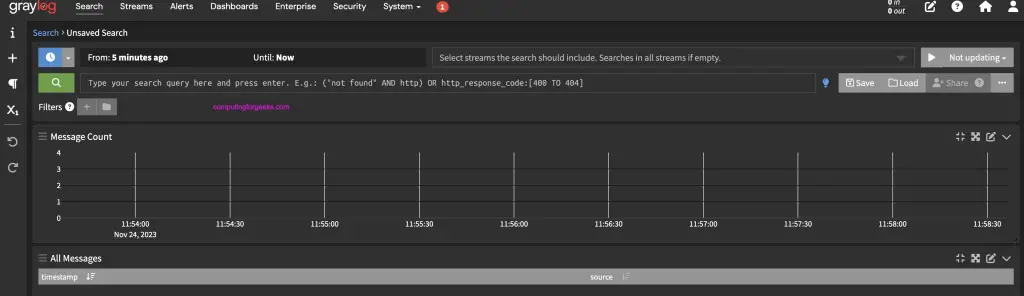
Login with username admin and password set earlier.
The next step is to ingest messages into your Graylog and extract the messages with extractors or use the Pipelines to work with the messages.
More guides on Graylog to follow.

Hi Josphat Mutai
Could you share to push netflow port 2055 from load balancer to graylog?
We need to forward port or have any configure change ?