

Proxmox Virtual Environment (VE) is an open-source server virtualization platform built on Debian. It provides KVM-based virtual machines and LXC containers through a single web interface, with built-in support for clustering, software-defined storage, and backup. Proxmox VE 8.x runs on Debian 12 (Bookworm) and ships with a modified Linux 6.8 kernel.
This guide walks through installing Proxmox VE 8.4 on an existing Debian 12 (Bookworm) server. We cover adding the Proxmox repository, installing core packages, configuring network bridging, accessing the web UI on port 8006, and creating your first virtual machine. While the Proxmox ISO installer is the recommended method for fresh deployments, installing on an existing Debian server is useful when you already have a configured system or a remote dedicated server where booting from ISO is not practical.
Prerequisites
- A server running Debian 12 (Bookworm) with root or sudo access
- 64-bit CPU with Intel VT-x or AMD-V hardware virtualization support
- Minimum 4 GB RAM (8 GB+ recommended for running VMs)
- At least 32 GB disk space for the OS and Proxmox packages
- A static IP address configured on the server
- Ports 8006 (TCP) for web UI and 3128 (TCP) for SPICE proxy open in firewall
If you need to install Debian 12 first, follow our guide on how to install Debian step by step.
Step 1: Update Debian 12 System
Start by updating the package index and upgrading all installed packages to the latest versions.
sudo apt update && sudo apt full-upgrade -yReboot the server to apply any kernel updates.
sudo rebootStep 2: Set the System Hostname
Proxmox requires a fully qualified domain name (FQDN) as the hostname. Set it with hostnamectl.
sudo hostnamectl set-hostname pve01.example.com --staticReplace pve01.example.com with your actual FQDN. Next, check your server’s IP address.
$ ip -4 addr show
1: lo: <LOOPBACK,UP,LOWER_UP> mtu 65536
    inet 127.0.0.1/8 scope host lo
2: eth0: <BROADCAST,MULTICAST,UP,LOWER_UP> mtu 1500
    inet 192.168.1.50/24 brd 192.168.1.255 scope global eth0
Update /etc/hosts so the hostname resolves to your server’s IP address (not 127.0.1.1).
sudo vim /etc/hostsAdd or update the entry to match your IP and FQDN:
192.168.1.50 pve01.example.com pve01Make sure to remove or comment out any 127.0.1.1 line that maps to the hostname. Proxmox will fail to configure its cluster communication if the hostname resolves to a loopback address. Verify the hostname resolves correctly.
$ hostname --ip-address
192.168.1.50
Step 3: Add the Proxmox VE Repository
Download and install the Proxmox repository GPG key.
sudo wget https://enterprise.proxmox.com/debian/proxmox-release-bookworm.gpg -O /etc/apt/trusted.gpg.d/proxmox-release-bookworm.gpgVerify the GPG key checksum to make sure the file was not tampered with.
$ sha512sum /etc/apt/trusted.gpg.d/proxmox-release-bookworm.gpg
7da6fe34168adc6e479327ba517796d4702fa2f8b4f0a9833f5ea6e6b48f6507a6da403a274fe201595edc86a84463d50383d07f64bdde2e3658108db7d6dc87  /etc/apt/trusted.gpg.d/proxmox-release-bookworm.gpg
Add the Proxmox VE no-subscription repository. This is the free community repository suitable for testing and home lab use.
echo "deb [arch=amd64] http://download.proxmox.com/debian/pve bookworm pve-no-subscription" | sudo tee /etc/apt/sources.list.d/pve-install-repo.listUpdate the package index to pull metadata from the new repository.
sudo apt update && sudo apt full-upgrade -yStep 4: Install the Proxmox VE Kernel
Proxmox ships its own kernel with patches for KVM, ZFS, and container support. Install it first before the main packages.
sudo apt install proxmox-default-kernel -yReboot into the new Proxmox kernel.
sudo rebootAfter reboot, verify you are running the Proxmox kernel.
$ uname -r
6.8.12-8-pve
Step 5: Install Proxmox VE Packages
Install the main Proxmox VE meta-package along with postfix for email notifications, open-iscsi for iSCSI storage, and chrony for time synchronization.
sudo apt install proxmox-ve postfix open-iscsi chrony -yDuring installation, postfix will prompt for configuration. Choose Local only if you do not have a mail relay in your network. If you have a mail server, select Satellite system and enter the relay host address. The proxmox-ve meta-package pulls in pve-manager, qemu-server, pve-container, pve-firewall, and all other required components.
Step 6: Remove the Default Debian Kernel
After confirming Proxmox VE boots correctly, remove the default Debian kernel to avoid boot menu clutter and potential conflicts.
sudo apt remove linux-image-amd64 'linux-image-6.1*' -yUpdate the GRUB bootloader configuration.
sudo update-grubOptionally, remove os-prober since Proxmox manages its own boot entries and os-prober can cause issues in multi-disk setups.
sudo apt remove os-prober -yStep 7: Configure Network Bridge for Proxmox VE
Virtual machines need a network bridge to communicate with the outside network. Proxmox uses vmbr0 as the default bridge name. Edit the network configuration file.
sudo vim /etc/network/interfacesReplace the existing network configuration with a bridge setup. Adjust the interface name (eth0), IP address, gateway, and DNS to match your environment:
auto lo
iface lo inet loopback

iface eth0 inet manual

auto vmbr0
iface vmbr0 inet static
    address 192.168.1.50/24
    gateway 192.168.1.1
    bridge-ports eth0
    bridge-stp off
    bridge-fd 0
This configuration moves the IP address from eth0 to vmbr0 and adds eth0 as a bridge port. VMs connected to vmbr0 will be on the same Layer 2 network as the host. For details on setting up an isolated bridge with NAT, see our guide on creating a private network bridge on Proxmox VE with NAT.
Apply the new network configuration by restarting networking or rebooting the server.
sudo systemctl restart networkingVerify the bridge is active.
$ ip addr show vmbr0
4: vmbr0: <BROADCAST,MULTICAST,UP,LOWER_UP> mtu 1500
    inet 192.168.1.50/24 scope global vmbr0
Step 8: Access the Proxmox VE Web Interface
Open a web browser and navigate to your server’s IP on port 8006 using HTTPS.
https://192.168.1.50:8006Your browser will show a certificate warning because Proxmox uses a self-signed SSL certificate by default. Accept the warning and proceed. To set up a trusted certificate, see our guide on how to secure Proxmox VE with Let’s Encrypt SSL.
Log in with the root username and select PAM Authentication as the realm. Use the root password you set during Debian installation.
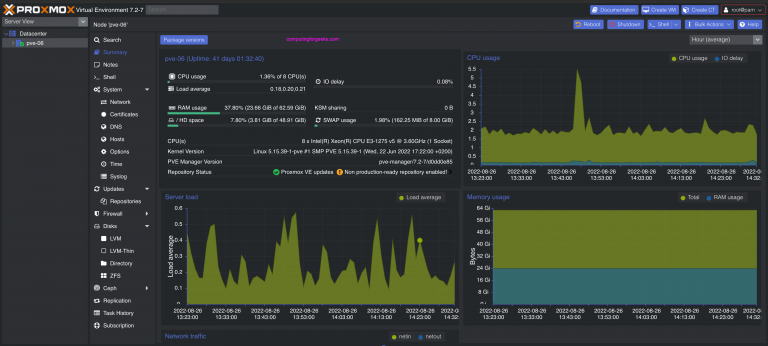
After logging in, you will see the Proxmox VE dashboard showing the datacenter summary with node status, resource usage, and cluster information.
If you see a “No valid subscription” pop-up, click OK to dismiss it. This appears on systems using the free no-subscription repository and does not affect functionality.
Step 9: Configure Storage for Virtual Machines
Proxmox VE comes with two default storage entries: local for ISO images, templates, and backups, and local-lvm for VM disk images and container volumes. Check available storage from the command line.
$ pvesm status
Name         Type     Status   Total         Used   Available       %
local           dir     active   50331648   4194304   46137344   8.33%
local-lvm  lvmthin     active   50331648   4194304   46137344   8.33%
If your server has additional disks, you can add ZFS, LVM, NFS, or Ceph storage through the web UI under Datacenter > Storage > Add. For ZFS, Proxmox includes built-in ZFS support with no additional packages needed.
Upload an ISO image to use when creating VMs. In the web UI, go to your node > local storage > ISO Images > Upload. Or use the command line.
wget -P /var/lib/vz/template/iso/ https://releases.ubuntu.com/24.04/ubuntu-24.04.2-live-server-amd64.isoStep 10: Create Your First Virtual Machine
Create a VM from the command line using qm create. This example creates a VM with 4 GB RAM, 2 CPU cores, a 32 GB disk, and the Ubuntu ISO attached.
qm create 100 \
  --name ubuntu-vm \
  --memory 4096 \
  --cores 2 \
  --scsihw virtio-scsi-single \
  --scsi0 local-lvm:32 \
  --ide2 local:iso/ubuntu-24.04.2-live-server-amd64.iso,media=cdrom \
  --boot order='ide2;scsi0' \
  --net0 virtio,bridge=vmbr0 \
  --ostype l26
Start the VM.
qm start 100Access the VM console through the web UI by selecting the VM and clicking Console. You can also create VMs through the web UI by clicking Create VM in the top right corner and following the wizard.
Verify the VM is running.
$ qm list
      VMID NAME                 STATUS     MEM(MB)    BOOTDISK(GB)  PID
       100 ubuntu-vm            running    4096              32.00  12345
You can also create LXC containers for lightweight workloads. Download a container template first, then create the container. For OS templates on Proxmox, check our guides on creating Ubuntu and Debian OS templates on Proxmox VE.
Step 11: Configure Firewall Rules
If you have a firewall running on the server, open the required ports for Proxmox VE services.
| Port | Protocol | Service |
|---|---|---|
| 8006 | TCP | Web interface (HTTPS) |
| 3128 | TCP | SPICE proxy |
| 5900-5999 | TCP | VNC console |
| 111 | TCP/UDP | rpcbind (NFS storage) |
| 22 | TCP | SSH access |
For clustering, additional ports are needed: 5405-5412 (UDP) for corosync, and 60000-60050 (TCP) for live migration. Open the web UI and SSH ports with iptables.
sudo iptables -A INPUT -p tcp --dport 8006 -j ACCEPT
sudo iptables -A INPUT -p tcp --dport 22 -j ACCEPT
Proxmox VE also includes a built-in firewall that you can manage through the web UI under Datacenter > Firewall. It supports both datacenter-wide and per-VM rules.
Step 12: Verify Proxmox VE Installation
Run a few checks to confirm everything is working correctly.
Check the Proxmox VE version.
$ pveversion --verbose
proxmox-ve: 8.4.0 (running kernel: 6.8.12-8-pve)
pve-manager: 8.4.0
qemu-server: 8.2.7
pve-container: 5.2.1
pve-firewall: 5.0.11
corosync: 3.1.8
Verify the Proxmox services are running.
$ systemctl status pvedaemon pveproxy
● pvedaemon.service - PVE API Daemon
     Active: active (running)
● pveproxy.service - PVE API Proxy Server
     Active: active (running)
Check that KVM virtualization is available on the system.
$ kvm-ok
INFO: /dev/kvm exists
KVM acceleration can be used
If kvm-ok is not installed, install it with sudo apt install cpu-checker. If it reports that KVM is not available, enable Intel VT-x or AMD-V in your server’s BIOS/UEFI settings.
Conclusion
Proxmox VE 8.4 is now installed and running on Debian 12 Bookworm with a configured network bridge, web interface access, and VM creation capability. For a production environment, set up Let’s Encrypt SSL for the web UI, configure automated backups with vzdump, enable the built-in firewall, and consider setting up a Proxmox cluster for high availability. For comparing Proxmox with other hypervisors, see our VMware ESXi vs Proxmox vs Red Hat Virtualization comparison. Refer to the official Proxmox VE documentation for advanced configuration topics.




You saved my life! I was doing an upgrade from Proxmox 7 to 8, using the official documentation but couldn’t get GUI after.
After running the command: systemctl status pveproxy.service pvedaemon.service
both came up as DEAD (not active). These need to be running to get a GUI
I tried everything but following through your commands one by one, got my GUI working again!!
THANK YOU!
We are happy to learn this was helpful to you.