

NetBeans keeps getting better and somehow keeps flying under the radar compared to IntelliJ and VS Code. Apache NetBeans 29, released February 2026, brings improved Java 24 support, better LSP integration, and continued refinements across its PHP, JavaScript, and C/C++ toolchains. If you write Java on Fedora, NetBeans is worth a serious look.
This guide covers three ways to install NetBeans on Fedora 42 and 41: the direct binary download (recommended for most users), Flatpak from Flathub, and Snap. Each method has trade-offs. The binary install gives you the latest version and native filesystem access. Flatpak sandboxes the IDE, which can cause issues with external tools. Snap works but is not pre-installed on Fedora. If you need Java configured on your Fedora system first, handle that before proceeding.
Tested March 2026 on Fedora 42 (kernel 6.14.0) with Apache NetBeans 29 and OpenJDK 26.
Prerequisites
- Fedora 42 or 41 Workstation (also works on Fedora Server with a desktop environment installed)
- Java JDK 21 or newer (NetBeans 29 requires JDK 11 minimum, but JDK 21+ is recommended)
- At least 2 GB of free disk space for NetBeans and its caches
- Internet connection for plugin downloads
Install the Java JDK
NetBeans needs a JDK (not just a JRE) because it compiles code, runs debuggers, and uses development tools like javac and jshell. Fedora 42 ships OpenJDK 21 and 26 in its default repositories.
Install the latest OpenJDK development package:
sudo dnf install -y java-latest-openjdk-develVerify the installation:
java -versionOn Fedora 42, this installs OpenJDK 26:
openjdk version "26" 2026-03-17
OpenJDK Runtime Environment (Red_Hat-26.0.0.0.36-1.rolling.fc42) (build 26+36)
OpenJDK 64-Bit Server VM (Red_Hat-26.0.0.0.36-1.rolling.fc42) (build 26+36, mixed mode, sharing)
Fedora 41 ships OpenJDK 21 by default. Both versions work fine with NetBeans 29. If you need a specific JDK version, use alternatives to switch between installed versions:
sudo alternatives --config javaConfirm javac is available (this proves the JDK, not just the JRE, is installed):
javac -versionMethod 1: Install from Binary Archive (Recommended)
The binary archive from the Apache NetBeans download page is the most straightforward method. You get the latest release immediately, with no sandbox restrictions and full access to your filesystem, terminal tools, and Git configuration.
Detect the latest version and download it:
VER=$(curl -sL https://api.github.com/repos/apache/netbeans/releases/latest | grep tag_name | head -1 | sed 's/.*"\([^"]*\)".*/\1/')
echo "Latest NetBeans version: $VER"
This should output the current version:
Latest NetBeans version: 29Download and extract to /opt:
curl -Lo /tmp/netbeans-${VER}-bin.zip "https://dlcdn.apache.org/netbeans/netbeans/${VER}/netbeans-${VER}-bin.zip"
sudo unzip -q /tmp/netbeans-${VER}-bin.zip -d /opt/
rm -f /tmp/netbeans-${VER}-bin.zip
Create a symlink so you can run netbeans from anywhere:
sudo ln -sf /opt/netbeans/bin/netbeans /usr/local/bin/netbeansVerify the installation:
netbeans --help 2>&1 | head -3You should see the usage output confirming NetBeans is installed:
Usage: /opt/netbeans/platform/lib/nbexec {options} arguments

General options:
Create a Desktop Entry
Without a desktop entry, NetBeans won’t appear in your GNOME application menu. Create one:
sudo tee /usr/share/applications/netbeans.desktop > /dev/null <<'EOF'
[Desktop Entry]
Type=Application
Name=Apache NetBeans
Comment=Apache NetBeans IDE
Icon=/opt/netbeans/nb/netbeans.png
Exec=/opt/netbeans/bin/netbeans
Terminal=false
Categories=Development;IDE;Java;
StartupWMClass=Apache NetBeans IDE
EOF
NetBeans now appears in GNOME Activities when you search for “NetBeans”.
Launch NetBeans
Start NetBeans from the terminal or click it in GNOME Activities:
netbeans &The first launch takes 30 to 60 seconds while NetBeans scans and caches all its modules. The welcome screen shows quick actions for creating and opening projects:
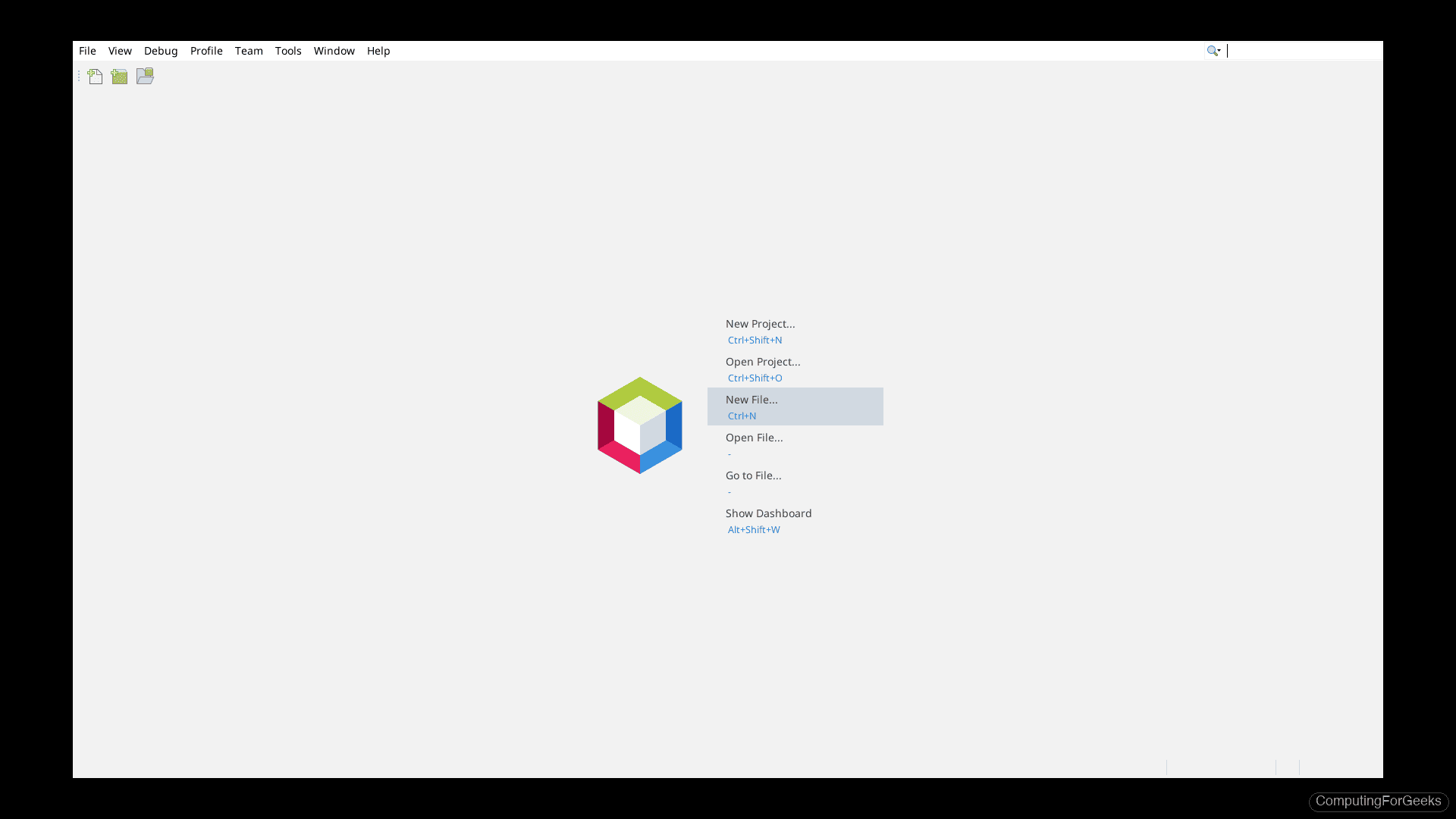
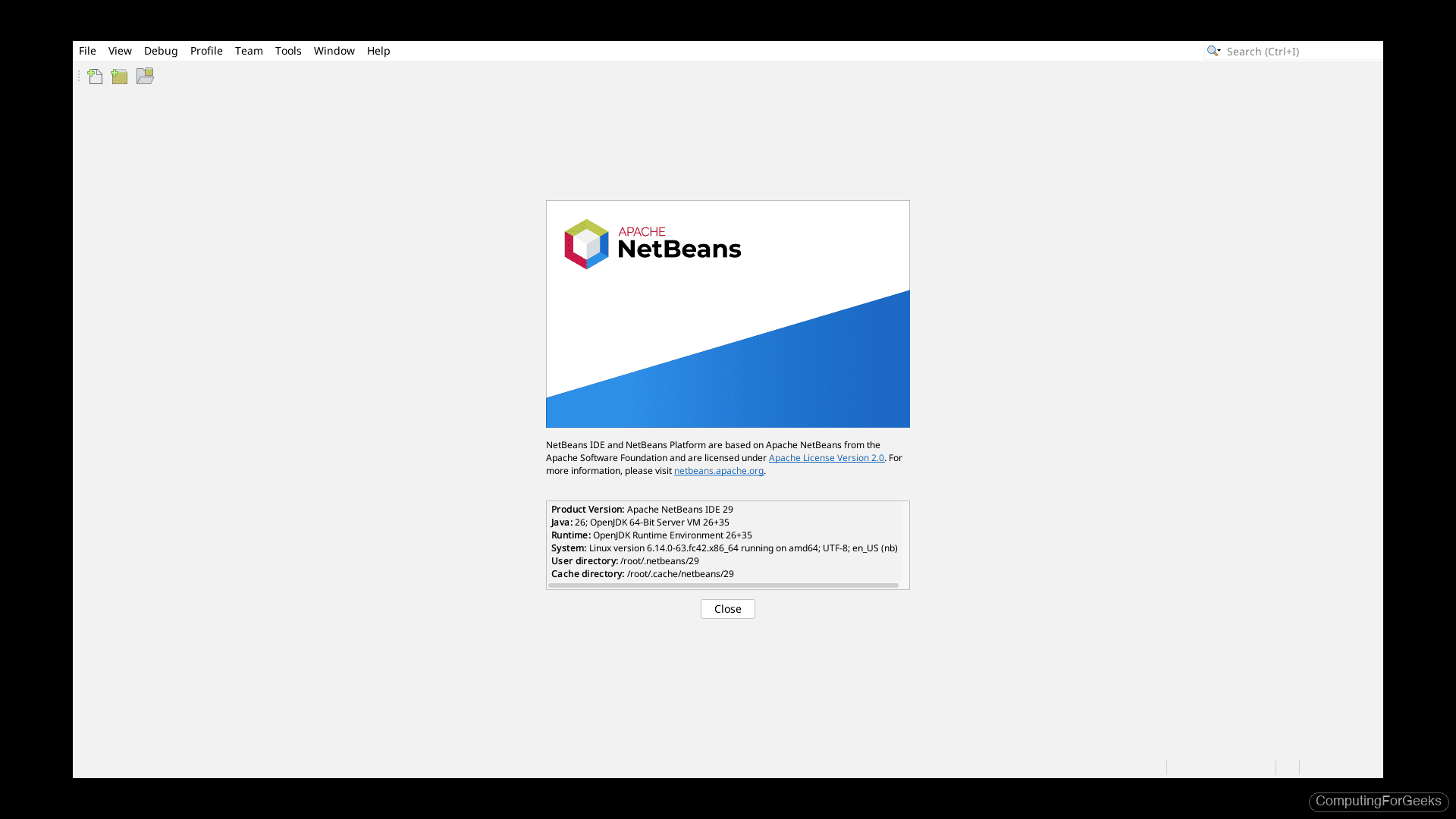
Open Help > About to confirm the version and Java runtime being used:
Upgrading
To upgrade, download the new version’s zip file, remove /opt/netbeans, and extract the new version to the same location. Your projects and settings are stored in ~/.netbeans/ and survive the upgrade:
sudo rm -rf /opt/netbeans
sudo unzip -q /tmp/netbeans-NEW_VER-bin.zip -d /opt/
Method 2: Install via Flatpak
Flatpak comes pre-installed on Fedora Workstation. If Flathub isn’t configured as a remote, add it first:
flatpak remote-add --if-not-exists flathub https://dl.flathub.org/repo/flathub.flatpakrepoInstall NetBeans from Flathub:
flatpak install -y flathub org.apache.netbeansLaunch it:
flatpak run org.apache.netbeansThe Flatpak version runs in a sandbox, which means it uses its own bundled JDK and has limited access to your home directory. If you need NetBeans to access files outside ~/ or use system-installed tools like mvn or gradle, the binary install (Method 1) is a better choice.
Method 3: Install via Snap
Snap is not installed by default on Fedora. Enable it first:
sudo dnf install -y snapd
sudo systemctl enable --now snapd.socket
sudo ln -sf /var/lib/snapd/snap /snap
Log out and back in (or reboot) for the snap paths to take effect, then install NetBeans:
sudo snap install netbeans --classicThe --classic flag gives NetBeans full filesystem access, which it needs to compile and run projects. Without it, the IDE cannot access your project files or system JDK.
Which Method Should You Use?
| Criteria | Binary Archive | Flatpak | Snap |
|---|---|---|---|
| Latest version available | Same day as release | Usually within days | Usually within days |
| Uses system JDK | Yes | No (bundled) | Yes (with –classic) |
| Full filesystem access | Yes | Limited (sandboxed) | Yes (with –classic) |
| Auto-updates | No (manual upgrade) | Yes | Yes |
| System tool integration | Full (mvn, gradle, git) | Limited | Full |
| Pre-installed on Fedora | N/A | Flatpak is pre-installed | Requires snapd install |
For Java development with Maven, Gradle, and Git, the binary archive is the most reliable option. Flatpak works well for casual use or evaluation. Snap is a viable alternative if you prefer its update mechanism.
Configure NetBeans for Java Development
After launching NetBeans, configure a few things to improve your workflow. These apply regardless of the install method.
Set the JDK Platform
If you have multiple JDKs installed, tell NetBeans which one to use for projects. Go to Tools > Java Platforms > Add Platform, and point it to /usr/lib/jvm/java-26-openjdk (or whichever version you want as your default). For Maven projects on Fedora, the JDK platform setting determines which javac compiles your code.
Install Plugins
NetBeans 29 ships with support for Java SE, Java EE, PHP, JavaScript/TypeScript, C/C++, Groovy, Python, and Rust out of the box. For additional frameworks, go to Tools > Plugins > Available Plugins. Commonly installed plugins include Spring Boot support, Docker integration, and Kubernetes tooling.
Increase Memory for Large Projects
The default heap size may not be enough for large codebases. Edit the NetBeans configuration:
sudo vi /opt/netbeans/etc/netbeans.confFind the netbeans_default_options line and increase -J-Xmx:
netbeans_default_options="-J-XX:+UseStringDeduplication -J-Xss2m -J-Xmx2g ..."Changing -J-Xmx768m to -J-Xmx2g gives the IDE 2 GB of heap memory. Restart NetBeans after making changes.
Uninstall NetBeans
To remove NetBeans, the steps depend on how you installed it:
# Binary install
sudo rm -rf /opt/netbeans /usr/local/bin/netbeans /usr/share/applications/netbeans.desktop
rm -rf ~/.netbeans ~/.cache/netbeans

# Flatpak
flatpak uninstall org.apache.netbeans

# Snap
sudo snap remove netbeans
Is NetBeans available in Fedora’s DNF repositories?
No. NetBeans was removed from Fedora’s repositories several releases ago. Running dnf search netbeans on Fedora 42 returns no results. The three methods described above (binary archive, Flatpak, Snap) are the supported ways to install it.
Does NetBeans 29 work with Java 26?
Yes. NetBeans 29 runs on and supports development targeting Java 26, which is the default OpenJDK version in Fedora 42’s repositories. On Fedora 41, the default is OpenJDK 21, which also works. NetBeans requires JDK 11 as a minimum but recommends JDK 21 or newer for the best experience.
NetBeans vs IntelliJ IDEA: which should I use?
NetBeans is fully open source (Apache 2.0 license) and supports Java, PHP, JavaScript, C/C++, and more in a single install with no license restrictions. IntelliJ IDEA has a stronger Java refactoring engine and deeper Spring/Kotlin integration, but the Community Edition lacks web framework support and the Ultimate Edition requires a paid license. For general purpose development or if you work across multiple languages, NetBeans is the pragmatic choice. For pure Java/Kotlin enterprise work, IntelliJ has the edge.



I have a problem with procedure in the step 3:
My fedora version is the 36
francis@fedora tmp]$ sudo ./Apache-NetBeans-13-bin-linux-x64.sh
Configuring the installer…
Searching for JVM on the system…
Extracting installation data…
Running the installer wizard…
Can`t initialize UI
Running in headless mode
No X11 DISPLAY variable was set,
but this program performed an operation which requires it.
Exception: java.awt.HeadlessException thrown from the UncaughtExceptionHandler in thread “main”
i tried to execute with the DISPLAY variable, but i have the same result
[francis@fedora tmp]$ DISPLAY=:0.0; sudo ./Apache-NetBeans-13-bin-linux-x64.sh
[sudo] Mot de passe de francis :
Configuring the installer…
Searching for JVM on the system…
Extracting installation data…
Running the installer wizard…
Can`t initialize UI
Running in headless mode
No X11 DISPLAY variable was set,
but this program performed an operation which requires it.
Exception: java.awt.HeadlessException thrown from the UncaughtExceptionHandler in thread “main”
I just confirmed it requires Java 17. Try updated guide steps which includes installation of Java 17.
Java 17 is the default on Fedora 36.
$ java –version
openjdk 17.0.3 2022-04-19
OpenJDK Runtime Environment 21.9 (build 17.0.3+7)
OpenJDK 64-Bit Server VM 21.9 (build 17.0.3+7, mixed mode, sharing)
It seems you’re performing the installation on a machine without GUI, right?