

Three things decide how a Wi-Fi network behaves: the radio band it transmits on, the name it advertises, and the encryption that protects it. Get those three right and a wireless network is fast, secure, and easy to roam. Get any of them wrong and you end up with the classic complaints, slow throughput in a crowded office, clients that drop when you walk down a hallway, or a network anyone in the parking lot can join.
These wireless networking fundamentals are the mechanism behind each of those three decisions: how radio waves actually carry data, why the 2.4 GHz band gives you only three usable channels while 5 GHz gives you more than twenty, what an SSID and a BSSID really are, and which cipher belongs to each generation of Wi-Fi security from WEP to WPA3. Every channel number, cipher, and 802.11 figure below was checked against the current Cisco CCNA material and the IEEE 802.11 references in June 2026.
How radio waves carry Wi-Fi traffic
A radio wave is an electromagnetic signal that oscillates at some number of cycles per second, and that rate is its frequency, measured in hertz. Wi-Fi lives in the microwave portion of the spectrum, transmitting around 2.4 GHz (2.4 billion cycles per second) and 5 GHz, with a newer 6 GHz band added for Wi-Fi 6E. The data you send rides on those waves by modulating them, varying the signal in tiny, agreed-upon ways that the receiver decodes back into bits.
The key insight that explains most of wireless behavior is that frequency trades range for capacity. A lower frequency like 2.4 GHz has a longer wavelength, so it travels farther and passes through walls more easily, but it carries less data and sits in a crowded band. A higher frequency like 5 GHz has a shorter wavelength that is absorbed faster by walls and distance, but it offers far more channels and bandwidth. That single trade-off is why a home router puts slow, far-reaching IoT devices on 2.4 GHz and fast laptops on 5 GHz.
One more property matters for every Wi-Fi design. Radio is a shared medium where only one device can transmit on a channel at a time, so Wi-Fi is always half duplex. Wired Ethernet detects collisions after they happen with CSMA/CD; wireless cannot hear itself transmit, so it tries to avoid collisions ahead of time with CSMA/CA (Carrier Sense Multiple Access with Collision Avoidance). A station listens, waits for a clear channel, and uses acknowledgements to confirm each frame arrived. This is why airtime, not just signal strength, decides how a busy cell performs.
The 2.4 GHz and 5 GHz bands compared
A channel is a slice of a band wide enough to carry one Wi-Fi conversation. The reason 2.4 GHz and 5 GHz feel so different in practice comes down to how many of those slices fit without overlapping, and that is the single most important design fact in wireless.
2.4 GHz: only three clean channels
The 2.4 GHz band runs from 2.400 to 2.4835 GHz, about 83.5 MHz of total space. It defines 14 channels (the United States uses 1 through 11), but each channel is roughly 22 MHz wide while the channels are spaced only 5 MHz apart. The arithmetic does not work: any two channels closer than five apart bleed into each other. The only combination that avoids all overlap is channels 1, 6, and 11. Pick channel 3 or channel 8 for a new access point and you have not found a clever gap, you have stepped on two clean channels at once.
That is why the design rule for 2.4 GHz is fixed: assign neighbouring access points to 1, 6, and 11 on a rotation so no two adjacent cells share a frequency. The cells themselves should still overlap in coverage by 15 to 20 percent so a client can roam without dropping, but they must do so on different channels. The band is also shared with microwaves, Bluetooth, and cordless phones, all competing for the same crowded air.
5 GHz: more than twenty non-overlapping channels
The 5 GHz band is spread across four U-NII sub-bands between roughly 5.150 and 5.850 GHz. Here the channels are 20 MHz wide and laid out with guard bands so that, unlike 2.4 GHz, the standard channels do not overlap at all. Depending on the regulatory domain and which sub-bands are enabled, that gives more than twenty non-overlapping 20 MHz channels instead of three. When a CCNA question asks how many non-overlapping channels exist in 5 GHz versus 2.4 GHz, the answer it is looking for is “more than twenty versus three.”
All that extra spectrum also enables channel bonding: adjacent 20 MHz channels can be combined into 40, 80, or 160 MHz channels for much higher throughput, at the cost of using up several of those clean channels per radio. The price you pay for 5 GHz is range. The higher frequency is absorbed faster, so a 5 GHz cell covers less area and penetrates walls less well than a 2.4 GHz cell at the same power. The newest 6 GHz band, used by Wi-Fi 6E and Wi-Fi 7, extends this even further with a large block of fresh, uncongested spectrum.
The 802.11 amendments that define each generation are worth knowing as a set, because you will see them referenced by both letter and Wi-Fi name on product spec sheets and in study material:
| Amendment | Band | Max data rate | Channel width | Marketing name |
|---|---|---|---|---|
| 802.11b | 2.4 GHz | 11 Mbps | 22 MHz | (DSSS, first mass-market Wi-Fi) |
| 802.11a | 5 GHz | 54 Mbps | 20 MHz | (OFDM, same era as b) |
| 802.11g | 2.4 GHz | 54 Mbps | 20 MHz | (backward compatible with b) |
| 802.11n | 2.4 and 5 GHz | 600 Mbps | 20/40 MHz | Wi-Fi 4 (MIMO) |
| 802.11ac | 5 GHz | ~6.9 Gbps | 20/40/80/160 MHz | Wi-Fi 5 (MU-MIMO) |
| 802.11ax | 2.4, 5, and 6 GHz | ~9.6 Gbps | 20/40/80/160 MHz | Wi-Fi 6 / 6E (OFDMA) |
Here is the channel plan drawn out. Three access points cover an area on the only three non-overlapping 2.4 GHz channels, while a poorly configured neighbour on channel 3 interferes with both channel 1 and channel 6 at once:
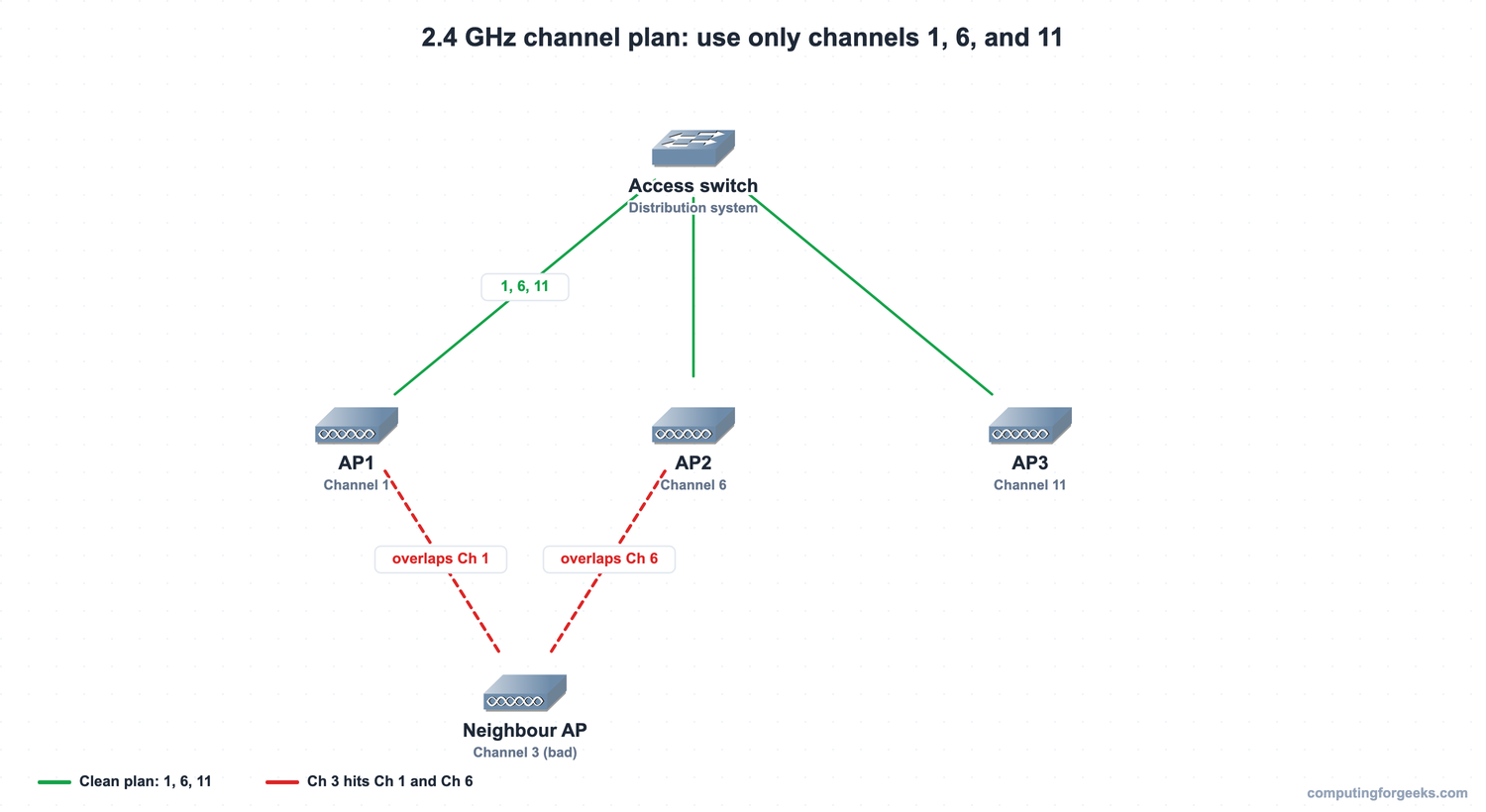
That single rule, use only 1, 6, and 11, is the whole of 2.4 GHz channel design. With the band chosen, the next decision is what to call the network and how its access points are arranged.
SSIDs, BSSIDs, and service sets
The SSID is the human-readable name of a wireless network, the “Corp-WiFi” you tap in the Wi-Fi list, up to 32 characters long. The BSSID is something different: it is the MAC address of the access point’s radio, a 48-bit hardware address that uniquely identifies one specific cell. Confusing the two is a classic mistake, and the Cisco CCNA 200-301 exam likes to show a table and ask which column is the name and which is the address. The name is the SSID; the MAC is the BSSID.
Those two ideas combine into the service-set vocabulary that describes how access points are arranged:
- BSS (Basic Service Set): a single access point and the clients associated with it, identified by one BSSID, operating on one channel.
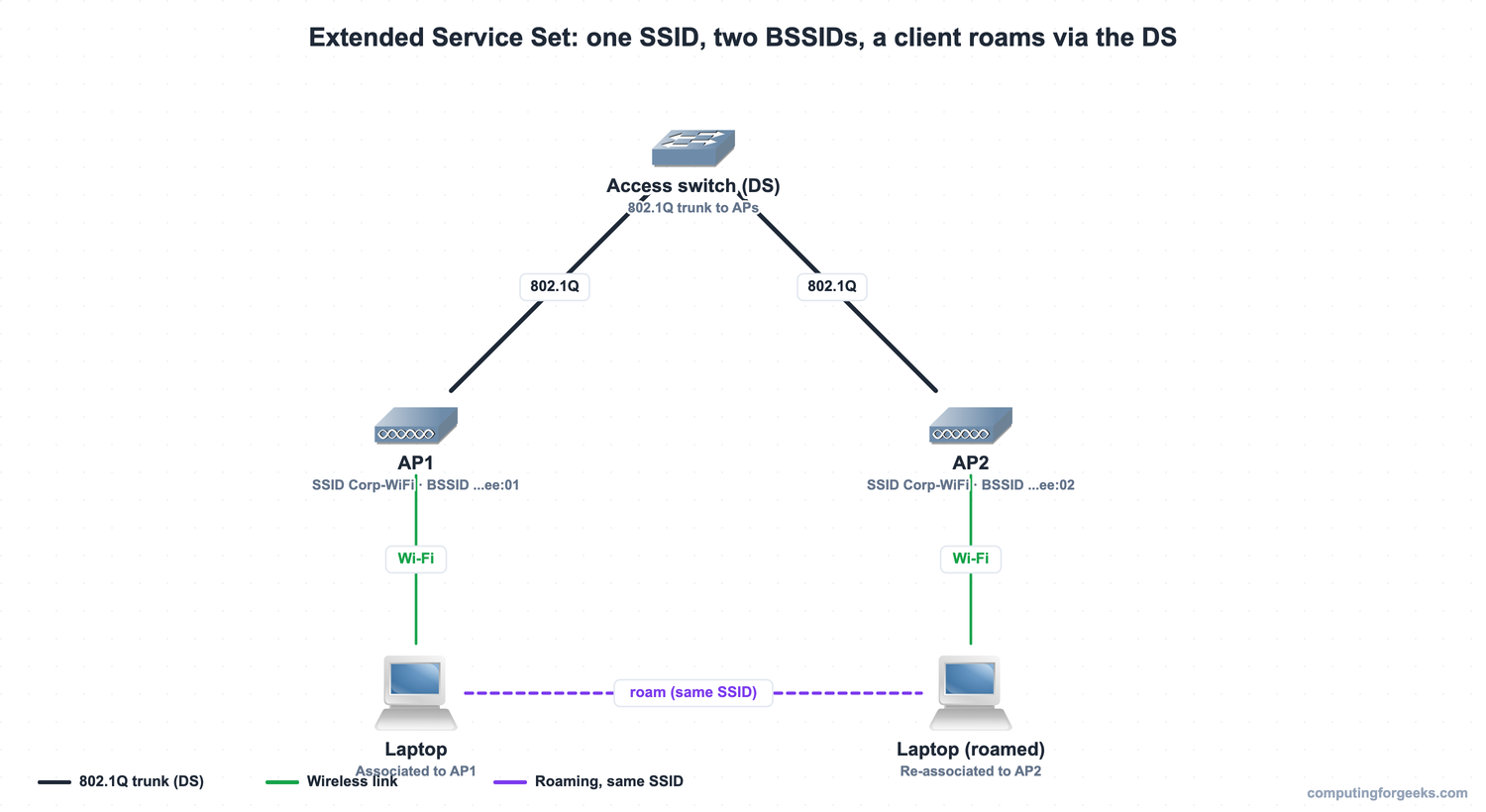
- ESS (Extended Service Set): several access points broadcasting the same SSID, each with its own BSSID, connected by a wired backbone. A client roams between them transparently, re-associating to the nearest AP as its signal fades, without the user noticing.
- IBSS (Independent BSS): ad hoc, device-to-device wireless with no access point at all. It does not scale and is rare in practice.
The wired backbone that ties an ESS together is called the distribution system (DS), and in a real campus it is just the switched Ethernet network. The access points connect to a switch over an 802.1Q trunk, and each SSID is mapped to its own VLAN, so wireless “Guest” traffic lands in the guest VLAN and “Corp” traffic in the corporate VLAN. Because a BSSID is a MAC address, it shows up in the wired switch’s forwarding tables exactly like any other host; the way switches learn those addresses is covered in the guide on how the MAC address table is built.
An extended service set is what lets a client roam without dropping the connection. Two access points share one SSID but advertise different BSSIDs, and the laptop hands off from one to the other across the distribution system:
A single access point can also broadcast several SSIDs at once, and this is where the BSSID detail becomes practical. Each SSID gets its own BSSID, derived by incrementing the last part of the radio’s MAC address, but all of them share the same radio, the same channel, and the same airtime. That is why advertising eight SSIDs from one AP is a bad idea: the management overhead eats into the airtime every client must share. A typical multi-SSID access point looks like this:
| SSID (name) | BSSID (radio MAC) | Mapped VLAN | Channel |
|---|---|---|---|
| Corp-WiFi | aa:bb:cc:dd:ee:01 | VLAN 10 | 36 |
| Guest-WiFi | aa:bb:cc:dd:ee:02 | VLAN 20 | 36 |
| IoT-WiFi | aa:bb:cc:dd:ee:03 | VLAN 30 | 36 |
Three names, three BSSIDs, one radio, one channel, shared airtime. How those access points are managed at scale, autonomously or by a wireless LAN controller, is a separate topic covered in the breakdown of access points and wireless controllers.
Wi-Fi encryption from WEP to WPA3
Wireless is broadcast to anyone in range, so encryption is not optional. The history of Wi-Fi security is a steady climb from broken to strong, and knowing which cipher pairs with which generation is the part that gets tested most. Walking the protocols from weakest to strongest is the clearest way to remember them.
- WEP (Wired Equivalent Privacy): the original scheme, built on the RC4 cipher with a short static key. Both its authentication and its encryption were broken years ago, and it has been deprecated since 2004. Never deploy it.
- TKIP (Temporal Key Integrity Protocol): the stopgap introduced with the first WPA to patch WEP on existing hardware. It added per-packet key mixing and a message integrity check, but it still used RC4 underneath and was itself deprecated in 2012. The thing to remember is that TKIP is the protocol that replaced WEP without requiring new hardware.
- CCMP (Counter/CBC-MAC Protocol): mandatory in WPA2 and built on AES, a strong modern block cipher. When a question asks for the strongest encryption available with WPA2-PSK, the answer is CCMP (often written as AES).
- GCMP (Galois/Counter Mode Protocol): the strongest option, pairing AES with GMAC authentication. WPA3-Personal still uses CCMP/AES; GCMP-256 is mandatory specifically in WPA3-Enterprise 192-bit mode. Cisco material commonly lists GCMP as the WPA3 cipher, so treat it as the WPA3-era upgrade over CCMP.
Cutting across all three WPA generations is the choice between Personal and Enterprise mode. Personal mode (PSK) uses one pre-shared key configured on the AP and every client, with no authentication server, which suits homes and small offices but is vulnerable to offline password-guessing if an attacker captures the handshake. Enterprise mode (802.1X) hands authentication to a RADIUS server: the client talks to the access point, the AP relays the conversation to RADIUS using EAP, and no traffic is allowed until the server approves, giving every user a unique session key. The EAP methods you should recognise are LEAP (Cisco, deprecated), EAP-FAST (uses a protected credential instead of certificates), PEAP (the server presents a certificate and the client authenticates inside a TLS tunnel, the common enterprise choice), and EAP-TLS (both sides present certificates, the most secure and the most work to run).
WPA3 is the current standard, and its headline change is SAE (Simultaneous Authentication of Equals), which replaces the pre-shared-key handshake in Personal mode. What’s actually happening with SAE is a Diffie-Hellman exchange that makes a captured handshake useless for offline dictionary attacks and provides forward secrecy, so cracking one session does not expose past ones. WPA3 also makes Protected Management Frames mandatory. The full progression maps cleanly:
| Feature | WPA | WPA2 | WPA3 |
|---|---|---|---|
| Personal authentication | PSK | PSK | SAE |
| Enterprise authentication | 802.1X / EAP | 802.1X / EAP | 802.1X / EAP |
| Encryption cipher | TKIP | CCMP (AES) | GCMP |
| Management frame protection | Optional | Optional | Mandatory |
| Forward secrecy | No | No | Yes (SAE) |
| Status | Deprecated | Current | Current (preferred) |
Practice wireless networking fundamentals
Flip the cards to lock in the bands, service sets, and the cipher each WPA generation uses, then take the quiz, which includes the channel-assignment and “strongest WPA2 cipher” questions that come up most. For the full path from here to a passed certification, the CCNA 200-301 study roadmap ties every topic together.
Channel-plan reference card
Keep this within reach. It collapses the two-band trade-off and the channel rules into one screenshot for revision:
| Fact | 2.4 GHz | 5 GHz |
|---|---|---|
| Total spectrum | ~83.5 MHz (2.400-2.4835 GHz) | Four U-NII sub-bands (5.15-5.85 GHz) |
| Channel width | ~22 MHz | 20 MHz (bondable to 40/80/160) |
| Non-overlapping channels | 3 only: 1, 6, 11 | More than 20 |
| Range | Longer, better through walls | Shorter, absorbed faster |
| Capacity / interference | Lower capacity, crowded band | Higher capacity, far less interference |
| Best for | IoT, distance, legacy clients | Throughput, dense client areas |
The three decisions from the start of this guide map straight onto these facts: choose the band by range versus capacity, choose the SSID and service-set design so clients roam cleanly, and choose WPA3 with the strongest cipher your hardware supports. With the radio side understood, the natural next steps are how those access points are deployed and managed in the campus network design, and the device roles behind the whole picture in the guide to routers, switches, and access points.



![Wireshark Network Analysis on Kali Linux [2026 Guide]](https://computingforgeeks.com/wp-content/uploads/2026/04/wireshark-featured-768x403.png "Wireshark Network Analysis on Kali Linux [2026 Guide] 8")