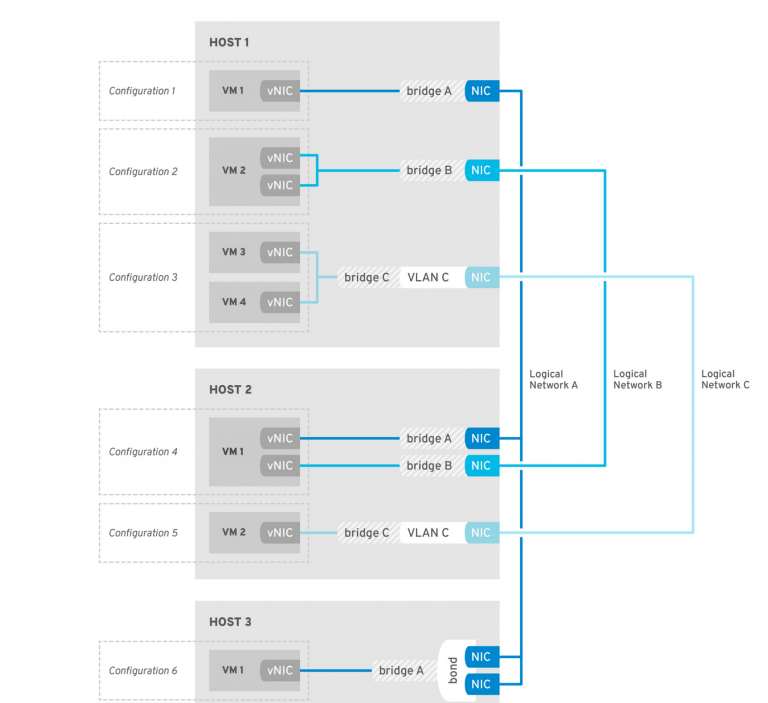
The Proxmox VE installer is done in about ten minutes. Turning that fresh node into something you would trust with real workloads takes the next hour, and that hour is what this guide covers. A default install points apt at a repository you cannot reach, runs no backups, sends no alerts, and lets anyone with the root password walk straight in. None of that is a bug. Proxmox ships neutral defaults and expects you to finish the job.
These twenty Proxmox post-install steps are the ones worth doing on every new node, in the order that avoids painting yourself into a corner: fix the repositories first so updates work, lock down access before you expose the box, then add storage, networking, monitoring, and your first guests. Some are two-minute CLI changes, a few are click-throughs in the web console, and several are things almost no other Proxmox post-install checklist mentions because they are new in the current release. If you have not installed the hypervisor yet, start with the bare-metal install guide and come back here.
Every command and screenshot below was produced on a fresh Proxmox VE 9.2 node (kernel 7.0, ZFS on root, Debian 13 base) in June 2026.
1. Switch to the no-subscription repository
The first apt update on a fresh node fails. The installer enables the enterprise repository, which needs a paid subscription key, so the update aborts:
apt updateYou get the error that sends most people to a search engine, and note there are two failing repos, the PVE one and a Ceph one:
Err:4 https://enterprise.proxmox.com/debian/ceph-squid trixie InRelease
  401  Unauthorized [IP: 51.91.38.34 443]
Err:5 https://enterprise.proxmox.com/debian/pve trixie InRelease
  401  Unauthorized [IP: 51.91.38.34 443]
Error: Failed to fetch https://enterprise.proxmox.com/debian/pve/dists/trixie/InRelease  401  Unauthorized [IP: 51.91.38.34 443]
Proxmox VE 9 stores repositories in the new deb822 .sources format, not the old single-line .list files that every older guide tells you to edit. The enterprise definition lives in /etc/apt/sources.list.d/pve-enterprise.sources. Disable it by adding an Enabled: false line rather than deleting the file:
echo "Enabled: false" | sudo tee -a /etc/apt/sources.list.d/pve-enterprise.sourcesThere is a matching enterprise Ceph repository that returns the same 401 and is the step everyone forgets. Disable it too:
echo "Enabled: false" | sudo tee -a /etc/apt/sources.list.d/ceph.sourcesNow add the no-subscription repository. Create /etc/apt/sources.list.d/proxmox.sources with this content:
Types: deb
URIs: http://download.proxmox.com/debian/pve
Suites: trixie
Components: pve-no-subscription
Signed-By: /usr/share/keyrings/proxmox-archive-keyring.gpg
The no-subscription channel ships the same packages as enterprise with lighter QA gating, and it is the correct choice for a home or test node. The whole flow, the 401 on the way in and the clean fetch on the way out, looks like this:
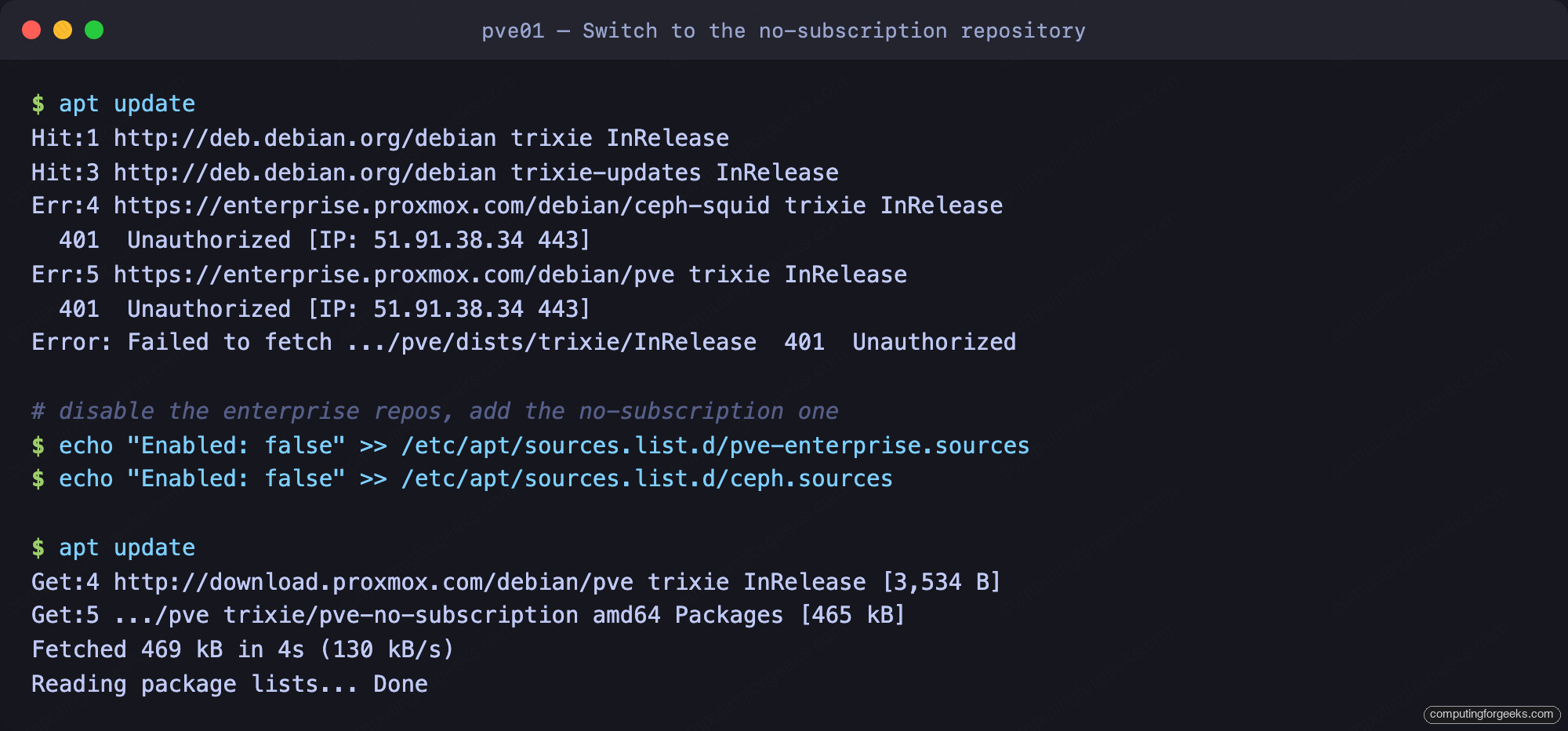
For the full breakdown of which channel to run and why, see the dedicated no-subscription repository guide. If you upgraded an older host rather than installing fresh, run apt modernize-sources to convert any leftover .list files to the new format.
2. Fix the system clock before you update
Debian 13 verifies repository signatures with the new Sequoia sqv tool, and it is strict about time. If the hardware clock is wrong, the next apt update fails with an error that looks nothing like a clock problem:
Sub-process /usr/bin/sqv returned an error code (1), error message is:
  Verifying signature:  Not live until 2026-05-16T09:12:42Z
That message means the signature is valid but your clock is behind its validity window. Check what the node thinks the time is:
timedatectlDebian 13 uses systemd-timesyncd by default, which is fine for a single node. The clock should read the real time and report itself synchronized:
               Local time: Tue 2026-06-09 19:36:02 UTC
        System clock synchronized: yes
              NTP service: active
If you are building a cluster later, install chrony instead. Corosync is sensitive to clock skew between nodes, and chrony disciplines the clock more tightly than timesyncd does.
3. Update the system and reboot into the current kernel
With the repositories fixed, pull the latest packages. Proxmox uses dist-upgrade because point releases routinely add and remove packages, which a plain apt upgrade will hold back:
sudo apt update
sudo apt dist-upgrade
If the upgrade pulled a new kernel, reboot so the node runs it. The running version and the installed kernels print together:
uname -r
proxmox-boot-tool kernel list
Here the box is still on the kernel it installed with, while a newer one is staged and waiting for a reboot:
7.0.2-6-pve

Automatically selected kernels:
7.0.2-6-pve
7.0.6-2-pve
A reboot here also confirms the node comes back cleanly on its own, which is worth knowing now rather than during an unplanned power cut.
4. Deal with the subscription notice honestly
Every time you log into the web console without a subscription, Proxmox shows a “No valid subscription” dialog:
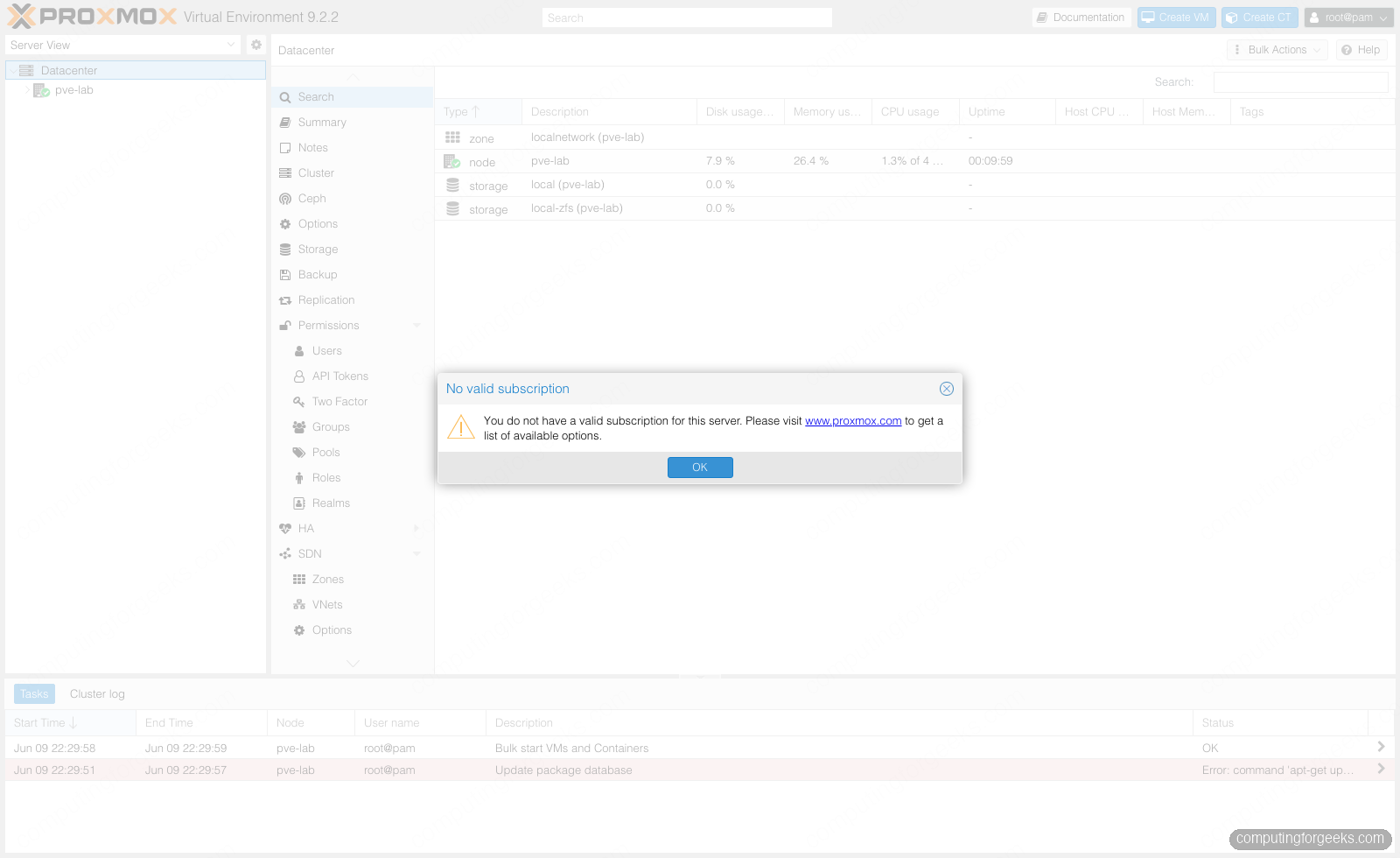
It is a reminder, not an error, and it has nothing to do with the repository you just fixed. The notice keys off subscription status, so disabling the enterprise repo does not remove it. There are community scripts that patch the JavaScript file behind it, but that patch lives in a package file (/usr/share/javascript/proxmox-widget-toolkit/proxmoxlib.js) that gets overwritten on every toolkit update, so it silently comes back. Proxmox does not support editing it. The honest answer for a homelab is to click past it, or buy even the cheapest subscription tier if the popup bothers you on a box you log into daily. Treat any “permanent” removal as something you will reapply after updates.
5. Set the hostname, a static IP, and DNS
A hypervisor on a DHCP lease is a hypervisor that will eventually change address and break every bookmark, firewall rule, and cluster link pointing at it. Pin it. The network config lives in /etc/network/interfaces; the management bridge vmbr0 carries the host IP:
auto vmbr0
iface vmbr0 inet static
    address 10.0.1.50/24
    gateway 10.0.1.1
    bridge-ports eno1
    bridge-stp off
    bridge-fd 0
Apply the change without rebooting, which ifupdown2 (the default since Proxmox 7) handles cleanly:
sudo ifreload -aThen make sure the node’s fully qualified name resolves to that address. Proxmox reads /etc/hosts to identify itself, and a mismatch here is the root cause of half the “cluster won’t form” threads on the forum:
hostname --ip-addressThe command should return your static IP, not 127.0.1.1. If it returns the loopback, fix the /etc/hosts entry so the FQDN points at 10.0.1.50.
6. Cap the ZFS ARC so it doesn’t starve your VMs
ZFS uses a chunk of RAM for its Adaptive Replacement Cache (ARC). On a fresh Proxmox VE 9 install the installer already caps it at 10% of system memory, up to 16 GiB, which is sane. Check what ARC is allowed to take:
arc_summary | grep -E "target size"On this node the ceiling sits at the expected 10% of RAM:
        Min target size:                                3.1 %  248.1 MiB
        Max target size:                               10.0 %  794.0 MiB
        Target size (adaptive):                        56.3 %  794.0 MiB
The trap is an upgraded node. Hosts that came up the chain from older releases never had the cap written and can let ARC climb toward half your RAM, squeezing the memory you wanted for guests. Set an explicit limit in /etc/modprobe.d/zfs.conf, where the value is in bytes; this example caps ARC at 8 GiB:
echo "options zfs zfs_arc_max=8589934592" | sudo tee /etc/modprobe.d/zfs.confThe setting takes effect after rebuilding the initramfs and rebooting:
sudo update-initramfs -u -k allHow much to give ARC depends on the pool layout under it. If you are still deciding between a mirror and RAIDZ for the data pool, the ZFS RAID levels guide walks through the trade-offs.
7. Set up email notifications the new way
A backup that fails silently is worse than no backup, because you think you are covered. Proxmox VE 9 routes alerts through a notification system under Datacenter → Notifications, built from targets (where to send) and matchers (what to send there). This replaced the old per-node email field and the postfix relay that most older guides still walk you through.
Add an SMTP target pointing at your mail provider, set the mode to tls on port 465 (or starttls on 587), and give it a from-address and recipient. The default matcher already forwards every event, so once the target exists, backup failures, ZFS pool errors, and available-update notices all reach your inbox:
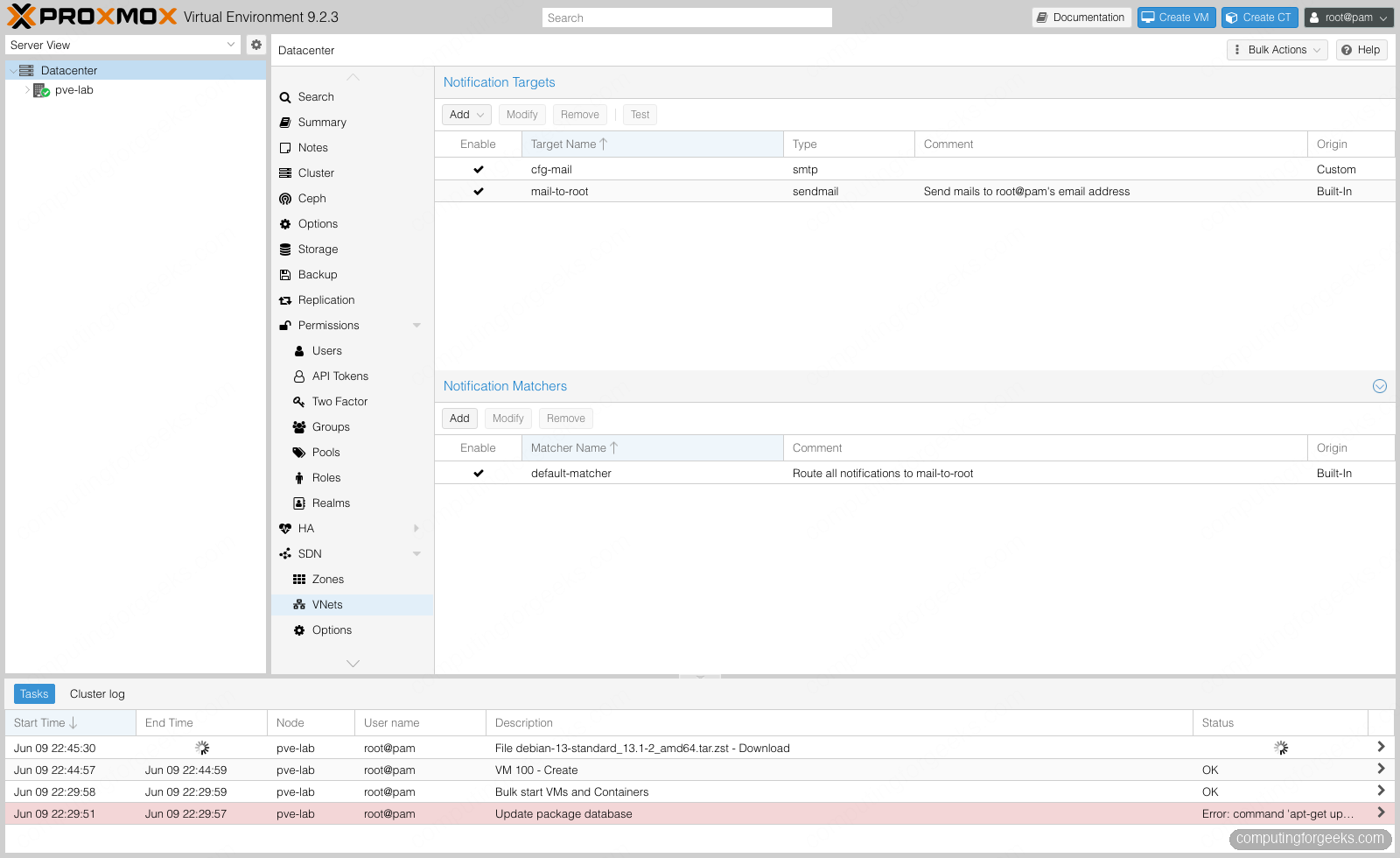
Secrets such as the SMTP password are kept separately in /etc/pve/priv/notifications.cfg. Use the Test button on the target before you rely on it. An SMTP target has no retry queue, so a wrong port or mode fails the send outright rather than retrying later.
8. Create a non-root admin user
Logging into the web console as root@pam for daily work is the habit to break first. Create a dedicated administrator in the built-in Proxmox VE authentication realm so root stays for emergencies. From the shell:
sudo pveum user add admin@pve --comment "Daily admin account"
sudo pveum passwd admin@pve
Grant it the administrator role at the root of the permission tree:
sudo pveum acl modify / --user admin@pve --role AdministratorThe @pve realm is internal to Proxmox, so this user is independent of any Linux account. Log out, log back in as admin@pve, and confirm it can manage the node. Now root@pam is a break-glass account, not your everyday login.
9. Turn on two-factor authentication
An admin account guarding a hypervisor deserves a second factor. Proxmox supports TOTP, WebAuthn, and recovery keys per user. In the web console open Datacenter → Permissions → Two Factor, select the account, add a TOTP factor, and scan the QR code with an authenticator app. Add it to root@pam as well, since that account can always log in over PAM and bypass realm settings.
The factor is stored in the cluster filesystem and is enforced on the next login. Keep the recovery key somewhere safe. If you lose the authenticator and have no recovery key, you are removing the TFA entry from /etc/pve/priv/tfa.cfg over SSH to get back in.
10. Enable the firewall without locking yourself out
The Proxmox firewall has three levels: datacenter, node, and per-guest. Host traffic is only filtered when it is enabled at both the datacenter and node levels, and that two-switch design is exactly where people lock themselves out. Open an SSH session and keep it open before you touch anything.
The reassuring part: when the firewall activates with its default drop policy on inbound, the management services stay reachable from your local network. The web UI on 8006, SSH on 22, and the cluster ports are accepted automatically for hosts on the management network, so enabling the firewall with defaults does not strand an admin on the same LAN:
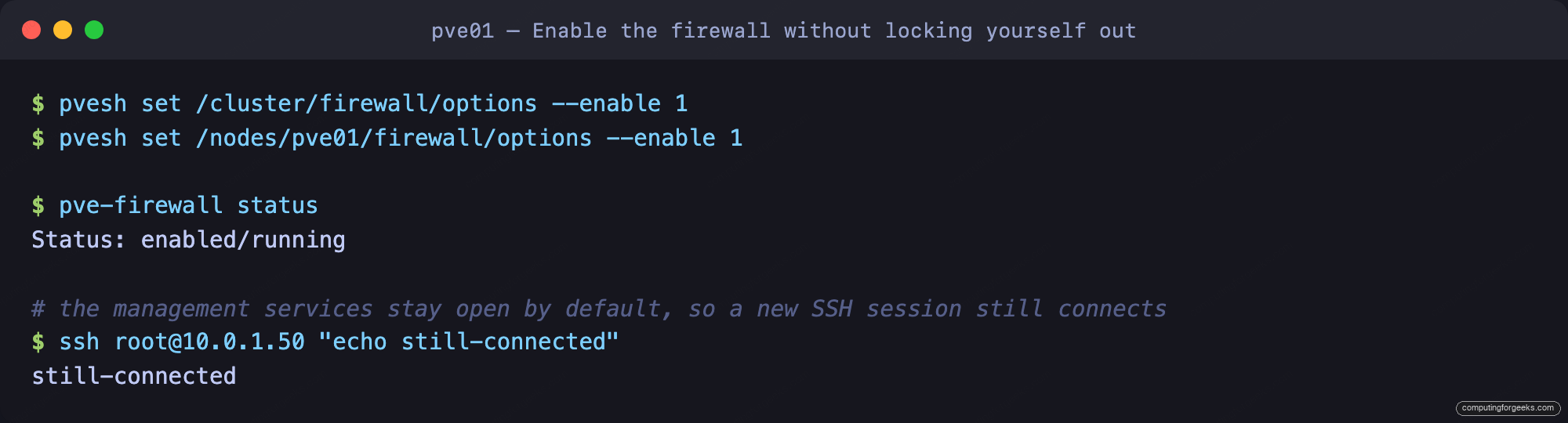
You can do the same from the console under Datacenter and Node firewall options. If you administer the node remotely from a different subnet or over the internet, add your admin IP to the management IP set first, because the automatic allowances cover the local network, not arbitrary remote sources. The real danger is adding a restrictive management rule or changing the input policy without first allowing your own admin network. Add the rule that permits your subnet before you tighten anything, and verify you can still reach the console from a second browser before you close that SSH session.
11. Install a trusted TLS certificate
The console ships with a self-signed certificate, so every login starts with a browser warning. Proxmox has a built-in ACME client that fixes this. The node’s Certificates panel shows the self-signed pair and an empty ACME section waiting for an account:
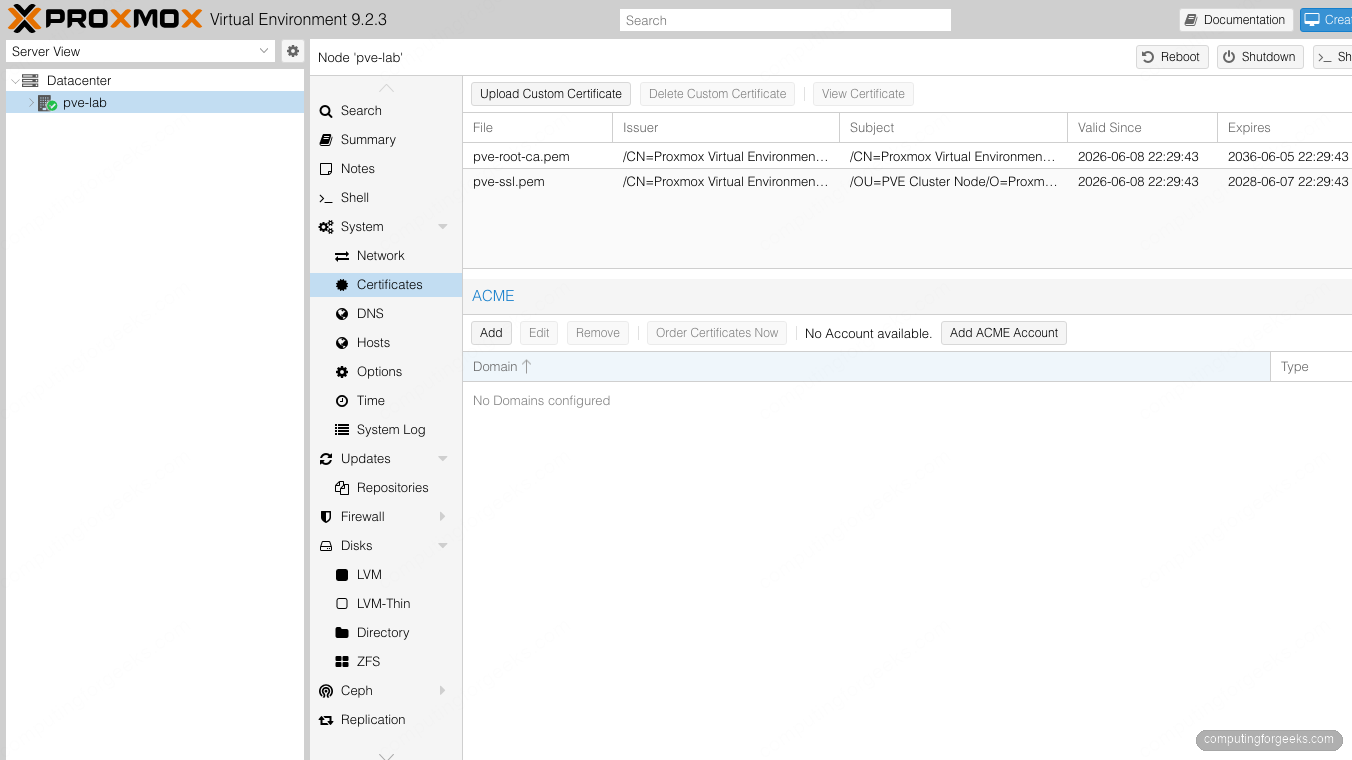
For a node that is not reachable from the public internet on port 80, use a DNS-01 challenge with your DNS provider’s plugin rather than HTTP-01. From the CLI the flow is four steps: register an account, add your provider’s plugin, attach the domain to the node, then order the certificate. This example uses Cloudflare:
sudo pvenode acme account register default [email protected]
sudo pvenode acme plugin add dns cloudflare --api cf --data /etc/pve/priv/cloudflare.ini
sudo pvenode config set --acmedomain0 pve01.example.com,plugin=cloudflare
sudo pvenode acme cert order
Swap cloudflare for your own provider’s plugin; the account registration is required once before any order. If port 80 is reachable from the internet you can skip the plugin and use the simpler HTTP-01 form (pvenode config set --acme domains=pve01.example.com) instead. Either way, Proxmox installs the certificate, reloads pveproxy, and renews automatically before expiry. A node behind NAT works fine with DNS-01 because it proves domain ownership through a TXT record, not an inbound connection.
12. Add storage and keep ISOs off your VM disks
A fresh install gives you two storage entries that confuse newcomers because they sit on the same disk. local is a directory for ISOs, container templates, and backups; local-zfs (or local-lvm on an LVM install) holds VM and container disk images. They are two views of one physical disk, not two disks. List what you have:
sudo pvesm statusThe directory store and the ZFS store report the same underlying capacity because they share it:
Name             Type     Status     Total (KiB)      Used (KiB) Available (KiB)        %
local             dir     active        28209536             128        28209408    0.00%
local-zfs     zfspool     active        28209536              96        28209440    0.00%
On a ZFS-root install the disks panel shows where that comes from: a boot, EFI, and ZFS partition mirrored across both drives.
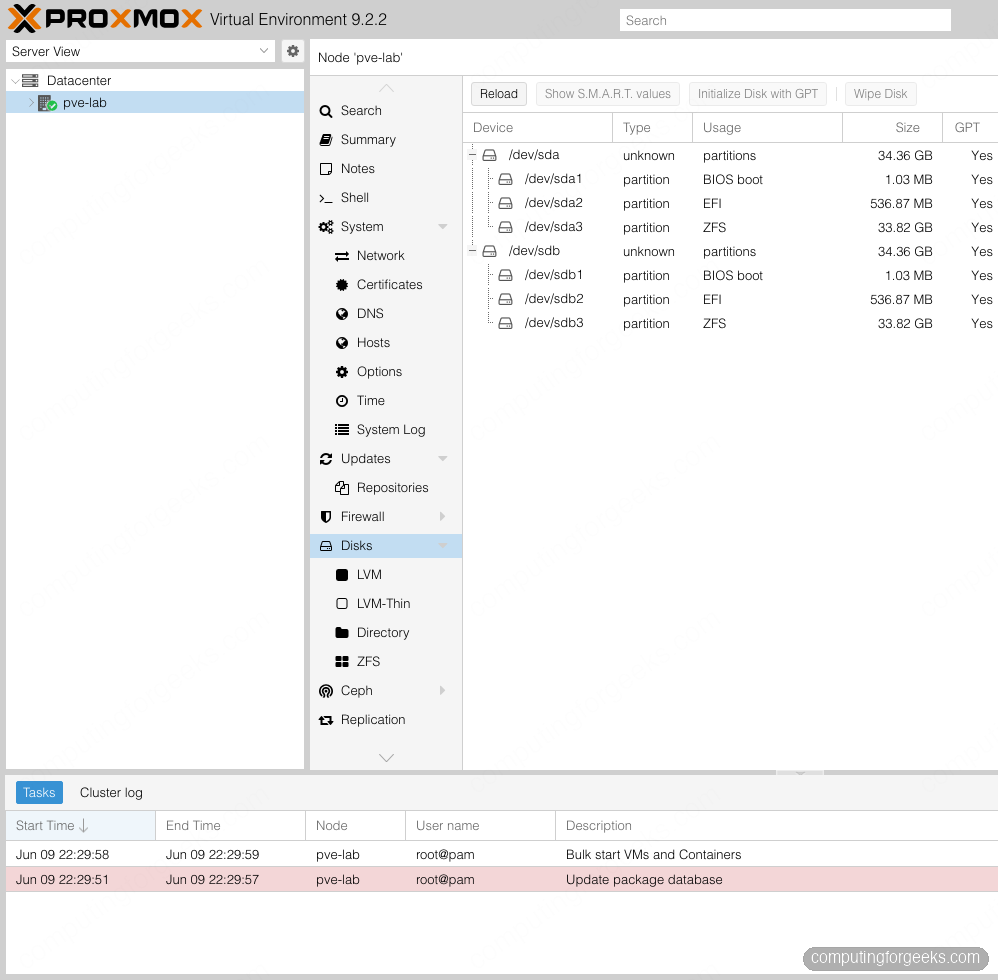
For anything beyond a single host, put ISOs and backups on shared storage so they are not trapped on one node. Add an NFS share as a backup-and-ISO target:
sudo pvesm add nfs nas-backup --server 10.0.1.10 --export /export/proxmox --content backup,iso,vztmplKeeping bulk files off the VM-disk pool means a runaway ISO download cannot fill the space your guests run on. If you are still choosing a backend, the storage backends comparison lays out ZFS, LVM-thin, NFS, and the rest side by side.
13. Make the bridge VLAN-aware
A fresh vmbr0 is a plain bridge. Make it VLAN-aware and a single bridge can carry tagged traffic for every VLAN, so you assign a guest to VLAN 20 by typing 20 in its network tag field instead of building a separate bridge per VLAN. Edit the bridge in /etc/network/interfaces:
auto vmbr0
iface vmbr0 inet static
    address 10.0.1.50/24
    gateway 10.0.1.1
    bridge-ports eno1
    bridge-stp off
    bridge-fd 0
    bridge-vlan-aware yes
    bridge-vids 2-4094
Apply it live, then confirm VLAN filtering is on:
sudo ifreload -a
cat /sys/class/net/vmbr0/bridge/vlan_filtering
A returned value of 1 means the bridge is now VLAN-aware. The web console exposes the same setting as a “VLAN aware” checkbox on the bridge. For bonding, OVS, and the rest of the networking picture, the Linux bridges guide goes deeper.
14. Pin your network interface names
Linux can rename network interfaces when you add a card or jump kernel versions, and a renamed NIC means vmbr0 suddenly references a port that no longer exists. The node comes back headless. Proxmox VE 9 ships a tool that freezes the current names by pinning them to MAC addresses:
sudo pve-network-interface-pinning generateIt reports the rename it will lock in and writes a systemd link file per interface so the name survives hardware and kernel changes:
Name for link 'ens18' (enp6s18, enxbc24111ee172) will change to 'nic0'
Generating link files
Successfully generated .link files in '/usr/local/lib/systemd/network/'
The rename takes effect on the next reboot, with the updated bridge config staged in /etc/network/interfaces.new until then. It is a thirty-second insurance policy against a class of failure that is miserable to debug remotely, and one of the genuinely new reasons to revisit your post-install routine on this release.
15. Turn on SMART disk monitoring
Disks fail, and the difference between a non-event and a lost pool is whether you saw it coming. Install the SMART tools:
sudo apt install smartmontoolsCheck the health of a drive directly:
sudo smartctl -H /dev/sdaA healthy disk reports its overall status as good:
SMART Health Status: OKThen let smartd watch them continuously. With the notification target from step 7 already wired up, a failing drive turns into an email instead of a surprise. Proxmox also surfaces SMART status per disk under Node → Disks in the console, with a green or red indicator you can scan at a glance.
16. Install CPU microcode and sensors
Microcode updates ship CPU errata and security fixes that the kernel loads at boot. A fresh Proxmox VE 9 install enables the Debian non-free-firmware component and usually pulls microcode automatically, but it is worth installing explicitly. Pick the package for your CPU vendor:
sudo apt install intel-microcode      # Intel CPUs
sudo apt install amd64-microcode      # AMD CPUs
Microcode applies at boot, so it needs a reboot to take effect. While you are here, add hardware sensors so temperatures are visible:
sudo apt install lm-sensors
sudo sensors-detect --auto
Run sensors afterward and you get per-core temperatures and fan speeds, which matters once the node has a few VMs working it.
17. Enable IOMMU for PCI passthrough
If you plan to pass a GPU, an HBA, or a NIC straight through to a VM, the IOMMU has to be on. On kernel 6.8 and newer (Proxmox VE 9 runs 7.0) Intel VT-d auto-enables and AMD-Vi is on by default, so on most hardware this is a verification step rather than a change. Confirm the IOMMU is active:
dmesg | grep -e DMAR -e IOMMU -e AMD-ViA working setup prints a line such as DMAR: IOMMU enabled. If you do need to add a kernel parameter, the step that trips people up is editing the wrong bootloader. Check which one is in use first:
sudo proxmox-boot-tool statusA ZFS-root install reports its boot partitions as managed, which is the detail that matters:
System currently booted with legacy bios
9232-7058 is configured with: grub (versions: 7.0.2-6-pve, 7.0.6-2-pve)
9232-D5A7 is configured with: grub (versions: 7.0.2-6-pve, 7.0.6-2-pve)
When proxmox-boot-tool manages the boot partitions, it owns the kernel command line even though the output names grub, and update-grub does nothing. Edit /etc/kernel/cmdline, then apply with sudo proxmox-boot-tool refresh. Only on a plain install with no managed partitions do you edit /etc/default/grub and run update-grub. Loading the wrong file and rebooting to find nothing changed is the single most common passthrough time-sink.
18. Schedule backups with a retention policy
Proxmox runs no backups until you create a job, so this is the step that actually protects your guests. In the console open Datacenter → Backup → Add, pick the storage target, choose which guests to include, set a schedule, and set retention so old backups prune themselves instead of filling the disk:
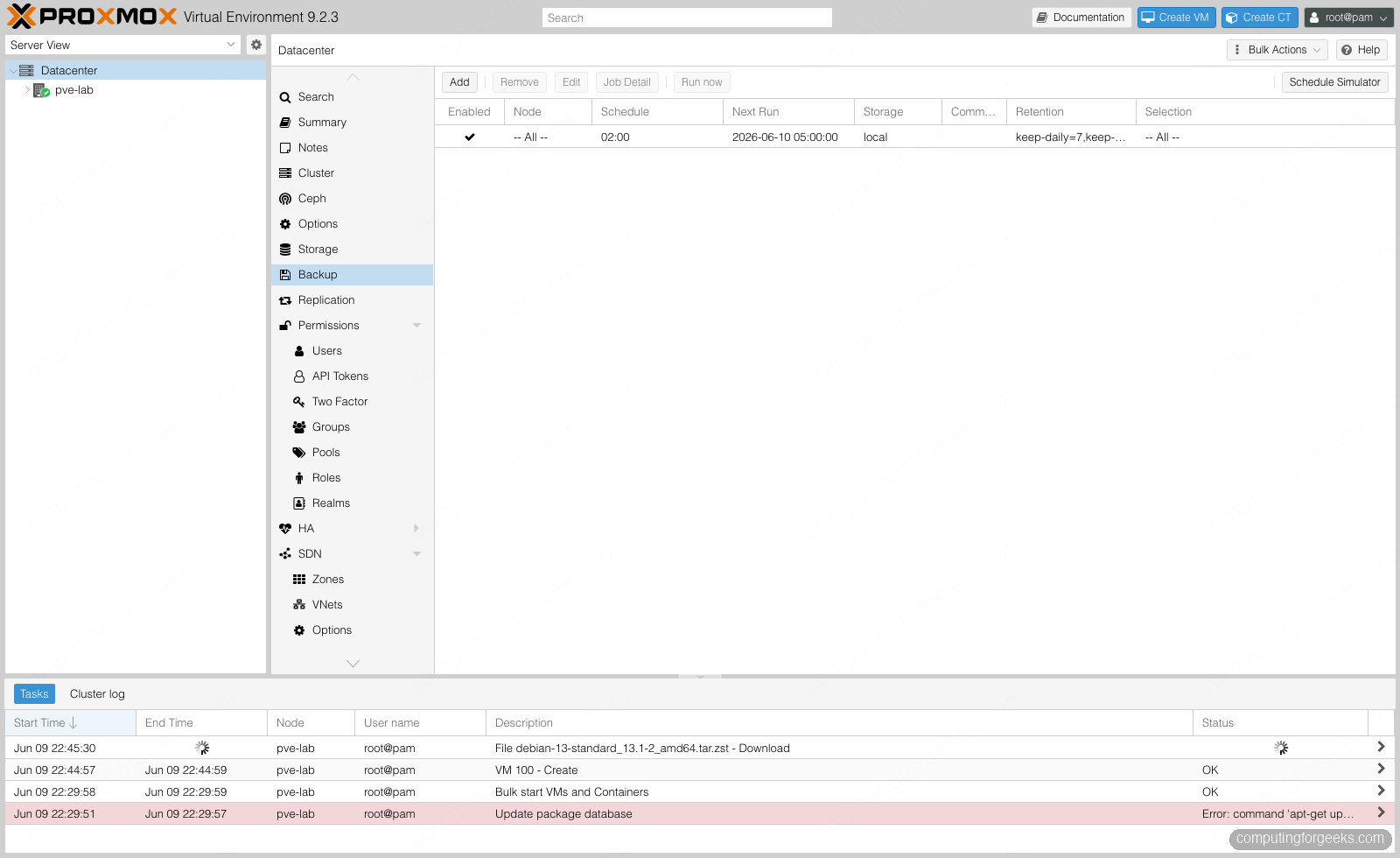
The underlying tool is vzdump, and the job is written to the cluster filesystem at /etc/pve/jobs.cfg. A directory or NFS target is the minimum. For deduplicated, incremental backups that scale to many guests, point the job at a Proxmox Backup Server datastore. Backup outcomes flow into the notification target from step 7, so a failed run emails you rather than failing in silence.
19. Create your first VM
With the host squared away, build a guest the right way so it performs and reports its state. Create a VM with the settings that matter: the VirtIO SCSI single controller, a disk on the SCSI bus with Discard enabled so freed space returns to thin storage, and a VirtIO network device:
sudo qm create 100 --name test-vm --memory 2048 --cores 2 \
  --scsihw virtio-scsi-single --net0 virtio,bridge=vmbr0 \
  --scsi0 local-zfs:32,discard=on --ostype l26 --agent enabled=1
Proxmox carves the disk out of the ZFS pool and the VM is ready to install an OS into:
scsi0: successfully created disk 'local-zfs:vm-100-disk-0,discard=on,size=32G'Inside the guest, install the QEMU guest agent so Proxmox can report its IP, quiesce it for snapshots, and shut it down cleanly:
sudo apt install qemu-guest-agentThe --agent enabled=1 flag above already turned the agent on at the VM level. Forgetting the in-guest package is why a VM hangs in “running (shutdown)” forever, because the host waits on a guest that never answers.
20. Create your first container, including from an OCI image
For services that do not need a full kernel, an LXC container is lighter than a VM and boots in a second. Download a template and create one from the CLI:
sudo pveam update
sudo pveam available --section system | grep debian-13
The current Debian template shows up in the list, ready to download:
system debian-13-standard_13.1-2_amd64.tar.zstDownload it, then create and start an unprivileged container from it:
sudo pveam download local debian-13-standard_13.1-2_amd64.tar.zst
sudo pct create 200 local:vztmpl/debian-13-standard_13.1-2_amd64.tar.zst \
  --hostname ct-test --memory 512 --rootfs local-zfs:4 \
  --net0 name=eth0,bridge=vmbr0,ip=dhcp --unprivileged 1
sudo pct start 200
A couple of seconds later it is running Debian 13:
200 running ct-testProxmox VE 9.1 added something worth trying here: you can create a container directly from an OCI container image, the same image format Docker uses. That turns the template picker into a path for running application images as containers, a genuinely new capability that older post-install guides predate entirely. Application images from OCI are still a technology preview in 9.1, with no in-place update (you recreate the container to update it), so treat them as something to experiment with while the standard system templates stay the production path.
That is the node ready for real work: reachable on a fixed address with a trusted certificate, locked behind a second factor and a firewall, backing itself up, alerting on failures, and running its first guests. From here the next moves depend on scale. A second and third node turn this into a cluster with live migration and high availability, and shared storage like a hyperconverged Ceph cluster removes the single-node limit entirely. Both build directly on the foundation you just laid.