Hyperconverged means the same three servers run both the virtual machines and the storage those machines live on. There is no separate SAN, no external NAS, no single box whose death takes the cluster down. Ceph spreads every block across all three nodes, keeps three copies, and a Proxmox VE cluster on top turns that into shared storage any node can use. Lose a node and the guests keep their data and restart elsewhere on their own.
This guide builds that from three freshly installed nodes: a Proxmox cluster, a Ceph cluster with six OSDs, an RBD pool, a real virtual machine whose disk lives in Ceph, and then a deliberate node failure to prove the whole thing holds. The cluster network, the replication settings, and the failover were all run on real nodes, not described from the manual.
Built and measured June 2026 on Proxmox VE 9.2 with Ceph Tentacle.
How the pieces fit
Ceph is made of a few daemon types, and the Proxmox tooling places them for you. Knowing what each one does makes every later step obvious:
- MON (monitor) holds the cluster map and decides who is in quorum. Run an odd number, normally one per node, so a single failure still leaves a majority.
- MGR (manager) serves metrics and the dashboard and handles housekeeping like the placement-group autoscaler. One is active, the rest stand by.
- OSD (object storage daemon) is one daemon per physical disk. This is where data actually lands. More OSDs means more capacity and more parallelism.
- RBD (RADOS block device) is the layer that presents a Ceph object pool as a virtual disk Proxmox can attach to a VM.
The failure tolerance comes from two numbers on the pool: size and min_size. With size 3, every object is stored three times, once per host. With min_size 2, the pool keeps accepting reads and writes as long as two copies survive. Lose one node and the data is down to two copies but still fully online. That is the entire point of the exercise.
Prerequisites
Three nodes, each with a clean Proxmox VE install and the no-subscription repository enabled, because the Ceph packages come from there. Each node in this build has one disk for the OS and two empty 10 GB disks that become OSDs, for six OSDs total. Empty is mandatory: Ceph wipes an OSD disk, so it must hold nothing you want.
The other requirement is a second network. Ceph replication moves a lot of traffic between OSDs, and it must not fight corosync (the cluster heartbeat) or the management interface for bandwidth. Each node here has a second NIC on a private 10.10.20.0/24 segment dedicated to Ceph, separate from the 192.168.1.0/24 management LAN that carries corosync. If you have not split bridges yet, the bridge configuration guide covers the second interface.
Here is the exact layout this build uses. Every command below refers to one of these values, so map them to your own hardware as you go:
| Node | Management IP | Ceph network IP | OSD disks |
|---|---|---|---|
| pve1 | 192.168.1.10 | 10.10.20.21 | /dev/sdb, /dev/sdc |
| pve2 | 192.168.1.11 | 10.10.20.22 | /dev/sdb, /dev/sdc |
| pve3 | 192.168.1.12 | 10.10.20.23 | /dev/sdb, /dev/sdc |
The values to replace with your own are the node management IPs, the Ceph subnet (10.10.20.0/24), and the OSD disk names. The names this guide picks, the cluster cfg-ceph, the pool vmpool, and the test VM ID 9100, are also yours to change. Each one is flagged again where it first appears, so nothing is a blind copy and paste.
Step 1: Form the three-node cluster
Ceph in Proxmox rides on a Proxmox cluster, so build that first. On the first node, create the cluster. The name cfg-ceph is just this lab’s choice, so replace it with whatever suits your environment:
pvecm create cfg-cephOn each of the other two nodes, join by pointing at the first node’s management IP, 192.168.1.10 in the table above. The join prompts for that node’s root password, restarts the cluster filesystem, and pulls down the shared config:
pvecm add 192.168.1.10Once both have joined, check the membership from any node. All three must show, and the cluster must be quorate:
pvecm statusThe output lists the three node IDs and confirms quorum:
Cluster information
-------------------
Name:             cfg-ceph
Nodes:            3
Quorate:          Yes

Membership information
----------------------
    Nodeid      Votes Name
0x00000001          1 192.168.1.10 (local)
0x00000002          1 192.168.1.11
0x00000003          1 192.168.1.12
With quorum established, the cluster is ready to become a Ceph cluster.
Step 2: Install Ceph on every node
Install the Ceph packages on all three nodes. Tentacle is the current default on Proxmox VE 9; Squid is the supported alternative if an existing cluster is already on it. Run this on each node and answer yes when apt asks:
pveceph install --repository no-subscription --version tentacleConfirm the same version landed everywhere, because a Ceph cluster must run one release across all nodes:
ceph --versionEvery node reports the same build:
ceph version 20.2.1 (1846e8e84cd244e621f1395ea824e304691b5a58) tentacle (stable)The same build runs everywhere, so the daemons can come next.
Step 3: Initialize Ceph, then create monitors and managers
Initialize the cluster once, on the first node only, and pin Ceph traffic to the dedicated network. Put your own Ceph subnet in place of 10.10.20.0/24. Setting both the public and cluster networks to that storage segment keeps replication off the management LAN:
pveceph init --network 10.10.20.0/24 --cluster-network 10.10.20.0/24Create a monitor on each node so quorum survives a single failure. Run this once per node:
pveceph mon createDo the same for managers. One becomes active, the other two stand by:
pveceph mgr createBefore adding disks, drop the per-OSD memory target. The default is 4 GB per OSD, which is correct on real hardware but too much for a lab node. On a production cluster, leave it at the default or higher:
ceph config set osd osd_memory_target 2147483648Monitors and managers are running. The disks come next, and they are the part that actually holds data.
Step 4: Create the OSDs
Confirm the device names of the empty disks first, because they vary by hardware and Ceph erases whatever you point it at:
lsblk -d -e7 -o NAME,SIZE,MODELThen turn each empty disk into an OSD. On every node, run the command once per data disk. Here the two spare disks are /dev/sdb and /dev/sdc; use your own. Ceph zaps the disk, lays down a BlueStore OSD, and brings it into the cluster:
pveceph osd create /dev/sdb
pveceph osd create /dev/sdc
With two disks on each of three nodes, the cluster now has six OSDs. Check the health and the layout:
ceph -sHealth reports OK, six OSDs up and in, three monitors in quorum:
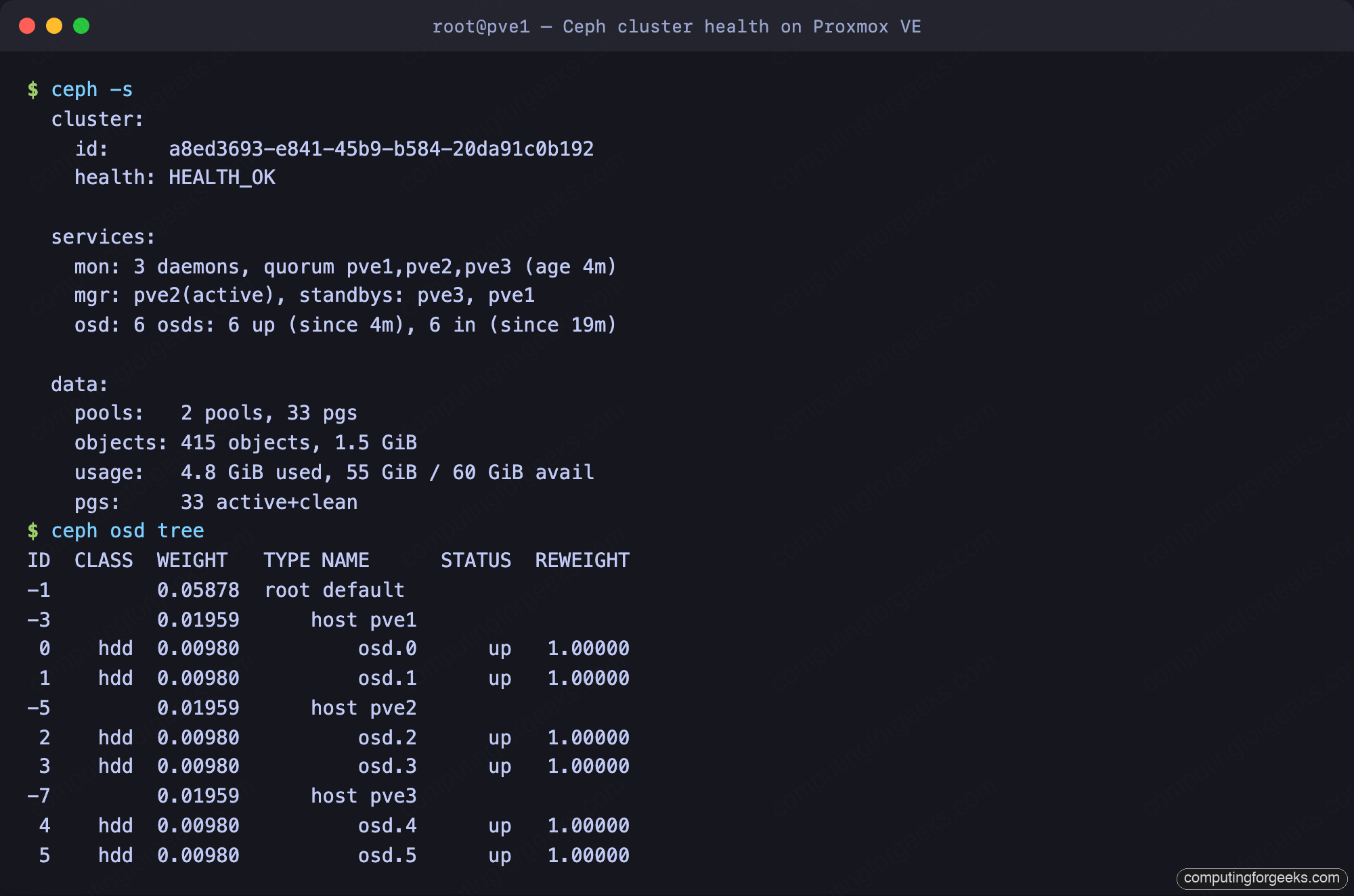
The CRUSH tree is what makes the replication safe. Because the six OSDs are grouped under three separate hosts, Ceph’s default rule places the three copies of every object on three different hosts. The web UI shows the same map under the node’s Ceph panel:
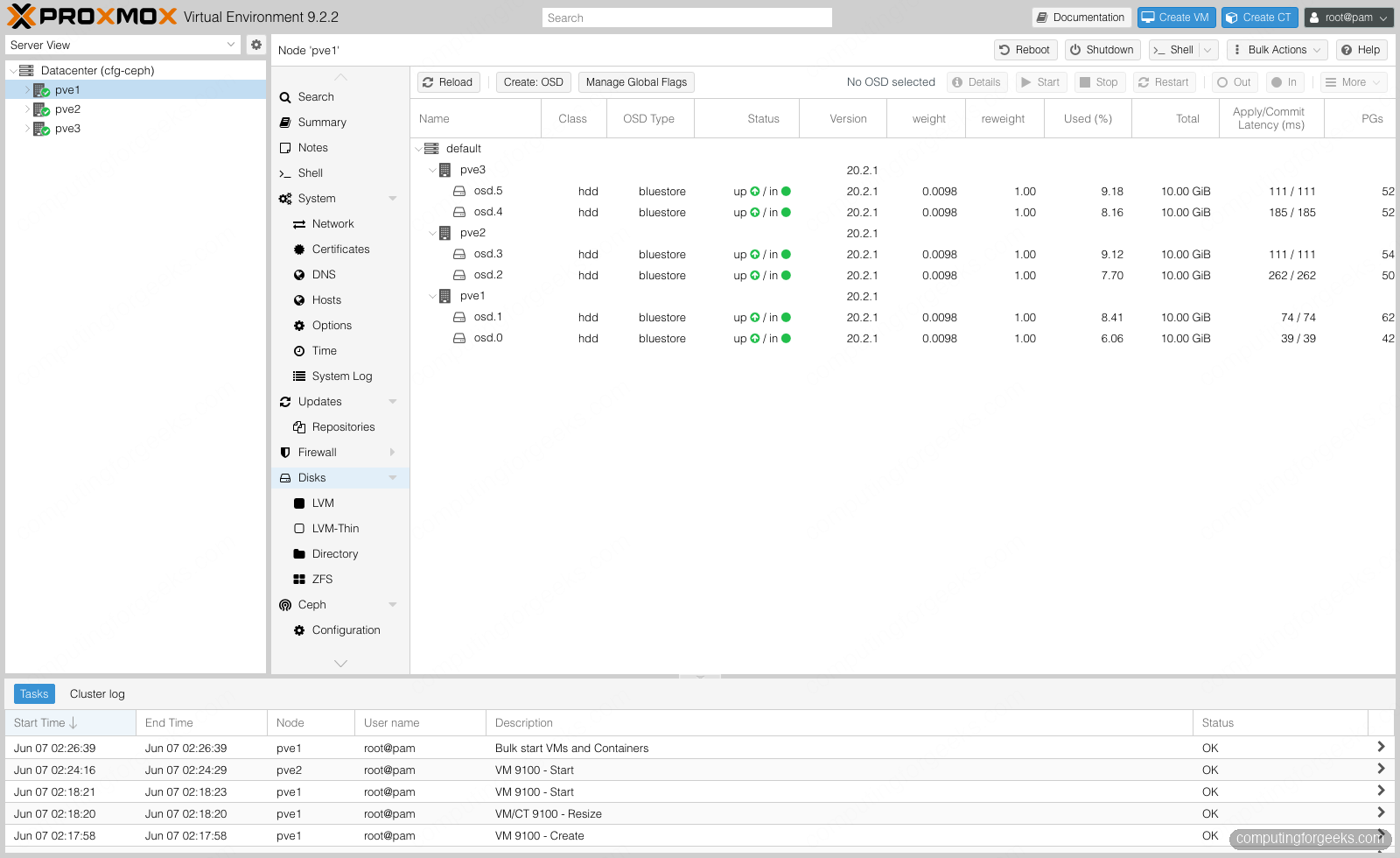
The Ceph status dashboard collects the whole picture in one place: the health state, OSDs up and in, monitor and manager placement, and the Ceph version. This is the page to keep open while operating the cluster.
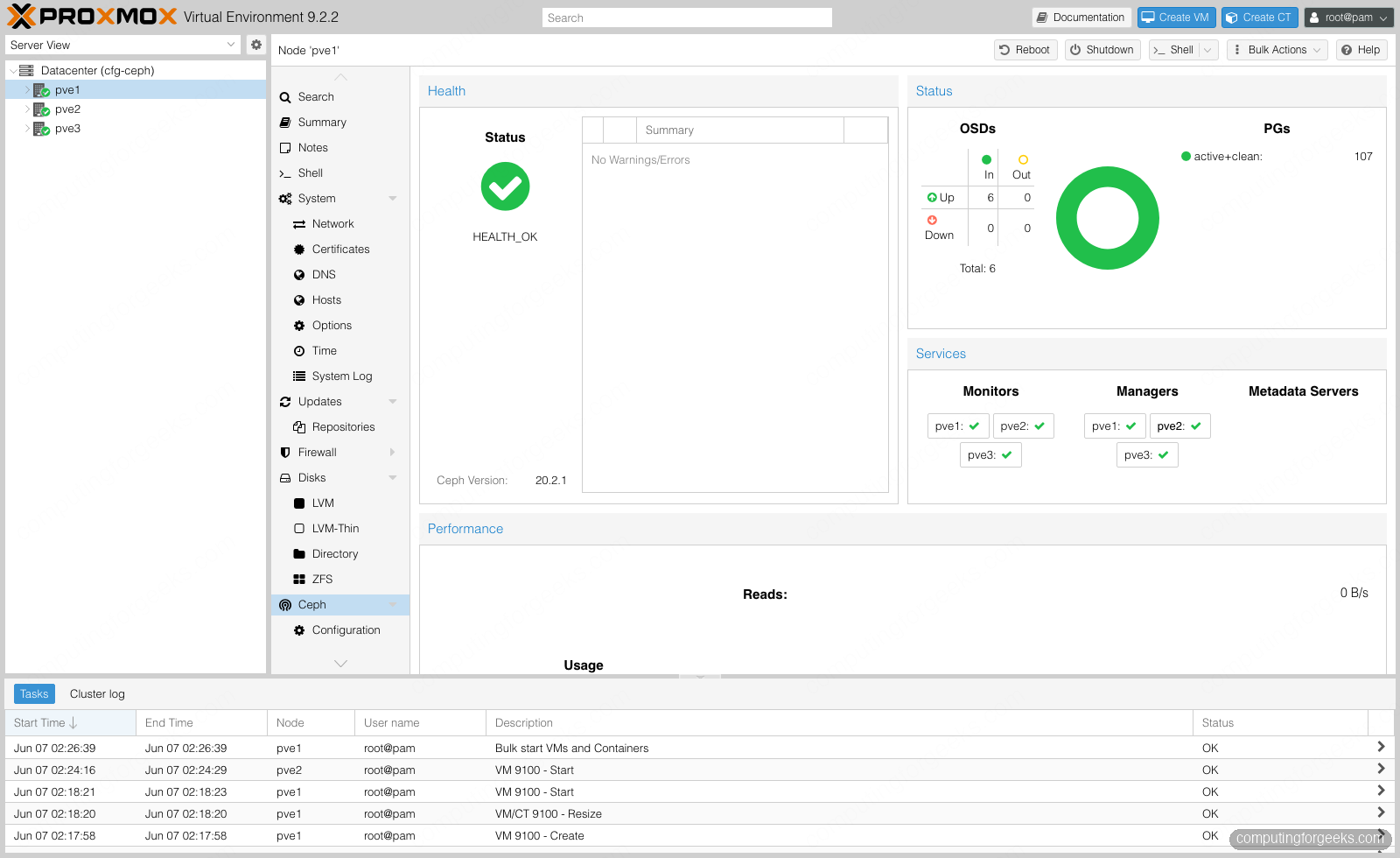
Six OSDs across three hosts is a working cluster. It needs a pool before it can store a single VM disk.
Step 5: Create the RBD pool and storage
A pool is where VM disks live. Create one, named vmpool here, with three replicas and a minimum of two, and let Proxmox register it as a storage in the same step. The name is your choice, and it is also how the storage shows up in the Proxmox UI:
pveceph pool create vmpool --add_storages 1The defaults are exactly what a three-node cluster wants: size 3, min_size 2, and the placement-group autoscaler on. Confirm the replication settings:
ceph osd pool get vmpool size
ceph osd pool get vmpool min_size
They return the values that define the failure tolerance for everything stored here:
size: 3
min_size: 2
The pool now appears under Datacenter, Ceph, Pools, and as a storage named vmpool that every node can write to:
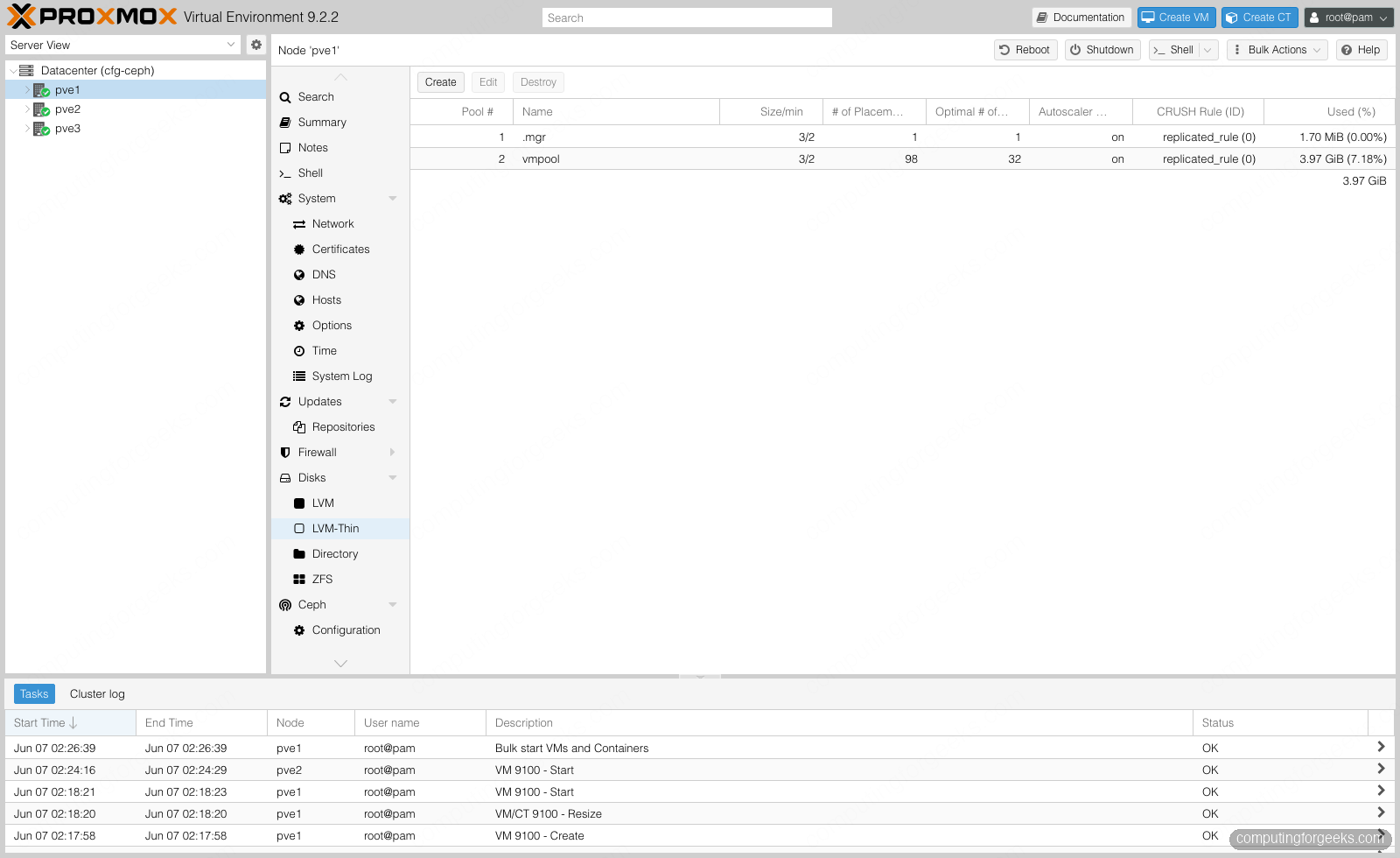
The storage exists and is shared across the cluster. Time to put a real workload on it.
Step 6: Put a VM on Ceph
Create a VM and place its disk on the new pool. The fastest route to a bootable guest is a cloud image imported straight into Ceph. Download a current Debian cloud image onto the first node:
wget -O /root/debian13.qcow2 \
  https://cloud.debian.org/images/cloud/trixie/latest/debian-13-genericcloud-amd64.qcow2
Then create the VM shell, import that image to the pool, attach it, and add a cloud-init drive. The VM ID 9100 and the name ceph-vm are arbitrary, so change them to fit your numbering, and set a real password before booting anything you care about:
qm create 9100 --name ceph-vm --memory 2048 --cores 2 \
  --net0 virtio,bridge=vmbr0 --scsihw virtio-scsi-single --ostype l26 --agent 1
qm importdisk 9100 /root/debian13.qcow2 vmpool
qm set 9100 --scsi0 vmpool:vm-9100-disk-0 --ide2 vmpool:cloudinit --boot order=scsi0
qm set 9100 --ciuser cfg --cipassword 'ChangeMe2026' --ipconfig0 ip=dhcp
qm start 9100
The disk is now a RADOS block device. List the images in the pool to see it living in Ceph rather than on any single node’s local storage:
rbd ls vmpoolBoth the disk and its cloud-init drive are Ceph objects:
vm-9100-cloudinit
vm-9100-disk-0
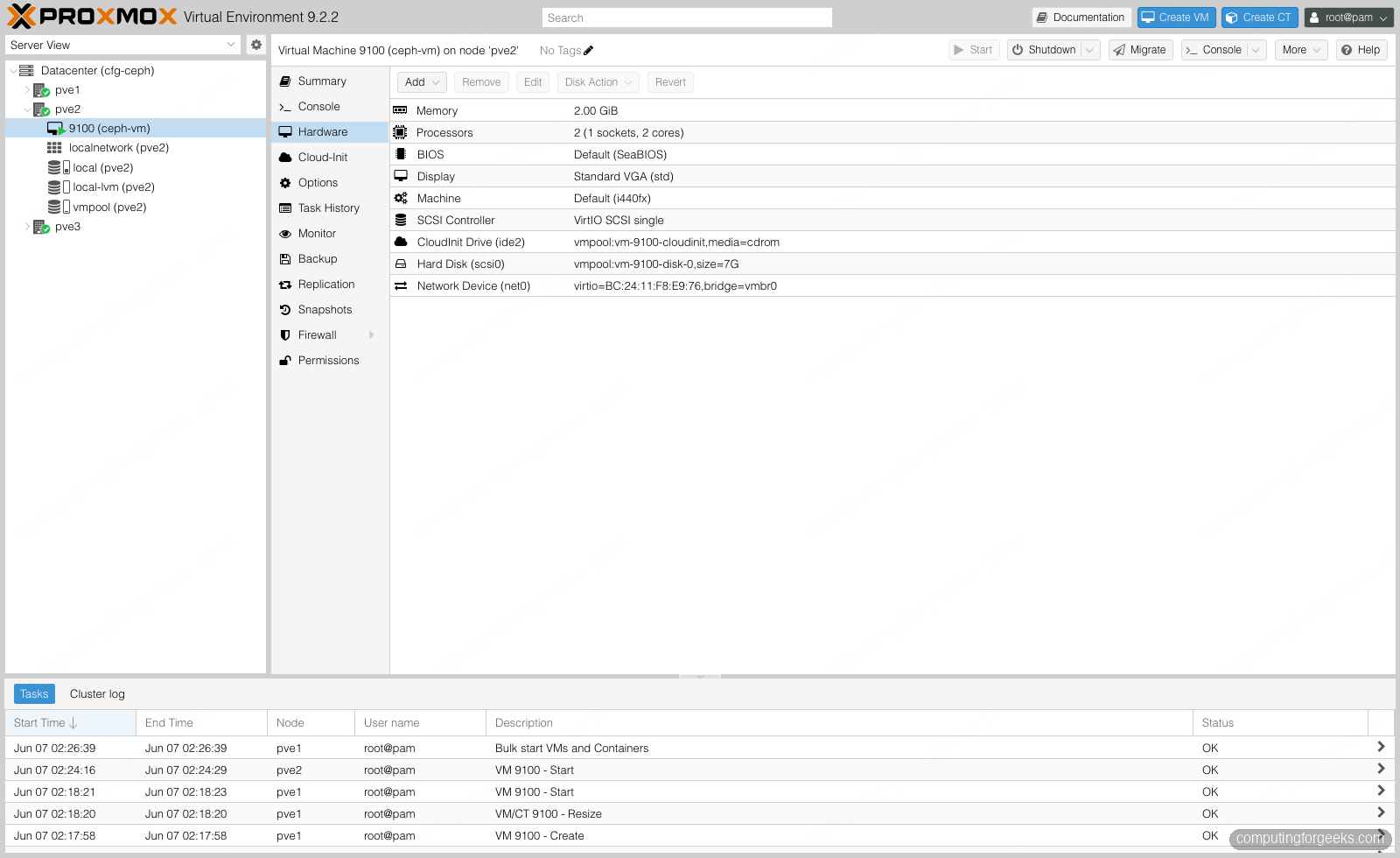
The VM hardware view confirms the disk path is vmpool, which means any node in the cluster can run this guest. That property is what the next step depends on.
Step 7: Pull the plug on a node
Shared storage is only worth the effort if the cluster actually survives a failure. First, hand the VM to the HA stack so Proxmox is responsible for keeping it running:
ha-manager add vm:9100 --state startedThe VM is running on the first node. Now take that node out the way a real failure would: pull its power, trigger an IPMI power-off, or run poweroff on it directly. Do not migrate the guest off first, because the whole point is an unplanned loss. Two things then happen in parallel, and both matter.
On the storage side, Ceph loses two OSDs and one monitor but stays online. Because min_size is 2 and two copies of every object survive on the other nodes, the pool keeps serving reads and writes. Health drops to a warning, not an outage:
ceph -sThe cluster reports the failure honestly while staying available. A third of the objects are now down to two copies, but nothing is lost:
    health: HEALTH_WARN
            1/3 mons down, quorum pve2,pve3
            2 osds down; 1 host (2 osds) down
            Degraded data redundancy: 418/1254 objects degraded (33.333%)
    osd: 6 osds: 4 up, 6 in
On the compute side, HA notices the node is gone, fences it to be certain it cannot come back and corrupt anything, then restarts the VM on a surviving node. Because the disk is in Ceph, the new host already has access to it. The whole sequence is visible in the HA status:
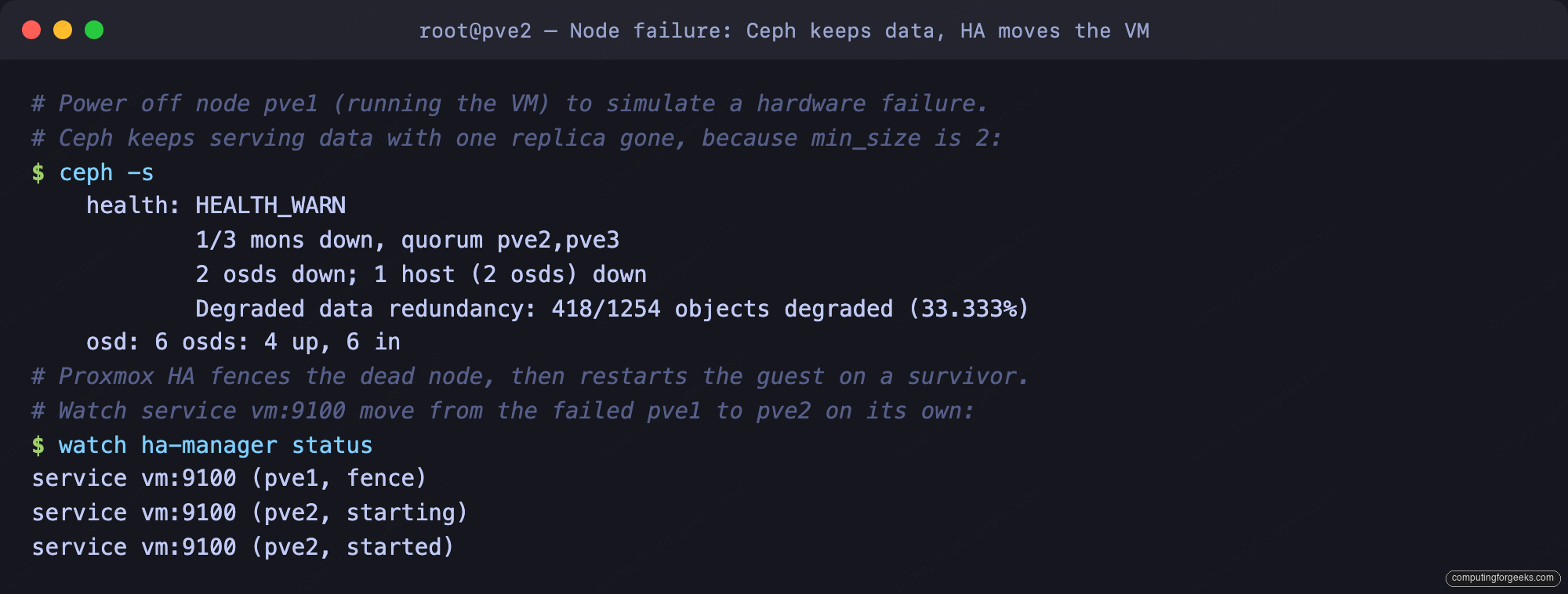
A minute or so later the guest is running on the second node, on the same disk, with no manual intervention. The VM hardware page now shows it on a different host, still pointed at the vmpool disk:
Power the failed node back on. Its monitor rejoins, its two OSDs come back up, and Ceph backfills the objects that changed while it was gone until every placement group is active+clean and health returns to OK. No data was lost and the guest never needed a restore.
Step 8: Measure it
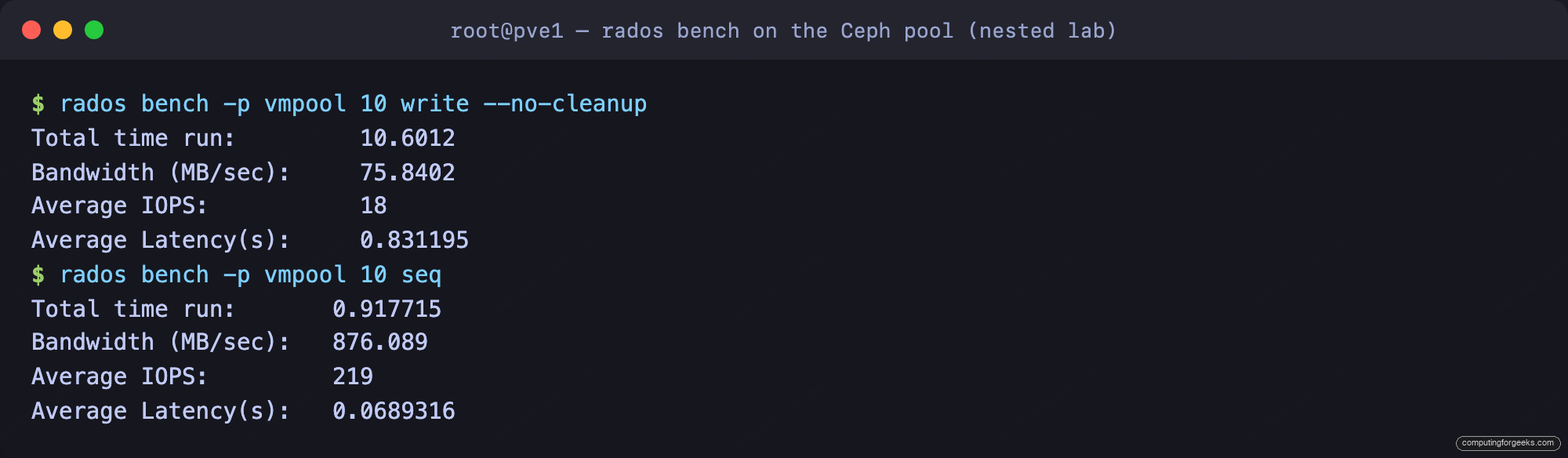
Numbers from a nested lab are not representative of bare metal, so treat these as a demonstration of the method, not a performance claim. On real servers with NVMe OSDs and a 25 GbE storage network the figures are an order of magnitude higher. The built-in tool writes and reads objects directly against the pool:
rados bench -p vmpool 10 write --no-cleanup
rados bench -p vmpool 10 seq
On this three-node lab cluster, write throughput measured at 75.8 MB/s and sequential read at 876 MB/s, with the read benefiting from cache:
Always clean the benchmark objects out of the pool afterward so they do not sit there consuming space:
rados -p vmpool cleanupThat is the full build, failure test included. A handful of numbers separate this lab from a production cluster.
Production sizing and what to watch
The lab cluster proves the mechanism. Four numbers separate it from something you would run in production. First, OSD memory: leave osd_memory_target at 4 GB or more per OSD and size RAM so every OSD, plus the monitor and manager, has headroom. Second, the network: Ceph wants its own 10 GbE or faster link, and corosync wants a separate low-latency path of its own, because a saturated storage network that stalls the heartbeat will fence nodes you did not mean to lose.
Third, the disk count and class: three OSDs total is the floor, not a target. Performance and recovery speed both scale with OSD count, and BlueStore on NVMe behaves very differently from spinning disks. Plan for at least four OSDs per node and keep one class of disk per pool. Fourth, never drop min_size to 1 to ride out a second failure; that is how split-brain writes corrupt a pool. Keep three monitors minimum, watch the ceph -s health and the per-OSD latency in the dashboard, and the cluster will tell you about trouble long before it becomes an outage. From here, the same pool backs a Ceph-aware storage layout for the rest of the cluster’s guests.