

The vectors in your Qdrant cluster are derived data, but the inputs (model + corpus) often are not under your control or are expensive to re-embed. Re-running BGE-small over 10 million documents to recover a wiped collection is hours of work. A snapshot is minutes. The difference between “no backups” and “a working backup process” is the difference between an outage and an incident report. If you prefer to keep object storage on premises, a quick MinIO server install gives you an S3-compatible target that the workflow below talks to without code changes.
This guide walks the full snapshot lifecycle on a real Qdrant 1.18.1 cluster: per-collection and cluster-wide snapshots through the API, three restore paths verified against payload data, the canonical S3 backup pattern with IAM roles instead of static keys, and a real disaster-recovery round trip where we delete a collection and bring it back from an S3 object. Every command was executed against a live cluster, and every output block is captured from that run.
Tested May 2026 on Ubuntu 24.04.4 LTS with Qdrant 1.18.1, qdrant-client 1.18.0, fastembed 0.8.0, AWS CLI 2.34, and a real S3 bucket in eu-west-1.
Snapshot vs copying the storage directory
A common temptation is to rsync the /qdrant/storage directory while Qdrant is running. That copies the on-disk segment files, but does not stop in-flight writes, does not flush the write-ahead log, and does not produce a consistent point-in-time view. You can end up with a tar that restores into a half-committed state. Collection metadata pointing at segments that were not fully copied, or WAL records that reference deleted IDs.
Qdrant snapshots solve this. The snapshot endpoint quiesces writes on the target collection for a few hundred milliseconds, flushes WAL into storage, and produces a single tar archive that contains the full point + payload + index state. The cluster keeps serving reads through the whole process. Restoring a snapshot replays a known-good state, not whatever the filesystem looked like when you ran the copy.
Two endpoints matter:
| Endpoint | Scope | Output |
|---|---|---|
POST /collections/{name}/snapshots | One collection | tar archive in /qdrant/snapshots/{name}/ |
POST /snapshots | Whole cluster (all collections + aliases + cluster state) | tar archive in /qdrant/snapshots/ |
Use per-collection for routine backup and lightweight migrations. Use full snapshots for disaster-recovery drills and version upgrades where you want to roll the entire cluster forward atomically.
Create snapshots through the API
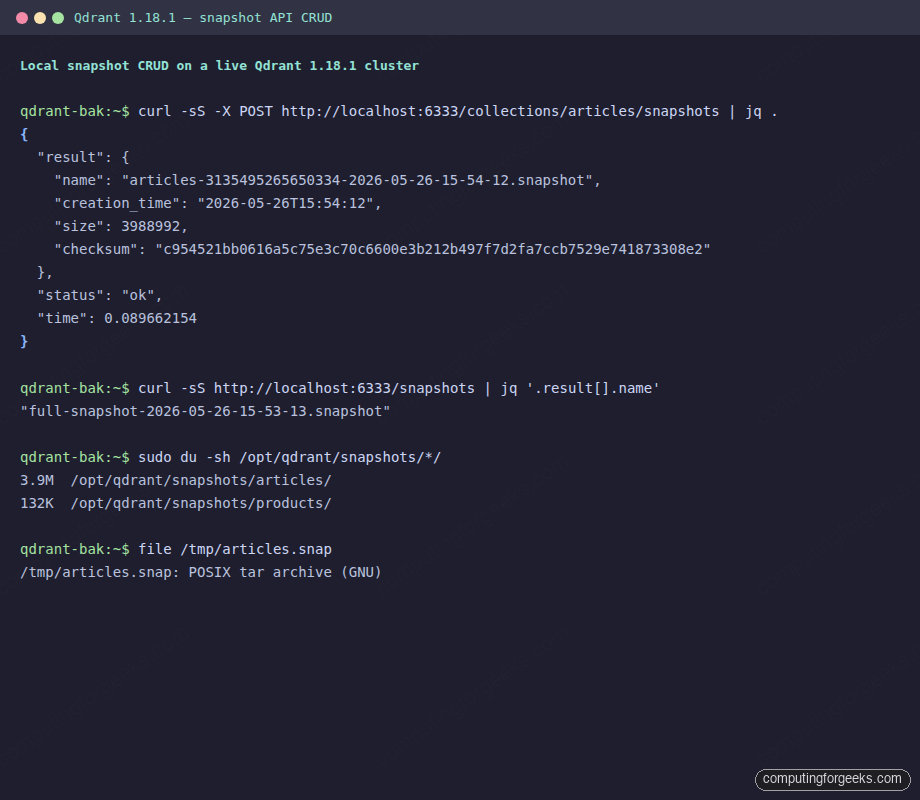
Start with the simplest call: take a snapshot of one collection. The response includes the snapshot filename, size in bytes, creation timestamp, and SHA-256 checksum:
curl -sS -X POST http://localhost:6333/collections/articles/snapshots | jq .
{
  "result": {
    "name": "articles-3135495265650334-2026-05-26-15-54-12.snapshot",
    "creation_time": "2026-05-26T15:54:12",
    "size": 3988992,
    "checksum": "c954521bb0616a5c75e3c70c6600e3b212b497f7d2fa7ccb7529e741873308e2"
  },
  "status": "ok",
  "time": 0.089662154
}
The snapshot filename combines the collection name, a node hash (so cluster snapshots do not collide), and an ISO timestamp. On the test cluster a 1000-point collection with 384-dim BGE-small vectors landed at 3.9 MB in 90 ms. Compare that to the products collection: 200 points with 8-dim vectors snapshotted to 132 KB in 56 ms. Snapshot size is dominated by the vector count times the vector dimension; payload size adds a smaller constant.
List snapshots for one collection or all collections at once:
curl -sS http://localhost:6333/collections/articles/snapshots | jq .
curl -sS http://localhost:6333/snapshots | jq .

sudo du -sh /opt/qdrant/snapshots/*/
# 3.9M  /opt/qdrant/snapshots/articles/
# 132K  /opt/qdrant/snapshots/products/
The full cluster snapshot is a separate endpoint. It bundles every collection plus the alias and cluster state. On the same test box it took 200 ms and 4.1 MB to cover both collections plus the cluster metadata:
curl -sS -X POST http://localhost:6333/snapshots | jq .
# {
#   "result": {
#     "name": "full-snapshot-2026-05-26-15-53-13.snapshot",
#     "creation_time": "2026-05-26T15:53:14",
#     "size": 4118528,
#     "checksum": "6edce854d154e7cb740c3ea4a9156b8791538f3b5cb1adfae431456c802e505d"
#   },
#   "status": "ok",
#   "time": 0.186404091
# }
The on-disk format is plain POSIX tar (with a side-by-side .checksum file). You can untar a snapshot to inspect it for debugging, but the standard restore path is to push the file back to Qdrant and let it parse the archive itself.
Download a snapshot off the cluster
Snapshots live on the cluster’s local filesystem under /qdrant/snapshots. They are not durable on their own. If the host disk dies, so do the snapshots. To get them off the box, either download via the HTTP endpoint or copy the file directly with scp/rsync after creation:
SNAP=articles-3135495265650334-2026-05-26-15-54-12.snapshot
curl -sS -o /tmp/articles.snapshot \
    "http://localhost:6333/collections/articles/snapshots/${SNAP}"

ls -lh /tmp/articles.snapshot
# -rw-rw-r-- 1 ubuntu ubuntu 3.9M  /tmp/articles.snapshot
file /tmp/articles.snapshot
# /tmp/articles.snapshot: POSIX tar archive (GNU)
The HTTP endpoint streams the file, which scales fine even for large snapshots because it does not load the archive into memory. If your snapshots run into tens of gigabytes (a full collection of 100M+ embeddings), prefer this over loading the whole snapshot via a Python client.
For continuous off-cluster backup the cleanest pattern is aws s3 sync against the snapshots directory itself. Qdrant writes new files, sync uploads them, the cluster never knows S3 exists. We cover that below.
Restore: three real paths
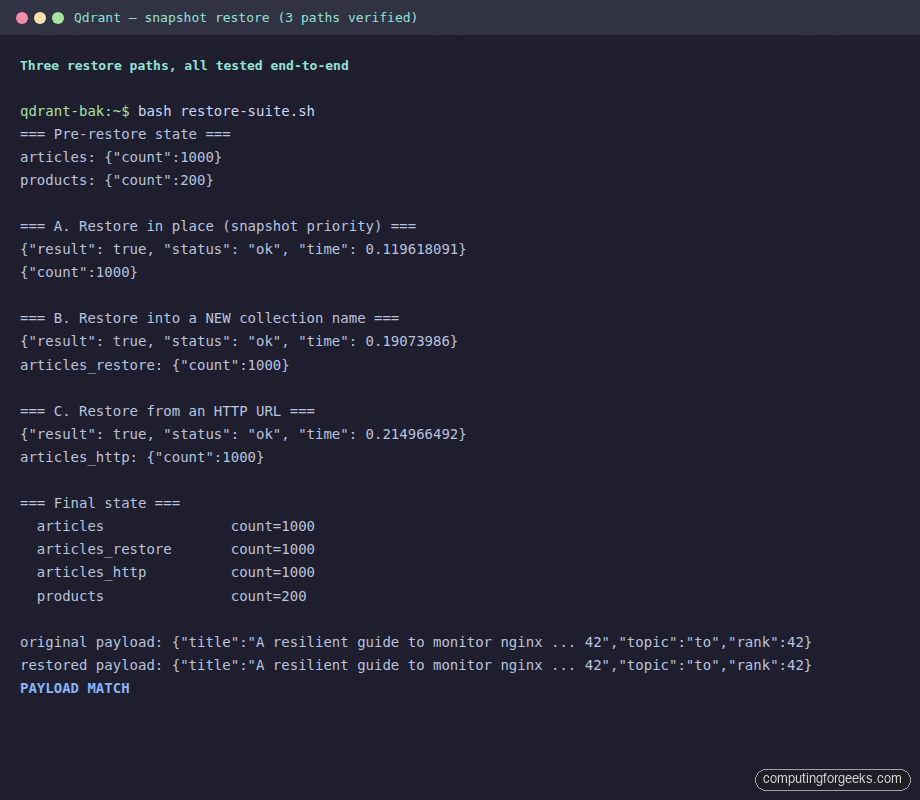
The restore API accepts a snapshot location and a target collection. Three location forms work and each fits a different operational scenario:
- Local file URL for in-place recovery on the same node where the snapshot lives.
- HTTP URL for restoring across nodes, where Qdrant fetches the snapshot itself.
- File URL into a new collection name for clone/migrate workflows where you want to test a restore without overwriting production.
# A. Restore in place (overwrites the collection)
curl -sS -X PUT http://localhost:6333/collections/articles/snapshots/recover \
  -H "Content-Type: application/json" \
  -d '{
        "location": "file:///qdrant/snapshots/articles/articles-...-15-54-12.snapshot",
        "priority": "snapshot"
      }'
# {"result": true, "status": "ok", "time": 0.119618091}

# B. Restore into a NEW collection (clone)
curl -sS -X PUT http://localhost:6333/collections/articles_restore/snapshots/recover \
  -H "Content-Type: application/json" \
  -d '{
        "location": "file:///qdrant/snapshots/articles/articles-...-15-54-12.snapshot"
      }'
# {"result": true, "status": "ok", "time": 0.19073986}

# C. Restore from an HTTP URL (Qdrant fetches the snapshot itself)
curl -sS -X PUT http://localhost:6333/collections/articles_http/snapshots/recover \
  -H "Content-Type: application/json" \
  -d '{
        "location": "http://localhost:6333/collections/articles/snapshots/articles-...-15-54-12.snapshot"
      }'
# {"result": true, "status": "ok", "time": 0.214966492}
The priority field on the in-place restore is important. "snapshot" tells Qdrant to overwrite the existing collection with the snapshot’s data; "replica" (the default) keeps the current data and uses the snapshot only to fill gaps. For a real disaster recovery you almost always want snapshot.
Verify all three restores succeeded and the data matches the original. Point count first, then a payload spot-check on a known id:
=== Final state ===
  articles               count=1000
  articles_restore       count=1000
  articles_http          count=1000
  products               count=200

original payload: {"title":"A resilient guide to monitor nginx ... 42","topic":"to","rank":42}
restored payload: {"title":"A resilient guide to monitor nginx ... 42","topic":"to","rank":42}
PAYLOAD MATCH
All three restores returned the exact same vectors and payload as the original. That includes the payload index state. Restored collections come up indexed-ready, you do not have to rebuild indexes after a restore.
S3 backup with IAM roles, not static keys
The canonical production pattern is aws s3 sync from the snapshots directory to an S3 bucket, on a cron or systemd timer. The pattern relies on an IAM role attached to the EC2 instance so no static credentials ever live on the box. Create a bucket and a least-privilege policy that allows only ListBucket and Get/Put/DeleteObject on that bucket:
aws s3api create-bucket --region eu-west-1 \
  --bucket cfg-snapshots-1779810367 \
  --create-bucket-configuration LocationConstraint=eu-west-1

cat > s3pol.json <<'EOF'
{"Version":"2012-10-17","Statement":[
  {"Effect":"Allow","Action":["s3:ListBucket"],
   "Resource":"arn:aws:s3:::cfg-snapshots-1779810367"},
  {"Effect":"Allow","Action":["s3:GetObject","s3:PutObject","s3:DeleteObject"],
   "Resource":"arn:aws:s3:::cfg-snapshots-1779810367/*"}
]}
EOF
aws iam put-role-policy --role-name cfg-qdrant-ec2-role \
  --policy-name s3-snapshots --policy-document file://s3pol.json
Confirm the role works from inside the box by hitting the instance metadata service:
aws sts get-caller-identity
# {
#   "UserId": "AROAR...:i-04fe11cae5b715773",
#   "Account": "075502422778",
#   "Arn": "arn:aws:sts::075502422778:assumed-role/cfg-qdrant-ec2-role/i-04fe11cae5b715773"
# }
Now sync the snapshots directory. The --exclude "tmp/*" skips Qdrant’s in-progress snapshot staging area, which can contain partial files mid-write:
TS=$(date -u +%Y%m%dT%H%M%SZ)
aws s3 sync /opt/qdrant/snapshots/ \
    s3://cfg-snapshots-1779810367/${TS}/ \
    --exclude "tmp/*" --exclude "*.tmp" --no-progress
Wrap this in a script, drop it into /usr/local/bin/qdrant-backup.sh, and wire a systemd timer or cron to run it on whatever cadence your RPO calls for (every hour for production-grade RPO, every six hours for typical SaaS):
# /etc/systemd/system/qdrant-backup.service
[Unit]
Description=Snapshot Qdrant collections and sync to S3

[Service]
Type=oneshot
ExecStart=/usr/local/bin/qdrant-backup.sh

# /etc/systemd/system/qdrant-backup.timer
[Unit]
Description=Hourly Qdrant snapshot + S3 backup

[Timer]
OnCalendar=hourly
Persistent=true

[Install]
WantedBy=timers.target
End-to-end disaster recovery
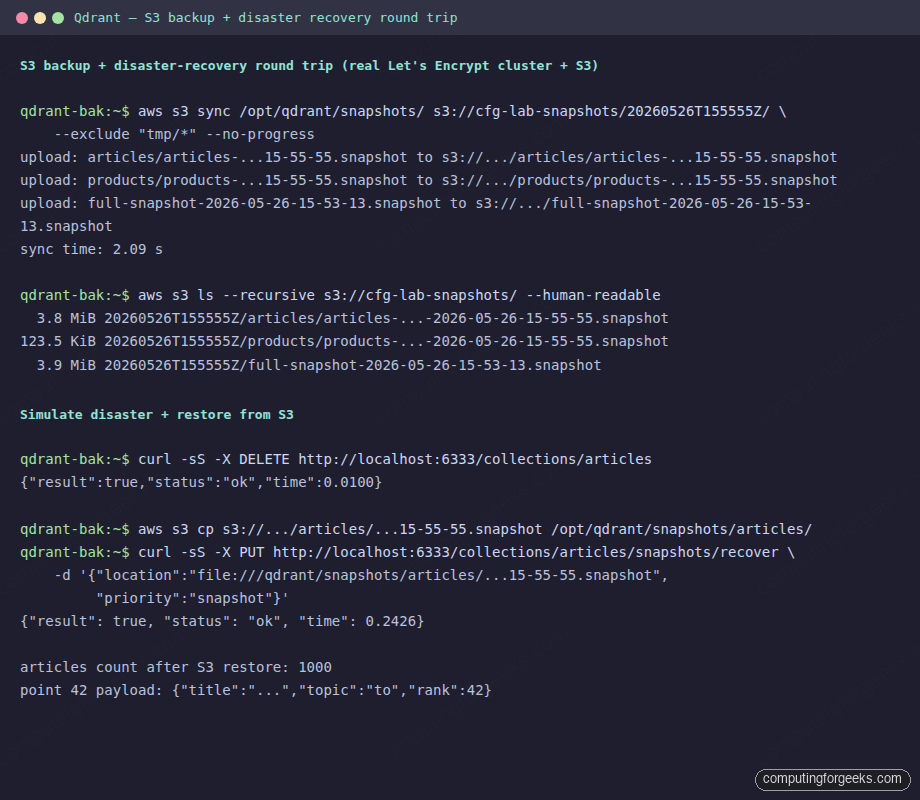
The only meaningful backup is one you have restored from. Drill it: delete a real collection and bring it back from S3 alone. The script below is the exact sequence we ran against the test cluster:
# 1. Disaster: drop the articles collection
curl -sS -X DELETE http://localhost:6333/collections/articles
# {"result":true,"status":"ok","time":0.010}

# Confirm the collection is gone
curl -sS http://localhost:6333/collections | jq -c '.result.collections'
# [{"name":"products"}]

# 2. Pull the latest snapshot from S3
SNAP=$(aws s3 ls "s3://cfg-snapshots-1779810367/${TS}/articles/" \
       | awk '$NF ~ /\.snapshot$/ {print $NF}' | tail -1)
aws s3 cp "s3://cfg-snapshots-1779810367/${TS}/articles/${SNAP}" \
    /opt/qdrant/snapshots/articles/${SNAP}

# 3. Restore in place from the local file
curl -sS -X PUT http://localhost:6333/collections/articles/snapshots/recover \
  -H "Content-Type: application/json" \
  -d "{\"location\": \"file:///qdrant/snapshots/articles/${SNAP}\",
       \"priority\": \"snapshot\"}"
# {"result": true, "status": "ok", "time": 0.2426}

# 4. Verify
curl -sS -X POST http://localhost:6333/collections/articles/points/count \
    -H "Content-Type: application/json" -d '{"exact": true}'
# {"result": {"count": 1000}, "status": "ok"}
The whole drill (delete, pull from S3, restore, verify) ran in under three seconds on a 4 MB snapshot. On a real workload with multi-GB snapshots the bottleneck is the S3 download bandwidth, not Qdrant. A single-thread aws s3 cp on a t3.small clocks around 50 MB/s, and --cli-write-timeout 0 plus multi-part transfer handles 5+ GB snapshots cleanly.
Rotation and S3 lifecycle
Snapshots accumulate fast. A 4 MB snapshot every hour is 100 MB per day, ~3 GB per month. Keeping all of them forever is wasteful; deleting them too aggressively defeats the point of having a backup. Two layers of rotation work together: trim local snapshots on the host, and let S3 lifecycle policy age out remote objects.
# Local rotation: keep last 24 hourly snapshots per collection
for D in /opt/qdrant/snapshots/*/; do
    ls -t "$D"*.snapshot 2>/dev/null | tail -n +25 | xargs -r sudo rm -v
done
On S3, define a lifecycle that pushes everything older than 7 days to Standard-IA, 30 days to Glacier Instant Retrieval, and expires at 365 days:
cat > lifecycle.json <<'EOF'
{
  "Rules": [{
    "ID": "qdrant-snapshots",
    "Status": "Enabled",
    "Filter": {"Prefix": ""},
    "Transitions": [
      {"Days":  7, "StorageClass": "STANDARD_IA"},
      {"Days": 30, "StorageClass": "GLACIER_IR"}
    ],
    "Expiration": {"Days": 365}
  }]
}
EOF
aws s3api put-bucket-lifecycle-configuration \
    --bucket cfg-snapshots-1779810367 \
    --lifecycle-configuration file://lifecycle.json
Storage cost falls off a cliff after the first transition. At ~3 GB/month: Standard is $0.07/mo, Standard-IA is $0.04/mo, Glacier IR is $0.012/mo. A year of hourly backups on this corpus stays under a dollar.
Gotchas worth remembering
Five real traps surfaced during testing, each one easy to miss without a restore drill:
- Per-collection snapshots can disappear when you trigger a full snapshot. The full snapshot operation may evict older per-collection files to keep disk usage bounded, leaving behind orphaned
.checksumfiles. Always sync to S3 immediately after creating a snapshot, not on a separate schedule that runs hours later. - The default
priorityfor restore isreplica, notsnapshot. Without"priority":"snapshot"in the body, Qdrant treats the snapshot as a secondary source and keeps existing data. For disaster recovery you wantsnapshotevery time. - Snapshot files are tar archives, not raw segment files. Do not
untarthem into/qdrant/storageand restart the container expecting it to work. The restore endpoint is the only supported path; it parses the archive, validates checksums, and writes the storage correctly. Manually untarring breaks index pointers. - The
tmp/subdirectory under/qdrant/snapshotscan contain partial files mid-write. Always exclude it from rsync/aws-sync. Backing up an incomplete tar produces a snapshot that fails the SHA-256 checksum and can’t be restored. - IAM role propagation takes 10-20 seconds after attach. The first
aws sts get-caller-identitycall right afterassociate-iam-instance-profilereturns NoCredentialProviders. Add asleep 20in provisioning scripts before the first S3 operation, or pollaws sts get-caller-identityuntil it succeeds.
Monitoring the backup pipeline
An untested backup is a placebo. Three checks cover the failure modes that matter:
- Is the timer firing?
systemctl status qdrant-backup.timershows last trigger and next firing. Pipe its journal into your log aggregator and alert on “missed”. - Is the snapshot growing roughly as expected? Compare the latest object size on S3 against the previous one. A snapshot that shrinks 50% without an explanation is a sign the collection was accidentally truncated.
- Does the restore actually work? Run a restore drill weekly into a non-production cluster, count points, spot-check payload. Schedule this. Backup pipelines decay silently.
The pipeline we built here is small enough to fit on one page. Snapshot on a timer, sync to S3, rotate locally and via lifecycle, drill restore weekly. Every piece is testable in isolation and the only state outside Qdrant is an S3 bucket plus an IAM role. For a vector database that costs hours to re-embed, that is the floor. On the test cluster it cost three seconds to recover from a deleted collection, which is what you want when the real incident comes. If you also back up file-tree state (training corpora, prompts, configs) the same way, our restic on S3 walkthrough gives you a complementary encrypted-snapshot tool for that side of the pipeline.
