Rocky Linux 10 dropped openldap-servers from BaseOS. The slapd daemon now lives in EPEL, which means a working OpenLDAP install on RHEL 10-family distros is two repos and a handful of LDIFs away. This guide stands up a small authentication lab on three Rocky Linux 10.1 VMs: one OpenLDAP 2.6.9 server backed by LMDB, two SSSD 2.11.1 clients pulling users, groups, SSH keys, and sudoers from the directory over LDAPS.
By the end you will have centralized POSIX accounts replacing local /etc/passwd, password authentication for SSH backed by LDAP, public-key SSH where the keys live as sshPublicKey attributes in the directory (no ~/.ssh/authorized_keys to sync), group-based sudo via the sudoRole schema, and TLS encryption between every component. Same pattern scales from a 3-node lab to a 300-node estate. For deeper schema details see the OpenLDAP 2.6 admin guide.
Tested April 2026 on Rocky Linux 10.1 (Red Quartz, kernel 6.12) with OpenLDAP 2.6.9 from EPEL, SSSD 2.11.1, authselect 1.5.0, oddjob-mkhomedir 0.34.7. SELinux enforcing throughout.
Lab topology
Three Rocky Linux 10.1 VMs on a flat 192.168.1.0/24 network. The IPs and hostnames below are placeholders. Substitute your own DNS, base DN, and credentials anywhere they appear.
| Hostname | IP | Role | RAM | Disk |
|---|---|---|---|---|
ldap1.cfglab.local | 192.168.1.230 | OpenLDAP server (slapd) | 1.5 GB | 20 GB |
client1.cfglab.local | 192.168.1.231 | SSSD-enrolled client | 1 GB | 12 GB |
client2.cfglab.local | 192.168.1.232 | SSSD-enrolled client | 1 GB | 12 GB |
The directory uses base DN dc=cfglab,dc=local with two organizational units, ou=people for user accounts and ou=groups for POSIX groups. A separate ou=sudoers branch carries sudo rules. The cn=admin RDN is the directory manager.
Prerequisites
- Three Rocky Linux 10.1 hosts (or 10.0 with kernel 6.12), reachable over SSH
- Sudo or root access on all three
- Forward and reverse DNS, or matching
/etc/hostsentries on every host - Internet access on all three to pull EPEL, openldap-servers, and SSSD
- Ports 389/tcp (LDAP) and 636/tcp (LDAPS) open between clients and the server
Step 1: Set reusable shell variables
Every command later in the guide references the same handful of values: hostnames, base DN, admin password. Pull them into shell variables once so you change one block and paste the rest as-is.
export LDAP_DOMAIN="cfglab.local"
export LDAP_BASE="dc=cfglab,dc=local"
export LDAP_ADMIN_DN="cn=admin,${LDAP_BASE}"
export LDAP_ADMIN_PASS="LdapAdmin#2026"
export LDAP_HOST="ldap1.cfglab.local"
export LDAP_IP="192.168.1.230"
export CLIENT1_HOST="client1.cfglab.local"
export CLIENT1_IP="192.168.1.231"
export CLIENT2_HOST="client2.cfglab.local"
export CLIENT2_IP="192.168.1.232"
Confirm the values are set before running anything destructive. Empty variables are how most LDIF imports go sideways.
echo "Base DN:    ${LDAP_BASE}"
echo "Admin DN:   ${LDAP_ADMIN_DN}"
echo "Server:     ${LDAP_HOST} (${LDAP_IP})"
echo "Clients:    ${CLIENT1_HOST}, ${CLIENT2_HOST}"
The variables hold only for the current shell session. Re-export them if you reconnect or jump into a sudo -i root shell. Pick a real admin password before running the LDIFs in Step 4 because that hash is written into the directory and rolling it later means rebuilding cn=config.
Step 2: Prepare all three VMs
Set the hostname on each box, sync the clock, populate /etc/hosts, and confirm SELinux is enforcing. Run these on every host. The clock matters because Kerberos-style protocols and TLS reject sessions when host clocks drift more than a few minutes.
sudo hostnamectl set-hostname "${LDAP_HOST}"   # on ldap1 only; use CLIENT1_HOST / CLIENT2_HOST on the others
sudo timedatectl set-timezone UTC
sudo systemctl enable --now chronyd
sudo dnf install -y firewalld
sudo systemctl enable --now firewalld
getenforce
getenforce must print Enforcing. The openldap-servers RPM ships an SELinux policy module that binds slapd to the right ports; do not disable SELinux. Add the same three /etc/hosts entries on every box so the clients resolve the LDAP server FQDN even if local DNS is missing.
sudo tee -a /etc/hosts >/dev/null <<HOSTS
${LDAP_IP}    ${LDAP_HOST} ldap1
${CLIENT1_IP} ${CLIENT1_HOST} client1
${CLIENT2_IP} ${CLIENT2_HOST} client2
HOSTS
From any client, ping the LDAP server FQDN to make sure resolution and routing work before you try LDAP traffic.
ping -c 2 "${LDAP_HOST}"Step 3: Install OpenLDAP server from EPEL
This step runs on ldap1 only. RHEL 10 dropped the openldap-servers package from BaseOS. EPEL 10 ships it back, so enable that repo first, then install the daemon, the schema files, and the client utilities.
sudo dnf install -y epel-release
sudo dnf install -y openldap openldap-servers openldap-clients
Confirm the packages landed and check the daemon binary.
rpm -q openldap openldap-servers openldap-clients
slapd -V 2>&1 | head -1
You should see something like @(#) $OpenLDAP: slapd 2.6.9 ...$. The cn=config tree (also known as slapd.d) is the live runtime configuration. Modifications happen via LDIF over the local LDAPI socket using the SASL EXTERNAL mechanism. Start the daemon, enable it on boot, and verify it is listening on TCP/389.
sudo systemctl enable --now slapd
sudo ss -tlnp | grep :389
Set the cn=config root password so further modifications work without local root. The slappasswd output is a salted SHA hash, never the plaintext.
CONFIG_HASH=$(slappasswd -s "${LDAP_ADMIN_PASS}")
cat > /tmp/rootpw.ldif <<LDIF
dn: olcDatabase={0}config,cn=config
changetype: modify
add: olcRootPW
olcRootPW: ${CONFIG_HASH}
LDIF
sudo ldapmodify -Y EXTERNAL -H ldapi:/// -f /tmp/rootpw.ldif
The default OpenLDAP install ships only the bare core schema. Load cosine, nis, and inetorgperson so the directory understands POSIX user attributes (uidNumber, gidNumber, homeDirectory, loginShell) plus the wider person attributes used by mail and HR systems.
sudo ldapadd -Y EXTERNAL -H ldapi:/// -f /etc/openldap/schema/cosine.ldif
sudo ldapadd -Y EXTERNAL -H ldapi:/// -f /etc/openldap/schema/nis.ldif
sudo ldapadd -Y EXTERNAL -H ldapi:/// -f /etc/openldap/schema/inetorgperson.ldif
Now point the LMDB-backed main database at your suffix, set the directory manager DN, and reuse the same hashed password for the manager.
cat > /tmp/db.ldif <<LDIF
dn: olcDatabase={2}mdb,cn=config
changetype: modify
replace: olcSuffix
olcSuffix: ${LDAP_BASE}
-
replace: olcRootDN
olcRootDN: ${LDAP_ADMIN_DN}
-
add: olcRootPW
olcRootPW: ${CONFIG_HASH}
LDIF
sudo ldapmodify -Y EXTERNAL -H ldapi:/// -f /tmp/db.ldif
Tighten the monitor database so anonymous reads cannot enumerate runtime stats.
cat > /tmp/monitor.ldif <<LDIF
dn: olcDatabase={1}monitor,cn=config
changetype: modify
replace: olcAccess
olcAccess: {0}to * by dn.base="gidNumber=0+uidNumber=0,cn=peercred,cn=external,cn=auth" read by dn.base="${LDAP_ADMIN_DN}" read by * none
LDIF
sudo ldapmodify -Y EXTERNAL -H ldapi:/// -f /tmp/monitor.ldif
Step 4: Add base DN, OUs, users, and groups
The directory still has no actual data. Create the suffix entry, the admin role, and the two organizational units that hold users and groups.
cat > /tmp/base.ldif <<LDIF
dn: ${LDAP_BASE}
objectClass: top
objectClass: dcObject
objectClass: organization
o: CFG Lab
dc: cfglab

dn: ${LDAP_ADMIN_DN}
objectClass: organizationalRole
cn: admin
description: LDAP Administrator

dn: ou=people,${LDAP_BASE}
objectClass: organizationalUnit
ou: people

dn: ou=groups,${LDAP_BASE}
objectClass: organizationalUnit
ou: groups
LDIF
ldapadd -x -D "${LDAP_ADMIN_DN}" -w "${LDAP_ADMIN_PASS}" -f /tmp/base.ldif
Add two POSIX groups (sysadmins and developers) and two test users. Hash the user passwords with slappasswd the same way you hashed the admin password. Pick real values for your environment; the example credentials below are placeholders.
TEST_HASH=$(slappasswd -s "TestUser#2026")
ADMIN_HASH=$(slappasswd -s "SysAdmin#2026")
cat > /tmp/users.ldif <<LDIF
dn: cn=sysadmins,ou=groups,${LDAP_BASE}
objectClass: posixGroup
cn: sysadmins
gidNumber: 5000

dn: cn=developers,ou=groups,${LDAP_BASE}
objectClass: posixGroup
cn: developers
gidNumber: 5001

dn: uid=testuser1,ou=people,${LDAP_BASE}
objectClass: inetOrgPerson
objectClass: posixAccount
objectClass: shadowAccount
cn: Test User One
sn: Userone
givenName: Test
uid: testuser1
uidNumber: 10001
gidNumber: 5001
homeDirectory: /home/testuser1
loginShell: /bin/bash
mail: testuser1@${LDAP_DOMAIN}
userPassword: ${TEST_HASH}

dn: uid=jbravo,ou=people,${LDAP_BASE}
objectClass: inetOrgPerson
objectClass: posixAccount
objectClass: shadowAccount
cn: Johnny Bravo
sn: Bravo
givenName: Johnny
uid: jbravo
uidNumber: 10002
gidNumber: 5000
homeDirectory: /home/jbravo
loginShell: /bin/bash
mail: jbravo@${LDAP_DOMAIN}
userPassword: ${ADMIN_HASH}
LDIF
ldapadd -x -D "${LDAP_ADMIN_DN}" -w "${LDAP_ADMIN_PASS}" -f /tmp/users.ldif
Open the LDAP ports in firewalld so clients on other hosts can reach the server.
sudo firewall-cmd --permanent --add-service=ldap
sudo firewall-cmd --permanent --add-service=ldaps
sudo firewall-cmd --reload
sudo firewall-cmd --list-services
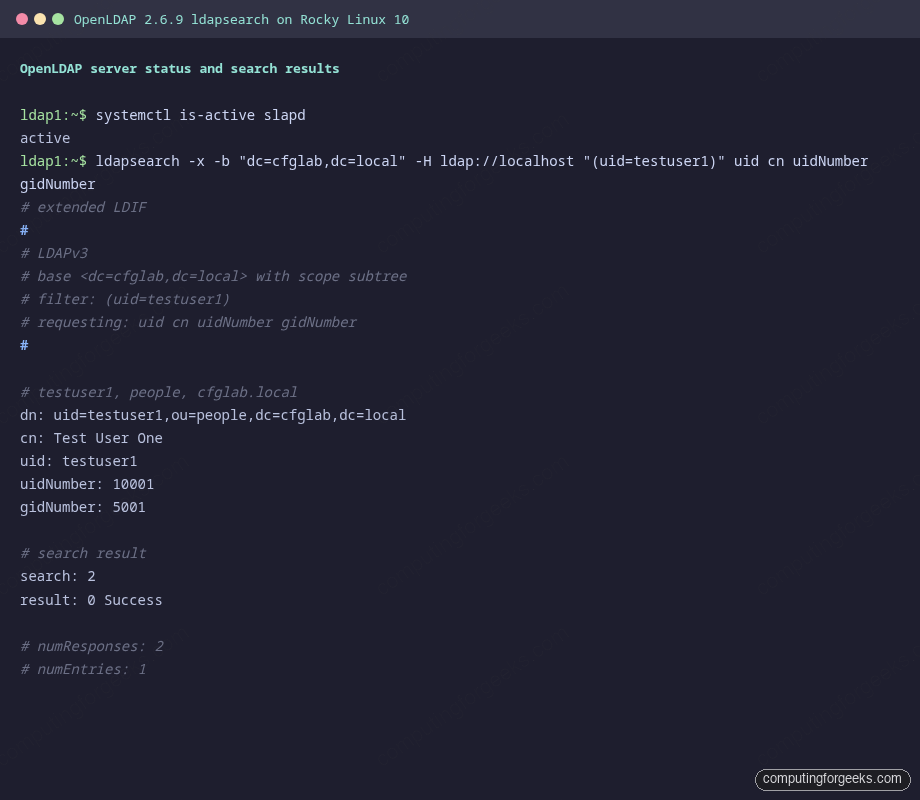
Confirm the directory tree by querying it as the admin DN. The result should include the suffix, the two OUs, the groups, and both users.
ldapsearch -x -b "${LDAP_BASE}" -H ldap://localhost "(uid=testuser1)" uid cn uidNumber gidNumberThe output confirms testuser1 is in the directory with uid 10001 and gid 5001 (developers). That is what every SSSD client will see when it queries the same DN.
Step 5: Enable LDAPS with a self-signed certificate
Plain LDAP sends bind passwords over the wire in cleartext. SSSD will refuse to use it for password authentication unless you wrap it in StartTLS or LDAPS. For a lab, a self-signed cert with a long lifetime is fine. In production, use an internal CA or Let’s Encrypt with a public DNS name.
sudo mkdir -p /etc/openldap/certs
sudo openssl req -new -x509 -nodes -days 3650 \
  -subj "/C=US/ST=Lab/L=Lab/O=CFG Lab/CN=${LDAP_HOST}" \
  -addext "subjectAltName=DNS:${LDAP_HOST},DNS:ldap1,IP:${LDAP_IP}" \
  -keyout /etc/openldap/certs/ldap1.key \
  -out /etc/openldap/certs/ldap1.crt
sudo chown -R ldap:ldap /etc/openldap/certs
sudo chmod 600 /etc/openldap/certs/ldap1.key
Tell cn=config where the cert and key live, then enable the LDAPS listener in /etc/sysconfig/slapd. The same cert covers both LDAPS on 636 and StartTLS on 389.
cat > /tmp/tls.ldif <<LDIF
dn: cn=config
changetype: modify
add: olcTLSCACertificateFile
olcTLSCACertificateFile: /etc/openldap/certs/ldap1.crt
-
add: olcTLSCertificateFile
olcTLSCertificateFile: /etc/openldap/certs/ldap1.crt
-
add: olcTLSCertificateKeyFile
olcTLSCertificateKeyFile: /etc/openldap/certs/ldap1.key
LDIF
sudo ldapmodify -Y EXTERNAL -H ldapi:/// -f /tmp/tls.ldif
Edit the slapd init file so the daemon binds ldaps:/// alongside the existing ldap:/// and the local socket.
sudo sed -i 's|^SLAPD_URLS=.*|SLAPD_URLS="ldapi:/// ldap:/// ldaps:///"|' /etc/sysconfig/slapd
sudo systemctl restart slapd
sudo ss -tlnp | grep -E ':389|:636'
Both 389 and 636 should be in the listening list. Distribute the public cert to every client so it can validate the server.
sudo cat /etc/openldap/certs/ldap1.crt > /tmp/ldap1.crt
scp /tmp/ldap1.crt rocky@${CLIENT1_IP}:/tmp/
scp /tmp/ldap1.crt rocky@${CLIENT2_IP}:/tmp/
Step 6: Test LDAP from client1 over StartTLS
Before SSSD enters the picture, prove the wire path works. From client1, install the OpenLDAP client tools, drop the CA cert in place, and run a query against the server using StartTLS (-ZZ).
sudo dnf install -y openldap-clients
sudo mkdir -p /etc/openldap/certs
sudo cp /tmp/ldap1.crt /etc/openldap/certs/ca.crt
ldapsearch -x -ZZ -H ldap://${LDAP_HOST} -b "${LDAP_BASE}" \
  -o tls_cacert=/etc/openldap/certs/ca.crt "(uid=testuser1)" uid cn
A clean StartTLS handshake plus the testuser1 entry confirms DNS, network, firewall, certs, and ACLs are all good. If this fails, fix it before configuring SSSD because SSSD will only return less helpful errors.
Step 7: Configure SSSD on both clients
SSSD is the System Security Services Daemon. It speaks LDAP to the server, caches users and groups locally for offline operation, and exposes that data to NSS, PAM, and SSH through socket-activated responders. Install SSSD, the LDAP backend, the home-directory creator, and authselect on each client.
sudo dnf install -y sssd sssd-ldap sssd-tools oddjob-mkhomedir authselectOpen /etc/sssd/sssd.conf for editing.
sudo vi /etc/sssd/sssd.confDrop in the configuration below. The placeholder LDAP_DOMAIN_HERE and LDAP_HOST_HERE tokens get replaced via sed after the paste because sssd.conf is not parsed by a shell, so ${VAR} would not expand.
[sssd]
config_file_version = 2
services = nss, pam, ssh, sudo
domains = LDAP_DOMAIN_HERE

[domain/LDAP_DOMAIN_HERE]
id_provider = ldap
auth_provider = ldap
sudo_provider = ldap
ldap_uri = ldaps://LDAP_HOST_HERE
ldap_search_base = LDAP_BASE_HERE
ldap_default_bind_dn = LDAP_ADMIN_DN_HERE
ldap_default_authtok = LDAP_ADMIN_PASS_HERE
ldap_tls_reqcert = demand
ldap_tls_cacert = /etc/openldap/certs/ca.crt
ldap_id_use_start_tls = false
cache_credentials = true
enumerate = true
ldap_user_ssh_public_key = sshPublicKey
ldap_sudo_search_base = ou=sudoers,LDAP_BASE_HERE

[nss]
filter_users = root,bin,daemon,adm,lp
filter_groups = root,bin,daemon
Replace the placeholders with the values from your shell variables, lock the file mode (SSSD refuses to start otherwise), and turn on the sssd profile in authselect with home-directory auto-creation.
sudo sed -i \
  -e "s|LDAP_DOMAIN_HERE|${LDAP_DOMAIN}|g" \
  -e "s|LDAP_HOST_HERE|${LDAP_HOST}|g" \
  -e "s|LDAP_BASE_HERE|${LDAP_BASE}|g" \
  -e "s|LDAP_ADMIN_DN_HERE|${LDAP_ADMIN_DN}|g" \
  -e "s|LDAP_ADMIN_PASS_HERE|${LDAP_ADMIN_PASS}|g" \
  /etc/sssd/sssd.conf
sudo chmod 600 /etc/sssd/sssd.conf
sudo chown root:root /etc/sssd/sssd.conf
sudo authselect select sssd with-mkhomedir --force
Enable and start SSSD plus the oddjob daemon, which is what creates home directories on first login. The sssd-ssh.socket unit activates the SSH responder used by sss_ssh_authorizedkeys.
sudo systemctl enable --now oddjobd sssd
sudo systemctl enable --now sssd-ssh.socket
Check both services are active. SSSD silently disables the domain when sssd.conf has bad permissions or a typo, so always confirm.
sudo systemctl is-active sssd oddjobd
sudo sssctl domain-list
Repeat the entire Step 7 on client2. The configuration is identical because the directory is the source of truth.
Step 8: Test getent and SSH login as an LDAP user
From either client, NSS should now resolve LDAP users and groups exactly like local accounts. The * in the password field is expected because the password hash is never returned to user space; SSSD checks it via PAM during the bind.
getent passwd testuser1
getent passwd jbravo
getent group sysadmins
getent group developers
id testuser1
If id testuser1 reports uid=10001(testuser1) gid=5001(developers), NSS is wired up correctly and the search base + bind DN combination in sssd.conf matches what is in the directory.

Now exercise PAM by SSHing in with the LDAP password. The first login triggers oddjob-mkhomedir, which creates /home/testuser1 with the right ownership pulled from the directory entry.
ssh testuser1@${CLIENT1_HOST}
# enter the LDAP password set in users.ldif
whoami
id
pwd
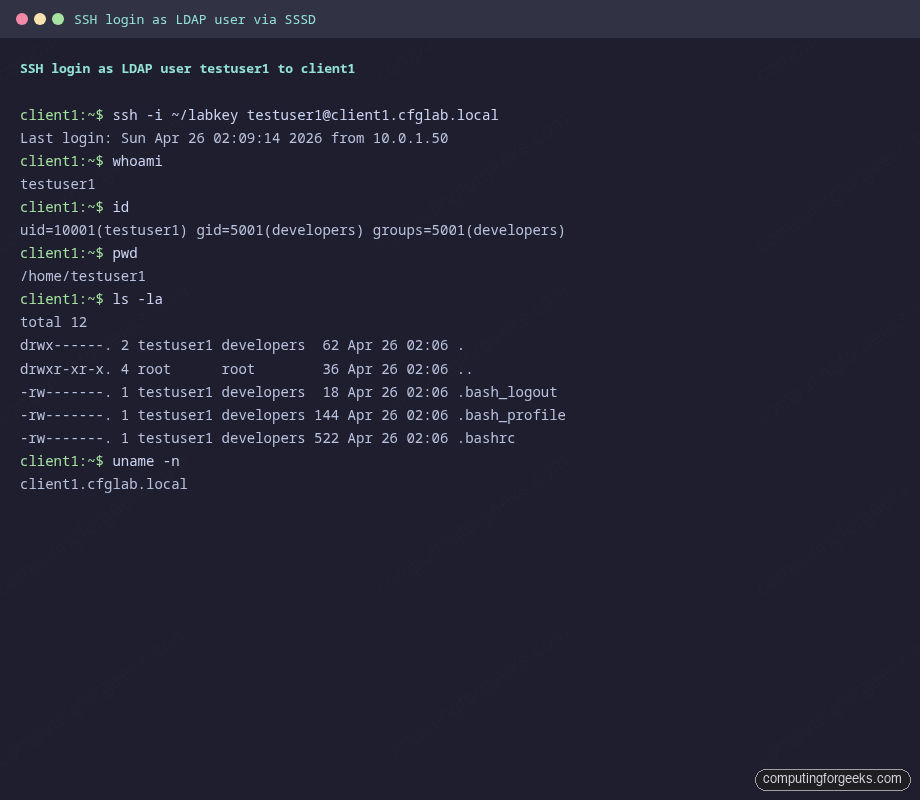
ls -la $HOME
The home directory should be present, owned by testuser1:developers, with the standard .bashrc and friends from /etc/skel. That confirms NSS, PAM, and oddjob-mkhomedir all cooperate.
Step 9: Centralize SSH public keys via LDAP
Password SSH still works at this point but key-based SSH is better. Storing the keys as an LDAP attribute means rotating a key for one user, on day one, propagates to every server that user can reach. No more ssh-copy-id on twelve hosts.
Stock OpenLDAP does not ship the sshPublicKey attribute. Add the openssh-lpk schema once, on ldap1, then the attribute is available across the directory.
cat > /tmp/openssh-lpk.ldif <<'LDIF'
dn: cn=openssh-lpk,cn=schema,cn=config
objectClass: olcSchemaConfig
cn: openssh-lpk
olcAttributeTypes: ( 1.3.6.1.4.1.24552.500.1.1.1.13 NAME 'sshPublicKey'
  DESC 'MANDATORY: OpenSSH Public key'
  EQUALITY octetStringMatch
  SYNTAX 1.3.6.1.4.1.1466.115.121.1.40 )
olcObjectClasses: ( 1.3.6.1.4.1.24552.500.1.1.2.0 NAME 'ldapPublicKey' SUP top AUXILIARY
  DESC 'MANDATORY: OpenSSH LPK objectclass'
  MAY ( sshPublicKey $ uid ) )
LDIF
sudo ldapadd -Y EXTERNAL -H ldapi:/// -f /tmp/openssh-lpk.ldif
Generate a key for testing if you do not already have one, then add it to the user entry along with the new auxiliary ldapPublicKey object class.
ssh-keygen -t ed25519 -N "" -C "lab-key" -f ~/labkey
PUBKEY=$(cat ~/labkey.pub)
cat > /tmp/addkey.ldif <<LDIF
dn: uid=testuser1,ou=people,${LDAP_BASE}
changetype: modify
add: objectClass
objectClass: ldapPublicKey
-
add: sshPublicKey
sshPublicKey: ${PUBKEY}
LDIF
ldapmodify -x -D "${LDAP_ADMIN_DN}" -w "${LDAP_ADMIN_PASS}" -f /tmp/addkey.ldif
SSSD already knows the attribute name (ldap_user_ssh_public_key = sshPublicKey from Step 7). What is left is teaching sshd on the clients to call sss_ssh_authorizedkeys instead of reading the legacy ~/.ssh/authorized_keys file. Drop a small config snippet under /etc/ssh/sshd_config.d/.
sudo tee /etc/ssh/sshd_config.d/50-sssd-keys.conf >/dev/null <<'CONF'
AuthorizedKeysCommand /usr/bin/sss_ssh_authorizedkeys
AuthorizedKeysCommandUser nobody
CONF
sudo systemctl restart sshd
Clear the SSSD cache so the next lookup pulls the freshly added attribute, then verify the helper returns the key.
sudo systemctl stop sssd
sudo rm -f /var/lib/sss/db/* /var/lib/sss/mc/*
sudo systemctl start sssd
sudo /usr/bin/sss_ssh_authorizedkeys testuser1
The output should be the exact public key you stored in LDAP. Now log in from another box using the matching private key. No ~/.ssh/authorized_keys on the client, no manual copy.
ssh -i ~/labkey testuser1@${CLIENT1_HOST}That same key now works on client2, on a third client, on every host you SSSD-enroll later. To rotate, modify the LDAP attribute and clear the SSSD cache. To revoke a user across the fleet, disable the directory entry and the next lookup returns nothing.
Step 10: Group-based sudo via the LDAP sudoers branch
Local /etc/sudoers files are the Achilles heel of fleet management. Centralize sudo rules in LDAP and visudo on every box becomes a non-event: the rules live next to the user accounts and propagate via SSSD.
Load the sudo schema on ldap1 (the sudo RPM ships it).
sudo ldapadd -Y EXTERNAL -H ldapi:/// -f /usr/share/doc/sudo/schema.olcSudoDefine the ou=sudoers branch with one defaults role and one rule that grants the sysadmins POSIX group passwordless sudo on every host.
cat > /tmp/sudoers.ldif <<LDIF
dn: ou=sudoers,${LDAP_BASE}
objectClass: organizationalUnit
ou: sudoers

dn: cn=defaults,ou=sudoers,${LDAP_BASE}
objectClass: top
objectClass: sudoRole
cn: defaults
description: Default sudoOption settings
sudoOption: env_keep+=SSH_AUTH_SOCK

dn: cn=sysadmins,ou=sudoers,${LDAP_BASE}
objectClass: top
objectClass: sudoRole
cn: sysadmins
sudoUser: %sysadmins
sudoHost: ALL
sudoCommand: ALL
sudoOption: !authenticate
LDIF
ldapadd -x -D "${LDAP_ADMIN_DN}" -w "${LDAP_ADMIN_PASS}" -f /tmp/sudoers.ldif
Each client needs sudoers added to NSS so libsudo asks SSSD before falling back to the local file.
sudo bash -c 'grep -q "^sudoers:" /etc/nsswitch.conf || echo "sudoers: files sss" >> /etc/nsswitch.conf'
sudo systemctl restart sssd
SSH in as jbravo (a member of sysadmins) and confirm sudo rules are coming from LDAP.
ssh jbravo@${CLIENT1_HOST}
sudo -l
The output should list the defaults role’s env_keep options and one rule: (root) NOPASSWD: ALL. Try a real privileged command to prove the policy is honored, not just rendered.
sudo -n whoami
sudo -n systemctl status sssd | head -5
testuser1 in the developers group should NOT be able to sudo. SSH in as that user and confirm the deny path works just as well as the allow path.
Step 11: Troubleshooting commands you will actually use
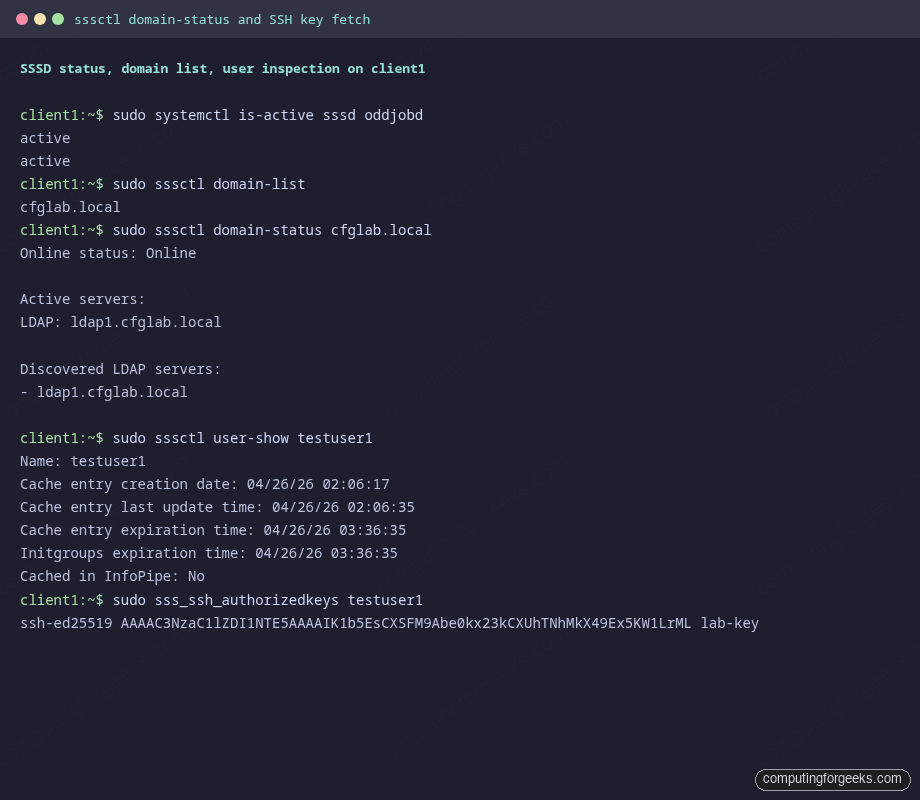
Most SSSD problems fall into one of three buckets: the daemon cannot reach the directory, the search base is wrong, or the cache is stale. The sssctl utility from sssd-tools is the fastest way to triage.
sudo sssctl domain-status ${LDAP_DOMAIN}
sudo sssctl user-show testuser1
sudo sssctl cache-expire -E
sudo sssctl logs-fetch /tmp/sssd-logs.tar.xz
If domain-status shows Offline, the LDAP server is unreachable or the TLS handshake is failing. Test the wire path directly with ldapsearch outside SSSD’s stack.
ldapsearch -x -ZZ -H ldap://${LDAP_HOST} -b "${LDAP_BASE}" \
  -o tls_cacert=/etc/openldap/certs/ca.crt -s base "(objectclass=*)"
For TLS issues specifically, openssl is more verbose than ldapsearch.
echo | openssl s_client -connect ${LDAP_HOST}:636 -CAfile /etc/openldap/certs/ca.crt 2>&1 | grep -E "subject|issuer|Verify"If sss_ssh_authorizedkeys returns nothing despite the key being in the directory, you almost always need to clear the SSSD cache. The keys responder caches its results separately from NSS.
sudo systemctl stop sssd
sudo rm -f /var/lib/sss/db/* /var/lib/sss/mc/*
sudo systemctl start sssd
Tail the per-domain log for live debugging. Bumping debug_level in the [domain/...] section to 6 or 9 makes SSSD verbose about every LDAP search it issues.
sudo tail -f /var/log/sssd/sssd_${LDAP_DOMAIN}.logFor a deeper dive into mixed identity and Kerberos authentication, the LDAP, SSSD and Kerberos guide for Ubuntu covers the same SSSD primitives layered on top of a Kerberos KDC.
Migration notes: from nslcd / nss-pam-ldapd to SSSD
Older RHEL 7 and CentOS 7 boxes used the nslcd daemon from nss-pam-ldapd, sometimes paired with pam_ldap. Those are deprecated. SSSD replaces both, plus it adds offline credential caching, Kerberos integration, and the SSH responder. If you are migrating, the rough mapping looks like this.
| Old (nslcd) | New (SSSD) |
|---|---|
/etc/nslcd.conf + /etc/nsswitch.conf | /etc/sssd/sssd.conf + authselect select sssd |
uri ldaps://server | ldap_uri = ldaps://server |
base dc=example,dc=com | ldap_search_base = dc=example,dc=com |
tls_cacertfile /path | ldap_tls_cacert = /path |
pam_password exop | auth_provider = ldap |
| None (every lookup hits LDAP) | cache_credentials = true + offline cache |
authconfig --enableldap --enableldapauth | authselect select sssd with-mkhomedir |
Bare ~/.ssh/authorized_keys | AuthorizedKeysCommand sss_ssh_authorizedkeys |
The migration steps in order: remove nss-pam-ldapd and any pam_ldap packages, install sssd sssd-ldap authselect, write sssd.conf with the same URI and base DN you had in nslcd.conf, run authselect select sssd with-mkhomedir --force, and start SSSD. Existing user data in the directory is unchanged. The OpenLDAP on Ubuntu install uses the same pattern, just with apt and a slightly different cn=config backend.
If you are evaluating whether to stay on OpenLDAP or move to a higher-level identity stack, the FreeIPA server install on Rocky Linux 10 wraps OpenLDAP, Kerberos, DNS, and a CA into one product. Joining Rocky Linux to an existing Active Directory is the right path if you already run AD and just need Linux clients enrolled. Plain OpenLDAP, like the setup in this guide, is the right pick when you want a small, dependency-light directory you fully control.
For a graphical browse-and-edit interface in front of the directory, the phpLDAPadmin walkthrough covers the web UI side. The source-build OpenLDAP server on Rocky 10 covers the alternate path when you want to compile slapd yourself instead of using the EPEL packages. And the SSH key authentication primer is worth bookmarking if Step 9’s LDAP-backed key flow is your first time off file-based authorized_keys.



![Install Kali Linux 2026.1 Step by Step [Full Guide]](https://computingforgeeks.com/wp-content/uploads/2026/03/install-kali-linux-20261-step-by-step-768x403.png "Install Kali Linux 2026.1 Step by Step [Full Guide] 7")