Ollama runs models locally on the command line, but most people who try it for more than a day end up wanting a real chat interface, conversation history, and a way to manage prompts. Open WebUI is the chat front-end the Ollama community converged on. It runs in Docker, talks to Ollama over HTTP, and gives you something close to the ChatGPT experience on your own hardware with full data privacy.
This guide walks through installing Open WebUI on Ubuntu 26.04 LTS with Ollama as the model backend, an Nginx reverse proxy in front, and a real Let’s Encrypt certificate. We use Docker for Open WebUI, the official installer for Ollama, and certbot for SSL. The setup is the same one I run on a small home lab box and it survives unattended-upgrades reboots without breaking the chat session.
Tested April 2026 on Ubuntu 26.04 LTS (kernel 7.0), Docker CE 29.4.1, Ollama 0.21, Open WebUI 0.9.x
Prerequisites
- Ubuntu 26.04 LTS server with sudo or root access
- 4 vCPU and 8 GB RAM minimum (CPU-only inference). 16 GB+ recommended for 7B-class models
- 30 GB free disk space (model weights and Docker layers add up fast)
- A domain pointing an A record at the server, port 80 reachable from the public internet for the HTTP-01 SSL challenge (any DNS provider works)
- Open ports 80, 443, and 22 in your cloud firewall or router
- Optional: an NVIDIA GPU with the proprietary driver installed for faster inference
Before starting, finish a basic initial server setup on Ubuntu 26.04 and add Fail2ban if SSH is exposed to the internet.
Step 1: Set reusable shell variables
Every command below uses shell variables so you only edit one block. Export them at the start of your session:
export SITE_DOMAIN="chat.example.com"
export ADMIN_EMAIL="[email protected]"
Confirm the values stuck before running anything else:
echo "Domain: ${SITE_DOMAIN}"
echo "Email:  ${ADMIN_EMAIL}"
If you reconnect or jump into a new shell with sudo -i, re-run the export block. The values only live for the duration of the current shell.
Step 2: Install Docker
Open WebUI ships as a Docker image, so Docker Engine is the only runtime you need. Install Docker CE from the official repo:
sudo install -m 0755 -d /etc/apt/keyrings
curl -fsSL https://download.docker.com/linux/ubuntu/gpg | \
  sudo gpg --dearmor -o /etc/apt/keyrings/docker.gpg
sudo chmod a+r /etc/apt/keyrings/docker.gpg
. /etc/os-release
echo "deb [arch=$(dpkg --print-architecture) signed-by=/etc/apt/keyrings/docker.gpg] https://download.docker.com/linux/ubuntu ${UBUNTU_CODENAME} stable" | \
  sudo tee /etc/apt/sources.list.d/docker.list > /dev/null
sudo apt update
sudo apt install -y docker-ce docker-ce-cli containerd.io docker-buildx-plugin docker-compose-plugin
Verify Docker is running:
sudo systemctl status docker --no-pager | head -5
docker --version
docker compose version
The output should show Docker active and a version string from the docker-ce package:
● docker.service - Docker Application Container Engine
     Loaded: loaded (/usr/lib/systemd/system/docker.service; enabled; preset: enabled)
     Active: active (running) since Sat 2026-04-25 14:55:01 UTC; 3min 12s ago
Docker version 29.4.1, build 055a478
Docker Compose version v5.1.3
For the full hardening flow including non-root group setup and rootless mode, see the Docker CE on Ubuntu 26.04 install guide. For Compose-based stacks the Docker Compose tutorial covers the v2 plugin in depth.
Step 3: Install Ollama
Open WebUI does not ship a model itself, it talks to a backend that does. Ollama is the easiest backend to wire up, runs as a systemd service, and exposes an HTTP API on port 11434. Install it from the official one-liner:
curl -fsSL https://ollama.com/install.sh | shThe installer drops the binary at /usr/local/bin/ollama, creates an ollama system user, and installs a systemd unit. Confirm the service is running:
sudo systemctl status ollama --no-pager | head -5
ollama --version
Active means Ollama is listening on the loopback API:
● ollama.service - Ollama Service
     Loaded: loaded (/etc/systemd/system/ollama.service; enabled; preset: enabled)
     Active: active (running) since Sat 2026-04-25 15:02:10 UTC; 12s ago
ollama version is 0.21.2
If you want a deeper Ollama walkthrough including model management, GPU configuration, and CLI usage, the dedicated Ollama on Ubuntu 26.04 guide covers it. To compare with other distros, the Rocky Linux 10 / Ubuntu 24.04 walkthrough shows the same steps on RHEL family.
Step 4: Run the Open WebUI container
Pull and start Open WebUI with one docker run command. The flags below mount a named volume for chat history, expose port 3000, and add a host-gateway entry so the container reaches Ollama on the host loopback:
sudo docker run -d \
  -p 3000:8080 \
  --add-host=host.docker.internal:host-gateway \
  -v open-webui:/app/backend/data \
  --name open-webui \
  --restart always \
  ghcr.io/open-webui/open-webui:main
The first run pulls a multi-gigabyte image, so give it a couple of minutes. Verify the container is healthy:
sudo docker ps --format "table {{.Names}}\t{{.Status}}\t{{.Ports}}"Output should show open-webui with status Up and a port mapping:
NAMES        STATUS                  PORTS
open-webui   Up 2 minutes (healthy)  0.0.0.0:3000->8080/tcp, [::]:3000->8080/tcp
The healthy marker comes from the image’s built-in healthcheck, which polls the backend’s /health endpoint. If it stays at Up (starting) for more than three minutes, check the logs with sudo docker logs open-webui --tail 50.
Step 5: Configure Nginx + Let’s Encrypt SSL
Open WebUI listens on plain HTTP at :3000. Putting Nginx in front of it gives you HTTPS, HTTP/2, and a clean public URL. The default flow uses certbot’s HTTP-01 challenge, which works with any DNS provider (Cloudflare, Route 53, Namecheap, GoDaddy, your own BIND).
Create the Nginx vhost. Open the file:
sudo vi /etc/nginx/sites-available/open-webuiPaste the following config, leaving SITE_DOMAIN_HERE as a literal placeholder. The next command substitutes it from your shell variable:
server {
    listen 80;
    server_name SITE_DOMAIN_HERE;

    client_max_body_size 100M;

    location / {
        proxy_pass http://127.0.0.1:3000;
        proxy_http_version 1.1;
        proxy_set_header Upgrade $http_upgrade;
        proxy_set_header Connection "upgrade";
        proxy_set_header Host $host;
        proxy_set_header X-Real-IP $remote_addr;
        proxy_set_header X-Forwarded-For $proxy_add_x_forwarded_for;
        proxy_set_header X-Forwarded-Proto $scheme;
        proxy_read_timeout 600;
        proxy_send_timeout 600;
    }
}
Substitute the placeholder, link the vhost into sites-enabled, and reload Nginx:
sudo sed -i "s/SITE_DOMAIN_HERE/${SITE_DOMAIN}/g" /etc/nginx/sites-available/open-webui
sudo ln -sf /etc/nginx/sites-available/open-webui /etc/nginx/sites-enabled/open-webui
sudo rm -f /etc/nginx/sites-enabled/default
sudo nginx -t
sudo systemctl reload nginx
Open ports 80 and 443 in UFW so certbot can complete the HTTP-01 challenge and users can reach the proxy:
sudo ufw allow 'Nginx Full'
sudo ufw allow OpenSSH
sudo ufw --force enable
Issue the certificate with the Nginx plugin. Certbot detects the vhost, edits it in place to add listen 443 ssl, and configures HTTP to HTTPS redirection:
sudo apt install -y certbot python3-certbot-nginx
sudo certbot --nginx \
  -d "${SITE_DOMAIN}" \
  --non-interactive --agree-tos --redirect \
  -m "${ADMIN_EMAIL}"
Confirm the renewal timer is active. Let’s Encrypt certs expire in 90 days, the timer renews when 30 days remain:
sudo systemctl list-timers certbot.timer
sudo certbot renew --dry-run
The dry-run output should end with Congratulations, all simulated renewals succeeded. That confirms the timer-driven renewal will work unattended.
Alternative: Cloudflare DNS-01 challenge
If your server sits behind NAT, runs on a private LAN, or you need a wildcard certificate, HTTP-01 will not work because port 80 is unreachable from the internet. Use a DNS-01 challenge instead. Certbot has plugins for most major DNS providers:
| Provider | Plugin package |
|---|---|
| Cloudflare | python3-certbot-dns-cloudflare |
| Route 53 | python3-certbot-dns-route53 |
| DigitalOcean | python3-certbot-dns-digitalocean |
| Google Cloud DNS | python3-certbot-dns-google |
| Linode | python3-certbot-dns-linode |
| RFC2136 (BIND) | python3-certbot-dns-rfc2136 |
The example below uses Cloudflare. Substitute your provider’s plugin and credentials format if you are on something else. Install the plugin and create a credentials file with an API token scoped to your zone’s DNS edit permissions:
sudo apt install -y python3-certbot-dns-cloudflare
sudo install -m 0700 -d /etc/letsencrypt
echo "dns_cloudflare_api_token = paste-your-api-token-here" | \
  sudo tee /etc/letsencrypt/cloudflare.ini > /dev/null
sudo chmod 600 /etc/letsencrypt/cloudflare.ini
Issue the cert via DNS-01. This works even when port 80 is closed:
sudo certbot certonly --dns-cloudflare \
  --dns-cloudflare-credentials /etc/letsencrypt/cloudflare.ini \
  -d "${SITE_DOMAIN}" \
  --non-interactive --agree-tos -m "${ADMIN_EMAIL}"
Then add the SSL block to the Nginx vhost manually (DNS-01 mode does not auto-edit Nginx). Point ssl_certificate at /etc/letsencrypt/live/${SITE_DOMAIN}/fullchain.pem and ssl_certificate_key at the matching privkey.pem.
Step 6: Create the admin account
Open https://${SITE_DOMAIN}/ in a browser. The very first visitor sees a splash screen with a Get started button, which leads to the auth form. Click Get started, then sign up with a name, email, and password. The first user to sign up automatically becomes the admin with full control over models, settings, and other users. Once the admin exists, the same form switches to a sign-in page like this:
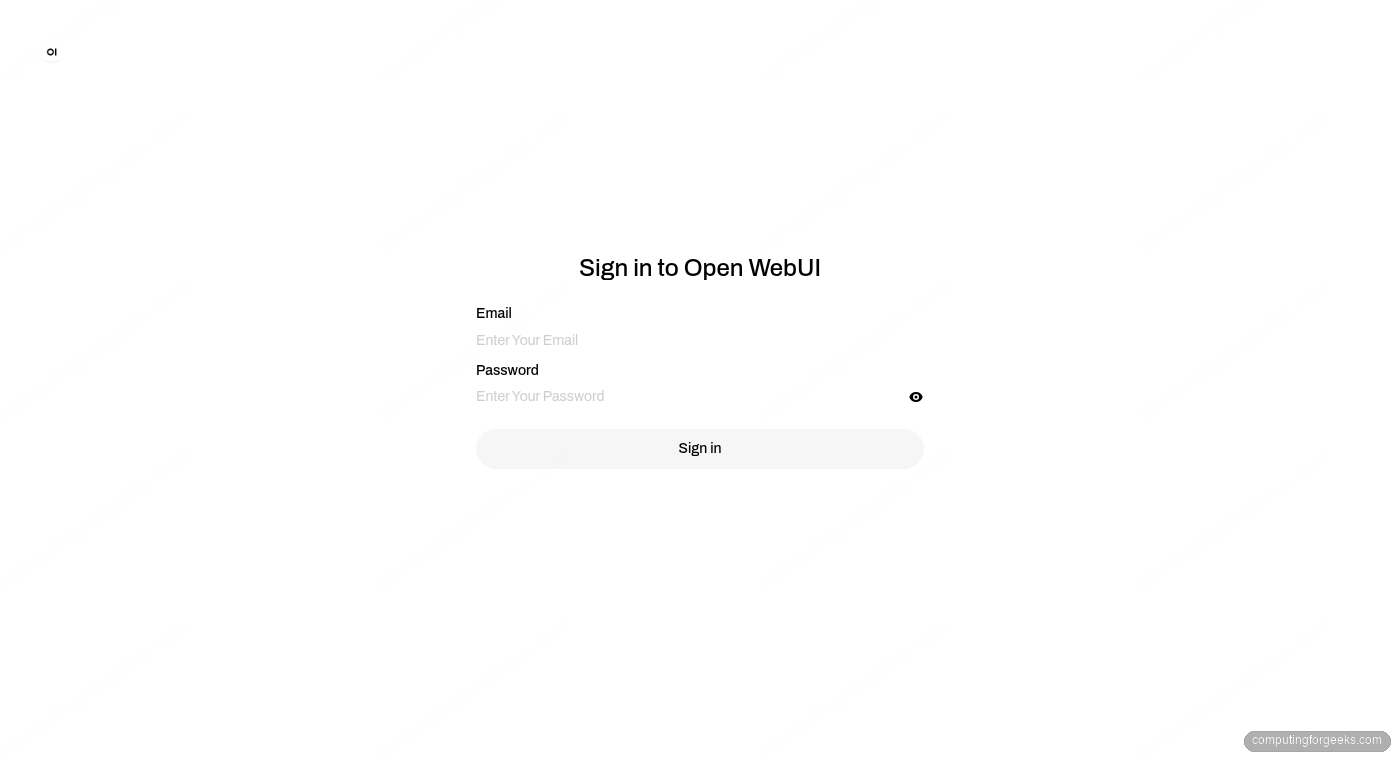
Open WebUI does not send a confirmation email by default, so the credentials work immediately. After signing up, you land on the main chat interface with the admin panel available from the gear icon in the top right.
Lock down further signups before exposing the URL beyond your own machine. From the admin panel under Settings, General, Authentication, toggle Enable New Sign Ups off. New users then need an admin invite via the Users page.
Step 7: Pull a model and run a chat
The container has nothing to chat with until you pull a model. Models are pulled through Ollama, either from the WebUI or from the host CLI. Start with a small one to confirm the integration works end to end:
ollama pull llama3.2:1b1B is a 1.3 GB download and runs comfortably on CPU. Once the pull completes, refresh the browser. The model dropdown at the top of the chat shows llama3.2:1b as available. Select it, type a prompt, and press Enter. The first response takes a few seconds while Ollama loads the weights into RAM, subsequent responses stream in real time:
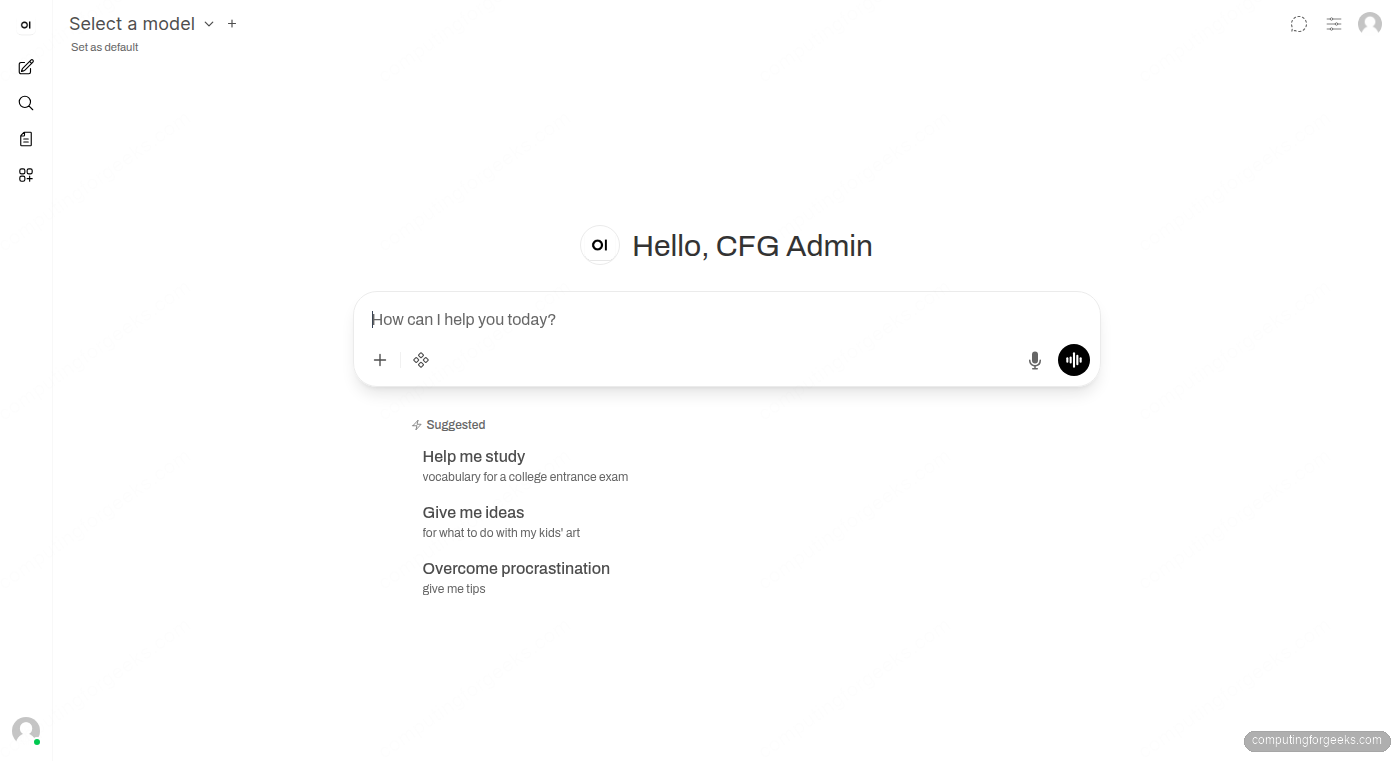
For better answers, pull a larger model. llama3.2:3b needs about 2 GB of RAM, llama3.1:8b needs 8 GB, qwen2.5:14b wants 16 GB. Run ollama pull MODEL on the host or use the Pull a model from Ollama.com input on the Models page in admin settings.
Step 8: Tour the admin settings
The Admin Panel groups every site-wide control under one menu. The most useful pages on day one:
- Models: pull, delete, and configure models. The page shows disk usage per model and lets you set a default model for new chats.
- Connections: where Open WebUI talks to Ollama. The default URL is
http://host.docker.internal:11434, which works because of the--add-hostflag in the docker run command. Add OpenAI-compatible endpoints (LM Studio, vLLM, llama.cpp server) on the same page. - Users: invite teammates, set roles (admin, user, pending), revoke access. Roles control whether a user can pull models or only chat.
- Web Search: toggle search providers (DuckDuckGo, Brave, Google, SearxNG) so the model can fetch fresh content. Off by default.
- Documents: upload PDFs, Markdown, and text files for Retrieval-Augmented Generation. The pgvector and BM25 backends are both bundled.
- Audio: configure speech-to-text (Whisper) and text-to-speech voices.
- Images: enable image generation through Automatic1111, ComfyUI, or OpenAI’s DALL-E.
The Settings page below shows the General tab with the version, authentication options (including the Enable New Sign Ups toggle), default user role, and JWT expiration controls:
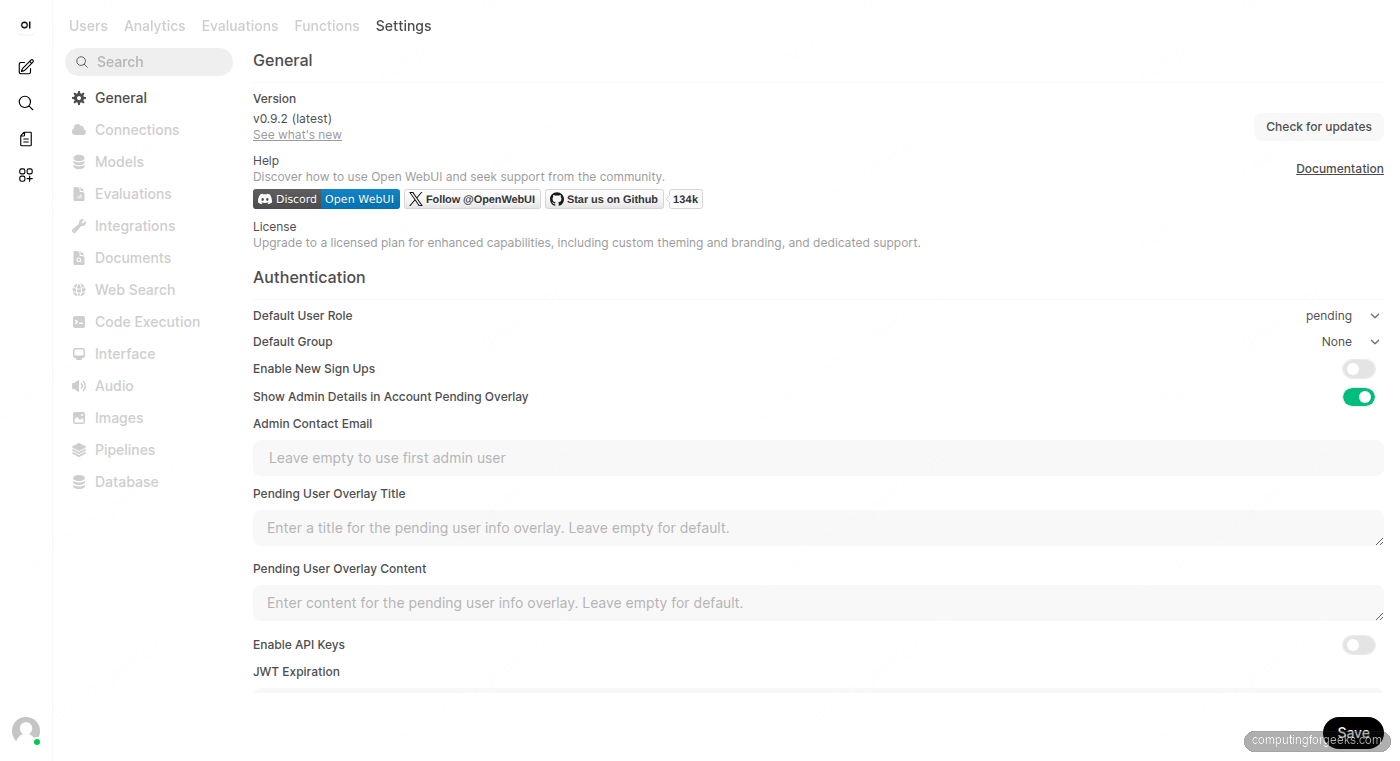
Settings are saved to the open-webui Docker volume, so they survive container restarts and image upgrades. To upgrade Open WebUI later, run docker pull ghcr.io/open-webui/open-webui:main followed by docker stop open-webui && docker rm open-webui, then re-run the same docker run command from Step 4.
Production hardening
The default install assumes a single trusted user. A few changes turn it into something safe to expose to a small team or the public internet.
Disable open signups. The first-user-is-admin flow is great for setup, terrible for production. Once your admin account exists, set Enable New Sign Ups to off under Admin Settings, General, Authentication. New accounts then need an admin invite from the Users page.
Pin a specific image tag. The :main tag tracks the latest build, which can break between pulls. For long-running deployments, pull a versioned tag (for example :v0.6.7 from the GHCR package page) and bump deliberately. Replace ghcr.io/open-webui/open-webui:main in your docker run with the pinned tag.
Back up the data volume. Chat history, uploaded files, RAG embeddings, and user settings all live in the named volume. Snapshot it regularly:
BACKUP_DIR="/var/backups/open-webui"
sudo install -d -m 0700 "${BACKUP_DIR}"
STAMP=$(date +%Y%m%d-%H%M%S)
sudo docker run --rm \
  -v open-webui:/data \
  -v "${BACKUP_DIR}":/backup \
  alpine tar czf "/backup/open-webui-${STAMP}.tar.gz" -C /data .
Drop the snippet into /usr/local/bin/open-webui-backup.sh with a short retention loop and schedule a daily run via systemd timer or cron. Restoring is the same command in reverse: tar xzf into a fresh volume.
Fence Ollama. Ollama listens on 127.0.0.1:11434 by default. Keep it that way unless you have a real reason to expose the API. If another box on your LAN needs access, bind to the LAN IP and add an UFW rule that allows only that source. Never expose Ollama directly to the internet without authentication, the API has no built-in auth.
Add HTTP basic auth in front of admin paths. Open WebUI’s own login page is fine for end users, but Nginx-level auth keeps automated scanners away. Generate an htpasswd file and add a location /admin/ block to the vhost requiring it.
Watch the logs. sudo docker logs open-webui --tail 100 -f tails the application log. Pipe it into your existing log stack, or set up Fail2ban to ban IPs that hammer the login endpoint.