Coolify is the open-source self-hosted answer to Heroku, Render, and Vercel. It runs on your own hardware, deploys from Git with every push, provisions managed Postgres and Redis on demand, and issues TLS through its own Traefik without anyone on the team touching certbot. This guide installs Coolify on Ubuntu 26.04 LTS via the official installer, puts Nginx in front of the admin UI with Let’s Encrypt, and walks through the first app and database deployment.
The ending is a migration reference: what actually changes when you move a Heroku, Render, or Vercel app to Coolify. Teams that came from hosted PaaS usually ship the first redeploy with a “which bit handles X” gap; this section closes it.
Last verified: April 2026 on fresh Ubuntu 26.04 LTS (kernel 7.0.0-10) with Docker 29.4.1, Coolify v4.0.0-beta.473, and Nginx 1.28.3.
Prerequisites
- Ubuntu 26.04 LTS server, 4 vCPU and 8 GB RAM minimum. Coolify runs Postgres, Redis, the Laravel app, and a realtime daemon; under-provisioning makes first-deploy builds time out.
- Fresh server, non-negotiable. Coolify’s installer installs Docker, creates a
coolifyDocker network, and runs Traefik on 80/443. A pre-existing Docker install, an existing Nginx on port 80, or an earlier Traefik deployment will fight the installer. - 60 GB disk minimum; builds eat scratch space.
- Swap ≥ 4 GB. The Coolify docs call this out specifically; builds can OOM on 8 GB RAM hosts with no swap.
- Domain with A record pointing at the server, port 80 reachable for Let’s Encrypt.
- Sudo user. Run the post-install baseline checklist before installing Coolify.
Step 1: Set reusable shell variables
Export the values once and the rest of the guide runs unchanged:
export APP_DOMAIN="coolify.example.com"
export ADMIN_EMAIL="[email protected]"
Coolify’s installer creates its own paths under /data/coolify; no ROOT variable needed.
Step 2: Add 4 GB swap if you haven’t already
This is where Coolify installs fail most often on fresh 8 GB boxes. Add a swap file before you run the installer:
sudo fallocate -l 4G /swapfile
sudo chmod 600 /swapfile
sudo mkswap /swapfile
sudo swapon /swapfile
echo '/swapfile none swap sw 0 0' | sudo tee -a /etc/fstab
free -h | tail -3
The last command prints the memory and swap totals; swap should read 4.0Gi.
Step 3: Run the Coolify installer
Coolify ships a single installer script hosted on their CDN. The script detects the distro, installs Docker CE from the official repo, sets up the Coolify Docker network, pulls the Coolify and database containers, and runs the first boot.
curl -fsSL https://cdn.coollabs.io/coolify/install.sh -o /tmp/coolify-install.sh
sudo bash /tmp/coolify-install.sh
Expected output scrolls through Docker install, image pulls (~1.5 GB of containers), schema migrations, and finally the Coolify ASCII banner:
Your instance is ready to use!
You can access Coolify through your Public IPV4: http://<server-ip>:8000
Version: 4.0.0-beta.473
Confirm the containers are healthy:
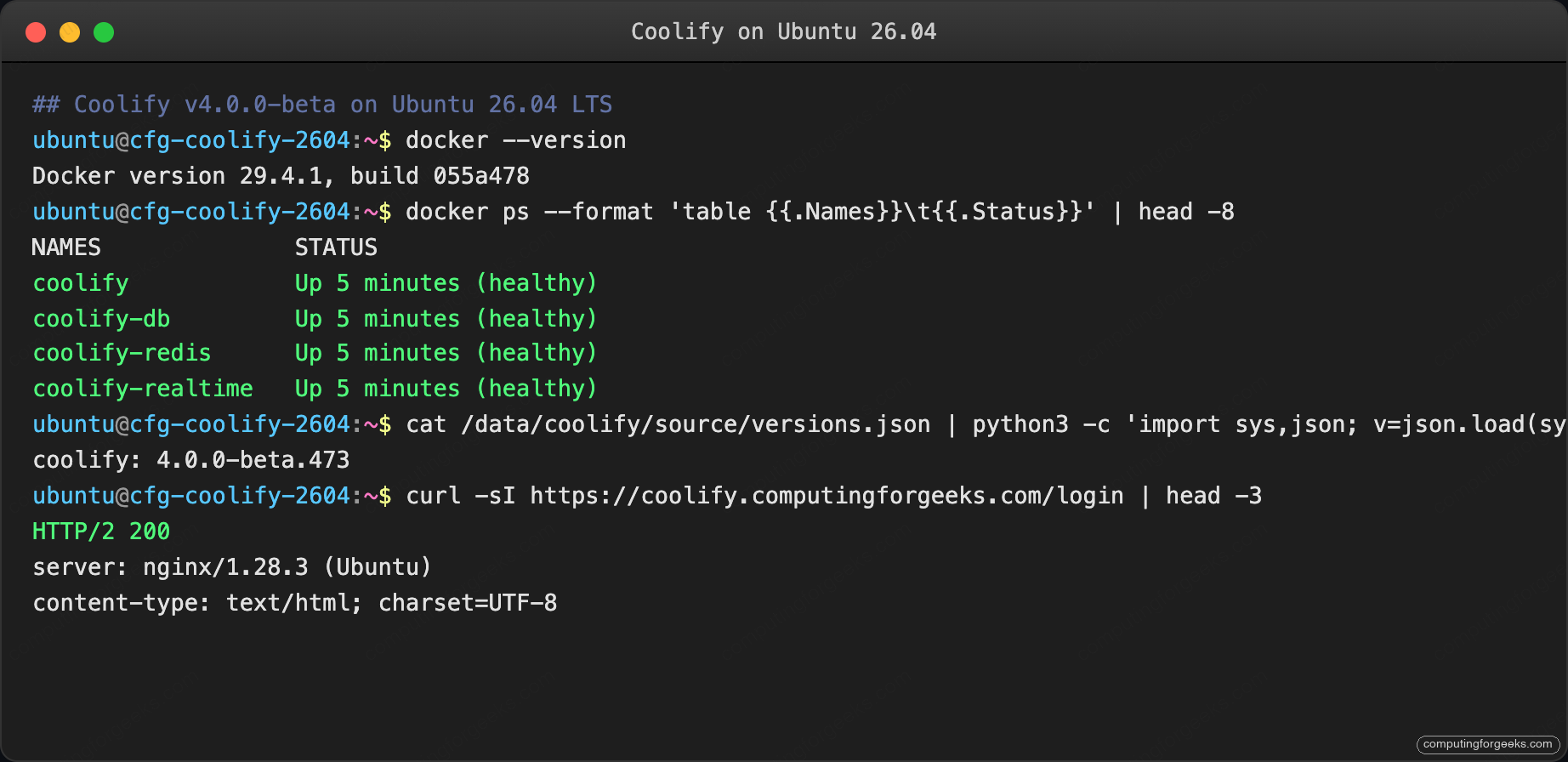
sudo docker ps --format 'table {{.Names}}\t{{.Status}}'Four containers should report healthy: coolify (the Laravel app), coolify-db (Postgres), coolify-redis, and coolify-realtime.
Step 4: Put Nginx in front of the Coolify admin UI
Coolify exposes its web UI on port 8000 and a WebSocket/Soketi realtime endpoint on 6001. Both are plain HTTP. Put Nginx in front so the admin UI is always reached over HTTPS with a real certificate. Coolify’s own Traefik handles TLS for the apps you deploy through Coolify; Nginx is only for the Coolify UI itself.
sudo DEBIAN_FRONTEND=noninteractive apt-get install -y \
    nginx certbot python3-certbot-nginx ufw
Write the vhost with a placeholder, substitute, and reload:
sudo tee /etc/nginx/sites-available/coolify.conf > /dev/null <<'EOF'
server {
    listen 80;
    server_name COOLIFY_DOMAIN_HERE;
    return 301 https://$host$request_uri;
}

server {
    listen 443 ssl;
    http2 on;
    server_name COOLIFY_DOMAIN_HERE;

    ssl_certificate     /etc/letsencrypt/live/COOLIFY_DOMAIN_HERE/fullchain.pem;
    ssl_certificate_key /etc/letsencrypt/live/COOLIFY_DOMAIN_HERE/privkey.pem;

    client_max_body_size 100M;
    add_header Strict-Transport-Security "max-age=15552000; includeSubDomains" always;

    location / {
        proxy_pass http://127.0.0.1:8000;
        proxy_http_version 1.1;
        proxy_set_header Upgrade $http_upgrade;
        proxy_set_header Connection "upgrade";
        proxy_set_header Host $host;
        proxy_set_header X-Real-IP $remote_addr;
        proxy_set_header X-Forwarded-For $proxy_add_x_forwarded_for;
        proxy_set_header X-Forwarded-Proto $scheme;
        proxy_read_timeout 600;
    }
    location /app {
        proxy_pass http://127.0.0.1:6001;
        proxy_http_version 1.1;
        proxy_set_header Upgrade $http_upgrade;
        proxy_set_header Connection "upgrade";
        proxy_set_header Host $host;
    }
}
EOF
sudo sed -i "s/COOLIFY_DOMAIN_HERE/${APP_DOMAIN}/g" /etc/nginx/sites-available/coolify.conf
sudo rm -f /etc/nginx/sites-enabled/default
sudo ln -sf /etc/nginx/sites-available/coolify.conf /etc/nginx/sites-enabled/coolify.conf
sudo nginx -t
Open the firewall. Note that Coolify’s Traefik binds 80/443 on the host for the apps it hosts; that means Coolify apps run on different domains but the same ports. Nginx must listen on 80/443 too, which works because both reuse the same ports through the bridge network only when Coolify’s Traefik is disabled. If you deploy apps through Coolify, run Coolify’s Traefik on its own IP or move the admin UI to a separate port. Simplest: keep Nginx for the admin UI on the main domain and let Coolify Traefik handle *.apps.example.com for your deployed apps.
Open the firewall and issue the certificate:
sudo ufw allow OpenSSH
sudo ufw allow 'Nginx Full'
sudo ufw --force enable

sudo certbot certonly --nginx -d "${APP_DOMAIN}" \
    --non-interactive --agree-tos \
    -m "${ADMIN_EMAIL}"

sudo systemctl reload nginx
Verify the UI is now reachable over HTTPS:
curl -sI https://${APP_DOMAIN}/ | head -3The output above confirms the step worked. The next section builds on it.
Step 5: Create the root admin
Browse to https://${APP_DOMAIN}/register. Coolify’s first-run screen is a Root User Setup form:
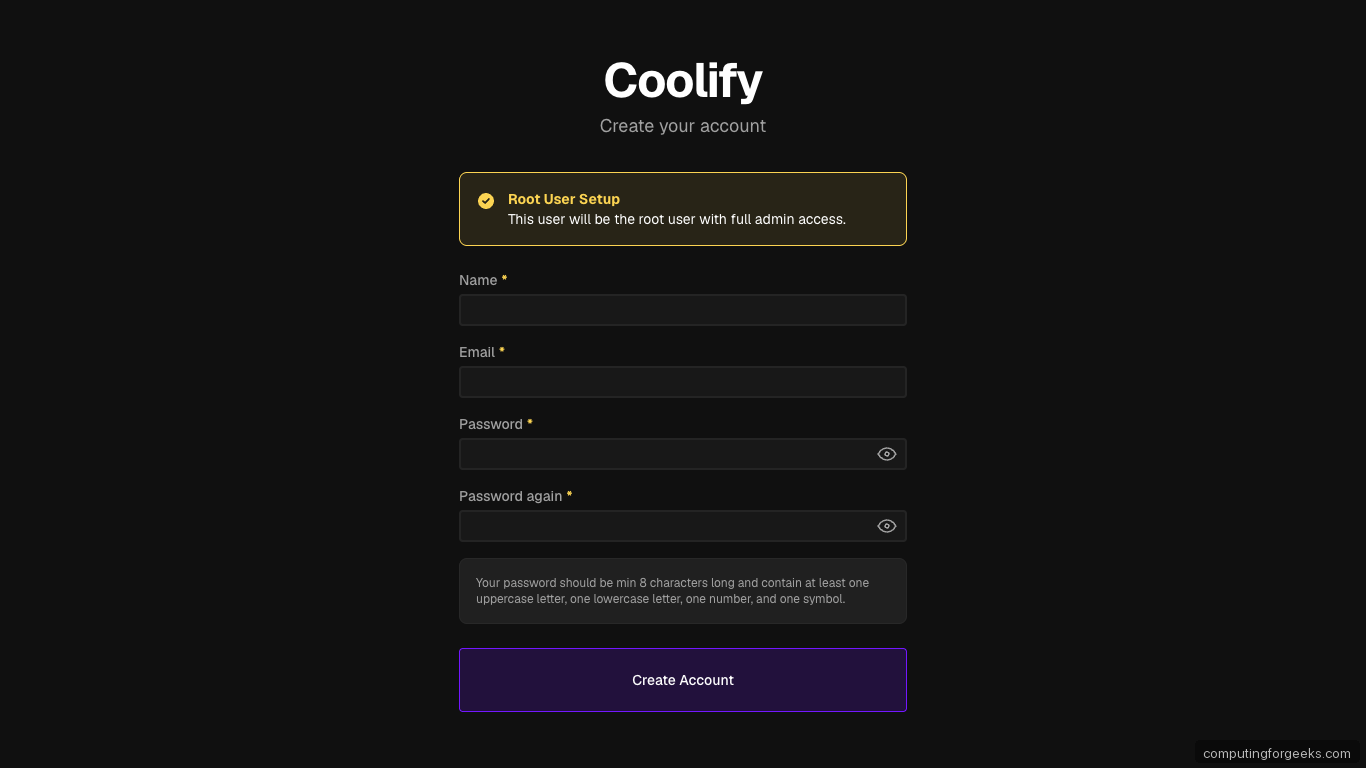
Password validation is strict: minimum 8 characters, at least one uppercase, one lowercase, one number, and one symbol. Submit. Coolify logs you in and opens the Welcome page with three onboarding checkpoints (Server Connection, Docker Environment, Project Structure).
Step 6: Tour the dashboard
Click Let’s go! or Skip Setup to land on the main dashboard. Coolify shows the Root Team context, zero projects, and one pre-registered server called localhost (the box Coolify is running on):
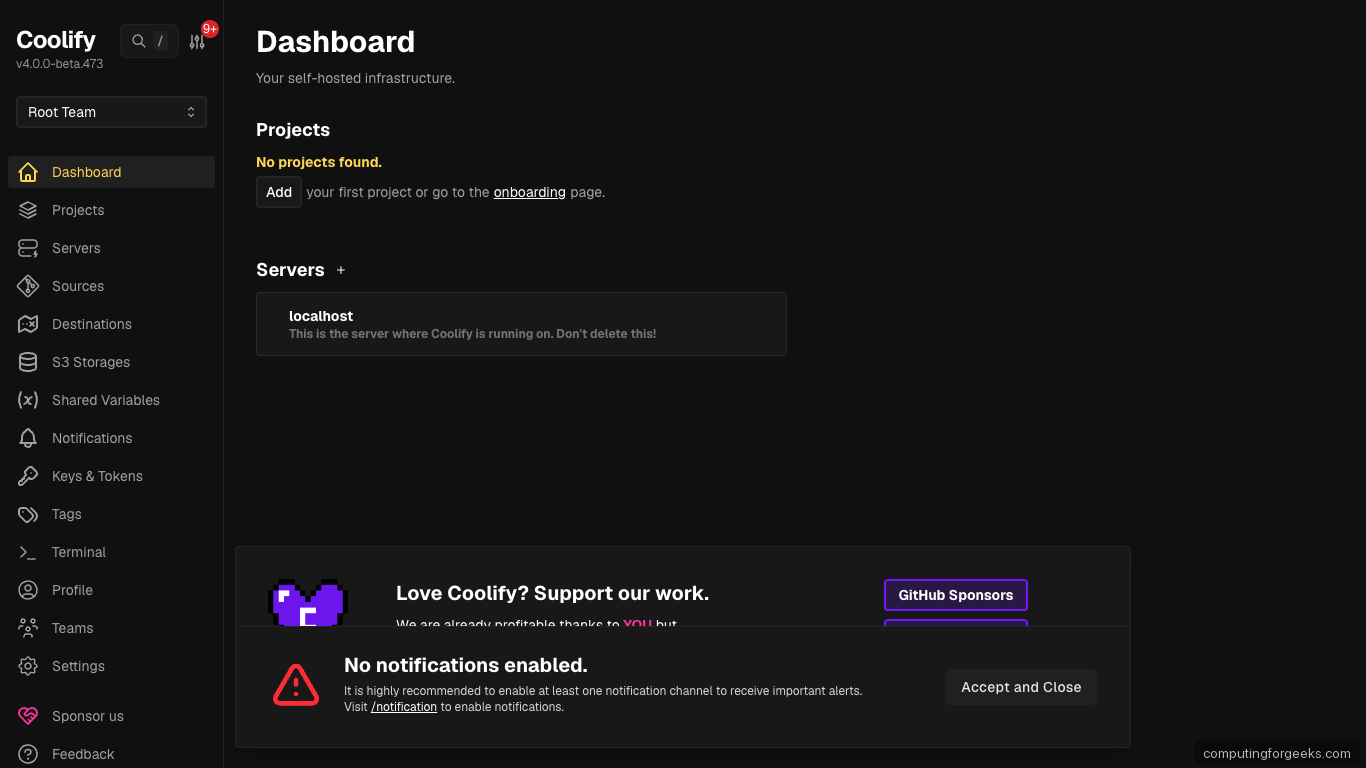
The sidebar is where the whole product lives: Projects hold apps and databases, Servers are the Docker hosts you deploy to, Sources connect Git providers, Destinations are the Docker networks where workloads land, S3 Storages back up everything, Shared Variables are team-wide env vars, Keys & Tokens hold SSH/API credentials.
Step 7: Connect additional servers (optional)
Coolify starts with localhost as the only server. Real deployments often have separate boxes for production, staging, and review apps. Add a new server from Servers → Add:
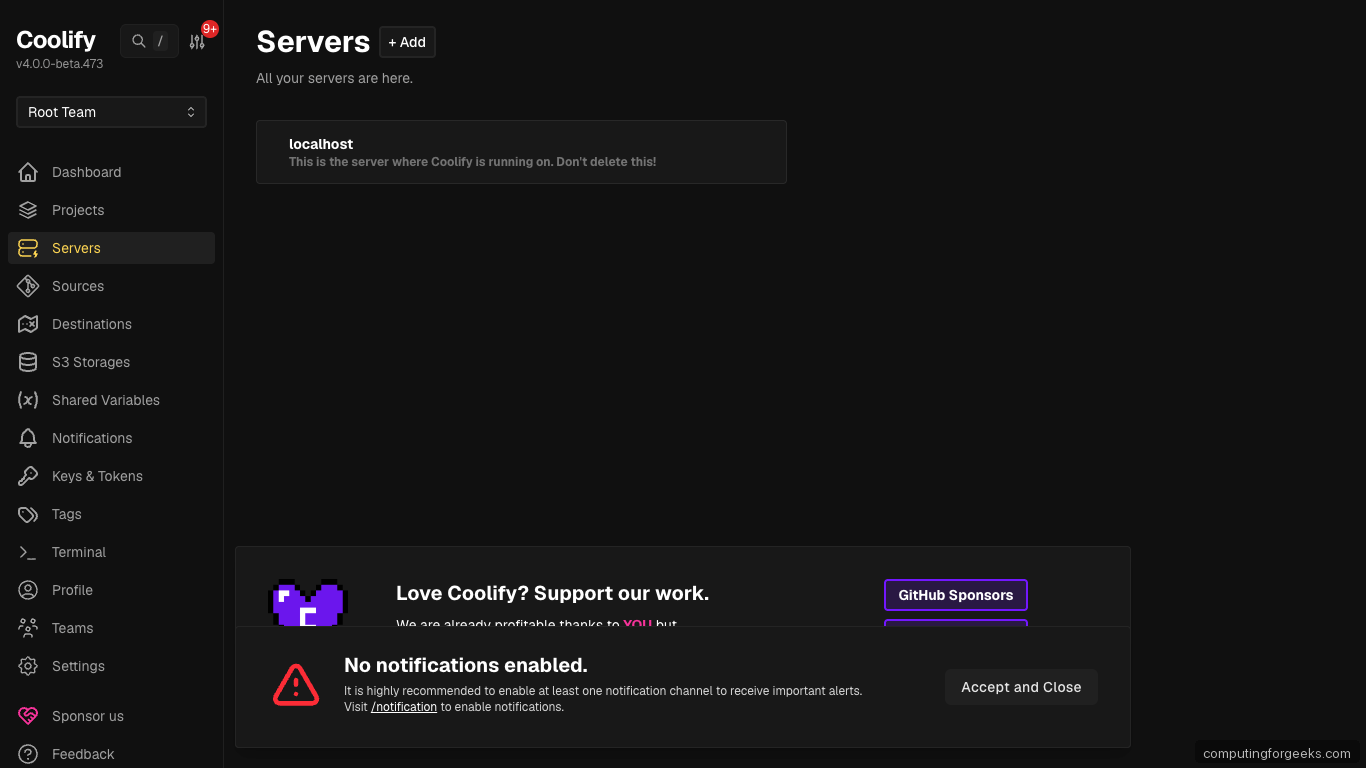
For each remote server you paste an SSH private key (Coolify stores it under Keys & Tokens), the server IP or hostname, and the SSH user. Coolify SSHes in, installs Docker, joins its Docker network, and the server shows up in the list as ready to receive deployments. The SSH key authentication guide covers the key generation side.
Step 8: Create your first project
Projects in Coolify group applications, databases, and services that belong together (a blog + its Postgres, a SaaS + its Redis, etc.). Create one from Projects → New:
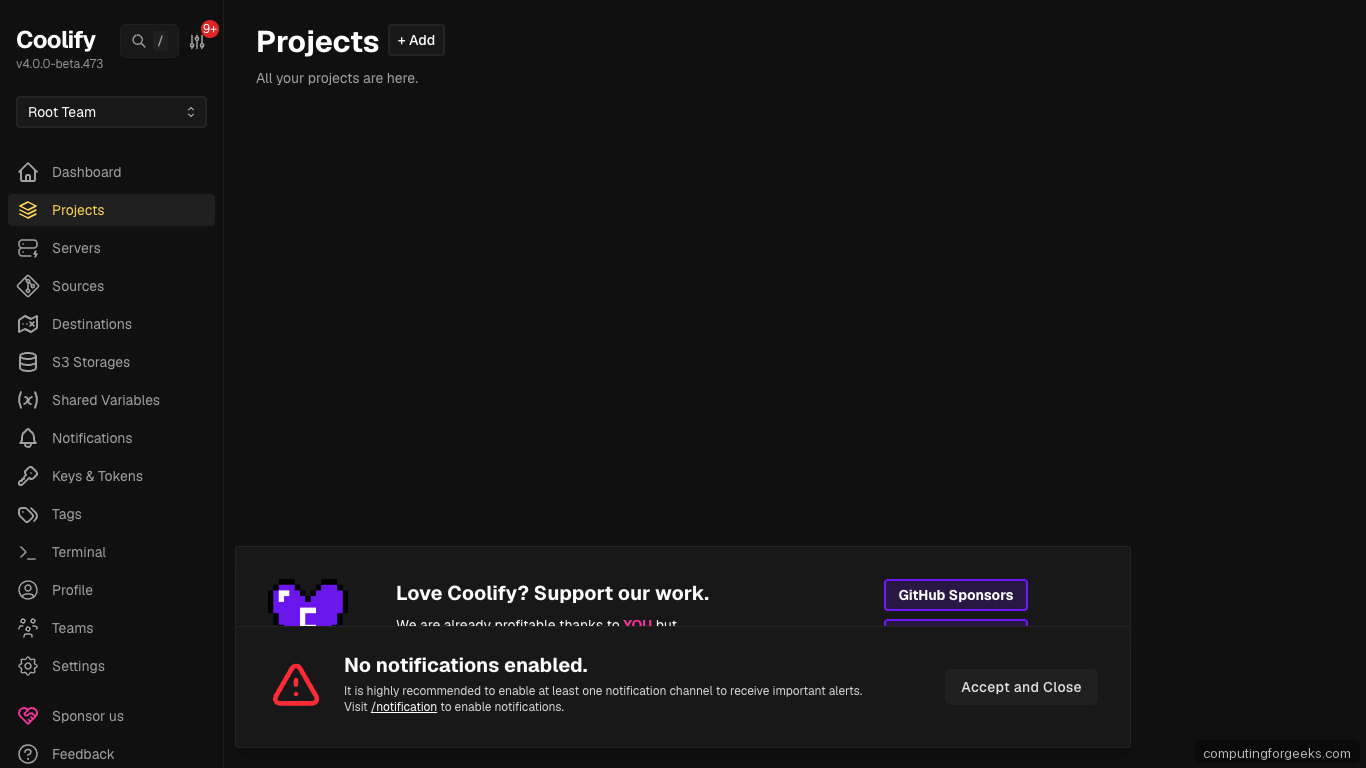
Each project has one or more environments (production, staging, preview). Resources you add live inside a project + environment pair, which is how Coolify keeps your prod database isolated from staging.
Step 9: Deploy your first app from GitHub
Inside a project, click New Resource → Public Repository. Paste any public Git URL, pick the branch, and Coolify detects the stack (Node, Python, PHP, Ruby, Rust, Go, static, Docker, Dockerfile, Docker Compose). For a private repo, first connect a GitHub App under Sources → Add.
Coolify uses Nixpacks by default to build without a Dockerfile. If your repo has a Dockerfile, Coolify uses that instead. Common stacks auto-detect:
- Node.js: package.json + build command → build image, start command → PORT env
- Python: requirements.txt + start command → gunicorn/uvicorn
- Next.js: detected by next.config.js, uses standalone output if configured
- Laravel: detected by artisan, runs composer install + php artisan serve
- Static site: Hugo, Jekyll, Astro, Next static export
Hit Deploy. Coolify builds the image in a Buildkit worker, pushes to its internal registry, schedules the container on the selected server, and Traefik issues a TLS certificate for the app’s domain. A fresh Next.js site typically deploys in under 3 minutes on the test VM.
Step 10: Provision a managed database
Inside a project, New Resource → Database gives you a picker with PostgreSQL, MySQL, MariaDB, MongoDB, Redis, KeyDB, DragonFly, ClickHouse, Pocketbase, and more. Pick PostgreSQL 18:
# Inside Coolify: New Resource → PostgreSQL 18 → Deploy
# Coolify provisions the container, generates credentials, exposes
# an internal hostname like postgres-ab12cd, and injects env vars
# into any attached app in the same project.
Attach the database to an app by editing the app’s Environment Variables panel: Coolify auto-injects DATABASE_URL, POSTGRES_HOST, POSTGRES_USER, POSTGRES_PASSWORD, and POSTGRES_DB for you. The app redeploys automatically.
Step 11: Secure the admin panel
The Coolify admin has broad power (deploy, destroy, browse logs, exec into containers, read secrets). Lock it down immediately:
- IP allowlist the Nginx admin vhost if you only need one or two offices to access it:
location / { allow 203.0.113.0/24; # Office CIDR allow 10.8.0.0/24; # WireGuard deny all; proxy_pass http://127.0.0.1:8000; # ... rest of the proxy block } - Enable two-factor auth under Profile → Two-factor. Coolify supports TOTP; Authy, 1Password, Google Authenticator all work.
- Set up a notifications channel (Discord, Telegram, email, Slack) so build failures and security alerts land somewhere you see them.
- Back up the
.envfile at/data/coolify/source/.env. The installer specifically warns about this. Losing it means losing every database password Coolify generated.
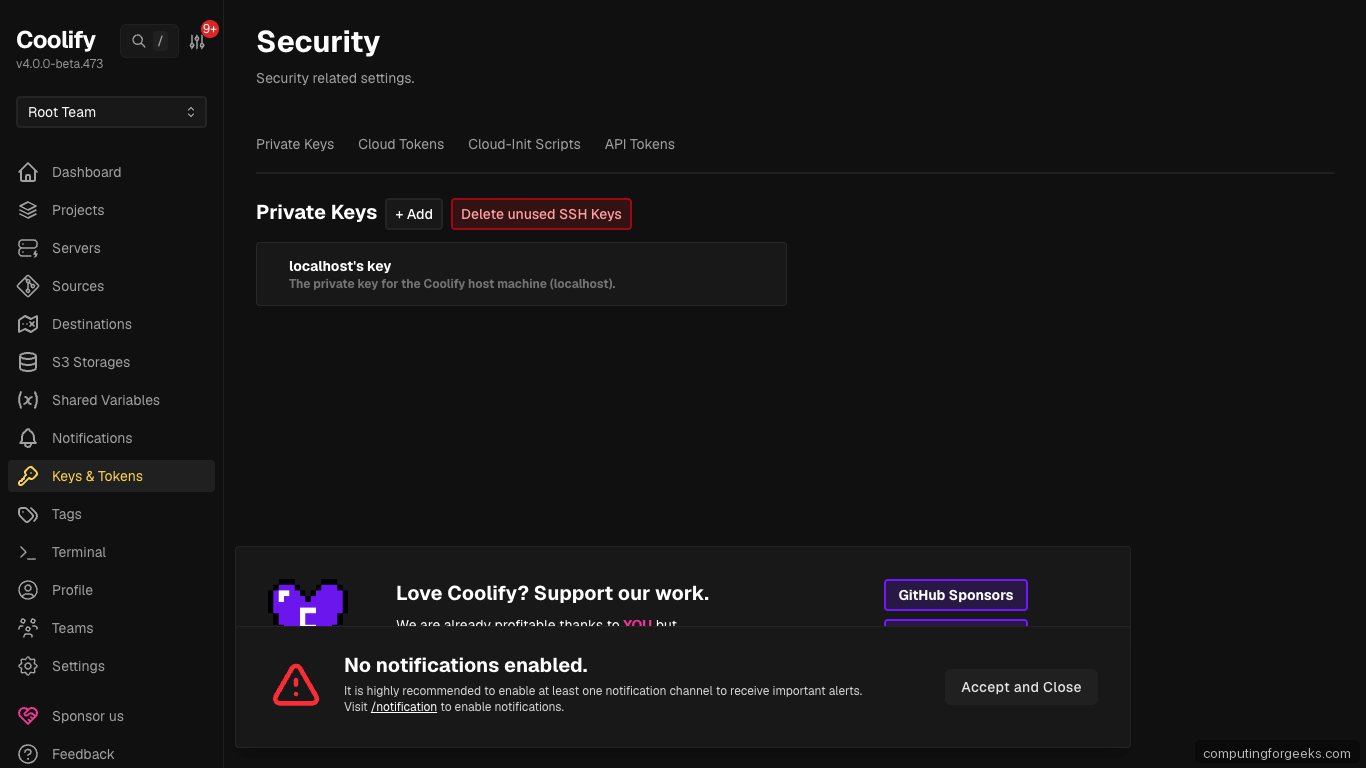
The Keys & Tokens page is where personal access tokens and deploy keys live:
Terminal verification:
With that step done, move on to the next one.
Troubleshooting
“Port 80 is already in use” during install
Something else on the host already binds 80. Most likely a Nginx or Apache install left over. Stop it, uninstall if you don’t need it:
sudo ss -tlnp | grep :80
sudo systemctl stop apache2 nginx 2>/dev/null
sudo apt-get purge -y apache2 2>/dev/null
Re-run the Coolify installer.
“OOM killed” during the first app build
4 GB of swap should prevent this; if you skipped Step 2, add it now:
sudo fallocate -l 4G /swapfile
sudo chmod 600 /swapfile
sudo mkswap /swapfile && sudo swapon /swapfile
echo '/swapfile none swap sw 0 0' | sudo tee -a /etc/fstab
# Retry the Coolify build from the UI
Those commands set the baseline. Continue with the next step.
Traefik cannot issue a certificate for a deployed app
Three common reasons: the app’s domain does not resolve to the Coolify server yet, port 80 is firewalled, or the domain has a CAA record that does not include letsencrypt.org.
dig +short A your-app.example.com
dig +short CAA example.com
sudo ufw status | grep 80
All three need to return something sensible before Let’s Encrypt can complete the HTTP-01 challenge.
Coolify UI shows “Connection lost” repeatedly
The realtime WebSocket at /app is being dropped. Check that Nginx has the Upgrade and Connection headers in the /app location from Step 4. Also check coolify-realtime is healthy:
sudo docker ps --filter name=coolify-realtime --format '{{.Status}}'
sudo docker logs coolify-realtime --tail 50
Restart if the container reports unhealthy:
sudo docker restart coolify-realtimeConfiguration is now in place. Proceed to the next section.
How do I update Coolify?
The admin UI has an update banner when a new release is available. Click Update → Start; Coolify orchestrates a rolling restart. From the shell:
cd /data/coolify/source
sudo curl -fsSL https://cdn.coollabs.io/coolify/upgrade.sh | sudo bash
The upgrade script pulls new images and runs migrations. Deployed apps stay up during the upgrade.
Migrating from Heroku, Render, or Vercel
Most Coolify adopters come from a hosted PaaS. The biggest migration friction is mapping mental models, not rewriting code. The table below covers what actually changes per source platform.
| Concept | Heroku | Render | Vercel | Coolify equivalent |
|---|---|---|---|---|
| Apps | app | service | project | Application inside a Project |
| Build | buildpacks | native build | Vercel build | Nixpacks (default) or your Dockerfile |
| Runtime env vars | Config vars | Environment variables | Environment Variables | Application → Environment Variables |
| Secrets | Config vars (encrypted) | Environment Group | Environment Variables (sensitive) | Shared Variables (team) + app env |
| Managed database | Heroku Postgres | Render Postgres | Vercel Postgres (Neon) | Projects → New Resource → Database |
| Add-ons (Redis, Memcached) | Add-on marketplace | Redis | Vercel KV | Projects → New Resource → Redis/KeyDB/Dragonfly |
| Background workers | Worker dyno | Background worker | Cron jobs (limited) | Separate Application with no published ports |
| Scheduled tasks | Heroku Scheduler | Cron Job service | Cron Jobs (Pro) | Application → Scheduled Tasks |
| Release phase / migrations | release command | Pre-deploy command | Build command | Application → Deployment Settings → Pre/Post deploy command |
| Ephemeral storage | Dyno filesystem | Ephemeral disk | /tmp | Same (container fs, wiped on restart) |
| Persistent disks | Not supported | Disks (Pro) | Not supported | Application → Storages → Volume Mounts |
| Domains & TLS | Heroku SSL | Custom domain + auto TLS | Project domains + auto TLS | Application → Domains (Traefik auto-issues) |
| Git push deploys | git remote heroku | Auto-deploy on push | GitHub integration | Sources → GitHub App + Application → Auto deploy |
| Preview apps | Review apps | Preview environments | Preview deployments | Projects → Environments + GitHub PR triggers |
| Rolling restart / zero downtime | Default | Default | Atomic deploys | Default (Traefik swaps containers) |
| Logs | heroku logs –tail | Render dashboard | Vercel dashboard | Application → Logs (live tail) |
| Metrics | Heroku Metrics | Render metrics | Vercel Analytics | Prometheus endpoint (manual scrape) or included Grafana |
Three gotchas caught most migrants on the test runs. First, Heroku buildpacks rely on hooks that Nixpacks doesn’t fire; if your app depends on release or postdeploy hooks, move those commands to Coolify’s Pre/Post deploy settings. Second, Render and Vercel both have “build time env vars” and “runtime env vars” as separate concepts; Coolify uses one env pool per app, but you can scope to build only by prefixing NIXPACKS_. Third, Vercel apps using Edge Functions or Vercel-specific runtime features (KV, Blob, Postgres driver) need code changes before they run on Coolify; the standard Node.js parts port cleanly.
Pair the whole stack with the server hardening guide so the underlying Ubuntu box stays as locked down as the apps you deploy on top.