Anthropic shipped Claude Design on April 17, 2026. It’s a research-preview product inside claude.ai that turns a text prompt into real visuals: slide decks, prototypes, wireframes, one-pagers, landing pages. Exports land in Canva, PPTX, PDF, a shareable URL, standalone HTML, or straight to Claude Code as a ready-to-implement handoff. The product is powered by Claude Opus 4.7 and includes a design-system import path that reads your codebase, Figma files, and brand assets.
This Claude Design tutorial walks through accessing the product, creating a project, generating your first design, watching Claude plan and iterate, refining the output, every export format, the handoff path to Claude Code, and where Claude Design stands against Canva, Figma, and v0. Screenshots are from a real session on a Claude Max account on launch day.
Tested: April 17, 2026 on claude.ai/design, research preview, Claude Opus 4.7 on a Claude Max account
What Claude Design actually does
Claude Design takes a prompt and produces a finished visual artifact. You describe what you want, like a ten-slide investor deck for a climate-tech startup, a landing page for a developer productivity SaaS, or a three-screen onboarding wireframe for a payments app, and Claude generates an editable design inside the browser.
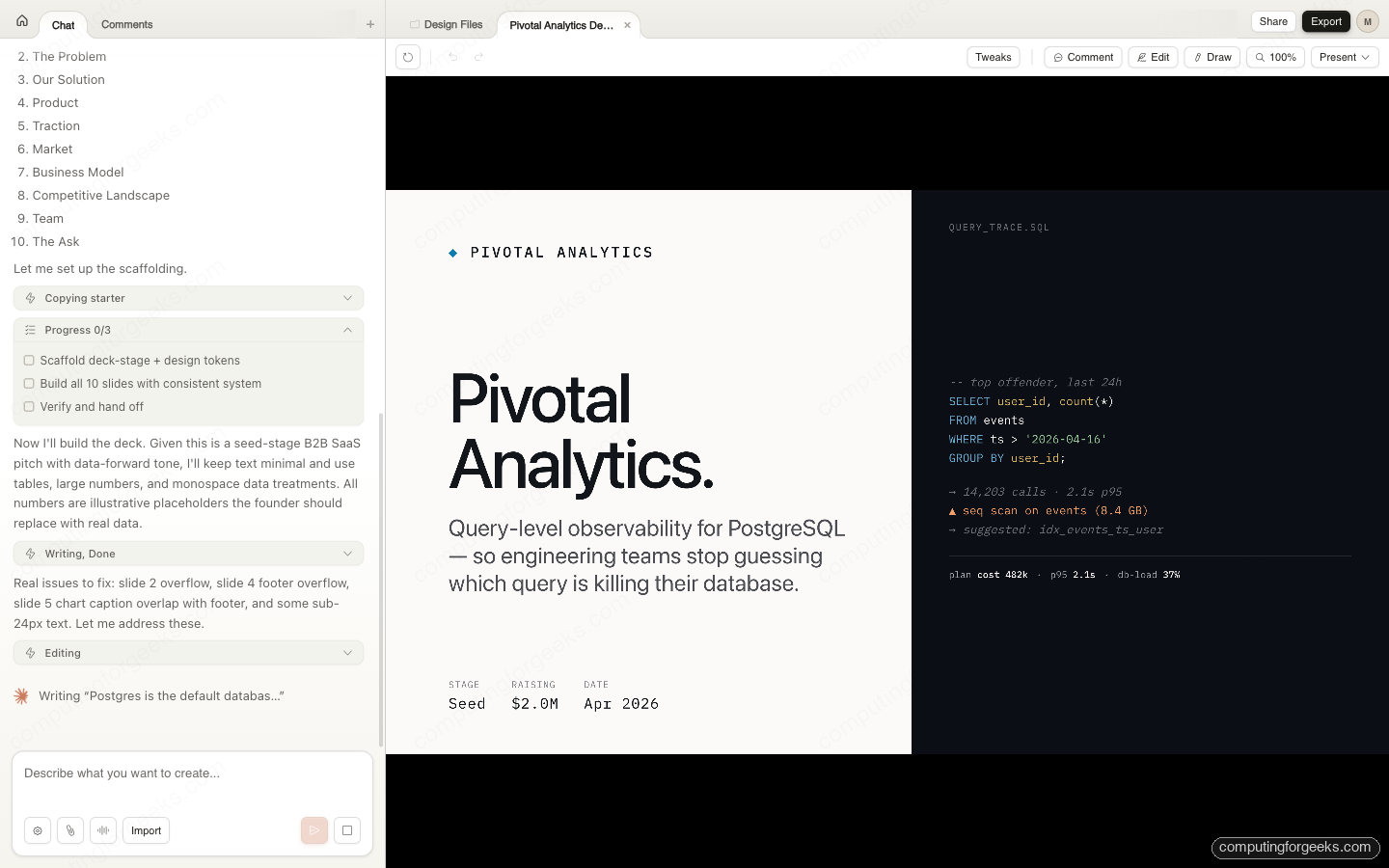
The output is not a static image. It’s a real HTML document (for decks, 1920×1080 slides stitched into a self-contained file) that you can open, click, edit, present, and share. A ten-slide investor deck generated during testing looked like this:
Each generation is a call to Claude Opus 4.7 with a design-focused scaffold. The model holds narrative, typography, color relationships, and content together, which is why first passes tend to look coherent rather than like a moodboard. For the broader release details of the underlying model, see our Claude Opus 4.7 release breakdown.
Who can access Claude Design and what it costs
Access follows your claude.ai subscription tier. Four plans include the feature at launch:
| Plan | Monthly cost | Claude Design access |
|---|---|---|
| Free | $0 | No access during research preview |
| Pro | $20 | Included, shared with normal message limits |
| Max | $100 to $200 | Included with a higher usage ceiling |
| Team | $25 per user | Included, admin-controlled |
| Enterprise | Custom | Off by default, admin enables in Organization Settings |
The API key you use for the Anthropic API is separate from a claude.ai subscription. Your sk-ant-… key does not grant access to Claude Design. If you want to try the product, you need an active paid plan at claude.ai, not just API credits.
The rollout is gradual on April 17. If you sign in and don’t see “Design” in the sidebar, sign out and back in, or give it a few hours. Free-tier users do not have access during the research preview.
Open claude.ai/design and pick a design type
Sign in to claude.ai. Navigate to claude.ai/design or click the Design item in the left sidebar once rollout reaches your account. The landing page opens with a project-setup panel on the left and a design archive plus search on the right.
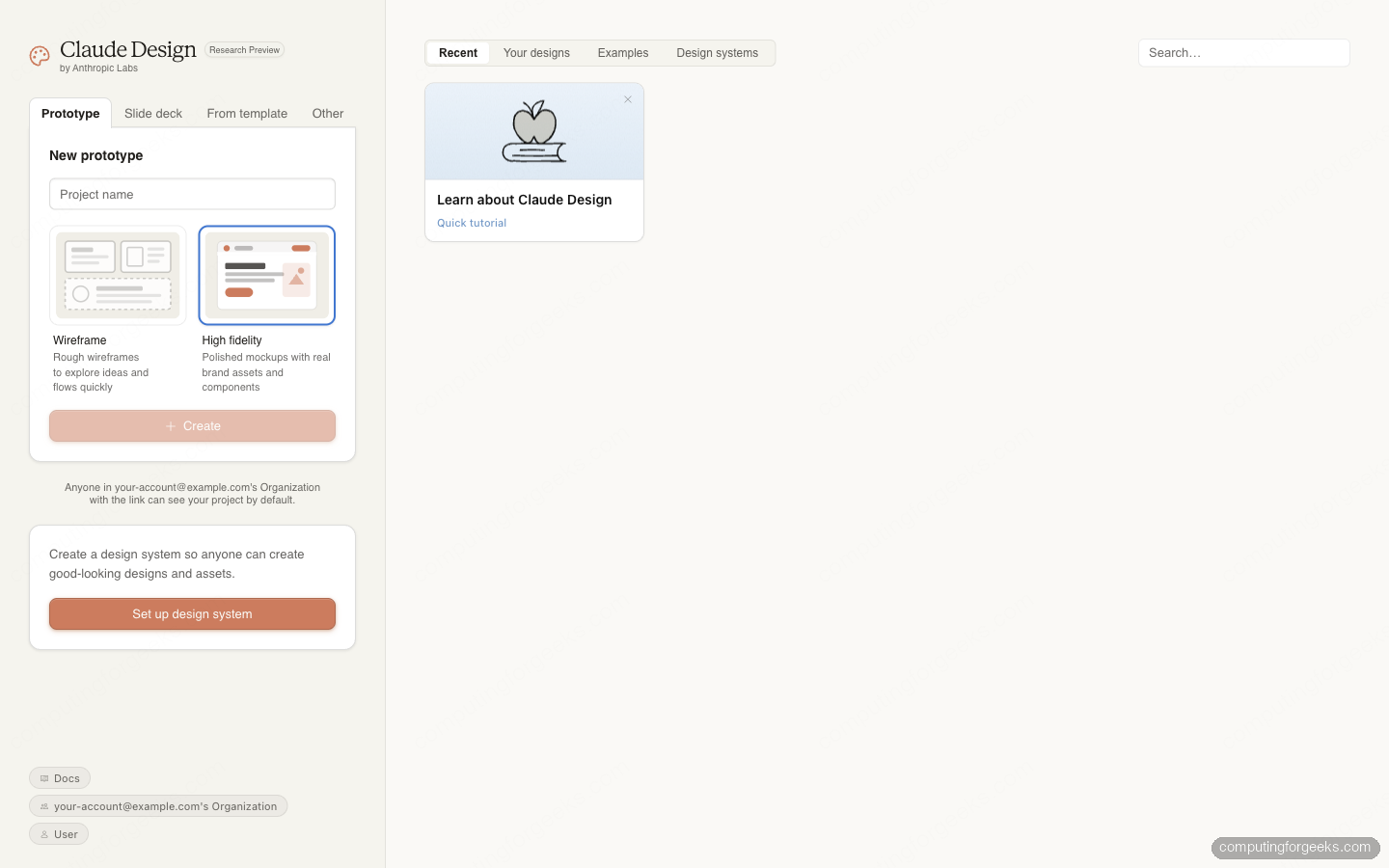
Four type tabs sit across the top of the setup panel:
- Prototype: clickable product mockups. You choose between Wireframe (rough) or High fidelity (polished with brand assets).
- Slide deck: investor decks, board reports, all-hands presentations. Optional “Use speaker notes” toggle for less text on slides.
- From template: start from a curated template library instead of a blank prompt.
- Other: landing pages, one-pagers, infographics, marketing collateral, anything that doesn’t fit the three named types.
Name the project, pick the fidelity (for Prototype) or toggle speaker notes (for Slide deck), and click Create. The Create button stays disabled until the project has a name.
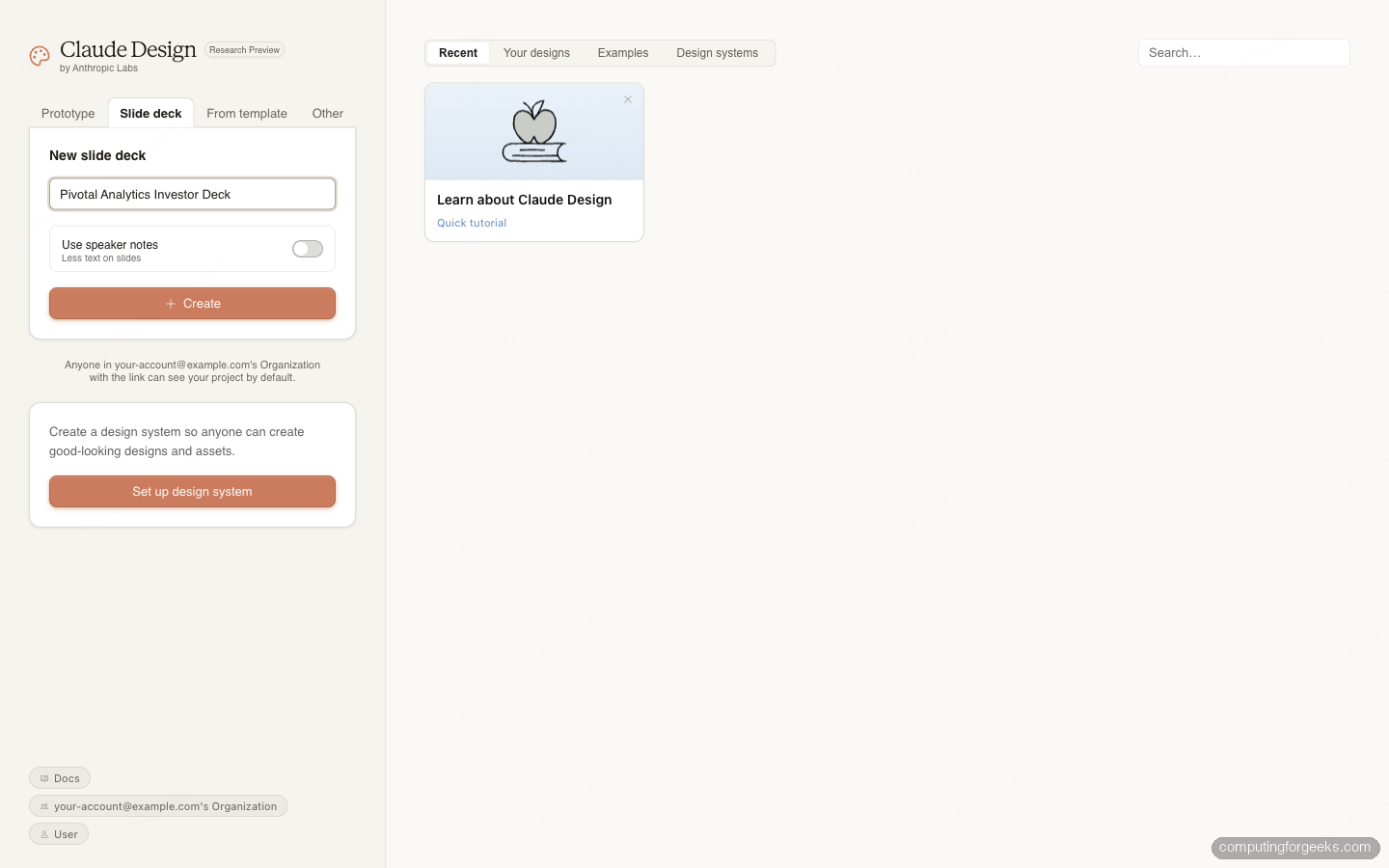
Generate your first design from a prompt
Clicking Create lands you in the project workspace. Left side is a Chat pane with a pre-loaded template button (Make a deck, Make a prototype, and so on depending on type) and a prompt composer. Right side is the Design Files canvas, empty until something generates.
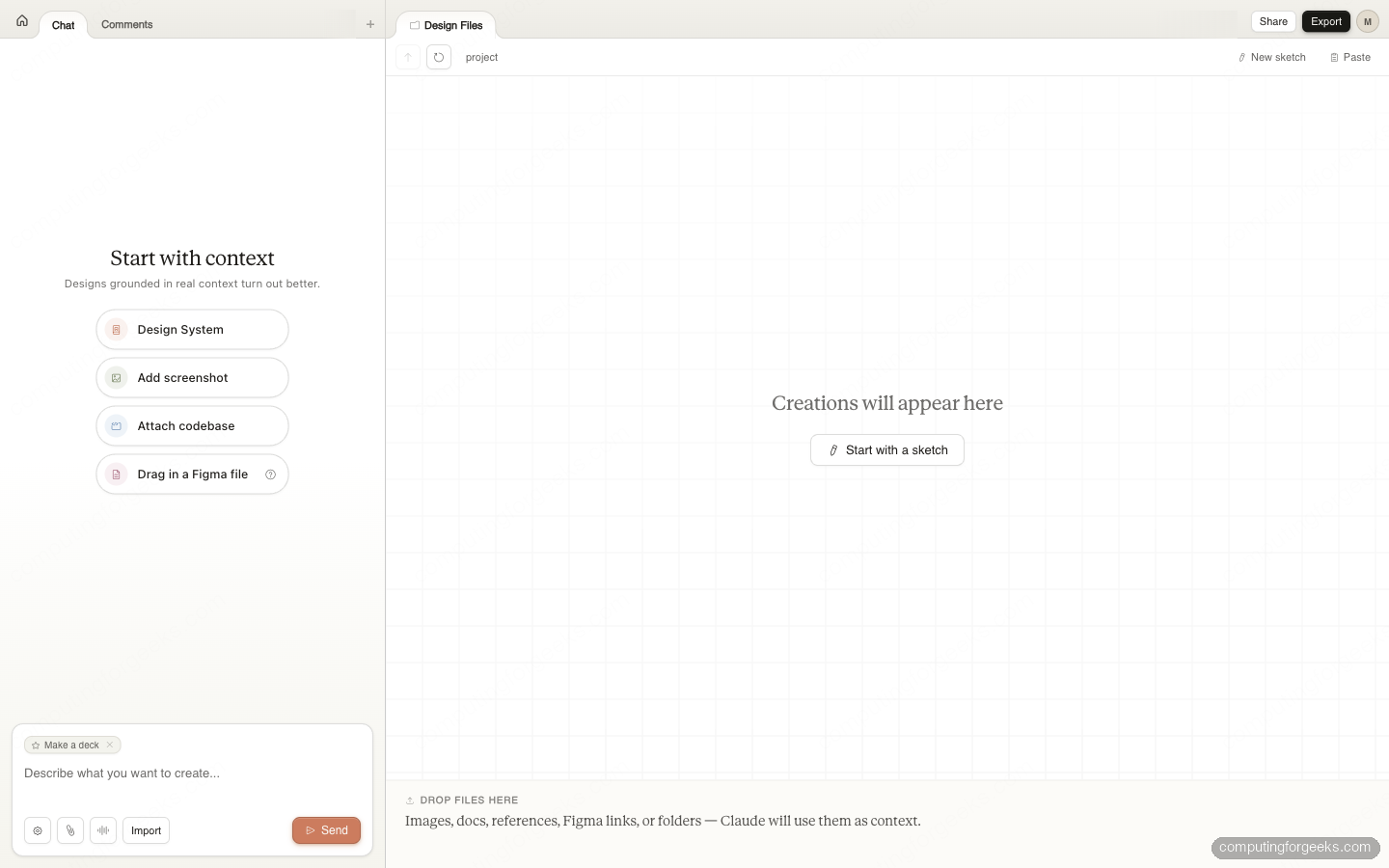
Before prompting, attach context if you have it. Claude’s own tip panel puts it directly: “Designs grounded in real context turn out better.” Four attachment types stack under the composer: Design System, Add screenshot, Attach codebase, and Drag in a Figma file. You can skip context on the first generation and come back to it later, but the output will be brand-neutral without a system loaded.
Type your prompt into the composer. Specificity matters far more here than with chat Claude. For pitch decks, pin the audience, tone, and structure. A weak prompt like “pitch deck for my SaaS” produces generic slides. A strong prompt pins the details:
A ten-slide investor pitch deck for Pivotal Analytics, a B2B SaaS selling PostgreSQL query analysis for engineering teams. Stage: seed, raising $2M. Structure: problem, solution, product demo, traction, market size, business model, competition, team, ask, vision. Tone: confident but honest, data-forward, no marketing fluff.
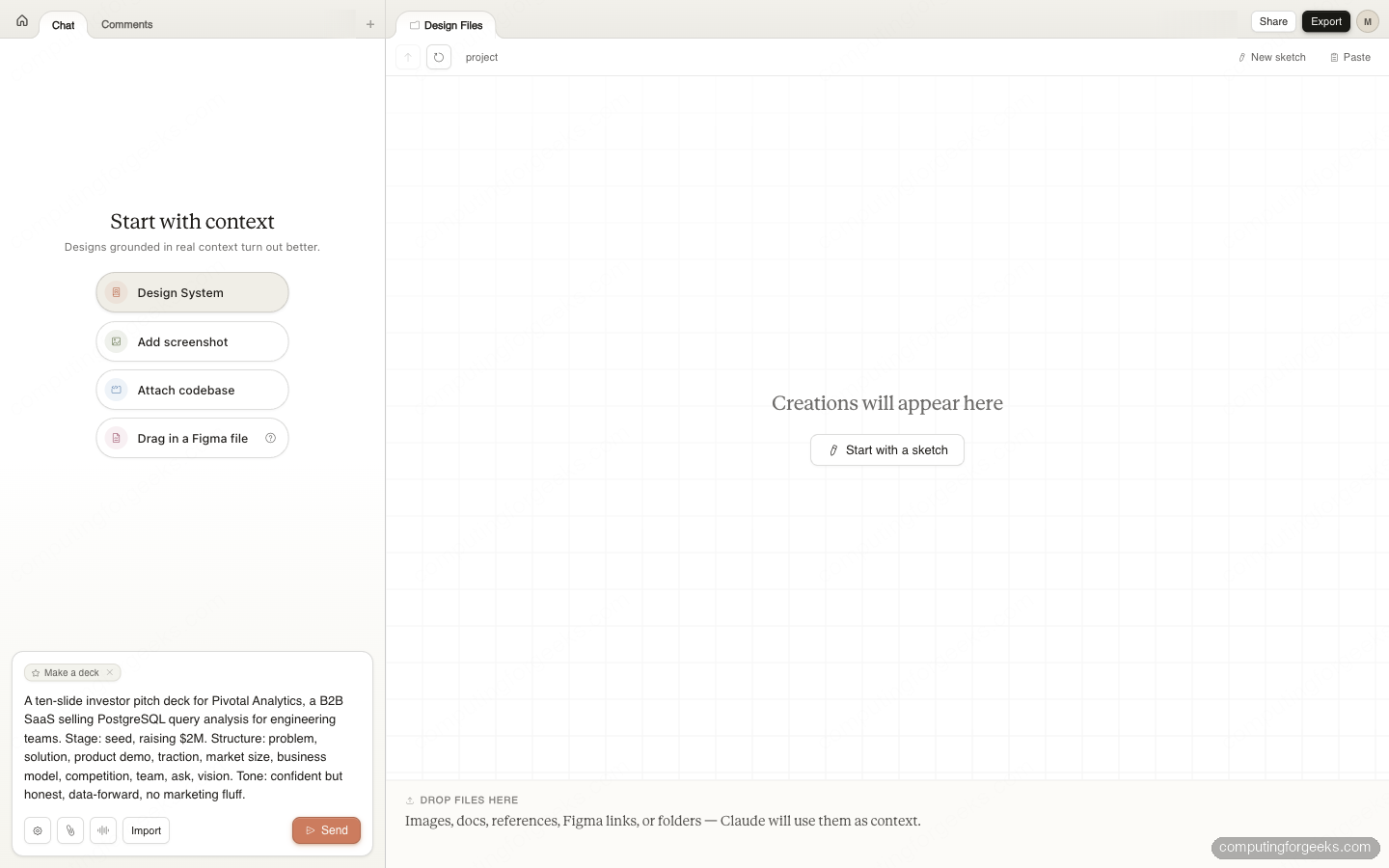
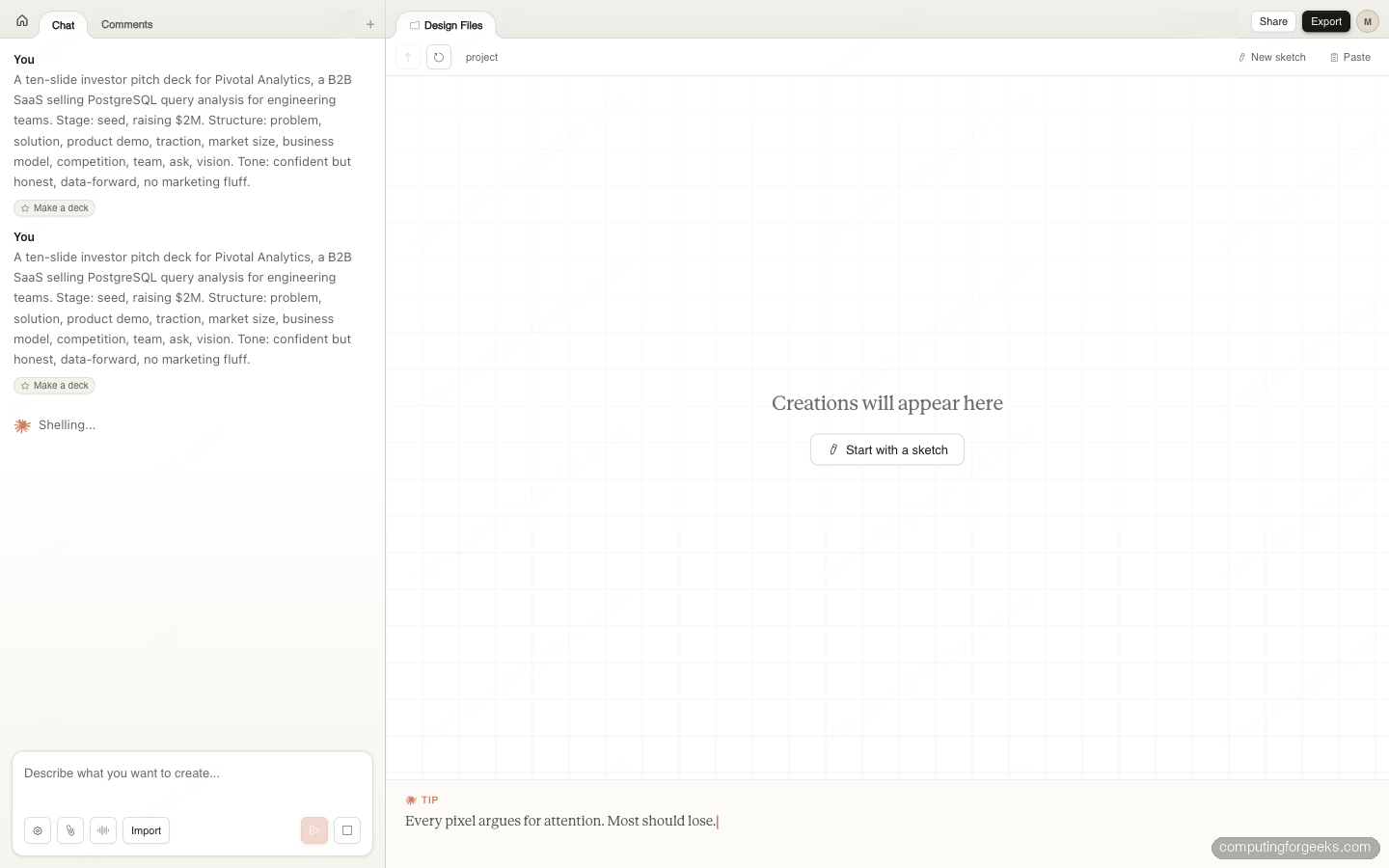
Click Send. A ten-slide deck takes five to seven minutes to generate end-to-end, not fifteen seconds. Claude narrates what it’s doing in the chat pane as it works: playful loader messages (Shelling…, Caramelizing onions…), then the real phases kick in.
Claude Design tutorial: watch Claude plan and iterate, not just generate
Most AI design tools take a prompt and dump an output. Claude Design does something different: it plans out loud, then builds, then self-critiques. The chat pane shows every step.
Phase one is aesthetic commitment. Before writing a single slide, Claude declares the typography system, color palette in OKLCH notation, and visual rhythm. From our test run:
- Type: IBM Plex Sans for UI/body, IBM Plex Mono for data/labels, IBM Plex Serif for pull-quotes. Engineering-tool feel, data-forward.
- Palette: warm off-white
oklch(0.98 0.005 85)background, near-blackoklch(0.18 0.01 260)foreground, single accentoklch(0.55 0.14 230)for data emphasis. No gradients, no emoji, no hand-drawn SVG illustrations. - Rhythm: alternating light/dark section headers, full-bleed metric slides, monospace data tables, generous whitespace.
Phase two is the title sequence (10 slide headers in matched grammar). Phase three is scaffolding: Claude writes a deck-stage.js file (~22 KB in our test) that handles the presentation chrome, navigation, and scaling. Phase four writes each slide one at a time, streamed live into the Design Files panel.
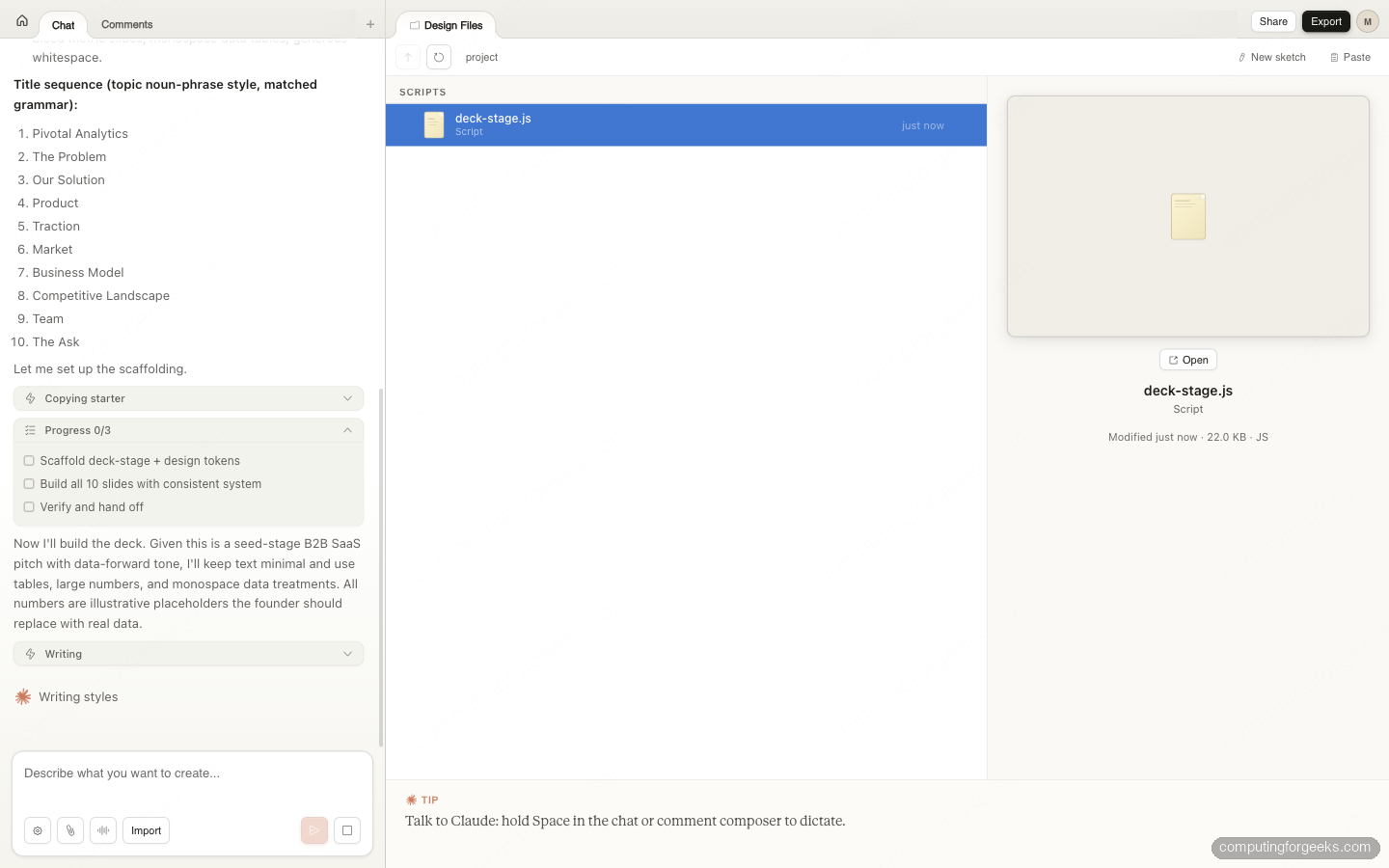
Phase five is the interesting one: after the first build, Claude self-critiques the output for layout bugs, then iterates. Real observations from our session included “slide 2 overflow, slide 4 footer overflow, slide 5 chart caption overlap with footer, and some sub-24px text. Let me address these.” Subsequent edit passes fixed each issue. Claude also forks a verifier agent to double-check the final deck against the aesthetic commitment it declared at the start.
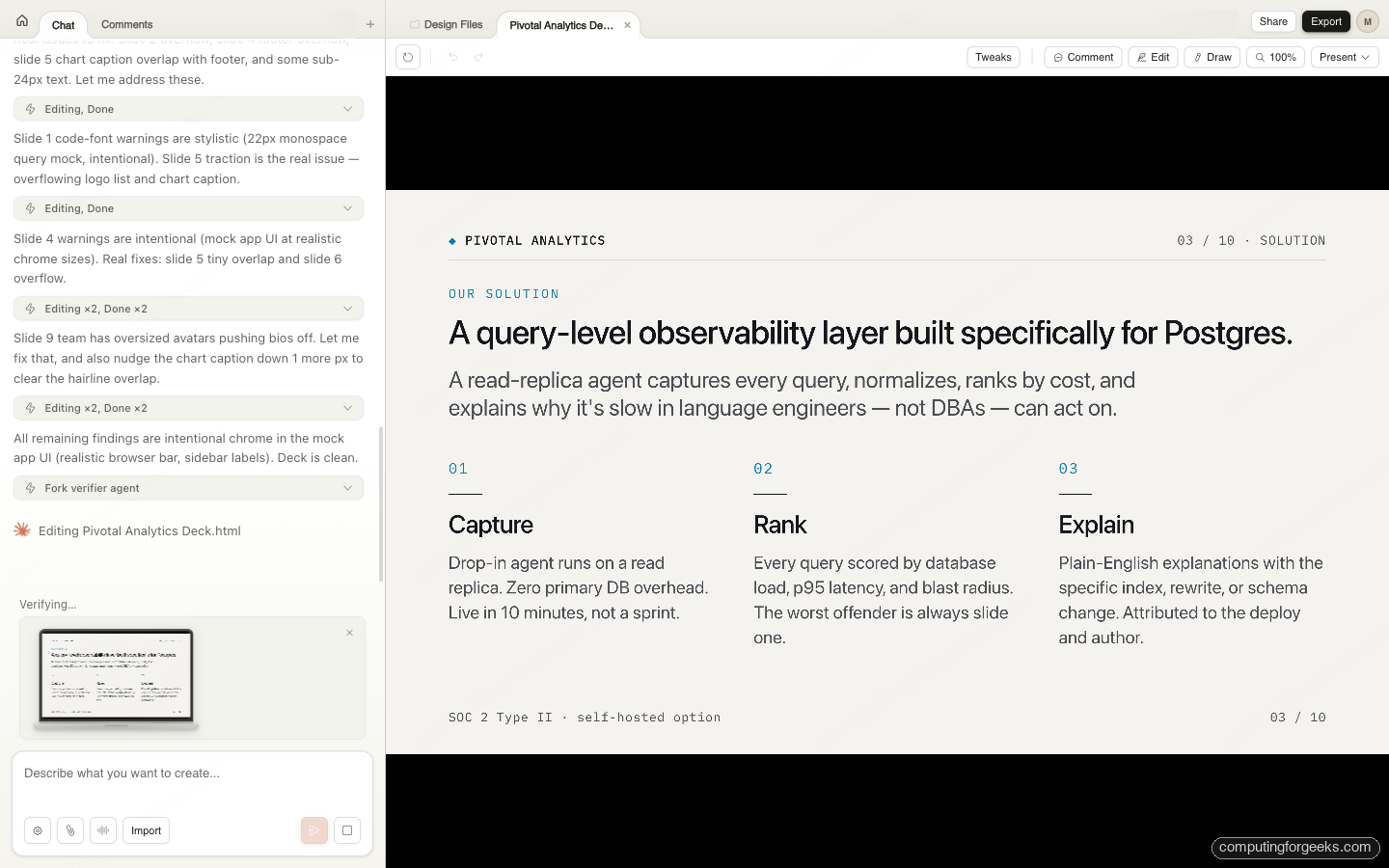
The rendered slides look like hand-designed layouts, not template fills. Slide 3 from the test deck is a three-column solution summary:
Refine with Tweaks, inline edits, and comments
Once the deck exists, the toolbar across the top of the canvas exposes four refinement tools: Tweaks, Comment, Edit, and Draw.
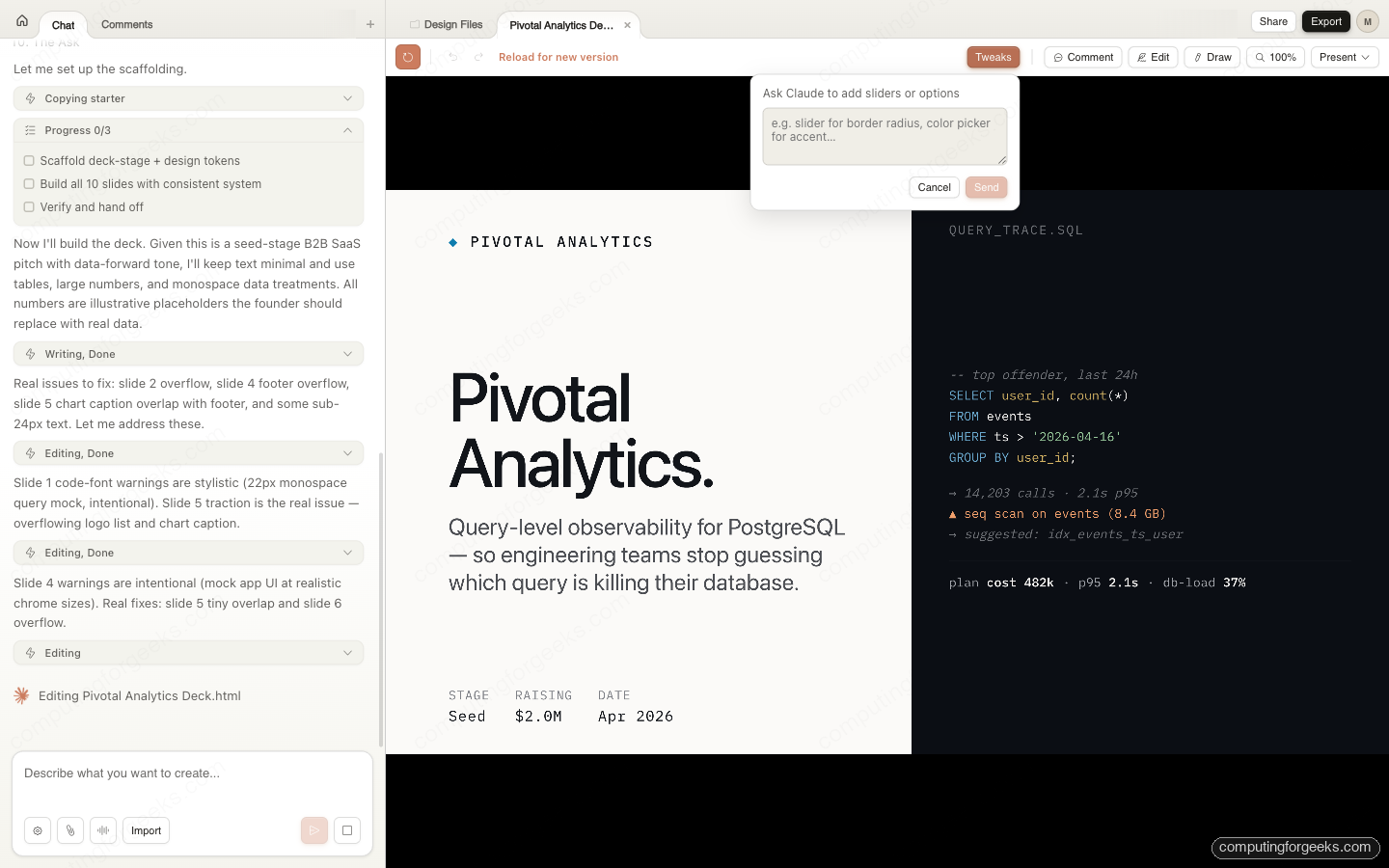
Tweaks is not a fixed panel of pre-made sliders. It’s a small composer that asks “what controls do you want?” You type something like “slider for border radius, color picker for accent” and Claude generates those custom controls for this specific design. That’s more flexible than the slider panels most AI design tools ship with, because every design needs different adjustments.
Comment places a pin on any element and leaves a note. Claude sees the pinned element plus the note and applies the requested change scoped to just that element, not the whole slide. This is the cleanest path for requests like “shrink this avatar by 30%” or “make this column two-column instead of three.”
Edit is direct inline editing. Click any text, type over it. No regeneration, no model call. The fastest path for typo fixes and content corrections.
Draw lets you sketch on the canvas as a visual instruction. Useful when describing a layout change in words is harder than just drawing an arrow. Claude interprets the sketch as part of the next edit request.
Edits from any of the four tools queue as chips in the composer; you can remove any you don’t want before sending. The Undo and Redo controls above the canvas let you roll back entire edit passes, not just individual keystrokes.
Upload your existing design system
Four context-attachment paths produce brand-matched output instead of Claude’s default aesthetic. Attach them from the workspace left panel on any project:
Design System. Upload a curated token file, a Figma library, or a structured design-system repository. Claude treats the tokens as canonical and uses them for every generation in the project.
Attach codebase. Point Claude at a GitHub repo or a local folder with your Tailwind config, CSS variables, Style Dictionary JSON, or component library (React/Vue component names and props). Claude parses the real tokens. Your brand-500 orange in Tailwind shows up as the CTA color without you ever naming it in the prompt.
Drag in a Figma file. Upload a Figma file URL or a library export. Claude pulls colors, typography scale, spacing scale, and component structure. Works best when the Figma file uses named styles and variables; files heavy on overrides and inline styles produce less predictable matches.
Add screenshot. Paste a screenshot of an existing product, landing page, or competitor site. Claude infers visual language from the image and applies it. This is the lowest-effort path for “make it look like this reference.”
Once context is attached, generated designs match your brand without prompt-level instructions. A landing page produced after uploading your Tailwind config uses your brand-500 orange, your body typeface, and your spacing scale. You can maintain multiple design systems in one account, useful if you ship under different brands; switch systems per project from the setup panel.
Export to Canva, PDF, PPTX, a URL, or Claude Code
The Export button exposes six destinations. Each one preserves the design structure, not a flattened image.
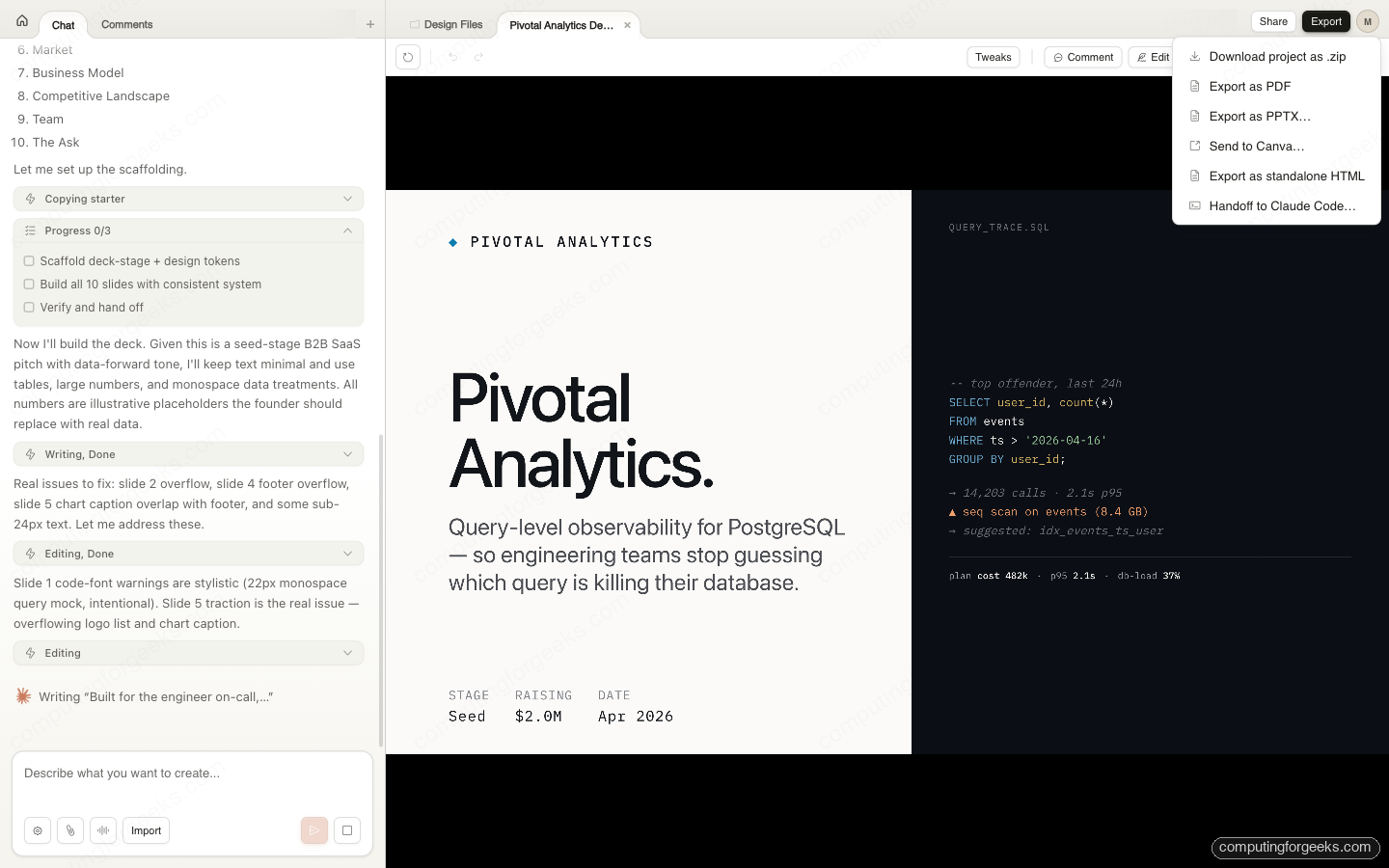
Download project as .zip. The full project files as Claude generated them, including the deck-stage.js scaffold and every slide’s source. Useful when you want to own the raw assets and iterate outside Claude Design.
Export as PDF. Standard static export for decks and one-pagers meant for email or print. Vector quality by default, not rasterized.
Export as PPTX. Native PowerPoint export. Each slide is a real PPTX slide with editable text boxes, not flattened images, so your CEO can still swap a headline from Keynote or PowerPoint without touching Claude. AI tools that produce PPTX as a container of PNGs frustrate anyone who needs to make even a tiny edit.
Send to Canva. One click sends the design to Canva where it becomes a native Canva document, fully editable with real-time collaboration. This is the handoff path Anthropic partnered with Canva on at launch, and it’s the fastest way to hand a draft to a marketer who lives in Canva.
Export as standalone HTML. For landing pages and prototypes. You get a folder with index.html plus assets you can drop on S3, Netlify, or Cloudflare Pages. For prototype work with voice, video, shaders, or 3D elements, the HTML export includes the runtime those effects depend on.
Handoff to Claude Code. Turns the design into a ready-to-paste prompt for your local coding agent. Covered in detail in the next section.
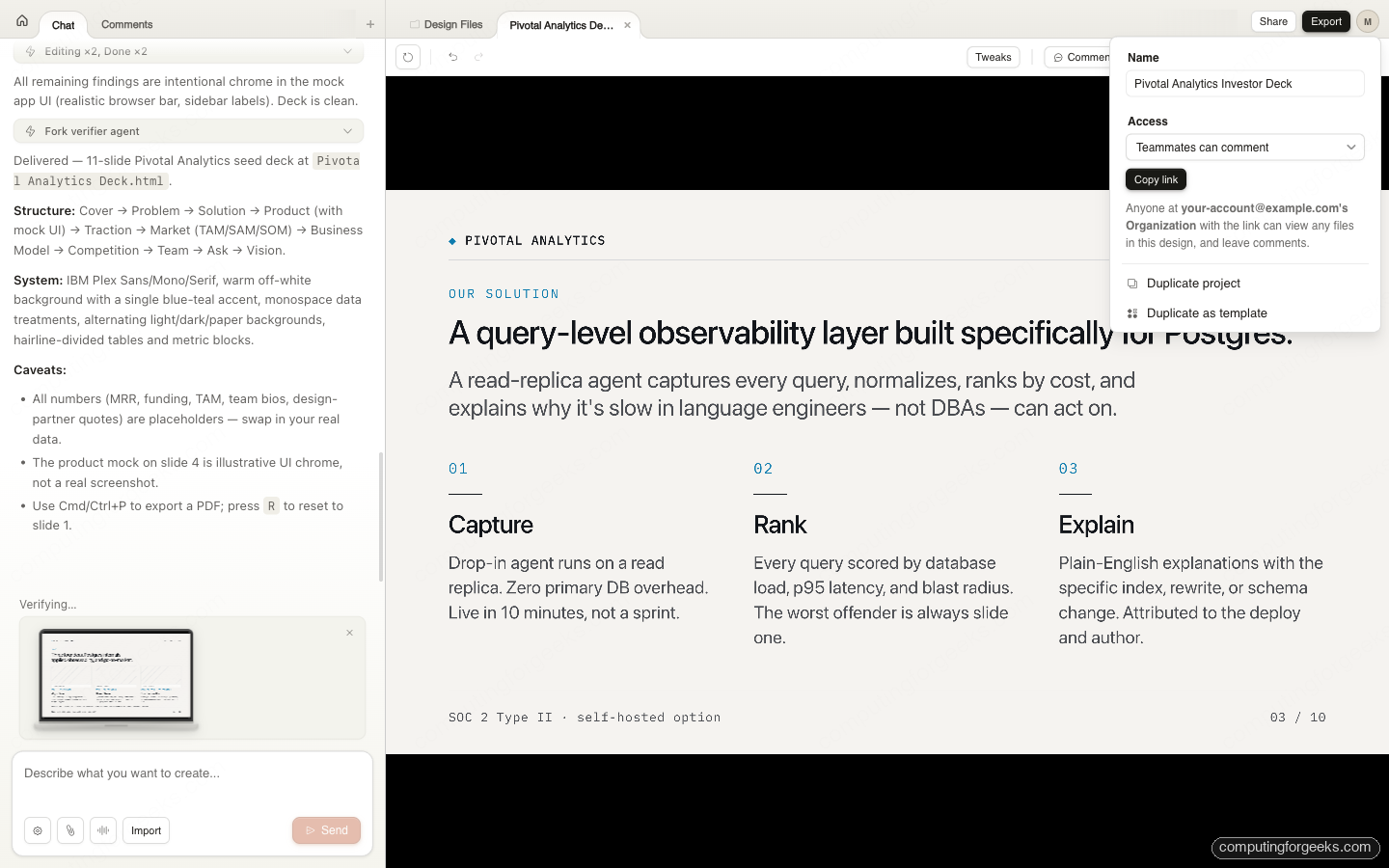
Alongside the export options, the Share button exposes four access levels for the live URL: Teammates can view, Teammates can comment (default), Teammates can edit, or Private. Copy link gives you an organization-scoped URL. Duplicate Project and Duplicate as Template let you fork the design for a variant or save it as a starting point for future projects.
Hand off to Claude Code for implementation
The most interesting export path is Handoff to Claude Code. It bundles the design into a copy-ready prompt for your local coding agent.
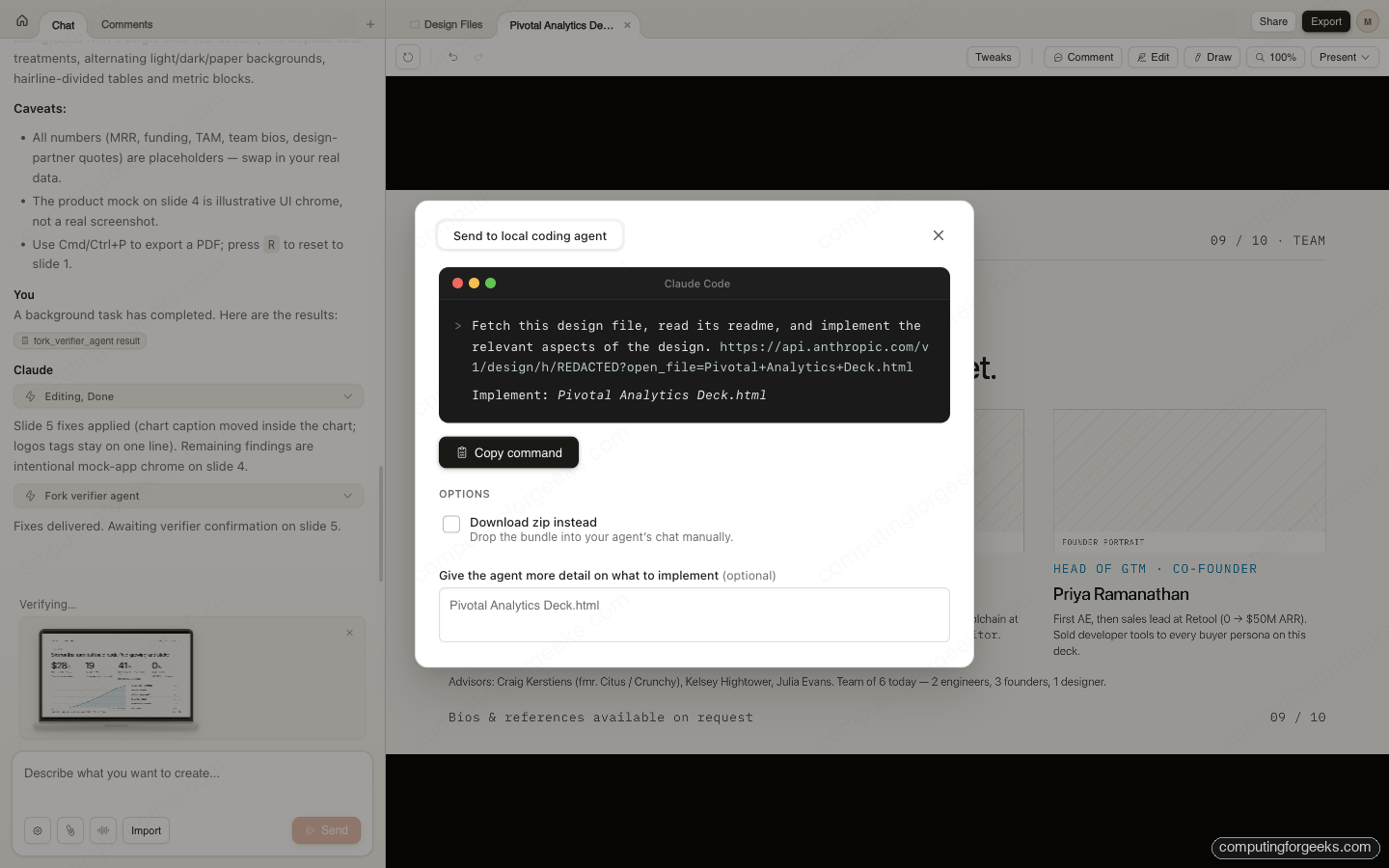
The modal shows a terminal-styled prompt you can copy with one click. It includes a design-fetch URL, an implementation instruction, and the filename to implement. In a Claude Code session, this prompt causes the agent to fetch the design, read the bundled README (which includes the design-system tokens and component boundaries), and scaffold the page in your codebase using your existing conventions.
An optional text field lets you give the agent additional detail on what to implement, useful when the design is a full deck but you only want one slide turned into a production page. An alternate path lets you Download zip instead and drop the bundle into your agent’s chat manually, handy for agents that aren’t Claude Code.
This shortens the design-to-code loop from manual translation (designer hands a mockup, engineer rebuilds it) to roughly five minutes of Claude Code work. It doesn’t replace a senior engineer’s judgment about data fetching, state management, or accessibility, but it takes care of the tedious “translate the design into markup” step. For a deeper look at Claude Code itself, see our Claude Code cheat sheet and the guide on setting up Claude Code Routines for repeatable agent workflows.
What Claude Design is actually good at
After testing across several workflows on launch day, these are the use cases where Claude Design produces usable first drafts you can ship or hand off with minimal cleanup.
Pitch decks. Ten-slide investor decks come out structurally sound. Content needs editing, but layout, type hierarchy, and visual rhythm are presentation-ready. The Pivotal Analytics test deck took about six minutes end-to-end and produced a slide 1 with real-looking SQL, a slide 3 three-column solution layout, a slide 9 team page with three founder bios, a TAM/SAM/SOM market sizing, and a closing vision slide.
Product wireframes. Three to five screens of mobile or web wireframes with wired navigation. Not pixel-perfect, but correct enough for PRD sketches and early stakeholder conversations. PMs replace dozens of Figma hours with a single generation.
Landing pages. Single-page marketing sites with hero, feature grid, testimonial, and CTA sections. The standalone HTML export is deployable. Pair this with Claude Code handoff and the gap from idea to live page collapses to a morning.
One-pagers. Product briefs, executive summaries, partnership docs. The structured layout saves an hour versus starting in Docs or Keynote. Exports cleanly to PDF for email distribution.
Marketing collateral. Social graphics, email headers, blog heroes. The Send to Canva path shines here because marketing teams already live in Canva. Claude Design gives them a brand-matched starting point instead of scrolling through a template gallery.
The tool is less strong on pixel-perfect polished visuals meant to ship as the final version. Dashboard UIs, data-dense product screens, and complex interaction design still benefit from a designer in Figma. But for the 80% case of “I need something shareable by tomorrow,” Claude Design shaves hours off the process.
How Claude Design compares to Canva, Figma, and v0
The market for AI-generated design tools is crowded. Four products cover most use cases, and they’re aimed at different people.
| Capability | Claude Design | Canva AI | Figma AI | v0 by Vercel |
|---|---|---|---|---|
| Text prompt input | Yes | Yes | Yes | Yes |
| Codebase reference | Yes | No | No | Partial |
| Screenshot context input | Yes | No | No | Limited |
| Custom sliders on demand | Yes (Tweaks) | Fixed panels | No | No |
| PPTX export (editable) | Yes | Yes | Limited | No |
| Standalone HTML export | Yes | Limited | Yes | Yes |
| Native Canva handoff | Yes | N/A | No | No |
| Reads your design system | Codebase + Figma + screenshots | Brand kit only | Component libraries | Partial |
| Handoff to code | Claude Code | No | Dev Mode | Native (Next.js) |
| Primary user | Founders, PMs, engineers | Marketers, general | Designers | Engineers |
| Underlying model | Claude Opus 4.7 | Canva’s AI | Figma AI | GPT-based |
Pick Claude Design when you need to get from idea to sharable visual in one session, you want your brand applied automatically from codebase tokens, or you plan to hand off to engineering through Claude Code.
Pick Canva when your team already works in Canva, you need marketer-friendly editing, or your output is primarily social or print marketing.
Pick Figma when you’re a designer, need pixel-perfect control, and your output feeds a production design system with many contributors.
Pick v0 when your output is React or Next.js components you plan to deploy directly to Vercel with minimal intermediate design work.
These aren’t mutually exclusive. Anthropic positioned Claude Design as complementary to Canva, which is why the Send to Canva handoff is first-class. Treat Claude Design as the idea-to-draft stage and the specialized tool as the refinement stage. If you’re already experimenting with alternative AI developer tools, compare notes with our Gemini CLI setup guide and the Claw Code open-source alternative breakdown.
What’s in research preview versus coming in production
Claude Design shipped on April 17 as a research preview. Several capabilities are either limited or on the roadmap, and it’s worth knowing where the rough edges are before you build a workflow around the tool.
Rate limits. Usage is included in your plan’s normal message limits. Heavy users on Pro will hit the cap faster than on Max because each generation consumes more tokens than a standard chat (a ten-slide deck is effectively a five-to-seven minute reasoning session with multiple edit passes). If you plan to generate dozens of designs per day, Max is the realistic tier.
Generation time. Short generations (single slide, single wireframe, one-pager) finish in 30 to 90 seconds. A full ten-slide deck with self-critique and verifier agent takes five to seven minutes. If the tool feels slow, that’s why: you’re watching a plan-build-verify loop, not a static text-to-image generation.
Integration surface. Canva handoff and Claude Code handoff both exist at launch. Anthropic stated that over the coming weeks they’ll make it easier to build custom integrations, which suggests a webhook or API-style path is coming. Today, if you need Claude Design output to land in Slack, Notion, or your internal CMS, you’ll export manually and forward.
Organization controls. Enterprise has the feature off by default. Admin-level audit logs, DLP integration, and IP protection features for designs uploaded to the service are on the enterprise roadmap, not live today.
Design system fidelity. Codebase parsing works well for Tailwind configs, CSS variable files, and well-named React component trees. Less common systems (custom CSS-in-JS with dynamic tokens, bespoke design-token formats) may need manual help or a few iterations before Claude gets the styling right.
Collaboration. View-only, comment, and edit sharing inside your organization is live. Real-time multi-cursor collaboration, commenting across organizations, and Slack or Teams integrations haven’t shipped yet.
Mac app integration. Claude Design is available on the web today. The Mac desktop app surface will follow. Anthropic has been building out the Mac suite (Claude Code, Claude Cowork, and now Design), so native integration is on the way.
For teams evaluating whether to standardize on Claude Design now or wait: the feature is stable enough for production use on pitch decks, one-pagers, and internal prototypes. For customer-facing collateral that must go through brand review, ship it through Canva or Figma after the Claude Design first pass. The tool is designed to accelerate the idea-to-draft stage, not replace the polishing stage.