Gemini CLI is Google’s open-source AI agent for the terminal. It ships the full Gemini 3 model, a 1 million token context window, and a generous free tier (60 requests per minute, 1,000 per day) behind a single gemini binary. Free Google-account access to that tier ends on 18 June 2026 (see the migration section below); paid API keys and Vertex AI credentials are unaffected. The current stable release arrived in April 2026, with weekly preview drops on Tuesdays and nightly builds at 00:00 UTC.
Before you start: Google is retiring the hosted Gemini CLI on 18 June 2026 for free, Google AI Pro, and Google AI Ultra accounts and moving them to the Antigravity CLI. The install steps below still run, and a paid API key or Vertex AI credentials keep the gemini binary working past that date, but if you plan to sign in with a free Google account, read Migrating to Antigravity CLI first so you do not set up a tool that stops answering within days.
This guide installs Gemini CLI on macOS, Linux, and Windows, walks through the three authentication modes, wires up agent skills, adds a Model Context Protocol (MCP) server, configures settings.json, and runs real headless queries. Every command and every piece of output below was executed on a live box.
Updated in June 2026 for the Antigravity CLI transition. The install itself was tested in April 2026 on macOS 26.3 (Apple Silicon) and Rocky Linux 10.1 (x86_64) with Gemini CLI 0.38.1 and Node.js 25.9.0.
Migrating to Antigravity CLI
On 18 June 2026 Google switches off the hosted Gemini CLI backend for free users, Google AI Pro, Google AI Ultra, and Gemini Code Assist for individuals. After that date a plain Google sign-in stops returning responses, and Google moves those tiers to the Antigravity CLI, a closed-source Go binary called agy announced at Google I/O on 19 May 2026. Decide which path you want before you install anything below.
The Gemini CLI is not being deleted. The repository stays open source under Apache 2.0 and the gemini binary keeps running. Only the free Google-account quota ends, which leaves two honest paths:
- Stay on Gemini CLI with a paid key. Authentication method 2 (Gemini API key) or method 3 (Vertex AI) in this guide keeps your Gemini CLI access uninterrupted past 18 June. Gemini Code Assist Standard and Enterprise licences, and Gemini Enterprise Agent Platform API keys, are unaffected too.
- Move to Antigravity CLI. If you only have a free Google account, install
agyand sign in with that same account. Agent Skills, hooks, subagents, and extensions (now called plugins) carry over, though Antigravity applies its own usage limits in place of the old per-day request quota.
Installing the Antigravity CLI on Linux or macOS takes one command:
curl -fsSL https://antigravity.google/cli/install.sh | bash
agy --version
On Windows, run irm https://antigravity.google/cli/install.ps1 | iex in PowerShell. The full install, the OAuth cache path, and the “Illegal instruction” fix on older VMs are covered in our Antigravity CLI install guide, and Google’s official transition notice has the per-tier breakdown and migration FAQ.
Recent changes worth noting
The current release line is where Gemini CLI graduated from a useful terminal shim to a full Claude Code competitor. That line landed in April 2026 and shipped four changes that matter day-to-day:
- TerminalBuffer mode, which finally kills the flicker that older releases had on long agent turns.
- Compact tool output as the default rendering, so multi-tool plans do not bury your prompt in JSON.
- Context-aware policy approvals, letting you approve a tool once for a folder instead of re-prompting on every file.
- Memory service that extracts reusable patterns from sessions for later skills.
Later patch releases follow the same branch. Next up on the preview track is a /memory inbox command for reviewing extracted skills, and a refactored subagent architecture that matches what Claude Code and OpenCode now offer.
Prerequisites
Three hard requirements, one soft one.
- Node.js 20 or newer. Gemini CLI ships as an npm package, so Node is the runtime. Check with
node --version. - A supported operating system. macOS 15 Sequoia or later (Intel and Apple Silicon), Windows 11 24H2 or later, or Ubuntu 20.04 / Debian 12 / Rocky Linux 10 or later.
- 4 GB RAM for casual use, 16 GB or more if you plan to keep multiple sessions and a sandbox container running.
- One of three credentials: a personal Google Account (free tier), a Gemini API key from Google AI Studio, or Vertex AI credentials if you are on Google Cloud.
Step 1: Set reusable shell variables
Most of the commands below take a model name, an approval mode, and (on some platforms) an API key. Export them once so later steps paste as-is.
export GEMINI_API_KEY="your-api-key-here"
export GEMINI_MODEL="gemini-2.5-pro"
export GEMINI_AGENT="claude-code"
export GEMINI_APPROVAL="auto_edit"
Confirm the values landed before touching anything that spends requests:
echo "Key:     ${GEMINI_API_KEY:0:10}..."
echo "Model:   ${GEMINI_MODEL}"
echo "Agent:   ${GEMINI_AGENT}"
echo "Approve: ${GEMINI_APPROVAL}"
Values hold only in the current shell. Re-export after reconnecting over SSH or opening a new tab. Persist them by appending the same lines to ~/.zshrc, ~/.bashrc, or Windows $PROFILE.
Step 2: Install Gemini CLI on macOS
Three paths on Apple Silicon or Intel Macs. Pick whichever matches your package manager.
# Option A: npm (recommended for control over release channel)
npm install -g @google/gemini-cli

# Option B: Homebrew
brew install gemini-cli

# Option C: MacPorts
sudo port install gemini-cli
On a fresh Mac with Node 25 the npm install completes in about 23 seconds. Verify the binary lands in your PATH:
gemini --versionYou should see a version string matching the latest stable release. If you need a one-off run without installing, npx @google/gemini-cli downloads and runs the package without polluting your global npm tree.
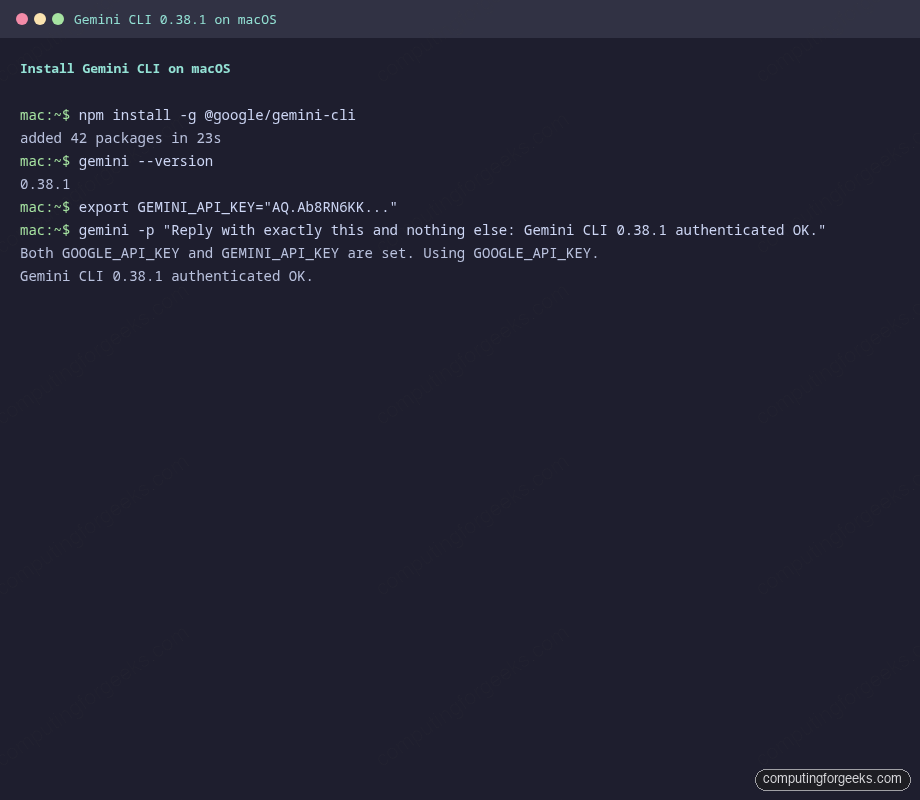
Those are the same three steps you will run on Linux and Windows, just with different package managers.
Step 3: Install Gemini CLI on Linux
Same npm package works across Rocky Linux 10, Ubuntu 24.04, Debian 13, and Fedora 42. Homebrew on Linux also works if you already use it:
# Rocky Linux 10, AlmaLinux 10, Fedora 42
sudo dnf install -y nodejs
sudo npm install -g @google/gemini-cli

# Ubuntu 24.04, Debian 13
sudo apt install -y nodejs npm
sudo npm install -g @google/gemini-cli

# Homebrew on Linux
brew install gemini-cli
If the distro-shipped Node is older than 20, install Node 20 or 22 from NodeSource first. That version requirement is enforced at startup, not at install time, so npm install -g will succeed but the first gemini call will fail with a version error.
For restricted environments where Node cannot be installed globally, Anaconda provides a hermetic path:
conda create -y -n gemini_env -c conda-forge nodejs
conda activate gemini_env
npm install -g @google/gemini-cli
Docker is also a valid install target. Google publishes a sandbox image at us-docker.pkg.dev/gemini-code-dev/gemini-cli/sandbox:0.1.1, which is the one the CLI itself uses when you pass --sandbox.
Step 4: Install Gemini CLI on Windows
On Windows 11 24H2 or newer, open an elevated PowerShell prompt and run:
npm install -g @google/gemini-cli
gemini --version
Windows does not ship Homebrew or MacPorts, so npm is the primary path. If your corporate policy blocks global npm installs, Docker Desktop plus the published sandbox image is a supported fallback:
docker run --rm -it us-docker.pkg.dev/gemini-code-dev/gemini-cli/sandbox:0.1.1Set the API key via PowerShell rather than plain export:
$env:GEMINI_API_KEY = "your-api-key-here"
gemini
Persist the variable with [System.Environment]::SetEnvironmentVariable('GEMINI_API_KEY', 'your-key', 'User') if you want it to survive a reboot.
Step 5: Choose an authentication mode
Gemini CLI supports three credential sources, and they have very different quotas.
| Mode | Setup | Free tier | Best for |
|---|---|---|---|
| Google Sign-in (OAuth) | Launch gemini and choose “Sign in with Google” | 60 requests/minute, 1,000/day on Gemini 3 with 1M context | Individual developers, laptops with a browser |
| Gemini API key | Export GEMINI_API_KEY from aistudio.google.com/apikey | 1,000 requests/day across Flash and Pro | CI pipelines, servers without browsers |
| Vertex AI | Export GOOGLE_CLOUD_PROJECT, GOOGLE_CLOUD_LOCATION, and either ADC, a service account key, or GOOGLE_GENAI_USE_VERTEXAI=true | Usage-based billing, no daily cap | Enterprise teams, compliance workloads |
For OAuth, just launch the CLI and follow the browser flow. Credentials cache locally so subsequent runs skip the prompt.
geminiFor API key auth, export the key and optionally the model:
export GEMINI_API_KEY="your-api-key-here"
gemini -m "${GEMINI_MODEL}"
If you already set GOOGLE_API_KEY in your environment (for example because another Google SDK needs it), Gemini CLI picks that up and prints a one-line notice that it used GOOGLE_API_KEY instead of GEMINI_API_KEY. Unset one or the other if you want to force a specific source.
For Vertex AI, the ADC path is the cleanest:
export GOOGLE_CLOUD_PROJECT="my-gcp-project"
export GOOGLE_CLOUD_LOCATION="us-central1"
gcloud auth application-default login
gemini
Unset any lingering GOOGLE_API_KEY or GEMINI_API_KEY first, because the CLI prefers a direct key over ADC when both are present.
Step 6: Run your first query
Two modes. Interactive is the default. Non-interactive is for scripts.
Start an interactive session in your current directory:
cd ~/code/my-project
gemini
The session reads every GEMINI.md file it finds walking up from the current directory, adds the whole workspace to context (bounded by the nearest .git by default), and drops you at a prompt.
For a one-shot query from a shell script or CI job, pass -p:
gemini -p "Summarise the last 10 commits in one paragraph"Structured output is available via --output-format json (one JSON document at the end) or --output-format stream-json (newline-delimited events during the run, useful for progress bars). Add --include-directories ../lib,../docs when the relevant context lives outside the current tree.
Step 7: Learn the slash commands
Inside an interactive session, slash commands control state. Type /help or /? for the full list. The ones you will actually use:
| Command | Purpose |
|---|---|
/auth | Switch between OAuth, API key, and Vertex AI without restarting. |
/chat save <name> and /chat list | Save named conversations, resume with /resume <name>. |
/compress | Summarise history when the session grows long. Cheaper than starting over. |
/memory add <note> and /memory show | Manage persistent project memory. |
/init | Generate a starter GEMINI.md from the current codebase. |
/tools and /tools desc | List built-in tools (file ops, shell, web fetch, Google Search). |
/mcp list and /mcp auth <server> | Inspect and authenticate MCP servers. |
/skills enable <name> | Turn an agent skill on or off. |
/plan | Switch to read-only plan mode before a risky change. |
/rewind (Esc Esc) | Step backward through history without losing state. |
/stats session | See tokens used, cache hits, and model breakdown. |
/theme | Pick a color scheme (GitHub, Dracula, etc.). |
/bug "<summary>" | File a GitHub issue straight from the CLI. |
Two special prefixes matter as much as the slash commands themselves. Start any line with @ to inject a file or directory into the prompt (@src/main.ts fix the race condition), and with ! to shell out without leaving the session (!git log --oneline -5).
For the full reference covering every CLI flag, all slash commands, keyboard shortcuts, custom TOML commands, the MCP server flag matrix, sandbox and checkpointing, plus real session captures, see the Gemini CLI cheat sheet.
Step 8: Manage agent skills from the CLI
Skills are markdown-based capability packs following the Agent Skills open standard. Gemini CLI discovers them in five locations, in precedence order:
- Workspace:
.agents/skills/then.gemini/skills/ - User:
~/.agents/skills/then~/.gemini/skills/ - Extensions bundled with installed CLI extensions
The full skill lifecycle is exposed as gemini skills subcommands:
gemini skills list
gemini skills list --all
gemini skills install https://github.com/google-gemini/gemini-skills
gemini skills install ./path/to/local/skill
gemini skills link ./path/to/skill-in-development
gemini skills enable <name>
gemini skills disable <name> --scope user
gemini skills uninstall <name> --scope user
If you already installed the Android CLI, android init dropped an android-cli skill into ~/.agents/skills/, and Gemini CLI picks it up automatically. On the test Mac used for this guide that looks like this:
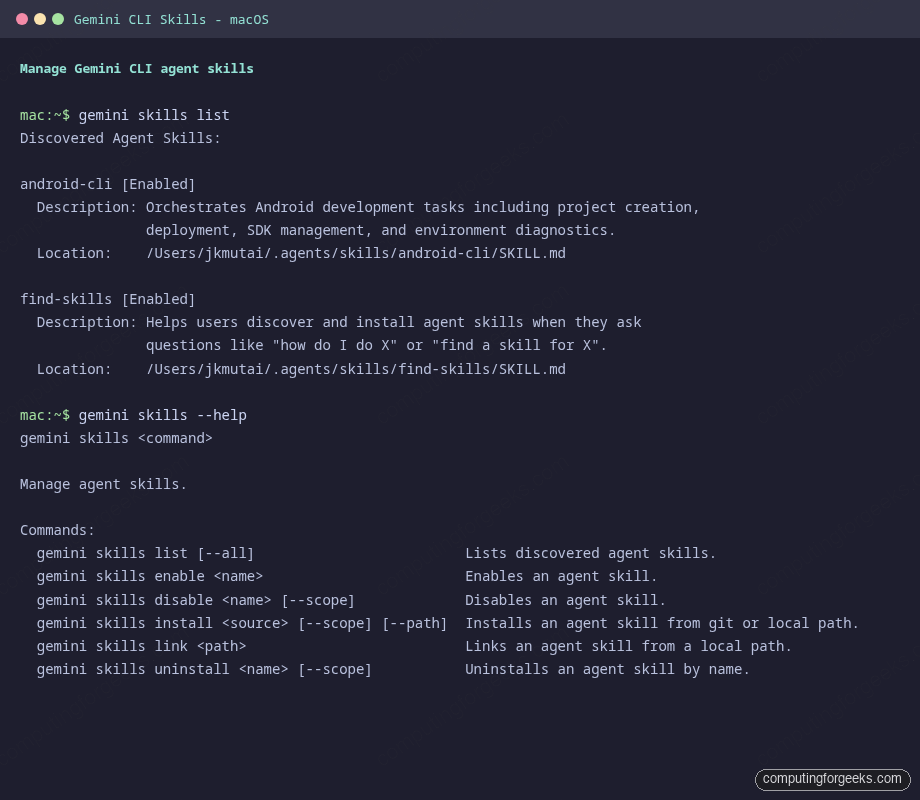
A skill conflict warning is not an error. It just means Gemini picked up the same skill from two discovery paths and is using the higher-precedence one. Either uninstall the duplicate or enable only the version you want with gemini skills enable <name> --scope user.
Inside an interactive session, the same operations are available via /skills list, /skills enable <name>, and /skills reload.
Step 9: Add MCP servers to extend capabilities
Model Context Protocol (MCP) is where Gemini CLI gets most of its power. An MCP server is any process that speaks the MCP protocol (stdio, SSE, or HTTP streaming) and exposes a set of tools. Gemini CLI ships with built-in file, shell, and web-fetch tools; MCP is how you add everything else (Context7, GitHub, Slack, databases, custom internal tools).
The mcp add command writes the config to settings.json for you. To install the Context7 MCP server at user scope:
gemini mcp add --scope user context7 npx -y @upstash/context7-mcpThe resulting ~/.gemini/settings.json looks like this:
{
  "mcpServers": {
    "context7": {
      "command": "npx",
      "args": ["-y", "@upstash/context7-mcp"]
    }
  }
}
Verify the server registers and the headless auth still works:
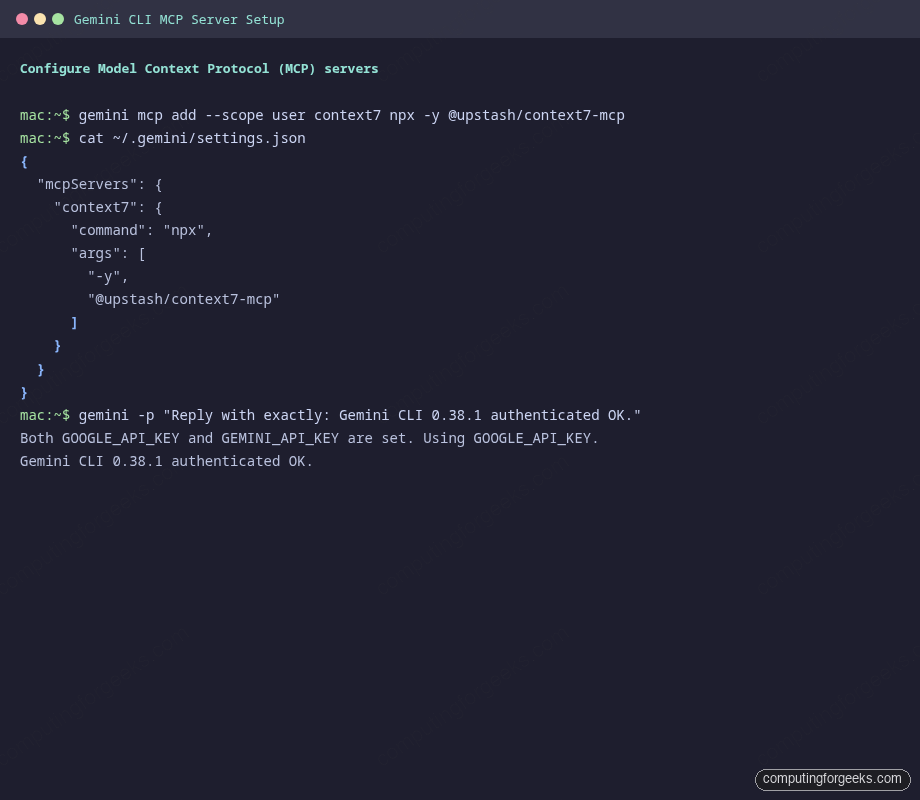
Every MCP server flag has a full form for when you need more control:
# Remote SSE server with auth header
gemini mcp add --transport sse my-api https://api.example.com/sse \
  -H "Authorization: Bearer ${MY_TOKEN}" \
  --timeout 10000

# HTTP streaming server with an environment variable
gemini mcp add --transport http my-db http://localhost:3000/mcp \
  -e DATABASE_URL=postgres://localhost/mydb \
  --trust

# Filtered server (allow only specific tools)
gemini mcp add --scope user safe-fs npx -y @modelcontextprotocol/server-filesystem \
  --include-tools read_file,list_directory
Once servers are registered, reference them with @ inside an interactive prompt: @context7 fetch the latest nextjs 16 docs, @github list my open PRs, @my-db run select count(*) from users.
Step 10: Configure settings.json
Settings live in two files. ~/.gemini/settings.json is user-wide. .gemini/settings.json in a project root is workspace-specific and wins over user settings. A sensible, annotated starting point:
{
  "general": {
    "preferredEditor": "code",
    "defaultApprovalMode": "auto_edit",
    "sessionRetention": {
      "enabled": true,
      "maxAge": "30d",
      "maxCount": 100
    }
  },
  "security": {
    "auth": {
      "selectedType": "gemini-api-key"
    },
    "disableYoloMode": false
  },
  "ui": {
    "theme": "GitHub",
    "hideBanner": true,
    "footer": {
      "items": ["model", "context"]
    }
  },
  "model": {
    "name": "gemini-2.5-pro",
    "maxSessionTurns": 50
  },
  "tools": {
    "allowed": ["run_shell_command(git)", "read_file"],
    "exclude": [],
    "sandbox": "docker"
  },
  "context": {
    "fileName": ["GEMINI.md"],
    "includeDirectories": ["./docs"],
    "memoryBoundaryMarkers": [".git"]
  },
  "telemetry": {
    "enabled": false
  }
}
Four fields earn their keep for everyday use. general.defaultApprovalMode sets the starting policy: default prompts for every tool, auto_edit silently approves edits but still prompts for shell commands, yolo approves everything, and plan is read-only. model.name pins the default model so you do not have to type -m every time. tools.allowed is an allowlist that bypasses confirmation for the specific tool calls listed, so run_shell_command(git) lets Gemini run any git command but still prompts before any other shell command. mcpServers holds the entries that gemini mcp add wrote.
String values support environment variable interpolation using three syntaxes: "$VAR", "${VAR}", and "${VAR:-default}". Handy for shared team configs that pull secrets from a common env file.
Step 11: Write a GEMINI.md context file
Skills are on-demand. GEMINI.md is always-on context. Put one at the project root to tell Gemini about conventions, architecture, preferred libraries, or anything else it should treat as background knowledge on every turn.
Generate a starter from inside a session:
cd ~/code/my-project
gemini
> /init
Or write one by hand. Keep it short. A 50-line GEMINI.md that actually matches reality beats a 500-line one that drifts the first time someone refactors. Typical sections:
# Project context

## Stack
Node.js 20 + TypeScript 5.5 + Fastify 5. Tests via Vitest.

## Conventions
- Absolute imports from `src/`, no default exports.
- Every public function has a JSDoc @example.
- Commit messages follow Conventional Commits.

## Commands
- `npm run dev` - local dev server on port 3000
- `npm run test` - full test suite
- `npm run lint` - eslint + prettier --check

## Do not touch
- `src/generated/` is autogenerated from OpenAPI; edit the spec instead.
Gemini CLI traverses upward from the current directory collecting every GEMINI.md it finds, stopping at the first memoryBoundaryMarkers entry (default: .git). That lets monorepos ship a root GEMINI.md plus per-package GEMINI.md files without anything leaking across projects.
Step 12: Use non-interactive mode in scripts
Headless mode is the same binary, different flags. Three shapes of output depending on what consumes the result.
# Plain text (default)
gemini -p "Summarise the README in two sentences"

# Structured JSON (one blob at the end)
gemini -p "Count the TypeScript files in src/" --output-format json

# Newline-delimited events during the run
gemini -p "Run the test suite and explain any failures" --output-format stream-json
Stream mode is ideal for CI jobs because you can tail the events with jq and react to specific ones (for example, post a message to Slack the first time a tool call blocks on approval).
Two more flags are worth knowing for automation. --yolo approves every tool call without prompting (dangerous outside a sandbox). --sandbox runs the whole session in the official Docker container. Combine them inside a CI runner and Gemini CLI will do destructive work without ever touching the host filesystem.
For GitHub Actions, Google publishes a ready-made action at google-github-actions/run-gemini-cli that handles PR reviews, issue triage, and on-demand @gemini-cli mentions. It wraps exactly the same binary behind a familiar action interface. If you already run Aider or the OpenAI Codex CLI for the same job, the flag shape will feel familiar.
Step 13: Pick a release channel
Three channels, three cadences. Install the one that matches your risk tolerance.
# Stable (Tuesdays 20:00 UTC) - what production should use
npm install -g @google/gemini-cli@latest

# Preview (Tuesdays 23:59 UTC) - next week's stable, help test
npm install -g @google/gemini-cli@preview

# Nightly (daily 00:00 UTC) - main branch as-is, rough edges
npm install -g @google/gemini-cli@nightly
The stable channel is the default when you run npm install -g @google/gemini-cli without a tag. Preview is a week ahead of stable, so running it helps surface regressions before they ship. Nightly mirrors the main branch at midnight UTC and includes everything that passed CI that day, which is great for Google’s own team and less great for production servers. If you want to compare Gemini CLI against the other agent CLIs before you commit, Cursor vs Windsurf vs Kiro covers the IDE side of the ecosystem and Ollama is the right pick when you need to stay fully local.
Troubleshooting common issues
Five real errors I hit or logged during the writeup. Fixes below.
“Both GOOGLE_API_KEY and GEMINI_API_KEY are set. Using GOOGLE_API_KEY.”
Not an error. When both env vars are set, Gemini CLI prefers GOOGLE_API_KEY. If the key you want is in GEMINI_API_KEY, either unset GOOGLE_API_KEY before running, or store the same value in both variables (which is what ~/.gemini/.env typically does).
“Skill conflict detected” during startup
Means the same skill exists in two discovery paths (typically ~/.agents/skills/ and ~/.gemini/skills/). Gemini uses the higher-precedence one. Safe to ignore, but cleaner to remove the duplicate:
gemini skills uninstall android-cli --scope user
android init --agent=gemini    # reinstall to the canonical location
Restart the CLI after the uninstall so the skill cache rebuilds.
“Error executing tool activate_skill: Tool not found” in headless mode
Skill activation relies on a tool that only exists in interactive mode. In headless runs (gemini -p), the model still sees skill names and descriptions in the system prompt and can infer behavior from them, but it cannot dynamically load the full SKILL.md. Either run interactively, or pre-expand the skill into the prompt via @~/.agents/skills/android-cli/SKILL.md.
“gemini mcp list” hangs
The list command connects to each configured server to enumerate its tools. If a server takes too long to start (for example, npx cold-starting a Context7 package), the whole command stalls until the default 600-second timeout. Shorten the wait by adding --timeout 5000 to the mcp add call, or remove servers you no longer use with gemini mcp remove <name>.
“prebuild-install is no longer maintained” warning on npm install
A transitive dependency (native addon tooling) prints a deprecation warning. It is cosmetic. The install still completes and the binary still runs. Google’s team tracks this against the CLI issue tracker; no action needed on your end until a future release drops the dependency.
For anything not covered here, the in-CLI /bug "<short description>" command opens a pre-filled GitHub issue against google-gemini/gemini-cli with your session metadata attached. Use it. The feedback loop is how 0.39 preview landed a month after 0.38 stable.