Google dropped the Android CLI on 16 April 2026, a single android binary meant for agents, CI pipelines, and anyone who would rather build from the terminal than from Android Studio. In internal experiments Google reports a 70% reduction in LLM token usage on project and environment setup, and 3x faster task completion compared with agents driving the old toolchain directly.
The tool ships in preview as version 0.7. It works with Gemini in Android Studio, Gemini CLI, Antigravity, Claude Code, Codex, and more than 30 other coding agents as first-class targets. This guide installs it on macOS (Apple Silicon), Linux (x86_64), and Windows, wires it up to a real agent, and walks through the skill system and knowledge base that make the token savings possible. Every command below was executed on a live box.
Tested April 2026 on macOS 26.3 (Apple Silicon) and Rocky Linux 10.1 (x86_64) with Android CLI 0.7.15222914.
What Android CLI 0.7 ships
Android CLI is a launcher that pulls three things together. Knowing what each one does first makes the rest of the install map cleanly to what you actually want your agent to do.
- The
androidbinary. 7 MB launcher that fetches a 78 MB runtime on first use. Exposescreate,sdk,emulator,run,skills,docs,screen,layout,describe,info,init, andupdate. - Android Skills. Markdown skill packs, versioned at github.com/android/skills. The initial release covers Navigation 3 setup, edge-to-edge migration, AGP 9 upgrade, XML-to-Compose migration, R8 keep-rule analysis, and the Google Play Billing Library upgrade.
- Android Knowledge Base. 4808-document index of Android, Firebase, Google Developers, and Kotlin docs, searchable via
android docs search. Also surfaces inside Android Studio.
Everything else in this guide is the plumbing to get those three working end-to-end. If you already use Android Studio, the CLI is not a replacement. It is a headless interface aimed at coding agents and CI jobs where launching Studio makes no sense.
Prerequisites
You need a supported 64-bit machine, curl, and admin rights to write to /usr/local/bin on Linux/macOS or C:\Program Files on Windows. Android CLI 0.7 currently ships three builds:
- macOS arm64 (Apple Silicon). No Intel build yet.
- Linux x86_64. Tested on Rocky Linux 10.1, Ubuntu 24.04, and Debian 13. No Linux arm64 build yet, so Raspberry Pi and arm64 servers are out.
- Windows x86_64. The
android emulatorsubcommand is disabled on Windows in 0.7. Everything else works.
Pick an AI agent you plan to pair the CLI with. The skills add command accepts 37 agent targets including claude-code, gemini, codex, cursor, opencode, windsurf, cline, aider, and github-copilot. If you do not have one installed yet, the Claude Code cheat sheet and OpenCode setup guide both get you running in under five minutes.
Step 1: Set reusable shell variables
The rest of the guide reuses the same application name, project directory, and agent across install, create, and deploy steps. Export them once so you change one block and paste the rest as-is.
export APP_NAME="HelloAndroidCli"
export PROJECT_DIR="${HOME}/android-projects/${APP_NAME}"
export ANDROID_AGENT="claude-code"
export EMULATOR_PROFILE="medium_phone"
Confirm the values landed before running anything that writes to disk:
echo "App:     ${APP_NAME}"
echo "Project: ${PROJECT_DIR}"
echo "Agent:   ${ANDROID_AGENT}"
echo "Device:  ${EMULATOR_PROFILE}"
Values live only in the current shell. Re-export them if you reconnect over SSH or open a new terminal tab. On Windows, the PowerShell equivalent is $env:APP_NAME = "HelloAndroidCli" on each line.
Step 2: Install the Android CLI on macOS
Google ships a one-liner installer that writes the binary to /usr/local/bin/android and primes the first-run download. On Apple Silicon:
curl -fsSL https://dl.google.com/android/cli/latest/darwin_arm64/install.sh | bashThe installer asks for your password when it moves the binary into /usr/local/bin. After it finishes, the shell prints a Google SDK licence notice and a reminder that the tool collects anonymous usage metrics. Pass --no-metrics to any command to opt out for that run.
If you would rather drop the binary into your own path without sudo, grab it directly:
mkdir -p "${HOME}/bin"
curl -fsSL https://dl.google.com/android/cli/latest/darwin_arm64/android -o "${HOME}/bin/android"
chmod +x "${HOME}/bin/android"
echo 'export PATH="${HOME}/bin:${PATH}"' >> ~/.zshrc && source ~/.zshrc
Relaunch the terminal once and confirm which android returns the path under ${HOME}/bin. This approach is useful on corporate Macs where /usr/local/bin is locked down.
Step 3: Install the Android CLI on Linux
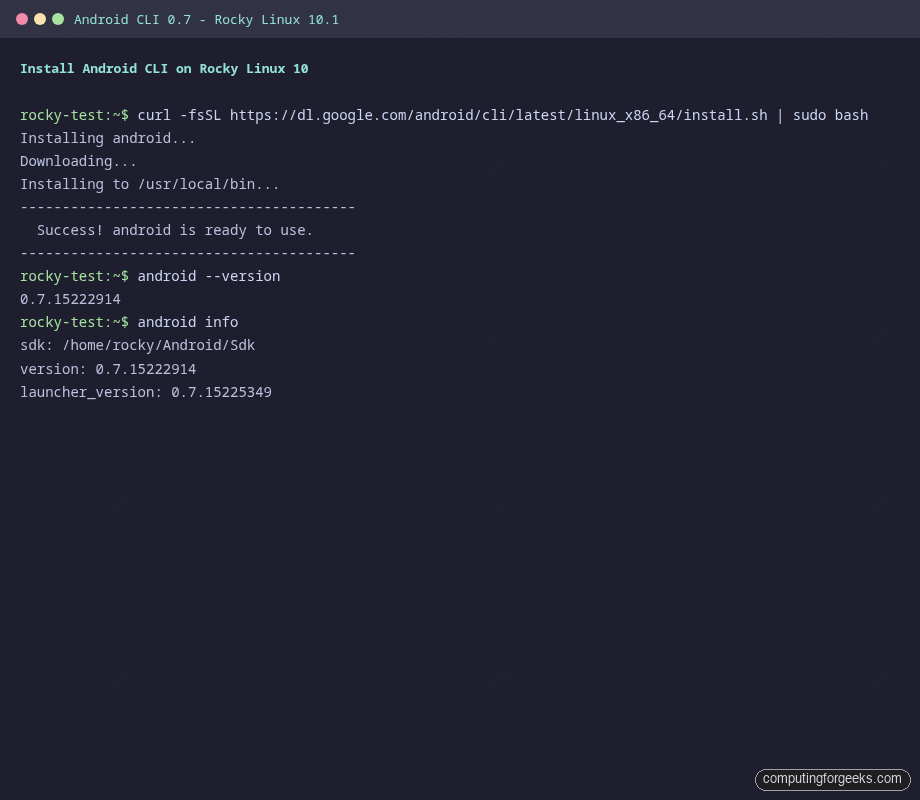
The same script auto-detects the OS and pulls the linux_x86_64 build. Tested on Rocky Linux 10.1 with kernel 6.12 and SELinux enforcing. It works the same way on Ubuntu 24.04, Debian 13, AlmaLinux 10, and Fedora 42.
curl -fsSL https://dl.google.com/android/cli/latest/linux_x86_64/install.sh | sudo bashThe first-run download fetches around 78 MB of runtime. If your box sits behind a slow NAT or the connection drops partway through, the binary leaves an android-cli.part file in ~/.android/bin/. Remove it and re-run any android command to resume the download.
If you need a GUI alongside the CLI, our separate guides cover Android Studio on Rocky Linux, AlmaLinux, and Oracle Linux and Android Studio on Ubuntu. Both tools share the same SDK, so you can mix them on the same machine.
Step 4: Install the Android CLI on Windows
On Windows 10 and 11, open an elevated PowerShell prompt and run:
curl.exe -fsSL https://dl.google.com/android/cli/latest/windows_x86_64/install.cmd -o "%TEMP%\android-install.cmd"
"%TEMP%\android-install.cmd"
The script drops android.exe into C:\Program Files\Android\cli and updates the user PATH. Close and reopen PowerShell for the PATH to take effect.
Two Windows-specific caveats in 0.7. The android emulator subcommand is currently disabled on Windows, so create and run emulators from an adjacent WSL2 Linux install or from Android Studio. Second, the installer writes under %LOCALAPPDATA% on a per-user basis, so run it from the account that will use the CLI, not a shared admin account.
Step 5: Verify the install and initialize the environment
Every working install answers two questions: what version am I on, and where is the SDK. Run both:
android --version
android info
The expected output on a fresh 0.7 box:
0.7.15222914
sdk: /home/rocky/Android/Sdk
version: 0.7.15222914
launcher_version: 0.7.15225349
Two versions print because the launcher and the CLI runtime update independently. You only care about the top number for bug reports. The SDK path is where android sdk install will drop platform and build-tools packages; override it with the --sdk=/custom/path flag on any command, or by setting ANDROID_HOME before you run the CLI.
Next, scaffold the skill infrastructure. android init detects every coding agent installed under your home directory and drops the android-cli skill into each one:
android initOn a machine that already runs Claude Code, Codex, Cursor, Gemini CLI, OpenCode, and Antigravity, the init output is genuinely impressive. One command wires up all of them:
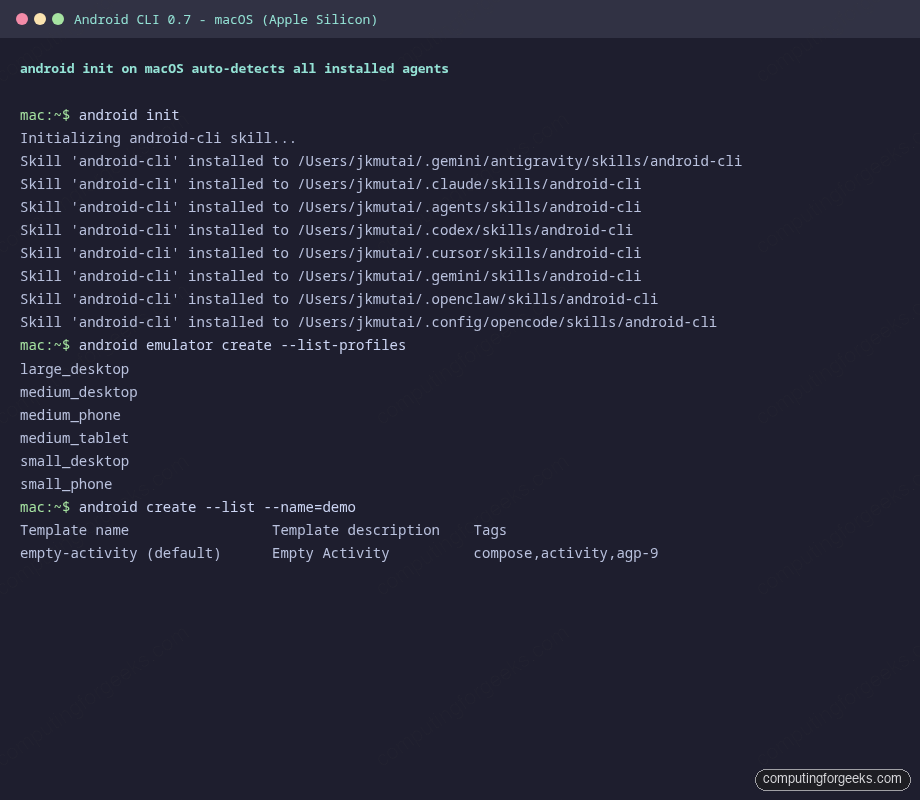
To scope the init to a single agent, pass --agent=claude-code or --agent=gemini. The skill files land under the agent’s standard skills directory, ready for the next prompt.
Step 6: Manage Android skills from the CLI
Skills are the piece that makes the 70% token savings real. Each skill is a markdown file plus reference documents that the agent loads only when the task description matches. The model does not have to keep the entire Android reference in its context window.
List the seven skills shipped in 0.7:
android skills listThe output names each skill. Add --long to see the description for every one, which is what the agent uses to decide whether to load it:
android-cli
navigation-3
edge-to-edge
play-billing-library-version-upgrade
r8-analyzer
migrate-xml-views-to-jetpack-compose
agp-9-upgrade
To attach a specific skill to a specific agent, pass both flags. The command below installs the R8 keep-rule analyzer into Claude Code, which is what the shared c4geeks test box uses:
android skills add --agent="${ANDROID_AGENT}" --skill=r8-analyzerThe terminal below captures the same workflow end-to-end on a Rocky Linux test box: listing skills, adding r8-analyzer to Claude Code, then inspecting the files that landed under ~/.claude/skills/.
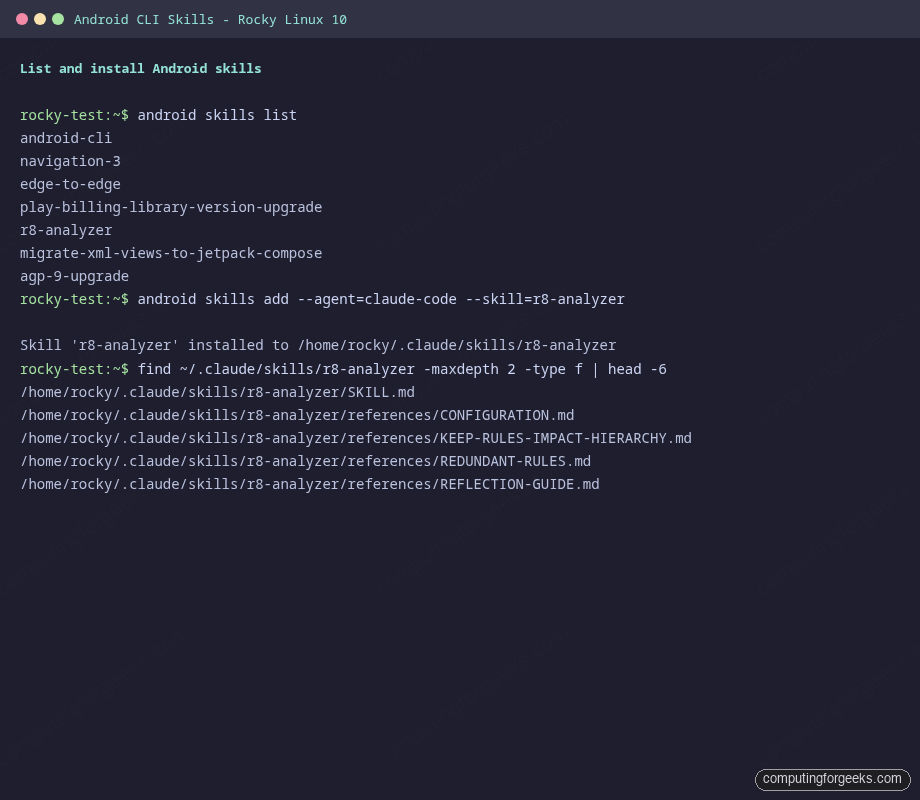
The files land in ~/.claude/skills/r8-analyzer/ with SKILL.md plus a references/ subdirectory that holds the longer keep-rule guides the agent pulls on demand. Use --agent=gemini, --agent=codex, --agent=cursor, or any other supported target to install into a different tool. Bulk-install every skill into every detected agent with android skills add --all.
Drop a skill with the matching remove call:
android skills remove --agent="${ANDROID_AGENT}" --skill=r8-analyzerIf you are curious what the model sees when the skill activates, the android/skills GitHub repository is the upstream source, and the on-disk copies under ~/.claude/skills/ or ~/.gemini/skills/ are byte-identical snapshots.
Step 7: Search the Android Knowledge Base
The knowledge base ships as a searchable index of 4808 pages covering the Android developer docs, Firebase, Kotlin, and Google Developers content. First run downloads the index zip (a few hundred KB) and extracts it locally.
android docs search 'improve app startup time'The first query takes about five seconds because it builds the local index. After that, every query returns in milliseconds:
1. Improve startup latency
   URL: kb://android/guide/topics/androidgo/optimize-startup
2. App Startup
   URL: kb://android/topic/libraries/app-startup/index
3. Launch time
   URL: kb://android/topic/performance/vitals/launch-time
4. App startup analysis and optimization
   URL: kb://android/topic/performance/appstartup/analysis-optimization
Fetch the full body of any hit by passing its kb:// URL:
android docs fetch kb://android/topic/performance/vitals/launch-timeThis is the same knowledge surface Gemini in Android Studio pulls from, now available to any agent or script outside the IDE. Wire it into your agent’s tool schema and you stop paying for the Android reference manual as context on every request.
Step 8: Create a project and install SDK packages
Start with the shipped template. android create --list shows what is available in 0.7:
android create --list --name="${APP_NAME}"Only one template exists today, empty-activity, tagged compose,activity,agp-9. More are planned for the 0.8 release. Scaffold a real project at the path you exported earlier:
android create --name="${APP_NAME}" --output="${PROJECT_DIR}"The command installs any missing SDK packages as part of the scaffold. On a fresh box it fetches platforms/android-36 and the matching build-tools from Google’s SDK repository, drops a full Gradle wrapper, AGP 9 build files, and an app/ module, then exits.
For fine-grained control over SDK packages, use android sdk directly. The command accepts package coordinates in the same format Android Studio uses:
android sdk install platforms/android-35 build-tools/35.0.0
android sdk install --canary system-images/android-36/google_apis/x86_64
android sdk list --all --canary --beta
Remove a package with android sdk remove build-tools/34.0.0, and pull the latest revision of everything installed with android sdk update.
Step 9: Create an emulator and deploy an app
The emulator step only applies on macOS and Linux today, since the Windows build ships with android emulator disabled. List the available device profiles:
android emulator create --list-profilesSix profiles ship in 0.7, covering phones, tablets, and desktop form factors:
large_desktop
medium_desktop
medium_phone
medium_tablet
small_desktop
small_phone
Create a device from the profile you exported earlier, list what exists, and start it:
android emulator create --profile="${EMULATOR_PROFILE}"
android emulator list
android emulator start "${EMULATOR_PROFILE}"
Deploy your APK to the running device with android run. The simplest form picks up the APK path from a Gradle build output:
cd "${PROJECT_DIR}"
./gradlew :app:assembleDebug
android run --apks=app/build/outputs/apk/debug/app-debug.apk
The --apks flag takes a comma-separated list when you ship app bundles split by density or language, and the --device flag pins deployment to a specific serial when multiple emulators or physical devices are attached. Add --debug to wait for a debugger, or --type=SERVICE --activity=.sync.DataSyncService to start a background service instead of an activity.
For the agentic loop, the useful pair is android screen capture --annotate and android layout --pretty. Together they give an agent a PNG of the current screen with every interactive element tagged, plus a structured JSON view hierarchy. That combination is the piece that lets an agent script taps and swipes without sending full screenshots through the model on every turn. If your workflow involves running Android apps directly on Linux without a device, compare this against Anbox and Waydroid, which take different approaches.
Step 10: Keep the Android CLI current
0.7 is a preview release, so expect fast-moving updates. The built-in updater checks both the launcher and the CLI runtime:
android updateWhen you are already on the latest, you get a tight one-liner:
Checking for updates...
Already up-to-date with version 0.7.15222914.
Watch the release notes page for version bumps, and file issues against the Tools > Android CLI component on the Google issue tracker if anything breaks.
Troubleshooting common issues
Three issues hit me or my test VMs during the writeup. All three have known fixes.
“Error: Failed to write to file” on first run
Symptom: android --version prints Downloading Android CLI... then fails with operation timed out. Cause: the launcher is resumable but one dropped connection leaves a stale ~/.android/bin/android-cli.part that confuses the retry logic. Fix:
rm -f ~/.android/bin/android-cli.part
android --version
The second run downloads the 78 MB runtime cleanly.
“Invalid agent” when running skills add
Symptom: android skills add --agent=claude --skill=r8-analyzer rejects the agent name. Cause: the agent key for Claude Code is claude-code, not claude. The full list of 37 valid values is printed in the error itself. Common keys worth memorizing: claude-code, gemini, codex, cursor, opencode, windsurf, github-copilot, antigravity, universal. The universal target writes to .agent/skills/ which most compliant agents will read.
“android emulator command is disabled” on Windows
Symptom: every android emulator subcommand errors out on Windows 10 or 11. Cause: the feature is not implemented in the 0.7 Windows build. Fix: run the emulator side of the workflow from WSL2 (install the Linux build there) or from Android Studio. Everything else, create, sdk, skills, docs, run, works fine on native Windows.
Android CLI vs Android Studio: which one to pick
Android CLI and Android Studio solve different problems. The IDE is still where you live when you are writing UI code, stepping through a debugger, or profiling a flame graph. The CLI shines when there is no human in the loop: a CI pipeline that builds and signs nightly APKs, an agent that scaffolds a new feature module, a shell script that upgrades every project on disk to AGP 9.
The split usually looks like this in practice:
- Use Android Studio for interactive development, layout inspection, visual debugging, and the Gemini chat panel that reads your project.
- Use Android CLI for CI jobs, headless agent runs, remote servers, and any workflow where you want a coding agent other than Gemini driving the work.
Both tools share the same SDK directory, the same adb, the same aapt2, and the same knowledge base. You can drive the CLI in the morning and open the exact project in Studio in the afternoon with no migration step. That compatibility is what makes the 0.7 preview worth installing today, even if you only automate one piece of your pipeline to start. If you already run Aider, Claude Code, or Codex CLI for your backend work, adding the Android skills is a 30-second step that immediately makes those agents smarter about Android.