Debian 13, codename Trixie, shipped on August 9, 2025 with Linux kernel 6.12 LTS, the long-awaited apt 3.0, the full 64-bit time_t ABI transition, and an updated software catalog: Python 3.13, PHP 8.4, PostgreSQL 17, MariaDB 11.8, OpenJDK 21, GNOME 48, KDE Plasma 6.3, and Nginx 1.26. Support runs five years via the Security and LTS teams. This is also the first Debian release with official riscv64 support, and the last with i386 as a regular architecture.
A minimal Trixie install leaves you with the same gaps every Debian release has: no firewall, no auto-patching, password-based SSH, no Docker, no Node.js. This guide is the short path from “fresh install” to “server I trust to take traffic.” Every command was run on a real Debian 13.4 VM. Specific Trixie details (apt 3.0 output, the deb822 .sources file, the t64 library suffix) are called out where they change the workflow.
Tested April 2026 on Debian 13.4 Trixie with kernel 6.12.74, apt 3.0.3, Docker CE 29.4.0, Python 3.13.5, Node.js 22.22.2
What’s new in Trixie (worth knowing before you configure)
A handful of changes in Trixie will influence the commands you run in this guide. Skim the table first so you do not get tripped up by a library name that now ends in t64 or a sources.list.d file that does not exist because everything moved to deb822 format.
| Item | Debian 12 Bookworm | Debian 13 Trixie |
|---|---|---|
| Kernel | 6.1 LTS | 6.12 LTS |
| apt CLI | 2.6 | 3.0.3 (new install UI) |
| Sources format | one-line sources.list | deb822 /etc/apt/sources.list.d/debian.sources |
| glibc | 2.36 | 2.41 |
| systemd | 252 | 257 |
| Python 3 | 3.11 | 3.13 |
| PHP | 8.2 | 8.4 |
| PostgreSQL | 15 | 17 |
| MariaDB | 10.11 | 11.8 |
| OpenJDK | 17 | 21 |
| Nginx | 1.22 | 1.26 |
| GNOME / KDE | 43 / 5.27 | 48 / 6.3 |
| time_t ABI | 32-bit on 32-bit arches | 64-bit everywhere (Y2038-safe) |
| i386 | regular arch | partial support (no Linux kernel) |
| riscv64 | not official | first-class architecture |
The switches that matter for day-one ops work are apt 3.0’s cleaner install output, the t64 library suffix for libraries that exposed the 32-bit time_t ABI, and the move to deb822 sources. Nothing here breaks muscle memory, but the apt edit-sources file is a different shape than you might remember.
Confirm you are actually on Trixie
Before running anything else, take a reading. On a fresh Trixie cloud install the output below is the baseline. Save it, it makes later debugging easier.
hostnamectl
lsb_release -a
uname -r
cat /etc/debian_version
apt --version
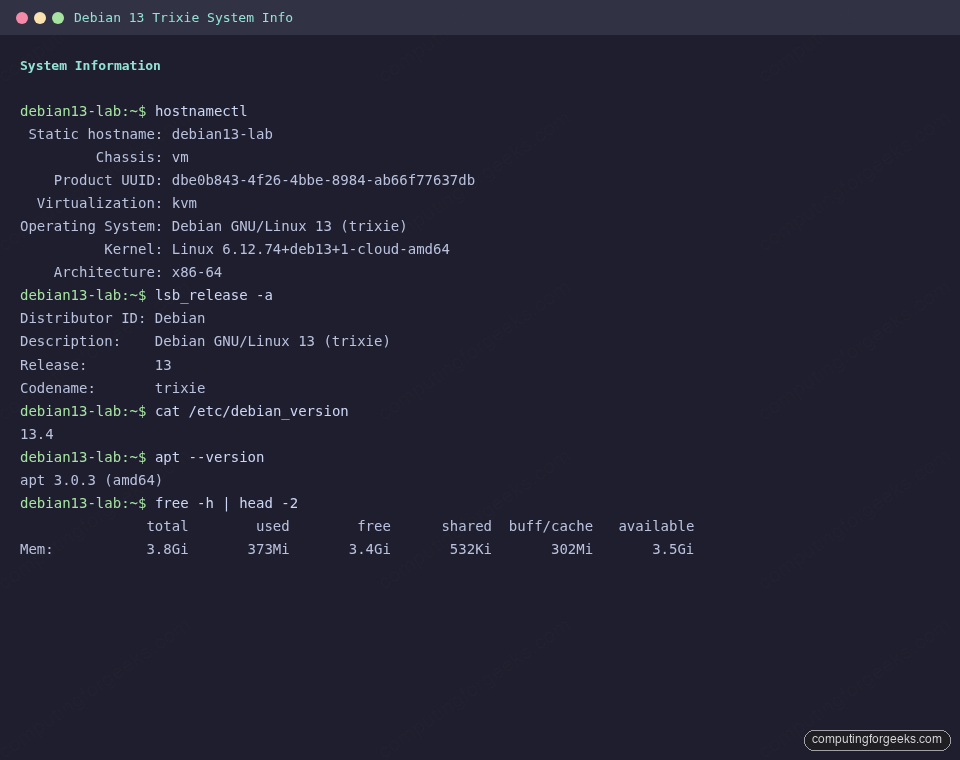
The captured output on the test VM shows kernel 6.12, release 13.4, and apt 3.0.3, as expected:
Review the new deb822 sources file
Trixie’s installer and cloud images write sources to /etc/apt/sources.list.d/debian.sources using the deb822 format (one stanza per archive). The legacy one-line sources.list still works, but the single-file, multi-line layout is now the default and is easier to diff in config management. Look at what you actually have:
cat /etc/apt/sources.list.d/debian.sourcesThe stanzas below are what a default cloud image writes. Main archive plus security, and trixie-backports is already enabled (it is ignored until you request it with -t trixie-backports):
Types: deb deb-src
URIs: mirror+file:///etc/apt/mirrors/debian.list
Suites: trixie trixie-updates trixie-backports
Components: main
Signed-By: /usr/share/keyrings/debian-archive-keyring.gpg

Types: deb deb-src
URIs: mirror+file:///etc/apt/mirrors/debian-security.list
Suites: trixie-security
Components: main
Signed-By: /usr/share/keyrings/debian-archive-keyring.gpg
If you want contrib and non-free-firmware (most laptops need the latter for wireless firmware and graphics blobs), edit the Components: line instead of adding a new file. One edit, one source of truth.
Run the first full upgrade
Every Trixie image has drifted behind the security archive by the time it lands on your disk. Update first, install second.
sudo apt update
sudo apt -y full-upgrade
sudo apt -y autoremove
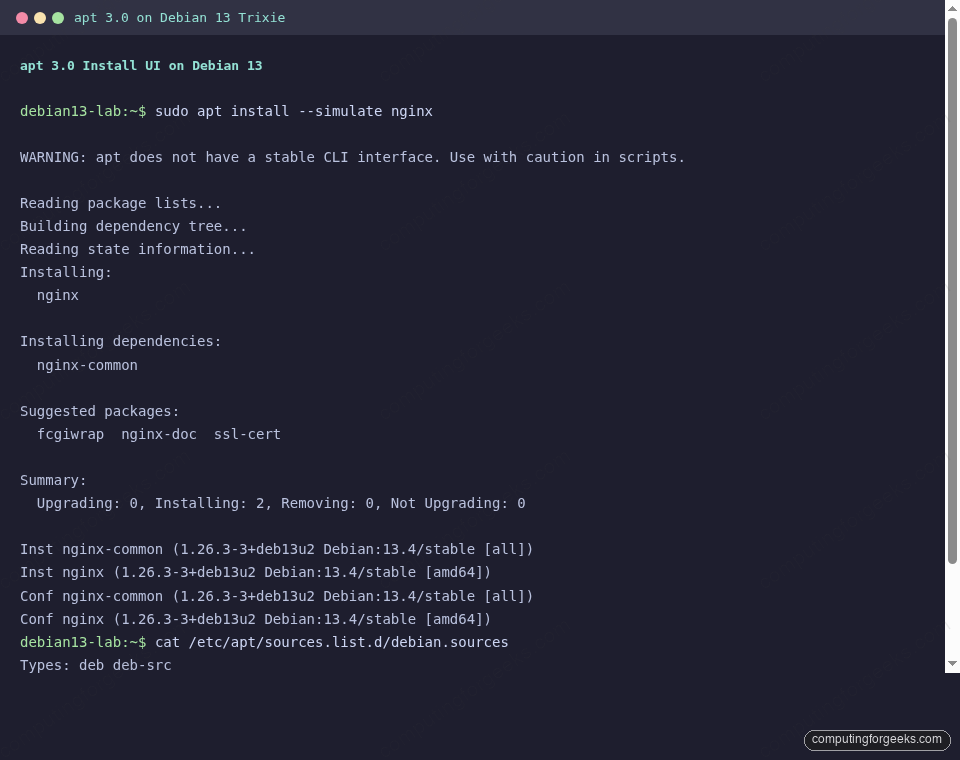
Two details worth calling out. First, apt 3.0 warns “apt does not have a stable CLI interface, use with caution in scripts” on every call. The warning is for humans. In scripts, use apt-get, which still has a stable, parsable interface. Second, the new apt install output groups “Installing”, “Installing dependencies”, and “Suggested packages” into separate sections. You can see it with a dry run:
apt install --simulate nginxThe captured output shows the new layout clearly, with a Summary: block instead of the old “N upgraded, M newly installed” line:
Set hostname, timezone, and locale
The defaults on a cloud image are rarely what you want. Set them in one shot:
sudo hostnamectl set-hostname debian13-lab
sudo timedatectl set-timezone Africa/Nairobi
sudo localectl set-locale LANG=en_US.UTF-8
Swap the timezone for your region (timedatectl list-timezones lists them all) and confirm the change. NTP sync via systemd-timesyncd is on by default in Trixie:
hostnamectl --static
timedatectl | head -5
Add a sudo user (if the cloud image gave you root only)
Cloud images typically ship with a user already set via cloud-init. ISO installs often do not prompt for sudo membership, so the primary user is created without it. Either way, the fix is the same:
sudo adduser deploy
sudo usermod -aG sudo deploy
If you prefer passwordless sudo for an automation account, drop a file under /etc/sudoers.d/ and validate it. Never edit /etc/sudoers directly:
echo "deploy ALL=(ALL) NOPASSWD:ALL" | sudo tee /etc/sudoers.d/90-deploy
sudo chmod 440 /etc/sudoers.d/90-deploy
sudo visudo -c
The visudo -c at the end parses every sudoers file on disk and reports syntax errors before they become login failures.
Install the command-line tools you expect to already be there
Trixie ships lean. This set covers what most scripts, playbooks, and muscle-memory habits assume:
sudo apt -y install \
  curl wget git vim htop btop tmux \
  ca-certificates gnupg lsb-release \
  net-tools unzip tree ncdu rsync \
  bash-completion less jq
btop now ships in Trixie main, so no backports workaround is needed (Bookworm required backports for it). Pair tree, ncdu, and jq for the three most common “where did my disk go” and “parse this API response” workflows.
Turn on UFW and allow only what you need
Trixie does not enable a firewall by default. UFW is the easiest way to get sane nftables rules. For more patterns (rate limiting, per-IP allows) see the UFW commands with examples reference:
sudo apt -y install ufw
sudo ufw default deny incoming
sudo ufw default allow outgoing
sudo ufw allow OpenSSH
sudo ufw allow 80/tcp
sudo ufw allow 443/tcp
sudo ufw enable
sudo ufw status verbose
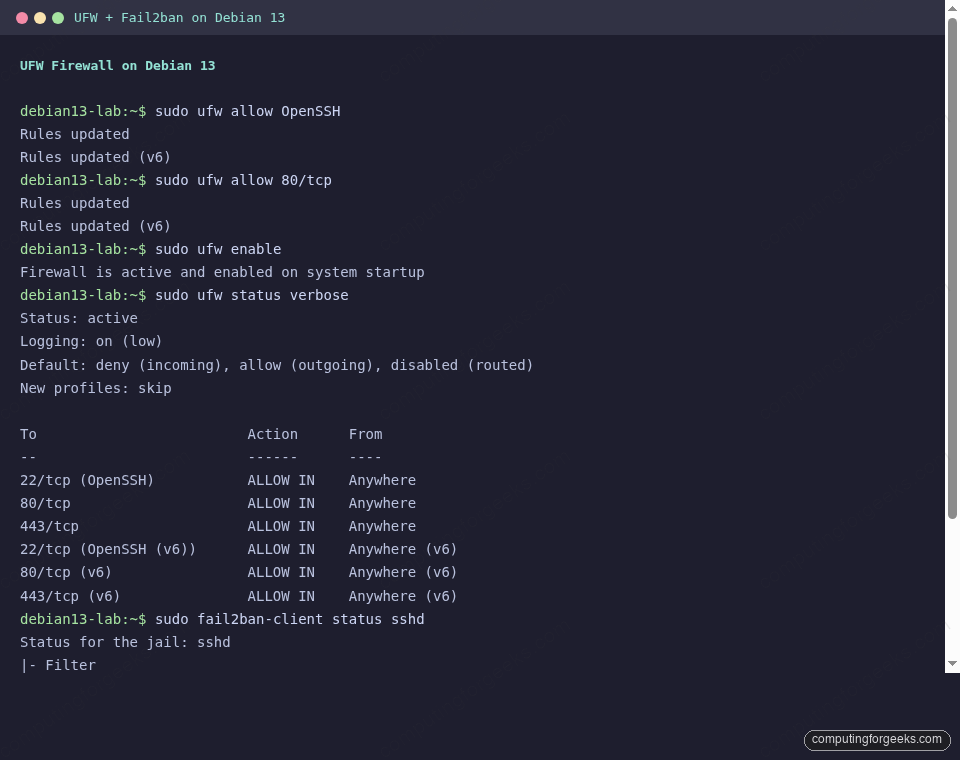
The status output should show six rules active (three IPv4, three IPv6) with default deny incoming, matching the capture below:
Harden SSH with a drop-in override
Trixie, like Bookworm, includes /etc/ssh/sshd_config.d/. Always drop a separate file there rather than editing the main config. First, confirm you can log in with your key (do not disable password auth until this is verified). Then:
sudo vi /etc/ssh/sshd_config.d/90-hardening.confAdd the following. Adjust MaxAuthTries and timeouts to taste, the rest are table stakes:
PermitRootLogin no
PasswordAuthentication no
PubkeyAuthentication yes
KbdInteractiveAuthentication no
UsePAM yes
X11Forwarding no
AllowAgentForwarding no
MaxAuthTries 3
ClientAliveInterval 300
ClientAliveCountMax 2
Test and reload. The service name on Trixie is ssh (not sshd):
sudo sshd -t && sudo systemctl reload ssh
sudo sshd -T | grep -E 'permitrootlogin|passwordauthentication|maxauthtries'
The effective values on the test box come back as:
maxauthtries 3
permitrootlogin no
passwordauthentication no
Before closing your current SSH session, open a second one from another terminal. If the second succeeds, the config is safe to keep.
Add fail2ban for SSH brute-force defence
UFW drops unwanted traffic. fail2ban bans hosts that try and fail. The two layers complement each other. On Trixie the sshd jail backend is systemd and uses the ssh.service unit (not sshd.service), which is noted in the output below:
sudo apt -y install fail2banConfigure a local override at /etc/fail2ban/jail.local:
[DEFAULT]
bantime = 1h
findtime = 10m
maxretry = 5

[sshd]
enabled = true
backend = systemd
Enable the service and verify the jail is watching the correct journal unit:
sudo systemctl enable --now fail2ban
sudo fail2ban-client status sshd
The output reads Journal matches: _SYSTEMD_UNIT=ssh.service + _COMM=sshd, confirming it is reading the right journal source on Trixie. If you prefer the modern alternative, CrowdSec is a collaborative IPS that covers more attack surfaces than fail2ban. The Fail2ban setup guide for Ubuntu 26.04 also translates cleanly to Trixie.
Enable automatic security updates
Trixie’s unattended-upgrades package is configured for the security archive out of the box. You just need to install it and turn on the apt periodic jobs.
sudo apt -y install unattended-upgrades apt-listchangesWrite the schedule to /etc/apt/apt.conf.d/20auto-upgrades:
APT::Periodic::Update-Package-Lists "1";
APT::Periodic::Unattended-Upgrade "1";
APT::Periodic::Download-Upgradeable-Packages "1";
APT::Periodic::AutocleanInterval "7";
Confirm the service is alive and the schedule is loaded:
sudo unattended-upgrade --dry-run --debug 2>&1 | tail -10
systemctl is-active unattended-upgrades
Install Docker CE on Trixie
Debian’s docker.io package lags upstream. Docker’s official apt repo is the right source for any server. The dedicated Docker CE on Debian 13 / 12 guide covers the full walkthrough including rootless mode. The short version:
sudo install -m 0755 -d /etc/apt/keyrings
curl -fsSL https://download.docker.com/linux/debian/gpg | \
  sudo gpg --dearmor -o /etc/apt/keyrings/docker.gpg
sudo chmod a+r /etc/apt/keyrings/docker.gpg

echo "deb [arch=amd64 signed-by=/etc/apt/keyrings/docker.gpg] \
  https://download.docker.com/linux/debian trixie stable" | \
  sudo tee /etc/apt/sources.list.d/docker.list

sudo apt update
sudo apt -y install docker-ce docker-ce-cli containerd.io \
  docker-buildx-plugin docker-compose-plugin
The trixie codename in the repo URL is the only difference from the Bookworm procedure. Add your user to the docker group to drop the sudo prefix on container commands:
sudo usermod -aG docker $USERVerify the install with a disposable container, then move on:
docker --version
docker compose version
docker run --rm hello-world
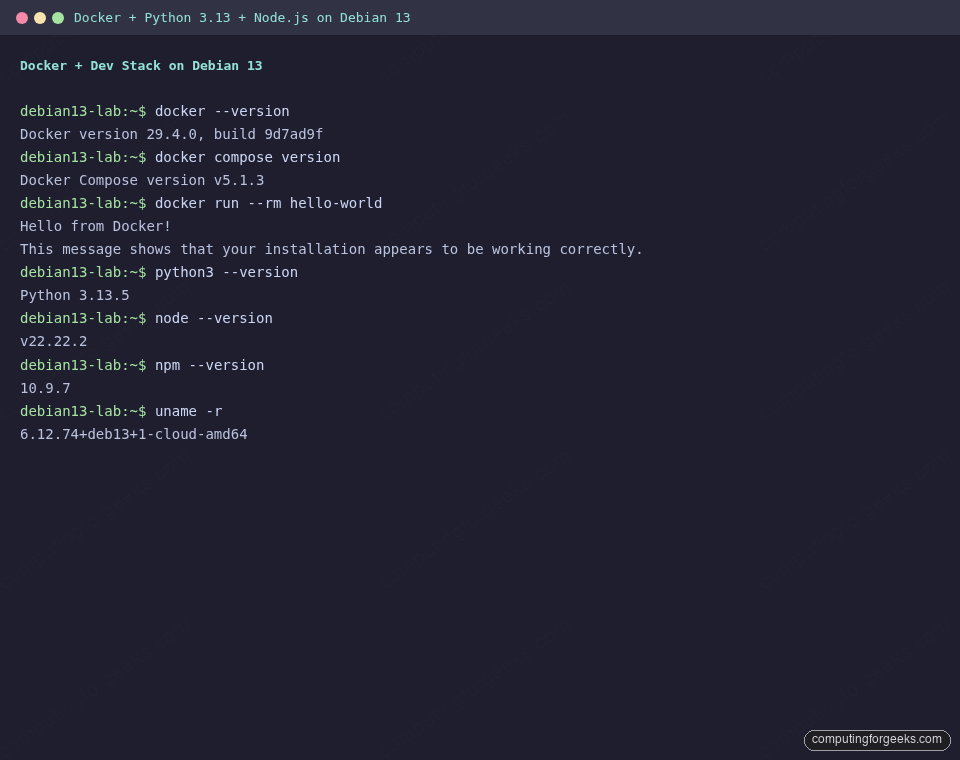
On the test VM this pulled Docker Engine 29.4.0 and ran the hello-world image cleanly, alongside Python 3.13 and Node.js 22 already in place:
Add Node.js 22 and modern Python tooling
Trixie ships Node.js 20 in the main archive. That covers most work, but NodeSource’s repo gives you the current Active LTS (22.x at the time of writing) and security fixes on upstream cadence:
curl -fsSL https://deb.nodesource.com/setup_22.x | sudo bash -
sudo apt -y install nodejs
node --version
npm --version
On the test VM this returns v22.22.2 and npm 10.9.7. If you want Node.js 24 instead, swap setup_22.x for setup_24.x. Full walkthrough at Install Node.js 24 on Debian 13 / 12.
For Python, Trixie’s default is 3.13.5. Pair it with pipx for isolated CLI tools (ruff, httpie, poetry, pre-commit) that should not pollute the system environment:
sudo apt -y install build-essential python3-pip python3-venv pipx
pipx ensurepath
python3 --version
Understand the 64-bit time_t (t64) transition
Trixie finishes a multi-year migration to 64-bit time_t on every architecture, including 32-bit ARM and i386 variants. The fallout you will see on day one is libraries whose package names gained a t64 suffix. For example, libssl3 became libssl3t64, libcurl4 became libcurl4t64, and so on. This is an ABI change, not a bug.
Count how many t64 libraries your install depends on:
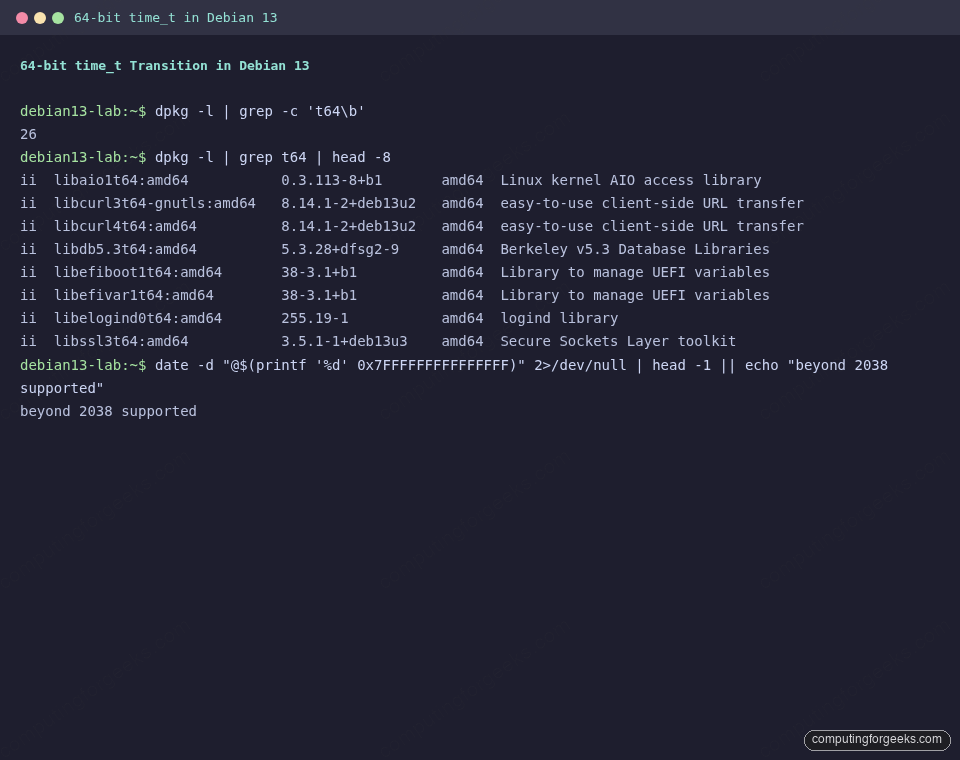
dpkg -l | grep -c 't64\b'
dpkg -l | grep t64 | head -8
On a minimal Trixie VM the count is 26 and the list includes common suspects like libssl3t64, libcurl4t64, libaio1t64, and libefiboot1t64:
Why you care: any third-party .deb built against a pre-t64 library will refuse to install on Trixie until the vendor publishes a matching build. The main archive handled this transparently. Vendors shipping their own repos (Docker, Microsoft, HashiCorp, NodeSource) have all released Trixie-compatible packages. If you maintain internal Debian packages, rebuild them with Trixie’s toolchain before rolling out.
Clean up and confirm what is installed
After all of the above, apt has cached a fair amount of data. Flush it and see what the root filesystem has left:
sudo apt -y autoremove
sudo apt -y autoclean
df -h /
The test VM with all packages in this guide installed sat at 1.9 GB used on a 21 GB root disk. Room to spare for containers, application code, and a reasonable local registry cache.
Frequently asked questions
Is Debian 13 compatible with existing Docker images and Compose files?
Yes. Container images run the same on Trixie as on Bookworm because Docker isolates the userspace. The kernel bump to 6.12 brings better cgroup v2, BPF, and io_uring behavior, but nothing in your Compose files needs to change. The apt repo codename in Docker’s instructions does change from bookworm to trixie.
Do I need to disable IPv6 on Trixie servers?
No. The correct answer if IPv6 is unreliable on your network is Acquire::ForceIPv4 "true"; inside /etc/apt/apt.conf.d/99force-ipv4 so apt prefers IPv4 for repo access. Leave the kernel and systemd-networkd IPv6 stack alone, it is needed for local service communication on modern containers.
Should I upgrade from Bookworm to Trixie or reinstall?
For servers you plan to rebuild within a year, reinstall on top of Trixie. The in-place path (apt full-upgrade with updated sources, then apt modernize-sources to migrate to deb822) works, but a reinstall guarantees you inherit the t64 ABI cleanly and you get the new sources.list.d/debian.sources layout without edits. For long-lived servers, read the official upgrade notes end to end before attempting the in-place path.
What is the LTS schedule for Trixie?
Debian 13 shipped on August 9, 2025. The Security team supports the release for roughly three years. After that, the LTS team picks it up for another two, giving you a combined five years of security coverage. Plan your next Debian rebuild somewhere between 2028 and 2030.
Which desktop environment should I install on Trixie?
On a server, none. On a workstation, the default GNOME 48 is well-integrated and works with Wayland out of the box. If you prefer a lighter or more customizable DE, the KDE Plasma on Debian 13 / 12 guide walks through adding Plasma 6.3 on top of the base install. Do not run multiple DEs side by side unless you enjoy troubleshooting login manager conflicts.
Post-install is not a one-shot task, it is a baseline you will tune as the machine’s role becomes clearer. If this box becomes a database host, follow the PostgreSQL 17 on Debian 13 guide next. For offsite encrypted backups, BorgBackup with Borgmatic remains the top pick. And if this is machine number three in a week, push the entire flow above into an Ansible playbook via Semaphore before you do it a fourth time.