Most automation in dev workflows still lives in cron jobs, GitHub Actions YAML, or some glue script you wrote at 2 AM. Claude Code Routines replaces all of that with a single concept: write a prompt, pick a trigger, and let Claude run it on Anthropic’s cloud infrastructure. No servers to maintain, no CI config to debug.
Routines launched on April 14, 2026 as a research preview. Three trigger types are available: scheduled (cron-style), API (HTTP POST from any system), and GitHub (react to PRs, releases). Each routine gets its own cloud session with full access to your repo, MCP connectors, and any tools Claude Code normally uses. If you’re evaluating Claude Code against other AI coding tools, our Cursor vs Windsurf vs Kiro comparison covers how routines fit into the broader landscape.
Tested April 2026 with Claude Code 2.1.110 on a Pro plan. All CLI examples verified on macOS (zsh) and the /schedule command.
Prerequisites
Before creating your first routine, confirm these are in place:
- Claude Code CLI installed and authenticated (
claude --versionshould return 2.1.x or later). If you need to install it, see our Claude Code setup guide for DevOps Engineers - Paid Claude subscription: Pro ($20/mo), Max ($100/mo), Team, or Enterprise. Free accounts cannot create routines
- Claude Code on the web enabled: routines run on Anthropic’s cloud, not your machine. Visit
claude.ai/settingsand confirm web access is active - GitHub connected: routines clone your repos. Run
/web-setupin a Claude Code session if you haven’t linked GitHub yet
How Routines Work
A routine is a saved configuration: a prompt (what Claude should do), one or more repositories (where it works), an environment (secrets, network access, setup scripts), and connectors (Slack, Linear, Google Drive). Once saved, it runs autonomously on Anthropic’s infrastructure whenever a trigger fires.
Three trigger types are available, and you can combine them on a single routine:
| Trigger | How it fires | Best for |
|---|---|---|
| Scheduled | Cron-style cadence: hourly, daily, weekly, or custom cron expression | Nightly audits, weekly reports, recurring maintenance |
| API | HTTP POST to a per-routine endpoint with bearer token | Deploy verification, alert triage, pipeline integration |
| GitHub | Repository events: PR opened/closed, release published | Automated code review, cross-repo porting, label triage |
Each run creates a fresh cloud session. Claude clones the repo from the default branch, runs the prompt, and can push changes to claude/-prefixed branches. You can watch the session in real time at claude.ai, review changes, and even continue the conversation manually after the routine finishes.
Daily Run Limits by Plan
Routines have a daily cap on how many runs can start per account. This is separate from your regular Claude usage limits.
| Plan | Price | Routine Runs per Day |
|---|---|---|
| Pro | $20/mo | 5 |
| Max 5x | $100/mo | 15 |
| Max 20x | $200/mo | 15 |
| Team | $30/user/mo | 25 |
| Enterprise | Custom | 25 |
Organizations with extra usage enabled can exceed these caps on metered overage. Without it, additional runs are rejected until the window resets at midnight UTC.
Create Your First Routine from the CLI
The fastest way to create a routine is the /schedule command inside any Claude Code session. Open a terminal and start Claude Code:
claudeInside the session, tell Claude what you want automated. Be specific about the schedule, repo, and what the routine should do:
/schedule Create a routine called "Nightly Dependency Audit" that runs daily at 2am UTC. Repo: myorg/backend-api. Prompt: "Check package.json and requirements.txt for outdated dependencies. List any with known CVEs. Create a GitHub issue if critical vulnerabilities found."Claude walks through confirming the details, then creates the routine. The output includes the trigger ID, schedule, and a management link:
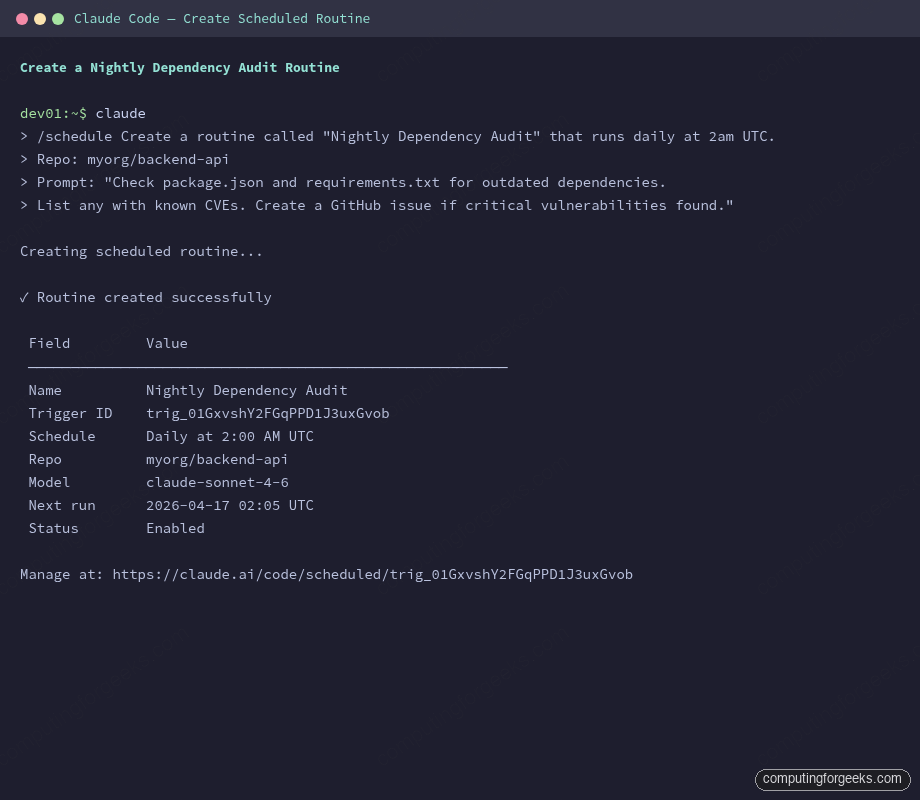
The routine is now live. It will run at 2:00 AM UTC every night, clone your repo, and execute the prompt autonomously.
Verify with /schedule list
Check all your routines and their next run times:
/schedule listThe output shows each routine’s name, schedule, next run time, repo, and model:
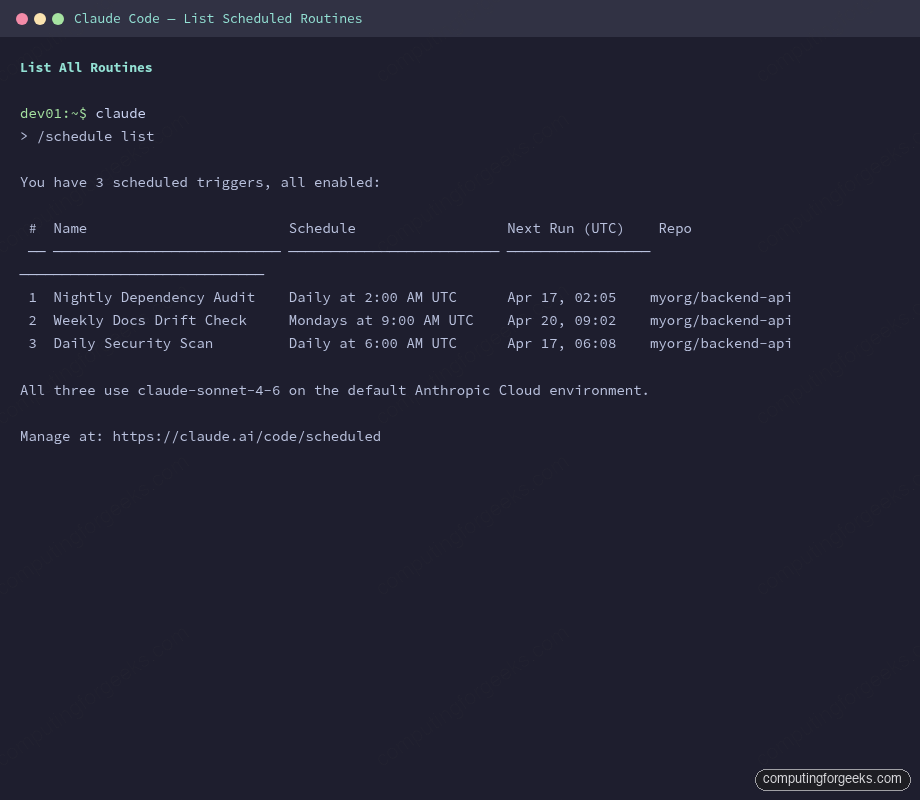
All routines sync to your cloud account instantly. Anything you create in the CLI also appears in the web dashboard at claude.ai/code/routines.
Create a Routine from the Web UI
If you prefer a visual interface, the web dashboard at claude.ai/code/routines provides a form-based workflow. Here’s what the dashboard looks like with three active routines:
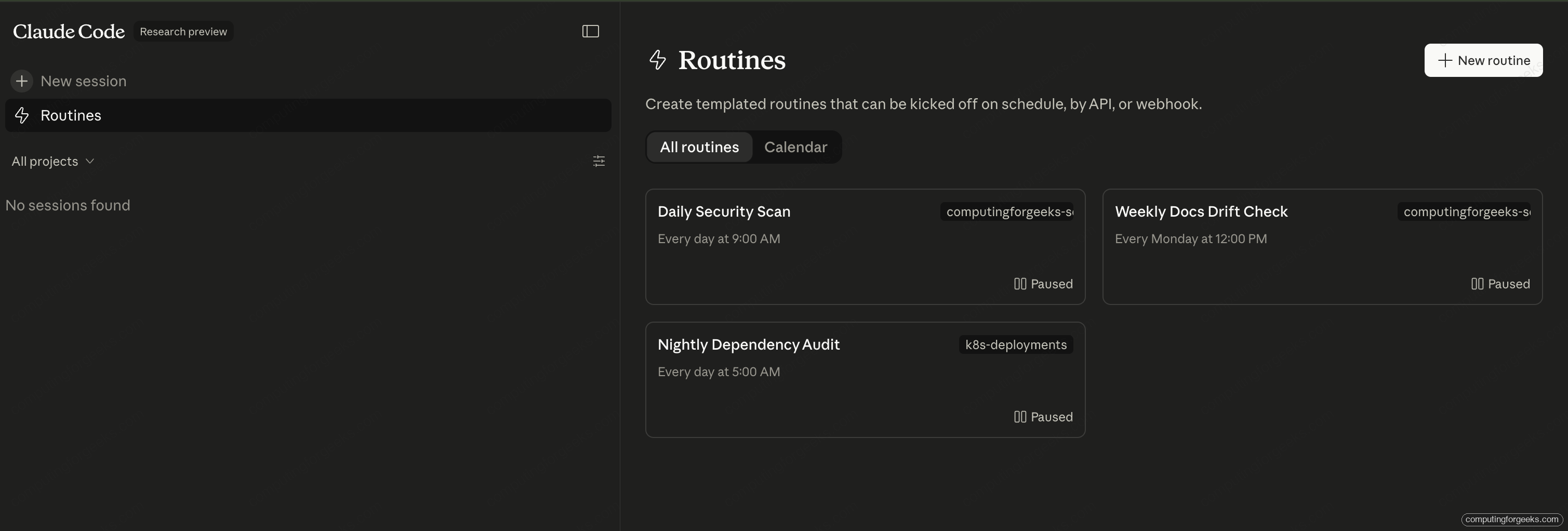
Click New routine and fill in:
- Name and prompt: give the routine a descriptive name, then write the prompt Claude runs each time. A model selector lets you pick between Opus, Sonnet, or Haiku
- Repositories: add one or more GitHub repos. Each is cloned fresh on every run. Enable Allow unrestricted branch pushes if the routine needs to push to non-
claude/branches - Environment: pick a cloud environment that controls network access, environment variables (API keys, tokens), and a setup script (install dependencies before each run). A Default environment is provided out of the box
- Triggers: pick schedule, API, GitHub, or any combination
- Connectors: all your connected MCP connectors (Slack, Linear, Google Drive) are included by default. Remove any the routine doesn’t need
Click Create and the routine appears in your list. Hit Run now to test it immediately without waiting for the next trigger.
Five Practical Routine Examples
The real value of routines is what you automate. Here are five tested configurations that cover the most common DevOps and development workflows.
1. Nightly Dependency Audit
Catch vulnerable dependencies before they reach production. This routine runs every night, checks all package manifests, and opens issues for anything critical.
/schedule Create a routine called "Nightly Dependency Audit" that runs daily at 2am UTC. Repo: myorg/backend-api. Prompt: "Run npm audit and pip-audit on all package manifests in this repo. For each vulnerability with severity high or critical, check if an issue already exists. If not, open a new GitHub issue with the CVE ID, affected package, current version, and fixed version. Label all issues 'security' and 'dependencies'."On a Pro plan this costs one of your five daily runs. For repos with both Node.js and Python dependencies, this catches what Dependabot and pip-audit would individually, but in a single pass with human-readable issue descriptions.
2. PR Code Review on Open
This one uses a GitHub trigger instead of a schedule. Every time a PR is opened against main, Claude reviews it against your team’s checklist.
Create the routine from the web UI at claude.ai/code/routines because GitHub triggers aren’t available via the CLI yet. Set the trigger to GitHub event > Pull request > opened, with a base branch filter of main. Use this prompt:
Review this pull request against our team checklist:
1. Security: no hardcoded secrets, no SQL injection, input validation on all endpoints
2. Performance: no N+1 queries, no unbounded loops, pagination on list endpoints
3. Tests: new code has test coverage, no skipped tests without explanation
4. Style: follows our naming conventions, no dead code, no TODO without issue link

Leave inline comments for each finding. Add a summary comment with pass/fail for each category. If all four pass, approve the PR. If any fail, request changes.
Each PR creates its own session, so two PRs opened simultaneously get two independent reviews. Filter options include author, labels, draft status, and head/base branch patterns.
3. Weekly Docs Drift Scan
Documentation goes stale the moment code ships. This routine runs every Monday morning and catches the gap.
/schedule Create a routine called "Weekly Docs Drift Check" that runs every Monday at 9am UTC. Repo: myorg/backend-api. Prompt: "Scan all PRs merged since last Monday. For each PR that changed files in src/api/ or src/config/, check if the corresponding docs in docs/ or README.md were also updated. If documentation is stale, open a PR on a claude/ branch with suggested updates. Include a summary of what changed and what the docs should say."The routine pushes to claude/-prefixed branches by default, which means it can open PRs without needing unrestricted branch permissions. An editor reviews the PR instead of hunting through merge history for what changed.
4. API-Triggered Deploy Verification
Wire this into your CD pipeline. After each production deploy, your pipeline calls the routine’s API endpoint, and Claude runs smoke tests against the new build.
Create the routine from the web UI, add an API trigger, and use this prompt:
A production deploy just completed. The deploy context is provided in the trigger text.

1. Clone the repo and read the smoke test definitions in tests/smoke/
2. Run each smoke test against the production URL
3. Check the application logs for any new error patterns in the last 10 minutes
4. Post results to the #deploys Slack channel via the Slack connector
5. If any smoke test fails, open a GitHub issue with the failure details and tag @oncall
After saving, copy the generated URL and bearer token from the API trigger section. The token is shown once, so store it in your CD tool’s secret store.
Trigger it from your pipeline with curl:
curl -X POST https://api.anthropic.com/v1/claude_code/routines/trig_01ABCDEFGHJKLMNOPQRSTUVW/fire \
  -H "Authorization: Bearer $ROUTINE_TOKEN" \
  -H "anthropic-beta: experimental-cc-routine-2026-04-01" \
  -H "anthropic-version: 2023-06-01" \
  -H "Content-Type: application/json" \
  -d '{"text": "Deploy v2.4.1 completed at 14:32 UTC. Commit: abc123f. Environment: production."}'
The response includes a session URL you can open to watch the verification in real time:
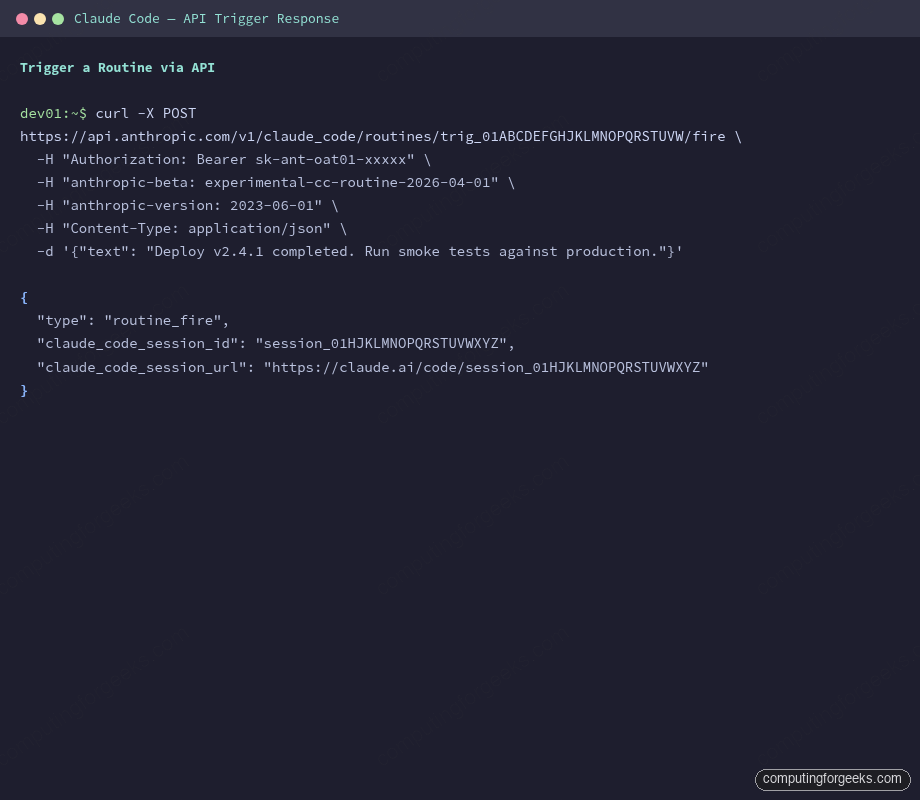
The text field is freeform. Pass any context your pipeline has: commit hash, environment, deployment duration, or a Sentry alert body. Claude receives it alongside the routine’s saved prompt.
5. Daily Security Scan
Run a broad security sweep every morning before the team starts work.
/schedule Create a routine called "Daily Security Scan" that runs daily at 6am UTC. Repo: myorg/backend-api. Prompt: "Run npm audit and pip-audit on all package manifests. Check for secrets in committed files using common patterns (API keys, tokens, passwords in config files). Scan Dockerfiles for running as root, using latest tags, or exposing unnecessary ports. If any finding is severity high or critical, open a GitHub issue with remediation steps."This complements the dependency audit by also checking for leaked secrets and Docker misconfigurations. If your team uses Docker heavily, the Claude Code Docker guide covers the container workflows that pair well with automated scanning. On a Pro plan with 5 daily runs, running both the dependency audit and security scan still leaves 3 runs for other routines.
Manage Routines: Pause, Update, Delete
All management happens through the CLI or web dashboard. The CLI commands cover the common operations:
List all routines:
/schedule listPause a routine (keeps the config, stops running):
/schedule update trig_012tBBvSe3p1j5pDpgdHw2MU - pause this routineResume a paused routine:
/schedule update trig_012tBBvSe3p1j5pDpgdHw2MU - resume this routineThe pause/resume cycle is useful during code freezes or when you’re refactoring the repo and don’t want automated PRs interfering:
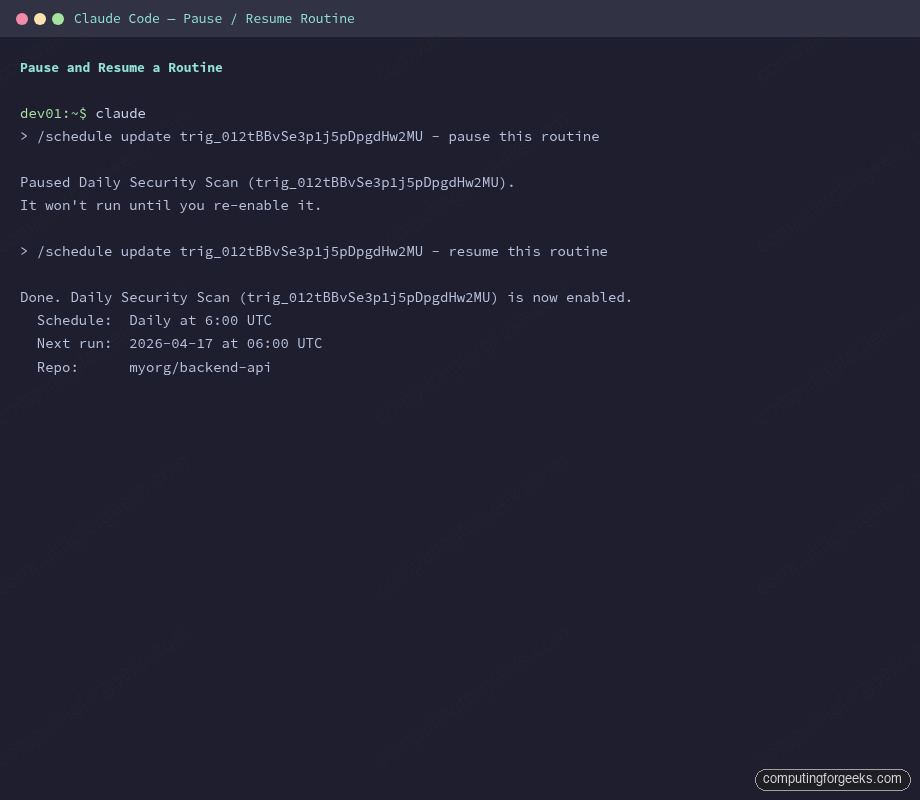
Trigger a manual run without waiting for the schedule:
/schedule run trig_01GxvshY2FGqPPD1J3uxGvobUpdate a routine’s schedule, model, or repo:
/schedule update trig_01GxvshY2FGqPPD1J3uxGvob - change schedule to every 6 hoursFrom the web dashboard, you can also delete routines entirely, regenerate API tokens, and add or remove triggers. Past sessions created by a deleted routine remain in your session list for audit purposes.
Environments and Connectors
Environments control what your routine has access to at runtime. The Default environment works for basic repo scanning, but production routines usually need custom configuration.
Three things make up an environment:
- Network access: control whether the cloud session can reach the internet. Restrict it for routines that only need to read the repo
- Environment variables: pass API keys, database URLs, Slack webhook tokens, or any secrets the routine needs. These are stored encrypted and injected at runtime
- Setup script: commands that run before each session starts. Install dependencies, configure tools, or set up test fixtures
Create custom environments at claude.ai/settings before creating the routine. For example, a deploy verification routine might need a PROD_URL variable and a setup script that installs your test framework.
Connectors give Claude access to external services during each run. All your connected MCP connectors are included by default when you create a routine. If you’ve connected Slack, Linear, and Google Drive, the routine can post to Slack channels, create Linear tickets, and read Google Docs. For SSH-based server management workflows, Claude Code can also manage servers via SSH within routine sessions. Remove any connectors the routine doesn’t need to follow least-privilege principles.
GitHub Triggers: React to PRs and Releases
GitHub triggers turn routines into event-driven automation. Two event categories are supported during the research preview: pull requests and releases.
GitHub triggers are configured from the web UI only (not available via CLI). The setup requires installing the Claude GitHub App on your repository, which is separate from the GitHub OAuth connection used for repo cloning.
Pull Request Filters
Narrow which PRs trigger the routine with these filter fields:
| Filter | Operators | Example |
|---|---|---|
| Author | equals, contains, is one of | Only trigger for external contributors |
| Base branch | equals, starts with, matches regex | Only PRs targeting main or release/* |
| Head branch | contains, starts with | PRs from auth-* branches get security review |
| Labels | is one of, is not one of | Only PRs labeled needs-review |
| Is draft | equals | Skip draft PRs, only review ready ones |
| From fork | equals | Extra security review for fork-based PRs |
All filter conditions must match for the routine to trigger. Combine them for precise targeting: base branch main + is draft false + from fork true routes every non-draft fork PR through an extra security scan.
How Sessions Map to Events
Each matching GitHub event starts a new, independent session. Two PR updates on the same PR produce two separate sessions. There is no session reuse across events, so each review is a clean-slate analysis.
Routines vs Other Automation Options
Claude Code offers several automation paths. Routines are the cloud-native option, but they’re not always the right choice.
| Feature | Routines | /loop (CLI) | Desktop Scheduled Tasks | GitHub Actions |
|---|---|---|---|---|
| Runs on | Anthropic cloud | Your terminal | Your machine | GitHub runners |
| Needs laptop open | No | Yes | Yes | No |
| Trigger types | Schedule, API, GitHub | Interval only | Schedule only | GitHub events, schedule, API |
| Repo access | GitHub OAuth clone | Local checkout | Local files | GitHub checkout |
| Connectors | MCP (Slack, Linear, etc.) | Local MCP servers | Local MCP servers | None (use actions) |
| Daily limit | 5-25 per plan | Unlimited | Unlimited | Per GH plan |
| Best for | Unattended, repeatable | Active development | Local file processing | CI/CD pipelines |
Use routines when the work should happen regardless of whether anyone is at a keyboard. Use /loop for active development tasks where you want to watch the output. Use GitHub Actions with Claude Code when the automation is part of your CI/CD pipeline and needs to run alongside other workflow steps.
Writing Effective Routine Prompts
Routines run autonomously with no approval prompts. The prompt is everything. A vague prompt produces vague results. Three principles that make prompts reliable:
Be explicit about success criteria. Instead of “check for issues,” write “run npm audit, filter for severity high or critical, and open a GitHub issue for each finding that doesn’t already have an open issue.” Claude needs to know what “done” looks like.
Tell it what NOT to do. “Do not merge any PRs. Do not push to main. Only push to claude/ branches. Do not delete any files.” Negative constraints prevent the most common surprises in autonomous runs.
Scope the connectors. If the routine has Slack access but shouldn’t post there, say so in the prompt: “Do not post to Slack. Only create GitHub issues.” The prompt is the last line of defense for connector permissions.
A well-written prompt for a production routine typically runs 10 to 20 lines. Include the specific tools to use, the exact outputs expected, and the error handling behavior. Reference our Claude Code cheat sheet for the full command and shortcut reference when building prompts.
Troubleshooting
Error: “GitHub repo access was denied”
This is the most common issue. The remote agent can’t clone the repository because GitHub permissions aren’t configured for cloud sessions. The fix:
/web-setupRun this inside a Claude Code session to authorize GitHub access for cloud sessions. Then go to claude.ai/settings/connectors and confirm the repo is included in the permissions grant. Private repos require explicit access.
Routine created but never runs
Check three things: (1) the routine is enabled, not paused (/schedule list shows status), (2) your daily run limit isn’t exhausted (check at claude.ai/settings/usage), and (3) the schedule timezone is correct. Times are entered in your local zone and converted to UTC automatically.
API trigger returns 401 Unauthorized
The bearer token was either not copied correctly or has been revoked. Tokens are shown once at creation and cannot be retrieved later. Go to the routine’s edit page on the web, find the API trigger section, and click Regenerate to create a new token. Update your pipeline’s secret store with the new value.
Routine runs but produces no output
Open the session at claude.ai to see what happened. The most common cause is a prompt that’s too vague (“check for issues” with no specifics). The second is a missing environment variable (the routine tries to call an API but no token is configured in the environment). Add explicit error handling to your prompt: “If npm audit fails to run, create a GitHub issue describing the error instead of silently exiting.”
Schedule runs at the wrong time
Routines have a small stagger (a few minutes after the scheduled time) that is consistent per routine. If the schedule says 2:00 AM UTC and it runs at 2:05 AM, that’s expected. If the offset is hours, check whether the time was entered in local time vs UTC. The web UI converts automatically; the CLI uses the timezone from your system clock. For custom cron expressions, use /schedule update to set the exact cron syntax.
Cleaning Up Test Routines
If you created test routines while following this guide, clean them up from the web dashboard at claude.ai/code/routines. Click the routine, then the delete icon. Past sessions from deleted routines remain in your session list.
From the CLI, you can pause routines to stop them from running while you decide whether to keep them:
/schedule update TRIGGER_ID - pause this routineRoutines are still in research preview, so behavior and limits may change. The API trigger ships under the experimental-cc-routine-2026-04-01 beta header. Keep an eye on the official docs for updates as the feature stabilizes.
For more Claude Code workflows, see our guides on deploying infrastructure with Terraform, generating Ansible playbooks, and debugging Kubernetes apps. The .claude directory guide covers how to configure project-level settings that routines inherit when they clone your repo.