Every remote worker, every road-warrior laptop, every home-lab server that needs to reach the office safely ends up needing a VPN. The choice used to be painful: OpenVPN with its sprawling config, or a commercial mesh VPN with a monthly bill. WireGuard changed that. It ships inside the Linux kernel, the config is short enough to fit on a postcard, and performance is close to native networking.
This guide sets up a WireGuard VPN server on Ubuntu 26.04 LTS and connects a second Ubuntu 26.04 client to it. You get real handshake output, working NAT so clients reach the internet through the tunnel, firewall rules for UFW, a pattern for adding more clients, and the troubleshooting steps that usually come up on the first try. The WireGuard protocol uses Curve25519, ChaCha20, Poly1305 and BLAKE2s, which is why the code base stays under 4,000 lines.
Tested April 2026 on Ubuntu 26.04 LTS (kernel 7.0.0-10), WireGuard tools v1.0.20250521
Prerequisites
- Two Ubuntu 26.04 LTS machines, one acting as the server, one as the client. Both tested on kernel 7.0.0-10-generic.
- Root or sudo access on both hosts. Start from a clean base following the Ubuntu 26.04 initial server setup guide if the host is fresh.
- The server needs a reachable UDP port. In production that is a public IPv4 or IPv6 address with UDP/51820 open. In this lab the server listens on a private address, and the tunnel works the same way.
- Working outbound internet on the server so the kernel can route client traffic.
- Familiarity with basic UFW firewall commands.
The article uses 203.0.113.10 as the stand-in for the server’s public IP and 10.100.0.0/24 as the VPN subnet. Swap these for your real values.
Why WireGuard
OpenVPN and IPsec work, but both carry decades of cipher choices, legacy options and config complexity. WireGuard takes the opposite approach: one cipher suite, no negotiation, no certificates, no PKI. Keys are short base64 strings you exchange once. The kernel module has been in mainline Linux since 5.6, so on Ubuntu 26.04 there is nothing extra to compile. You only need the userspace tooling.
Step 1: Install WireGuard on the server
Refresh the package index and install the WireGuard userspace tools. The kernel module is already present in stock Ubuntu 26.04, so this is a small install.
sudo apt update
sudo apt install -y wireguard wireguard-tools
Confirm the version you landed on:
wg --versionYou should see the shipped version string:
wireguard-tools v1.0.20250521 - https://git.zx2c4.com/wireguard-tools/Step 2: Generate the server key pair
WireGuard peers identify each other by public keys. Generate a private key for the server, derive the public key, and set a restrictive umask so the private key never lands with world-readable permissions.
sudo mkdir -p /etc/wireguard
cd /etc/wireguard
sudo sh -c 'umask 077; wg genkey | tee server_private.key | wg pubkey > server_public.key'
Print both keys. You will paste the public key into the client config shortly.
sudo cat /etc/wireguard/server_private.key
sudo cat /etc/wireguard/server_public.key
Keys are 44-character base64 strings. Treat the private key the same way you treat an SSH private key: never copy it off the server, never commit it to git.
Step 3: Write the server configuration
Create /etc/wireguard/wg0.conf. The interface block defines the VPN subnet, the listening port, and the NAT rules that rewrite client traffic on the way out. The [Peer] block comes later once you have the client’s public key.
sudo nano /etc/wireguard/wg0.confPaste this, substituting your own private key:
[Interface]
Address = 10.100.0.1/24
ListenPort = 51820
PrivateKey = SERVER_PRIVATE_KEY_HERE
SaveConfig = false

PostUp   = iptables -A FORWARD -i %i -j ACCEPT; iptables -A FORWARD -o %i -j ACCEPT; iptables -t nat -A POSTROUTING -o eth0 -j MASQUERADE
PostDown = iptables -D FORWARD -i %i -j ACCEPT; iptables -D FORWARD -o %i -j ACCEPT; iptables -t nat -D POSTROUTING -o eth0 -j MASQUERADE
Replace eth0 with your actual outbound interface if it differs. You can check with ip route show default. The PostUp and PostDown hooks toggle forwarding and source-NAT automatically when the interface comes up and goes down, so there are no stray iptables rules after a stop.
Lock down the file permissions:
sudo chmod 600 /etc/wireguard/wg0.confStep 4: Enable IPv4 forwarding
Without forwarding, the server drops traffic destined for the internet, even with masquerade rules in place. Enable it persistently:
echo 'net.ipv4.ip_forward=1' | sudo tee /etc/sysctl.d/99-wireguard.conf
sudo sysctl -p /etc/sysctl.d/99-wireguard.conf
The output confirms the kernel accepted the new value:
net.ipv4.ip_forward = 1Step 5: Open the UFW firewall
Ubuntu ships UFW but it is inactive by default. Allow SSH so you do not lock yourself out, then open UDP/51820 for WireGuard:
sudo ufw allow 22/tcp
sudo ufw allow 51820/udp
sudo ufw --force enable
sudo ufw status verbose
Confirm both rules are active:
Status: active
Logging: on (low)
Default: deny (incoming), allow (outgoing), deny (routed)
New profiles: skip

To                         Action      From
--                         ------      ----
22/tcp                     ALLOW IN    Anywhere
51820/udp                  ALLOW IN    Anywhere
The masquerade rules in wg0.conf handle NAT via iptables directly, so no further UFW changes are needed for routed traffic.
Step 6: Start the WireGuard service
Use the wg-quick@ systemd template to bring the interface up and enable it at boot. The unit name matches the config filename, so wg0.conf maps to wg-quick@wg0.
sudo systemctl enable --now wg-quick@wg0Check the service state:
sudo systemctl status wg-quick@wg0 --no-pagerThe unit type is oneshot, so it reports active (exited) which is the expected state for a successful run:
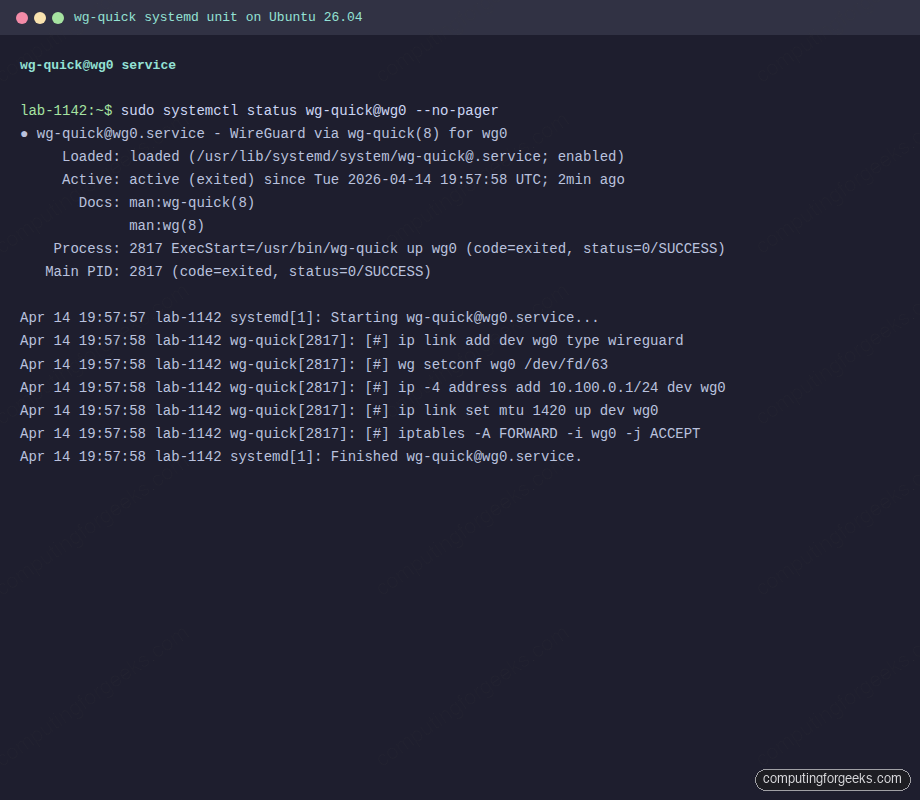
Verify the wg0 interface exists and has the right address:
ip addr show wg0You should see the tunnel address and a UP state:
3: wg0: <POINTOPOINT,NOARP,UP,LOWER_UP> mtu 1420 qdisc noqueue state UNKNOWN group default qlen 1000
    link/none
    inet 10.100.0.1/24 scope global wg0
       valid_lft forever preferred_lft forever
Step 7: Generate the client key pair
Switch to the client machine. Install the same tools and create its key pair the same way:
sudo apt update
sudo apt install -y wireguard wireguard-tools
sudo mkdir -p /etc/wireguard
cd /etc/wireguard
sudo sh -c 'umask 077; wg genkey | tee client_private.key | wg pubkey > client_public.key'
Print the client public key. This is what you will add to the server’s peer list:
sudo cat /etc/wireguard/client_public.keyStep 8: Write the client configuration
Create /etc/wireguard/wg0.conf on the client. The Endpoint is the server’s public address, AllowedIPs = 0.0.0.0/0 sends all traffic through the tunnel (full tunnel), and PersistentKeepalive keeps NAT mappings alive if the client is behind a home router.
sudo nano /etc/wireguard/wg0.confFill in the client private key and the server’s public key:
[Interface]
Address = 10.100.0.2/24
PrivateKey = CLIENT_PRIVATE_KEY_HERE
DNS = 1.1.1.1

[Peer]
PublicKey = SERVER_PUBLIC_KEY_HERE
Endpoint = 203.0.113.10:51820
AllowedIPs = 0.0.0.0/0
PersistentKeepalive = 25
Set strict permissions:
sudo chmod 600 /etc/wireguard/wg0.confStep 9: Register the client as a peer on the server
Back on the server, append the peer block to /etc/wireguard/wg0.conf. The AllowedIPs here is /32, meaning “only this one VPN address belongs to this peer” which prevents IP spoofing between clients.
sudo tee -a /etc/wireguard/wg0.conf > /dev/null <<'PEER'

[Peer]
PublicKey = CLIENT_PUBLIC_KEY_HERE
AllowedIPs = 10.100.0.2/32
PEER
Reload the interface in place without dropping the current peer sessions using wg syncconf:
sudo wg syncconf wg0 <(sudo wg-quick strip wg0)The strip subcommand returns a plain wg-compatible config with the wg-quick extensions removed, which is exactly what syncconf expects. No restart, no dropped traffic.
Step 10: Bring the client tunnel up
On the client, enable and start the service:
sudo systemctl enable --now wg-quick@wg0Within a couple of seconds, wg should show a handshake:
sudo wgThe client view shows the peer endpoint, a recent handshake timestamp, and byte counters moving:
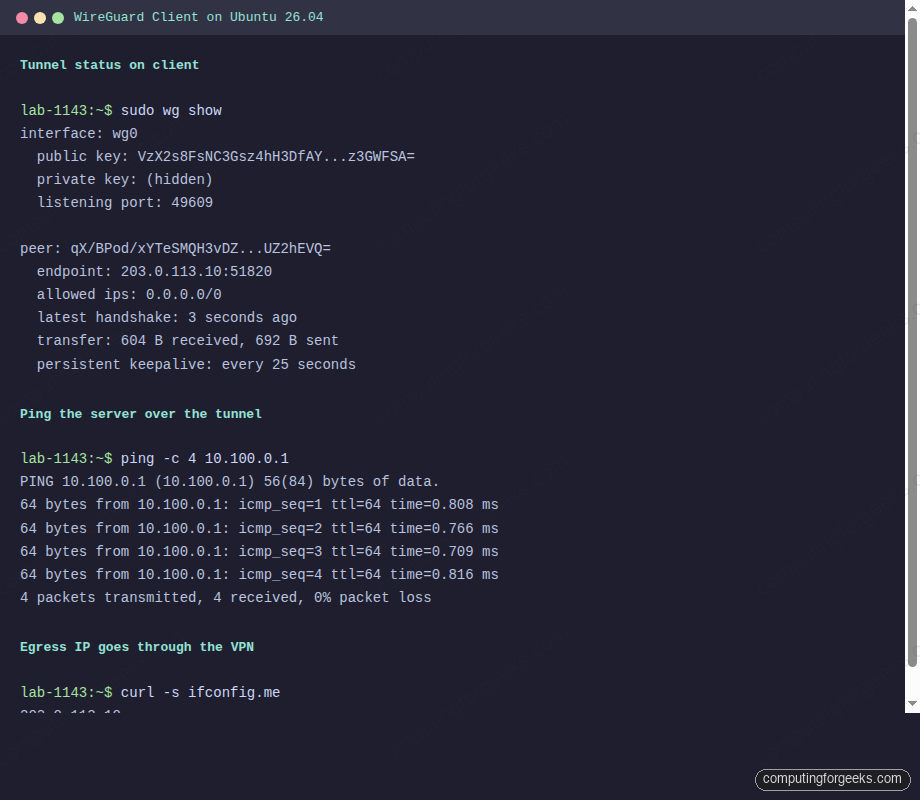
Step 11: Verify the tunnel end to end
Three tests confirm everything works: handshake, ICMP over the tunnel, and routed traffic through the VPN.
From the client, ping the server’s VPN address:
ping -c 4 10.100.0.1Sub-millisecond round trips on a LAN, single-digit milliseconds over the internet:
PING 10.100.0.1 (10.100.0.1) 56(84) bytes of data.
64 bytes from 10.100.0.1: icmp_seq=1 ttl=64 time=0.808 ms
64 bytes from 10.100.0.1: icmp_seq=2 ttl=64 time=0.766 ms
64 bytes from 10.100.0.1: icmp_seq=3 ttl=64 time=0.709 ms
64 bytes from 10.100.0.1: icmp_seq=4 ttl=64 time=0.816 ms

--- 10.100.0.1 ping statistics ---
4 packets transmitted, 4 received, 0% packet loss, time 3080ms
Confirm external traffic exits through the server by checking your public IP:
curl -s ifconfig.meThe returned address should match the server’s public IP, not the client’s:
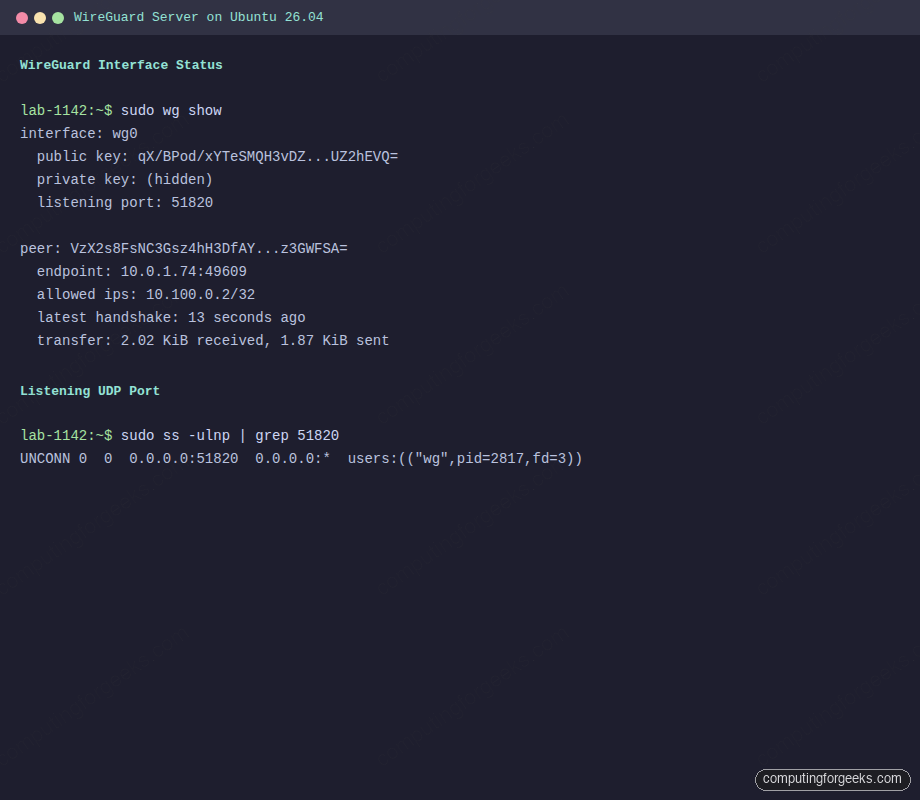
203.0.113.10On the server, sudo wg shows the peer’s traffic counters climbing, which is the final sanity check that packets flow both ways:
Full tunnel versus split tunnel
The AllowedIPs directive on the client controls which traffic enters the tunnel. Two common choices:
- Full tunnel (
0.0.0.0/0): every packet from the client goes through WireGuard. Use this for privacy on untrusted Wi-Fi and for forcing company traffic through an office egress. - Split tunnel (for example
10.100.0.0/24, 10.0.0.0/16): only traffic to specific networks traverses the VPN. Everything else uses the local gateway. Use this for reaching internal resources without backhauling Netflix.
Change the value on the client, reload, and WireGuard rewrites the routes accordingly.
Adding more clients
Every additional client needs its own key pair, its own /32 address inside 10.100.0.0/24, and its own [Peer] block on the server. Here is a small helper script that generates everything for one new client:
sudo tee /usr/local/sbin/wg-add-client > /dev/null <<'SH'
#!/usr/bin/env bash
set -euo pipefail
NAME=${1:?usage: wg-add-client NAME VPN_IP}
IP=${2:?usage: wg-add-client NAME VPN_IP}
SERVER_PUB=$(cat /etc/wireguard/server_public.key)
ENDPOINT=203.0.113.10:51820
cd /etc/wireguard
umask 077
wg genkey | tee clients/${NAME}.key | wg pubkey > clients/${NAME}.pub
cat > clients/${NAME}.conf <<CFG
[Interface]
Address = ${IP}/24
PrivateKey = $(cat clients/${NAME}.key)
DNS = 1.1.1.1

[Peer]
PublicKey = ${SERVER_PUB}
Endpoint = ${ENDPOINT}
AllowedIPs = 0.0.0.0/0
PersistentKeepalive = 25
CFG

cat >> /etc/wireguard/wg0.conf <<PEER

[Peer]
# ${NAME}
PublicKey = $(cat clients/${NAME}.pub)
AllowedIPs = ${IP}/32
PEER

wg syncconf wg0 <(wg-quick strip wg0)
echo "Client config: /etc/wireguard/clients/${NAME}.conf"
SH
sudo chmod +x /usr/local/sbin/wg-add-client
sudo mkdir -p /etc/wireguard/clients
Add a laptop client and copy its generated config back to that laptop:
sudo wg-add-client laptop 10.100.0.3The resulting /etc/wireguard/clients/laptop.conf can be scp’d or pasted into the WireGuard mobile app (install qrencode and run qrencode -t ansiutf8 < clients/laptop.conf to show a scannable QR code in the terminal).
Troubleshooting
No handshake ever happens
When sudo wg on the client shows latest handshake: with no value, or the client’s transfer stays at zero sent, packets are not reaching the server. Check the server’s firewall first:
sudo ss -ulnp | grep 51820The port should be in UNCONN state bound to 0.0.0.0. If nothing listens, wg-quick@wg0 did not start. If it listens but handshake still fails, the upstream provider or cloud security group is blocking UDP/51820. Cloud VPCs, AWS security groups and some ISPs silently drop unsolicited UDP.
Handshake works but no internet
The peer counters climb on both sides, the ping to 10.100.0.1 works, but curl ifconfig.me from the client times out. This is almost always a missing masquerade rule or disabled forwarding. Verify both on the server:
sysctl net.ipv4.ip_forward
sudo iptables -t nat -L POSTROUTING -n -v
Forwarding must be 1, and the POSTROUTING chain must show a MASQUERADE rule tied to your outbound interface. If the rule is missing, systemctl restart wg-quick@wg0 reruns the PostUp hook and reinstates it.
DNS does not resolve inside the tunnel
On the client, ping 1.1.1.1 works but ping google.com does not. The DNS directive in the client config requires resolvconf or systemd-resolved to apply. Install it if missing:
sudo apt install -y openresolvAlternatively, point the client at a public resolver directly in /etc/resolv.conf or run a small resolver on the server (dnsmasq or unbound) and set DNS = 10.100.0.1.
Error: “Unable to access interface: Protocol not supported”
This appears when the kernel has no WireGuard module. On Ubuntu 26.04 it ships in-tree, so the fix is almost always that an older kernel is still booted after an update. Reboot, or check with uname -r that you are running a 6.x or 7.x kernel.
Going further
A working tunnel is the starting point. A few natural next steps:
- Put a reverse proxy behind the VPN so internal services are never exposed directly to the internet. Install Nginx on Ubuntu 26.04 with Let’s Encrypt and only bind it to
10.100.0.1. - Reach Docker containers across the tunnel by running your workloads on the server. The Docker CE installation guide for Ubuntu 26.04 walks through that.
- Monitor WireGuard traffic with Prometheus by scraping
wg show dumpvia a small exporter. See the Prometheus on Ubuntu 26.04 guide. - For a broader overview of what changed in this Ubuntu release, skim the Ubuntu 26.04 LTS features article.
- Compare against the older cross-distro WireGuard setup guide if you also run Rocky or Debian.
WireGuard will not solve every networking problem, but for point-to-site and site-to-site tunnels on Linux, it is hard to beat on simplicity, performance, and cipher hygiene.