

Ubuntu 26.04 ships PostgreSQL 18 in its default repositories. No third-party repos, no manual compilation. A single apt install gives you PG 18.3 with the new asynchronous I/O engine, OAuth 2.0 authentication, and data page checksums enabled out of the box.
This guide walks through installing PostgreSQL 18 on Ubuntu 26.04 LTS, configuring it for remote access, creating databases and users, and tuning it for a production workload. If you need PostgreSQL on RHEL-based systems, we have a separate guide for PostgreSQL on Rocky Linux and AlmaLinux.
Current as of April 2026. Verified on Ubuntu 26.04 LTS (Resolute Raccoon) with PostgreSQL 18.3, kernel 7.0.0-10-generic
What’s New in PostgreSQL 18
PostgreSQL 18 introduces several changes worth knowing about before you start. If you’re curious how PG 18 stacks up against the competition, our PostgreSQL vs MySQL vs MariaDB performance benchmark has the numbers. The biggest new feature is the asynchronous I/O subsystem controlled by io_method, io_workers, and io_max_concurrency parameters. On Linux systems with io_uring support, this can significantly reduce I/O wait times for large sequential scans and bulk writes.
Other notable additions:
- OAuth 2.0 authentication via the new
oauthmethod inpg_hba.conf - Self-join elimination for queries that join a table to itself on a unique key
- DISTINCT key reordering for better query plans
- Idle replication slot timeout to prevent WAL bloat from abandoned slots
- Data page checksums enabled by default on new clusters
Prerequisites
- Ubuntu 26.04 LTS server (fresh install or existing)
- A user with
sudoprivileges - At least 512 MB RAM (1 GB+ recommended for production)
- For Debian-based alternatives, see our guide on PostgreSQL on Debian 13
Install PostgreSQL 18
Update the package index and install PostgreSQL:
sudo apt update
sudo apt install -y postgresql postgresql-client
This installs PostgreSQL 18.3 along with the client tools, JIT compilation support (via LLVM), and all required libraries. The total download is about 18 MB.
The installer automatically creates a cluster called 18/main, initializes the data directory, and starts the service. Verify the installation:
psql --versionThe version confirms PostgreSQL 18 is installed:
psql (PostgreSQL) 18.3 (Ubuntu 18.3-1)Check the cluster status:
pg_lsclustersThe cluster is online and running on port 5432:
Ver Cluster Port Status Owner    Data directory              Log file
18  main    5432 online postgres /var/lib/postgresql/18/main /var/log/postgresql/postgresql-18-main.log
The cluster is online and listening on the default port.
Verify the Service
PostgreSQL should be running and enabled to start on boot:
sudo systemctl status postgresqlThe service is enabled and running:
● postgresql.service - PostgreSQL RDBMS
     Loaded: loaded (/usr/lib/systemd/system/postgresql.service; enabled; preset: enabled)
     Active: active (exited) since Sun 2026-04-12 22:40:52 UTC
Confirm PostgreSQL is listening on port 5432:
ss -tlnp | grep 5432PostgreSQL is listening on localhost only:
LISTEN 0      200        127.0.0.1:5432      0.0.0.0:*
LISTEN 0      200            [::1]:5432         [::]:*
By default, PostgreSQL only listens on localhost. We’ll change that in the remote access section.
Connect to PostgreSQL
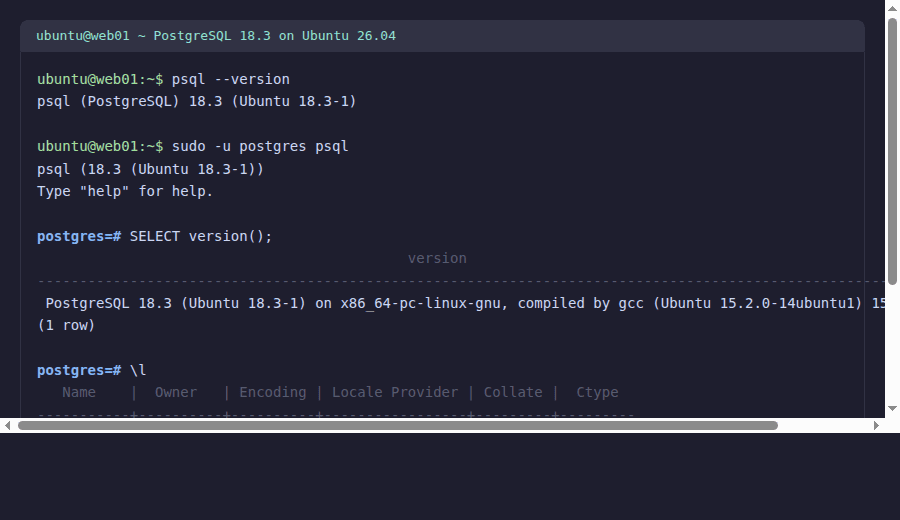
The installation creates a system user called postgres. Use it to access the database shell:
sudo -u postgres psqlOnce inside the psql shell, check the server version:
SELECT version();The server reports its full version string:
PostgreSQL 18.3 (Ubuntu 18.3-1) on x86_64-pc-linux-gnu, compiled by gcc (Ubuntu 15.2.0-14ubuntu1) 15.2.0, 64-bitType \q to exit the psql shell.
The server is running and accepting connections. Next, set up a database for your application.
Create a Database and User
For most applications, you’ll create a dedicated database and user instead of using the postgres superuser. Here’s how:
sudo -u postgres psql -c "CREATE USER appuser WITH PASSWORD 'StrongPassword123';"The role was created successfully:
CREATE ROLECreate a database owned by this user:
sudo -u postgres psql -c "CREATE DATABASE appdb OWNER appuser;"PostgreSQL confirms the database exists:
CREATE DATABASETest the connection with the new credentials:
PGPASSWORD=StrongPassword123 psql -h localhost -U appuser -d appdb -c "SELECT current_user, current_database();"Connection works with scram-sha-256 auth:
 current_user | current_database
--------------+------------------
 appuser      | appdb
(1 row)
The connection uses scram-sha-256 authentication, which is the default for host-based connections in PostgreSQL 18.
Configure Remote Access
By default, PostgreSQL only accepts connections from localhost. To allow connections from other machines on your network, two files need editing.
Open the main configuration file:
sudo vi /etc/postgresql/18/main/postgresql.confFind the listen_addresses line and change it to listen on all interfaces:
listen_addresses = '*'Next, edit the client authentication file to allow remote connections:
sudo vi /etc/postgresql/18/main/pg_hba.confAdd a line at the end to allow password authentication from your network. Replace 10.0.1.0/24 with your actual subnet:
# Allow remote connections from the local network
host    all    all    10.0.1.0/24    scram-sha-256
Restart PostgreSQL to apply the changes:
sudo systemctl restart postgresqlVerify PostgreSQL now listens on all interfaces:
ss -tlnp | grep 5432PostgreSQL now accepts connections on all interfaces:
LISTEN 0      200          0.0.0.0:5432      0.0.0.0:*
LISTEN 0      200             [::]:5432         [::]:*
Remote access is configured. Next, allow traffic through the firewall.
Open the Firewall
If UFW is active on your server, allow PostgreSQL traffic:
sudo ufw allow 5432/tcp comment 'PostgreSQL'
sudo ufw reload
For tighter security, restrict access to specific source IPs:
sudo ufw allow from 10.0.1.0/24 to any port 5432 proto tcp comment 'PostgreSQL from local network'With networking sorted out, the next step is tuning PostgreSQL for your hardware.
Basic Performance Tuning
The default PostgreSQL configuration is conservative. On a server with 4 GB of RAM, these adjustments make a noticeable difference:
sudo vi /etc/postgresql/18/main/postgresql.confAdjust these parameters:
# Memory
shared_buffers = 1GB                # 25% of total RAM
effective_cache_size = 3GB          # 75% of total RAM
work_mem = 16MB                     # Per-operation sort memory
maintenance_work_mem = 256MB        # For VACUUM, CREATE INDEX

# Write-Ahead Log
wal_buffers = 64MB
checkpoint_completion_target = 0.9

# Query Planner
random_page_cost = 1.1              # For SSD storage
effective_io_concurrency = 200      # For SSD storage

# Async I/O (new in PG18)
io_method = worker                  # Default; 'io_uring' on supported kernels
io_workers = 3
io_max_concurrency = 64

# Connections
max_connections = 200
These are starting points. Adjust shared_buffers and effective_cache_size based on your actual RAM. To validate your tuning choices with real numbers, check out our guide to monitoring PostgreSQL with Prometheus and Grafana. The async I/O settings (io_method, io_workers) are new in PostgreSQL 18 and control how the server handles disk reads and writes. On systems with io_uring kernel support, changing io_method to io_uring can reduce I/O latency for large workloads.
Restart to apply:
sudo systemctl restart postgresqlPostgreSQL applies the new memory and I/O settings after the restart.
Enable and Verify Automated Backups
At minimum, configure pg_dump on a cron schedule. For a database called appdb:
sudo -u postgres crontab -eAdd the following line to back up daily at 2 AM:
0 2 * * * pg_dump appdb | gzip > /var/lib/postgresql/backups/appdb_$(date +\%Y\%m\%d).sql.gzCreate the backup directory:
sudo mkdir -p /var/lib/postgresql/backups
sudo chown postgres:postgres /var/lib/postgresql/backups
For production databases, consider point-in-time recovery with WAL archiving for more granular backup capabilities.
Using the PGDG Repository (Optional)
Ubuntu 26.04’s native repository already ships PG 18.3. The PostgreSQL Global Development Group (PGDG) also maintains their own repository with the same version. The PGDG repo is useful if you need to:
- Install older PostgreSQL versions (10 through 17) alongside PG 18
- Get minor version updates slightly faster than the Ubuntu release cycle
- Install additional extensions not packaged by Ubuntu (for example, install pgvector for AI vector search)
To add the PGDG repo:
sudo apt install -y wget gnupg2
sudo sh -c 'echo "deb http://apt.postgresql.org/pub/repos/apt $(lsb_release -cs)-pgdg main" > /etc/apt/sources.list.d/pgdg.list'
curl -fsSL https://www.postgresql.org/media/keys/ACCC4CF8.asc | sudo gpg --dearmor -o /etc/apt/trusted.gpg.d/postgresql.gpg
sudo apt update
Check the available versions:
apt-cache policy postgresql-18Both repos carry the same version:
postgresql-18:
  Installed: 18.3-1
  Candidate: 18.3-1.pgdg26.04+2
  Version table:
     18.3-1.pgdg26.04+2 500
     18.3-1.pgdg26.04+1 500
 *** 18.3-1 500
Both repos ship 18.3. For most deployments on Ubuntu 26.04, the native package is fine.
PostgreSQL 18 Configuration Reference
Key configuration files on Ubuntu 26.04:
| File | Path | Purpose |
|---|---|---|
| Main config | /etc/postgresql/18/main/postgresql.conf | Server settings, memory, connections |
| Client auth | /etc/postgresql/18/main/pg_hba.conf | Who can connect and how |
| Data directory | /var/lib/postgresql/18/main | Database files |
| Log file | /var/log/postgresql/postgresql-18-main.log | Server logs |
| Service | [email protected] | systemd unit for this cluster |
What is the default authentication method in PostgreSQL 18?
PostgreSQL 18 on Ubuntu 26.04 uses peer authentication for local Unix socket connections and scram-sha-256 for TCP/IP connections. The older md5 method is no longer the default. SCRAM-SHA-256 is more secure because it never transmits the password hash over the network.
Does Ubuntu 26.04 need the PGDG repository for PostgreSQL 18?
No. Ubuntu 26.04 ships PostgreSQL 18.3 in its default repositories. The PGDG repo is only needed if you want to run multiple PostgreSQL versions side by side, need extensions not packaged by Ubuntu, or want minor updates before they reach the Ubuntu repos.
How do I check if PostgreSQL is using the new async I/O?
Run SHOW io_method; in psql. The default is worker, which uses background worker processes for I/O. On Linux kernels with io_uring support (5.1+), you can set it to io_uring for potentially better I/O throughput on heavy workloads.





