Managing two servers by hand is tedious. Managing twenty is a full-time job. Ansible playbooks turn that manual labor into repeatable, version-controlled automation that works the same way every time you run it.
This guide walks through writing your first Ansible playbook, starting with a simple hello-world and building up to a real Nginx deployment across Rocky Linux and Ubuntu nodes. You’ll see real output from actual test runs, learn how conditionals handle OS differences, prove idempotence with a second run, and debug the errors that tripped us up during testing. If you haven’t installed Ansible yet, start with our Ansible installation guide and come back here once ansible --version works on your control node. For a broader overview of how Ansible fits into infrastructure automation, see the introduction to Ansible automation. Every command and playbook here was run on Rocky Linux 10.1 and Ubuntu 24.04 (ansible-core 2.16, ansible.posix 2.1.0) and reviewed for July 2026; the same steps apply unchanged on Ubuntu 26.04, whose apt and Nginx packages are identical.
What Is an Ansible Playbook?
An Ansible playbook is a YAML file that describes the desired state of your servers and the ordered steps to reach it. Each playbook holds one or more plays, and each play runs a list of tasks against a group of hosts from your inventory. You run it with the ansible-playbook command, and Ansible connects to every target over SSH, applies only the changes that are missing, then reports exactly what it did.
Unlike a shell script, a playbook is declarative and idempotent. You state the end result you want (Nginx installed, port 8080 open, the service running) instead of the commands to get there, and running it twice does not repeat work that is already done. That is what makes playbooks safe to run on a schedule or inside CI.
Here is the smallest useful playbook, the kind of file you save as site.yml. It installs Nginx and starts the service on every host in the inventory:
---
- name: Install and start Nginx
  hosts: all
  become: true
  tasks:
    - name: Install Nginx
      ansible.builtin.package:
        name: nginx
        state: present

    - name: Start and enable Nginx
      ansible.builtin.service:
        name: nginx
        state: started
        enabled: true
You run a playbook with the ansible-playbook command, pointing it at your inventory:
ansible-playbook -i inventory.ini site.ymlThat is a complete, working playbook. The rest of this guide builds from this shape to a real multi-OS deployment with variables, conditionals, handlers, and self-verification, using two managed nodes so you learn to handle the OS differences that real infrastructure always has.
Prerequisites
To follow along, you need three machines (physical, virtual, or cloud instances):
- Control node: Rocky Linux 10 or Ubuntu 26.04/24.04 with ansible-core 2.16 or newer installed
- Managed node 1: Rocky Linux 10.1 (10.0.1.11)
- Managed node 2: Ubuntu 24.04 LTS (10.0.1.12)
- SSH key-based authentication from the control node to both managed nodes
- A user with
sudoprivileges on every managed node - Python 3.9+ on all three machines (Rocky 10 ships Python 3.12, Ubuntu 24.04 ships 3.12)
Using two different OS families is intentional. Real infrastructure is rarely homogeneous, and learning to handle OS differences in playbooks from the start saves headaches later.
Set Up Your Project Directory
Keep your playbooks organized from day one. A dedicated project directory with its own config and inventory prevents confusion when you have multiple Ansible projects.
mkdir -p ~/ansible-demo && cd ~/ansible-demoCreate a project-level Ansible configuration file. This overrides the global /etc/ansible/ansible.cfg for this directory only:
cat > ~/ansible-demo/ansible.cfg <<'CONF'
[defaults]
inventory = inventory.ini
remote_user = sysadmin
host_key_checking = False
retry_files_enabled = False

[privilege_escalation]
become = True
become_method = sudo
become_ask_pass = False
CONF
Here’s what each setting does:
inventory: points to our inventory file so we don’t need-ievery runremote_user: the SSH user Ansible connects as (change this to match your setup)host_key_checking = False: skips the SSH fingerprint prompt for new hosts. Fine for labs, not recommended in productionretry_files_enabled = False: stops Ansible from littering.retryfiles everywherebecome = True: runs tasks withsudoby default
Create the Inventory File
The inventory tells Ansible which hosts to manage and how to group them. For a deeper look at inventory patterns, see our Ansible inventory management guide.
cat > ~/ansible-demo/inventory.ini <<'INV'
[rocky_nodes]
managed-rocky ansible_host=10.0.1.11

[ubuntu_nodes]
managed-ubuntu ansible_host=10.0.1.12

[all:vars]
ansible_python_interpreter=/usr/bin/python3
INV
Two groups (rocky_nodes and ubuntu_nodes) let us target tasks at specific OS families. The all:vars section sets Python 3 as the interpreter for every host, which avoids the Python 2 deprecation warning on older systems.
Test Connectivity
Before writing any playbooks, verify Ansible can reach both managed nodes. The ping module tests SSH connectivity and Python availability in one shot. If you’re new to running one-off commands, our Ansible ad-hoc commands guide covers the details.
ansible all -m pingBoth hosts should return pong:
managed-rocky | SUCCESS => {
    "changed": false,
    "ping": "pong"
}
managed-ubuntu | SUCCESS => {
    "changed": false,
    "ping": "pong"
}
If either host fails, check SSH connectivity manually (ssh [email protected]) and confirm Python 3 is installed on the target.
Your First Playbook: Hello World
A playbook is a YAML file that describes the desired state of your systems. Each playbook contains one or more “plays,” and each play runs a list of tasks on a set of hosts. This first playbook is deliberately simple: gather facts about each host and print some information.
cat > ~/ansible-demo/hello.yml <<'YAML'
---
- name: Hello World playbook
  hosts: all
  gather_facts: true
  become: false

  tasks:
    - name: Print a greeting
      ansible.builtin.debug:
        msg: "Hello from {{ inventory_hostname }} running {{ ansible_distribution }} {{ ansible_distribution_version }}"

    - name: Show Python version on target
      ansible.builtin.command: python3 --version
      register: python_ver
      changed_when: false

    - name: Display Python version
      ansible.builtin.debug:
        msg: "{{ python_ver.stdout }}"
YAML
A few things to notice in this playbook:
hosts: alltargets every host in the inventorygather_facts: truecollects system info (OS, IP, memory, etc.) that we reference withansible_distributionregister: python_vercaptures the command output into a variablechanged_when: falsetells Ansible this command doesn’t change anything, so it always shows “ok” instead of “changed”- We use fully qualified collection names (
ansible.builtin.debug) which is the recommended practice since Ansible 2.10
Run it:
ansible-playbook hello.ymlThe output confirms both hosts responded and shows their OS and Python versions:
PLAY [Hello World playbook] ****************************************************

TASK [Gathering Facts] *********************************************************
ok: [managed-rocky]
ok: [managed-ubuntu]

TASK [Print a greeting] ********************************************************
ok: [managed-rocky] => {
    "msg": "Hello from managed-rocky running Rocky 10.1"
}
ok: [managed-ubuntu] => {
    "msg": "Hello from managed-ubuntu running Ubuntu 24.04"
}

TASK [Show Python version on target] *******************************************
ok: [managed-rocky]
ok: [managed-ubuntu]

TASK [Display Python version] **************************************************
ok: [managed-rocky] => {
    "msg": "Python 3.12.11"
}
ok: [managed-ubuntu] => {
    "msg": "Python 3.12.3"
}

PLAY RECAP *********************************************************************
managed-rocky              : ok=4    changed=0    unreachable=0    failed=0    skipped=0    rescued=0    ignored=0
managed-ubuntu             : ok=4    changed=0    unreachable=0    failed=0    skipped=0    rescued=0    ignored=0
Reading the PLAY RECAP
The PLAY RECAP at the bottom is the first thing to check after every run. Here’s what each counter means:
- ok: tasks that ran successfully (no changes needed or informational tasks)
- changed: tasks that modified something on the target
- unreachable: hosts Ansible couldn’t connect to via SSH
- failed: tasks that hit an error
- skipped: tasks that were skipped due to a
whencondition - rescued: tasks recovered by a
rescueblock - ignored: tasks that failed but had
ignore_errors: true
In our hello-world run, everything is ok=4 and changed=0 because we only read information without modifying anything.
A Real Playbook: Deploy Nginx Across Rocky Linux and Ubuntu
The hello-world proved the pipeline works. Now for something practical: deploying Nginx on both Rocky Linux and Ubuntu with a custom index page, a non-default port, firewall rules, and automated verification. This playbook demonstrates variables, conditionals, handlers, and multi-OS support, which covers about 80% of what you’ll need in real automation work.
cat > ~/ansible-demo/deploy-nginx.yml <<'YAML'
---
- name: Deploy Nginx on Rocky Linux and Ubuntu
  hosts: all
  gather_facts: true

  vars:
    nginx_port: 8080
    site_title: "Deployed by Ansible"

  handlers:
    - name: Restart Nginx
      ansible.builtin.service:
        name: nginx
        state: restarted

  tasks:
    # --- Pre-flight: ensure firewall Python bindings on RHEL ---
    - name: Install firewall Python bindings (RHEL family)
      ansible.builtin.dnf:
        name: python3-firewall
        state: present
      when: ansible_os_family == "RedHat"

    # --- Install Nginx ---
    - name: Install Nginx (RHEL family)
      ansible.builtin.dnf:
        name: nginx
        state: present
      when: ansible_os_family == "RedHat"

    - name: Install Nginx (Debian family)
      ansible.builtin.apt:
        name: nginx
        state: present
        update_cache: true
      when: ansible_os_family == "Debian"

    # --- Configure ---
    - name: Create custom index page
      ansible.builtin.copy:
        dest: /usr/share/nginx/html/index.html
        content: |


          {{ site_title }}

          {{ site_title }}
          Running on {{ inventory_hostname }} ({{ ansible_distribution }} {{ ansible_distribution_version }})
          Served on port {{ nginx_port }}


        owner: root
        group: root
        mode: "0644"
      notify: Restart Nginx

    - name: Configure Nginx to listen on custom port (RHEL)
      ansible.builtin.copy:
        dest: /etc/nginx/conf.d/custom.conf
        content: |
          server {
              listen {{ nginx_port }};
              server_name _;
              root /usr/share/nginx/html;
              index index.html;
          }
        owner: root
        group: root
        mode: "0644"
      when: ansible_os_family == "RedHat"
      notify: Restart Nginx

    - name: Configure Nginx to listen on custom port (Debian)
      ansible.builtin.copy:
        dest: /etc/nginx/sites-available/custom
        content: |
          server {
              listen {{ nginx_port }};
              server_name _;
              root /usr/share/nginx/html;
              index index.html;
          }
        owner: root
        group: root
        mode: "0644"
      when: ansible_os_family == "Debian"
      notify: Restart Nginx

    - name: Remove default Nginx site (Debian)
      ansible.builtin.file:
        path: /etc/nginx/sites-enabled/default
        state: absent
      when: ansible_os_family == "Debian"
      notify: Restart Nginx

    # --- Firewall ---
    - name: Open firewall port (RHEL family)
      ansible.posix.firewalld:
        port: "{{ nginx_port }}/tcp"
        permanent: true
        immediate: true
        state: enabled
      when: ansible_os_family == "RedHat"

    # --- Service ---
    - name: Start and enable Nginx
      ansible.builtin.service:
        name: nginx
        state: started
        enabled: true

    # --- Flush handlers before verification ---
    - name: Flush handlers to apply config changes
      ansible.builtin.meta: flush_handlers

    # --- Verify ---
    - name: Verify Nginx is serving content
      ansible.builtin.uri:
        url: "http://localhost:{{ nginx_port }}"
        return_content: false
        status_code: 200
      register: nginx_check

    - name: Show response status
      ansible.builtin.debug:
        msg: "HTTP {{ nginx_check.status }} - Nginx is responding on port {{ nginx_port }}"
YAML
This playbook packs a lot in. Let’s break down the key concepts before running it.
Variables (vars) define nginx_port and site_title at the top. Changing the port is a one-line edit, not a search-and-replace across the file. For sensitive variables like database passwords, you’d use Ansible Vault instead of plaintext vars.
Conditionals (when: ansible_os_family == "RedHat") let a single playbook handle both OS families. Ansible gathers the ansible_os_family fact automatically during the “Gathering Facts” phase. Tasks that don’t match the condition get skipped.
Handlers are tasks that only run when notified. The notify: Restart Nginx on config tasks ensures Nginx restarts once after all changes, not after each individual change. The meta: flush_handlers forces handlers to run before verification so we test the final configuration.
The uri module makes an HTTP request from each managed node to its own localhost. If the status code isn’t 200, the task fails, which tells you immediately that something went wrong.
Run the Deployment
Execute the playbook:
ansible-playbook deploy-nginx.ymlWatch the output carefully. Notice how tasks get skipped on the OS they don’t apply to:
PLAY [Deploy Nginx on Rocky Linux and Ubuntu] **********************************

TASK [Gathering Facts] *********************************************************
ok: [managed-rocky]
ok: [managed-ubuntu]

TASK [Install firewall Python bindings (RHEL family)] **************************
skipping: [managed-ubuntu]
ok: [managed-rocky]

TASK [Install Nginx (RHEL family)] *********************************************
skipping: [managed-ubuntu]
changed: [managed-rocky]

TASK [Install Nginx (Debian family)] *******************************************
skipping: [managed-rocky]
changed: [managed-ubuntu]

TASK [Create custom index page] ************************************************
changed: [managed-rocky]
changed: [managed-ubuntu]

TASK [Configure Nginx to listen on custom port (RHEL)] *************************
skipping: [managed-ubuntu]
changed: [managed-rocky]

TASK [Configure Nginx to listen on custom port (Debian)] ***********************
skipping: [managed-rocky]
changed: [managed-ubuntu]

TASK [Remove default Nginx site (Debian)] **************************************
skipping: [managed-rocky]
changed: [managed-ubuntu]

TASK [Open firewall port (RHEL family)] ****************************************
skipping: [managed-ubuntu]
ok: [managed-rocky]

TASK [Start and enable Nginx] **************************************************
ok: [managed-ubuntu]
changed: [managed-rocky]

TASK [Flush handlers to apply config changes] **********************************

RUNNING HANDLER [Restart Nginx] ************************************************
changed: [managed-rocky]
changed: [managed-ubuntu]

TASK [Verify Nginx is serving content] *****************************************
ok: [managed-rocky]
ok: [managed-ubuntu]

TASK [Show response status] ****************************************************
ok: [managed-rocky] => {
    "msg": "HTTP 200 - Nginx is responding on port 8080"
}
ok: [managed-ubuntu] => {
    "msg": "HTTP 200 - Nginx is responding on port 8080"
}

PLAY RECAP *********************************************************************
managed-rocky              : ok=10   changed=5    unreachable=0    failed=0    skipped=3    rescued=0    ignored=0
managed-ubuntu             : ok=9    changed=5    unreachable=0    failed=0    skipped=4    rescued=0    ignored=0
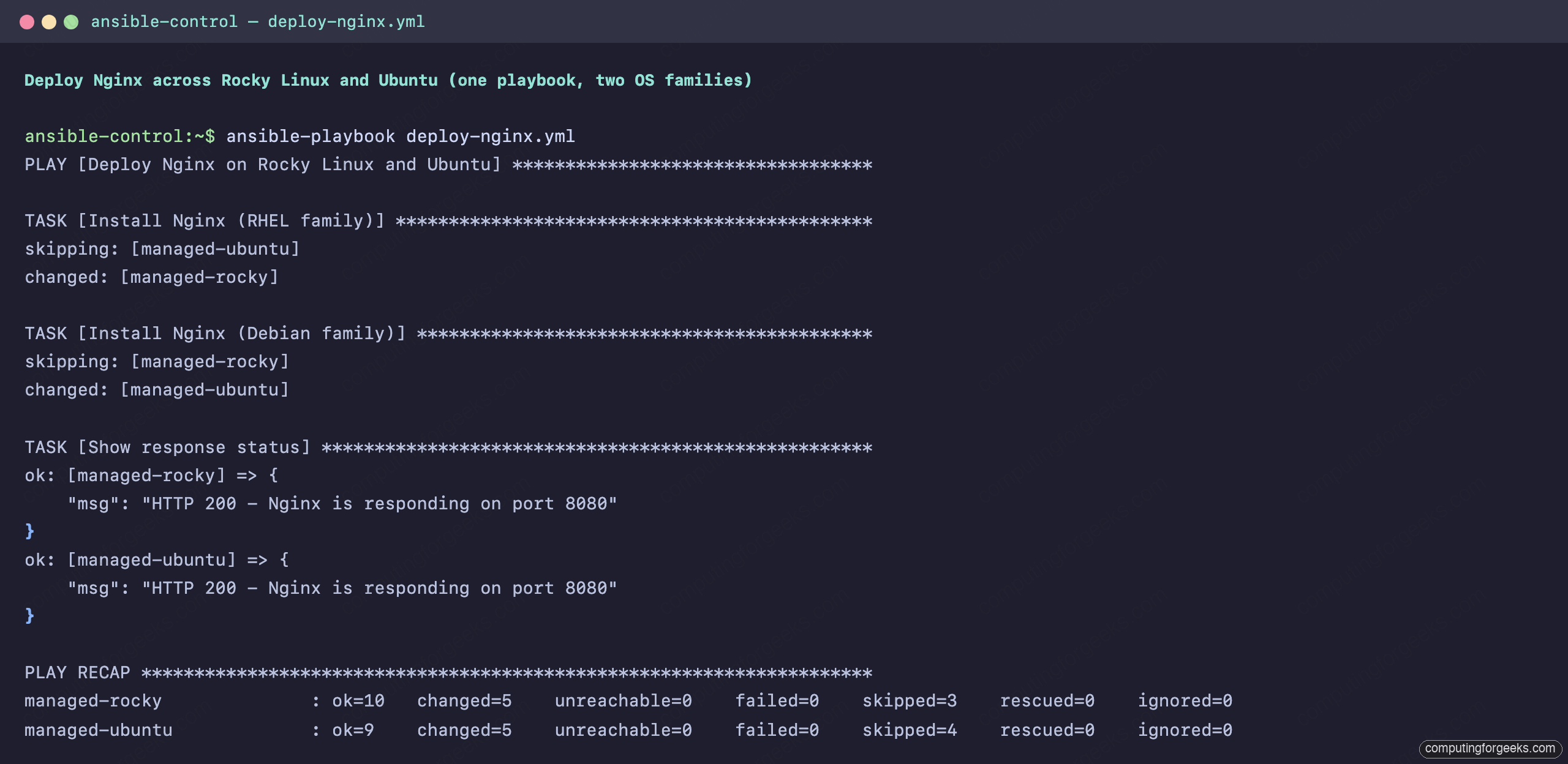
Rocky has ok=10, changed=5, skipped=3 while Ubuntu shows ok=9, changed=5, skipped=4. The difference in skip counts comes from Ubuntu not needing the firewall Python bindings task or the RHEL-specific config tasks, and Rocky not needing the Debian config tasks or the default site removal.
Here is that run on the two managed nodes, with the per-task skip and change lines and the final recap:
Run It Again: Proving Idempotence
Idempotence means running the same playbook twice produces the same end state without making unnecessary changes. This is one of Ansible’s core strengths. A well-written playbook checks the current state before acting, so if Nginx is already installed and configured, it does nothing.
Run the exact same playbook a second time:
ansible-playbook deploy-nginx.ymlThe PLAY RECAP now shows zero changes across both hosts:
PLAY RECAP *********************************************************************
managed-rocky              : ok=9    changed=0    unreachable=0    failed=0    skipped=3    rescued=0    ignored=0
managed-ubuntu             : ok=8    changed=0    unreachable=0    failed=0    skipped=4    rescued=0    ignored=0
changed=0 on both hosts. Every module checked the current state, found it already matched the desired state, and reported “ok” without touching anything. This matters in production because you can run playbooks on a schedule or as part of CI/CD without worrying about unintended side effects. If someone manually changes a config file on the server, the next playbook run corrects the drift automatically.
The second run makes it visible. Every counter reads changed=0:

What Happens When Things Fail
The clean output above hides the errors we hit during testing. Failures are inevitable, especially when working with community collections and multiple OS families. Knowing how to read error output and use verbosity flags will save you hours.
Verbosity Flags for Debugging
Ansible has four verbosity levels. Each adds more detail to the output:
-v: shows task return values (stdout, stderr, return codes)-vv: adds connection details and task file paths-vvv: shows SSH commands and full module arguments-vvvv: adds connection plugin debugging (useful for SSH issues)
With -v, each task shows its full return data:
ansible-playbook hello.yml -vThe return values reveal details hidden in normal output:
ok: [managed-rocky] => {"changed": false, "cmd": ["python3", "--version"], "delta": "0:00:00.002544", "end": "2026-04-06 13:22:20.047948", "msg": "", "rc": 0, "start": "2026-04-06 13:22:20.045404", "stderr": "", "stderr_lines": [], "stdout": "Python 3.12.11", "stdout_lines": ["Python 3.12.11"]}You can see the return code (rc: 0), execution time (delta), and both stdout and stderr. When a task fails, stderr and msg usually contain the clue you need.
Troubleshooting
These are real errors from our test environment, not hypothetical scenarios. Each one stopped the playbook until we fixed it.
Error: “couldn’t resolve module/action ‘ansible.posix.firewalld'”
The full error message:
ERROR! couldn't resolve module/action 'ansible.posix.firewalld'. This often indicates a misspelling, missing collection, or incorrect module path.This means the ansible.posix collection isn’t installed on your control node. Ansible core ships with ansible.builtin modules only. Community modules like firewalld live in separate collections.
Install the collection:
ansible-galaxy collection install ansible.posixVerify it’s available:
ansible-galaxy collection list | grep posixYou should see ansible.posix with a version number (we tested with 2.1.0).
Error: “Failed to import the required Python library (firewall)”
The full error:
fatal: [managed-rocky]: FAILED! => {"changed": false, "msg": "Failed to import the required Python library (firewall) on managed-rocky's Python /usr/bin/python3. Please read the module documentation and install it in the appropriate location."}The ansible.posix.firewalld module needs the python3-firewall package on the managed node, not just on the control node. This catches most people the first time they use firewalld with Ansible.
Fix it by installing the package on the Rocky node:
ansible rocky_nodes -m dnf -a "name=python3-firewall state=present"Our playbook already handles this in the “Install firewall Python bindings” task, which runs before any firewall rules. That’s the benefit of failing first: you learn what prerequisites to bake into the playbook.
Error: “INVALID_ZONE: Zone ‘block’ is not available”
The full error:
firewall.errors.FirewallError: INVALID_ZONE: Zone 'block' is not available.This happens when firewalld isn’t running on the managed node. The zones don’t exist until the service starts.
Start and enable firewalld:
ansible rocky_nodes -m service -a "name=firewalld state=started enabled=true"If your Rocky Linux 10 node has firewalld installed but stopped, this brings it up. In a production playbook, you’d add a task to ensure firewalld is running before attempting any firewall rule changes.
Error: “No package matching ‘nginx’ found available”
On a minimal Rocky Linux install, the epel-release repository may not be enabled. Nginx lives in EPEL on RHEL-family systems. Fix it by adding an early task:
- name: Enable EPEL repository (RHEL family)
  ansible.builtin.dnf:
    name: epel-release
    state: present
  when: ansible_os_family == "RedHat"
Rocky Linux 10.1 includes Nginx in the AppStream repository, so you may not hit this error. But on minimal installs or older RHEL versions, EPEL is required.
Playbook Structure Reference
Now that you’ve seen a working playbook, here’s a quick reference for the YAML structure. Every playbook follows this hierarchy:
---                              # YAML document start
- name: Play name                # Play (targets a group of hosts)
  hosts: all                     # Which inventory hosts/groups
  gather_facts: true             # Collect system info?
  become: true                   # Use sudo?

  vars:                          # Variables for this play
    key: value

  handlers:                      # Tasks triggered by 'notify'
    - name: Handler name
      ansible.builtin.service:
        name: nginx
        state: restarted

  tasks:                         # Ordered list of tasks
    - name: Task name            # Human-readable task description
      ansible.builtin.module:    # Module to execute
        param: value             # Module parameters
      when: condition            # Optional conditional
      register: varname          # Optional: capture output
      notify: Handler name       # Optional: trigger handler
Tasks run in order, top to bottom. If a task fails, Ansible stops execution on that host (remaining hosts continue). Handlers run after all tasks complete, or when explicitly flushed.
Common Modules You’ll Use
The Nginx playbook used several core modules. Here are the ones you’ll reach for most often when writing playbooks:
| Module | Purpose | Example Use |
|---|---|---|
ansible.builtin.dnf | Package management on RHEL family | Install/remove/update RPM packages |
ansible.builtin.apt | Package management on Debian family | Install/remove/update DEB packages |
ansible.builtin.copy | Copy content or files to remote hosts | Deploy config files, HTML pages |
ansible.builtin.template | Deploy Jinja2 templates | Dynamic config files with variables |
ansible.builtin.service | Manage systemd services | Start, stop, enable, restart services |
ansible.builtin.file | Manage files and directories | Create dirs, set permissions, remove files |
ansible.builtin.command | Run arbitrary commands | Commands that have no dedicated module |
ansible.builtin.uri | HTTP requests | Health checks, API calls |
ansible.builtin.debug | Print variables and messages | Debugging, status output |
ansible.posix.firewalld | Manage firewalld rules | Open ports on RHEL family systems |
The official Ansible built-in module index has the complete list with all parameters.
Tips From Production Use
After running Ansible in production for years, a few patterns come up repeatedly:
Always use changed_when with command and shell modules. These modules report “changed” on every run by default because Ansible can’t know if the command modified anything. Set changed_when: false for read-only commands, or write a condition like changed_when: "'already exists' not in result.stdout" for commands that are idempotent but don’t signal it.
Use ansible.builtin.package instead of dnf/apt when possible. The package module auto-detects the OS package manager, which simplifies multi-OS playbooks. It doesn’t support all parameters of dnf and apt, but for basic install/remove operations, it eliminates the need for when conditions. Our Nginx playbook uses OS-specific modules because we need update_cache on Ubuntu, which package doesn’t support.
Group your tasks logically. Use comments or Ansible roles to separate installation, configuration, and verification phases. When a playbook grows beyond 50 tasks, split it into roles. Our guide to managing Docker containers with Ansible shows role-based organization in practice.
Test with --check mode first. Running ansible-playbook deploy-nginx.yml --check shows what would change without actually changing it. Not every module supports check mode, but most built-in ones do.
For managing users and permissions across your fleet, see the managing users and groups with Ansible guide. If you need to automate database setup alongside your applications, the PostgreSQL management with Ansible tutorial walks through database creation, user roles, and schema deployment.
Where to Go From Here
You’ve written a working playbook that handles two OS families, manages packages, configs, firewall rules, services, and self-verifies. That covers the foundation. The next concepts to learn depend on what you’re automating:
- Roles break large playbooks into reusable components. Once your deploy playbook hits 100+ lines, roles keep it maintainable
- Templates (Jinja2) generate config files dynamically, which is more flexible than the
copymodule with inline content - Ansible Vault encrypts sensitive data like passwords and API keys. The Vault cheat sheet covers the commands you’ll need
- ansible-lint catches common mistakes and enforces best practices before you run playbooks on real infrastructure
The official Ansible playbook documentation is worth reading through once you’re comfortable with the basics covered here. For Debian-based control nodes, our Ansible installation on Debian guide covers the setup process.