

Windows Server 2022 remains widely deployed in production environments, and many organizations will stick with it for years to come. If you run Proxmox VE as your hypervisor, building a reusable Server 2022 template saves significant time. Instead of clicking through the installer every time you need a test VM, you clone the template and boot straight to a working desktop in under two minutes.
This guide covers the full process of creating a Windows Server 2022 template on Proxmox VE with VirtIO drivers, QEMU guest agent, OpenSSH, and Cloudbase-Init pre-installed. The installation is fully automated through an unattended answer file, so no manual interaction is needed during setup. If you need a Server 2025 template instead, check out the Windows Server 2025 template guide for Proxmox.
Prerequisites
- Proxmox VE 8.x host with at least 100GB free storage
- Internet access on the Proxmox host (to download ISOs)
- Minimum resources for the template VM: 4 CPU cores, 8GB RAM, 64GB disk
- Root SSH access to the Proxmox node
Step 1: Download the Required ISOs
You need two ISOs: the Windows Server 2022 evaluation media and the VirtIO drivers. The VirtIO drivers provide paravirtualized storage, network, and display support that dramatically outperforms emulated hardware under KVM.
SSH into your Proxmox node and download the Windows Server 2022 evaluation ISO from Microsoft.
cd /var/lib/vz/template/iso/
wget -O windows-server-2022-eval.iso 'https://go.microsoft.com/fwlink/p/?LinkID=2195280&clcid=0x409&culture=en-us&country=us'
The evaluation ISO is about 4.7GB and provides a 180-day trial with both Standard and Datacenter editions included.
Download the VirtIO drivers ISO from the Fedora project.
wget -O virtio-win.iso 'https://fedorapeople.org/groups/virt/virtio-win/direct-downloads/stable-virtio/virtio-win.iso'Verify both files downloaded completely.
ls -lh /var/lib/vz/template/iso/ | grep -E "windows|virtio"You should see both files with their full sizes.
-rw-r--r-- 1 root root 754M Sep 12  2025 virtio-win.iso
-rw-r--r-- 1 root root 4.7G Mar 16  2022 windows-server-2022-eval.iso
Step 2: Create the Autounattend Answer File
An unattended answer file tells the Windows installer exactly what to do: which edition to install, how to partition the disk, which drivers to load, and what password to set. The installer picks up the file automatically from any attached CD drive.
Create a directory for the answer file.
mkdir -p /tmp/winunattendCreate the XML answer file. Note that Server 2022 uses 2k22 for the VirtIO driver folder paths, and the evaluation ISO works with image index selection rather than product keys.
vi /tmp/winunattend/autounattend.xmlAdd the following content. Replace YOUR_PASSWORD in both places with your desired Administrator password.
<?xml version="1.0" encoding="utf-8"?>
<unattend xmlns="urn:schemas-microsoft-com:unattend" xmlns:wcm="http://schemas.microsoft.com/WMIConfig/2002/State">

  <settings pass="windowsPE">
    <component name="Microsoft-Windows-International-Core-WinPE" processorArchitecture="amd64" publicKeyToken="31bf3856ad364e35" language="neutral" versionScope="nonSxS">
      <SetupUILanguage>
        <UILanguage>en-US</UILanguage>
      </SetupUILanguage>
      <InputLocale>en-US</InputLocale>
      <SystemLocale>en-US</SystemLocale>
      <UILanguage>en-US</UILanguage>
      <UserLocale>en-US</UserLocale>
    </component>

    <component name="Microsoft-Windows-PnpCustomizationsWinPE" processorArchitecture="amd64" publicKeyToken="31bf3856ad364e35" language="neutral" versionScope="nonSxS">
      <DriverPaths>
        <PathAndCredentials wcm:action="add" wcm:keyValue="1">
          <Path>E:\vioscsi\2k22\amd64</Path>
        </PathAndCredentials>
        <PathAndCredentials wcm:action="add" wcm:keyValue="2">
          <Path>E:\NetKVM\2k22\amd64</Path>
        </PathAndCredentials>
        <PathAndCredentials wcm:action="add" wcm:keyValue="3">
          <Path>E:\viostor\2k22\amd64</Path>
        </PathAndCredentials>
        <PathAndCredentials wcm:action="add" wcm:keyValue="4">
          <Path>E:\qxldod\2k22\amd64</Path>
        </PathAndCredentials>
        <PathAndCredentials wcm:action="add" wcm:keyValue="5">
          <Path>E:\Balloon\2k22\amd64</Path>
        </PathAndCredentials>
        <PathAndCredentials wcm:action="add" wcm:keyValue="6">
          <Path>E:\vioserial\2k22\amd64</Path>
        </PathAndCredentials>
      </DriverPaths>
    </component>

    <component name="Microsoft-Windows-Setup" processorArchitecture="amd64" publicKeyToken="31bf3856ad364e35" language="neutral" versionScope="nonSxS">
      <DiskConfiguration>
        <Disk wcm:action="add">
          <DiskID>0</DiskID>
          <WillWipeDisk>true</WillWipeDisk>
          <CreatePartitions>
            <CreatePartition wcm:action="add">
              <Order>1</Order>
              <Size>100</Size>
              <Type>EFI</Type>
            </CreatePartition>
            <CreatePartition wcm:action="add">
              <Order>2</Order>
              <Size>16</Size>
              <Type>MSR</Type>
            </CreatePartition>
            <CreatePartition wcm:action="add">
              <Order>3</Order>
              <Extend>true</Extend>
              <Type>Primary</Type>
            </CreatePartition>
          </CreatePartitions>
          <ModifyPartitions>
            <ModifyPartition wcm:action="add">
              <Order>1</Order>
              <PartitionID>1</PartitionID>
              <Format>FAT32</Format>
              <Label>EFI</Label>
            </ModifyPartition>
            <ModifyPartition wcm:action="add">
              <Order>2</Order>
              <PartitionID>2</PartitionID>
            </ModifyPartition>
            <ModifyPartition wcm:action="add">
              <Order>3</Order>
              <PartitionID>3</PartitionID>
              <Format>NTFS</Format>
              <Label>Windows</Label>
            </ModifyPartition>
          </ModifyPartitions>
        </Disk>
      </DiskConfiguration>
      <ImageInstall>
        <OSImage>
          <InstallTo>
            <DiskID>0</DiskID>
            <PartitionID>3</PartitionID>
          </InstallTo>
          <InstallFrom>
            <MetaData wcm:action="add">
              <Key>/IMAGE/INDEX</Key>
              <Value>2</Value>
            </MetaData>
          </InstallFrom>
        </OSImage>
      </ImageInstall>
      <UserData>
        <AcceptEula>true</AcceptEula>
      </UserData>
    </component>
  </settings>

  <settings pass="specialize">
    <component name="Microsoft-Windows-Shell-Setup" processorArchitecture="amd64" publicKeyToken="31bf3856ad364e35" language="neutral" versionScope="nonSxS">
      <ComputerName>WIN2022-TPL</ComputerName>
      <TimeZone>UTC</TimeZone>
    </component>
    <component name="Microsoft-Windows-TerminalServices-LocalSessionManager" processorArchitecture="amd64" publicKeyToken="31bf3856ad364e35" language="neutral" versionScope="nonSxS">
      <fDenyTSConnections>false</fDenyTSConnections>
    </component>
    <component name="Networking-MPSSVC-Svc" processorArchitecture="amd64" publicKeyToken="31bf3856ad364e35" language="neutral" versionScope="nonSxS">
      <FirewallGroups>
        <FirewallGroup wcm:action="add" wcm:keyValue="RemoteDesktop">
          <Active>true</Active>
          <Group>Remote Desktop</Group>
          <Profile>all</Profile>
        </FirewallGroup>
      </FirewallGroups>
    </component>
  </settings>

  <settings pass="oobeSystem">
    <component name="Microsoft-Windows-Shell-Setup" processorArchitecture="amd64" publicKeyToken="31bf3856ad364e35" language="neutral" versionScope="nonSxS">
      <OOBE>
        <HideEULAPage>true</HideEULAPage>
        <HideLocalAccountScreen>true</HideLocalAccountScreen>
        <HideOEMRegistrationScreen>true</HideOEMRegistrationScreen>
        <HideOnlineAccountScreens>true</HideOnlineAccountScreens>
        <HideWirelessSetupInOOBE>true</HideWirelessSetupInOOBE>
        <ProtectYourPC>3</ProtectYourPC>
        <SkipMachineOOBE>true</SkipMachineOOBE>
        <SkipUserOOBE>true</SkipUserOOBE>
      </OOBE>
      <UserAccounts>
        <AdministratorPassword>
          <Value>YOUR_PASSWORD</Value>
          <PlainText>true</PlainText>
        </AdministratorPassword>
      </UserAccounts>
      <AutoLogon>
        <Enabled>true</Enabled>
        <Username>Administrator</Username>
        <Password>
          <Value>YOUR_PASSWORD</Value>
          <PlainText>true</PlainText>
        </Password>
        <LogonCount>1</LogonCount>
      </AutoLogon>
    </component>
    <component name="Microsoft-Windows-International-Core" processorArchitecture="amd64" publicKeyToken="31bf3856ad364e35" language="neutral" versionScope="nonSxS">
      <InputLocale>en-US</InputLocale>
      <SystemLocale>en-US</SystemLocale>
      <UILanguage>en-US</UILanguage>
      <UserLocale>en-US</UserLocale>
    </component>
  </settings>
</unattend>
Two key differences from a Server 2025 answer file. First, the VirtIO driver paths use 2k22 instead of 2k25. Second, the image selection uses IMAGE/INDEX with value 2 (which corresponds to Standard Evaluation with Desktop Experience) rather than specifying the edition by name. The Server 2022 evaluation ISO does not require a product key in the answer file.
Package the answer file into an ISO.
genisoimage -o /var/lib/vz/template/iso/autounattend.iso -J -r /tmp/winunattend/Step 3: Create the Proxmox VM
Windows Server 2022 supports UEFI boot with Secure Boot and TPM 2.0, just like Server 2025. The VM settings are identical between versions.
qm create 900 \
  --name win2022-template \
  --ostype win11 \
  --machine q35 \
  --bios ovmf \
  --efidisk0 local-lvm:1,efitype=4m,pre-enrolled-keys=1 \
  --tpmstate0 local-lvm:1,version=v2.0 \
  --cpu host \
  --cores 4 \
  --memory 8192 \
  --balloon 0 \
  --scsihw virtio-scsi-single \
  --scsi0 local-lvm:64,iothread=1,discard=on \
  --ide0 local:iso/windows-server-2022-eval.iso,media=cdrom \
  --ide1 local:iso/autounattend.iso,media=cdrom \
  --ide2 local:iso/virtio-win.iso,media=cdrom \
  --net0 virtio,bridge=vmbr0 \
  --boot order='ide0;scsi0' \
  --agent enabled=1 \
  --vga qxl
The --ostype win11 setting works for Server 2022 as well because it enables the same Hyper-V enlightenments and ACPI optimizations. The --agent enabled=1 flag creates the virtio-serial channel needed for the QEMU guest agent to communicate with Proxmox.
Step 4: Install Windows Server 2022
Start the VM and send a keypress to boot from the CD. The UEFI firmware shows a brief “Press any key to boot from CD or DVD” prompt that times out in about 5 seconds.
qm start 900
sleep 5
for i in $(seq 1 10); do
  pvesh create /nodes/$(hostname)/qemu/900/monitor --command 'sendkey ret' 2>/dev/null
  sleep 1
done
The autounattend file handles everything from here. It loads VirtIO drivers, partitions the disk, installs the Desktop Experience edition, sets the Administrator password, and enables Remote Desktop. The entire installation runs unattended and takes 15 to 20 minutes.
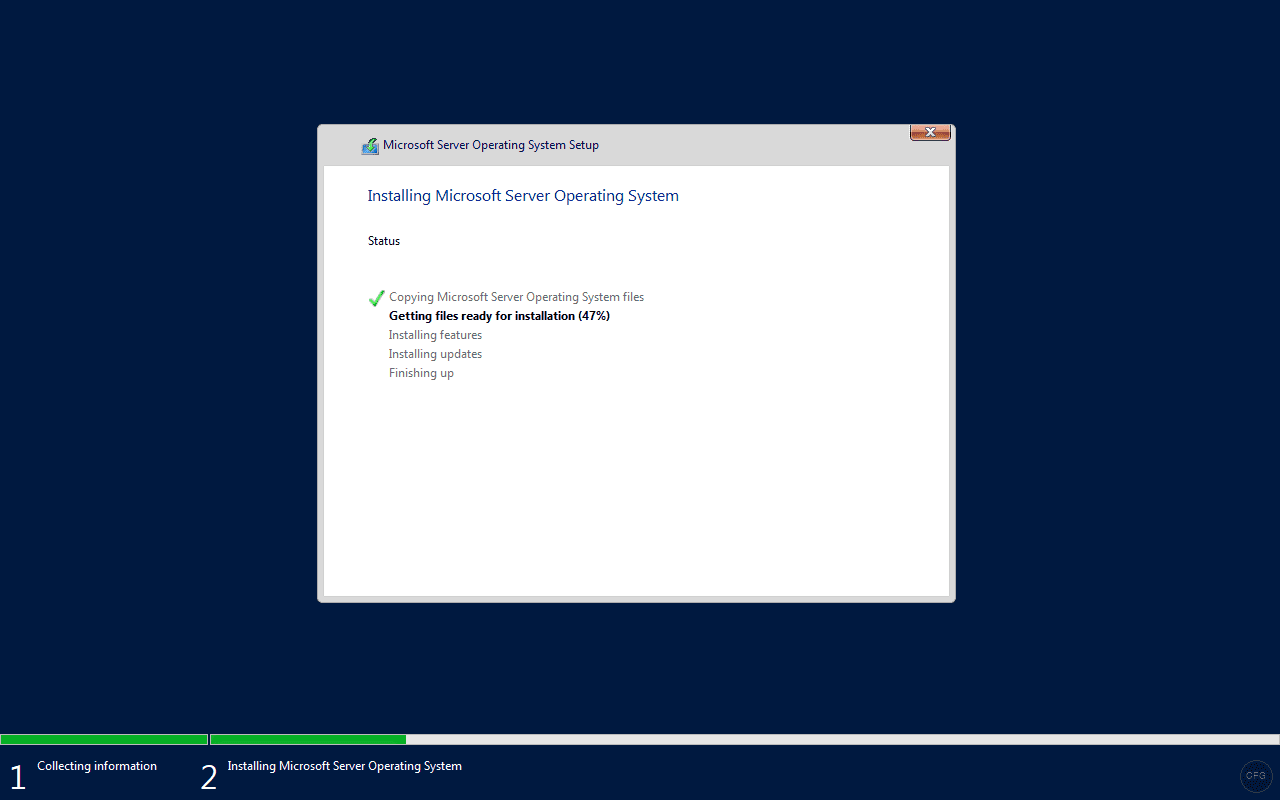
You can monitor progress by capturing console screenshots from the Proxmox host.
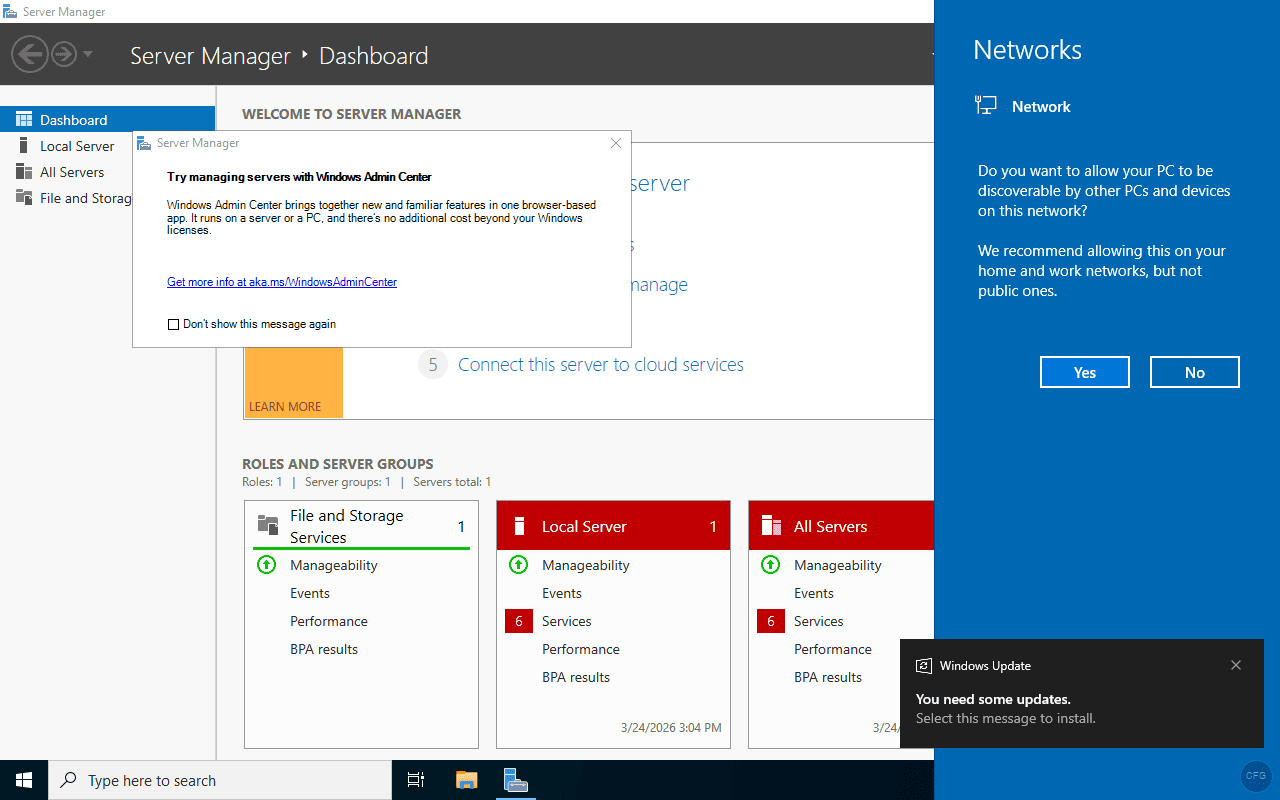
pvesh create /nodes/$(hostname)/qemu/900/monitor --command 'screendump /tmp/vm-screen.ppm'When the installation is complete, Server Manager opens automatically on the desktop.
Step 5: Install VirtIO Guest Tools and QEMU Agent
The autounattend loaded the basic VirtIO drivers during installation, but the guest tools package and QEMU agent need to be installed separately for full Proxmox integration. Connect to the VM via RDP or the Proxmox console.
Open an elevated Command Prompt and install the VirtIO guest tools from the mounted VirtIO CD (drive E:).
msiexec /i E:\virtio-win-gt-x64.msi /quiet /norestartInstall the QEMU guest agent, which enables Proxmox to query the VM’s IP address, execute commands, and perform graceful shutdowns.
msiexec /i "E:\guest-agent\qemu-ga-x86_64.msi" /quiet /norestartReboot to activate all drivers and services.
shutdown /r /t 0After the reboot, verify the guest agent works from the Proxmox host.
qm agent 900 pingA silent return with no error means the agent is responding. You can also query network interfaces to confirm.
qm agent 900 network-get-interfacesStep 6: Enable OpenSSH Server
Windows Server 2022 includes OpenSSH as an optional feature. Enabling it lets you manage cloned VMs over SSH without needing RDP or the console. Open PowerShell and install the feature.
Add-WindowsCapability -Online -Name OpenSSH.Server~~~~0.0.1.0Start and enable the SSH service.
Start-Service sshd
Set-Service -Name sshd -StartupType Automatic
Add a firewall rule for SSH.
New-NetFirewallRule -Name sshd -DisplayName 'OpenSSH Server' -Enabled True -Direction Inbound -Protocol TCP -Action Allow -LocalPort 22Windows OpenSSH has a special override for administrator accounts that blocks password authentication. To fix this, comment out the override in the SSH config.
$config = Get-Content "C:\ProgramData\ssh\sshd_config"
$config = $config -replace "^Match Group administrators", "#Match Group administrators"
$config = $config -replace "^\s*AuthorizedKeysFile __PROGRAMDATA__", "#AuthorizedKeysFile __PROGRAMDATA__"
Set-Content "C:\ProgramData\ssh\sshd_config" $config
Restart-Service sshd
Step 7: Install Cloudbase-Init
Cloudbase-Init is the Windows equivalent of cloud-init. When installed in a template, it reads metadata from Proxmox’s cloud-init drive on first boot and applies hostname, network, and user configuration to each clone automatically.
Download and install Cloudbase-Init from PowerShell.
Invoke-WebRequest -Uri "https://github.com/cloudbase/cloudbase-init/releases/download/1.1.6/CloudbaseInitSetup_1_1_6_x64.msi" -OutFile "C:\Users\Administrator\Downloads\CloudbaseInit.msi" -UseBasicParsing
Start-Process msiexec.exe -ArgumentList '/i','C:\Users\Administrator\Downloads\CloudbaseInit.msi','/quiet','/norestart' -Wait
Verify the service was installed.
Get-Service cloudbase-initThe service should show as Stopped with Automatic start type. It will activate on the next boot after sysprep.
Configure Cloudbase-Init for Proxmox
The default configuration uses ConfigDrive as the metadata service, but Proxmox generates cloud-init data in NoCloud format. Update the main configuration file to use the correct service.
notepad "C:\Program Files\Cloudbase Solutions\Cloudbase-Init\conf\cloudbase-init.conf"Replace the contents with the following configuration. The key setting is metadata_services pointing to NoCloudConfigDriveService.
[DEFAULT]
username=Administrator
groups=Administrators
inject_user_password=true
first_logon_behaviour=no
config_drive_raw_hhd=true
config_drive_cdrom=true
config_drive_vfat=true
bsdtar_path=C:\Program Files\Cloudbase Solutions\Cloudbase-Init\bin\bsdtar.exe
mtools_path=C:\Program Files\Cloudbase Solutions\Cloudbase-Init\bin\
verbose=true
debug=true
log_dir=C:\Program Files\Cloudbase Solutions\Cloudbase-Init\log\
log_file=cloudbase-init.log
default_log_levels=comtypes=INFO,suds=INFO,iso8601=WARN,requests=WARN
logging_serial_port_settings=
mtu_use_dhcp_config=true
ntp_use_dhcp_config=true
local_scripts_path=C:\Program Files\Cloudbase Solutions\Cloudbase-Init\LocalScripts\
check_latest_version=false
metadata_services=cloudbaseinit.metadata.services.nocloudservice.NoCloudConfigDriveService
plugins=cloudbaseinit.plugins.common.mtu.MTUPlugin,cloudbaseinit.plugins.common.sethostname.SetHostNamePlugin,cloudbaseinit.plugins.windows.createuser.CreateUserPlugin,cloudbaseinit.plugins.common.setuserpassword.SetUserPasswordPlugin,cloudbaseinit.plugins.common.localscripts.LocalScriptsPlugin,cloudbaseinit.plugins.common.userdata.UserdataPlugin,cloudbaseinit.plugins.windows.extendvolumes.ExtendVolumesPlugin,cloudbaseinit.plugins.common.networkconfig.NetworkConfigPlugin
Apply the same metadata_services change to the unattend configuration file at C:\Program Files\Cloudbase Solutions\Cloudbase-Init\conf\cloudbase-init-unattend.conf as well.
Step 8: Sysprep and Shut Down
Sysprep removes machine-specific identifiers (SID, computer name, hardware profiles) so each clone gets unique values on first boot. Cloudbase-Init ships with its own Unattend.xml that hooks into the sysprep process.
Run sysprep from an elevated command prompt.
C:\Windows\System32\Sysprep\sysprep.exe /generalize /oobe /shutdown /unattend:"C:\Program Files\Cloudbase Solutions\Cloudbase-Init\conf\Unattend.xml"Sysprep takes a few minutes. The VM will shut down when finished. Wait until the status shows stopped.
qm status 900The expected output confirms the VM is stopped.
status: stoppedStep 9: Convert to Template
Remove the installation ISOs and add a cloud-init drive before converting.
qm set 900 --delete ide0
qm set 900 --delete ide1
qm set 900 --delete ide2
Add a cloud-init CD-ROM drive. This is where Proxmox injects hostname, network, and user configuration when you clone the template.
qm set 900 --ide2 local-lvm:cloudinitSet boot order to disk only.
qm set 900 --boot order=scsi0Convert the VM to a template.
qm template 900The template now appears with a template icon in the Proxmox web interface. It cannot be started directly, only cloned.
Cloning from the Template
Creating a new Server 2022 VM from the template is straightforward. A full clone copies all disks so the new VM is completely independent.
qm clone 900 115 --name win2022-dc01 --full true --storage local-lvmSet cloud-init parameters for the clone.
qm set 115 --ciuser Administrator --cipassword 'SecurePass123'
qm set 115 --ipconfig0 'ip=192.168.1.150/24,gw=192.168.1.1' --nameserver 8.8.8.8
Start the clone.
qm start 115The first boot takes 2 to 3 minutes as it runs through the sysprep specialize and OOBE passes. After that, the VM is ready for RDP or SSH access. For VirtIO driver troubleshooting on Windows Server, check the dedicated guide.
Key Differences from Server 2025
The template creation process is almost identical between Server 2022 and 2025, but a few details differ.
| Setting | Server 2022 | Server 2025 |
|---|---|---|
| VirtIO driver folder | 2k22 | 2k25 |
| Image selection | IMAGE/INDEX = 2 | IMAGE/NAME (exact edition name) |
| Product key in autounattend | Not required | KMS eval key required |
| Installer UI | Classic wizard style | Modern full-screen style |
| ISO size | ~4.7 GB | ~7.6 GB |
Troubleshooting Common Issues
“No images are available” during installation
This happens when the autounattend includes a product key that doesn’t match the evaluation ISO. The Server 2022 evaluation ISO has its own built-in key and does not accept KMS client keys in the answer file. Remove the entire <ProductKey> block from the UserData section and use IMAGE/INDEX instead of IMAGE/NAME to select the edition.
Downloaded ISO is actually Server 2025
Microsoft has redirected some Server 2022 evaluation download links to Server 2025. If the installer shows “Windows Server 2025” editions, you downloaded the wrong ISO. Use the direct download link https://go.microsoft.com/fwlink/p/?LinkID=2195280 which still provides the genuine Server 2022 evaluation ISO (4.7 GB, dated March 2022).
QEMU guest agent not responding after reboot
Both MSI packages must be installed: virtio-win-gt-x64.msi for the drivers and guest-agent\qemu-ga-x86_64.msi for the agent service. The VM configuration must also include --agent enabled=1. Reboot after installing both packages to ensure the virtio-serial channel is detected.
SSH password authentication fails for Administrator
Windows OpenSSH has a special Match Group administrators block in sshd_config that forces admin users to use key-based authentication. Comment out both the Match Group administrators line and the AuthorizedKeysFile __PROGRAMDATA__ line, then restart the sshd service.
Wrapping Up
The Windows Server 2022 template is now ready to clone whenever you need a new VM. With VirtIO drivers, the QEMU guest agent, OpenSSH, and Cloudbase-Init pre-installed, each clone boots to a fully functional desktop in about 2 minutes. This approach is particularly useful for lab environments where you need multiple Server 2022 VMs for Active Directory, SQL Server clusters, or multi-tier application testing.
